> ## Documentation Index
> Fetch the complete documentation index at: https://algolia.com/llms.txt
> Use this file to discover all available pages before exploring further.
# Declare and adopt an A/B test winner
> Apply a winning variant's configuration to your control directly from the test page.
export const Application = () =>
application
;
export const AlgoliaSearch = () => ;
Adopting an A/B test winner applies your winning variant's configuration directly to your production search,
eliminating the need to manually copy settings or reconfigure your index.
This action is available only when the declared winner is a variant (not the control).
## Before you begin
You'll need:
* **Admin access** to your Algolia dashboard to change index settings and promote configurations
Users without admin access can declare a winner but can't promote settings to modify index configurations.
Full admin access is required for the complete adoption process.
* **An A/B test** with at least 80% completion so that the option to declare a winner is available
* **Understanding of your current index configuration** to verify changes are working properly
* **Ready to promote** the settings of your winning test variant to the control index. The entire process takes 5 to 10 minutes for the technical adoption and 2 to 3 hours of monitoring
## Declare A/B test winner
1. Go to the [Algolia dashboard](https://dashboard.algolia.com/explorer/browse) and select your Algolia .
2. On the left sidebar, select **Search**.
3. On the [**A/B testing**](https://dashboard.algolia.com/ab-tests/overview) page, select your A/B test you want to process.
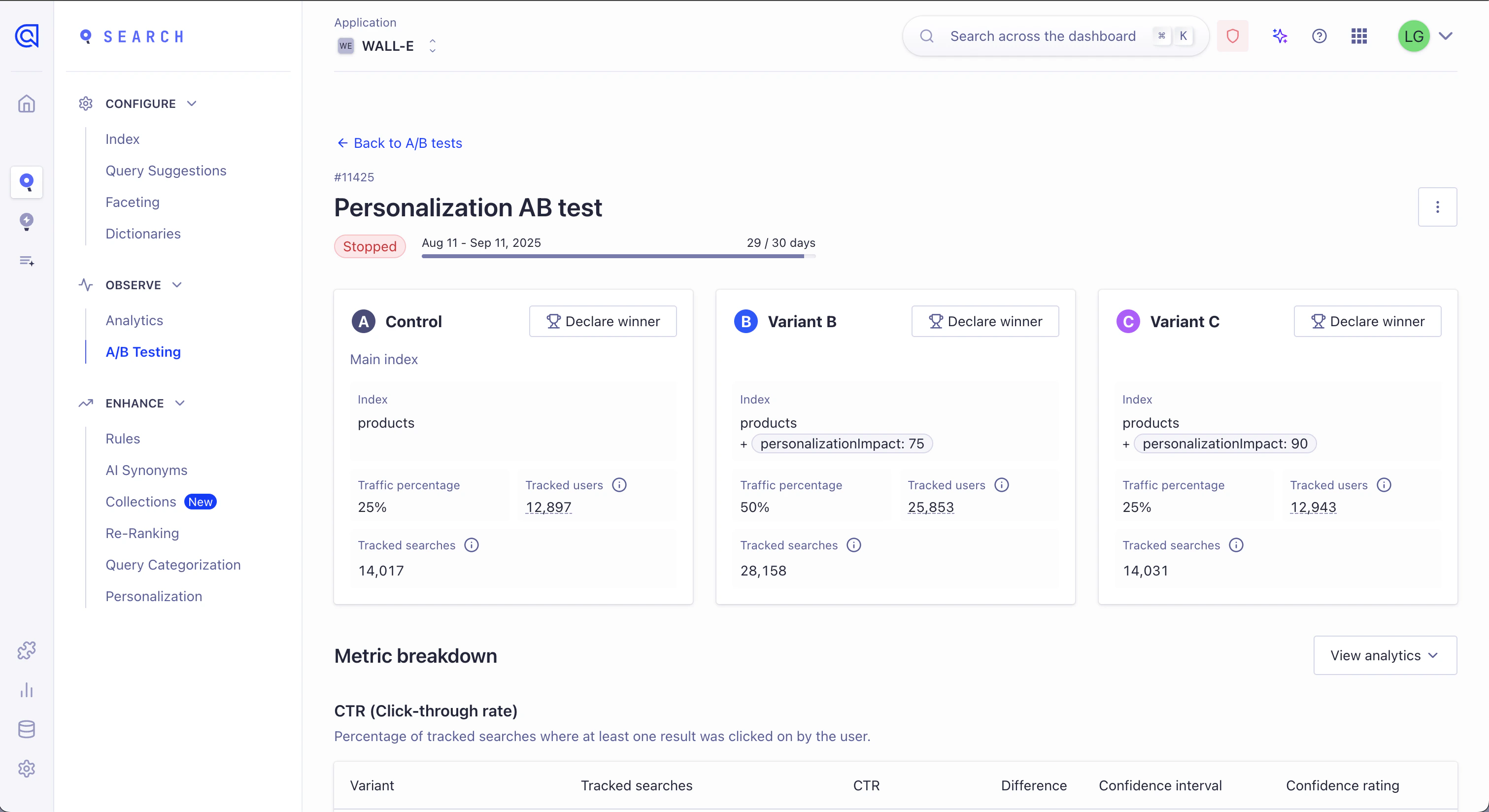
4. On the A/B test detail page, select the variant you want to choose as winner and click **Declare winner**.
Your A/B test must be at least 80% complete (based on its scheduled duration) before you can declare a winner.
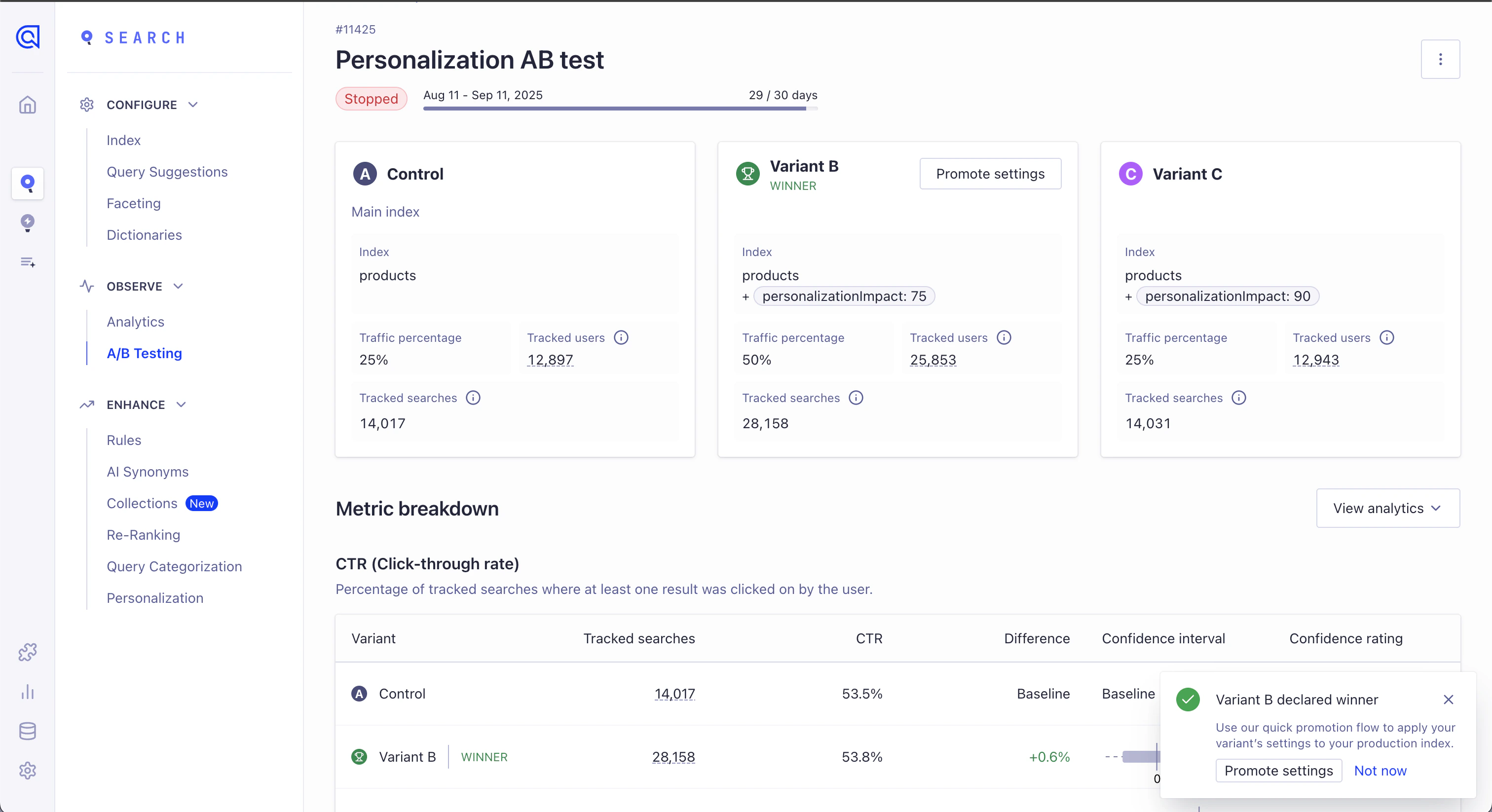
After declaring a winner, you can immediately adopt the winning configuration.
(Declaring a winner itself doesn't change your indices).
## Promote settings
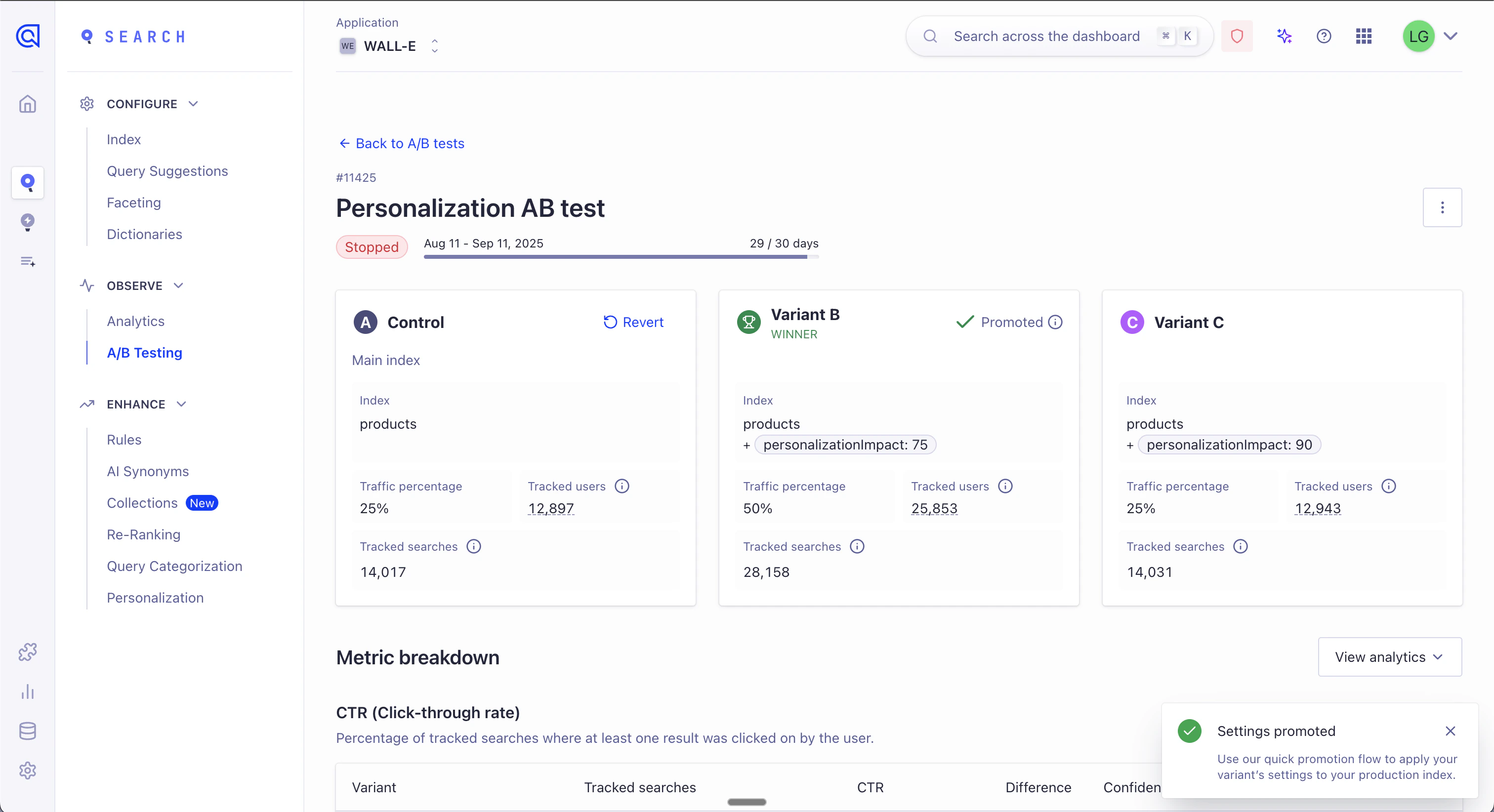
After declaring a winner, click **Promote settings** to copy the winning configuration to your control.
**Adoption window:** You have 14 days after your A/B test ends or you stopped it to adopt the winning configuration. After this period, you'll need to apply the settings manually to your index.
### Confirm promotion
To confirm updating the index settings:
* If the winning variant uses the same index as the control: Enter `COPY`
* If the winning variant uses a different index as the control: Enter `UPDATE`
Click **Confirm** to proceed.
## Configuration changes during adoption
The adoption action copies most configuration settings from your winning variant to your control, but there are some important limitations to be aware of.
### What gets applied
* Update the control's index settings to match the winning variant (or custom search parameters if variant index is the same as the control's).
* Toggle feature settings on or off to match the winner (limited to):
* [Dynamic Re-ranking](/doc/guides/algolia-ai/re-ranking)
* [NeuralSearch](/doc/guides/algolia-ai)
* [Personalization](/doc/guides/personalization/classic-personalization/what-is-personalization)
* [Advanced Personalization](/doc/guides/personalization/advanced-personalization/what-is-advanced-personalization)
### What doesn't get modified
* **Records**: Your actual data is never modified.
* **Synonyms and rules**: These remain unchanged during adoption.
* **Replica limitations**: If the control is a [replica](/doc/guides/managing-results/refine-results/sorting/in-depth/replicas) (**virtual or standard**), the system applies only the subset of index settings [listed here](/doc/guides/managing-results/refine-results/sorting/in-depth/replicas#supported-index-settings-for-virtual-replicas) during adoption.
## Verify adoption
After promoting settings, verify the changes work as expected:
1. **Check your index configuration** in the dashboard to confirm your control index received the winning variant's settings.
2. **Check your analytics** for any unexpected changes in the next 2 to 3 hours.
## Revert settings
You have a 15-day window after your A/B test ends or you stopped it to revert the adoption.
To revert to your previous settings:
1. Open the A/B test details page in the dashboard.
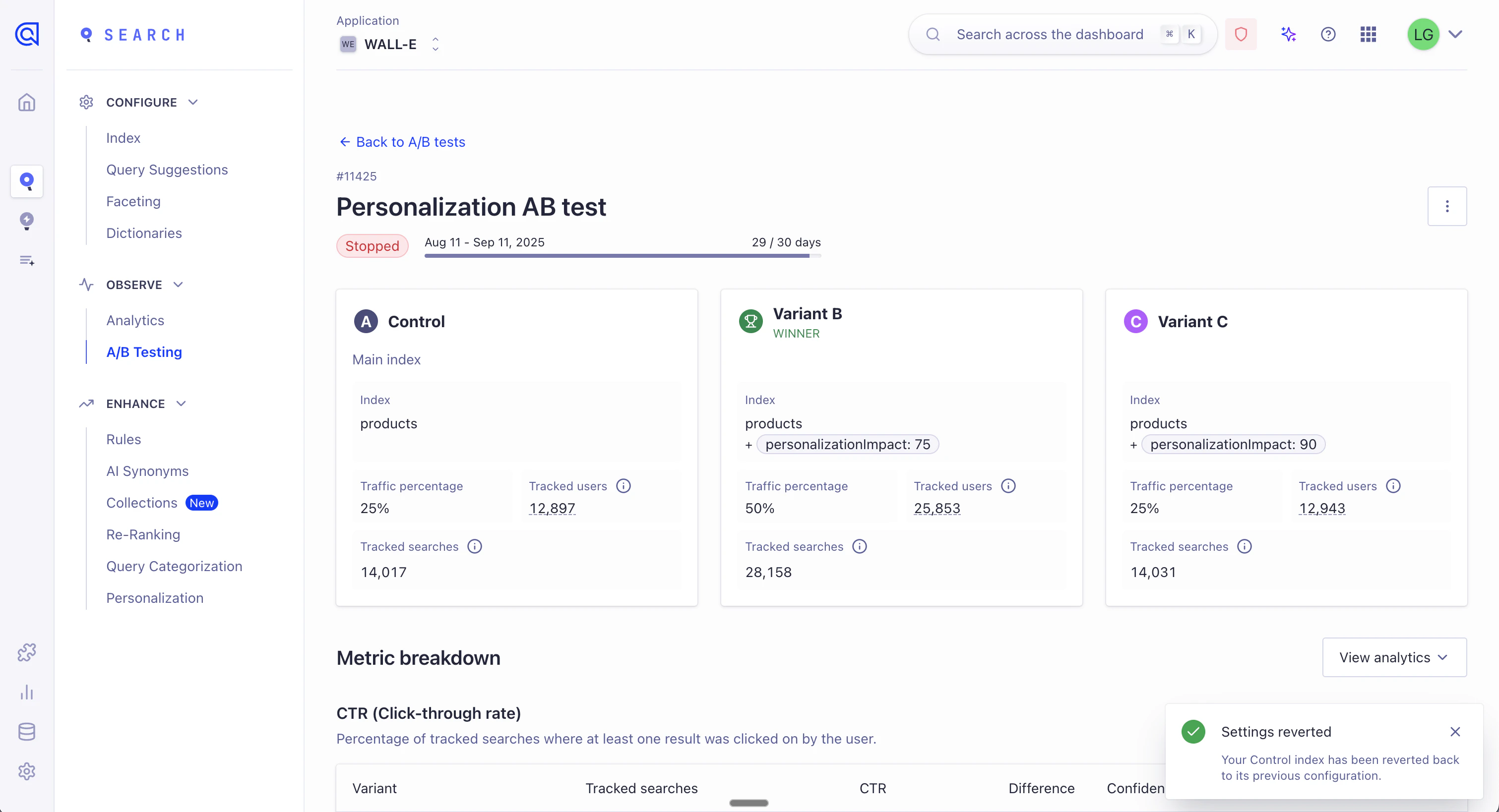
2. On the control variant, click **Revert**.
3. Confirm by entering `REVERT` and clicking **Confirm**.
4. The original winning variant still appears as the winner, but no longer shows as "promoted".
### Important reversion details
* After reverting, you won't be able to promote settings again for this A/B test.
* The same limitations that applied during initial adoption also apply when reverting (replica restrictions, feature settings constraints).
* Only the settings that were originally applied during adoption can be reverted.
**Need help?** If you experience unexpected behavior after reverting settings, contact [Algolia support](https://support.algolia.com/hc/en-us/requests/new).
## See also
* [Create and run an A/B test](/doc/guides/ab-testing/what-is-ab-testing/how-to/create-and-run-an-ab-test)
* [How to read your A/B test results](/doc/guides/ab-testing/how-to-read-your-a-b-test-results)
 Your A/B test must be at least 80% complete (based on its scheduled duration) before you can declare a winner.
After declaring a winner, you can immediately adopt the winning configuration.
(Declaring a winner itself doesn't change your indices).
## Promote settings
After declaring a winner, click **Promote settings** to copy the winning configuration to your control.
Your A/B test must be at least 80% complete (based on its scheduled duration) before you can declare a winner.
After declaring a winner, you can immediately adopt the winning configuration.
(Declaring a winner itself doesn't change your indices).
## Promote settings
After declaring a winner, click **Promote settings** to copy the winning configuration to your control.
 3. Confirm by entering `REVERT` and clicking **Confirm**.
4. The original winning variant still appears as the winner, but no longer shows as "promoted".
3. Confirm by entering `REVERT` and clicking **Confirm**.
4. The original winning variant still appears as the winner, but no longer shows as "promoted".
 ### Important reversion details
* After reverting, you won't be able to promote settings again for this A/B test.
* The same limitations that applied during initial adoption also apply when reverting (replica restrictions, feature settings constraints).
* Only the settings that were originally applied during adoption can be reverted.
### Important reversion details
* After reverting, you won't be able to promote settings again for this A/B test.
* The same limitations that applied during initial adoption also apply when reverting (replica restrictions, feature settings constraints).
* Only the settings that were originally applied during adoption can be reverted.