> ## Documentation Index
> Fetch the complete documentation index at: https://algolia.com/llms.txt
> Use this file to discover all available pages before exploring further.
# Use tools in Agent Studio
> Extend your agent's capabilities with built-in, client-side, and MCP tools.
export const Index = () =>
index
;
export const Filter = () =>
filter
;
export const Facet = () =>
facet
;
export const ConversionRate = () =>
conversion rate (CVR)
;
This is a **beta feature** according to [Algolia's Terms of Service ("Beta Services")](https://www.algolia.com/policies/terms/).
Tools let agents use real data and act on real systems.
Instead of relying solely on their training data, agents equipped with tools can search catalogs, fetch live data, call external APIs, and perform actions on behalf of users.
Without tools, agents can only use their training knowledge, which leads to:
* **Hallucinations**: inventing products, prices, or information that doesn't exist
* **Outdated answers**: using training data instead of current catalog information
* **Limited actions**: unable to interact with your app or external services
## Tools comparison
Agent Studio supports these tool types, each designed for different use cases:
| Tool type | What it does | Use when you need to |
| ----------------------------------------------------------------------------------------------------- | --------------------------------------------------------------------------------------------------- | -------------------------------------------------------------------------- |
| **[Algolia Search tool](/doc/guides/algolia-ai/agent-studio/how-to/tools/algolia-search)** (built-in) | Queries Algolia indices with natural language, a , or keywords | Search your indices for products, content, or data |
| **[Client-side tools](/doc/guides/algolia-ai/agent-studio/how-to/tools/client-side-tools)** | Run custom [OpenAI functions](https://platform.openai.com/docs/guides/function-calling) in your app | Access user data, trigger UI updates, or perform authenticated actions |
| **[MCP tools](/doc/guides/algolia-ai/agent-studio/how-to/tools/mcp-tools)** | Connect to external services with MCP | Use Algolia MCP Server or fetch external data (weather, CRM, stock levels) |
## How tools work
When a user interacts with an AI agent, the agent analyzes the message and selects tools based on:
* **Tool descriptions**: clear, specific descriptions help the LLM choose the right tool
* **Agent instructions**: system prompts that guide when to use each tool
* **Conversation context**: previous messages and tool results
```mermaid theme={"system"}
sequenceDiagram
participant User as user
participant LLM as LLM
participant AgentStudio as Agent Studio
participant Tool as Tool (Search/Client/MCP)
User->>AgentStudio: Send message
AgentStudio->>LLM: Process with available tools
LLM->>LLM: Decide which tools to call
LLM->>AgentStudio: Return tool call requests
AgentStudio->>Tool: Run tools
Tool->>AgentStudio: Return results
AgentStudio->>LLM: Process tool results
LLM->>User: Generate final response
```
**By default, Algolia Agent Studio automatically provides the context needed for tools to work out of the box.**
It discovers your data (facets, searchable attributes) and enriches tool descriptions so agents understand what's available.
At runtime, the agent dynamically decides which parameters to use based on the user's query. These **runtime parameters** (like search queries, filters, and `hitsPerPage`) change with every request and can't be predefined.
For more granular control, set **predefined parameters** when adding tools with the [Agent Studio API](/doc/rest-api/agent-studio) or using **Other tools** in the [Agent Studio dashboard](https://dashboard.algolia.com/generativeAi/agent-studio/agents).
These constraints apply to every tool call, such as always filtering out out-of-stock items or limiting retrieved attributes.
At runtime, the agent dynamically determines parameters for each request based on the user's query and conversation context. You cannot predefine these values because they change with every interaction.
**Common runtime parameters:**
* **Search query text**: "running shoes", "laptops under \$1000"
* **Facet filters**: `category:electronics`, `brand:Nike AND color:blue`
* **hitsPerPage**: number of results to retrieve (1-100+)
* **Facet values**: which specific to query
In this example, the agent decides `filters` and `hitsPerPage` dynamically:
```json JSON icon=braces theme={"system"}
{
"type": "algolia_search_index",
"indices": [
{
"index": "products",
"description": "Product catalog"
}
]
}
```
When a user asks "Show me running shoes under \$100", the agent decides at runtime:
* Query: `"running shoes"`
* Facet filters: `category:shoes AND price<100`
* hitsPerPage: `20` (default)
When a user asks "Which categories have the most products?", the agent might decide:
* Query: `""`
* Facet filters: none
* hitsPerPage: `0` (retrieve facets only, no hits)
* facets: `["category"]`
**For built-in Algolia tools only**:
Agent Studio automatically injects index metadata without manual setup.
**What's automatically discovered:**
* **Facets**: all configured facets in your index settings
* **Searchable attributes**: attributes the LLM can mention in descriptions
* **Analytics data**: historical query patterns (when available)
**How automatic metadata enrichment works:**
1. When you add an Algolia Search tool, Agent Studio calls the Algolia Search API
2. It retrieves `attributesForFaceting`, `searchableAttributes`, and other index settings
3. This metadata is automatically injected into the tool description sent to the LLM
4. The LLM understands which facets exist without you manually listing them
**Example:**
Your configuration:
```json JSON icon=braces theme={"system"}
{
"index": "products",
"description": "Ecommerce product catalog"
}
```
What the LLM receives:
```txt theme={"system"}
Ecommerce product catalog
Available facets: brand, category, color, size, price_range
Searchable attributes: title, description, brand
```
**Benefits:**
* Manual facet configuration isn't needed
* Automatically stays in sync with index changes
* Reduces configuration errors
* Improves tool call accuracy
Predefined parameters are constraints you set at configuration time that apply to every tool call. These are useful for enforcing business rules, limiting retrieved data, or applying consistent filters.
**When to use predefined parameters:**
* Always filter out out-of-stock items
* Limit retrieved attributes to reduce token costs
* Apply consistent ranking or relevance rules
* Configure faceting behaviour
**Configuration methods:**
* **[Agent Studio API](/doc/rest-api/agent-studio)**: full control over all parameters
* **[Other tools](https://dashboard.algolia.com/generativeAi/agent-studio/agents)** option in the Algolia dashboard\*\*. JSON configuration for advanced settings.
For example:
```json JSON icon=braces theme={"system"}
{
"type": "algolia_search_index",
"indices": [
{
"index": "products",
"description": "Product catalog",
"searchParameters": {
"filters": "inStock:true",
"attributesToRetrieve": ["title", "price", "image"]
}
}
]
}
```
In this example:
* **Predefined**: `filters: "inStock:true"` (always applied), `attributesToRetrieve` (limits fields)
* **Runtime**: query text, facet filters, hitsPerPage (decided by agent)
```json JSON icon=braces theme={"system"}
{
"type": "algolia_search_index",
"indices": [
{
"index": "products",
"description": "Product catalog",
"searchParameters": {
"facets": ["*"],
"maxValuesPerFacet": 100,
"hitsPerPage": 0
}
}
]
}
```
By setting `hitsPerPage: 0` and `facets: ["*"]`, the agent receives all facet values (for example, `brand: ["Nike", "Adidas", "Puma"]`, `color: ["red", "blue", "black"]`) without retrieving actual products.
This makes the agent aware of all valid filter options, improving accuracy when users ask questions like "Which categories have the most products?" or "Show me all available colours".
**Common predefined parameters:**
* `filters`: always-applied filter conditions
* `attributesToRetrieve`: limit returned fields
* `facets`: which facets to expose
* `maxValuesPerFacet`: limit facet value counts
* `hitsPerPage`: set to `0` for facet-only queries
* `enableRules`: enable/disable query rules
Understanding these concepts helps you design tools that agents can use reliably and efficiently.
## Business value unlocked by tools
**Problem**: agents using only training data provide outdated or invented information.
**Solution**: Algolia Search tool queries your live index, ensuring accurate, current responses.
**Example**: "What Christian Siriano cases do you have?" searches your actual product catalog instead of guessing.
**Business impact**:
* Eliminate hallucinations and incorrect product information
* Always reflect current inventory and pricing
* Build user trust with accurate, grounded responses
**Problem**: generic responses that don't account for user context.
**Solution**: client-side tools access user-specific data like shopping cart contents, order history, and preferences.
**Example**: "What's in my cart?" retrieves the actual user's cart, not a generic response.
**Business impact**:
* Increases with personalised recommendations
* Reduce support costs with context-aware responses
* Improve customer satisfaction through relevant interactions
**Problem**: agents can't interact with external systems or third-party data.
**Solution**: MCP tools connect to weather APIs, inventory systems, CRMs, and more.
**Example**: "What gear should I bring for hiking in Seattle this weekend?" uses a weather API to suggest appropriate outdoor gear from your catalog.
**Business impact**:
* Unlock new use cases by combining multiple data sources
* Provide context-aware recommendations based on external factors
* Create differentiated experiences competitors can't replicate
**Problem**: agents can only provide information, not take action.
**Solution**: client-side tools carry out actions like adding items to a shopping cart or applying filters.
**Example**: "Add this laptop to my cart" actually adds the product, not just confirms it's possible.
**Business impact**:
* Reduce friction in the purchase journey
* Increase conversion with seamless cart management
* Enable automated shopping experiences
**Problem**: sequential tool calls create delays and consume more tokens through multiple inference rounds.
**Solution**: Agent Studio supports parallel tool calling, where the LLM can invoke multiple tools simultaneously and process all results in a single inference step.
**Example**: "Compare prices for running shoes across our outlet and premium stores" calls both indices at once, rather than sequentially, halving response time and token usage.
**Business impact**:
* Reduce response latency for complex queries requiring multiple data sources
* Lower token consumption and LLM costs by eliminating repeated tool calls (agentic loops)
* Improve user experience with faster, more efficient responses
This capability depends on the selected LLM model but most support it by default.
## Test tools in live preview
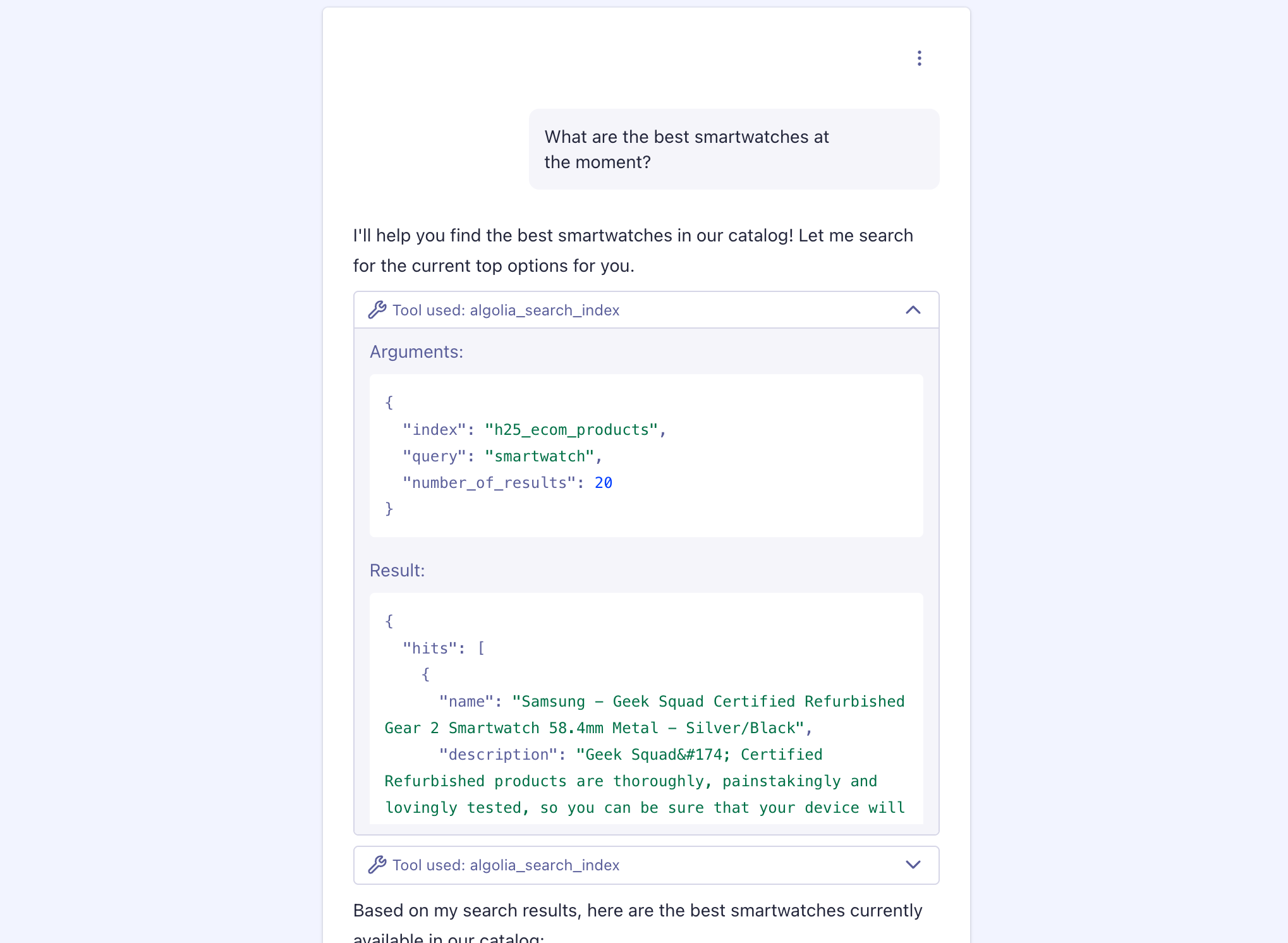
After configuring tools, check they work using the **Live preview** panel in the [Agent Studio dashboard](/doc/guides/algolia-ai/agent-studio/how-to/dashboard#test-your-agent).
Send a test message that should trigger a tool call.
When the agent calls a tool, you'll see an expandable tool indicator in the conversation that shows:
* **Tool used**: the tool the agent used (for example, `algolia_search_index`)
* **Arguments**: the parameters the agent sent (index name, query, filters, limits)
* **Result**: the data the tool returned (search hits, product details, API responses)
Click the tool indicator to expand and inspect the full request and response details.
 ### Debug your tools
* **Tool not called**: verify tool descriptions and agent instructions are clear and specific
* **Incorrect parameters**: check tool parameter definitions, descriptions, and required field constraints
* **Unexpected response format**: test tool implementation and ensure data structure matches schema
* **Agent misinterprets results**: refine tool descriptions or add examples in agent instructions
* **Tool timeout or error**: review server logs, authentication credentials, and network connectivity
## Optimize tool usage
* **Start simple**: begin with one Algolia Search tool, test thoroughly, then add complexity only when needed. Using more than 10 tools can reduce agent reliability.
* **Write clear descriptions**: use specific descriptions like "Ecommerce product catalog with electronics, clothing, and home goods" instead of generic ones like "Products". Clear descriptions improve agent decision-making.
* **Limit tool count**: aim for 3-5 tools per agent. More than 10-15 tools can reduce accuracy as each tool increases cognitive load.
* **Test incrementally**: add one tool at a time and verify it works before adding more. This isolates issues and prevents compounding complexity.
## See also
* [Algolia Search tool](/doc/guides/algolia-ai/agent-studio/how-to/tools/algolia-search)
* [Client-side tools](/doc/guides/algolia-ai/agent-studio/how-to/tools/client-side-tools)
* [MCP tools](/doc/guides/algolia-ai/agent-studio/how-to/tools/mcp-tools)
* [Security and credentials](/doc/guides/algolia-ai/agent-studio/how-to/tools/security)
### Debug your tools
* **Tool not called**: verify tool descriptions and agent instructions are clear and specific
* **Incorrect parameters**: check tool parameter definitions, descriptions, and required field constraints
* **Unexpected response format**: test tool implementation and ensure data structure matches schema
* **Agent misinterprets results**: refine tool descriptions or add examples in agent instructions
* **Tool timeout or error**: review server logs, authentication credentials, and network connectivity
## Optimize tool usage
* **Start simple**: begin with one Algolia Search tool, test thoroughly, then add complexity only when needed. Using more than 10 tools can reduce agent reliability.
* **Write clear descriptions**: use specific descriptions like "Ecommerce product catalog with electronics, clothing, and home goods" instead of generic ones like "Products". Clear descriptions improve agent decision-making.
* **Limit tool count**: aim for 3-5 tools per agent. More than 10-15 tools can reduce accuracy as each tool increases cognitive load.
* **Test incrementally**: add one tool at a time and verify it works before adding more. This isolates issues and prevents compounding complexity.
## See also
* [Algolia Search tool](/doc/guides/algolia-ai/agent-studio/how-to/tools/algolia-search)
* [Client-side tools](/doc/guides/algolia-ai/agent-studio/how-to/tools/client-side-tools)
* [MCP tools](/doc/guides/algolia-ai/agent-studio/how-to/tools/mcp-tools)
* [Security and credentials](/doc/guides/algolia-ai/agent-studio/how-to/tools/security)