> ## Documentation Index
> Fetch the complete documentation index at: https://algolia.com/llms.txt
> Use this file to discover all available pages before exploring further.
# Upload events from a CSV file
> Learn how you can upload historical user events to Algolia Recommend to get started quicker.
export const Application = () =>
application
;
export const AlgoliaRecommend = () => ;
This is a **beta feature** according to [Algolia's Terms of Service ("Beta Services")](https://www.algolia.com/policies/terms/).
Capturing events [through the Insights API](/doc/guides/sending-events/getting-started) is important
to continuously train and improve the Recommend models.
Collecting enough events can take some time.
You can import past user events from a CSV file to benefit from Recommend earlier.
## Format of the CSV file with historical events
The CSV file with historical events must have the following format:
* The CSV file must be smaller than 100 MB.
* The first row must contain the strings `userToken`, `timestamp`, `objectID`, `eventType`, and `eventName`.
Extra columns are ignored.
* Each row represents an event tied to a single `objectID`.
* The timestamps should cover a period of **at least 30 days**.
* Events older than 90 days are ignored.
Some programs like Microsoft Excel can add invisible characters when exporting a CSV file.
They might not be visible in regular text editors. The easiest way to find and remove
these characters is by using a code editor such as Visual Studio Code.
Each event must have the following properties:
| Property | Description |
| ----------- | ---------------------------------------------------------------------------------------------------------------------------------------- |
| `userToken` | A unique identifier for the user session |
| `timestamp` | The date of the event in a standard format: [ISO8601 or RFC3339](https://en.wikipedia.org/wiki/ISO_8601#RFCs) (with or without the time) |
| `objectID` | A unique identifier for the item the event is tied to |
| `eventType` | Either "click" or "conversion" |
| `eventName` | A name for the event, which can be the same as `eventType` |
For more information, see [Send events properties](/doc/rest-api/insights/push-events).
## Upload historical events for Recommend
To import historical events from a CSV file, follow these steps:
1. Go to the [Algolia dashboard](https://dashboard.algolia.com/explorer/browse) and select your Algolia .
2. On the left sidebar, select **Recommend**.
3. Select a model you want to train and click **Start using**.
4. In the **Select data source** section, select an Algolia index as a source for your recommendations.
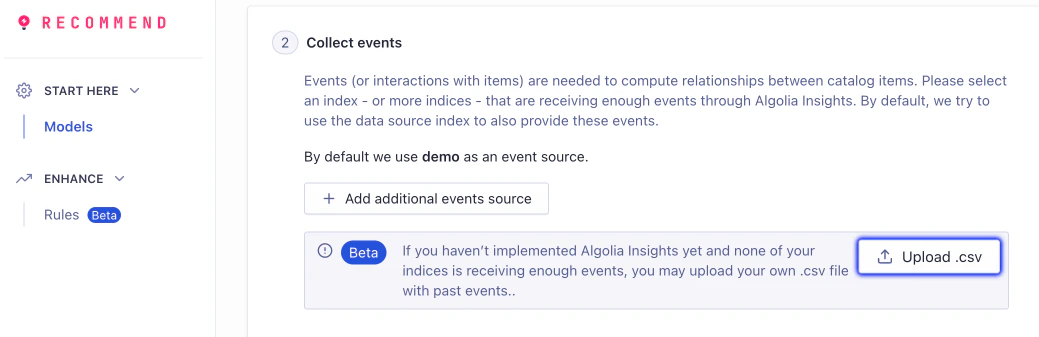
5. In the **Collect events** section, click **Upload .csv** to upload your CSV file with the historical events.
When you've collected enough [click and conversion events](/doc/guides/sending-events),
Algolia Recommend stops using the events from the CSV file.
Only the user-generated events are used to train the model.
You can also **re-upload a CSV file**.
The training only takes the newer file into account and discards the old events.
## Export events from Google Analytics 360 with BigQuery
If you track user events with Google Analytics,
you can export these events with BigQuery.
You can then save these events in a CSV file which you can import in the Algolia dashboard to start training your Recommend models.
### Before you begin
Before you can export your events from Google Analytics with BigQuery,
you must meet the following requirements:
* A [Google Analytics 360](https://marketingplatform.google.com/about/analytics-360/) account with a website tracking ID
* [Enhanced Ecommerce](https://support.google.com/analytics/answer/6014841) activated and set up for your website
* [BigQuery Export enabled in Google Analytics 360](https://support.google.com/analytics/answer/3416092) for setting up daily imports into BigQuery
* The `productSKU` property from Google Analytics 360 must match the `objectID` property of your Algolia records.
### Set up a BigQuery export
To export user events for training Algolia Recommend models,
adapt the following query.
Replace the following variables:
* `GCP_PROJECT_ID`: the name of the project that holds the Analytics 360 data in BigQuery
* `BQ_DATASET`: the name of the dataset that stores the exported events
* `DATE_FROM` and `DATE_TO` with the corresponding dates in `YYYY-MM-DD` format for a time window of at least 30 days.
You can run this query in the SQL workplace for BigQuery or use one of the [BigQuery API client libraries](https://cloud.google.com/bigquery/docs/reference/libraries).
```sql SQL icon="database" theme={"system"}
WITH ecommerce_data AS (
SELECT
fullVisitorId as user_token,
TIMESTAMP_SECONDS(visitStartTime + CAST(hits.time/1000 AS INT64)) as timestamp,
products.productSKU as object_ids,
CASE WHEN hits.eCommerceAction.action_type = "2" THEN 'click'
WHEN hits.eCommerceAction.action_type = "3" THEN 'click'
WHEN hits.eCommerceAction.action_type = "5" THEN 'click'
WHEN hits.eCommerceAction.action_type = "6" THEN 'conversion'
END
AS event_type,
CASE WHEN hits.eCommerceAction.action_type = "2" THEN "product_view"
WHEN hits.eCommerceAction.action_type = "3" THEN "add_to_cart"
WHEN hits.eCommerceAction.action_type = "5" THEN "checkout"
WHEN hits.eCommerceAction.action_type = "6" THEN "purchase"
END
AS event_name
FROM
`GCP_PROJECT_ID.BQ_DATASET.ga_sessions_*`,
UNNEST(hits) as hits,
UNNEST(hits.product) as products
WHERE
_TABLE_SUFFIX BETWEEN FORMAT_DATE('%Y%m%d',DATE('DATE_FROM')) AND FORMAT_DATE('%Y%m%d',DATE('DATE_TO'))
AND
fullVisitorId IS NOT NULL
AND hits.eCommerceAction.action_type in UNNEST(["2", "3", "5", "6"])
),
dedup_ecommerce_data AS (
SELECT user_token as userToken,
timestamp, event_name as eventName,
event_type as eventType,
object_id as objectID
FROM ecommerce_data
GROUP BY userToken, timestamp, eventName, eventType, objectID
)
select * from dedup_ecommerce_data
```
 When you've collected enough [click and conversion events](/doc/guides/sending-events),
Algolia Recommend stops using the events from the CSV file.
Only the user-generated events are used to train the model.
You can also **re-upload a CSV file**.
The training only takes the newer file into account and discards the old events.
## Export events from Google Analytics 360 with BigQuery
If you track user events with Google Analytics,
you can export these events with BigQuery.
You can then save these events in a CSV file which you can import in the Algolia dashboard to start training your Recommend models.
### Before you begin
Before you can export your events from Google Analytics with BigQuery,
you must meet the following requirements:
* A [Google Analytics 360](https://marketingplatform.google.com/about/analytics-360/) account with a website tracking ID
* [Enhanced Ecommerce](https://support.google.com/analytics/answer/6014841) activated and set up for your website
* [BigQuery Export enabled in Google Analytics 360](https://support.google.com/analytics/answer/3416092) for setting up daily imports into BigQuery
* The `productSKU` property from Google Analytics 360 must match the `objectID` property of your Algolia records.
### Set up a BigQuery export
To export user events for training Algolia Recommend models,
adapt the following query.
Replace the following variables:
* `GCP_PROJECT_ID`: the name of the project that holds the Analytics 360 data in BigQuery
* `BQ_DATASET`: the name of the dataset that stores the exported events
* `DATE_FROM` and `DATE_TO` with the corresponding dates in `YYYY-MM-DD` format for a time window of at least 30 days.
You can run this query in the SQL workplace for BigQuery or use one of the [BigQuery API client libraries](https://cloud.google.com/bigquery/docs/reference/libraries).
```sql SQL icon="database" theme={"system"}
WITH ecommerce_data AS (
SELECT
fullVisitorId as user_token,
TIMESTAMP_SECONDS(visitStartTime + CAST(hits.time/1000 AS INT64)) as timestamp,
products.productSKU as object_ids,
CASE WHEN hits.eCommerceAction.action_type = "2" THEN 'click'
WHEN hits.eCommerceAction.action_type = "3" THEN 'click'
WHEN hits.eCommerceAction.action_type = "5" THEN 'click'
WHEN hits.eCommerceAction.action_type = "6" THEN 'conversion'
END
AS event_type,
CASE WHEN hits.eCommerceAction.action_type = "2" THEN "product_view"
WHEN hits.eCommerceAction.action_type = "3" THEN "add_to_cart"
WHEN hits.eCommerceAction.action_type = "5" THEN "checkout"
WHEN hits.eCommerceAction.action_type = "6" THEN "purchase"
END
AS event_name
FROM
`GCP_PROJECT_ID.BQ_DATASET.ga_sessions_*`,
UNNEST(hits) as hits,
UNNEST(hits.product) as products
WHERE
_TABLE_SUFFIX BETWEEN FORMAT_DATE('%Y%m%d',DATE('DATE_FROM')) AND FORMAT_DATE('%Y%m%d',DATE('DATE_TO'))
AND
fullVisitorId IS NOT NULL
AND hits.eCommerceAction.action_type in UNNEST(["2", "3", "5", "6"])
),
dedup_ecommerce_data AS (
SELECT user_token as userToken,
timestamp, event_name as eventName,
event_type as eventType,
object_id as objectID
FROM ecommerce_data
GROUP BY userToken, timestamp, eventName, eventType, objectID
)
select * from dedup_ecommerce_data
```
When you've collected enough [click and conversion events](/doc/guides/sending-events),
Algolia Recommend stops using the events from the CSV file.
Only the user-generated events are used to train the model.
You can also **re-upload a CSV file**.
The training only takes the newer file into account and discards the old events.
## Export events from Google Analytics 360 with BigQuery
If you track user events with Google Analytics,
you can export these events with BigQuery.
You can then save these events in a CSV file which you can import in the Algolia dashboard to start training your Recommend models.
### Before you begin
Before you can export your events from Google Analytics with BigQuery,
you must meet the following requirements:
* A [Google Analytics 360](https://marketingplatform.google.com/about/analytics-360/) account with a website tracking ID
* [Enhanced Ecommerce](https://support.google.com/analytics/answer/6014841) activated and set up for your website
* [BigQuery Export enabled in Google Analytics 360](https://support.google.com/analytics/answer/3416092) for setting up daily imports into BigQuery
* The `productSKU` property from Google Analytics 360 must match the `objectID` property of your Algolia records.
### Set up a BigQuery export
To export user events for training Algolia Recommend models,
adapt the following query.
Replace the following variables:
* `GCP_PROJECT_ID`: the name of the project that holds the Analytics 360 data in BigQuery
* `BQ_DATASET`: the name of the dataset that stores the exported events
* `DATE_FROM` and `DATE_TO` with the corresponding dates in `YYYY-MM-DD` format for a time window of at least 30 days.
You can run this query in the SQL workplace for BigQuery or use one of the [BigQuery API client libraries](https://cloud.google.com/bigquery/docs/reference/libraries).
```sql SQL icon="database" theme={"system"}
WITH ecommerce_data AS (
SELECT
fullVisitorId as user_token,
TIMESTAMP_SECONDS(visitStartTime + CAST(hits.time/1000 AS INT64)) as timestamp,
products.productSKU as object_ids,
CASE WHEN hits.eCommerceAction.action_type = "2" THEN 'click'
WHEN hits.eCommerceAction.action_type = "3" THEN 'click'
WHEN hits.eCommerceAction.action_type = "5" THEN 'click'
WHEN hits.eCommerceAction.action_type = "6" THEN 'conversion'
END
AS event_type,
CASE WHEN hits.eCommerceAction.action_type = "2" THEN "product_view"
WHEN hits.eCommerceAction.action_type = "3" THEN "add_to_cart"
WHEN hits.eCommerceAction.action_type = "5" THEN "checkout"
WHEN hits.eCommerceAction.action_type = "6" THEN "purchase"
END
AS event_name
FROM
`GCP_PROJECT_ID.BQ_DATASET.ga_sessions_*`,
UNNEST(hits) as hits,
UNNEST(hits.product) as products
WHERE
_TABLE_SUFFIX BETWEEN FORMAT_DATE('%Y%m%d',DATE('DATE_FROM')) AND FORMAT_DATE('%Y%m%d',DATE('DATE_TO'))
AND
fullVisitorId IS NOT NULL
AND hits.eCommerceAction.action_type in UNNEST(["2", "3", "5", "6"])
),
dedup_ecommerce_data AS (
SELECT user_token as userToken,
timestamp, event_name as eventName,
event_type as eventType,
object_id as objectID
FROM ecommerce_data
GROUP BY userToken, timestamp, eventName, eventType, objectID
)
select * from dedup_ecommerce_data
```