> ## Documentation Index
> Fetch the complete documentation index at: https://algolia.com/llms.txt
> Use this file to discover all available pages before exploring further.
# Refine recommendations with rules
> Rules let you refine and curate your recommendations.
export const Application = () =>
application
;
export const AlgoliaRecommend = () => ;
export const AcademyLink = ({href, title}) => {
return Learn more about: {title};
};
Recommend rules are if-then statements that let you refine and curate your recommendations without editing code.
When a **condition** (if) is met, the rule's **consequences** (then) are applied to the recommendations.
The number of rules you can apply to a recommendation scenario depends on your [Algolia plan](https://www.algolia.com/pricing/).
## Examples
Examples for rules include:
* Show related items from the same category as the viewed product. Create a rule "Boost items" as consequence, where you select the category attribute and the `sameAsViewedItem` value. This doesn't exclude recommendations with different categories, which can be helpful if you have categories with only few recommendations.
* Exclude recommendations for out-of-stock products. For example, if your index has an `inventory` attribute as count, you can create a rule with "Filter items" as consequence, where you select `inventory > 0` as filter condition. This excludes all recommendations with 0 or undefined inventory.
* Curate recommendations by pinning them. For example, if you want to make best sellers or newly launched items show up first as recommendations, create a rule with the "Pin items" consequence and select specific items and their position in the list of recommendations.
* For all products from a specific category, boost items of a specific type. For example, in the category "hair" (`category:hair`), recommend all shampoos (`product_type:shampoo`) first. Create a rule with the "Subset of source items" condition and select "`category` is `hair`". Add a "Boost items" consequence with "`product_type` is `shampoo`".
## Add rules to recommendations
1. Go to the [Algolia dashboard](https://dashboard.algolia.com/explorer/browse) and select your Algolia .
2. On the left sidebar, select **Recommend**.
3. On the [**Rules**](https://dashboard.algolia.com/recommend/rules) page,
select the index and model to which you want to apply rules.
You can apply rules to trained Frequently Bought Together and Related Product models.
4. Click **+ New rule** and select the conditions when the rule should apply.
* **Any item is a source item.** The consequences of this rule apply to all recommendations.
* **Specific item is viewed.** The consequences of this rule apply only when recommendations for a specific item are retrieved.
* **Subset of source items.** The consequences of this rule apply to items that match a filter.
5. Optional: add a context for this rule. Contexts are additional constraints for rules. For more information, see [Context-only rules](/doc/guides/managing-results/rules/rules-overview#context-only-rules).
6. Under **Consequence(-s)**, click **Add consequence** and select what to do when the conditions are met:
* **Pin items**. Put one or more selected items at a specific position in the list of recommendations (`1` is first)
* **Hide items**. Exclude one or more selected items from the list of recommendations.
* **Boost items**. Enter filter criteria and show matching items before non-matching items in the list of recommendations.
* **Bury items**. Enter filter criteria and show matching items after non-matching items in the list of recommendations.
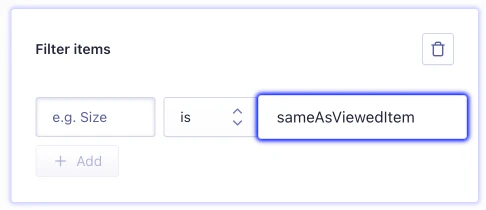
* **Filter items**. Enter filter criteria and only include matching items in the list of recommendations.
To only show items with the same attribute value as the viewed item, set the value to `sameAsViewedItem`.
7. Optional: add a description for the rule and select a timeframe, when the rule should be active.
{/* vale Google.Headings = NO */}
## Recommend rules precedence algorithm
Algolia uses the following tie-breaking algorithm to determine which rules should apply first:
1. Rules for which you've specified a context.
2. Rules with **Filter items**, **Boost items**, or **Bury items** consequences.
3. Rules with a specified validity time frame.
4. If there are still tied rules, the one with the lowest object ID (alphabetically ordered) wins.
## Debug applied rules
To see which rules are applied to a Recommend query,
pass `getRankingInfo: true` in the `queryParameters` option.
```js JavaScript icon=code theme={"system"}
recommendClient.getRecommendations({
requests: [
{
indexName: 'YourIndexName',
objectID: 'uniqueID',
model: 'related-products', // or bought-together
queryParameters: {
getRankingInfo: true,
}
}
]
})
```
The response includes an `appliedRules` array with the object IDs of all rules that were applied to the recommendations:
```jsonc JSON icon=braces theme={"system"}
{
"results": [
{
"appliedRules": [
{
"objectID": "rr-1234567890123"
},
{
"objectID": "rr-09876543210987"
}
],
// ... other response fields
}
]
}
```
This is useful for debugging and understanding why certain recommendations appear.
For more information, see [Debugging rules](/doc/guides/managing-results/rules/rules-overview/in-depth/debugging-rules/).

 7. Optional: add a description for the rule and select a timeframe, when the rule should be active.
{/* vale Google.Headings = NO */}
## Recommend rules precedence algorithm
Algolia uses the following tie-breaking algorithm to determine which rules should apply first:
1. Rules for which you've specified a context.
2. Rules with **Filter items**, **Boost items**, or **Bury items** consequences.
3. Rules with a specified validity time frame.
4. If there are still tied rules, the one with the lowest object ID (alphabetically ordered) wins.
## Debug applied rules
To see which rules are applied to a Recommend query,
pass `getRankingInfo: true` in the `queryParameters` option.
```js JavaScript icon=code theme={"system"}
recommendClient.getRecommendations({
requests: [
{
indexName: 'YourIndexName',
objectID: 'uniqueID',
model: 'related-products', // or bought-together
queryParameters: {
getRankingInfo: true,
}
}
]
})
```
The response includes an `appliedRules` array with the object IDs of all rules that were applied to the recommendations:
```jsonc JSON icon=braces theme={"system"}
{
"results": [
{
"appliedRules": [
{
"objectID": "rr-1234567890123"
},
{
"objectID": "rr-09876543210987"
}
],
// ... other response fields
}
]
}
```
This is useful for debugging and understanding why certain recommendations appear.
For more information, see [Debugging rules](/doc/guides/managing-results/rules/rules-overview/in-depth/debugging-rules/).
7. Optional: add a description for the rule and select a timeframe, when the rule should be active.
{/* vale Google.Headings = NO */}
## Recommend rules precedence algorithm
Algolia uses the following tie-breaking algorithm to determine which rules should apply first:
1. Rules for which you've specified a context.
2. Rules with **Filter items**, **Boost items**, or **Bury items** consequences.
3. Rules with a specified validity time frame.
4. If there are still tied rules, the one with the lowest object ID (alphabetically ordered) wins.
## Debug applied rules
To see which rules are applied to a Recommend query,
pass `getRankingInfo: true` in the `queryParameters` option.
```js JavaScript icon=code theme={"system"}
recommendClient.getRecommendations({
requests: [
{
indexName: 'YourIndexName',
objectID: 'uniqueID',
model: 'related-products', // or bought-together
queryParameters: {
getRankingInfo: true,
}
}
]
})
```
The response includes an `appliedRules` array with the object IDs of all rules that were applied to the recommendations:
```jsonc JSON icon=braces theme={"system"}
{
"results": [
{
"appliedRules": [
{
"objectID": "rr-1234567890123"
},
{
"objectID": "rr-09876543210987"
}
],
// ... other response fields
}
]
}
```
This is useful for debugging and understanding why certain recommendations appear.
For more information, see [Debugging rules](/doc/guides/managing-results/rules/rules-overview/in-depth/debugging-rules/).