> ## Documentation Index
> Fetch the complete documentation index at: https://algolia.com/llms.txt
> Use this file to discover all available pages before exploring further.
# Get started with Flutter Helper
> Build a cross-platform search experience with Flutter and the Algolia Flutter Helper library.
export const SearchQuery = () =>
search query
;
export const Index = () =>
index
;
export const Filter = () =>
filter
;
export const ApplicationID = () =>
application ID
;
export const APIKey = () =>
API key
;
This search experience includes:
* A search box to type your
* Statistics about the current search
* A list to display search results with infinite scrolling
* A refinement list to let users results
For more information about the library, see [Algolia Flutter Helper library](https://pub.dev/packages/algolia_helper_flutter).
## Prepare your project
Before you can use Algolia, you need an Algolia account.
You can [create a new one for free](https://dashboard.algolia.com/users/sign_up) or use the following credentials
for an example products dataset:
* : `latency`
* Search : `927c3fe76d4b52c5a2912973f35a3077`
* name: `STAGING_native_ecom_demo_products`
### Create a new Flutter app
In a terminal, run:
```sh Command line icon=square-terminal theme={"system"}
flutter create algoliasearch
```
### Add project dependencies
This tutorial uses the [Algolia Flutter Helper library](https://pub.dev/packages/algolia_helper_flutter) to integrate Algolia and the [Infinite Scroll Pagination](https://pub.dev/packages/infinite_scroll_pagination) library for infinite scrolling.
Add `algolia_helper_flutter` and `infinite_scroll_pagination` as dependencies to your project:
```yaml pubspec.yaml icon=braces theme={"system"}
dependencies:
algolia_helper_flutter: ^1.0.0
infinite_scroll_pagination: ^3.2.0
```
In a terminal, run:
```sh Command line icon=square-terminal theme={"system"}
flutter pub get
```
## Create a basic search interface
Build a basic search interface with a search box and a search metadata panel for showing the number of search results.
Open the file `./lib/main.dart` and look for the `_MyHomePageState` class.
Remove its sample variables and method declarations (`_counter`, `_incrementCounter`),
then import the Flutter Helper library:
```dart Dart icon=code theme={"system"}
import 'package:algolia_helper_flutter/algolia_helper_flutter.dart';
```
Add the `_productsSearcher` property of the `HitsSearcher` type with your Algolia credentials as parameters.
The `HitsSearcher` component performs search requests and obtains search results.
```dart Dart icon=code theme={"system"}
final _productsSearcher = HitsSearcher(
applicationID: 'latency',
apiKey: '927c3fe76d4b52c5a2912973f35a3077',
indexName: 'STAGING_native_ecom_demo_products',
);
```
Add the `_searchTextController` property to `_MyHomePageState`.
It controls and listens to the state of the `TextField` component you use as the search box.
```dart Dart icon=code theme={"system"}
final _searchTextController = TextEditingController();
```
Add a `SearchMetadata` class with the metadata of the latest search.
In this example, it only contains the `nbHits` value, which is the number of search results.
The `SearchMetadata` class also has a `fromResponse` factory method which extracts the `nbHits` value from the `SearchResponse`.
```dart Dart icon=code theme={"system"}
class SearchMetadata {
final int nbHits;
const SearchMetadata(this.nbHits);
factory SearchMetadata.fromResponse(SearchResponse response) =>
SearchMetadata(response.nbHits);
}
```
Add the `_searchMetadata` stream which listens to `_productSearcher` responses and transforms them to `SearchMetaData` instance.
```dart Dart icon=code theme={"system"}
Stream get _searchMetadata =>
_productsSearcher.responses.map(SearchMetadata.fromResponse);
```
Override the `build` method containing the user interface declaration.
The interface is based on the `Scaffold` component.
Add the `AppBar` with "Algolia and Flutter" as its title,
and the `Column` component as its body:
```dart Dart icon=code theme={"system"}
@override
Widget build(BuildContext context) {
return Scaffold(
appBar: AppBar(
title: const Text('Algolia and Flutter'),
),
body: Center(
child: Column(
children: [],
),
),
);
}
```
The `Column`'s body consists of three children:
the search box, the metadata panel and the hits list.
```dart Dart icon=code theme={"system"}
@override
Widget build(BuildContext context) {
return Scaffold(
appBar: AppBar(title: const Text('Algolia and Flutter')),
body: Center(
child: Column(
children: [
SizedBox(
height: 44,
child: TextField(
controller: _searchTextController,
decoration: const InputDecoration(
border: InputBorder.none,
hintText: 'Enter a search term',
prefixIcon: Icon(Icons.search),
),
),
),
],
),
),
);
}
```
Save your changes in the `main.dart` file,
then build and run your application by running `flutter run` in a terminal or [your development tool](https://docs.flutter.dev/get-started/test-drive).
In the simulator, you should see the app bar with title and the search box below.
Add a `Text` widget embedded in `Padding` and `StreamBuilder` widgets to show the search metadata.
The `StreamBuilder` widget ensures update of the `Text` on each `_searchMetadata` stream change.
```dart Dart icon=code theme={"system"}
StreamBuilder(
stream: _searchMetadata,
builder: (context, snapshot) {
if (!snapshot.hasData) {
return const SizedBox.shrink();
}
return Padding(
padding: const EdgeInsets.all(8.0),
child: Text('${snapshot.data!.nbHits} hits'),
);
},
)
```
Add `StreamBuilder` as the second child to the main `Column` widget.
```dart Dart icon=code theme={"system"}
@override
Widget build(BuildContext context) {
return Scaffold(
appBar: AppBar(title: const Text('Algolia and Flutter')),
body: Center(
child: Column(
children: [
SizedBox(
height: 44,
child: TextField(
controller: _searchTextController,
decoration: const InputDecoration(
border: InputBorder.none,
hintText: 'Enter a search term',
prefixIcon: Icon(Icons.search),
),
),
),
StreamBuilder(
stream: _searchMetadata,
builder: (context, snapshot) {
if (!snapshot.hasData) {
return const SizedBox.shrink();
}
return Padding(
padding: const EdgeInsets.all(8.0),
child: Text('${snapshot.data!.nbHits} hits'),
);
},
),
],
),
),
);
}
```
Build and run the app.
You might see the centered text with the hits count below the search box.
If you type into the search box, the displayed value remains unchanged.
This happens because the `_searchTextController` and `_productsSearcher` aren't connected.
To fix it, override the `initState` method of the `_MyHomePageState` class and add a listener to the `_searchTextController` that propagates the input text to the `_productsSearcher`.
```dart Dart icon=code theme={"system"}
void initState() {
super.initState();
_searchTextController.addListener(
() => _productsSearcher.query(_searchTextController.text),
);
}
```
The search metadata panel now updates dynamically on each change of the search box.
To free up resources, dispose the `_searchTextController` and `_productsSearcher` by overriding the `dispose` method of the `_MyHomePageState`.
```dart Dart icon=code theme={"system"}
@override
void dispose() {
_searchTextController.dispose();
_productsSearcher.dispose();
super.dispose();
}
```
## Results list and infinite scrolling
To show search results and their number with infinite scrolling:
Add a `Product` class that represents a search hit.
To keep this example simple,
it contains a name and an image URL field. Declare a `fromJson` constructor method for creating `Product` from a JSON string.
```dart Dart icon=code theme={"system"}
class Product {
final String name;
final String image;
Product(this.name, this.image);
static Product fromJson(Map json) {
return Product(json['name'], json['image_urls'][0]);
}
}
```
```dart Dart icon=code theme={"system"}
import 'package:infinite_scroll_pagination/infinite_scroll_pagination.dart';
```
Add the `_pagingController` component that handles the infinite scrolling logic as `_MyHomePageState` class property.
```dart Dart icon=code theme={"system"}
final PagingController _pagingController = PagingController(firstPageKey: 0);
```
To declare the `HitsPage` class, which represents a page of search results, call the `fromResponse` factory method which builds a `HitsPage` from a `SearchResponse`.
```dart Dart icon=code theme={"system"}
class HitsPage {
const HitsPage(this.items, this.pageKey, this.nextPageKey);
final List items;
final int pageKey;
final int? nextPageKey;
factory HitsPage.fromResponse(SearchResponse response) {
final items = response.hits.map(Product.fromJson).toList();
final isLastPage = response.page >= response.nbPages;
final nextPageKey = isLastPage ? null : response.page + 1;
return HitsPage(items, response.page, nextPageKey);
}
}
```
1. Add the `_searchPage` stream which listens to `_productSearcher` responses and transforms it to `HitsPage` object.
```dart Dart icon=code theme={"system"}
Stream get _searchPage => _productsSearcher.responses.map(HitsPage.fromResponse);
```
2. Add the `_hits` function to the `_MyHomePageState` class which builds the list of search results. It returns `PagedListView`, a component of the `infinite_scroll_pagination` library, taking `_pagingController` as parameter.
```dart Dart icon=code theme={"system"}
Widget _hits(BuildContext context) => PagedListView(
pagingController: _pagingController,
builderDelegate: PagedChildBuilderDelegate(
noItemsFoundIndicatorBuilder: (_) =>
const Center(child: Text('No results found')),
itemBuilder: (_, item, __) => Container(
color: Colors.white,
height: 80,
padding: const EdgeInsets.all(8),
child: Row(
children: [
SizedBox(width: 50, child: Image.network(item.image)),
const SizedBox(width: 20),
Expanded(child: Text(item.name)),
],
),
),
),
);
```
3. Add the results of the `_hits` function as the third child to the main `Column` widget embedded in the `Expanded` widget so that it can fill the available screen space.
```dart Dart icon=code theme={"system"}
Column(children: [
SizedBox(
height: 44,
child: TextField(
controller: _searchTextController,
decoration: const InputDecoration(
border: InputBorder.none,
hintText: 'Enter a search term',
prefixIcon: Icon(Icons.search),
),
)),
StreamBuilder(
stream: _searchMetadata,
builder: (context, snapshot) {
if (!snapshot.hasData) {
return const SizedBox.shrink();
}
return Padding(
padding: const EdgeInsets.all(8.0),
child: Text('${snapshot.data!.nbHits} hits'),
);
},
),
Expanded(
child: _hits(context),
)
],)
```
Build and run the app.
You can now see the loading indicator instead of search results.
This happens because the `_pagingController` and the `_productsSearcher` aren't connected.
To update the `_pagingController` whenever a new results page is fetched,
add a listener to `__searchPage` in the `initState` method.
Add a call to `_pagingController.refresh()` to the `_searchTextController` listener callback.
```dart Dart icon=code theme={"system"}
@override
void initState() {
super.initState();
_searchTextController.addListener(
() => _productsSearcher.applyState(
(state) => state.copyWith(query: _searchTextController.text, page: 0),
),
);
_searchPage
.listen((page) {
if (page.pageKey == 0) {
_pagingController.refresh();
}
_pagingController.appendPage(page.items, page.nextPageKey);
})
.onError((error) => _pagingController.error = error);
}
```
Build and run the app.
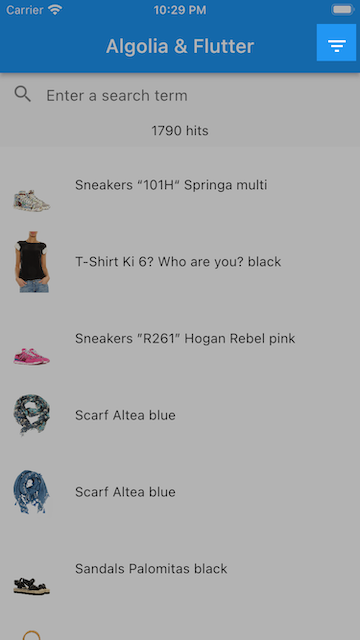
Now it displays the list of search results.
Scroll to the bottom.
Instead of the next results page the loading indicator appears.
Although `_pagingController` triggered a request for next page, this request wasn't processed.
To fix it, complete the `initState` method by adding a page request listener to `_pagingController`.
It triggers the loading of the next page in the `_productSearcher`.
```dart Dart icon=code theme={"system"}
@override
void initState() {
super.initState();
_searchTextController.addListener(
() => _productsSearcher.applyState(
(state) => state.copyWith(query: _searchTextController.text, page: 0),
),
);
_searchPage
.listen((page) {
if (page.pageKey == 0) {
_pagingController.refresh();
}
_pagingController.appendPage(page.items, page.nextPageKey);
})
.onError((error) => _pagingController.error = error);
_pagingController.addPageRequestListener(
(pageKey) =>
_productsSearcher.applyState((state) => state.copyWith(page: pageKey)),
);
}
```
Now infinite scrolling is working as expected.
You now get the basic search experience with search box, metadata, and results.
Consider disposing the `_pagingController` in the `dispose` method of the `_MyHomePageState` to free up the resources properly.
```dart Dart icon=code theme={"system"}
@override
void dispose() {
_searchTextController.dispose();
_productSearcher.dispose();
_pagingController.dispose();
super.dispose();
}
```
## Implement results filtering
To add an extra screen to implement filtering of the search results:
Enable search results filtering by adding a `FilterState` property to `_MyHomePageState`.
`FilterState` is a component that stores the state of applied filters and provides an interface to alter the state.
```dart Dart icon=code theme={"system"}
final _filterState = FilterState();
```
Add the `FacetList` property which manages the appearance of the list of refinement facets for a designated attribute.
Here, the `brand` attribute is used.
```dart Dart icon=code theme={"system"}
late final _facetList = _productsSearcher.buildFacetList(
filterState: _filterState,
attribute: 'brand',
);
```
1. Add the `_filters` method to present the filtering interface as a list of `CheckboxListTiles` embedded in the `Scaffold` widget. The `FacetList` class provides a `facets` stream, combining the facets themselves and their selection state as well as a `toggle` method that allows to change this state.
```dart Dart icon=code theme={"system"}
Widget _filters(BuildContext context) => Scaffold(
appBar: AppBar(title: const Text('Filters')),
body: StreamBuilder>>(
stream: _facetList.facets,
builder: (context, snapshot) {
if (!snapshot.hasData) {
return const SizedBox.shrink();
}
final selectableFacets = snapshot.data!;
return ListView.builder(
padding: const EdgeInsets.all(8),
itemCount: selectableFacets.length,
itemBuilder: (_, index) {
final selectableFacet = selectableFacets[index];
return CheckboxListTile(
value: selectableFacet.isSelected,
title: Text(
"${selectableFacet.item.value} (${selectableFacet.item.count})",
),
onChanged: (_) {
_facetList.toggle(selectableFacet.item.value);
},
);
},
);
},
),
);
```
2. To present the filters screen, add a `GlobalKey` property to the `_MyHomePageState` class.
```dart Dart icon=code theme={"system"}
final GlobalKey _mainScaffoldKey = GlobalKey();
```
* Assign this key to the key property of `Scaffold` in its constructor.
* Add `IconButton` to the `actions` list of the `AppBar`. This triggers opening the end drawer.
* Assign the `endDrawer` property of `Scaffold` with filters the widget embedded in the `Drawer` widget.
```dart Dart icon=code theme={"system"}
@override
Widget build(BuildContext context) {
return Scaffold(
key: _mainScaffoldKey,
appBar: AppBar(
title: const Text('Algolia and Flutter'),
actions: [
IconButton(
onPressed: () => _mainScaffoldKey.currentState?.openEndDrawer(),
icon: const Icon(Icons.filter_list_sharp))
],
),
endDrawer: Drawer(
child: _filters(context),
),
body: (/ ... /),
);
}
```
Build and run the app.
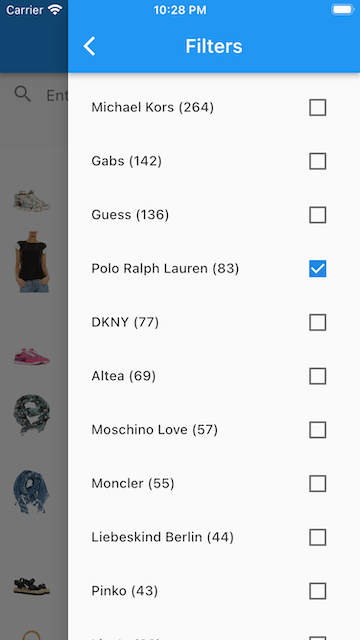
The app bar now displays the filters button which shows the list of facet values (individual brands) for the brand attribute.
A selection of these values doesn't affect the search results.
To fix it, connect `FilterState` to `HitsState` in the `initState` method,
so that each change of `FilterState` triggers a new search request.
Also, each filter state change might refresh the `_pagingController` to remove the obsolete loaded pages.
Add the corresponding listener to the `_filterState.filters` stream.
```dart Dart icon=code theme={"system"}
@override
void initState() {
super.initState();
_searchTextController.addListener(
() => _productsSearcher.applyState(
(state) => state.copyWith(query: _searchTextController.text, page: 0),
),
);
_searchPage
.listen((page) {
if (page.pageKey == 0) {
_pagingController.refresh();
}
_pagingController.appendPage(page.items, page.nextPageKey);
})
.onError((error) => _pagingController.error = error);
_pagingController.addPageRequestListener(
(pageKey) =>
_productsSearcher.applyState((state) => state.copyWith(page: pageKey)),
);
_productsSearcher.connectFilterState(_filterState);
_filterState.filters.listen((_) => _pagingController.refresh());
}
```
The selection and deselection of the brand in the facet list now triggers a new search with applied filters.
Dispose of `_filterState` and `_facetList` in the `dispose` method of the `_MyHomePageState`.
```dart Dart icon=code theme={"system"}
@override
void dispose() {
_searchTextController.dispose();
_productSearcher.dispose();
_pagingController.dispose();
_filterState.dispose();
_facetList.dispose();
super.dispose();
}
```
## The final result
Find the source code in the [Algolia Flutter playground](https://github.com/algolia/flutter-playground/blob/main/lib/main.dart) repository on GitHub.
The final version of the `main.dart` file should look as follows:
```dart Dart icon=code expandable theme={"system"}
import 'package:algolia_helper_flutter/algolia_helper_flutter.dart';
import 'package:flutter/material.dart';
import 'package:infinite_scroll_pagination/infinite_scroll_pagination.dart';
void main() {
runApp(const MyApp());
}
class SearchMetadata {
final int nbHits;
const SearchMetadata(this.nbHits);
factory SearchMetadata.fromResponse(SearchResponse response) =>
SearchMetadata(response.nbHits);
}
class Product {
final String name;
final String image;
Product(this.name, this.image);
static Product fromJson(Map json) {
return Product(json['name'], json['image_urls'][0]);
}
}
class HitsPage {
const HitsPage(this.items, this.pageKey, this.nextPageKey);
final List items;
final int pageKey;
final int? nextPageKey;
factory HitsPage.fromResponse(SearchResponse response) {
final items = response.hits.map(Product.fromJson).toList();
final isLastPage = response.page >= response.nbPages;
final nextPageKey = isLastPage ? null : response.page + 1;
return HitsPage(items, response.page, nextPageKey);
}
}
class MyApp extends StatelessWidget {
const MyApp({super.key});
@override
Widget build(BuildContext context) {
return MaterialApp(
title: 'Flutter Demo',
theme: ThemeData(primarySwatch: Colors.blue),
home: const MyHomePage(title: 'Flutter Demo Home Page'),
);
}
}
class MyHomePage extends StatefulWidget {
const MyHomePage({super.key, required this.title});
final String title;
@override
State createState() => _MyHomePageState();
}
class _MyHomePageState extends State {
final _searchTextController = TextEditingController();
final _productsSearcher = HitsSearcher(
applicationID: 'latency',
apiKey: '927c3fe76d4b52c5a2912973f35a3077',
indexName: 'STAGING_native_ecom_demo_products',
);
Stream get _searchMetadata =>
_productsSearcher.responses.map(SearchMetadata.fromResponse);
final PagingController _pagingController = PagingController(
firstPageKey: 0,
);
Stream get _searchPage =>
_productsSearcher.responses.map(HitsPage.fromResponse);
final GlobalKey _mainScaffoldKey = GlobalKey();
final _filterState = FilterState();
late final _facetList = _productsSearcher.buildFacetList(
filterState: _filterState,
attribute: 'brand',
);
@override
void initState() {
super.initState();
_searchTextController.addListener(
() => _productsSearcher.applyState(
(state) => state.copyWith(query: _searchTextController.text, page: 0),
),
);
_searchPage
.listen((page) {
if (page.pageKey == 0) {
_pagingController.refresh();
}
_pagingController.appendPage(page.items, page.nextPageKey);
})
.onError((error) => _pagingController.error = error);
_pagingController.addPageRequestListener(
(pageKey) => _productsSearcher.applyState(
(state) => state.copyWith(page: pageKey),
),
);
_productsSearcher.connectFilterState(_filterState);
_filterState.filters.listen((_) => _pagingController.refresh());
}
@override
Widget build(BuildContext context) {
return Scaffold(
key: _mainScaffoldKey,
appBar: AppBar(
title: const Text('Algolia and Flutter'),
actions: [
IconButton(
onPressed: () => _mainScaffoldKey.currentState?.openEndDrawer(),
icon: const Icon(Icons.filter_list_sharp),
),
],
),
endDrawer: Drawer(child: _filters(context)),
body: Center(
child: Column(
children: [
SizedBox(
height: 44,
child: TextField(
controller: _searchTextController,
decoration: const InputDecoration(
border: InputBorder.none,
hintText: 'Enter a search term',
prefixIcon: Icon(Icons.search),
),
),
),
StreamBuilder(
stream: _searchMetadata,
builder: (context, snapshot) {
if (!snapshot.hasData) {
return const SizedBox.shrink();
}
return Padding(
padding: const EdgeInsets.all(8.0),
child: Text('${snapshot.data!.nbHits} hits'),
);
},
),
Expanded(child: _hits(context)),
],
),
),
);
}
Widget _hits(BuildContext context) => PagedListView(
pagingController: _pagingController,
builderDelegate: PagedChildBuilderDelegate(
noItemsFoundIndicatorBuilder: (_) =>
const Center(child: Text('No results found')),
itemBuilder: (_, item, __) => Container(
color: Colors.white,
height: 80,
padding: const EdgeInsets.all(8),
child: Row(
children: [
SizedBox(width: 50, child: Image.network(item.image)),
const SizedBox(width: 20),
Expanded(child: Text(item.name)),
],
),
),
),
);
Widget _filters(BuildContext context) => Scaffold(
appBar: AppBar(title: const Text('Filters')),
body: StreamBuilder>>(
stream: _facetList.facets,
builder: (context, snapshot) {
if (!snapshot.hasData) {
return const SizedBox.shrink();
}
final selectableFacets = snapshot.data!;
return ListView.builder(
padding: const EdgeInsets.all(8),
itemCount: selectableFacets.length,
itemBuilder: (_, index) {
final selectableFacet = selectableFacets[index];
return CheckboxListTile(
value: selectableFacet.isSelected,
title: Text(
"${selectableFacet.item.value} (${selectableFacet.item.count})",
),
onChanged: (_) {
_facetList.toggle(selectableFacet.item.value);
},
);
},
);
},
),
);
@override
void dispose() {
_searchTextController.dispose();
_productSearcher.dispose();
_pagingController.dispose();
_filterState.dispose();
_facetList.dispose();
super.dispose();
}
}
```
## Next steps
This examples shows how to bridge native search with the Algolia Flutter Helper library.
You can use it as a basis for more complex applications.
* To explore the components in more detail, see the [API reference](https://pub.dev/documentation/algolia_helper_flutter/latest/algolia_helper_flutter/algolia_helper_flutter-library.html).
* To explore a complete ecommerce app built with Flutter, see the [Flutter Ecommerce UI Template](/doc/guides/building-search-ui/ecommerce-ui-template/overview/flutter).
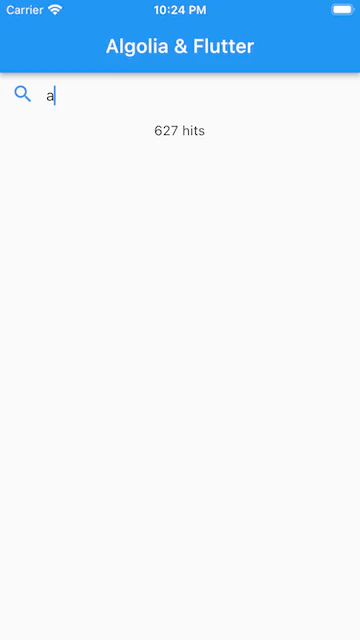 To free up resources, dispose the `_searchTextController` and `_productsSearcher` by overriding the `dispose` method of the `_MyHomePageState`.
```dart Dart icon=code theme={"system"}
@override
void dispose() {
_searchTextController.dispose();
_productsSearcher.dispose();
super.dispose();
}
```
To free up resources, dispose the `_searchTextController` and `_productsSearcher` by overriding the `dispose` method of the `_MyHomePageState`.
```dart Dart icon=code theme={"system"}
@override
void dispose() {
_searchTextController.dispose();
_productsSearcher.dispose();
super.dispose();
}
```
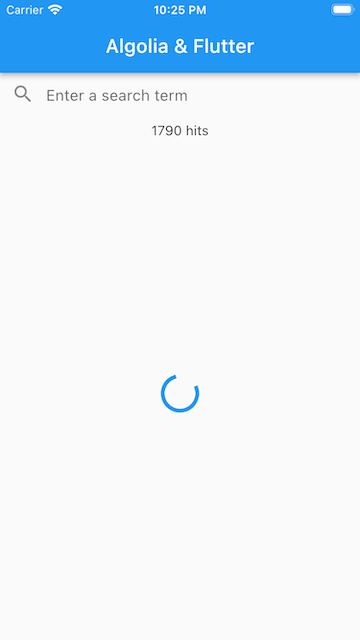 This happens because the `_pagingController` and the `_productsSearcher` aren't connected.
To update the `_pagingController` whenever a new results page is fetched,
add a listener to `__searchPage` in the `initState` method.
Add a call to `_pagingController.refresh()` to the `_searchTextController` listener callback.
```dart Dart icon=code theme={"system"}
@override
void initState() {
super.initState();
_searchTextController.addListener(
() => _productsSearcher.applyState(
(state) => state.copyWith(query: _searchTextController.text, page: 0),
),
);
_searchPage
.listen((page) {
if (page.pageKey == 0) {
_pagingController.refresh();
}
_pagingController.appendPage(page.items, page.nextPageKey);
})
.onError((error) => _pagingController.error = error);
}
```
This happens because the `_pagingController` and the `_productsSearcher` aren't connected.
To update the `_pagingController` whenever a new results page is fetched,
add a listener to `__searchPage` in the `initState` method.
Add a call to `_pagingController.refresh()` to the `_searchTextController` listener callback.
```dart Dart icon=code theme={"system"}
@override
void initState() {
super.initState();
_searchTextController.addListener(
() => _productsSearcher.applyState(
(state) => state.copyWith(query: _searchTextController.text, page: 0),
),
);
_searchPage
.listen((page) {
if (page.pageKey == 0) {
_pagingController.refresh();
}
_pagingController.appendPage(page.items, page.nextPageKey);
})
.onError((error) => _pagingController.error = error);
}
```
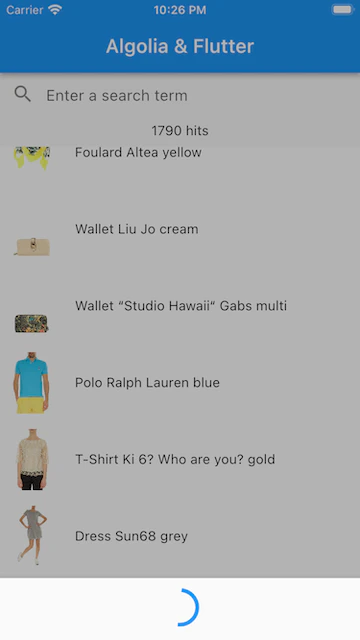 Although `_pagingController` triggered a request for next page, this request wasn't processed.
To fix it, complete the `initState` method by adding a page request listener to `_pagingController`.
It triggers the loading of the next page in the `_productSearcher`.
```dart Dart icon=code theme={"system"}
@override
void initState() {
super.initState();
_searchTextController.addListener(
() => _productsSearcher.applyState(
(state) => state.copyWith(query: _searchTextController.text, page: 0),
),
);
_searchPage
.listen((page) {
if (page.pageKey == 0) {
_pagingController.refresh();
}
_pagingController.appendPage(page.items, page.nextPageKey);
})
.onError((error) => _pagingController.error = error);
_pagingController.addPageRequestListener(
(pageKey) =>
_productsSearcher.applyState((state) => state.copyWith(page: pageKey)),
);
}
```
Although `_pagingController` triggered a request for next page, this request wasn't processed.
To fix it, complete the `initState` method by adding a page request listener to `_pagingController`.
It triggers the loading of the next page in the `_productSearcher`.
```dart Dart icon=code theme={"system"}
@override
void initState() {
super.initState();
_searchTextController.addListener(
() => _productsSearcher.applyState(
(state) => state.copyWith(query: _searchTextController.text, page: 0),
),
);
_searchPage
.listen((page) {
if (page.pageKey == 0) {
_pagingController.refresh();
}
_pagingController.appendPage(page.items, page.nextPageKey);
})
.onError((error) => _pagingController.error = error);
_pagingController.addPageRequestListener(
(pageKey) =>
_productsSearcher.applyState((state) => state.copyWith(page: pageKey)),
);
}
```
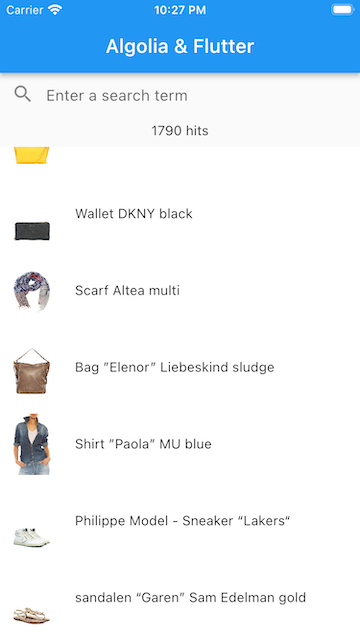 You now get the basic search experience with search box, metadata, and results.
Consider disposing the `_pagingController` in the `dispose` method of the `_MyHomePageState` to free up the resources properly.
```dart Dart icon=code theme={"system"}
@override
void dispose() {
_searchTextController.dispose();
_productSearcher.dispose();
_pagingController.dispose();
super.dispose();
}
```
You now get the basic search experience with search box, metadata, and results.
Consider disposing the `_pagingController` in the `dispose` method of the `_MyHomePageState` to free up the resources properly.
```dart Dart icon=code theme={"system"}
@override
void dispose() {
_searchTextController.dispose();
_productSearcher.dispose();
_pagingController.dispose();
super.dispose();
}
```
 A selection of these values doesn't affect the search results.
To fix it, connect `FilterState` to `HitsState` in the `initState` method,
so that each change of `FilterState` triggers a new search request.
Also, each filter state change might refresh the `_pagingController` to remove the obsolete loaded pages.
Add the corresponding listener to the `_filterState.filters` stream.
```dart Dart icon=code theme={"system"}
@override
void initState() {
super.initState();
_searchTextController.addListener(
() => _productsSearcher.applyState(
(state) => state.copyWith(query: _searchTextController.text, page: 0),
),
);
_searchPage
.listen((page) {
if (page.pageKey == 0) {
_pagingController.refresh();
}
_pagingController.appendPage(page.items, page.nextPageKey);
})
.onError((error) => _pagingController.error = error);
_pagingController.addPageRequestListener(
(pageKey) =>
_productsSearcher.applyState((state) => state.copyWith(page: pageKey)),
);
_productsSearcher.connectFilterState(_filterState);
_filterState.filters.listen((_) => _pagingController.refresh());
}
```
A selection of these values doesn't affect the search results.
To fix it, connect `FilterState` to `HitsState` in the `initState` method,
so that each change of `FilterState` triggers a new search request.
Also, each filter state change might refresh the `_pagingController` to remove the obsolete loaded pages.
Add the corresponding listener to the `_filterState.filters` stream.
```dart Dart icon=code theme={"system"}
@override
void initState() {
super.initState();
_searchTextController.addListener(
() => _productsSearcher.applyState(
(state) => state.copyWith(query: _searchTextController.text, page: 0),
),
);
_searchPage
.listen((page) {
if (page.pageKey == 0) {
_pagingController.refresh();
}
_pagingController.appendPage(page.items, page.nextPageKey);
})
.onError((error) => _pagingController.error = error);
_pagingController.addPageRequestListener(
(pageKey) =>
_productsSearcher.applyState((state) => state.copyWith(page: pageKey)),
);
_productsSearcher.connectFilterState(_filterState);
_filterState.filters.listen((_) => _pagingController.refresh());
}
```