> ## Documentation Index
> Fetch the complete documentation index at: https://algolia.com/llms.txt
> Use this file to discover all available pages before exploring further.
# Get started with declarative UI
> Learn how to build a search experience with InstantSearch Android and Compose UI.
export const SearchQuery = () =>
search query
;
export const SearchRequest = () =>
search request
;
export const Records = () =>
records
;
export const Filter = () =>
filter
;
export const Facet = () =>
facet
;
export const ApplicationID = () =>
application ID
;
export const APIKey = () =>
API key
;
export const Index = () =>
index
;
This guide explains, step by step, how to build a voice search experience using the libraries provided by Algolia and [Compose UI](https://developer.android.com/compose).
This guide walks you through the steps needed to create a full InstantSearch Android experience from scratch.
It includes:
* A search box for users to type queries
* A list to display search results
* A list to results
* Statistics about the search
## Before you begin
To use InstantSearch, you need an Algolia account.
[Sign up](https://dashboard.algolia.com/users/sign_up) for a new account or use the following credentials
(which include a pre-loaded dataset of products appropriate for this guide):
* : `latency`
* Search : `1f6fd3a6fb973cb08419fe7d288fa4db`
- name: `instant_search`
### Create a new project and add InstantSearch Android
In Android Studio, create a new project:
* Select **Phone and Tablet** template
* Select **Empty Compose Activity** screen
### Add project dependencies
In your `gradle/libs.version.toml` file, add the following:
```toml TOML icon=file-cog theme={"system"}
[versions]
instantsearchCompose = "4.+"
[libraries]
instantsearch-android = { module = "com.algolia:instantsearch-android", version.ref = "instantsearchCompose" }
instantsearch-android-paging3 = { module = "com.algolia:instantsearch-android-paging3", version.ref = "instantsearchCompose" }
instantsearch-compose = { module = "com.algolia:instantsearch-compose", version.ref = "instantsearchCompose" }
```
In your `build.gradle.kts` file,
under the `app` module,
add the following in the `dependencies` block:
```kotlin Kotlin icon=code theme={"system"}
implementation(libs.instantsearch.compose)
implementation(libs.instantsearch.android)
implementation(libs.instantsearch.android.paging3)
```
You also need to add dependencies for Paging and extended Material Icons,
in `gradle/libs.version.toml`:
```toml TOML icon=file-cog theme={"system"}
[versions]
pagingCompose = "3.3.6"
materialIconsExtended = "1.1.0"
[libraries]
androidx-paging-compose = { group = "androidx.paging", name = "paging-compose", version.ref = "pagingCompose" }
androidx-material-icons-extended = { group = "androidx.compose.material", name = "material-icons-extended", version.ref = "materialIconsExtended" }
```
In `build.gradle.kts`:
```kotlin Kotlin icon=code theme={"system"}
implementation(libs.androidx.paging.compose)
implementation(libs.androidx.material.icons.extended)
```
To perform network operations in your application, `AndroidManifest.xml` must include the following permissions:
```xml XML icon=code-xml theme={"system"}
```
Set up [`kotlinx.serialization`](https://github.com/Kotlin/kotlinx.serialization#setup) by adding the serialization plugin to your `build.gradle`:
```kotlin Kotlin icon=code theme={"system"}
plugins {
// ...
kotlin("plugin.serialization") version "2.2.0"
}
```
## Implementation
### Application architecture overview
* `MainActivity`: this activity controls displayed views
* `MainViewModel`: a `ViewModel` from Android Architecture Components. The business logic lives here
* `Search`: composes the search UI
### Define your data class
Define a structure that represents the in your index.
For simplicity's sake, this structure only provides the name of the product.
Add the following data class definition to the `Product.kt` file:
```kotlin Kotlin icon=code theme={"system"}
@Serializable
data class Product(
val name: String
)
```
### Add search business logic
You need three components for the basic search experience:
* `HitsSearcher` performs search requests and obtains search results.
* `SearchBoxConnector` handles a textual input and triggers a search request when needed.
* `Paginator` displays hits and manages the pagination logic.
The `setupConnections` method establishes the connections between these components to make them work together seamlessly.
The central part of your search experience is the `Searcher`.
The `Searcher` performs a and obtains search results.
Most InstantSearch components connected to the `Searcher`.
In this tutorial you're targeting one [index](https://support.algolia.com/hc/en-us/articles/4406981910289-What-is-an-index-), so instantiate a `HitsSearcher` with the proper credentials.
Create a new `MainViewModel.kt` file and add the following:
```kotlin Kotlin icon=code theme={"system"}
class MainViewModel : ViewModel() {
private val searcher = HitsSearcher(
applicationID = "latency",
apiKey = "1f6fd3a6fb973cb08419fe7d288fa4db",
indexName = "instant_search"
)
// Search box
val searchBoxState = SearchBoxState()
val searchBoxConnector = SearchBoxConnector(searcher)
// Hits
val hitsPaginator = Paginator(searcher) { it.deserialize(Product.serializer()) }
val connections = ConnectionHandler(searchBoxConnector)
init {
connections += searchBoxConnector.connectView(searchBoxState)
connections += searchBoxConnector.connectPaginator(hitsPaginator)
}
override fun onCleared() {
super.onCleared()
searcher.cancel()
}
}
```
Most InstantSearch components should connect **and disconnect** in accordance to the [Android Lifecycle](https://developer.android.com/topic/libraries/architecture/lifecycle) to avoid memory leaks.
A `ConnectionHandler` handles a set of `Connection` s for you: each `+=` call with a component implementing the `Connection` interface connects it and makes it active. Whenever you want to free resources or deactivate a component, call the `disconnect` method.
Get an instance of your `ViewModel` in your `MainActivity` by adding the following:
```kotlin Kotlin icon=code theme={"system"}
class MainActivity : ComponentActivity() {
val viewModel: MainViewModel by viewModels()
//...
}
```
A `ViewModel` is a good place to put your data sources. This way, the data persists during configuration changes.
### Create a basic search experience: `SearchBox`
Create a `SearchScreen.kt` file that holds the search UI.
Add a composable function `ProductsList` to display a list of products, the hit row represented by a column with a `Text` presenting the name of the item and a `Divider`:
```kotlin Kotlin icon=code theme={"system"}
@Composable
fun ProductsList(
modifier: Modifier = Modifier,
pagingHits: LazyPagingItems,
listState: LazyListState
) {
LazyColumn(modifier, listState) {
items(pagingHits.itemCount) { index ->
val item = pagingHits[index] ?: return@items
Text(
modifier = modifier
.fillMaxWidth()
.padding(14.dp),
text = item.name,
style = MaterialTheme.typography.bodyLarge
)
HorizontalDivider(
modifier = modifier
.fillMaxWidth()
.width(1.dp)
)
}
}
}
```
Complete your search experience by putting the `SearchBox` and `ProductsList` views together:
```kotlin Kotlin icon=code theme={"system"}
@Composable
fun SearchBox(
modifier: Modifier = Modifier,
searchBoxState: SearchBoxState = SearchBoxState(),
onValueChange: (String) -> Unit = {}
) {
TextField(
modifier = modifier.padding(bottom = 12.dp),
singleLine = true,
value = searchBoxState.query,
onValueChange = {
searchBoxState.setText(it)
onValueChange(it)
},
keyboardOptions = KeyboardOptions(imeAction = ImeAction.Search),
keyboardActions = KeyboardActions(
onSearch = { searchBoxState.setText(searchBoxState.query, true) }
)
)
}
@Composable
fun Search(
modifier: Modifier = Modifier,
searchBoxState: SearchBoxState,
paginator: Paginator
) {
val scope = rememberCoroutineScope()
val pagingHits = paginator.flow.collectAsLazyPagingItems()
val listState = rememberLazyListState()
Column(modifier) {
Row(Modifier.fillMaxWidth()) {
SearchBox(
modifier = Modifier
.weight(1f)
.padding(top = 12.dp, start = 12.dp, end = 12.dp),
searchBoxState = searchBoxState,
onValueChange = { scope.launch { listState.scrollToItem(0) } }
)
}
ProductsList(
modifier = Modifier.fillMaxSize(),
pagingHits = pagingHits,
listState = listState
)
}
}
```
Add the `Search` composable into the `setContent` section in `MainActivity` and pass it your business logic components from `MainViewModel`:
```kotlin Kotlin icon=code theme={"system"}
class MainActivity : ComponentActivity() {
private val viewModel: MainViewModel by viewModels()
override fun onCreate(savedInstanceState: Bundle?) {
super.onCreate(savedInstanceState)
setContent {
SearchAppTheme {
Search(searchBoxState = viewModel.searchBoxState, paginator = viewModel.hitsPaginator)
}
}
}
}
```
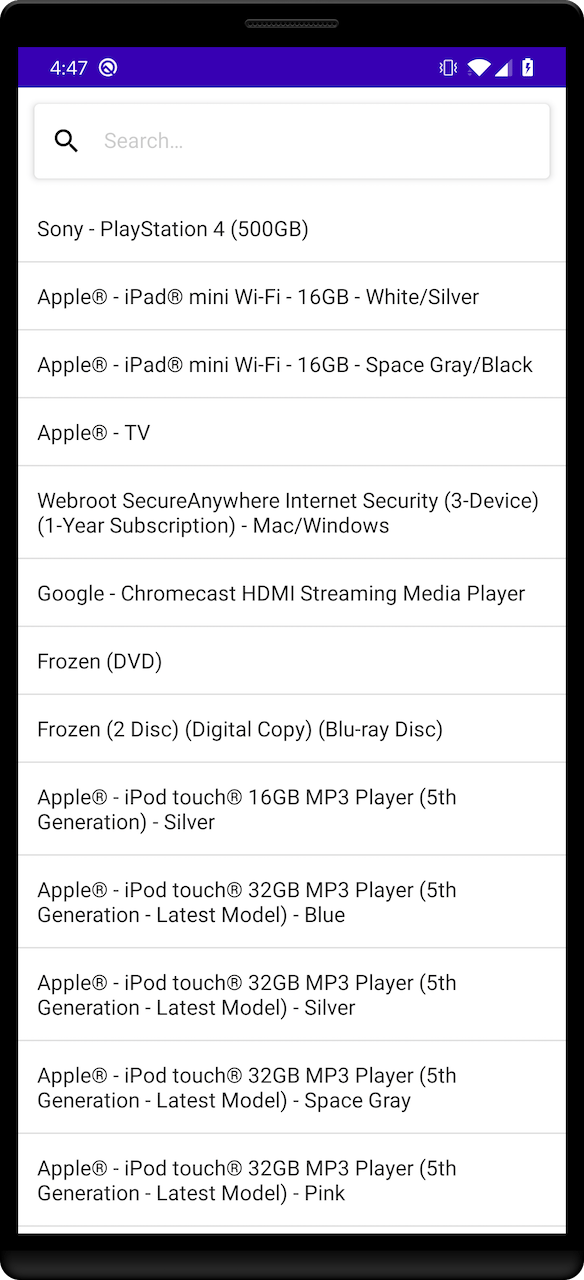
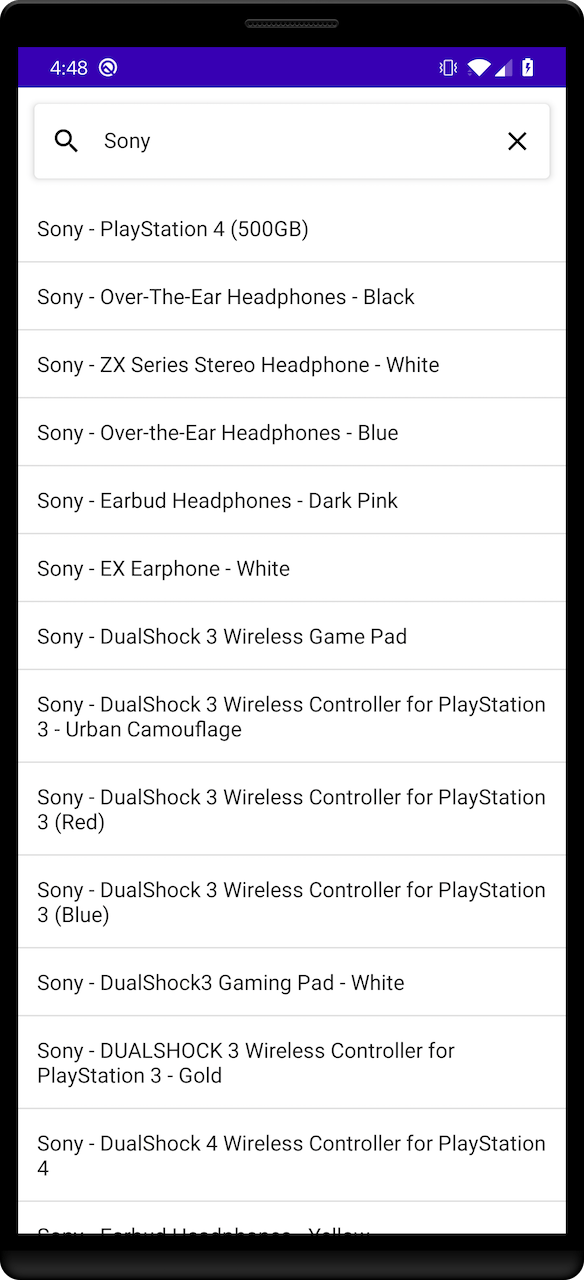
Launch your app to see the basic search experience in action.
You should see that the results are changing on each key stroke.
 ### Displaying metadata: `Stats`
To make the search experience more user-friendly, you can give more context about the search results to your users.
You can do this with different InstantSearch modules.
First, add a statistics component.
This component shows the hit count and the request processing time.
This gives users a complete understanding of their search, without the need for extra interaction.
The `StatsConnector` extracts the metadata from the search response, and provides an interface to present it to users.
Add the `StatsConnector` to the `MainViewModel` and connect it to the `Searcher`.
```kotlin Kotlin icon=code theme={"system"}
class MainViewModel : ViewModel() {
//...
val statsText = StatsTextState()
val statsConnector = StatsConnector(searcher)
val connections = ConnectionHandler(searchBoxConnector, statsConnector)
init {
//...
connections += statsConnector.connectView(statsText, DefaultStatsPresenter())
}
}
```
The `StatsConnector` receives the search statistics now, but doesn't display it yet.
Create a new composable `Stats`:
```kotlin Kotlin icon=code theme={"system"}
@Composable
fun Stats(modifier: Modifier = Modifier, stats: String) {
Text(
modifier = modifier,
text = stats,
style = MaterialTheme.typography.bodySmall,
maxLines = 1
)
}
```
Add the `Stats` composable into the `Column`, in the middle of the `SearchBox` and `ProductsList`:
```kotlin Kotlin icon=code theme={"system"}
@Composable
fun Search(
modifier: Modifier = Modifier,
searchBoxState: SearchBoxState,
paginator: Paginator,
statsText: StatsState,
) {
val scope = rememberCoroutineScope()
val pagingHits = paginator.flow.collectAsLazyPagingItems()
val listState = rememberLazyListState()
Column(modifier) {
Row(Modifier.fillMaxWidth()) {
SearchBox(
modifier = Modifier
.weight(1f)
.padding(top = 12.dp, start = 12.dp, end = 12.dp),
searchBoxState = searchBoxState,
onValueChange = { scope.launch { listState.scrollToItem(0) } }
)
}
Stats(
modifier = Modifier
.fillMaxWidth()
.padding(bottom = 12.dp, start = 12.dp, end = 12.dp),
stats = statsText.stats
)
ProductsList(
modifier = Modifier.fillMaxSize(),
pagingHits = pagingHits,
listState = listState
)
}
}
```
Update `MainActivity` to pass `StatsState` instance to `Search`:
```kotlin Kotlin icon=code theme={"system"}
class MainActivity : ComponentActivity() {
private val viewModel: MainViewModel by viewModels()
override fun onCreate(savedInstanceState: Bundle?) {
super.onCreate(savedInstanceState)
setContent {
SearchAppTheme {
Search(
searchBoxState = viewModel.searchBoxState,
paginator = viewModel.hitsPaginator,
statsText = viewModel.statsText
)
}
}
}
}
```
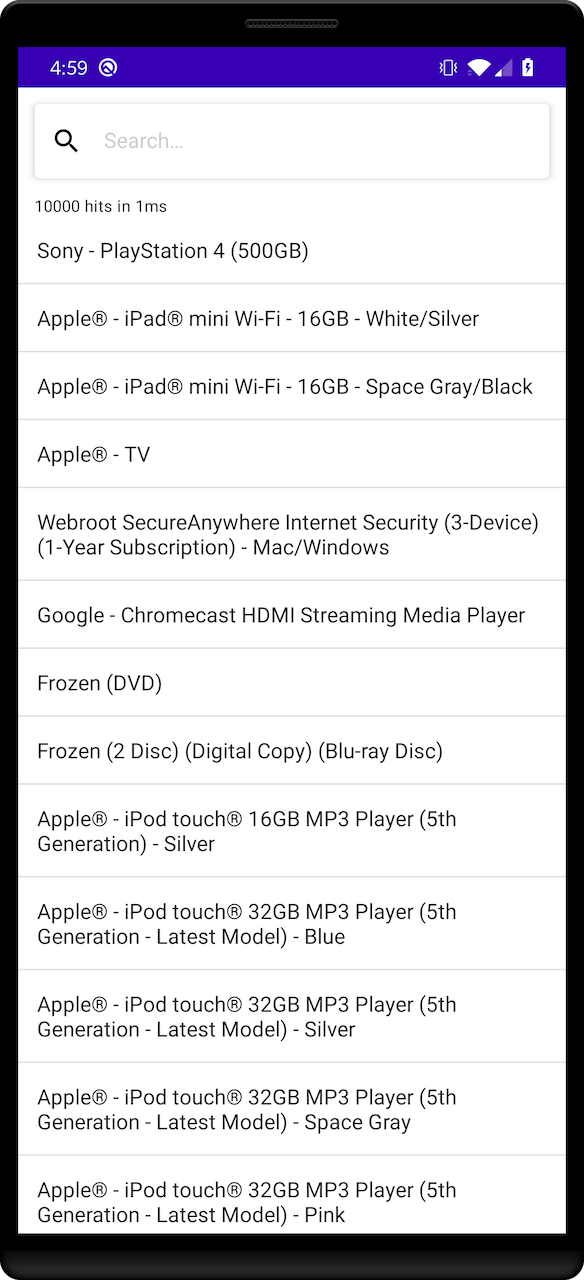
Rebuild your app. You should now see updated results *and* an updated hit count on each keystroke.
### Displaying metadata: `Stats`
To make the search experience more user-friendly, you can give more context about the search results to your users.
You can do this with different InstantSearch modules.
First, add a statistics component.
This component shows the hit count and the request processing time.
This gives users a complete understanding of their search, without the need for extra interaction.
The `StatsConnector` extracts the metadata from the search response, and provides an interface to present it to users.
Add the `StatsConnector` to the `MainViewModel` and connect it to the `Searcher`.
```kotlin Kotlin icon=code theme={"system"}
class MainViewModel : ViewModel() {
//...
val statsText = StatsTextState()
val statsConnector = StatsConnector(searcher)
val connections = ConnectionHandler(searchBoxConnector, statsConnector)
init {
//...
connections += statsConnector.connectView(statsText, DefaultStatsPresenter())
}
}
```
The `StatsConnector` receives the search statistics now, but doesn't display it yet.
Create a new composable `Stats`:
```kotlin Kotlin icon=code theme={"system"}
@Composable
fun Stats(modifier: Modifier = Modifier, stats: String) {
Text(
modifier = modifier,
text = stats,
style = MaterialTheme.typography.bodySmall,
maxLines = 1
)
}
```
Add the `Stats` composable into the `Column`, in the middle of the `SearchBox` and `ProductsList`:
```kotlin Kotlin icon=code theme={"system"}
@Composable
fun Search(
modifier: Modifier = Modifier,
searchBoxState: SearchBoxState,
paginator: Paginator,
statsText: StatsState,
) {
val scope = rememberCoroutineScope()
val pagingHits = paginator.flow.collectAsLazyPagingItems()
val listState = rememberLazyListState()
Column(modifier) {
Row(Modifier.fillMaxWidth()) {
SearchBox(
modifier = Modifier
.weight(1f)
.padding(top = 12.dp, start = 12.dp, end = 12.dp),
searchBoxState = searchBoxState,
onValueChange = { scope.launch { listState.scrollToItem(0) } }
)
}
Stats(
modifier = Modifier
.fillMaxWidth()
.padding(bottom = 12.dp, start = 12.dp, end = 12.dp),
stats = statsText.stats
)
ProductsList(
modifier = Modifier.fillMaxSize(),
pagingHits = pagingHits,
listState = listState
)
}
}
```
Update `MainActivity` to pass `StatsState` instance to `Search`:
```kotlin Kotlin icon=code theme={"system"}
class MainActivity : ComponentActivity() {
private val viewModel: MainViewModel by viewModels()
override fun onCreate(savedInstanceState: Bundle?) {
super.onCreate(savedInstanceState)
setContent {
SearchAppTheme {
Search(
searchBoxState = viewModel.searchBoxState,
paginator = viewModel.hitsPaginator,
statsText = viewModel.statsText
)
}
}
}
}
```
Rebuild your app. You should now see updated results *and* an updated hit count on each keystroke.
 ### Filter your results: `FacetList`
With your app, you can search more than 10,000 products. But, you don't want to scroll to the bottom of the list to find the exact product you're looking for.
One can more accurately filter the results by making use of the `FilterListConnector` components.
This section explains how to build a filter that allows to filter products by their category. First, add a `FilterState` component to the `MainViewModel`.
This component provides a convenient way to manage the state of your filters. Add the `manufacturer` refinement attribute.
Next, add the `FilterListConnector`, which stores the list of facets retrieved with search result. Add the connections between `HitsSearcher`, `FilterState` and `FilterListConnector`.
```kotlin Kotlin icon=code theme={"system"}
class MainViewModel : ViewModel() {
// ...
val facetList = FacetListState()
private val filterState = FilterState()
private val categories = "categories"
private val searcherForFacet = FacetsSearcher(
applicationID = "latency",
apiKey = "1f6fd3a6fb973cb08419fe7d288fa4db",
indexName = "instant_search",
attribute = categories
)
private val facetListConnector = FacetListConnector(
searcher = searcherForFacet,
filterState = filterState,
attribute = categories,
selectionMode = SelectionMode.Multiple
)
val connections = ConnectionHandler(searchBoxConnector, statsConnector, facetListConnector)
init {
//...
connections += searcher.connectFilterState(filterState)
connections += facetListConnector.connectView(facetList)
connections += facetListConnector.connectPaginator(hitsPaginator)
searcherForFacet.query = searcherForFacet.query.copy(maxFacetHits = 100)
searcherForFacet.searchAsync()
}
override fun onCleared() {
//...
searcherForFacet.cancel()
}
}
```
Create the `FacetRow` composable to display a facet.
The row represented by a column with two `Text` s for the facet value and count,
plus an `Icon` to display a checkmark for selected facets:
```kotlin Kotlin icon=code theme={"system"}
import com.algolia.client.model.search.FacetHits
@Composable
fun FacetRow(
modifier: Modifier = Modifier,
selectableFacet: SelectableItem
) {
val (facet, isSelected) = selectableFacet
Row(
modifier = modifier.height(56.dp),
verticalAlignment = Alignment.CenterVertically
) {
Row(modifier = Modifier.weight(1f)) {
Text(
modifier = Modifier.alignByBaseline(),
text = facet.value,
style = MaterialTheme.typography.bodyLarge
)
Text(
modifier = Modifier
.padding(start = 8.dp)
.alignByBaseline(),
text = facet.count.toString(),
style = MaterialTheme.typography.bodyMedium,
color = MaterialTheme.colorScheme.onBackground.copy(alpha = 0.2f)
)
}
if (isSelected) {
Icon(
imageVector = Icons.Default.Check,
contentDescription = null,
)
}
}
}
```
Create the `FacetList` composable to display facets list.
Use a `Text` for the attribute and a `LazyColumn` to display `FacetRow` s:
```kotlin Kotlin icon=code theme={"system"}
@Composable
fun FacetList(
modifier: Modifier = Modifier,
facetList: FacetListState
) {
Column(modifier) {
Text(
text = "Categories",
style = MaterialTheme.typography.bodyLarge.copy(fontWeight = FontWeight.Bold),
modifier = Modifier.padding(14.dp)
)
LazyColumn(Modifier.background(MaterialTheme.colorScheme.background)) {
items(count = facetList.items.count(), key = {
index -> facetList.items[index].first.value
}) { index ->
val item = facetList.items[index]
FacetRow(
modifier = Modifier
.clickable { facetList.onSelection?.invoke(item.first) }
.padding(horizontal = 14.dp),
selectableFacet = item,
)
HorizontalDivider(
modifier = Modifier
.fillMaxWidth()
.width(1.dp)
)
}
}
}
}
```
Put it all together using a `ModalBottomSheetLayout`:
* Inside `content`, put your earlier `Search` content, add `clickable` filter `Icon` to show the facets list
* Create `FacetList` inside `sheetContent` to display your facets list.
```kotlin Kotlin icon=code theme={"system"}
@OptIn(ExperimentalMaterial3Api::class)
@Composable
fun Search(
modifier: Modifier = Modifier,
searchBoxState: SearchBoxState,
paginator: Paginator,
statsText: StatsState,
facetList: FacetListState,
) {
val scope = rememberCoroutineScope()
val pagingHits = paginator.flow.collectAsLazyPagingItems()
val listState = rememberLazyListState()
val sheetState = rememberModalBottomSheetState(skipPartiallyExpanded = true)
var showSheet by remember { mutableStateOf(false) }
if (showSheet) {
ModalBottomSheet(
onDismissRequest = {
scope.launch {
sheetState.hide()
showSheet = false
}
},
sheetState = sheetState
) {
FacetList(facetList = facetList)
}
}
Column(modifier) {
Row(Modifier.fillMaxWidth()) {
SearchBox(
modifier = Modifier
.weight(1f)
.padding(top = 12.dp, start = 12.dp),
searchBoxState = searchBoxState,
onValueChange = { scope.launch { listState.scrollToItem(0) }}
)
Card(Modifier.padding(top = 12.dp, end = 12.dp, start = 8.dp)) {
Icon(
modifier = Modifier
.clickable {
showSheet = true
scope.launch { sheetState.show() }
}
.padding(horizontal = 12.dp)
.height(56.dp),
imageVector = Icons.Default.FilterList,
contentDescription = null
)
}
}
Stats(
modifier = Modifier
.fillMaxWidth()
.padding(bottom = 12.dp, start = 12.dp, end = 12.dp),
stats = statsText.stats
)
ProductsList(
modifier = Modifier.fillMaxSize(),
pagingHits = pagingHits,
listState = listState
)
}
}
```
Update `Search` in `MainActivity` to include the instance of `FacetListState` from your `MainViewModel`:
```kotlin Kotlin icon=code theme={"system"}
class MainActivity : ComponentActivity() {
private val viewModel: MainViewModel by viewModels()
override fun onCreate(savedInstanceState: Bundle?) {
super.onCreate(savedInstanceState)
setContent {
SearchAppTheme {
Search(
searchBoxState = viewModel.searchBoxState,
paginator = viewModel.hitsPaginator,
statsText = viewModel.statsText,
facetList = viewModel.facetList
)
}
}
}
}
```
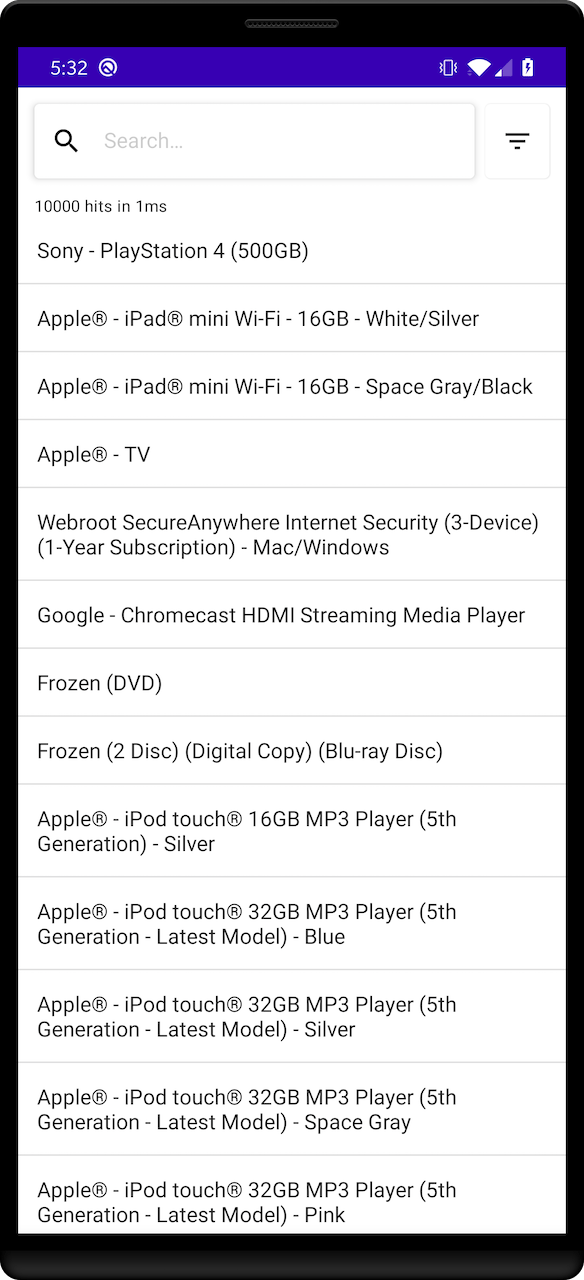
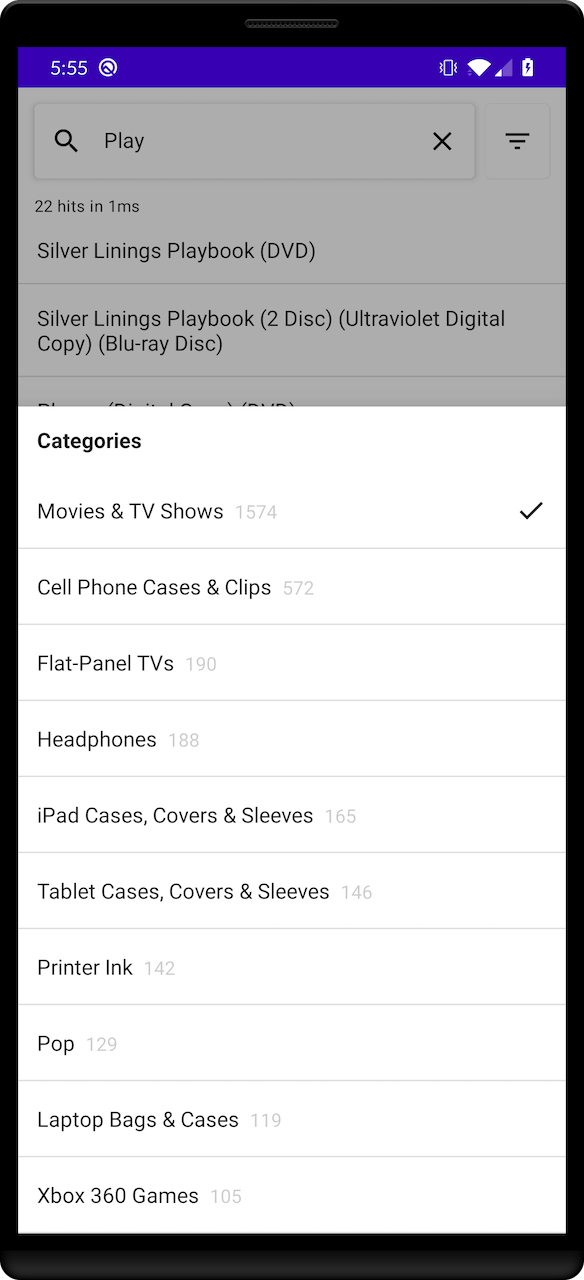
Rebuild your app. Now you see a filter button on top right of your screen. Click it to show the refinements list and select one or more refinements.
Dismiss the refinements list to see the changes happening live to your hits.
### Filter your results: `FacetList`
With your app, you can search more than 10,000 products. But, you don't want to scroll to the bottom of the list to find the exact product you're looking for.
One can more accurately filter the results by making use of the `FilterListConnector` components.
This section explains how to build a filter that allows to filter products by their category. First, add a `FilterState` component to the `MainViewModel`.
This component provides a convenient way to manage the state of your filters. Add the `manufacturer` refinement attribute.
Next, add the `FilterListConnector`, which stores the list of facets retrieved with search result. Add the connections between `HitsSearcher`, `FilterState` and `FilterListConnector`.
```kotlin Kotlin icon=code theme={"system"}
class MainViewModel : ViewModel() {
// ...
val facetList = FacetListState()
private val filterState = FilterState()
private val categories = "categories"
private val searcherForFacet = FacetsSearcher(
applicationID = "latency",
apiKey = "1f6fd3a6fb973cb08419fe7d288fa4db",
indexName = "instant_search",
attribute = categories
)
private val facetListConnector = FacetListConnector(
searcher = searcherForFacet,
filterState = filterState,
attribute = categories,
selectionMode = SelectionMode.Multiple
)
val connections = ConnectionHandler(searchBoxConnector, statsConnector, facetListConnector)
init {
//...
connections += searcher.connectFilterState(filterState)
connections += facetListConnector.connectView(facetList)
connections += facetListConnector.connectPaginator(hitsPaginator)
searcherForFacet.query = searcherForFacet.query.copy(maxFacetHits = 100)
searcherForFacet.searchAsync()
}
override fun onCleared() {
//...
searcherForFacet.cancel()
}
}
```
Create the `FacetRow` composable to display a facet.
The row represented by a column with two `Text` s for the facet value and count,
plus an `Icon` to display a checkmark for selected facets:
```kotlin Kotlin icon=code theme={"system"}
import com.algolia.client.model.search.FacetHits
@Composable
fun FacetRow(
modifier: Modifier = Modifier,
selectableFacet: SelectableItem
) {
val (facet, isSelected) = selectableFacet
Row(
modifier = modifier.height(56.dp),
verticalAlignment = Alignment.CenterVertically
) {
Row(modifier = Modifier.weight(1f)) {
Text(
modifier = Modifier.alignByBaseline(),
text = facet.value,
style = MaterialTheme.typography.bodyLarge
)
Text(
modifier = Modifier
.padding(start = 8.dp)
.alignByBaseline(),
text = facet.count.toString(),
style = MaterialTheme.typography.bodyMedium,
color = MaterialTheme.colorScheme.onBackground.copy(alpha = 0.2f)
)
}
if (isSelected) {
Icon(
imageVector = Icons.Default.Check,
contentDescription = null,
)
}
}
}
```
Create the `FacetList` composable to display facets list.
Use a `Text` for the attribute and a `LazyColumn` to display `FacetRow` s:
```kotlin Kotlin icon=code theme={"system"}
@Composable
fun FacetList(
modifier: Modifier = Modifier,
facetList: FacetListState
) {
Column(modifier) {
Text(
text = "Categories",
style = MaterialTheme.typography.bodyLarge.copy(fontWeight = FontWeight.Bold),
modifier = Modifier.padding(14.dp)
)
LazyColumn(Modifier.background(MaterialTheme.colorScheme.background)) {
items(count = facetList.items.count(), key = {
index -> facetList.items[index].first.value
}) { index ->
val item = facetList.items[index]
FacetRow(
modifier = Modifier
.clickable { facetList.onSelection?.invoke(item.first) }
.padding(horizontal = 14.dp),
selectableFacet = item,
)
HorizontalDivider(
modifier = Modifier
.fillMaxWidth()
.width(1.dp)
)
}
}
}
}
```
Put it all together using a `ModalBottomSheetLayout`:
* Inside `content`, put your earlier `Search` content, add `clickable` filter `Icon` to show the facets list
* Create `FacetList` inside `sheetContent` to display your facets list.
```kotlin Kotlin icon=code theme={"system"}
@OptIn(ExperimentalMaterial3Api::class)
@Composable
fun Search(
modifier: Modifier = Modifier,
searchBoxState: SearchBoxState,
paginator: Paginator,
statsText: StatsState,
facetList: FacetListState,
) {
val scope = rememberCoroutineScope()
val pagingHits = paginator.flow.collectAsLazyPagingItems()
val listState = rememberLazyListState()
val sheetState = rememberModalBottomSheetState(skipPartiallyExpanded = true)
var showSheet by remember { mutableStateOf(false) }
if (showSheet) {
ModalBottomSheet(
onDismissRequest = {
scope.launch {
sheetState.hide()
showSheet = false
}
},
sheetState = sheetState
) {
FacetList(facetList = facetList)
}
}
Column(modifier) {
Row(Modifier.fillMaxWidth()) {
SearchBox(
modifier = Modifier
.weight(1f)
.padding(top = 12.dp, start = 12.dp),
searchBoxState = searchBoxState,
onValueChange = { scope.launch { listState.scrollToItem(0) }}
)
Card(Modifier.padding(top = 12.dp, end = 12.dp, start = 8.dp)) {
Icon(
modifier = Modifier
.clickable {
showSheet = true
scope.launch { sheetState.show() }
}
.padding(horizontal = 12.dp)
.height(56.dp),
imageVector = Icons.Default.FilterList,
contentDescription = null
)
}
}
Stats(
modifier = Modifier
.fillMaxWidth()
.padding(bottom = 12.dp, start = 12.dp, end = 12.dp),
stats = statsText.stats
)
ProductsList(
modifier = Modifier.fillMaxSize(),
pagingHits = pagingHits,
listState = listState
)
}
}
```
Update `Search` in `MainActivity` to include the instance of `FacetListState` from your `MainViewModel`:
```kotlin Kotlin icon=code theme={"system"}
class MainActivity : ComponentActivity() {
private val viewModel: MainViewModel by viewModels()
override fun onCreate(savedInstanceState: Bundle?) {
super.onCreate(savedInstanceState)
setContent {
SearchAppTheme {
Search(
searchBoxState = viewModel.searchBoxState,
paginator = viewModel.hitsPaginator,
statsText = viewModel.statsText,
facetList = viewModel.facetList
)
}
}
}
}
```
Rebuild your app. Now you see a filter button on top right of your screen. Click it to show the refinements list and select one or more refinements.
Dismiss the refinements list to see the changes happening live to your hits.
 ### Improve the user experience: `Hightlighting`
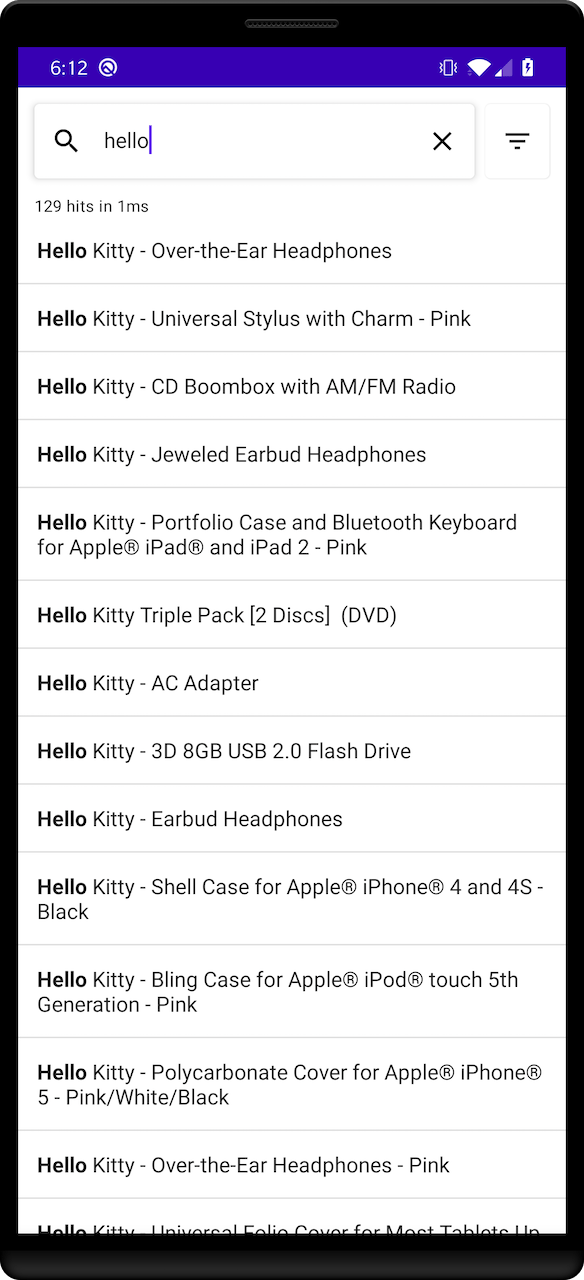
[Highlighting](/doc/guides/building-search-ui/ui-and-ux-patterns/highlighting-snippeting/js#highlighting) enhances the user experience by putting emphasis on the parts of the result that match the query. It's a visual indication of *why* a result is relevant to the query.
You can add highlighting by implementing the `Highlightable` interface on `Product`.
Define a `highlightedName` field to retrieve the highlighted value for the `name` attribute.
```kotlin Kotlin icon=code theme={"system"}
import com.algolia.instantsearch.core.Indexable
@Serializable
data class Product(
val name: String,
override val objectID: String,
override val _highlightResult: JsonObject?
) : Indexable, Highlightable {
val highlightedName: HighlightedString?
get() = getHighlight("name")
}
```
Use the `.toAnnotatedString()` extension function to convert an `HighlightedString` into a `AnnotatedString` assignable to a `Text` to display the highlighted names.
```kotlin Kotlin icon=code theme={"system"}
@Composable
fun ProductsList(
modifier: Modifier = Modifier,
pagingHits: LazyPagingItems,
listState: LazyListState
) {
LazyColumn(modifier, listState) {
items(pagingHits) { item ->
if (item == null) return@items
TextAnnotated(
modifier = modifier
.fillMaxWidth()
.padding(14.dp),
annotatedString = item.highlightedName?.toAnnotatedString(),
default = item.name,
style = MaterialTheme.typography.bodyLarge
)
Divider(
modifier = Modifier
.fillMaxWidth()
.width(1.dp)
)
}
}
}
@Composable
fun TextAnnotated(
modifier: Modifier,
annotatedString: AnnotatedString?,
default: String,
style: TextStyle
) {
if (annotatedString != null) {
Text(modifier = modifier, text = annotatedString, style = style)
} else {
Text(modifier = modifier, text = default, style = style)
}
}
```
### Improve the user experience: `Hightlighting`
[Highlighting](/doc/guides/building-search-ui/ui-and-ux-patterns/highlighting-snippeting/js#highlighting) enhances the user experience by putting emphasis on the parts of the result that match the query. It's a visual indication of *why* a result is relevant to the query.
You can add highlighting by implementing the `Highlightable` interface on `Product`.
Define a `highlightedName` field to retrieve the highlighted value for the `name` attribute.
```kotlin Kotlin icon=code theme={"system"}
import com.algolia.instantsearch.core.Indexable
@Serializable
data class Product(
val name: String,
override val objectID: String,
override val _highlightResult: JsonObject?
) : Indexable, Highlightable {
val highlightedName: HighlightedString?
get() = getHighlight("name")
}
```
Use the `.toAnnotatedString()` extension function to convert an `HighlightedString` into a `AnnotatedString` assignable to a `Text` to display the highlighted names.
```kotlin Kotlin icon=code theme={"system"}
@Composable
fun ProductsList(
modifier: Modifier = Modifier,
pagingHits: LazyPagingItems,
listState: LazyListState
) {
LazyColumn(modifier, listState) {
items(pagingHits) { item ->
if (item == null) return@items
TextAnnotated(
modifier = modifier
.fillMaxWidth()
.padding(14.dp),
annotatedString = item.highlightedName?.toAnnotatedString(),
default = item.name,
style = MaterialTheme.typography.bodyLarge
)
Divider(
modifier = Modifier
.fillMaxWidth()
.width(1.dp)
)
}
}
}
@Composable
fun TextAnnotated(
modifier: Modifier,
annotatedString: AnnotatedString?,
default: String,
style: TextStyle
) {
if (annotatedString != null) {
Text(modifier = modifier, text = annotatedString, style = style)
} else {
Text(modifier = modifier, text = default, style = style)
}
}
```
 ### Going further
You now have a fully working search experience:
your users can search for products,
refine their results,
and understand how many records are returned and why they're relevant to the query.
Find the full source code [in the GitHub repository](https://github.com/algolia/doc-code-samples/tree/master/instantsearch-android/getting-started).
### Going further
You now have a fully working search experience:
your users can search for products,
refine their results,
and understand how many records are returned and why they're relevant to the query.
Find the full source code [in the GitHub repository](https://github.com/algolia/doc-code-samples/tree/master/instantsearch-android/getting-started).