> ## Documentation Index
> Fetch the complete documentation index at: https://algolia.com/llms.txt
> Use this file to discover all available pages before exploring further.
# Get started with React InstantSearch
> Use React InstantSearch to create a dynamic, filterable search UI.
export const SearchQuery = () =>
search query
;
export const Index = () =>
index
;
export const Filter = () =>
filter
;
This is the **React InstantSearch v7** documentation.
If you're upgrading from v6, see the [upgrade guide](/doc/guides/building-search-ui/upgrade-guides/react/#migrate-from-react-instantsearch-v6-to-react-instantsearch-v7).
If you were using React InstantSearch Hooks,
this v7 documentation applies—just check for [necessary changes](/doc/guides/building-search-ui/upgrade-guides/react/#migrate-from-react-instantsearch-hooks-to-react-instantsearch-v7).
To continue using v6, you can find the [archived documentation](https://algolia.com/old-docs/deprecated/instantsearch/react/v6/api-reference/instantsearch/).
## Before you begin
This quickstart requires:
* Basic React knowledge.
* A React ≥ [16.8.0](https://reactjs.org/blog/2019/02/06/react-v16.8.0.html) app. If you don't have a React app, use this [CodeSandbox template](https://codesandbox.io/s/react-new).
* An Algolia account. If you don't have one, [create a new account](https://www.algolia.com/users/sign_up) for free.
* An Algolia with `image`, `categories`, `name`, `brand`, and `price` attributes. If you don't have one, use [a sample dataset](https://github.com/algolia/datasets/blob/master/ecommerce/records.json) and [send it to Algolia](/doc/guides/sending-and-managing-data/send-and-update-your-data).
* [`algoliasearch` and `react-instantsearch`](/doc/guides/building-search-ui/installation/react) installed.
## Quickstart
In this quickstart, you'll add an Algolia search interface to some starter code.
The code:
* Displays and formats a search box and results
* Uses InstantSearch's pre-built UI components (widgets) to filter results
The main UI component of a search experience is a search box.
It's often how users discover content in your app.
React InstantSearch provides a [`SearchBox`](/doc/api-reference/widgets/search-box/react) widget to display an Algolia search box.
```jsx React icon=code theme={"system"}
// App.jsx
import { liteClient as algoliasearch } from "algoliasearch/lite";
import { InstantSearch, SearchBox } from "react-instantsearch";
const searchClient = algoliasearch("ALGOLIA_APPLICATION_ID", "ALGOLIA_SEARCH_API_KEY");
function App() {
return (
);
}
```
Replace `INDEX_NAME` with the name of your index.
If you type in the search box, you won't see any results until you add a `hits` widget to display them.
Display the results returned by Algolia using the [`Hits`](/doc/api-reference/widgets/hits/react) widget.
```diff App.jsx icon=code theme={"system"}
import { liteClient as algoliasearch } from 'algoliasearch/lite';
-import { InstantSearch, SearchBox } from 'react-instantsearch';
+import { InstantSearch, SearchBox, Hits } from 'react-instantsearch';
const searchClient = algoliasearch('ALGOLIA_APPLICATION_ID', 'ALGOLIA_SEARCH_API_KEY');
+function Hit({ hit }) {
+ return (
+
+  +
+ {hit.categories[0]}
+ {hit.name}
+ ${hit.price}
+
+ );
+}
function App() {
return (
+
);
}
```
Replace `INDEX_NAME` with the name of your index.
The `Hits` widget updates whenever you type a character in the search box.
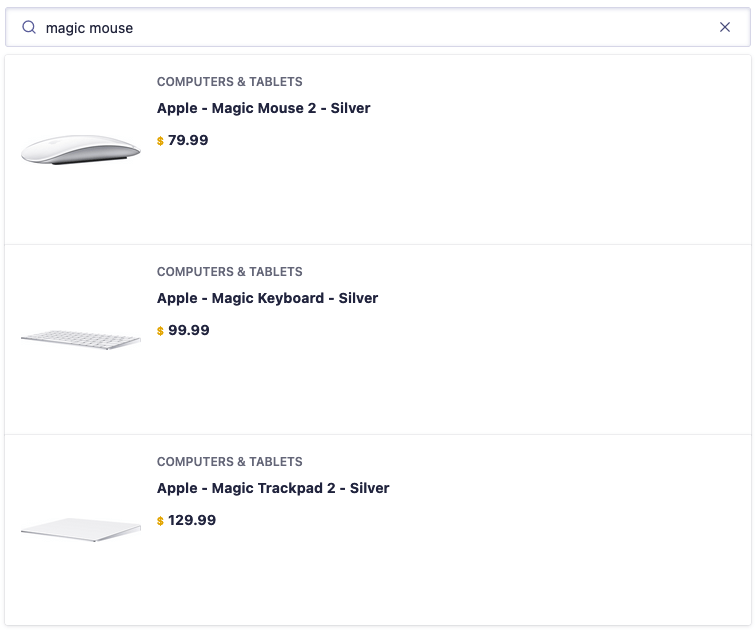 It's not always clear why one result ranks above another.
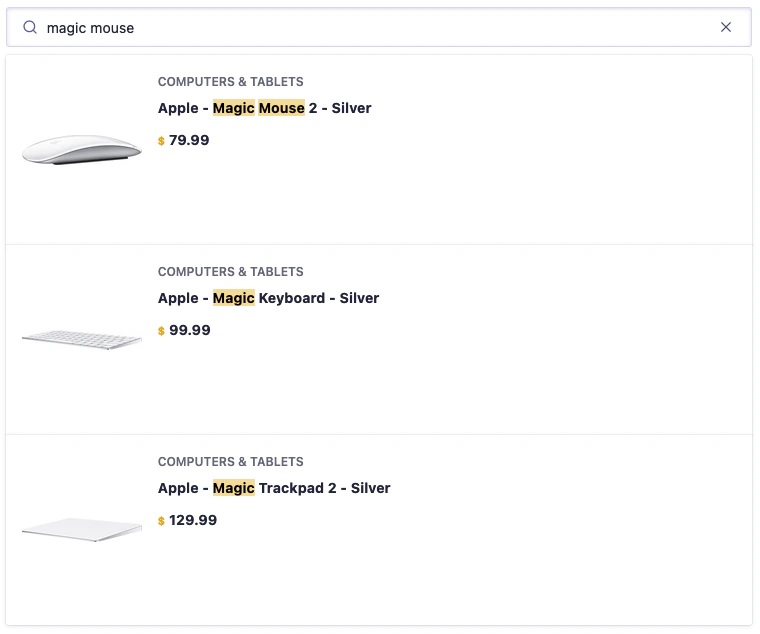
To help make things more evident to users, **you can highlight the parts of a result that match the .**
Algolia supports highlighting and returns the highlighted parts of a result in the response.
Use the [`Highlight`](/doc/api-reference/widgets/highlight/react) widget to highlight matches in each attribute.
```diff App.jsx icon=code theme={"system"}
import { liteClient as algoliasearch } from 'algoliasearch/lite';
-import { InstantSearch, SearchBox, Hits } from 'react-instantsearch';
+import {
+ InstantSearch,
+ SearchBox,
+ Hits,
+ Highlight,
+} from 'react-instantsearch';
const searchClient = algoliasearch('ALGOLIA_APPLICATION_ID', 'ALGOLIA_SEARCH_API_KEY');
function Hit({ hit }) {
return (
It's not always clear why one result ranks above another.
To help make things more evident to users, **you can highlight the parts of a result that match the .**
Algolia supports highlighting and returns the highlighted parts of a result in the response.
Use the [`Highlight`](/doc/api-reference/widgets/highlight/react) widget to highlight matches in each attribute.
```diff App.jsx icon=code theme={"system"}
import { liteClient as algoliasearch } from 'algoliasearch/lite';
-import { InstantSearch, SearchBox, Hits } from 'react-instantsearch';
+import {
+ InstantSearch,
+ SearchBox,
+ Hits,
+ Highlight,
+} from 'react-instantsearch';
const searchClient = algoliasearch('ALGOLIA_APPLICATION_ID', 'ALGOLIA_SEARCH_API_KEY');
function Hit({ hit }) {
return (
{hit.categories[0]}
- {hit.name}
+
+
+
${hit.price}
);
}
```
When users type a query, the UI highlights matches in each search result.
 To send [click and conversion events](/doc/guides/sending-events/getting-started) when users interact with your search UI,
set the [`insights`](/doc/api-reference/widgets/instantsearch/react#param-insights) option to `true`.
```diff App.jsx icon=code theme={"system"}
import { liteClient as algoliasearch } from 'algoliasearch/lite';
import {
InstantSearch,
SearchBox,
Hits,
Highlight,
} from 'react-instantsearch';
const searchClient = algoliasearch('ALGOLIA_APPLICATION_ID', 'ALGOLIA_SEARCH_API_KEY');
function Hit({ hit }) {
return (
To send [click and conversion events](/doc/guides/sending-events/getting-started) when users interact with your search UI,
set the [`insights`](/doc/api-reference/widgets/instantsearch/react#param-insights) option to `true`.
```diff App.jsx icon=code theme={"system"}
import { liteClient as algoliasearch } from 'algoliasearch/lite';
import {
InstantSearch,
SearchBox,
Hits,
Highlight,
} from 'react-instantsearch';
const searchClient = algoliasearch('ALGOLIA_APPLICATION_ID', 'ALGOLIA_SEARCH_API_KEY');
function Hit({ hit }) {
return (
{hit.categories[0]}
${hit.price}
);
}
function App() {
return (
-
+
);
}
```
A search box is a great way to refine a search experience,
but sometimes users need to narrow down the results to find what they're looking for in a specific category.
Use [`RefinementList`](/doc/api-reference/widgets/refinement-list/react) to items based on attributes such as brand, size, or color.
```diff App.jsx icon=code theme={"system"}
import { liteClient as algoliasearch } from 'algoliasearch/lite';
import {
InstantSearch,
SearchBox,
Hits,
Highlight,
+ RefinementList,
} from 'react-instantsearch';
const searchClient = algoliasearch('ALGOLIA_APPLICATION_ID', 'ALGOLIA_SEARCH_API_KEY');
function Hit({ hit }) {
return (
{hit.categories[0]}
${hit.price}
);
}
function App() {
return (
+
);
}
```
Replace `INDEX_NAME` with the name of your index.
The app only shows 20 hits but Algolia returns more results.
 Use the [`Pagination`](/doc/api-reference/widgets/pagination/react) widget to navigate the pages.
```diff App.jsx icon=code theme={"system"}
import { liteClient as algoliasearch } from 'algoliasearch/lite';
import {
InstantSearch,
SearchBox,
Hits,
Highlight,
RefinementList,
+ Pagination,
} from 'react-instantsearch';
const searchClient = algoliasearch('ALGOLIA_APPLICATION_ID', 'ALGOLIA_SEARCH_API_KEY');
// ...
function App() {
return (
+
);
}
```
You can override any [search parameters](/doc/api-reference/search-api-parameters) with [`Configure`](/doc/api-reference/widgets/configure/react).
This widget doesn't render anything but instead instructs InstantSearch to send custom search parameters to Algolia.
This update sets 40 hits per page.
```diff App.jsx icon=code theme={"system"}
import { liteClient as algoliasearch } from 'algoliasearch/lite';
import {
InstantSearch,
SearchBox,
Hits,
Highlight,
RefinementList,
Pagination,
+ Configure,
} from 'react-instantsearch';
// ...
function App() {
return (
+
);
}
```
## Next steps
With this quickstart, you've got a solid starting point for building dynamic search interfaces.
To enhance it:
* Use your own data.
* Load hits without pagination using [`InfiniteHits`](/doc/api-reference/widgets/infinite-hits/react).
* [Search more than one index](/doc/guides/building-search-ui/ui-and-ux-patterns/multi-index-search/react) with [`Index`](/doc/api-reference/widgets/index-widget/react).
* [Server-side render](/doc/guides/building-search-ui/going-further/server-side-rendering/react) your app for increased performance.
* Provide some more refinement widgets. For example:
* [`Menu`](/doc/api-reference/widgets/menu/react) to refine on a single value per attribute
* [`HierarchicalMenu`](/doc/api-reference/widgets/hierarchical-menu/react) to filter a hierarchy of categories
* [`ToggleRefinement`](/doc/api-reference/widgets/toggle-refinement/react) to filter on and off on a given attribute value
If you have several refinement widgets,
use [`CurrentRefinements`](/doc/api-reference/widgets/current-refinements/react) to display the active filters and let users remove them individually.
## See also
* [What is InstantSearch?](/doc/guides/building-search-ui/what-is-instantsearch/react)
* [InstantSearch widgets](/doc/api-reference/widgets/react)
* [Send click and conversion events](/doc/guides/building-search-ui/events/react)
Use the [`Pagination`](/doc/api-reference/widgets/pagination/react) widget to navigate the pages.
```diff App.jsx icon=code theme={"system"}
import { liteClient as algoliasearch } from 'algoliasearch/lite';
import {
InstantSearch,
SearchBox,
Hits,
Highlight,
RefinementList,
+ Pagination,
} from 'react-instantsearch';
const searchClient = algoliasearch('ALGOLIA_APPLICATION_ID', 'ALGOLIA_SEARCH_API_KEY');
// ...
function App() {
return (
+
);
}
```
You can override any [search parameters](/doc/api-reference/search-api-parameters) with [`Configure`](/doc/api-reference/widgets/configure/react).
This widget doesn't render anything but instead instructs InstantSearch to send custom search parameters to Algolia.
This update sets 40 hits per page.
```diff App.jsx icon=code theme={"system"}
import { liteClient as algoliasearch } from 'algoliasearch/lite';
import {
InstantSearch,
SearchBox,
Hits,
Highlight,
RefinementList,
Pagination,
+ Configure,
} from 'react-instantsearch';
// ...
function App() {
return (
+
);
}
```
## Next steps
With this quickstart, you've got a solid starting point for building dynamic search interfaces.
To enhance it:
* Use your own data.
* Load hits without pagination using [`InfiniteHits`](/doc/api-reference/widgets/infinite-hits/react).
* [Search more than one index](/doc/guides/building-search-ui/ui-and-ux-patterns/multi-index-search/react) with [`Index`](/doc/api-reference/widgets/index-widget/react).
* [Server-side render](/doc/guides/building-search-ui/going-further/server-side-rendering/react) your app for increased performance.
* Provide some more refinement widgets. For example:
* [`Menu`](/doc/api-reference/widgets/menu/react) to refine on a single value per attribute
* [`HierarchicalMenu`](/doc/api-reference/widgets/hierarchical-menu/react) to filter a hierarchy of categories
* [`ToggleRefinement`](/doc/api-reference/widgets/toggle-refinement/react) to filter on and off on a given attribute value
If you have several refinement widgets,
use [`CurrentRefinements`](/doc/api-reference/widgets/current-refinements/react) to display the active filters and let users remove them individually.
## See also
* [What is InstantSearch?](/doc/guides/building-search-ui/what-is-instantsearch/react)
* [InstantSearch widgets](/doc/api-reference/widgets/react)
* [Send click and conversion events](/doc/guides/building-search-ui/events/react)