> ## Documentation Index
> Fetch the complete documentation index at: https://algolia.com/llms.txt
> Use this file to discover all available pages before exploring further.
# Facet drop-down menus
> Learn how to display your facets as dropdowns with React InstantSearch.
This is the **React InstantSearch v7** documentation.
If you're upgrading from v6, see the [upgrade guide](/doc/guides/building-search-ui/upgrade-guides/react/#migrate-from-react-instantsearch-v6-to-react-instantsearch-v7).
If you were using React InstantSearch Hooks,
this v7 documentation applies—just check for [necessary changes](/doc/guides/building-search-ui/upgrade-guides/react/#migrate-from-react-instantsearch-hooks-to-react-instantsearch-v7).
To continue using v6, you can find the [archived documentation](https://algolia.com/old-docs/deprecated/instantsearch/react/v6/api-reference/instantsearch/).
All Search and Discovery user interfaces display, in addition to a search box, a series of filters that allow users to narrow down their search.
These onscreen filters are called [facets](/doc/guides/managing-results/refine-results/faceting).
A typical facet is an attribute like "brand" or "price", and facet values are the individual brands and prices.
By clicking on a facet value, users can include and exclude whole categories of products.
For example, by selecting "Blue" in the "Color" facet filter, a user can exclude every product except blue ones.
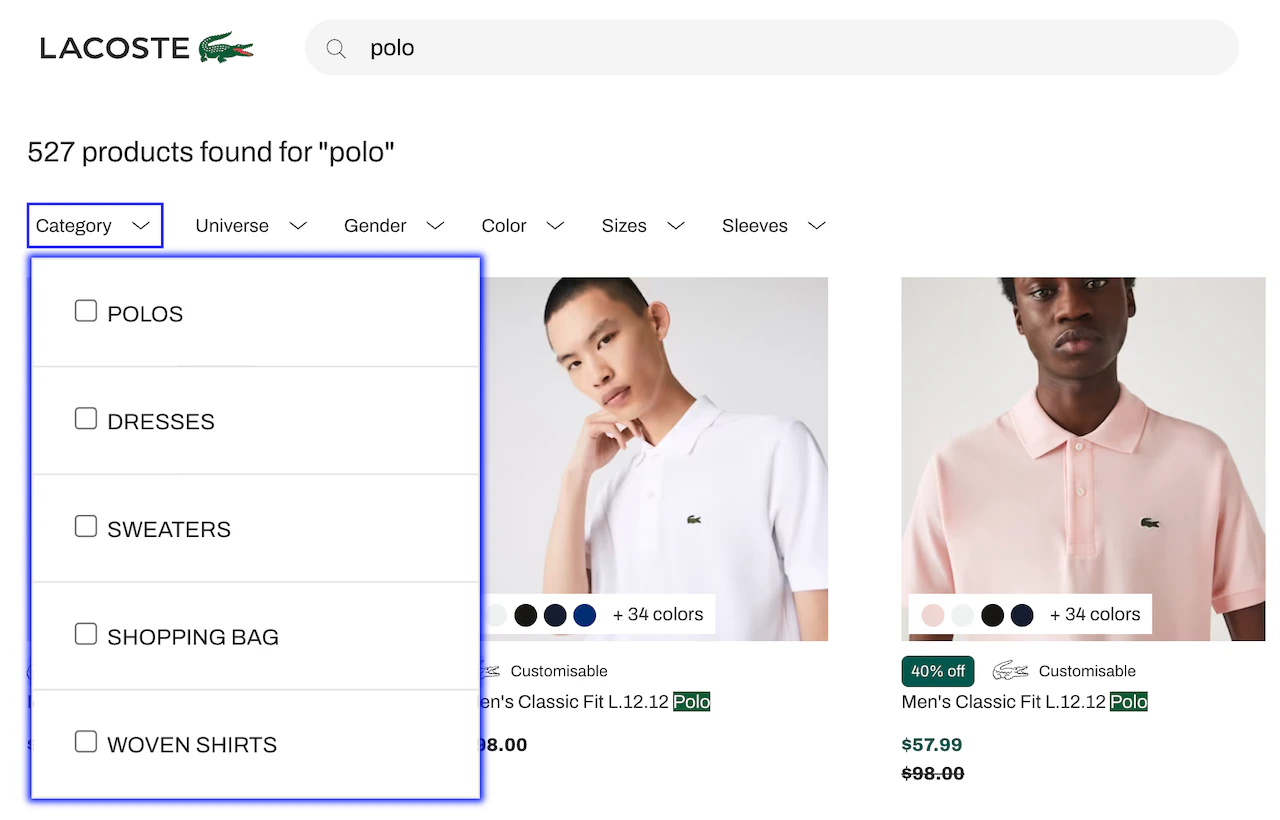
For a long time, ecommerce websites have been displaying facets on the left side of the screen, providing direct access.
But this placement reduces the space available to display products.
With the rise of mobile-first design and touchscreen, online businesses have started to display facets at the top of their product listing.
That's the case of [Lacoste](https://www.lacoste.com/gb/lacoste-polo.html#query=Polo) which [increased its sales by +150% sales from Algolia's search](https://resources.algolia.com/customer-stories/casestudy-lacoste-en).
Facet drop-down menus offer two benefits:
* They increase facet visibility and accessibility, encouraging more usage.
* They simplify the screen, leaving more room for products and creating more on-screen breathing space, an important UX design choice.
This guide shows how to turn a facet filter, commonly represented by a [`RefinementList`](/doc/api-reference/widgets/refinement-list/react) or a [`HierarchicalMenu`](/doc/api-reference/widgets/hierarchical-menu/react) widget, into a drop-down menu layout.
Run and edit the Facet drop-down menus example in CodeSandbox.
Browse the source for the Facet drop-down menus example on GitHub.
## Widget elements
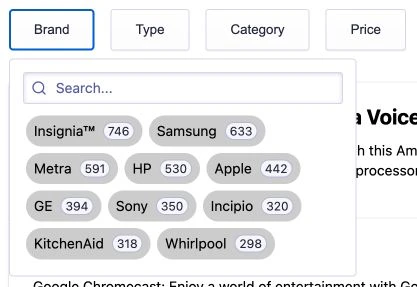
By design, each facet drop-down menu widget has two elements:
* A button with a label and the number of active refinements.
* A panel (that can be toggled) containing the widget.
Both can be [customized](/doc/guides/building-search-ui/ui-and-ux-patterns/facet-dropdown/react#customize-the-ui).
The facet drop-down menu widget can only contain one widget and is compatible with [`DynamicWidgets`](/doc/api-reference/widgets/dynamic-facets/react)
### Quickstart
To get started, clone the [code sample](https://github.com/algolia/doc-code-samples/tree/master/react-instantsearch/facet-dropdown)
and follow the instructions to install the dependencies, or fork the following [CodeSandbox](https://codesandbox.io/s/github/algolia/doc-code-samples/tree/master/react-instantsearch/facet-dropdown).
In the project, you see two components:
* [`Panel.tsx`](https://github.com/algolia/doc-code-samples/blob/master/react-instantsearch/facet-dropdown/src/components/Panel.tsx) used as the drop-down menu that can be toggled. It also displays a header, wraps your provided widget and adds a footer on mobile.
* [`FacetDropdown.tsx`](https://github.com/algolia/doc-code-samples/blob/master/react-instantsearch/facet-dropdown/src/components/FacetDropdown.tsx) used to get the number of active refinements for the provided widget and close the panel when the search state has changed.
To use the facet drop-down menu widget in your own project:
install or duplicate the dependencies for each widget (like the [`hooks` folder](https://github.com/algolia/doc-code-samples/tree/master/react-instantsearch/facet-dropdown/src/hooks) and [`utils.ts` file](https://github.com/algolia/doc-code-samples/blob/master/react-instantsearch/facet-dropdown/src/utils.ts)).
A basic usage of the facet drop-down menu widget:
```jsx React icon=code theme={"system"}
;
```
The `FacetDropdown` widget automatically retrieves the attribute of the first provided child widget to display the number of current refinements in the drop-down menu toggle button.
## Props
### `buttonText`
**Type:** `string | function`
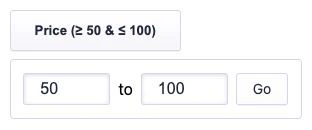
You can use the `buttonText` prop to customize the text displayed in the drop-down menu button.
It can be a `string` or a `function`.
By default, it shows the number of active refinement for the provided widget.
Here's an example showing how you can get the current `refinements` to display the current bounds of a [`RangeInput`](/doc/api-reference/widgets/range-input/react) widget.
```jsx React icon=code theme={"system"}
{
const [start, end] = refinements;
return start || end
? `Price (${(start || end).label}${end ? " & " + end.label : ""})`
: `Price`;
}}
>
;
```
### `closeOnChange`
**Type:** `boolean | function`
You can use the `closeOnChange` prop to close the drop-down menu as soon as users selects a facet value using a `boolean` or `function` that returns `true`.
If it's `false`, the drop-down menu isn't closed automatically, allowing users to select more than one facet value.
Here's an example where the drop-down menu is automatically closed only if users are using a device with a width greater than or equal to 375px.
```jsx React icon=code theme={"system"}
const MOBILE_WIDTH = 375;
/* ... */
window.innerWidth >= MOBILE_WIDTH}>
;
```
### `cssClasses`
**Type:** `Object`
You can use the `classNames` prop to add CSS classes on multiple elements of the facet drop-down menu widget.
Here's an example that adds custom CSS classes.
```jsx React icon=code theme={"system"}
;
```
## Customize the UI
The generated markup lets you customize the look and feel to your needs,
to change the default aspect of the drop-down menu with a few lines of CSS.
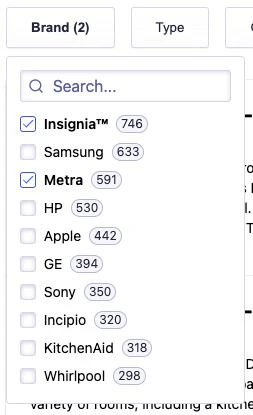
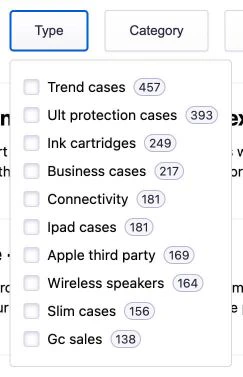
Here's the default version:
You can customize two aspects you can customize to your needs:
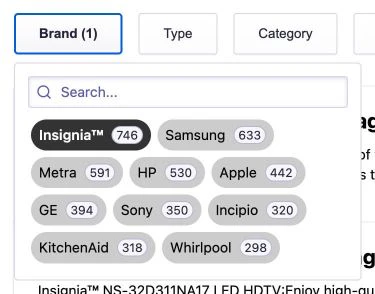
* **Inline facet values**
The demo's brand drop-down menu widget uses an inline list.
See the code in the [`App.css`](https://github.com/algolia/doc-code-samples/blob/master/react-instantsearch/facet-dropdown/src/App.css) file.
```css CSS icon=paintbrush theme={"system"}
.my-BrandDropdown .ais-RefinementList-list {
width: 20rem;
display: flex;
flex-wrap: wrap;
}
```
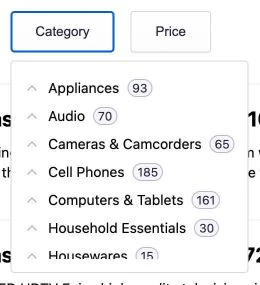
* **Fixed height drop-down menu**
The demo's category drop-down menu widget is hierarchical and is a fixed height list.
See the code in the [`App.css`](https://github.com/algolia/doc-code-samples/blob/master/react-instantsearch/facet-dropdown/src/App.css) file.
```css CSS icon=paintbrush theme={"system"}
.my-CategoryDropdown .ais-HierarchicalMenu {
height: 185px;
overflow: auto;
}
```
## Mobile support
Mobile devices are already supported by the widget.
Below 375px (this breaking point can be changed, see below):
* The drop-down menu position is fixed and taking the full page size.
* The page scroll is locked when the drop-down menu is open.
* The button text is added as a title at the top of the drop-down menu.
* A button to apply the changes is added at the bottom of the drop-down menu.
To customize the default behavior,
the facet drop-down menu widget uses the following [CSS media query](https://github.com/algolia/doc-code-samples/blob/master/react-instantsearch/facet-dropdown/src/components/FacetDropdown.css#L72-L99):
```css CSS icon=paintbrush theme={"system"}
@media only screen and (max-width: 375px) {
/* ... */
}
```
It also uses the following logic to [prevent page scrolling](https://github.com/algolia/doc-code-samples/blob/master/react-instantsearch/facet-dropdown/src/components/FacetDropdown.tsx#L99-L101) when the drop-down menu is open:
```ts TypeScript icon=code theme={"system"}
const isMobile = useMediaQuery("(max-width: 375px)");
useLockedBody(isOpened && isMobile);
```
This code sample gets you started by providing a basic look and feel for mobile devices.
Refactor the provided code to match your current design and offer the best experience to your mobile users.
 Facet drop-down menus offer two benefits:
* They increase facet visibility and accessibility, encouraging more usage.
* They simplify the screen, leaving more room for products and creating more on-screen breathing space, an important UX design choice.
This guide shows how to turn a facet filter, commonly represented by a [`RefinementList`](/doc/api-reference/widgets/refinement-list/react) or a [`HierarchicalMenu`](/doc/api-reference/widgets/hierarchical-menu/react) widget, into a drop-down menu layout.
Facet drop-down menus offer two benefits:
* They increase facet visibility and accessibility, encouraging more usage.
* They simplify the screen, leaving more room for products and creating more on-screen breathing space, an important UX design choice.
This guide shows how to turn a facet filter, commonly represented by a [`RefinementList`](/doc/api-reference/widgets/refinement-list/react) or a [`HierarchicalMenu`](/doc/api-reference/widgets/hierarchical-menu/react) widget, into a drop-down menu layout.
 ### Quickstart
 ## Props
### `buttonText`
**Type:** `string | function`
You can use the `buttonText` prop to customize the text displayed in the drop-down menu button.
It can be a `string` or a `function`.
By default, it shows the number of active refinement for the provided widget.
Here's an example showing how you can get the current `refinements` to display the current bounds of a [`RangeInput`](/doc/api-reference/widgets/range-input/react) widget.
```jsx React icon=code theme={"system"}
## Props
### `buttonText`
**Type:** `string | function`
You can use the `buttonText` prop to customize the text displayed in the drop-down menu button.
It can be a `string` or a `function`.
By default, it shows the number of active refinement for the provided widget.
Here's an example showing how you can get the current `refinements` to display the current bounds of a [`RangeInput`](/doc/api-reference/widgets/range-input/react) widget.
```jsx React icon=code theme={"system"}
 ### `closeOnChange`
**Type:** `boolean | function`
You can use the `closeOnChange` prop to close the drop-down menu as soon as users selects a facet value using a `boolean` or `function` that returns `true`.
If it's `false`, the drop-down menu isn't closed automatically, allowing users to select more than one facet value.
Here's an example where the drop-down menu is automatically closed only if users are using a device with a width greater than or equal to 375px.
```jsx React icon=code theme={"system"}
const MOBILE_WIDTH = 375;
/* ... */
### `closeOnChange`
**Type:** `boolean | function`
You can use the `closeOnChange` prop to close the drop-down menu as soon as users selects a facet value using a `boolean` or `function` that returns `true`.
If it's `false`, the drop-down menu isn't closed automatically, allowing users to select more than one facet value.
Here's an example where the drop-down menu is automatically closed only if users are using a device with a width greater than or equal to 375px.
```jsx React icon=code theme={"system"}
const MOBILE_WIDTH = 375;
/* ... */
 You can customize two aspects you can customize to your needs:
* **Inline facet values**
The demo's brand drop-down menu widget uses an inline list.
See the code in the [`App.css`](https://github.com/algolia/doc-code-samples/blob/master/react-instantsearch/facet-dropdown/src/App.css) file.
You can customize two aspects you can customize to your needs:
* **Inline facet values**
The demo's brand drop-down menu widget uses an inline list.
See the code in the [`App.css`](https://github.com/algolia/doc-code-samples/blob/master/react-instantsearch/facet-dropdown/src/App.css) file.
 ```css CSS icon=paintbrush theme={"system"}
.my-BrandDropdown .ais-RefinementList-list {
width: 20rem;
display: flex;
flex-wrap: wrap;
}
```
* **Fixed height drop-down menu**
The demo's category drop-down menu widget is hierarchical and is a fixed height list.
See the code in the [`App.css`](https://github.com/algolia/doc-code-samples/blob/master/react-instantsearch/facet-dropdown/src/App.css) file.
```css CSS icon=paintbrush theme={"system"}
.my-BrandDropdown .ais-RefinementList-list {
width: 20rem;
display: flex;
flex-wrap: wrap;
}
```
* **Fixed height drop-down menu**
The demo's category drop-down menu widget is hierarchical and is a fixed height list.
See the code in the [`App.css`](https://github.com/algolia/doc-code-samples/blob/master/react-instantsearch/facet-dropdown/src/App.css) file.
 ```css CSS icon=paintbrush theme={"system"}
.my-CategoryDropdown .ais-HierarchicalMenu {
height: 185px;
overflow: auto;
}
```
## Mobile support
Mobile devices are already supported by the widget.
Below 375px (this breaking point can be changed, see below):
* The drop-down menu position is fixed and taking the full page size.
* The page scroll is locked when the drop-down menu is open.
* The button text is added as a title at the top of the drop-down menu.
* A button to apply the changes is added at the bottom of the drop-down menu.
To customize the default behavior,
the facet drop-down menu widget uses the following [CSS media query](https://github.com/algolia/doc-code-samples/blob/master/react-instantsearch/facet-dropdown/src/components/FacetDropdown.css#L72-L99):
```css CSS icon=paintbrush theme={"system"}
@media only screen and (max-width: 375px) {
/* ... */
}
```
It also uses the following logic to [prevent page scrolling](https://github.com/algolia/doc-code-samples/blob/master/react-instantsearch/facet-dropdown/src/components/FacetDropdown.tsx#L99-L101) when the drop-down menu is open:
```ts TypeScript icon=code theme={"system"}
const isMobile = useMediaQuery("(max-width: 375px)");
useLockedBody(isOpened && isMobile);
```
This code sample gets you started by providing a basic look and feel for mobile devices.
Refactor the provided code to match your current design and offer the best experience to your mobile users.
```css CSS icon=paintbrush theme={"system"}
.my-CategoryDropdown .ais-HierarchicalMenu {
height: 185px;
overflow: auto;
}
```
## Mobile support
Mobile devices are already supported by the widget.
Below 375px (this breaking point can be changed, see below):
* The drop-down menu position is fixed and taking the full page size.
* The page scroll is locked when the drop-down menu is open.
* The button text is added as a title at the top of the drop-down menu.
* A button to apply the changes is added at the bottom of the drop-down menu.
To customize the default behavior,
the facet drop-down menu widget uses the following [CSS media query](https://github.com/algolia/doc-code-samples/blob/master/react-instantsearch/facet-dropdown/src/components/FacetDropdown.css#L72-L99):
```css CSS icon=paintbrush theme={"system"}
@media only screen and (max-width: 375px) {
/* ... */
}
```
It also uses the following logic to [prevent page scrolling](https://github.com/algolia/doc-code-samples/blob/master/react-instantsearch/facet-dropdown/src/components/FacetDropdown.tsx#L99-L101) when the drop-down menu is open:
```ts TypeScript icon=code theme={"system"}
const isMobile = useMediaQuery("(max-width: 375px)");
useLockedBody(isOpened && isMobile);
```
This code sample gets you started by providing a basic look and feel for mobile devices.
Refactor the provided code to match your current design and offer the best experience to your mobile users.