> ## Documentation Index
> Fetch the complete documentation index at: https://algolia.com/llms.txt
> Use this file to discover all available pages before exploring further.
# Query Suggestions
> Query Suggestions suggest popular searches to guide users and help them search faster.
export const Records = () =>
records
;
export const Index = () =>
index
;
export const Filter = () =>
filter
;
export const Facet = () =>
facet
;
export const Application = () =>
application
;
export const AlgoliaSearch = () => ;
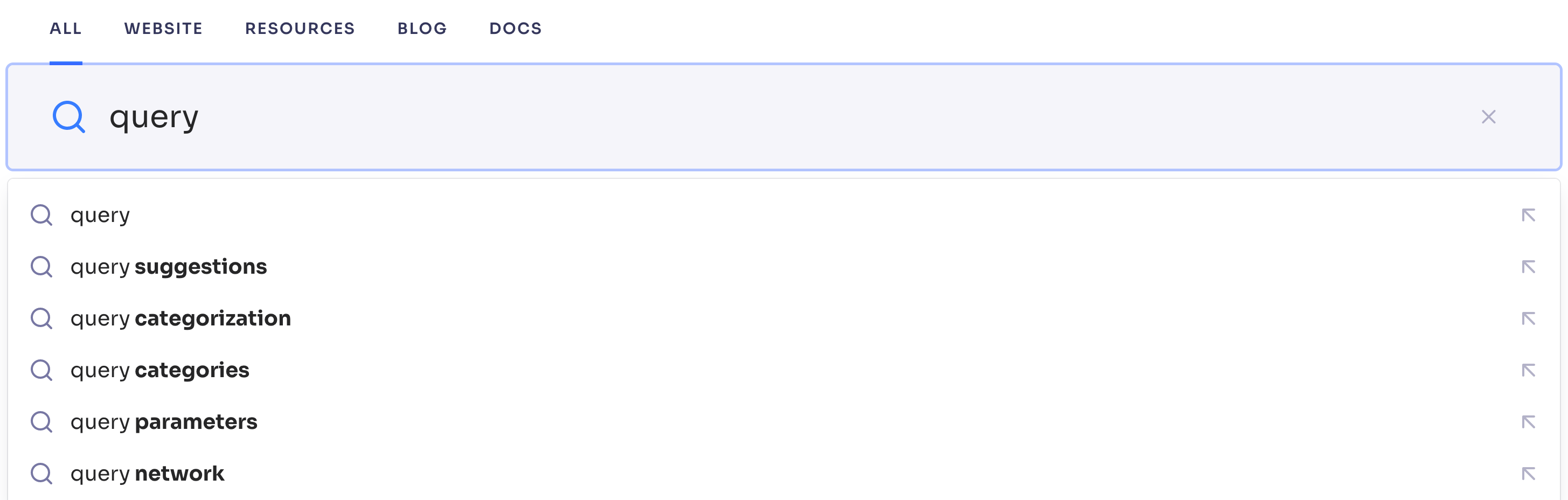
Query Suggestions help users search by showing a list of popular searches as search suggestions as they type.
By selecting suggestions, users type less and avoid searches that don't return any results.
Users often interact with Query Suggestions in an autocomplete menu.
When typing, a list of suggestions appears below the search box.
Choosing a suggestion initiates a search using that suggestion as the query.
Query Suggestions can also help in these cases:
* To help users **before** they type anything.
This is often combined with featured categories or featured search results.
* To help users continue if a search [didn't return any results](/doc/guides/building-search-ui/going-further/conditional-display/js#handling-no-results).
## Explore Query Suggestions user interfaces
For examples of Query Suggestions in action, see:
* [Query Suggestions demo with InstantSearch.js](https://codesandbox.io/s/github/algolia/instantsearch/tree/master/examples/js/query-suggestions)
* [Autocomplete examples with Query Suggestions](/doc/ui-libraries/autocomplete/introduction/sandboxes)
For more information about building a Query Suggestions UI,
see:
* [Build a Query Suggestions UI with InstantSearch](/doc/guides/building-search-ui/ui-and-ux-patterns/query-suggestions/tutorials/building-query-suggestions-ui/js)
## How Query Suggestions work
Algolia stores Query Suggestions as in an .
This index is rebuilt every day, or when you change its settings.
Each update runs through these steps:
{/* vale Vale.Spelling = NO */}
1. **Find the most frequent searches** from the [search analytics](/doc/guides/search-analytics/overview) of your source indices and their replicas.
During the early stages of your implementation, when you haven't gathered enough analytics, you can also generate suggestions using external analytics or your data.
2. **Normalize and complete suggestions** by removing duplicated, similar, or prefixed suggestions, depending on your [settings](#remove-duplicate-or-unhelpful-suggestions). Suggestions must match the following criteria:
* Only contain alphanumeric characters
* Return a minimum number of search results
* Longer than a minimum number of letters
* Not be a banned expression.
Query Suggestions also deduplicate similar searches, keeping only the most frequently searched terms as suggestions.
3. **Rank the suggestions** by popularity (number of searches) in the last 30 days.
For all similar searches, the individual counts are summed.
Counts from external analytics are also added to the suggestion's popularity.
{/* vale Vale.Spelling = NO */}
Each suggestion in the Query Suggestions index has at least these attributes:
* `objectID`. Unique record identifier, usually the suggestion itself
* `query`. The suggestion
* `popularity`. Number of searches in the last 30 days for the suggestion
If you add suggestions from facets, more attributes are added.
## Set up Query Suggestions
1. Go to the [Algolia dashboard](https://dashboard.algolia.com/explorer/browse) and select your Algolia .
2. On the left sidebar, select **Search**.
3. Select your Algolia index.
4. Open the [**Query Suggestions**](https://dashboard.algolia.com/query-suggestions) page and click **New Query Suggestions Index**.
5. In the **Source index** field, enter the name of the index with the search results and provide a name for the Query Suggestions index.
You can add more source indices later.
6. Click **Accept and Continue** to start building the Query Suggestions index.
### Augment Query Suggestions with external analytics
If you don't have enough searches in your search analytics yet, or you want to add specific suggestions,
you can upload external analytics from a JSON file.
External analytics give Query Suggestions another data source.
They don't replace your source index, which must contain your searchable records.
1. Prepare your suggestions in a JSON file.
Each suggestion must have `query` and `count` attributes.
Algolia adds the value of the `count` attribute to the value of the `popularity` attribute in the Query Suggestions index for that suggestion.
To increase the popularity of existing suggestions, add them to this JSON file with a high value for the `count` attribute.
For example:
```json JSON icon="braces" theme={"system"}
[
{
"query": "shoes",
"count": 10031
},
{
"query": "dress shirt",
"count": 731
},
{
"query": "yellow jacket",
"count": 122
}
]
```
2. [Import](/doc/guides/sending-and-managing-data/send-and-update-your-data/how-to/importing-with-the-api) this JSON file into Algolia as a new index.
This index is your external analytics index.
3. Create or open the Query Suggestions index you want to enrich.
If you create a Query Suggestions index, set **Source index** to the index that contains your searchable records, not the external analytics index you imported in step 2.
For example, if your searchable records are in `products`, use `products` as the source index.
4. In the **Data sources** section, click **Enable** next to **External Analytics**.
5. In the **External analytics index** field, enter the name of the index you imported in step 2.
For example, if you imported your JSON file into `external_query_analytics`, use `external_query_analytics` as the external analytics index.
### Augment Query Suggestions with facet data
If you don't have enough data from search analytics or external analytics,
Query Suggestions can create suggestions from the combination of facet values.
For example, for the facets `color` and `brand`, these Query Suggestions are created:
* red nike
* blue nike
* red adidas
* blue adidas
Suggestions created from facets are less relevant than those created by search analytics since they aren't based on popularity.
But they can still enrich the suggestions, especially for rarer queries.
That's why it's best to keep suggestions from facets, even after you collect sufficient data from analytics.
To augment your Query Suggestions with facet data:
1. Set appropriate [searchable attributes](/doc/guides/managing-results/must-do/searchable-attributes)
**and** [attributes for faceting](/doc/guides/managing-results/refine-results/faceting/how-to/declaring-attributes-for-faceting-with-dashboard).
2. On the [**Query Suggestions**](https://dashboard.algolia.com/query-suggestions) page in the Algolia dashboard,
select your Query Suggestions index.
3. In the **Data sources** section, click **Enable** for **Queries by facets**.
4. Select two facet attributes and click **Add attributes**.
Repeat for any combination of two facets for which you want to generate suggestions.
To show categories from facets in your suggestions,
see [Query Suggestions with categories](#query-suggestions-with-categories).
## Optimize Query Suggestions
After the initial setup, you can optimize your experience with one of the following strategies.
### Improve relevance
A Query Suggestions index is a regular Algolia index,
so you can use the same features and settings to tune the relevance of your suggestions.
* Use **Rules** to adjust the suggestions based on conditions.
For example, you can [promote](/doc/guides/managing-results/rules/merchandising-and-promoting/how-to/promote-hits) or
[hide](/doc/guides/managing-results/rules/merchandising-and-promoting/how-to/how-to-hide-hits) specific suggestions,
[change the user's query](/doc/guides/managing-results/rules/detecting-intent),
or [display a banner](/doc/guides/managing-results/rules/merchandising-and-promoting/how-to/add-banners).
* Use [**synonyms**](/doc/guides/managing-results/optimize-search-results/adding-synonyms) to suggest similar search terms.
This helps if users search for terms that aren't in your records (but those similar terms are).
* Adjust **index settings** such as [typo tolerance](/doc/guides/managing-results/optimize-search-results/typo-tolerance/in-depth/configuring-typo-tolerance),
or [tokenization](/doc/guides/managing-results/optimize-search-results/handling-natural-languages-nlp/in-depth/tokenization).
### Query Suggestions with categories
You can make your suggestions more targeted by adding categories:
1. Make sure you configure your category attribute as a [facet](/doc/guides/managing-results/refine-results/faceting/how-to/declaring-attributes-for-faceting-with-dashboard).
2. On the [**Query Suggestions**](https://dashboard.algolia.com/query-suggestions) page, select your Query Suggestions index.
3. On the **Overview & Settings** tab, in the **Categories** section, click **Edit categories**.
4. In the **Categories attribute** field, choose a category to display.
In the **Show top** field, select how many top categories to display.
For example, if you chose `2`, the top two categories are added to every suggestion.
#### How to determine top categories
Query Suggestions determines the top categories with the following algorithm:
1. Perform a "strict" search with the suggestion in the source index—without features such as prefixing or typo-tolerance.
2. Add the most frequently found category values to the [`facets.exact_matches`](#query-suggestions-index-schema) attribute.
3. Get the top filters (most often applied) for this search term from analytics and add them to the [`facets.analytics`](#query-suggestions-index-schema) attribute.
The category information is added to each record in your Query Suggestions index.
For your user interface, it's better to rely on the `facets.exact_matches` attribute
because it represents data from your index.
For example, if users often by a specific category,
but you don't have many items in that category,
they won't see many results when accepting this suggestion.
#### Display categories in your UI
Once you have categorized your Query Suggestions, decide how to display them in your frontend.
One option is to redirect users to an InstantSearch page on category selection.
This page uses the chosen category as a filter with the user's initial query pre-filled in the search box.
For an example of this,
see [Build a Query Suggestions UI with InstantSearch](/doc/guides/building-search-ui/ui-and-ux-patterns/autocomplete/vue).
### Remove duplicate or unhelpful suggestions
On the [**Query Suggestions**](https://dashboard.algolia.com/query-suggestions) page,
select your Query Suggestions index,
and adjust the following settings to improve the quality of the suggestions:
1. In the **Languages** field, add the language of your index.
This lets Query Suggestions automatically remove duplicate suggestions such as singulars and plurals.
2. Adjust the **Minimum letters** setting to prevent short, incomplete suggestions.
A suggestion must have at least this many letters to be included.
3. Adjust the **Minimum hits** setting to ensure enough search results are returned.
A suggestion must return at least this many search results to be included.
4. On the **Banned expressions** tab, add expressions or patterns for excluding suggestions.
### Personalize Query Suggestions
To add [personalized](/doc/guides/personalization/classic-personalization/what-is-personalization) Query Suggestions,
follow these steps:
1. On the [**Query Suggestions**](https://dashboard.algolia.com/query-suggestions) page, select your Query Suggestions index.
2. On the **Overview & Settings** tab, in the **Settings** section, enable **Personalized Query Suggestions**.
Algolia then retrieves the top 20 facet values (based on your [personalization strategy](/doc/guides/personalization/classic-personalization/personalizing-results#configure-your-personalization-strategy)) from your source index
and adds new attributes to the suggestions in your Query Suggestions index for each facet defined in your personalization strategy.
### Generate different suggestions for different environments
You can use [analytics tags](/doc/guides/search-analytics/guides/segments) to create different suggestions for different environments,
such as mobile or desktop users, or for different geographical regions.
1. [Create a new Query Suggestions index](#set-up-query-suggestions) with a recognizable name.
For example, include the analytics tag in the name, such as `products_query_suggestions_mobile`.
2. After creating the index, on the **Overview & Settings** tab, in the **Data sources** section,
click **Manage** next to **Algolia Analytics API**.
3. Enter the appropriate analytics tags. For example, `products_query_suggestions_mobile`.
This only includes suggestions with specific analytics tags.
In your UI, you can target the different Query Suggestions indices depending on the user's device or geographical region.
## Troubleshoot missing Query Suggestions
If suggestions are missing, the Query Suggestions API can help identify the issue.
For example, run the following command to retrieve the most recent log entries.
```sh icon="square-terminal" theme={"system"}
curl -H "x-algolia-api-key: $ALGOLIA_ADMIN_API_KEY" \
-H "x-algolia-application-id: $ALGOLIA_APPLICATION_ID" \
"https://query-suggestions.us.algolia.com/1/logs/$ALGOLIA_QUERY_SUGGESTIONS_INDEX"
```
The log entries provide the following details:
* Source indices
* Why suggestions were skipped
* The number of [popular searches](#how-query-suggestions-work)
* The number of suggestion candidates from [facets](#augment-query-suggestions-with-facet-data)
* The [normalization](#how-query-suggestions-work) process
For more information, see [Get a log file](/doc/rest-api/query-suggestions/get-log-file).
## Query Suggestions index schema
The following example shows a record from a Query Suggestions index with categories from facets.
```json JSON icon="braces" theme={"system"}
{
"query": "phone charger", // The suggestion
"objectID": "phone charger", // Unique identifier
"popularity": 2457, // Number of searches for this suggestion in the last 30 days
"nb_words": 2, // Number of words in the suggestion
"products": {
// Name of the source index
"exact_nb_hits": 42, // Number of search results for this suggestion
"facets": {
"exact_matches": {
// Most frequent facet values found for this suggestion
"brand": [
{ "value": "Anker", "count": 12 }, // This means 12 of the search results have "Anker" as "brand"
{ "value": "Yootech", "count": 11 },
{ "value": "TOZO", "count": 9 },
{ "value": "Aukey", "count": 4 },
{ "value": "Apple", "count": 2 }
]
},
"analytics": {
// Most frequently applied filters for this suggestion
"brand": [
{
"attribute": "brand",
"count": 347,
"operator": ":",
"value": "Anker"
},
{
"attribute": "brand",
"count": 203,
"operator": ":",
"value": "Apple"
},
{
"attribute": "brand",
"count": 152,
"operator": ":",
"value": "TOZO"
},
{
"attribute": "brand",
"count": 128,
"operator": ":",
"value": "Yootech"
},
{
"attribute": "brand",
"count": 80,
"operator": ":",
"value": "Aukey"
}
]
}
}
}
}
```
## See also
For more information, see these blog articles:
* [How Query Suggestions increase conversions](https://www.algolia.com/blog/ux/autocomplete-how-search-suggestions-increase-conversions/)
* [Build a Query Suggestion UX like Google's](https://www.algolia.com/blog/algolia/query-suggestion-ux-like-googles/)
* [Three best practices for search autocomplete on mobile](https://www.algolia.com/blog/ecommerce/search-autocomplete-on-mobile/)
 Query Suggestions can also help in these cases:
* To help users **before** they type anything.
This is often combined with featured categories or featured search results.
* To help users continue if a search [didn't return any results](/doc/guides/building-search-ui/going-further/conditional-display/js#handling-no-results).
## Explore Query Suggestions user interfaces
For examples of Query Suggestions in action, see:
* [Query Suggestions demo with InstantSearch.js](https://codesandbox.io/s/github/algolia/instantsearch/tree/master/examples/js/query-suggestions)
* [Autocomplete examples with Query Suggestions](/doc/ui-libraries/autocomplete/introduction/sandboxes)
For more information about building a Query Suggestions UI,
see:
* [Build a Query Suggestions UI with InstantSearch](/doc/guides/building-search-ui/ui-and-ux-patterns/query-suggestions/tutorials/building-query-suggestions-ui/js)
## How Query Suggestions work
Algolia stores Query Suggestions as
Query Suggestions can also help in these cases:
* To help users **before** they type anything.
This is often combined with featured categories or featured search results.
* To help users continue if a search [didn't return any results](/doc/guides/building-search-ui/going-further/conditional-display/js#handling-no-results).
## Explore Query Suggestions user interfaces
For examples of Query Suggestions in action, see:
* [Query Suggestions demo with InstantSearch.js](https://codesandbox.io/s/github/algolia/instantsearch/tree/master/examples/js/query-suggestions)
* [Autocomplete examples with Query Suggestions](/doc/ui-libraries/autocomplete/introduction/sandboxes)
For more information about building a Query Suggestions UI,
see:
* [Build a Query Suggestions UI with InstantSearch](/doc/guides/building-search-ui/ui-and-ux-patterns/query-suggestions/tutorials/building-query-suggestions-ui/js)
## How Query Suggestions work
Algolia stores Query Suggestions as 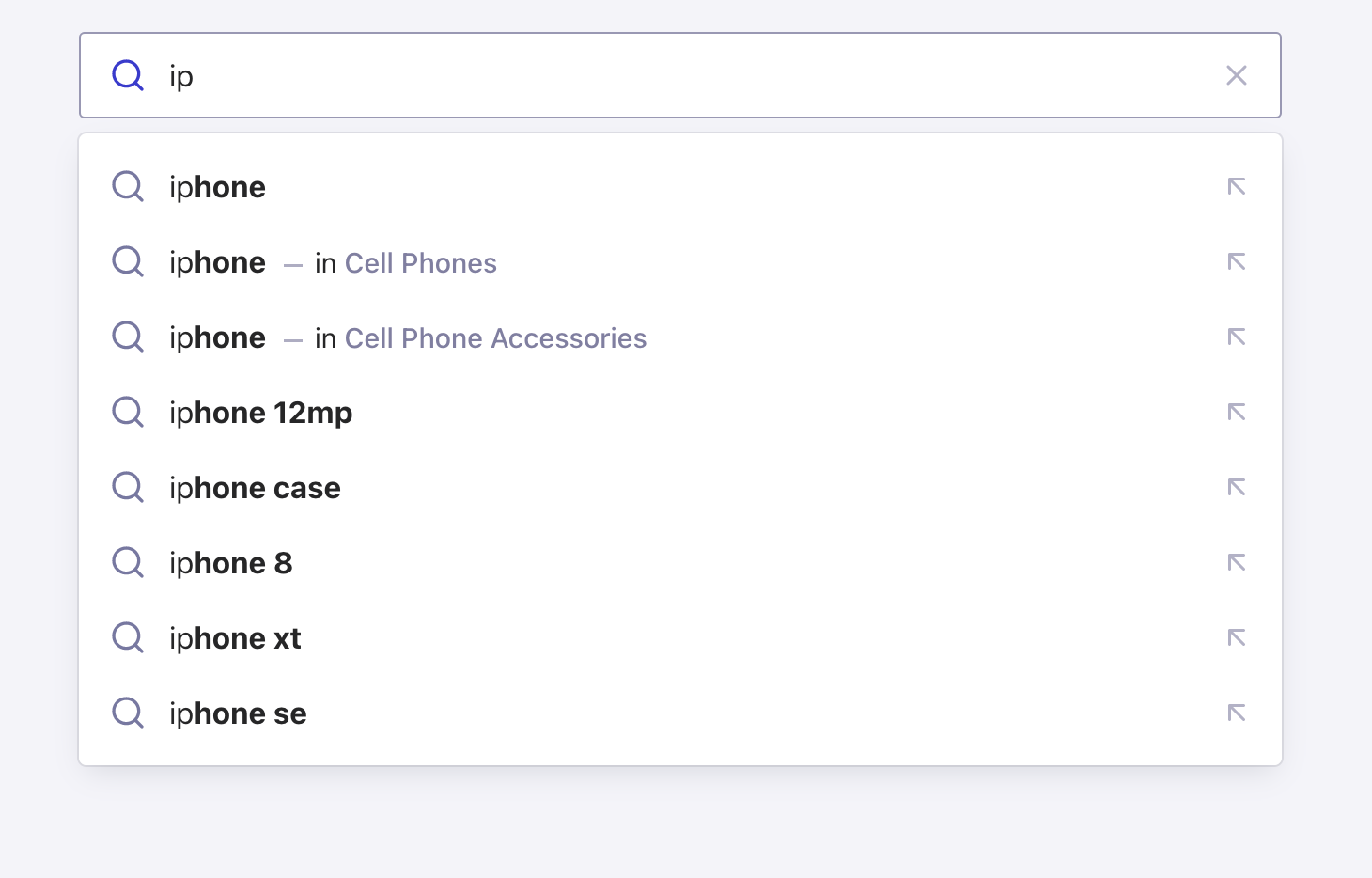 #### How to determine top categories
Query Suggestions determines the top categories with the following algorithm:
1. Perform a "strict" search with the suggestion in the source index—without features such as prefixing or typo-tolerance.
2. Add the most frequently found category values to the [`facets.exact_matches`](#query-suggestions-index-schema) attribute.
3. Get the top filters (most often applied) for this search term from analytics and add them to the [`facets.analytics`](#query-suggestions-index-schema) attribute.
The category information is added to each record in your Query Suggestions index.
For your user interface, it's better to rely on the `facets.exact_matches` attribute
because it represents data from your index.
For example, if users often
#### How to determine top categories
Query Suggestions determines the top categories with the following algorithm:
1. Perform a "strict" search with the suggestion in the source index—without features such as prefixing or typo-tolerance.
2. Add the most frequently found category values to the [`facets.exact_matches`](#query-suggestions-index-schema) attribute.
3. Get the top filters (most often applied) for this search term from analytics and add them to the [`facets.analytics`](#query-suggestions-index-schema) attribute.
The category information is added to each record in your Query Suggestions index.
For your user interface, it's better to rely on the `facets.exact_matches` attribute
because it represents data from your index.
For example, if users often