> ## Documentation Index
> Fetch the complete documentation index at: https://algolia.com/llms.txt
> Use this file to discover all available pages before exploring further.
# Build a Query Suggestions UI with InstantSearch iOS and SwiftUI
> Build a user interface to show Query Suggestions in your InstantSearch iOS app using SwiftUI.
export const Index = () =>
index
;
When your user interacts with a search box,
you can help them discover what they could search for by providing **Query suggestions**.
Query suggestions are a specific kind of multi-index interface:
* The main search interface will use a regular .
* As users type a phrase, suggestions from your [Query Suggestions index](/doc/guides/building-search-ui/ui-and-ux-patterns/query-suggestions/js) are displayed.
To display the suggestions in your iOS app, use Algolia's `MultiHitsViewModel` component. Read on for an example of how to display a search bar with instant results and query suggestions "as you type".
## Usage
To display the suggestions:
* Create a [Query Suggestions index](/doc/guides/building-search-ui/ui-and-ux-patterns/query-suggestions/js) from your main index.
* Implement a [Multi-Index search experience](/doc/guides/building-search-ui/ui-and-ux-patterns/multi-index-search/ios) using both indices.
* When clicking on a suggestion, set the query to the chosen suggestion.
## Before you begin
To use InstantSearch iOS, you need an Algolia account.
Either [create a new account](https://dashboard.algolia.com/users/sign_up) or use the following credentials:
* Application ID: `latency`
* Search API key: `af044fb0788d6bb15f807e4420592bc5`
* Results index name: `instant_search`
* Suggestions index name: `query_suggestions`
These credentials give you access to pre-existing datasets of products and Query Suggestions appropriate for this guide.
## Expected behavior
The initial screen shows the search box and results for an empty query:
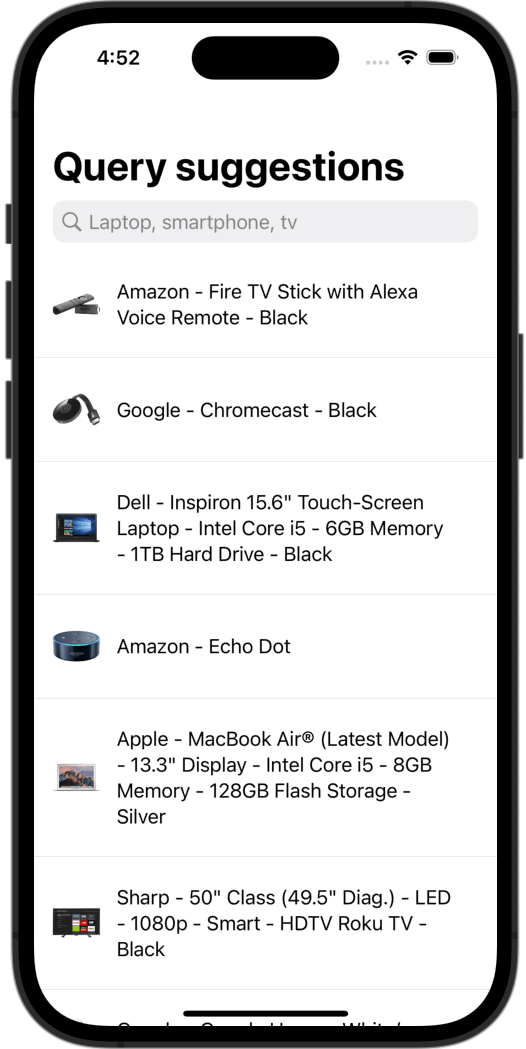 When users tap the search box, a list of query suggestions are shown (the most popular for an empty query):
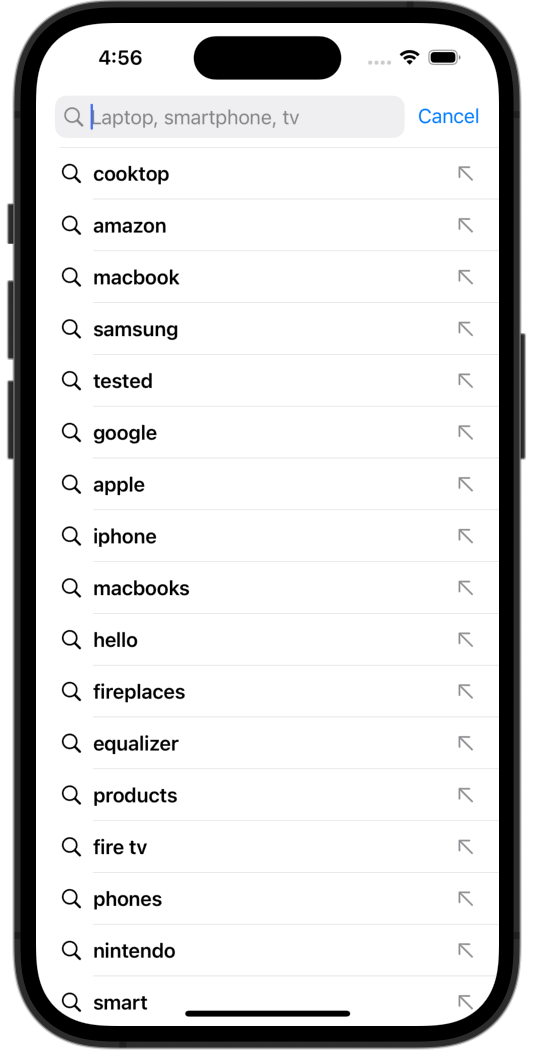 On each keystroke, the list of suggestions is updated:
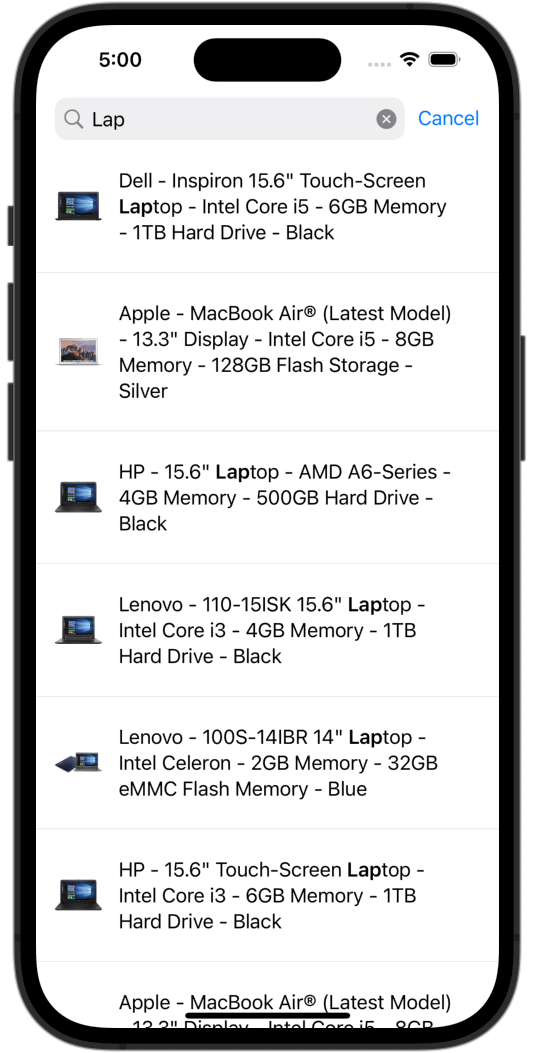
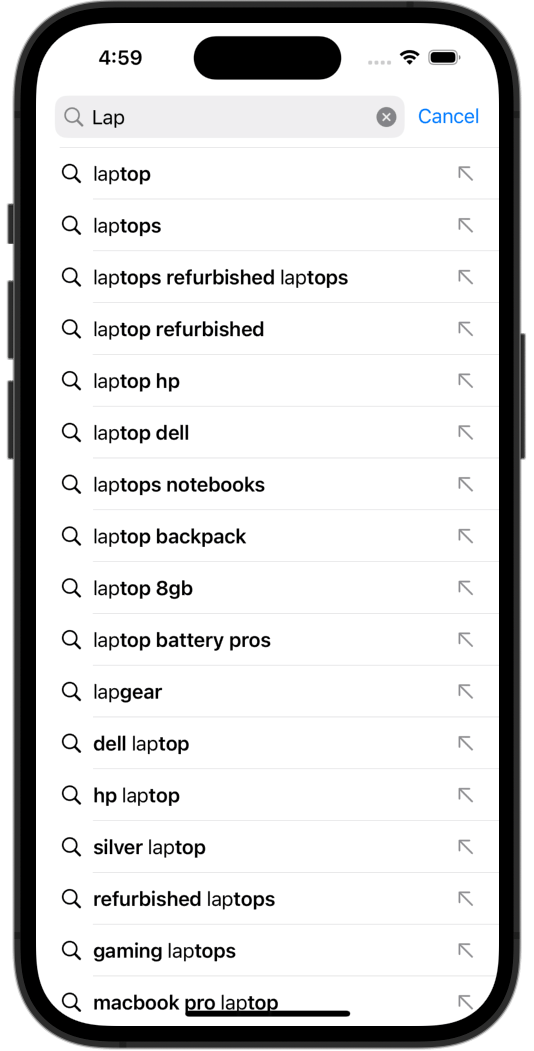 When users selects a suggestion from the list, it replaces the query in the search box, and suggestions disappear.
The results list presents search results for the selected suggestion:
When users selects a suggestion from the list, it replaces the query in the search box, and suggestions disappear.
The results list presents search results for the selected suggestion:
 * To implement search and suggestions in your app, SwiftUI offers a convenient [set of components](https://developer.apple.com/documentation/swiftui/search) that can be utilized. These components will play a crucial role in the upcoming steps of this guide.
* To represent a suggestions search record, the `QuerySuggestion` model object is available in the [InstantSearch Core](https://github.com/algolia/instantsearch-core-swift) library.
## Project structure
Algolia's query suggestions feature relies on two essential components:
* `SearchViewModel`: This view model encapsulates all the search logic for your app. It handles tasks such as handling user input, querying the Algolia API, managing search results, and processing query suggestions.
* `SearchView`: This SwiftUI view is responsible for presenting the search interface to users. It uses the `SearchViewModel` to display search results, query suggestions, and other relevant information. The `SearchView` acts as the user-facing component that allows users to interact with the search.
### Model object
To represent the items in your index, you can declare the `Item` model object with the following code:
```swift Swift icon=code theme={"system"}
struct Item: Codable {
let name: String
let image: URL
}
```
The `Item` struct is defined with two properties:
* `name`: A String property that represents the name of the item.
* `image`: A URL property that holds the URL for the image associated with the item.
By conforming to the `Codable` protocol, the `Item` struct can be easily encoded and decoded from JSON.
### Result views
The ItemHitRow is a view that represents a row in the results list, rendering an item. Here's the code for the ItemHitRow view:
```swift Swift icon=code theme={"system"}
struct ItemHitRow: View {
let itemHit: Hit
* To implement search and suggestions in your app, SwiftUI offers a convenient [set of components](https://developer.apple.com/documentation/swiftui/search) that can be utilized. These components will play a crucial role in the upcoming steps of this guide.
* To represent a suggestions search record, the `QuerySuggestion` model object is available in the [InstantSearch Core](https://github.com/algolia/instantsearch-core-swift) library.
## Project structure
Algolia's query suggestions feature relies on two essential components:
* `SearchViewModel`: This view model encapsulates all the search logic for your app. It handles tasks such as handling user input, querying the Algolia API, managing search results, and processing query suggestions.
* `SearchView`: This SwiftUI view is responsible for presenting the search interface to users. It uses the `SearchViewModel` to display search results, query suggestions, and other relevant information. The `SearchView` acts as the user-facing component that allows users to interact with the search.
### Model object
To represent the items in your index, you can declare the `Item` model object with the following code:
```swift Swift icon=code theme={"system"}
struct Item: Codable {
let name: String
let image: URL
}
```
The `Item` struct is defined with two properties:
* `name`: A String property that represents the name of the item.
* `image`: A URL property that holds the URL for the image associated with the item.
By conforming to the `Codable` protocol, the `Item` struct can be easily encoded and decoded from JSON.
### Result views
The ItemHitRow is a view that represents a row in the results list, rendering an item. Here's the code for the ItemHitRow view:
```swift Swift icon=code theme={"system"}
struct ItemHitRow: View {
let itemHit: Hit-
init(_ itemHit: Hit
- ) {
self.itemHit = itemHit
}
var body: some View {
HStack(spacing: 14) {
AsyncImage(url: itemHit.object.image, content: { image in
image
.resizable()
.aspectRatio(contentMode: .fit)
}, placeholder: {
ProgressView()
})
.frame(width: 40, height: 40)
if let highlightedName = itemHit.hightlightedString(forKey: "name") {
Text(highlightedString: highlightedName,
highlighted: { Text($0).bold() })
} else {
Text(itemHit.object.name)
}
Spacer()
}
}
}
```
The item hit parameter is of type `Hit
- `, representing a search hit containing an `Item` object.
### Search view model
To create a view model that encompasses all the logic for the search interface with query suggestions, subclass `ObservableObject` and define the necessary properties and the `init` method.
```swift Swift icon=code theme={"system"}
final class SearchViewModel: ObservableObject {
private var itemsSearcher: HitsSearcher
private var suggestionsSearcher: HitsSearcher
init() {
let appID: ApplicationID = "latency"
let apiKey: APIKey = "af044fb0788d6bb15f807e4420592bc5"
self.itemsSearcher = HitsSearcher(appID: appID,
apiKey: apiKey,
indexName: "instant_search")
self.suggestionsSearcher = HitsSearcher(appID: appID,
apiKey: apiKey,
indexName: "query_suggestions")
}
}
```
In this example, the `SearchViewModel` class:
* Inherits from `ObservableObject` to enable SwiftUI to observe and update the view when the underlying data changes.
* Declares two properties, `itemsSearcher` and `suggestionsSearcher`, of type `HitsSearcher`. These searchers will be responsible for querying the Algolia indices for searchable items and query suggestions, respectively.
* In the `init` method, the `appID` and `apiKey` are set to the appropriate values for your Algolia app. Then, the `itemsSearcher` and `suggestionsSearcher` instances are created, passing the `appID`, `apiKey`, and the relevant index names.
To add an Infinite Scroll view model that manages the appearance of infinite search results hits, you can update the SearchViewModel as follows:
```swift Swift icon=code theme={"system"}
final class SearchViewModel: ObservableObject {
var hits: PaginatedDataViewModel>>
private var itemsSearcher: HitsSearcher
private var suggestionsSearcher: HitsSearcher
init() {
let appID: ApplicationID = "latency"
let apiKey: APIKey = "af044fb0788d6bb15f807e4420592bc5"
let itemsSearcher = HitsSearcher(appID: appID,
apiKey: apiKey,
indexName: "instant_search")
self.itemsSearcher = itemsSearcher
self.suggestionsSearcher = HitsSearcher(appID: appID,
apiKey: apiKey,
indexName: "query_suggestions")
self.hits = itemsSearcher.paginatedData(of: Hit
- .self)
}
}
```
In the `init` method, after initializing `itemsSearcher`, the `paginatedData(of:)` method is called on `itemsSearcher`. It creates an `PaginatedDataViewModel` specifically for `Hit
- ` objects. This view model is then assigned to the hits property.
To define the published properties `searchQuery` and `suggestions` in the `SearchViewModel` that will be used in the SwiftUI view, you can update the class as follows:
```swift Swift icon=code theme={"system"}
final class SearchViewModel: ObservableObject {
@Published var searchQuery: String
@Published var suggestions: [QuerySuggestion]
var hits: PaginatedDataViewModel>>
private var itemsSearcher: HitsSearcher
private var suggestionsSearcher: HitsSearcher
init() {
let appID: ApplicationID = "latency"
let apiKey: APIKey = "af044fb0788d6bb15f807e4420592bc5"
let itemsSearcher = HitsSearcher(appID: appID,
apiKey: apiKey,
indexName: "instant_search")
self.itemsSearcher = itemsSearcher
self.suggestionsSearcher = HitsSearcher(appID: appID,
apiKey: apiKey,
indexName: "query_suggestions")
self.hits = itemsSearcher.paginatedData(of: Hit
- .self)
searchQuery = ""
suggestions = []
}
}
```
In this updated version of SearchViewModel:
* The `searchQuery` property is marked with @Published to make it observable and automatically update the SwiftUI view when its value changes.
* The `suggestions` property is also marked with @Published to make it observable and update the SwiftUI view when its value changes. It's an array of `QuerySuggestion` objects, which will serve as the storage for the suggestions list to be displayed.
To update the suggestions list whenever a search result is received by the `suggestionsSearcher`, and to include the necessary subscription logic, you can modify the SearchViewModel as follows:
```swift Swift icon=code theme={"system"}
final class SearchViewModel: ObservableObject {
@Published var searchQuery: String {
didSet {
notifyQueryChanged()
}
}
@Published var suggestions: [QuerySuggestion]
var hits: PaginatedDataViewModel>>
private var itemsSearcher: HitsSearcher
private var suggestionsSearcher: HitsSearcher
init() {
let appID: ApplicationID = "latency"
let apiKey: APIKey = "af044fb0788d6bb15f807e4420592bc5"
let itemsSearcher = HitsSearcher(appID: appID,
apiKey: apiKey,
indexName: "instant_search")
self.itemsSearcher = itemsSearcher
self.suggestionsSearcher = HitsSearcher(appID: appID,
apiKey: apiKey,
indexName: "query_suggestions")
self.hits = itemsSearcher.paginatedData(of: Hit
- .self)
searchQuery = ""
suggestions = []
suggestionsSearcher.onResults.subscribe(with: self) { _, response in
do {
self.suggestions = try response.extractHits()
} catch _ {
self.suggestions = []
}
}.onQueue(.main)
suggestionsSearcher.search()
}
deinit {
suggestionsSearcher.onResults.cancelSubscription(for: self)
}
}
```
In this updated version of `SearchViewModel`:
* The `suggestionsSubscription` property is introduced as a `Cancellable` object to hold the subscription to the `suggestionsSearcher` results.
* Inside the init method, the `suggestionsSubscription` is assigned the subscription to the `suggestionsSearcher` results. The closure within the subscription updates the suggestions property by extracting the hits from the latest search response. If an error occurs during extraction, an empty suggestions array is assigned.
* In the `deinit` method, the `cancel()` method is called on `suggestionsSubscription` to unsubscribe and cancel the subscription when the `SearchViewModel` destroyed.
Create the main view of the search app with the instance of `SearchViewModel` declared as a `StateObject`:
```swift Swift icon=code theme={"system"}
public struct SearchView: View {
@StateObject var viewModel = SearchViewModel()
public var body: some View {
// ...
}
}
```
The @StateObject property wrapper ensures that the view model instance is preserved across view updates.
Add search results list using the `InfiniteList` view coming with InstantSearch SwiftUI library to show the search results for empty query.
Launch the preview to see the results list.
```swift Swift icon=code theme={"system"}
public struct SearchView: View {
@StateObject var viewModel = SearchViewModel()
public var body: some View {
InfiniteList(viewModel.hits, itemView: { hit in
ItemHitRow(hit)
.padding()
Divider()
}, noResults: {
Text("No results found")
})
.navigationTitle("Query suggestions")
}
}
```
Add `.searchable` modifier to the `InfiniteList` using the `searchQuery` published property of the view model and set the search prompt.
```swift Swift icon=code theme={"system"}
public struct SearchView: View {
@StateObject var viewModel = SearchViewModel()
public var body: some View {
InfiniteList(viewModel.hits, itemView: { hit in
ItemHitRow(hit)
.padding()
Divider()
}, noResults: {
Text("No results found")
})
.searchable(text: $viewModel.searchQuery,
prompt: "Laptop, smartphone, tv")
.navigationTitle("Query suggestions")
}
}
```
In the preview a search box appears, but its changes doesn't trigger a search. Update the `SearchViewModel` by adding the `didSet` property observer to `searchQuery` and
add the `notifyQueryChanged` function that launches the search.
```swift Swift icon=code theme={"system"}
final class SearchViewModel: ObservableObject {
@Published var searchQuery: String {
didSet {
notifyQueryChanged()
}
}
@Published var suggestions: [QuerySuggestion]
var hits: PaginatedDataViewModel>>
private var itemsSearcher: HitsSearcher
private var suggestionsSearcher: HitsSearcher
init() {
let appID: ApplicationID = "latency"
let apiKey: APIKey = "af044fb0788d6bb15f807e4420592bc5"
let itemsSearcher = HitsSearcher(appID: appID,
apiKey: apiKey,
indexName: "instant_search")
self.itemsSearcher = itemsSearcher
self.suggestionsSearcher = HitsSearcher(appID: appID,
apiKey: apiKey,
indexName: "query_suggestions")
self.hits = itemsSearcher.paginatedData(of: Hit
- .self)
searchQuery = ""
suggestions = []
suggestionsSearcher.onResults.subscribe(with: self) { _, response in
do {
self.suggestions = try response.extractHits()
} catch _ {
self.suggestions = []
}
}.onQueue(.main)
suggestionsSearcher.search()
}
private func notifyQueryChanged() {
itemsSearcher.request.query.query = searchQuery
itemsSearcher.search()
}
deinit {
suggestionsSearcher.onResults.cancelSubscription(for: self)
}
}
```
Now in the preview the search works as expected.
Add a suggestions view using the `suggestions` parameter of the `searchable` modifier.
Use the `ForEach` structure with the `SuggestionRow` provided by the `InstantSearch SwiftUI`.
```swift Swift icon=code theme={"system"}
public struct SearchView: View {
@StateObject var viewModel = SearchViewModel()
public var body: some View {
InfiniteList(viewModel.hits, itemView: { hit in
ItemHitRow(hit)
.padding()
Divider()
}, noResults: {
Text("No results found")
})
.navigationTitle("Query suggestions")
.searchable(text: $viewModel.searchQuery,
prompt: "Laptop, smartphone, tv",
suggestions: {
ForEach(viewModel.suggestions, id: \.query) { suggestion in
SuggestionRow(suggestion: suggestion)
}})
}
}
```
Launch the preview. It will now display a list of suggestions when the search box is tapped. However, modifying the search input text doesn't currently update the list of suggestions. it's necessary to alter the logic of the view as follows:
When a user begins searching and changes the query, the suggestions list should be updated, not the results list.
If a user selects a suggestion, it will trigger a search submission and present the search results list.
If a user clicks the arrow button in the suggestions row, it may auto-complete the search query but shouldn't submit the search.
When a user submits the search by tapping the search/return button on the keyboard, it should trigger a search submission and present the search results list.
Modify the SearchViewModel accordingly. Add `submitSearch` method which clear suggestions list to make it disappear and launches the search on the `itemsSearcher`.
```swift Swift icon=code theme={"system"}
func submitSearch() {
suggestions = []
itemsSearcher.request.query.query = searchQuery
itemsSearcher.search()
}
```
Then, add the `didSubmitSuggestion` flag, which is set when a suggestion from the list has just been submitted.
Update the `notifyQueryChanged` method to submit search if a suggestion has been submitted and toggle the `didSubmitSuggestion` flag.
If the suggestions hasn't been submitted, it triggers the search on both searchers.
```swift Swift icon=code theme={"system"}
private func notifyQueryChanged() {
if didSubmitSuggestion {
didSubmitSuggestion = false
submitSearch()
} else {
suggestionsSearcher.request.query.query = searchQuery
itemsSearcher.request.query.query = searchQuery
suggestionsSearcher.search()
itemsSearcher.search()
}
}
```
Add `completeSuggestion` and `submitSuggestion` methods to handle actions from the suggestion row:
```swift Swift icon=code theme={"system"}
func completeSuggestion(_ suggestion: String) {
searchQuery = suggestion
}
func submitSuggestion(_ suggestion: String) {
didSubmitSuggestion = true
searchQuery = suggestion
}
```
Finish the `SearchView` implementation by assigning the `SuggestionRow` actions callbacks and adding `onSubmit` modifier.
```swift Swift icon=code theme={"system"}
public struct SearchView: View {
@StateObject var viewModel = SearchViewModel()
public var body: some View {
InfiniteList(viewModel.hits, itemView: { hit in
ItemHitRow(hit)
.padding()
Divider()
}, noResults: {
Text("No results found")
})
.navigationTitle("Query suggestions")
.searchable(text: $viewModel.searchQuery,
prompt: "Laptop, smartphone, tv",
suggestions: {
ForEach(viewModel.suggestions, id: \.query) { suggestion in
SuggestionRow(suggestion: suggestion,
onSelection: viewModel.submitSuggestion,
onTypeAhead: viewModel.completeSuggestion)
}
})
.onSubmit(of: .search, viewModel.submitSearch)
}
}
```
Your query suggestions search experience is now ready to use.
Run the preview to test it.
You can find a complete project in the [iOS examples repository](https://github.com/algolia/instantsearch-ios/tree/master/Examples/QuerySuggestions).