> ## Documentation Index
> Fetch the complete documentation index at: https://algolia.com/llms.txt
> Use this file to discover all available pages before exploring further.
# Structured results in InstantSearch.js
> Discover structured results, a feature to showcase compelling, targeted content in InstantSearch.js.
export const Records = () =>
records
;
export const Index = () =>
index
;
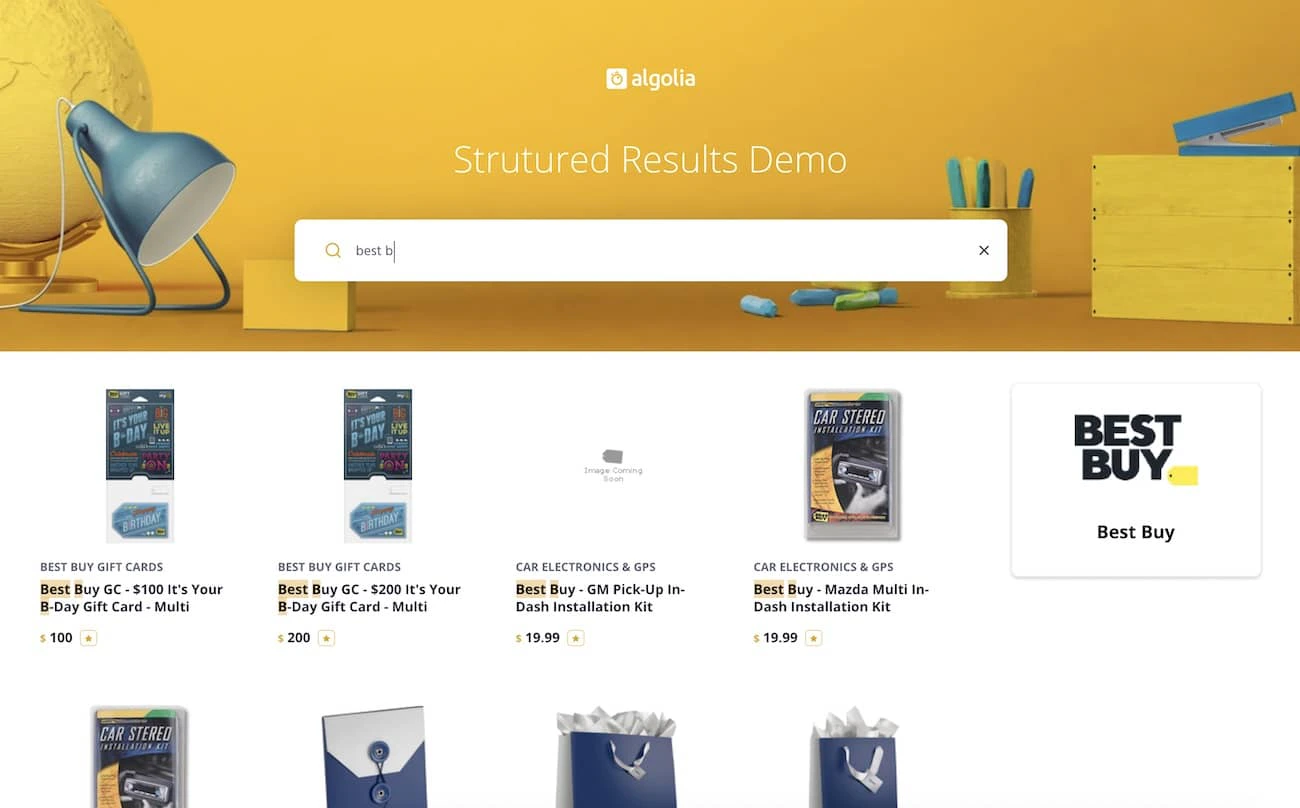 One of the most interesting additions to search result pages are what's commonly called "structured results."
* Google calls them
[Knowledge Graph Cards](https://blog.google/products/search/about-knowledge-graph-and-knowledge-panels/),
* Bing calls them
[Visually Rich Snippets](https://www.bing.com/webmasters/help/marking-up-your-site-with-structured-data-3a93e731),
* [DuckDuckGo](https://duckduckgo.com/?q=new+york+red+bulls\&t=h_\&ia=web)
and [Baidu](http://www.baidu.com/s?ie=utf-8\&f=8\&rsv_bp=0\&rsv_idx=1\&tn=baidu\&wd=shanghai\&rsv_pq=c60de6e300062bc4\&rsv_t=5f92QVPi1SZAv5LTbiv8%2BknY2koOuywEhKyxU76njHxjQdFem7QhV7roOx0\&rqlang=cn\&rsv_enter=1\&rsv_sug3=3\&rsv_sug2=0\&inputT=743\&rsv_sug4=743) all have their own flavors as well.
Traditional search, which consists of displaying long lists of search results once users press `Enter` on their keyboard,
usually falls short of piquing their curiosity and triggering engagement.
This is when new ways of searching emerge.
Instead, a successful search should attempt to communicate clearly and cleanly with a user
on multiple levels when applicable, where different types of results help guide users to the information they want.
Sometimes, it's desirable to showcase a particular piece of relevant content against the rest of a user's
standard query search results. This is why many believe in the value of leveraging "structured results".
How about your search?
### Uses for structured results
You'll want to use structured results whenever there is a singular piece of information you want to
stand out from the rest for a given query.
Here are a few examples:
* Movie titles on an entertainment website
* User details and avatar on a customer relationship management (CRM) system
* Sponsored brands on an ecommerce search ([view code on GitHub](https://github.com/algolia/demo-structured-result)).
You can see a common thread among these examples - a need to search two different types of structured data -
and Algolia happens to handle these cases out of the box.
## An example
First, take a look at the ecommerce example mentioned in the preceding section.
You can view the code and follow along [on GitHub](https://github.com/algolia/demo-structured-result).
Imagine a scenario where certain brands within your ecommerce site have requested that their brand will be
displayed if it happens to match a user's query. In your search, if you determine that someone is searching
for a particular brand name, you can embed a section displaying the brand and its name within the main search interface.
### How will the data look?
One will be the main index to host traditional results - in your case, tech products -
regardless of a match on the brand.
Another index will be used to store your brands as , like this:
```json JSON icon="braces" theme={"system"}
{
"name": "Bosch",
"url": "https://logo.clearbit.com/bosch.com",
"objectID": "3414165441"
}
```
### Tweaking the relevance
Now that you added a new index for structured results to use in conjunction with your main index, outline what you'd like to emphasize in your structured results:
* Only display a single result that matches a user's search
* Continue to handle typos, but be more stringent
* Ensure that you have all words matching in order
(so "The Bad News" and "The Bad News Bears" would match but "Bears Bad News" would not)
Next, determine the corresponding settings that would be configured in Algolia.
In this case, you only need to care about results with a minimal number of typos, especially if you only render one result:
One of the most interesting additions to search result pages are what's commonly called "structured results."
* Google calls them
[Knowledge Graph Cards](https://blog.google/products/search/about-knowledge-graph-and-knowledge-panels/),
* Bing calls them
[Visually Rich Snippets](https://www.bing.com/webmasters/help/marking-up-your-site-with-structured-data-3a93e731),
* [DuckDuckGo](https://duckduckgo.com/?q=new+york+red+bulls\&t=h_\&ia=web)
and [Baidu](http://www.baidu.com/s?ie=utf-8\&f=8\&rsv_bp=0\&rsv_idx=1\&tn=baidu\&wd=shanghai\&rsv_pq=c60de6e300062bc4\&rsv_t=5f92QVPi1SZAv5LTbiv8%2BknY2koOuywEhKyxU76njHxjQdFem7QhV7roOx0\&rqlang=cn\&rsv_enter=1\&rsv_sug3=3\&rsv_sug2=0\&inputT=743\&rsv_sug4=743) all have their own flavors as well.
Traditional search, which consists of displaying long lists of search results once users press `Enter` on their keyboard,
usually falls short of piquing their curiosity and triggering engagement.
This is when new ways of searching emerge.
Instead, a successful search should attempt to communicate clearly and cleanly with a user
on multiple levels when applicable, where different types of results help guide users to the information they want.
Sometimes, it's desirable to showcase a particular piece of relevant content against the rest of a user's
standard query search results. This is why many believe in the value of leveraging "structured results".
How about your search?
### Uses for structured results
You'll want to use structured results whenever there is a singular piece of information you want to
stand out from the rest for a given query.
Here are a few examples:
* Movie titles on an entertainment website
* User details and avatar on a customer relationship management (CRM) system
* Sponsored brands on an ecommerce search ([view code on GitHub](https://github.com/algolia/demo-structured-result)).
You can see a common thread among these examples - a need to search two different types of structured data -
and Algolia happens to handle these cases out of the box.
## An example
First, take a look at the ecommerce example mentioned in the preceding section.
You can view the code and follow along [on GitHub](https://github.com/algolia/demo-structured-result).
Imagine a scenario where certain brands within your ecommerce site have requested that their brand will be
displayed if it happens to match a user's query. In your search, if you determine that someone is searching
for a particular brand name, you can embed a section displaying the brand and its name within the main search interface.
### How will the data look?
One will be the main index to host traditional results - in your case, tech products -
regardless of a match on the brand.
Another index will be used to store your brands as , like this:
```json JSON icon="braces" theme={"system"}
{
"name": "Bosch",
"url": "https://logo.clearbit.com/bosch.com",
"objectID": "3414165441"
}
```
### Tweaking the relevance
Now that you added a new index for structured results to use in conjunction with your main index, outline what you'd like to emphasize in your structured results:
* Only display a single result that matches a user's search
* Continue to handle typos, but be more stringent
* Ensure that you have all words matching in order
(so "The Bad News" and "The Bad News Bears" would match but "Bears Bad News" would not)
Next, determine the corresponding settings that would be configured in Algolia.
In this case, you only need to care about results with a minimal number of typos, especially if you only render one result:
 The corresponding code for this dashboard configuration would be:
```cs C# theme={"system"}
var response = await client.SetSettingsAsync(
"INDEX_NAME",
new IndexSettings { TypoTolerance = new TypoTolerance(Enum.Parse("Min")) }
);
```
```dart Dart theme={"system"}
final response = await client.setSettings(
indexName: "INDEX_NAME",
indexSettings: IndexSettings(
typoTolerance: TypoToleranceEnum.fromJson("min"),
),
);
```
```go Go theme={"system"}
response, err := client.SetSettings(client.NewApiSetSettingsRequest(
"INDEX_NAME",
search.NewEmptyIndexSettings().SetTypoTolerance(search.TypoToleranceEnumAsTypoTolerance(search.TypoToleranceEnum("min")))))
if err != nil {
// handle the eventual error
panic(err)
}
```
```java Java theme={"system"}
UpdatedAtResponse response = client.setSettings("INDEX_NAME", new IndexSettings().setTypoTolerance(TypoToleranceEnum.MIN));
```
```js JavaScript theme={"system"}
const response = await client.setSettings({ indexName: 'theIndexName', indexSettings: { typoTolerance: 'min' } });
```
```kotlin Kotlin theme={"system"}
var response =
client.setSettings(
indexName = "INDEX_NAME",
indexSettings =
IndexSettings(typoTolerance = TypoToleranceEnum.entries.first { it.value == "min" }),
)
```
```php PHP theme={"system"}
$response = $client->setSettings(
'INDEX_NAME',
['typoTolerance' => 'min',
],
);
```
```python Python theme={"system"}
response = client.set_settings(
index_name="INDEX_NAME",
index_settings={
"typoTolerance": "min",
},
)
```
```ruby Ruby theme={"system"}
response = client.set_settings("INDEX_NAME", Algolia::Search::IndexSettings.new(typo_tolerance: "min"))
```
```scala Scala theme={"system"}
val response = Await.result(
client.setSettings(
indexName = "INDEX_NAME",
indexSettings = IndexSettings(
typoTolerance = Some(TypoToleranceEnum.withName("min"))
)
),
Duration(100, "sec")
)
```
```swift Swift theme={"system"}
let response = try await client.setSettings(
indexName: "INDEX_NAME",
indexSettings: IndexSettings(typoTolerance: SearchTypoTolerance
.searchTypoToleranceEnum(SearchTypoToleranceEnum.min))
)
```
Next, decrease your typo tolerance by increasing the minimum characters from 4 to 5 for a single typo:
The corresponding code for this dashboard configuration would be:
```cs C# theme={"system"}
var response = await client.SetSettingsAsync(
"INDEX_NAME",
new IndexSettings { TypoTolerance = new TypoTolerance(Enum.Parse("Min")) }
);
```
```dart Dart theme={"system"}
final response = await client.setSettings(
indexName: "INDEX_NAME",
indexSettings: IndexSettings(
typoTolerance: TypoToleranceEnum.fromJson("min"),
),
);
```
```go Go theme={"system"}
response, err := client.SetSettings(client.NewApiSetSettingsRequest(
"INDEX_NAME",
search.NewEmptyIndexSettings().SetTypoTolerance(search.TypoToleranceEnumAsTypoTolerance(search.TypoToleranceEnum("min")))))
if err != nil {
// handle the eventual error
panic(err)
}
```
```java Java theme={"system"}
UpdatedAtResponse response = client.setSettings("INDEX_NAME", new IndexSettings().setTypoTolerance(TypoToleranceEnum.MIN));
```
```js JavaScript theme={"system"}
const response = await client.setSettings({ indexName: 'theIndexName', indexSettings: { typoTolerance: 'min' } });
```
```kotlin Kotlin theme={"system"}
var response =
client.setSettings(
indexName = "INDEX_NAME",
indexSettings =
IndexSettings(typoTolerance = TypoToleranceEnum.entries.first { it.value == "min" }),
)
```
```php PHP theme={"system"}
$response = $client->setSettings(
'INDEX_NAME',
['typoTolerance' => 'min',
],
);
```
```python Python theme={"system"}
response = client.set_settings(
index_name="INDEX_NAME",
index_settings={
"typoTolerance": "min",
},
)
```
```ruby Ruby theme={"system"}
response = client.set_settings("INDEX_NAME", Algolia::Search::IndexSettings.new(typo_tolerance: "min"))
```
```scala Scala theme={"system"}
val response = Await.result(
client.setSettings(
indexName = "INDEX_NAME",
indexSettings = IndexSettings(
typoTolerance = Some(TypoToleranceEnum.withName("min"))
)
),
Duration(100, "sec")
)
```
```swift Swift theme={"system"}
let response = try await client.setSettings(
indexName: "INDEX_NAME",
indexSettings: IndexSettings(typoTolerance: SearchTypoTolerance
.searchTypoToleranceEnum(SearchTypoToleranceEnum.min))
)
```
Next, decrease your typo tolerance by increasing the minimum characters from 4 to 5 for a single typo:
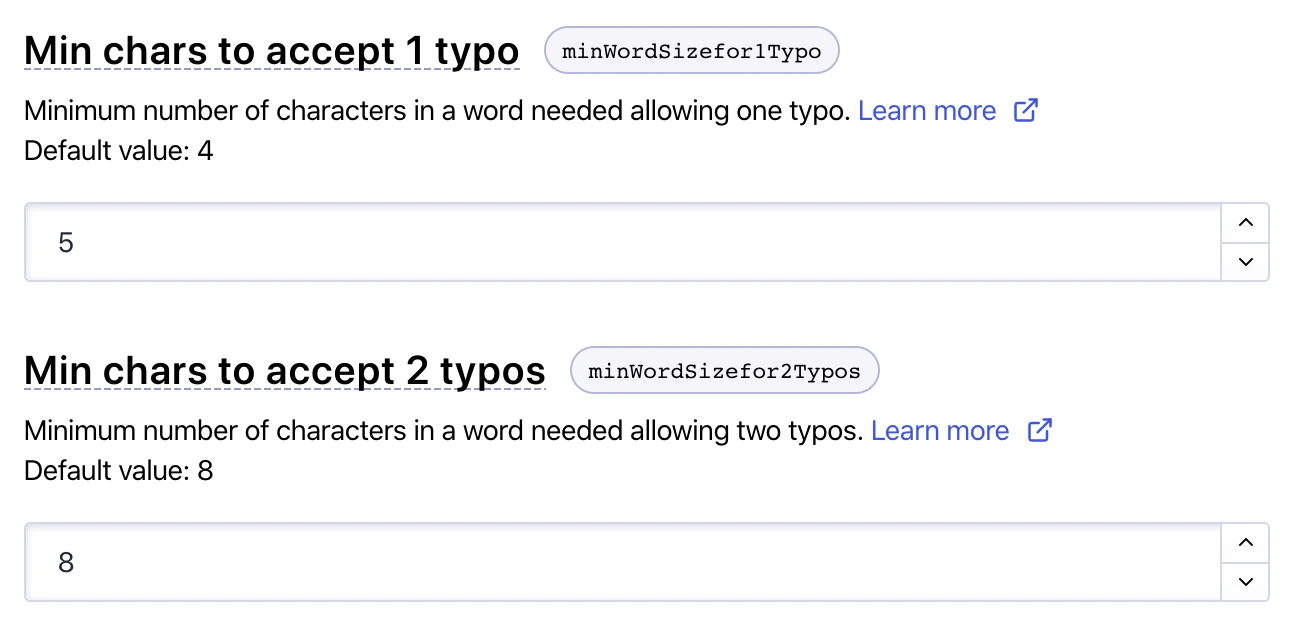 And the corresponding code for this dashboard configuration would be:
```cs C# theme={"system"}
var response = await client.SetSettingsAsync(
"INDEX_NAME",
new IndexSettings { MinWordSizefor1Typo = 5 }
);
```
```dart Dart theme={"system"}
final response = await client.setSettings(
indexName: "INDEX_NAME",
indexSettings: IndexSettings(
minWordSizefor1Typo: 5,
),
);
```
```go Go theme={"system"}
response, err := client.SetSettings(client.NewApiSetSettingsRequest(
"INDEX_NAME",
search.NewEmptyIndexSettings().SetMinWordSizefor1Typo(5)))
if err != nil {
// handle the eventual error
panic(err)
}
```
```java Java theme={"system"}
UpdatedAtResponse response = client.setSettings("INDEX_NAME", new IndexSettings().setMinWordSizefor1Typo(5));
```
```js JavaScript theme={"system"}
const response = await client.setSettings({ indexName: 'theIndexName', indexSettings: { minWordSizefor1Typo: 5 } });
```
```kotlin Kotlin theme={"system"}
var response =
client.setSettings(
indexName = "INDEX_NAME",
indexSettings = IndexSettings(minWordSizefor1Typo = 5),
)
```
```php PHP theme={"system"}
$response = $client->setSettings(
'INDEX_NAME',
['minWordSizefor1Typo' => 5,
],
);
```
```python Python theme={"system"}
response = client.set_settings(
index_name="INDEX_NAME",
index_settings={
"minWordSizefor1Typo": 5,
},
)
```
```ruby Ruby theme={"system"}
response = client.set_settings("INDEX_NAME", Algolia::Search::IndexSettings.new(min_word_sizefor1_typo: 5))
```
```scala Scala theme={"system"}
val response = Await.result(
client.setSettings(
indexName = "INDEX_NAME",
indexSettings = IndexSettings(
minWordSizefor1Typo = Some(5)
)
),
Duration(100, "sec")
)
```
```swift Swift theme={"system"}
let response = try await client.setSettings(
indexName: "INDEX_NAME",
indexSettings: IndexSettings(minWordSizefor1Typo: 5)
)
```
These configuration changes make the typo tolerance more stringent.
The next section addresses the last point: ensuring that all words match in order.
### Display the data
Federated search lets you perform a single query against several datasets.
You can use it with your structured brand result:
```js JavaScript theme={"system"}
const appID = "ALGOLIA_APPLICATION_ID";
const apiKey = "ALGOLIA_SEARCH_API_KEY";
const searchClient = algoliasearch(
appID,
apiKey
);
const search = instantsearch({
searchClient,
indexName: 'mainIndex'
});
search.addWidgets([
// Add your widgets here
index({ indexName: 'structuredIndex' }).addWidgets([
configure({
page: 0,
hitsPerPage: 1,
getRankingInfo: true
})
// We'll add the structured results widget here
])
]);
search.start();
```
In this snippet, you're taking advantage of the [`index`](/doc/api-reference/widgets/index-widget/js) widget to nest multiple indices that share the same [`uiState`](/doc/api-reference/widgets/ui-state/js) (or "search state").
When a user searches in the app, it searches in both the main and the structured indices.
You can use the [`configure`](/doc/api-reference/widgets/configure/js) widget to:
* Stay on the first page (`0` since [`page`](/doc/api-reference/api-parameters/page) is zero-based) because the main index can be paginated, and the structured index would then "inherit" from its pagination state.
* Set [`hitsPerPage`](/doc/api-reference/api-parameters/hitsPerPage) to `1` because you only show the first result.
* Set [`getRankingInfo`](/doc/api-reference/api-parameters/getRankingInfo) to `true` so that Algolia returns metadata about the hit's ranking.
When rendering results, take the first result with the [`connectHits`](/doc/api-reference/widgets/hits/js#customize-the-ui-with-connecthits) connector and do a conditional check:
```js JavaScript theme={"system"}
const structuredResults = connectHits(({ items, widgetParams }) => {
const result = items[0];
const { container } = widgetParams;
if (
result &&
result._rankingInfo.words - 1 === result._rankingInfo.proximityDistance
) {
// Render the result
container.innerHTML = `
And the corresponding code for this dashboard configuration would be:
```cs C# theme={"system"}
var response = await client.SetSettingsAsync(
"INDEX_NAME",
new IndexSettings { MinWordSizefor1Typo = 5 }
);
```
```dart Dart theme={"system"}
final response = await client.setSettings(
indexName: "INDEX_NAME",
indexSettings: IndexSettings(
minWordSizefor1Typo: 5,
),
);
```
```go Go theme={"system"}
response, err := client.SetSettings(client.NewApiSetSettingsRequest(
"INDEX_NAME",
search.NewEmptyIndexSettings().SetMinWordSizefor1Typo(5)))
if err != nil {
// handle the eventual error
panic(err)
}
```
```java Java theme={"system"}
UpdatedAtResponse response = client.setSettings("INDEX_NAME", new IndexSettings().setMinWordSizefor1Typo(5));
```
```js JavaScript theme={"system"}
const response = await client.setSettings({ indexName: 'theIndexName', indexSettings: { minWordSizefor1Typo: 5 } });
```
```kotlin Kotlin theme={"system"}
var response =
client.setSettings(
indexName = "INDEX_NAME",
indexSettings = IndexSettings(minWordSizefor1Typo = 5),
)
```
```php PHP theme={"system"}
$response = $client->setSettings(
'INDEX_NAME',
['minWordSizefor1Typo' => 5,
],
);
```
```python Python theme={"system"}
response = client.set_settings(
index_name="INDEX_NAME",
index_settings={
"minWordSizefor1Typo": 5,
},
)
```
```ruby Ruby theme={"system"}
response = client.set_settings("INDEX_NAME", Algolia::Search::IndexSettings.new(min_word_sizefor1_typo: 5))
```
```scala Scala theme={"system"}
val response = Await.result(
client.setSettings(
indexName = "INDEX_NAME",
indexSettings = IndexSettings(
minWordSizefor1Typo = Some(5)
)
),
Duration(100, "sec")
)
```
```swift Swift theme={"system"}
let response = try await client.setSettings(
indexName: "INDEX_NAME",
indexSettings: IndexSettings(minWordSizefor1Typo: 5)
)
```
These configuration changes make the typo tolerance more stringent.
The next section addresses the last point: ensuring that all words match in order.
### Display the data
Federated search lets you perform a single query against several datasets.
You can use it with your structured brand result:
```js JavaScript theme={"system"}
const appID = "ALGOLIA_APPLICATION_ID";
const apiKey = "ALGOLIA_SEARCH_API_KEY";
const searchClient = algoliasearch(
appID,
apiKey
);
const search = instantsearch({
searchClient,
indexName: 'mainIndex'
});
search.addWidgets([
// Add your widgets here
index({ indexName: 'structuredIndex' }).addWidgets([
configure({
page: 0,
hitsPerPage: 1,
getRankingInfo: true
})
// We'll add the structured results widget here
])
]);
search.start();
```
In this snippet, you're taking advantage of the [`index`](/doc/api-reference/widgets/index-widget/js) widget to nest multiple indices that share the same [`uiState`](/doc/api-reference/widgets/ui-state/js) (or "search state").
When a user searches in the app, it searches in both the main and the structured indices.
You can use the [`configure`](/doc/api-reference/widgets/configure/js) widget to:
* Stay on the first page (`0` since [`page`](/doc/api-reference/api-parameters/page) is zero-based) because the main index can be paginated, and the structured index would then "inherit" from its pagination state.
* Set [`hitsPerPage`](/doc/api-reference/api-parameters/hitsPerPage) to `1` because you only show the first result.
* Set [`getRankingInfo`](/doc/api-reference/api-parameters/getRankingInfo) to `true` so that Algolia returns metadata about the hit's ranking.
When rendering results, take the first result with the [`connectHits`](/doc/api-reference/widgets/hits/js#customize-the-ui-with-connecthits) connector and do a conditional check:
```js JavaScript theme={"system"}
const structuredResults = connectHits(({ items, widgetParams }) => {
const result = items[0];
const { container } = widgetParams;
if (
result &&
result._rankingInfo.words - 1 === result._rankingInfo.proximityDistance
) {
// Render the result
container.innerHTML = `

${result.name}
`;
return;
}
// Render nothing
container.innerHTML = '';
});
search.addWidgets([
// Add your widgets here
index({ indexName: 'structuredIndex' }).addWidgets([
configure({
page: 0,
hitsPerPage: 1,
getRankingInfo: true
}),
structuredResults({
container: document.querySelector('#structured-results')
})
])
]);
// ...
```
By comparing the number of exact word matches to 1 + the total distance between all the words in the match, you can make sure that all matched words are sorted. In other terms, when all matching words against a user's query are sequential and adjacent, the proximity (or distance between search terms) is always equal to `exact word matches - 1`
There's no requirement as to when to display your content, this part is up to you.
Another constraint you may impose on the rendering of the structured result could be to check that the count of exact word matches is equal to the number of words in the value of the attribute being queried. For example, you may only want to show a brand when all words of that brand have been typed. Check the [`getRankingInfo`](/doc/api-reference/api-parameters/getRankingInfo) documentation to learn about other useful metrics you can access in the results.
## Another example, a different use case
Consider an entertainment website that displays structured results on movies.
If you can determine that someone is searching for a specific movie, you will embed a section displaying the movie
details within the main search interface.
That is, you'd like to communicate to users that there might be a salient piece of content worth showcasing.
### How will the data look?
Consider how you should structure your data. First, you need a main index, as with the ecommerce example.
This is where people will always see traditional results even if there's no structured data match.
Think about a major search engine when you search a new movie: you might get structured
results with the cast, showtimes, and video clips at the same time. In Algolia, that
would require three extra indices—one for each result type.
This example is a bit simpler, as it only has a single data type to show structured results: movies. Yet, you might also want to match actors, directors, and other entities.
Here's how a sample movie record could look like:
```json JSON icon=braces theme={"system"}
{
"title": "The Shawshank Redemption",
"year": 1994,
"image": "https://image.tmdb.org/t/p/w154/9O7gLzmreU0nGkIB6K3BsJbzvNv.jpg",
"color": "#8C634B",
"score": 9.97764206054169,
"rating": 5,
"actors": ["Tim Robbins", "Morgan Freeman", "Bob Gunton"],
"objectID": "439817390"
}
```
Records with this structure would be stored in another index. Keep in mind though that if your new index doesn't contain any new data, it could be a [replica](/doc/api-reference/api-parameters/replicas) of your primary index.
(for example, searchable attributes or custom ranking order).
You can display the data and render the result exactly the same way as in the .
## Conclusion
The movie and ecommerce examples you went over are just two scenarios among many that may call for structured data,
all following a similar pattern of giving users the ability to search through multiple indices
and showcase results accordingly.
Search paradigms continue to evolve, and the rise of "structured results" is part of an ongoing itch to enrich a user's
process of discovery while browsing content. Algolia enables users the flexibility to roll out their own flavor of
"structured results" by making simple the ability to search against multiple types of content
and customizing how the search is performed.