> ## Documentation Index
> Fetch the complete documentation index at: https://algolia.com/llms.txt
> Use this file to discover all available pages before exploring further.
# Voice search
> Learn how to build Voice search experience with InstantSearch Android and Voice Overlay.
export const Records = () =>
records
;
export const Index = () =>
index
;
This guide explains how to build step by step a voice search experience using the libraries provided by Algolia.
You'll build an Android app with a classic search box and a button that triggers the voice input.
To create this app, you'll use the [InstantSearch](https://github.com/algolia/instantsearch-android) and [Voice overlay](https://github.com/algolia/voice-overlay-android) libraries.
Building a voice search experience has three steps:
* **Input** using speech-to-text
* **Processing** using Algolia
* **Output** using speech synthesis
## Speech-to-text input layer
You must have a speech-to-text layer to convert your users' speech into something Algolia understands (Algolia can't process non-textual searches).
You can add a speech-to-text layer in two ways:
* Using the Chrome browser, iOS or Android native apps, or a voice platform tool like Alexa or Google Assistant with speech-to-text built-in.
* Using a third-party service. You send user speech to the service. When you receive it back, you then send it to Algolia as a search query. Some services include:
* [Google Cloud Speech-to-Text](https://cloud.google.com/speech-to-text/)
* [Azure Cognitive Services](https://azure.microsoft.com/en-us/services/cognitive-services/speech-to-text/)
* [AssemblyAI](https://assemblyai.com)
## Process the query with Algolia
After converting speech to text, you need to process the query and return relevant results from your Algolia .
This step involves:
* Query time settings
* Index configuration
Both steps help improve the search experience, especially for voice input.
### Query time settings
The query time settings improve search results during query time.
For instance, [selecting a language](/doc/guides/managing-results/optimize-search-results/handling-natural-languages-nlp/how-to/how-to-set-an-index-query-language) for Algolia let you set certain features like ignoring "noise" words that users could enter in their search query.
If you choose English as the language, and you turn on the stop words feature, the search engine ignores words like 'a' and 'an' as they're not relevant to the search query.
This gives more exact search results.
* Set [`removeStopWords`](/doc/api-reference/api-parameters/removeStopWords) and ensure to select a supported language. For example, `en` for English.
This setting removes stop words like "a", "an", or "the" before running the search query.
* Send the entire query string along as [`optionalWords`](/doc/api-reference/api-parameters/optionalWords).
Speech often has words that aren't in any of your . With this setting, records don't need to match all the words. Records matching more words rank higher. For example, in the spoken query "Show me all blue dresses", only "blue dresses" may yield results for a clothing store: the other words should be optional.
* Set [`ignorePlurals`](/doc/api-reference/api-parameters/ignorePlurals) to `true` and ensure to [select a supported language](/doc/guides/managing-results/optimize-search-results/handling-natural-languages-nlp/how-to/how-to-set-an-index-query-language). For example, `en` for English.
This setting marks words like "car" and "cars" as matching terms.
* Apply [`analyticsTags`](/doc/api-reference/api-parameters/analyticsTags) to the query, including voice queries.
You can activate these settings using the [`naturalLanguages`](/doc/api-reference/api-parameters/naturalLanguages) parameter. These settings work well together when the query format is in natural language instead of keywords, for example, when your user performs a voice search.
### Index configuration
Similarly, you can apply some rules related to your index.
These rules are dynamic and apply depending on what users type in the search query.
[Detecting user intent](/doc/guides/managing-results/rules/detecting-intent) can help dynamically change the search results.
## Speech synthesis output
Not all voice platforms need speech synthesis or text-to-speech.
For example, a site that shows search results may be enough.
If your voice platform does need speech synthesis, your options are:
* A built-in system such as Alexa or Google Assistant.
* A third-party system. Most modern browsers support speech synthesis through the [SpeechSynthesis API](https://developer.mozilla.org/en-US/docs/Web/API/SpeechSynthesis). If you want a wider choice of voices, you have [Azure Cognitive Services](https://azure.microsoft.com/en-us/services/cognitive-services/speech-to-text/) or [Amazon Web Services' Polly](https://aws.amazon.com/polly/).
## Prepare your project
To use InstantSearch, you need an Algolia account.
You can [create a new account](https://dashboard.algolia.com/users/sign_up),
or use the following credentials:
* Application ID: `latency`
* Search API Key: `1f6fd3a6fb973cb08419fe7d288fa4db`
* Index name: `instant_search`
These credentials give access to a pre-loaded dataset of products appropriate for this guide.
### Create a new Android project
Start by creating a new Android project.
Open Android Studio, and select **Create New Project**.
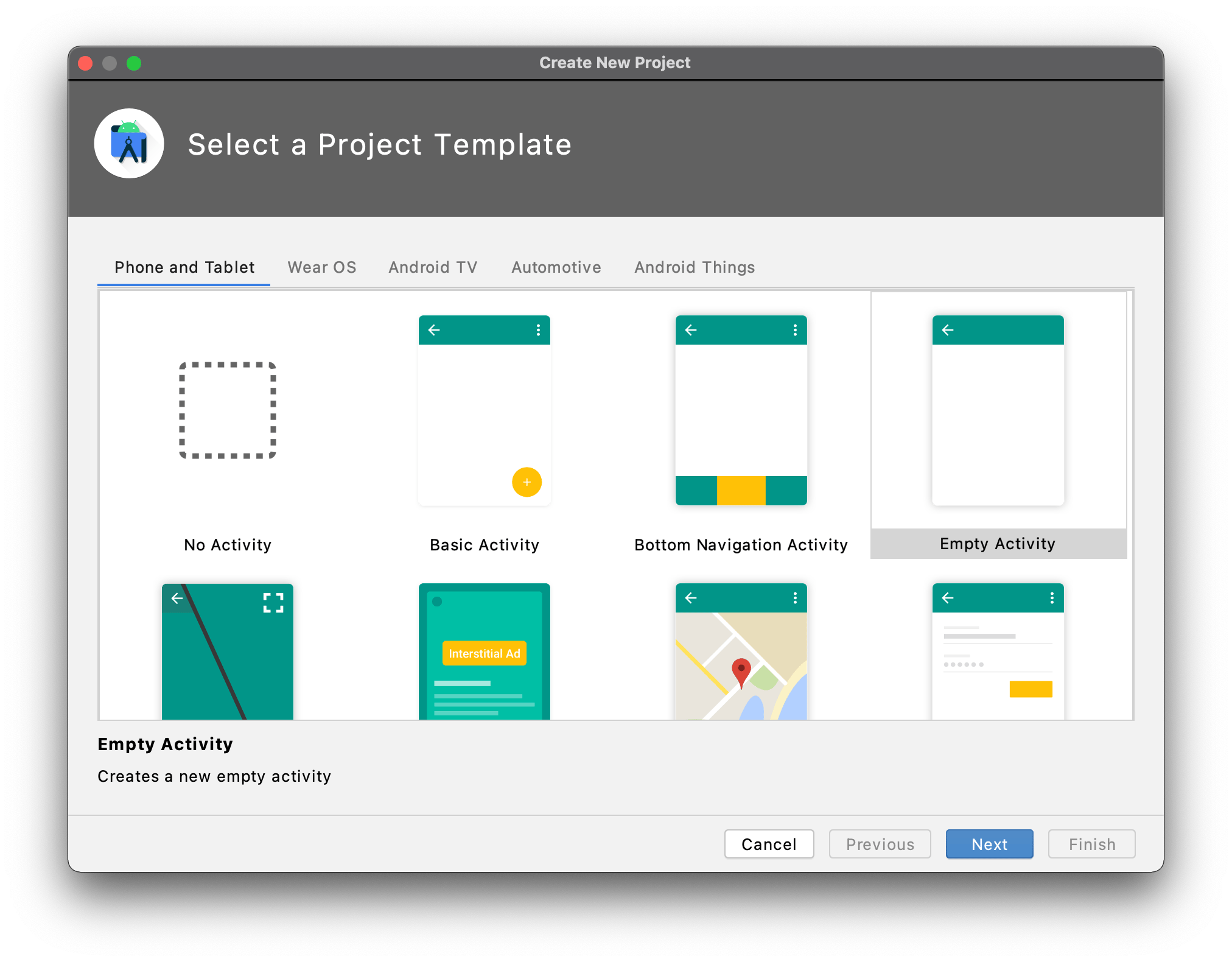
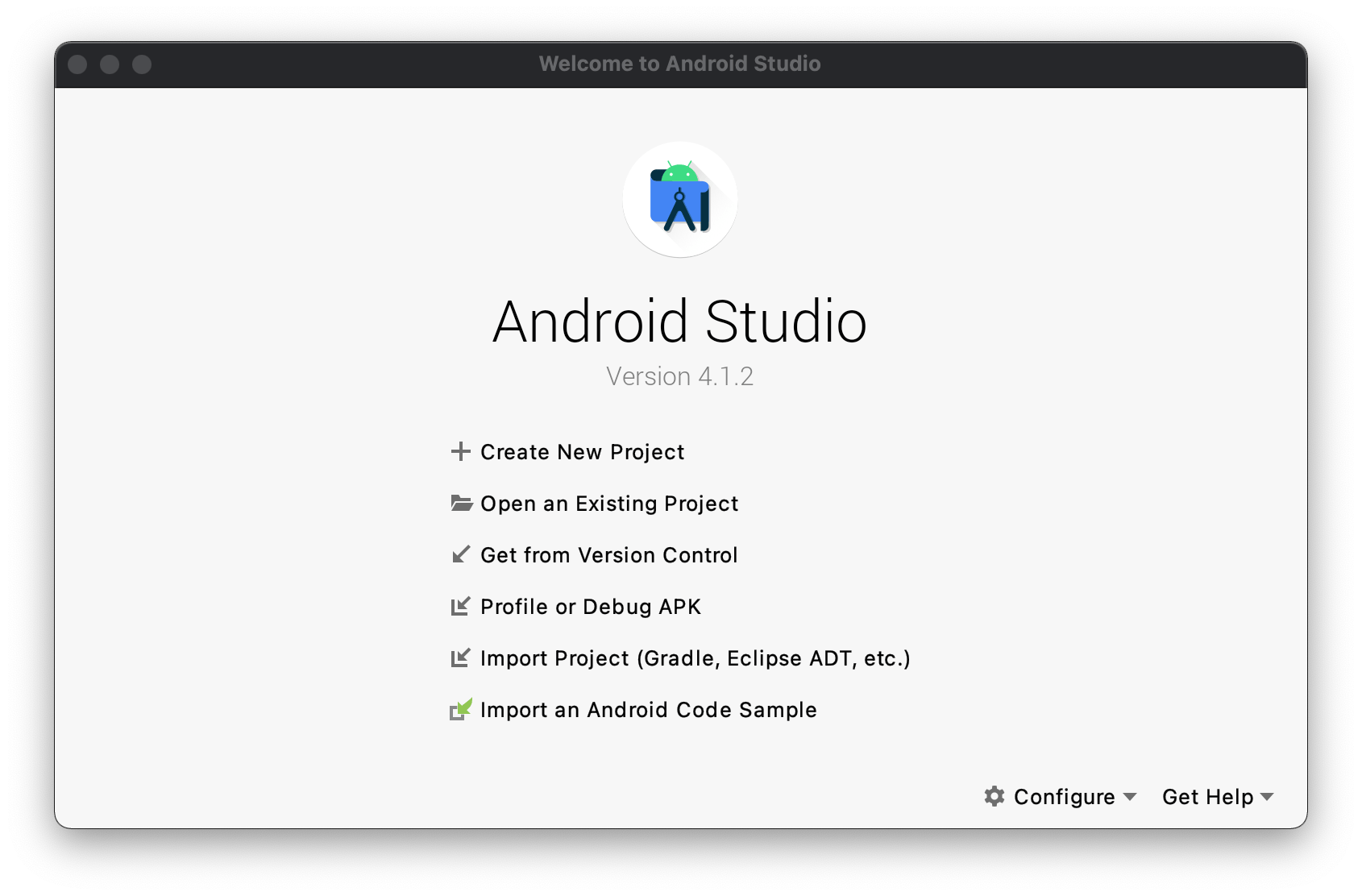 In the **Select a Project Template** window, select **Empty Activity** and click **Next**.
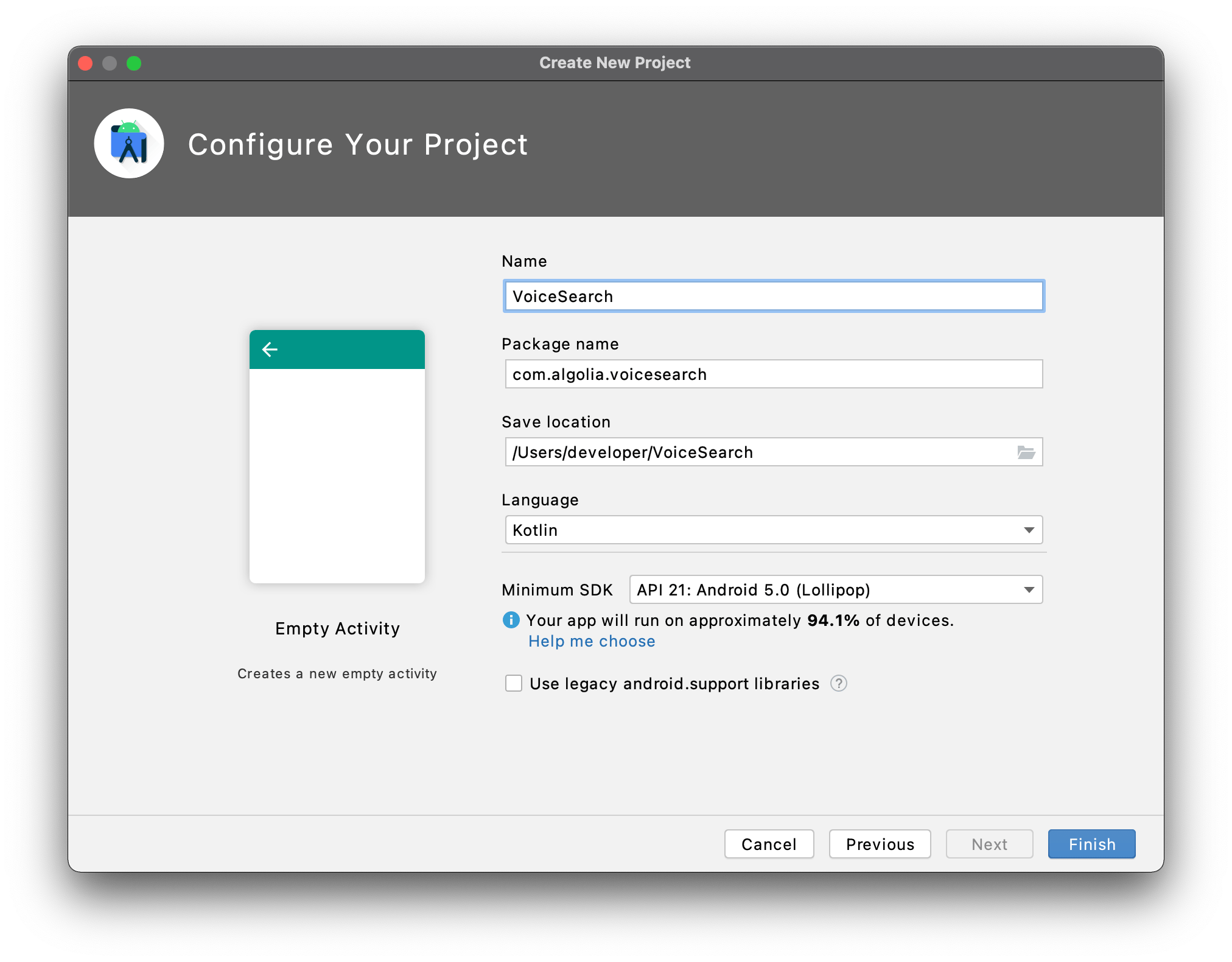
 Input the name of your app. Select `API 21` as minimum SDK version. Click **Finish**.
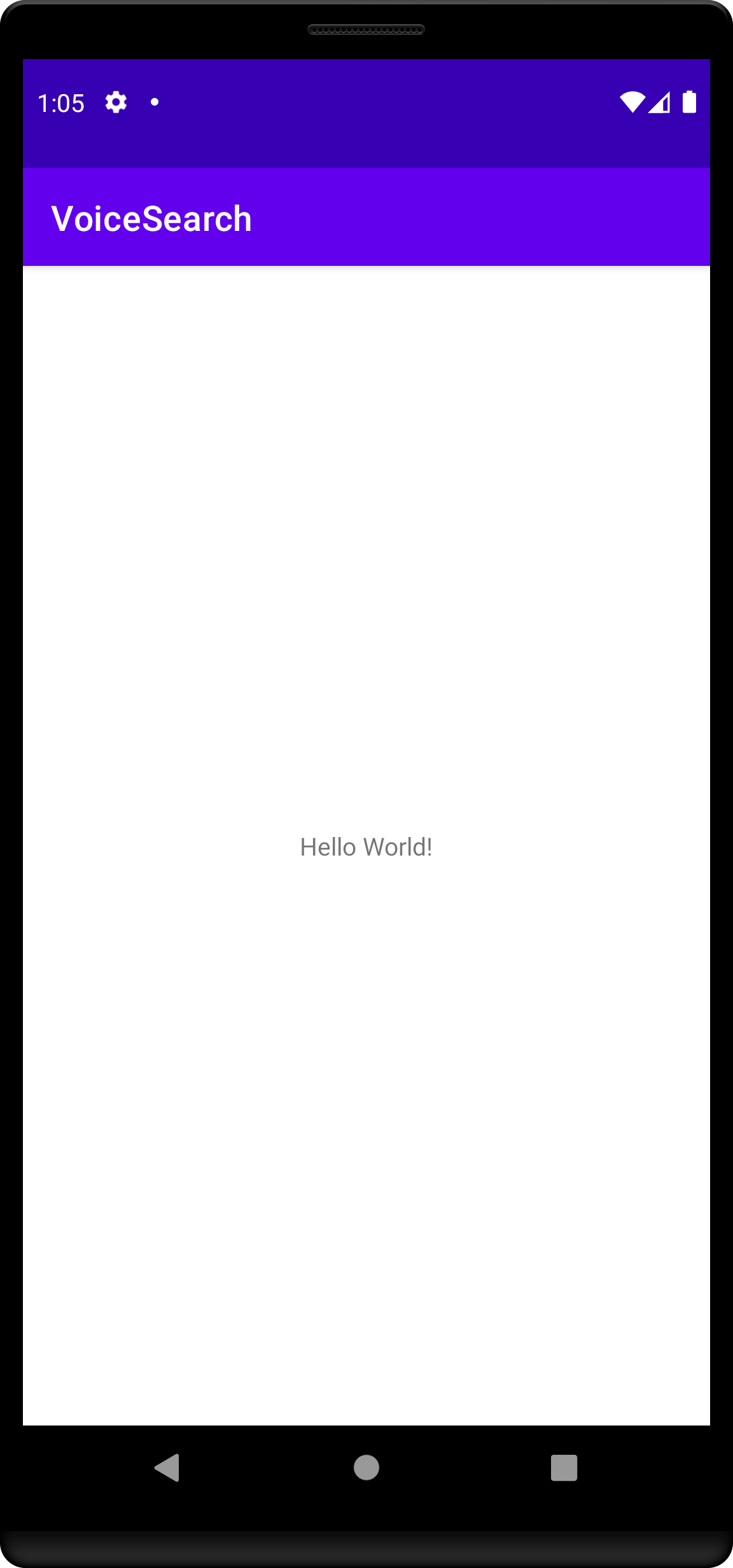
 [Build and run](https://developer.android.com/codelabs/basic-android-kotlin-compose-first-app#0) your app.
You should see your app with blank screen.
[Build and run](https://developer.android.com/codelabs/basic-android-kotlin-compose-first-app#0) your app.
You should see your app with blank screen.
 ### Add project dependencies
In your `build.gradle` file at the project level, add `mavenCentral()` as a dependency repository in the `repositories` blocks:
```groovy groovy theme={"system"}
repositories {
google()
mavenCentral()
}
```
In your `build.gradle` file under `app` module, add the following in the `dependencies` block:
```groovy groovy theme={"system"}
implementation 'com.algolia:instantsearch-android:4.+'
implementation 'com.algolia.instantsearch:voice:1.+'
```
To perform network operations in your app, `AndroidManifest.xml` must include the following permissions:
```xml XML icon=code-xml theme={"system"}
```
Setup [kotlinx.serialization](https://github.com/Kotlin/kotlinx.serialization) by adding the serialization plugin to your project's `build.gradle`:
```groovy groovy theme={"system"}
dependencies {
//...
classpath "org.jetbrains.kotlin:kotlin-serialization:$kotlin_version"
}
```
Add serialization plugin to the `plugins` block to your app's `build.gradle`:
```groovy Gradle theme={"system"}
plugins {
// ...
id 'kotlinx-serialization'
}
```
## Create a basic search experience
Start by creating a classic search interface with search box and results list.
First, create a layout file called `list_item.xml` under `res/layout/`.
Add a `TextView` to display a hit:
```xml XML icon=code-xml theme={"system"}
```
Update your layout file `activity_main.xml` to have a minimal set of components for a basic search experience:
* `SearchView`: view for textual query input
* `RecyclerView`: the list of search results
```xml XML icon=code-xml theme={"system"}
```
The view is ready, it's time to work on the search logic. Create a new class `Product` to hold search results:
```kotlin Kotlin theme={"system"}
import com.algolia.instantsearch.core.Indexable
@Serializable
data class Product(override val objectID: String, val name: String) : Indexable
```
Create a new class `ProductAdapter` to render search results:
```kotlin Kotlin theme={"system"}
class ProductAdapter : ListAdapter(ProductAdapter),
HitsView {
override fun onCreateViewHolder(parent: ViewGroup, viewType: Int): ProductViewHolder {
val view = LayoutInflater.from(parent.context).inflate(R.layout.list_item, parent, false)
return ProductViewHolder(view)
}
override fun onBindViewHolder(holder: ProductViewHolder, position: Int) {
val product = getItem(position)
if (product != null) holder.bind(product)
}
override fun setHits(hits: List) {
submitList(hits)
}
companion object : DiffUtil.ItemCallback() {
override fun areItemsTheSame(oldItem: Product, newItem: Product): Boolean {
return oldItem.objectID == newItem.objectID
}
override fun areContentsTheSame(oldItem: Product, newItem: Product): Boolean {
return oldItem == newItem
}
}
class ProductViewHolder(view: View) : RecyclerView.ViewHolder(view) {
private val hit = view.findViewById(R.id.hit)
fun bind(product: Product) {
hit.text = product.name
}
}
}
```
In your `MainActivity` use the [`SearchBox`](/doc/api-reference/widgets/search-box/android) and [`Hits`](/doc/api-reference/widgets/hits/android) widgets:
```kotlin Kotlin theme={"system"}
class MainActivity : AppCompatActivity() {
val searcher = HitsSearcher(
applicationID = "latency",
apiKey = "1f6fd3a6fb973cb08419fe7d288fa4db",
indexName = "instant_search"
)
val searchBox = SearchBoxConnector(searcher, searchMode = SearchMode.AsYouType)
val connection = ConnectionHandler(searchBox)
override fun onCreate(savedInstanceState: Bundle?) {
super.onCreate(savedInstanceState)
setContentView(R.layout.activity_main)
// Setup SearchBox widget
val searchView = findViewById(R.id.searchView)
val searchBoxView = SearchBoxViewAppCompat(searchView)
connection += searchBox.connectView(searchBoxView)
// Setup Hits widget
val hits = findViewById(R.id.hits)
val productAdapter = ProductAdapter()
hits.adapter = productAdapter
connection += searcher.connectHitsView(productAdapter) { response ->
response.hits.deserialize(Product.serializer())
}
// Initial search
searcher.searchAsync()
}
override fun onDestroy() {
super.onDestroy()
searcher.cancel()
connection.clear()
}
}
```
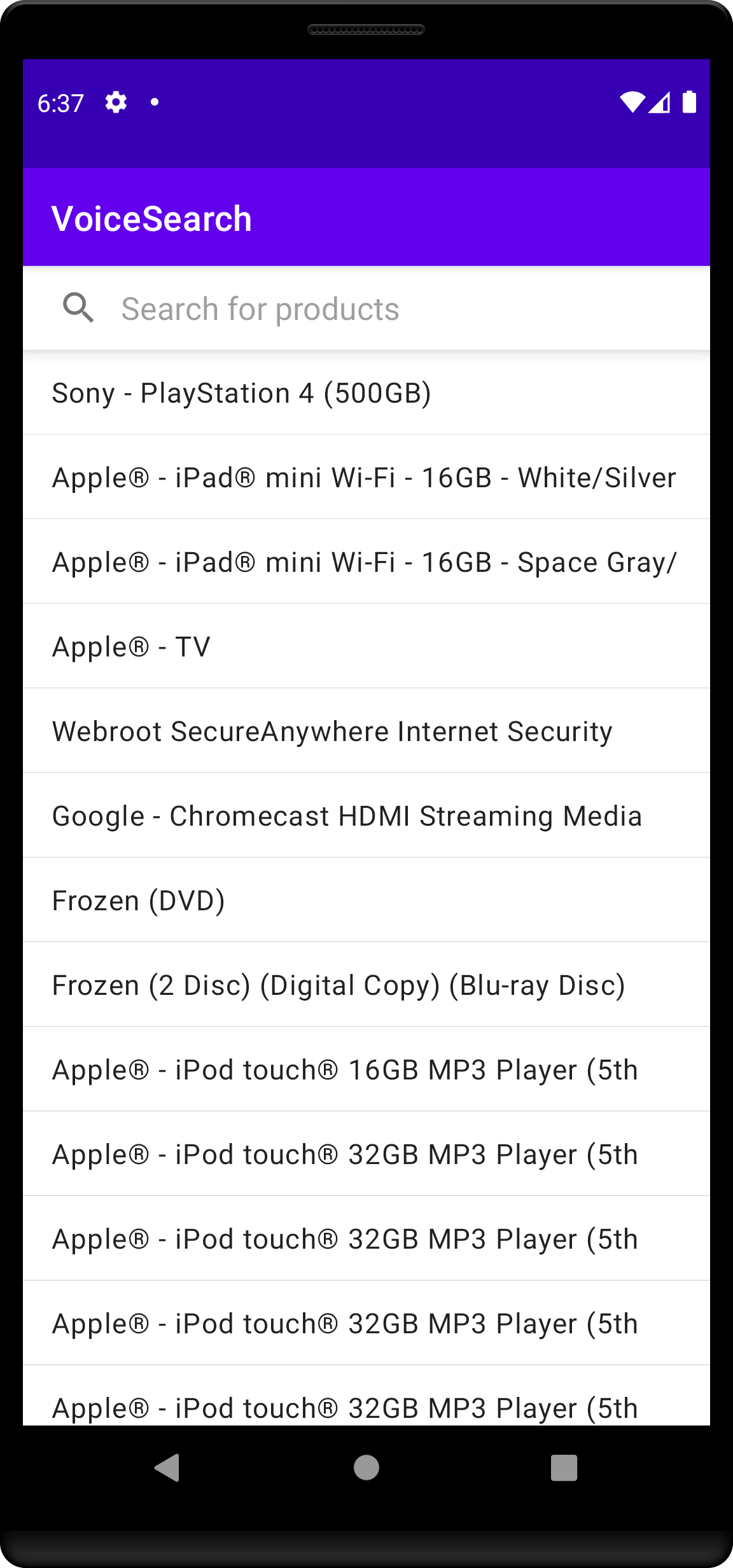
Build and run your app. The basic search experience is ready:
you can type your search query and get instant results.
### Add project dependencies
In your `build.gradle` file at the project level, add `mavenCentral()` as a dependency repository in the `repositories` blocks:
```groovy groovy theme={"system"}
repositories {
google()
mavenCentral()
}
```
In your `build.gradle` file under `app` module, add the following in the `dependencies` block:
```groovy groovy theme={"system"}
implementation 'com.algolia:instantsearch-android:4.+'
implementation 'com.algolia.instantsearch:voice:1.+'
```
To perform network operations in your app, `AndroidManifest.xml` must include the following permissions:
```xml XML icon=code-xml theme={"system"}
```
Setup [kotlinx.serialization](https://github.com/Kotlin/kotlinx.serialization) by adding the serialization plugin to your project's `build.gradle`:
```groovy groovy theme={"system"}
dependencies {
//...
classpath "org.jetbrains.kotlin:kotlin-serialization:$kotlin_version"
}
```
Add serialization plugin to the `plugins` block to your app's `build.gradle`:
```groovy Gradle theme={"system"}
plugins {
// ...
id 'kotlinx-serialization'
}
```
## Create a basic search experience
Start by creating a classic search interface with search box and results list.
First, create a layout file called `list_item.xml` under `res/layout/`.
Add a `TextView` to display a hit:
```xml XML icon=code-xml theme={"system"}
```
Update your layout file `activity_main.xml` to have a minimal set of components for a basic search experience:
* `SearchView`: view for textual query input
* `RecyclerView`: the list of search results
```xml XML icon=code-xml theme={"system"}
```
The view is ready, it's time to work on the search logic. Create a new class `Product` to hold search results:
```kotlin Kotlin theme={"system"}
import com.algolia.instantsearch.core.Indexable
@Serializable
data class Product(override val objectID: String, val name: String) : Indexable
```
Create a new class `ProductAdapter` to render search results:
```kotlin Kotlin theme={"system"}
class ProductAdapter : ListAdapter(ProductAdapter),
HitsView {
override fun onCreateViewHolder(parent: ViewGroup, viewType: Int): ProductViewHolder {
val view = LayoutInflater.from(parent.context).inflate(R.layout.list_item, parent, false)
return ProductViewHolder(view)
}
override fun onBindViewHolder(holder: ProductViewHolder, position: Int) {
val product = getItem(position)
if (product != null) holder.bind(product)
}
override fun setHits(hits: List) {
submitList(hits)
}
companion object : DiffUtil.ItemCallback() {
override fun areItemsTheSame(oldItem: Product, newItem: Product): Boolean {
return oldItem.objectID == newItem.objectID
}
override fun areContentsTheSame(oldItem: Product, newItem: Product): Boolean {
return oldItem == newItem
}
}
class ProductViewHolder(view: View) : RecyclerView.ViewHolder(view) {
private val hit = view.findViewById(R.id.hit)
fun bind(product: Product) {
hit.text = product.name
}
}
}
```
In your `MainActivity` use the [`SearchBox`](/doc/api-reference/widgets/search-box/android) and [`Hits`](/doc/api-reference/widgets/hits/android) widgets:
```kotlin Kotlin theme={"system"}
class MainActivity : AppCompatActivity() {
val searcher = HitsSearcher(
applicationID = "latency",
apiKey = "1f6fd3a6fb973cb08419fe7d288fa4db",
indexName = "instant_search"
)
val searchBox = SearchBoxConnector(searcher, searchMode = SearchMode.AsYouType)
val connection = ConnectionHandler(searchBox)
override fun onCreate(savedInstanceState: Bundle?) {
super.onCreate(savedInstanceState)
setContentView(R.layout.activity_main)
// Setup SearchBox widget
val searchView = findViewById(R.id.searchView)
val searchBoxView = SearchBoxViewAppCompat(searchView)
connection += searchBox.connectView(searchBoxView)
// Setup Hits widget
val hits = findViewById(R.id.hits)
val productAdapter = ProductAdapter()
hits.adapter = productAdapter
connection += searcher.connectHitsView(productAdapter) { response ->
response.hits.deserialize(Product.serializer())
}
// Initial search
searcher.searchAsync()
}
override fun onDestroy() {
super.onDestroy()
searcher.cancel()
connection.clear()
}
}
```
Build and run your app. The basic search experience is ready:
you can type your search query and get instant results.
 ## Create a voice search experience
To integrate voice search:
Add `RECORD_AUDIO` permission to `AndroidManifest.xml` file:
```xml XML icon=code-xml theme={"system"}
```
Change `activity_main.xml` to add the new voice input button to the existing UI.
The updated layout file should look as follows:
```xml XML icon=code-xml theme={"system"}
```
Add a basic implementation of [VoiceOverlay](https://github.com/algolia/voice-overlay-android):
In the click listener, check if you have the audio permission and show the appropriate dialog:
```kotlin Kotlin theme={"system"}
val microphone = findViewById(R.id.microphone)
microphone.setOnClickListener {
when (isRecordAudioPermissionGranted()) {
true -> VoiceInputDialogFragment().show(supportFragmentManager, "INPUT")
false -> VoicePermissionDialogFragment().show(supportFragmentManager, "PERMISSION")
}
}
```
Once the user speaks, you get their input back by implementing `VoiceSpeechRecognizer.ResultsListener`
```kotlin Kotlin theme={"system"}
class MainActivity : AppCompatActivity(), VoiceSpeechRecognizer.ResultsListener {
//...
override fun onResults(possibleTexts: Array) {
val searchView = findViewById(R.id.searchView)
possibleTexts.firstOrNull()?.let { input -> searchView.setQuery(input, true) }
}
}
```
In the end, the code of your `MainActivity` should look as follows:
```kotlin Kotlin theme={"system"}
class MainActivity : AppCompatActivity(), VoiceSpeechRecognizer.ResultsListener {
val searcher = HitsSearcher(
applicationID = "latency",
apiKey = "1f6fd3a6fb973cb08419fe7d288fa4db",
indexName = "bestbuy"
)
val searchBox = SearchBoxConnector(searcher, searchMode = SearchMode.AsYouType)
val connection = ConnectionHandler(searchBox)
override fun onCreate(savedInstanceState: Bundle?) {
super.onCreate(savedInstanceState)
setContentView(R.layout.activity_main)
// Setup SearchBox widget
val searchView = findViewById(R.id.searchView)
val searchBoxView = SearchBoxViewAppCompat(searchView)
connection += searchBox.connectView(searchBoxView)
// Setup Hits widget
val hits = findViewById(R.id.hits)
val productAdapter = ProductAdapter()
hits.adapter = productAdapter
connection += searcher.connectHitsView(productAdapter) { response ->
response.hits.deserialize(Product.serializer())
}
// Setup VoiceOverlay
val microphone = findViewById(R.id.microphone)
microphone.setOnClickListener {
when (isRecordAudioPermissionGranted()) {
true -> VoiceInputDialogFragment().show(supportFragmentManager, "INPUT")
false -> VoicePermissionDialogFragment().show(supportFragmentManager, "PERMISSION")
}
}
// Initial search
searcher.searchAsync()
}
override fun onResults(possibleTexts: Array) {
val searchView = findViewById(R.id.searchView)
possibleTexts.firstOrNull()?.let { input -> searchView.setQuery(input, true) }
}
override fun onDestroy() {
super.onDestroy()
searcher.cancel()
connection.clear()
}
}
```
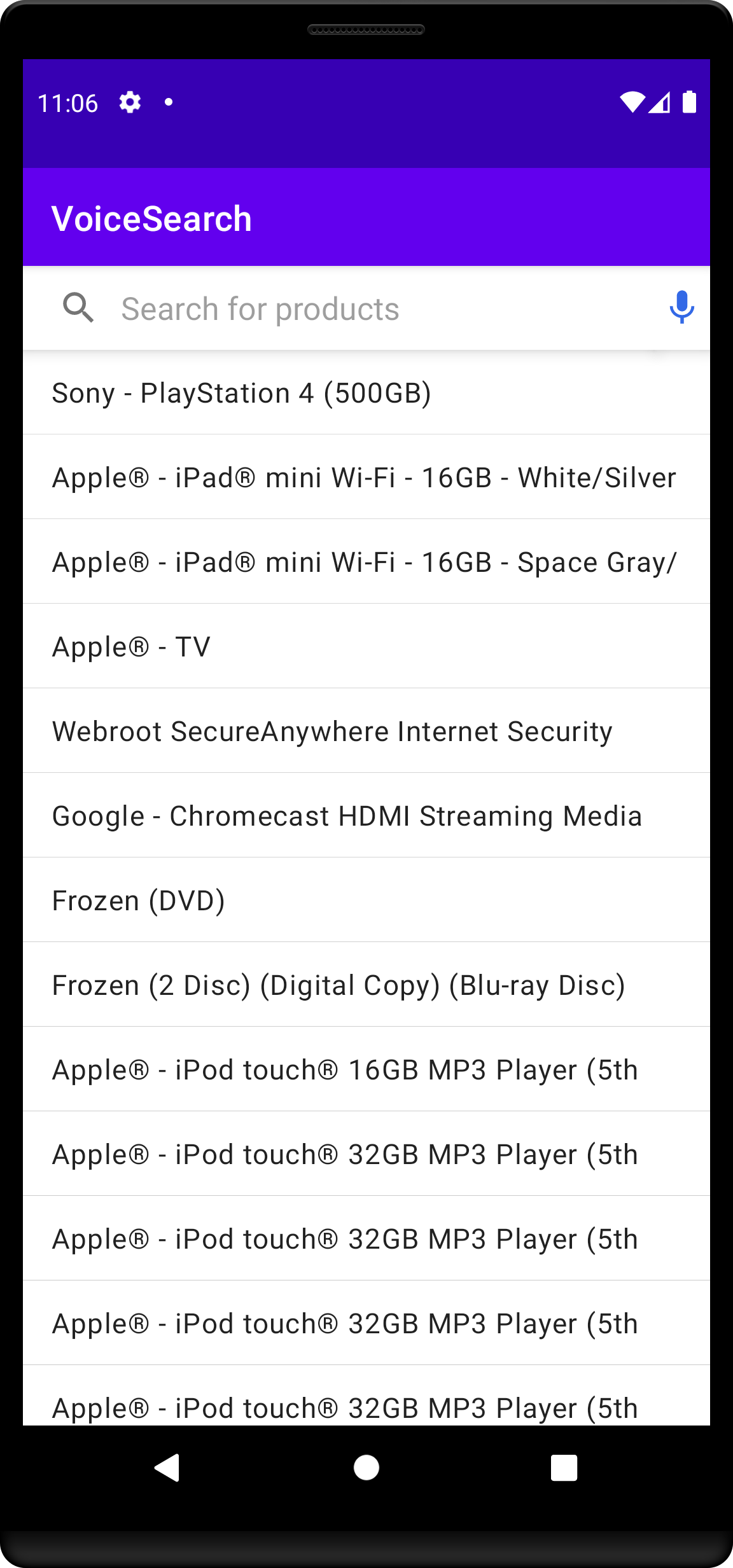
Build and run your app to test your voice search. You should see the voice input button on the right of the search box.
## Create a voice search experience
To integrate voice search:
Add `RECORD_AUDIO` permission to `AndroidManifest.xml` file:
```xml XML icon=code-xml theme={"system"}
```
Change `activity_main.xml` to add the new voice input button to the existing UI.
The updated layout file should look as follows:
```xml XML icon=code-xml theme={"system"}
```
Add a basic implementation of [VoiceOverlay](https://github.com/algolia/voice-overlay-android):
In the click listener, check if you have the audio permission and show the appropriate dialog:
```kotlin Kotlin theme={"system"}
val microphone = findViewById(R.id.microphone)
microphone.setOnClickListener {
when (isRecordAudioPermissionGranted()) {
true -> VoiceInputDialogFragment().show(supportFragmentManager, "INPUT")
false -> VoicePermissionDialogFragment().show(supportFragmentManager, "PERMISSION")
}
}
```
Once the user speaks, you get their input back by implementing `VoiceSpeechRecognizer.ResultsListener`
```kotlin Kotlin theme={"system"}
class MainActivity : AppCompatActivity(), VoiceSpeechRecognizer.ResultsListener {
//...
override fun onResults(possibleTexts: Array) {
val searchView = findViewById(R.id.searchView)
possibleTexts.firstOrNull()?.let { input -> searchView.setQuery(input, true) }
}
}
```
In the end, the code of your `MainActivity` should look as follows:
```kotlin Kotlin theme={"system"}
class MainActivity : AppCompatActivity(), VoiceSpeechRecognizer.ResultsListener {
val searcher = HitsSearcher(
applicationID = "latency",
apiKey = "1f6fd3a6fb973cb08419fe7d288fa4db",
indexName = "bestbuy"
)
val searchBox = SearchBoxConnector(searcher, searchMode = SearchMode.AsYouType)
val connection = ConnectionHandler(searchBox)
override fun onCreate(savedInstanceState: Bundle?) {
super.onCreate(savedInstanceState)
setContentView(R.layout.activity_main)
// Setup SearchBox widget
val searchView = findViewById(R.id.searchView)
val searchBoxView = SearchBoxViewAppCompat(searchView)
connection += searchBox.connectView(searchBoxView)
// Setup Hits widget
val hits = findViewById(R.id.hits)
val productAdapter = ProductAdapter()
hits.adapter = productAdapter
connection += searcher.connectHitsView(productAdapter) { response ->
response.hits.deserialize(Product.serializer())
}
// Setup VoiceOverlay
val microphone = findViewById(R.id.microphone)
microphone.setOnClickListener {
when (isRecordAudioPermissionGranted()) {
true -> VoiceInputDialogFragment().show(supportFragmentManager, "INPUT")
false -> VoicePermissionDialogFragment().show(supportFragmentManager, "PERMISSION")
}
}
// Initial search
searcher.searchAsync()
}
override fun onResults(possibleTexts: Array) {
val searchView = findViewById(R.id.searchView)
possibleTexts.firstOrNull()?.let { input -> searchView.setQuery(input, true) }
}
override fun onDestroy() {
super.onDestroy()
searcher.cancel()
connection.clear()
}
}
```
Build and run your app to test your voice search. You should see the voice input button on the right of the search box.
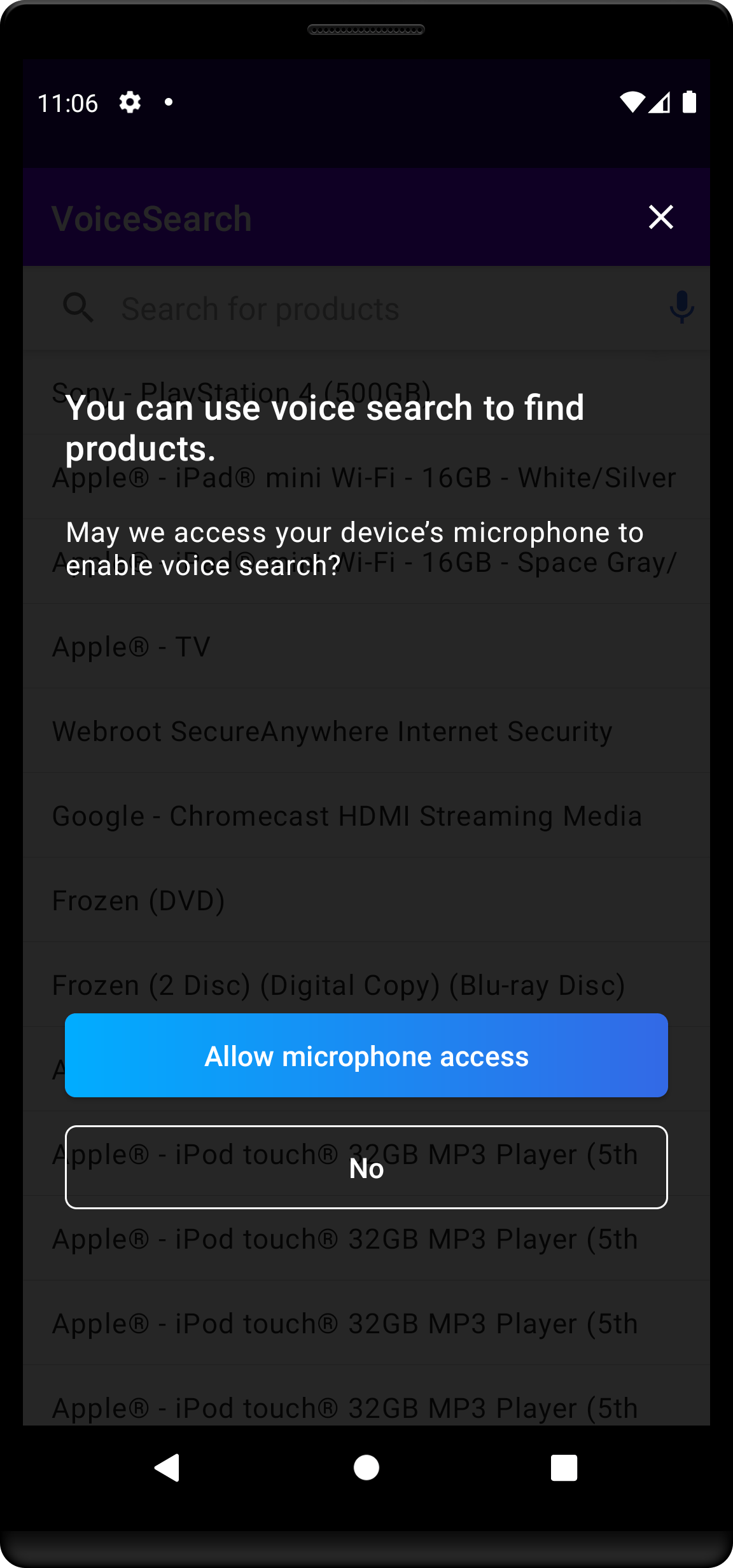
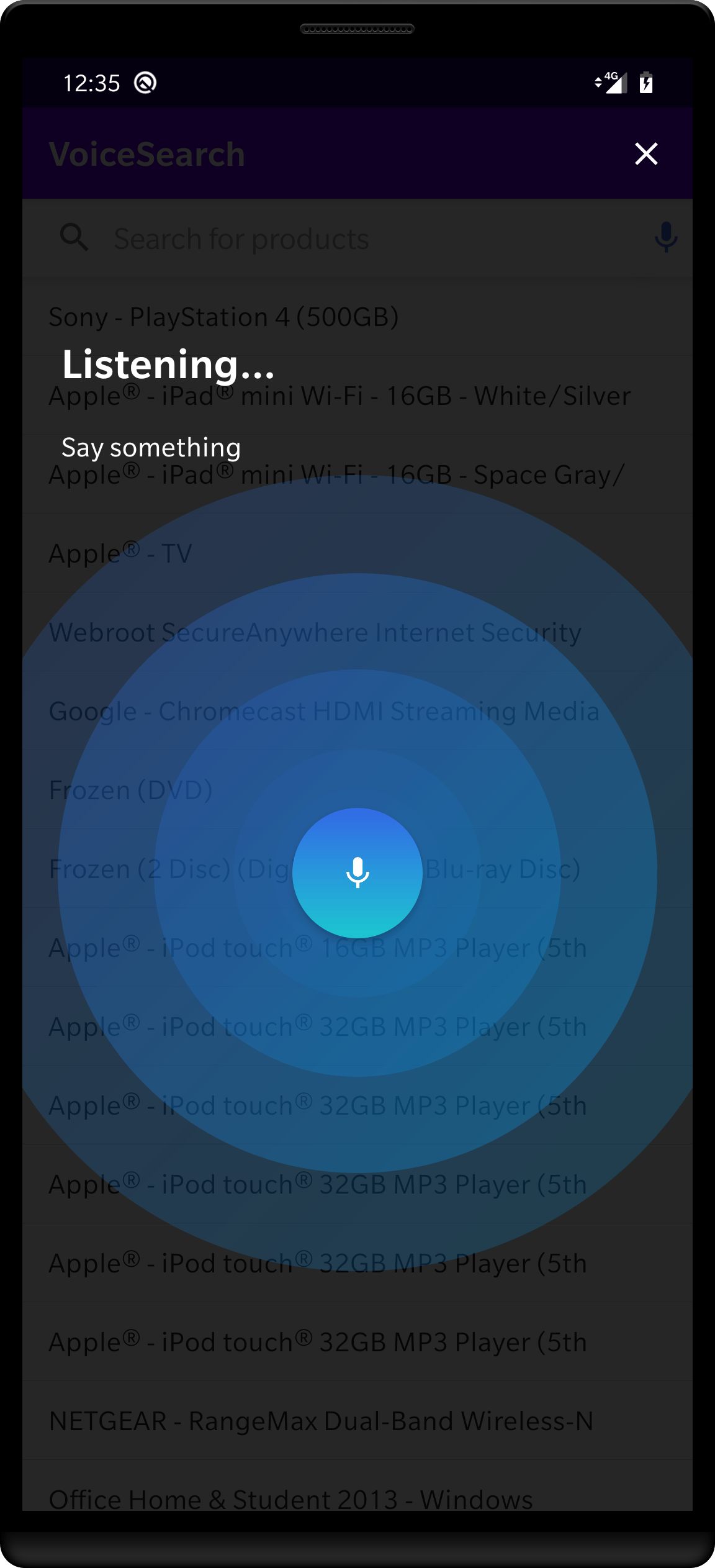
 The `VoiceOverlay` should appear when you tap the voice input button.
At the first launch, it asks for permission.
The `VoiceOverlay` should appear when you tap the voice input button.
At the first launch, it asks for permission.
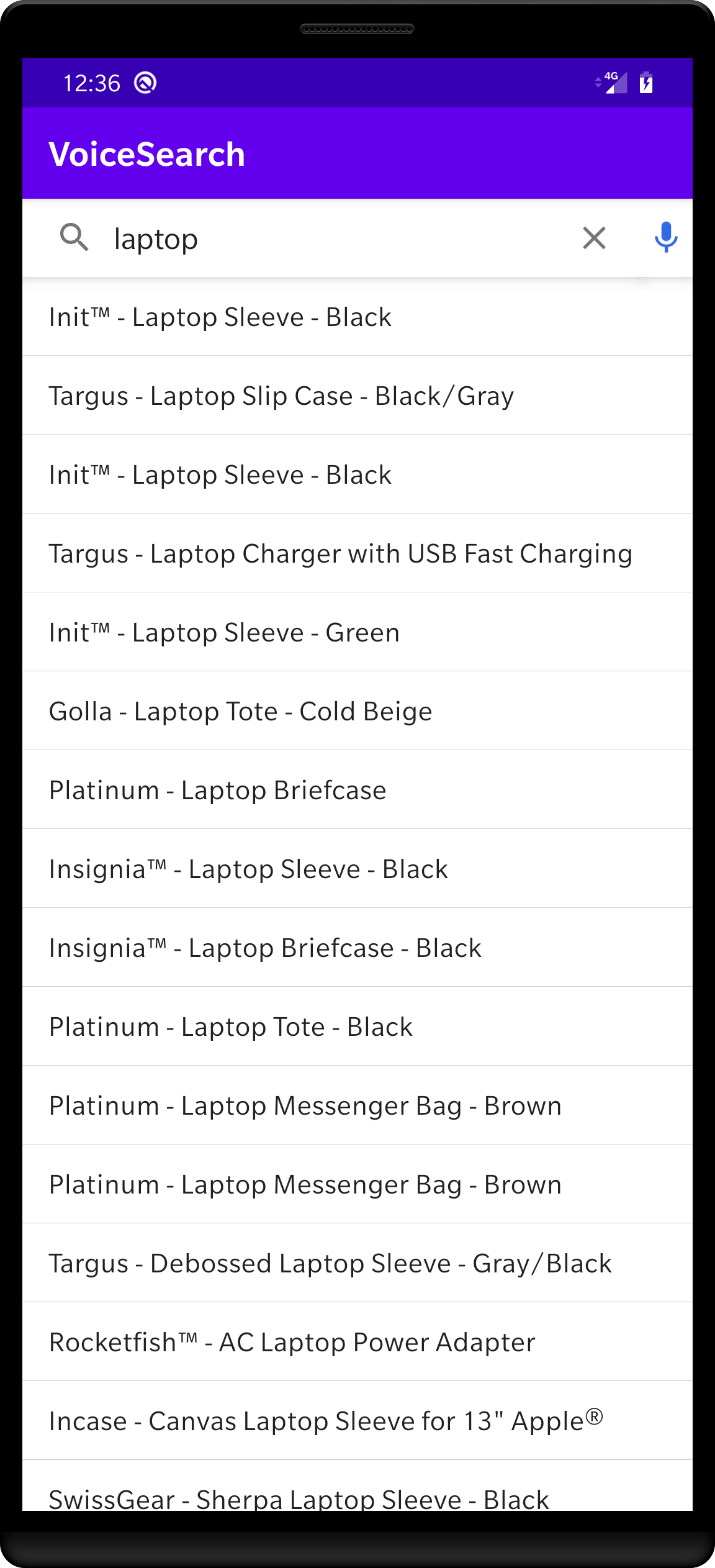
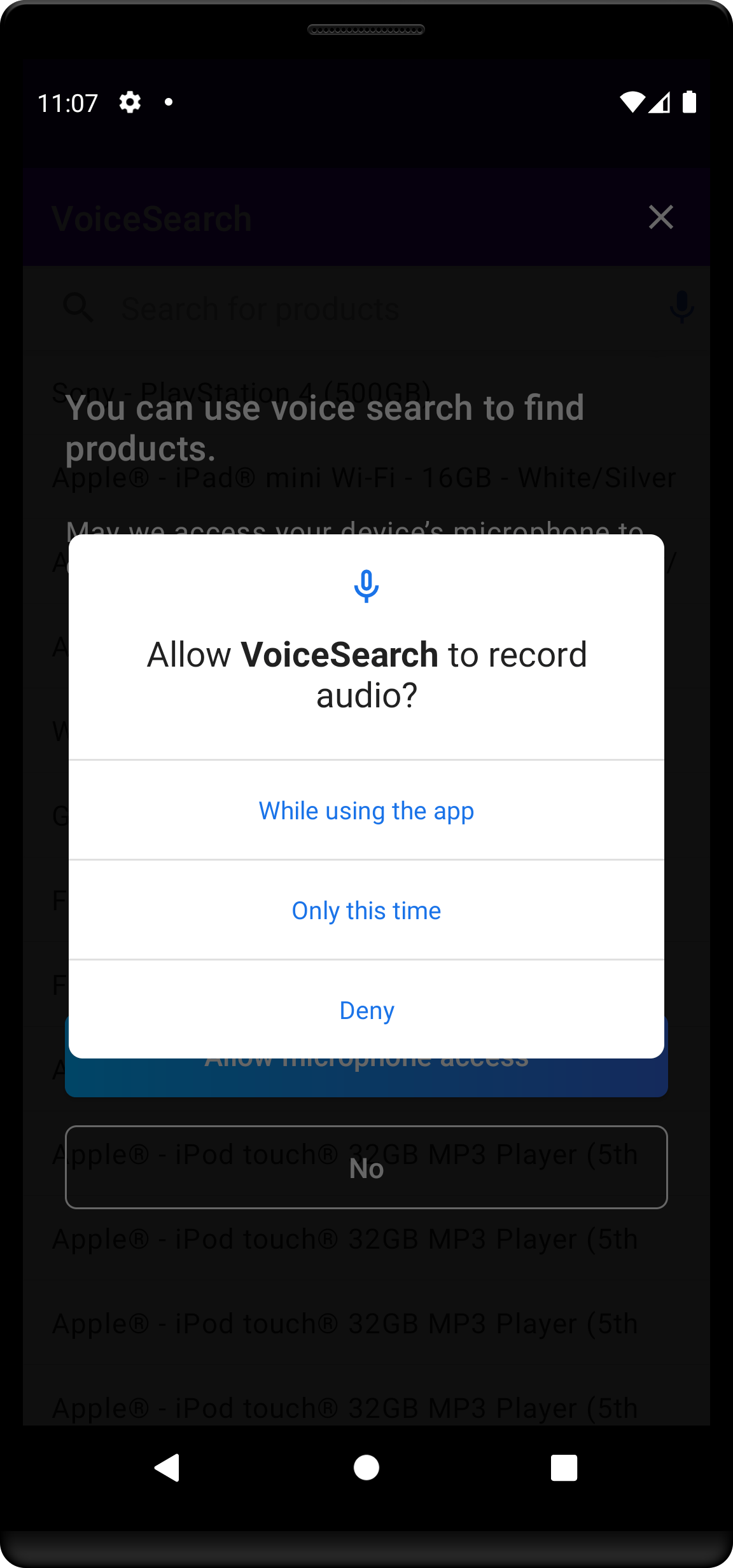 Once you give all the authorizations, the voice input interface appears. Try to say something and get the instant search results.
 You can find a complete `VoiceOverlay` implementation on the git [repository](https://github.com/algolia/voice-overlay-android/blob/96e7d9c98fe40cbcd85afa0e8e1eeb33b374063f/app/src/main/kotlin/com/algolia/instantsearch/voice/demo/MainActivity.kt).
## Conclusion
With Algolia's libraries, you can build a voice search experience in less than a hundred lines of code.
You can customize your search experience and make it unique by modifying `InstantSearch` components, as well as the `VoiceOverlay` components.
You can find a complete `VoiceOverlay` implementation on the git [repository](https://github.com/algolia/voice-overlay-android/blob/96e7d9c98fe40cbcd85afa0e8e1eeb33b374063f/app/src/main/kotlin/com/algolia/instantsearch/voice/demo/MainActivity.kt).
## Conclusion
With Algolia's libraries, you can build a voice search experience in less than a hundred lines of code.
You can customize your search experience and make it unique by modifying `InstantSearch` components, as well as the `VoiceOverlay` components.