> ## Documentation Index
> Fetch the complete documentation index at: https://algolia.com/llms.txt
> Use this file to discover all available pages before exploring further.
# Create your own widgets
> Learn how you can create a custom widget for your React InstantSearch app.
export const Facet = () =>
facet
;
export const Records = () =>
records
;
export const Filter = () =>
filter
;
This is the **React InstantSearch v7** documentation.
If you're upgrading from v6, see the [upgrade guide](/doc/guides/building-search-ui/upgrade-guides/react/#migrate-from-react-instantsearch-v6-to-react-instantsearch-v7).
If you were using React InstantSearch Hooks,
this v7 documentation applies—just check for [necessary changes](/doc/guides/building-search-ui/upgrade-guides/react/#migrate-from-react-instantsearch-hooks-to-react-instantsearch-v7).
To continue using v6, you can find the [archived documentation](https://algolia.com/old-docs/deprecated/instantsearch/react/v6/api-reference/instantsearch/).
React InstantSearch comes with [multiple widgets](/doc/api-reference/widgets/react) that you can [extensively customize](/doc/guides/building-search-ui/widgets/customize-an-existing-widget/react), but you can also use connectors to change your rendering.
You can also use connectors to completely change your rendering.
If no existing widget or connector suits your needs, you can create your own.
Creating custom widgets is the most advanced way to tailor your search experience.
It requires in-depth knowledge of InstantSearch and Algolia.
This guide covers how to build a custom widget:
* [Build a custom connector](#build-a-custom-connector)
* [Build a UI with a connector](#render-a-custom-user-interface)
If you're creating a custom InstantSearch widget because you didn't find a built-in option for your use case,
consider [opening a feature request](https://github.com/algolia/instantsearch/discussions/new?category=ideas\&labels=triage\&title=Feature%20request%3A%20) to describe what you're trying to build.
## When to create custom widgets
You can create a new widget when **none of the [existing widgets](/doc/api-reference/widgets/react) fit your functional needs.**
However, if you're trying to redefine the UI or DOM output of a widget,
[you should, instead, extend it by using its connector counterpart](/doc/guides/building-search-ui/widgets/customize-an-existing-widget/react#customize-the-complete-ui-of-the-widgets).
**Existing widgets and connectors should fit most of your use cases** and you should look into them before creating custom connectors. For example, to create buttons that set predefined queries, you could use [`useSearchBox()`](/doc/api-reference/widgets/search-box/react#hook). Although you're not rendering a search box, the connector provides the necessary APIs for this, so there's no need to re-develop it.
**For help, [explain your situation and ask questions on GitHub](https://github.com/algolia/instantsearch/discussions/new?category=q-a\&labels=triage).**
You'll see references to [InstantSearch.js](/doc/guides/building-search-ui/what-is-instantsearch/js) and its APIs throughout the guide. React InstantSearch relies on this core library and bridges them with a thin adapter.
If you're using TypeScript, install `algoliasearch-helper` and `instantsearch.js` as development dependencies to access the necessary types. Make sure to use the same versions as the ones in your React InstantSearch version.
Once you're done building an InstantSearch.js connector, you'll [turn it into a Hook](/doc/guides/building-search-ui/widgets/create-your-own-widgets/react#build-a-custom-connector).
## Build a custom connector
When creating a custom widget, start by **writing a connector that encapsulates all the logic of your widget**, yet keeps the rendering separate.
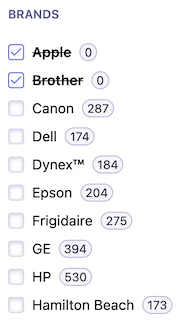
**This guide uses the example of a negative refinement list widget**.
It's similar to a [``](/doc/api-reference/widgets/refinement-list/react) but, instead of filtering on the selected items,
it excludes them from the search.
For example, selecting the brand "Apple" would results to all matching that aren't Apple products.
### Write the connector function
Create a `connectNegativeRefinementList` function that takes a render and an unmount function.
It should return a `negativeRefinementList` function (the widget factory) that takes widget parameters and returns an object (the widget).
For the sake of simplicity, the only parameter that the widget accepts is `attribute`.
This lets users specify which record attribute to filter on.
```js JavaScript theme={"system"}
export function connectNegativeRefinementList(renderFn, unmountFn = noop) {
return function negativeRefinementList({ attribute }) {
return {
// …
};
};
}
const noop = () => {};
```
```ts TypeScript theme={"system"}
import type { SearchResults } from "algoliasearch-helper";
import type { Connector } from "instantsearch.js";
export type NegativeRefinementListConnectorParams = {
attribute: string;
};
type NegativeRefinementListRenderState = {
items: SearchResults.FacetValue[];
refine(value: string): void;
};
type NegativeRefinementListWidgetDescription = {
$$type: "myOrganization.negativeRefinementList";
renderState: NegativeRefinementListRenderState;
indexRenderState: {
negativeRefinementList: {
[attribute: string]: NegativeRefinementListRenderState;
};
};
indexUiState: {
negativeRefinementList: {
[attribute: string]: string[];
};
};
};
type NegativeRefinementListConnector = Connector<
NegativeRefinementListWidgetDescription,
NegativeRefinementListConnectorParams
>;
export const connectNegativeRefinementList: NegativeRefinementListConnector = (
renderFn,
unmountFn = noop,
) => {
return function negativeRefinementList({ attribute }) {
return {
// …
};
};
};
const noop = () => {};
```
Your custom connector needs an identifier.
The naming convention is `"myOrganization.myWidget"` (for example, `"microsoft.negativeRefinementList"`).
If you don't have an organization, you can use your name.
```js JavaScript theme={"system"}
export function connectNegativeRefinementList(renderFn, unmountFn = noop) {
return function negativeRefinementList({ attribute }) {
return {
$$type: "myOrganization.negativeRefinementList",
};
};
}
// …
```
```ts TypeScript theme={"system"}
export const connectNegativeRefinementList: NegativeRefinementListConnector = (
renderFn,
unmountFn = noop,
) => {
return function negativeRefinementList({ attribute }) {
return {
$$type: "myOrganization.negativeRefinementList",
};
};
};
// …
```
## Compute the render state
At this point, the widget doesn't perform any custom logic.
To make it functional, you need to hook into the InstantSearch lifecycle to update search parameters, extract response data, and expose values for rendering.
#### Widget render state
Implement the `getWidgetRenderState` method.
This is where you consume data from the API response.
It should return an object with the data and APIs you want to expose to the render function.
For the negative refinement list, you need to expose:
* The `items` to display in the list.
* A `refine` function to trigger a new search from the UI with new items to exclude.
The widget parameters are also passed under the `widgetParams` key. This is necessary for internal purposes.
In the returned object from the `negativeRefinementList` function, add a function `getWidgetRenderState`.
```js JavaScript icon="code" theme={"system"}
export function connectNegativeRefinementList(renderFn, unmountFn = noop) {
return function negativeRefinementList({ attribute }) {
return {
// …
getWidgetRenderState({ results, helper }) {
// …
},
};
};
}
// …
```
```ts TypeScript icon="code" theme={"system"}
export const connectNegativeRefinementList: NegativeRefinementListConnector = (
renderFn,
unmountFn = noop,
) => {
return function negativeRefinementList({ attribute }) {
return {
// …
getWidgetRenderState({ results, helper }) {
// …
},
};
};
};
// …
```
You need to expose a `refine` function to toggle exclusions for the given attribute.
**The `refine` function must keep the same reference whenever `getWidgetRenderState` is called** so that UI frameworks can consider it stable between renders.
To do so, create a `connectorState` object outside the widget and attach the `refine` function to it.
```js JavaScript icon="code" theme={"system"}
export function connectNegativeRefinementList(renderFn, unmountFn = noop) {
return function negativeRefinementList({ attribute }) {
// An empty `connectorState` object is used to store information
// that needs to be shared across multiple method calls.
const connectorState = {};
return {
getWidgetRenderState({ results, helper }) {
// To ensure `refine` keeps the same reference across renders, create
// and store it once outside the method scope.
if (!connectorState.refine) {
connectorState.refine = (value) =>
helper.toggleFacetExclusion(attribute, value).search();
}
// …
},
};
};
}
// …
```
```ts TypeScript icon="code" theme={"system"}
export const connectNegativeRefinementList: NegativeRefinementListConnector = (
renderFn,
unmountFn = noop,
) => {
return function negativeRefinementList({ attribute }) {
type ConnectorState = {
refine?(value: string): void;
};
// An empty `connectorState` object is used to store information
// that needs to be shared across multiple method calls.
const connectorState: ConnectorState = {};
return {
getWidgetRenderState({ results, helper }) {
// To ensure `refine` keeps the same reference across renders, create
// and store it once outside the method scope.
if (!connectorState.refine) {
connectorState.refine = (value) =>
helper.toggleFacetExclusion(attribute, value).search();
}
// …
},
};
};
};
// …
```
You need to be able to consume the facet values from the API response so you can display them on the UI,
let users click them, and so on.
Find them on the exposed `results` and store them in an `items` variable.
```js JavaScript icon="code" theme={"system"}
export function connectNegativeRefinementList(renderFn, unmountFn = noop) {
return function negativeRefinementList({ attribute }) {
// …
return {
getWidgetRenderState({ results, helper }) {
// …
// Retrieve the facet values for the given attribute and sort them by
// ascending name. Store the facet values in the `items` variable.
const items =
results.getFacetValues(attribute, {
sortBy: ["name:asc"],
}) || [];
// …
},
};
};
}
// …
```
```ts TypeScript icon="code" theme={"system"}
export const connectNegativeRefinementList: NegativeRefinementListConnector = (
renderFn,
unmountFn = noop,
) => {
return function negativeRefinementList({ attribute }) {
// …
return {
getWidgetRenderState({ results, helper }) {
// …
// Retrieve facet values from the results for the given attribute
// and sort them by ascending name.
// Later on, you could let users pass a `sortBy` parameter.
const items =
(results.getFacetValues(attribute, {
sortBy: ["name:asc"],
}) as SearchResults.FacetValue[]) || [];
// …
},
};
};
};
// …
```
You need to handle what happens when there are no search results.
```js JavaScript icon="code" theme={"system"}
export function connectNegativeRefinementList(renderFn, unmountFn = noop) {
return function negativeRefinementList(widgetParams) {
// …
return {
getWidgetRenderState({ results, helper }) {
// …
// When there are no results, return the API with default values.
// This shows a fallback UI while waiting for results.
if (!results) {
return { items: [], refine: connectorState.refine, widgetParams };
}
// …
},
};
};
}
// …
```
```ts TypeScript icon="code" theme={"system"}
export const connectNegativeRefinementList: NegativeRefinementListConnector = (
renderFn,
unmountFn = noop,
) => {
return function negativeRefinementList(widgetParams) {
// …
return {
getWidgetRenderState({ results, helper }) {
// …
// When there are no results, return the API with default values.
// It's helpful to render a default UI until results are available.
if (!results) {
return { items: [], refine: connectorState.refine, widgetParams };
}
// …
},
};
};
};
// …
```
Return the `items` containing the facet values and the `refine` function.
You should also return the parameters passed to the widget under the `widgetParams` key.
You can use all this data and APIs in the render function later.
```js JavaScript icon="code" theme={"system"}
export function connectNegativeRefinementList(renderFn, unmountFn = noop) {
return function negativeRefinementList(widgetParams) {
// …
return {
getWidgetRenderState({ results, helper }) {
// …
return {
items,
// Toggles exclusion of a facet value when selected.
// If the value is already excluded, the exclusion is unset.
// Otherwise, it's added to the exclusion list.
// Then, a search is triggered.
refine: connectorState.refine,
widgetParams,
};
},
};
};
}
// …
```
```ts TypeScript icon="code" theme={"system"}
export const connectNegativeRefinementList: NegativeRefinementListConnector = (
renderFn,
unmountFn = noop,
) => {
return function negativeRefinementList(widgetParams) {
// …
return {
getWidgetRenderState({ results, helper }) {
// …
return {
items,
// A function to toggle a value when selected.
// If the value is already excluded, the exclusion is unset.
// Otherwise, it's added to the exclusion list.
// Then, a search is triggered.
refine: connectorState.refine,
widgetParams,
};
},
};
};
};
// …
```
#### Global render state
In InstantSearch, each widget you add registers its render state in one global object.
You need to specify how to store your widget render state in this global tree by implementing the `getRenderState` method.
You might use multiple negative refinement lists in your application but with different attributes.
For example,
you might want to exclude by brand and by categories.
Here, you want to store each widget's render state individually so they don't override each other.
```js JavaScript icon="code" theme={"system"}
export function connectNegativeRefinementList(renderFn, unmountFn = noop) {
return function negativeRefinementList(widgetParams) {
const { attribute } = widgetParams;
return {
// …
getRenderState(renderState, renderOptions) {
// The global render state is merged with a new one to store the render
// state of the current widget.
return {
...renderState,
negativeRefinementList: {
...renderState.negativeRefinementList,
// You can use multiple `negativeRefinementList` widgets in a single
// app so you need to register each of them separately.
// Each `negativeRefinementList` widget's render state is stored
// by the `attribute` it affects.
[attribute]: this.getWidgetRenderState(renderOptions),
},
};
},
};
};
}
// …
```
```ts TypeScript icon="code" theme={"system"}
export const connectNegativeRefinementList: NegativeRefinementListConnector = (
renderFn,
unmountFn = noop,
) => {
return function negativeRefinementList(widgetParams) {
const { attribute } = widgetParams;
return {
// …
getRenderState(renderState, renderOptions) {
// The global render state is merged with a new one to store the render
// state of the current widget.
return {
...renderState,
negativeRefinementList: {
...renderState.negativeRefinementList,
// You can use multiple `negativeRefinementList` widgets in a single
// app so you need to register each of them separately.
// Each `negativeRefinementList` widget's render state is stored
// by the `attribute` it affects.
[attribute]: this.getWidgetRenderState(renderOptions),
},
};
},
};
};
};
// …
```
### Set up the lifecycle
When you add InstantSearch widgets to your app, they go through several steps in response to internal events.
**These steps are the InstantSearch lifecycle.**
You must register lifecycle hooks on your widget to run code at the `init`, `render`, and `dispose` stages.
Use these functions to call the user-provided render and unmount functions with the correct information.
The lifecycle code shouldn't change, so you can copy the code from this step without modifying it.
Most of the custom logic happens in `getWidgetRenderState`.
The `init` step runs when the app starts (before the initial search is performed).
**Don't use this function to add Algolia-related logic**.
Instead, use `getWidgetSearchParameters`, `getWidgetUiState`, or `getWidgetRenderState`.
```js JavaScript icon="code" theme={"system"}
export function connectNegativeRefinementList(renderFn, unmountFn = noop) {
return function negativeRefinementList({ attribute }) {
return {
// …
init(initOptions) {
const { instantSearchInstance } = initOptions;
renderFn(
// The render state is the data provided to the render function,
// necessary to build the UI.
{
...this.getWidgetRenderState(initOptions),
instantSearchInstance,
},
// Calling the function with `isFirstRender=true` lets you perform
// conditional logic in the render function.
true,
);
},
// …
};
};
}
// …
```
```ts TypeScript icon="code" theme={"system"}
export const connectNegativeRefinementList: NegativeRefinementListConnector = (
renderFn,
unmountFn = noop,
) => {
return function negativeRefinementList({ attribute }) {
return {
// …
init(initOptions) {
const { instantSearchInstance } = initOptions;
renderFn(
// The render state is the data provided to the render function,
// necessary to build the UI.
{
...this.getWidgetRenderState(initOptions),
instantSearchInstance,
},
// Calling the function with `isFirstRender=true` lets you perform
// conditional logic in the render function.
true,
);
},
// …
};
};
};
// …
```
The `render` step runs whenever new results come back from Algolia.
It's usually triggered by search state changes,
such as when a user submits a new query or clicks on a filter.
During this step, the widget can react to the updated search results by re-rendering with the new information.
This lets the widget remain synchronized with the current state of the search experience.
```js JavaScript icon="code" theme={"system"}
export function connectNegativeRefinementList(renderFn, unmountFn = noop) {
return function negativeRefinementList({ attribute }) {
return {
// …
render(renderOptions) {
const { instantSearchInstance } = renderOptions;
renderFn(
// The render state is the data provided to the render function,
// necessary to build the UI.
{
...this.getWidgetRenderState(renderOptions),
instantSearchInstance,
},
// Calling the function with `isFirstRender=false` lets you perform
// conditional logic in the render function.
false,
);
},
// …
};
};
}
// …
```
```ts TypeScript icon="code" theme={"system"}
export const connectNegativeRefinementList: NegativeRefinementListConnector = (
renderFn,
unmountFn = noop,
) => {
return function negativeRefinementList({ attribute }) {
return {
// …
render(renderOptions) {
const { instantSearchInstance } = renderOptions;
renderFn(
// The render state is the data provided to the render function,
// necessary to build the UI.
{
...this.getWidgetRenderState(renderOptions),
instantSearchInstance,
},
// Calling the function with `isFirstRender=false` lets you perform
// conditional logic in the render function.
false,
);
},
// …
};
};
};
// …
```
The `dispose` step runs when removing the widget.
Use it to clean up anything the widget created during its "lifetime" such as search parameters, UI, and event listeners.
This helps prevent memory leaks and ensures the widget doesn't continue affecting the search experience once it's no longer in use.
```js JavaScript icon="code" theme={"system"}
export function connectNegativeRefinementList(renderFn, unmountFn = noop) {
return function negativeRefinementList({ attribute }) {
return {
// …
dispose(disposeOptions) {
unmountFn();
},
// …
};
};
}
// …
```
```ts TypeScript icon="code" theme={"system"}
export const connectNegativeRefinementList: NegativeRefinementListConnector = (
renderFn,
unmountFn = noop,
) => {
return function negativeRefinementList({ attribute }) {
return {
// …
dispose(disposeOptions) {
unmountFn();
},
// …
};
};
};
// …
```
### Interact with routing
An important aspect of building an InstantSearch widget is how to make it work with [routing](/doc/guides/building-search-ui/going-further/routing-urls/react). **Your custom widget should be able to synchronize its state with the browser URL** so you can share a link to your search experience in any given state.
#### Setting the widget UI state
In InstantSearch, routing uses an internal [`uiState`](/doc/api-reference/widgets/ui-state/react) object to derive the route. As with the [render state](/doc/guides/building-search-ui/widgets/create-your-own-widgets/react#compute-the-render-state), you need to specify how to store your widget UI state in the global UI state by implementing the `getWidgetUiState` method.
As with `getRenderState`, since you might use the widget multiple times with different attributes, you need to store each widget's UI state individually so they don't override each other.
```js JavaScript theme={"system"}
export function connectNegativeRefinementList(renderFn, unmountFn = noop) {
return function negativeRefinementList(widgetParams) {
const { attribute } = widgetParams;
return {
// …
getWidgetUiState(uiState, { searchParameters }) {
// The global UI state is merged with a new one to store the UI
// state of the current widget.
return {
...uiState,
negativeRefinementList: {
...uiState.negativeRefinementList,
// You can use multiple `negativeRefinementList` widgets in a single
// app so you need to register each of them separately.
// Each `negativeRefinementList` widget's UI state is stored by // the `attribute` it impacts. [attribute]: searchParameters.getExcludeRefinements(attribute), }, }; }, }; }; } // …
```
```ts TypeScript theme={"system"}
export const connectNegativeRefinementList: NegativeRefinementListConnector = (
renderFn,
unmountFn = noop
) => {
return function negativeRefinementList(widgetParams) {
const { attribute } = widgetParams;
return {
// …
getWidgetUiState(uiState, { searchParameters }) {
// The global UI state is merged with a new one to store the UI
// state of the current widget.
return {
...uiState,
negativeRefinementList: {
...uiState.negativeRefinementList,
// You can use multiple `negativeRefinementList` widgets in a single
// app so you need to register each of them separately.
// Each `negativeRefinementList` widget's UI state is stored by // the `attribute` it impacts. [attribute]: searchParameters.getExcludeRefinements(attribute), }, }; }, }; }; } // …
```
#### Set the widget search parameters
When initializing InstantSearch state from a URL, you need to convert the URL into [search parameters](/doc/api-reference/search-api-parameters) to trigger the first search.
To define how to derive search parameters from the UI state, use the `getWidgetSearchParameters` method.
This method lets you modify the existing search parameters based on the widget's configuration and the current UI state.
```js JavaScript theme={"system"}
export function connectNegativeRefinementList(renderFn, unmountFn = noop) {
return function negativeRefinementList(widgetParams) {
const { attribute } = widgetParams;
return {
// …
getWidgetSearchParameters(searchParameters, { uiState }) {
const state = searchParameters.addFacet(attribute);
const values = uiState.negativeRefinementList?.[attribute];
if (Array.isArray(values)) {
return values.reduce(
(acc, curr) => acc.addExcludeRefinement(attribute, curr),
state,
);
}
return state;
},
};
};
}
// …
```
```ts TypeScript theme={"system"}
import type { SearchResults, SearchParameters } from "algoliasearch-helper";
// …
export const connectNegativeRefinementList: NegativeRefinementListConnector = (
renderFn,
unmountFn = noop,
) => {
return function negativeRefinementList(widgetParams) {
const { attribute } = widgetParams;
return {
// …
getWidgetSearchParameters(searchParameters, { uiState }) {
const state = searchParameters.addFacet(attribute);
const values = uiState.negativeRefinementList?.[attribute];
if (Array.isArray(values)) {
return values.reduce(
(acc, curr) => acc.addExcludeRefinement(attribute, curr),
state,
);
}
return state;
},
};
};
};
// …
```
## Sending events to the Insights API
To better understand your users, you could capture when they use the widget to exclude refinements.
The Insights API lets you collect such events from the frontend so that you can, later on, unlock features such as [Algolia Recommend](/doc/guides/algolia-recommend/overview), [Click, conversion, and revenue analytics](/doc/guides/search-analytics/overview), and [other features](/doc/guides/sending-events).
You can set up your widget so it automatically sends the right events to Algolia Insights when using the [Insights middleware](/doc/api-reference/widgets/insights/react).
```js JavaScript theme={"system"}
export function connectNegativeRefinementList(renderFn, unmountFn = noop) {
return function negativeRefinementList(widgetParams) {
// …
return {
// …
getWidgetRenderState({ results, helper, instantSearchInstance }) {
// To ensure `sendEvent` keeps the same reference across renders, create
// and store it once outside the method scope.
if (!connectorState.sendEvent) {
connectorState.sendEvent = (
eventType,
facetValue,
eventName = 'Negative Filter Applied'
) => {
if (helper.state.isExcludeRefined(attribute, facetValue)) {
instantSearchInstance.sendEventToInsights({
insightsMethod: 'clickedFilters',
widgetType: this.$$type,
eventType,
payload: {
eventName,
index: helper.getIndex(),
filters: [`${attribute}:-${facetValue}`],
},
attribute,
});
}
};
}
if (!connectorState.refine) {
connectorState.refine = (value) => {
helper.toggleFacetExclusion(attribute, value);
// Send `click` event once the facet is toggled.
connectorState.sendEvent('click', value);
return helper.search();
};
}
// …
},
};
};
}
// …
```
```ts TypeScript theme={"system"}
export const connectNegativeRefinementList: NegativeRefinementListConnector = (
renderFn,
unmountFn = noop
) => {
return function negativeRefinementList(widgetParams) {
// …
type ConnectorState = {
// …
sendEvent?(
eventType: 'view' | 'click' | 'conversion',
facetValue: string,
eventName?: string
): void;
};
// …
return {
// …
getWidgetRenderState({ results, helper, instantSearchInstance }) {
// To ensure `sendEvent` keeps the same reference across renders, create
// and store it once outside the method scope.
if (!connectorState.sendEvent) {
connectorState.sendEvent = (
eventType,
facetValue,
eventName = 'Negative Filter Applied'
) => {
if (helper.state.isExcludeRefined(attribute, facetValue)) {
instantSearchInstance.sendEventToInsights({
insightsMethod: 'clickedFilters',
widgetType: this.$$type,
eventType,
payload: {
eventName,
index: helper.getIndex(),
filters: [`${attribute}:-${facetValue}`],
},
attribute,
});
}
};
}
if (!connectorState.refine) {
connectorState.refine = (value) => {
helper.toggleFacetExclusion(attribute, value);
// Send `click` event once the facet is toggled.
connectorState.sendEvent!('click', value);
return helper.search();
};
}
// …
},
};
};
}
// …
```
Now when clicking on a refinement, it automatically sends an event to Algolia Insights. Note that this can only work when [providing an Insights client with the Insights middleware](/doc/api-reference/widgets/insights/react).
You can make the connector even more flexible by providing the `sendEvent` function to the render function. This lets you customize events depending on the use case.
```js JavaScript theme={"system"}
export function connectNegativeRefinementList(renderFn, unmountFn = noop) {
return function negativeRefinementList(widgetParams) {
// …
return {
// …
getWidgetRenderState({ results, helper, instantSearchInstance }) {
// …
return {
// …
sendEvent: connectorState.sendEvent,
};
},
};
};
}
// …
```
```ts TypeScript theme={"system"}
export const connectNegativeRefinementList: NegativeRefinementListConnector = (
renderFn,
unmountFn = noop
) => {
return function negativeRefinementList(widgetParams) {
// …
return {
// …
getWidgetRenderState({ results, helper, instantSearchInstance }) {
// …
return {
// …
sendEvent: connectorState.sendEvent,
};
},
};
};
}
// …
```
## Using a custom connector as a Hook
To make a connector more idiomatically consumable in a React context, you need to turn it into a Hook.
React InstantSearch exposes [`useConnector()`](/doc/api-reference/widgets/connector/react) to use InstantSearch.js connectors as Hooks.
```js JavaScript theme={"system"}
import { useConnector } from 'react-instantsearch';
import { connectNegativeRefinementList } from './connectNegativeRefinementList';
export function useNegativeRefinementList(props, additionalWidgetProperties) {
return useConnector(
connectNegativeRefinementList,
props,
additionalWidgetProperties
);
}
```
```ts TypeScript theme={"system"}
import { useConnector } from 'react-instantsearch';
import { connectNegativeRefinementList } from './connectNegativeRefinementList';
import type { AdditionalWidgetProperties } from 'react-instantsearch';
import type { NegativeRefinementListConnectorParams } from './connectNegativeRefinementList';
export type NegativeRefinementListParams =
NegativeRefinementListConnectorParams;
export function useNegativeRefinementList(
props: NegativeRefinementListParams,
additionalWidgetProperties: AdditionalWidgetProperties
) {
return useConnector(
connectNegativeRefinementList,
props,
additionalWidgetProperties
);
}
```
You can use the Hook in any React component nested under [``](/doc/api-reference/widgets/instantsearch/react) to consume the [`uiState`](/doc/api-reference/widgets/ui-state/react) from your negative refinement and interact with it.
```jsx React icon=code theme={"system"}
function NegativeCategoriesList() {
const { items, refine } = useNegativeRefinementList({
attribute: "brand",
});
return <>{/* Your JSX */};
}
```
## Render a custom user interface
An InstantSearch widget is a custom connector with a render function. In a React context, it translates to a component that consumes a Hook and renders a UI.
In this example, the `` component uses the `useNegativeRefinementList()` Hook to build a reactive, stateful UI. This widget is usable in any React InstantSearch app.
```jsx JavaScript theme={"system"}
import React from "react";
import { useNegativeRefinementList } from "./useNegativeRefinementList";
export function NegativeRefinementList(props) {
const { items, refine, canRefine } = useNegativeRefinementList(props, {
// This is helpful for debugging purposes and allows to differentiate
// between the connector and the widget.
$$widgetType: "myOrganization.negativeRefinementList",
});
return (
{items.map((item) => (
))}
);
}
function cx(...classNames) {
return classNames.filter(Boolean).join(" ");
}
```
```tsx TypeScript theme={"system"}
import React from "react";
import { useNegativeRefinementList } from "./useNegativeRefinementList";
import type { NegativeRefinementListParams } from "./useNegativeRefinementList";
export function NegativeRefinementList(props: NegativeRefinementListParams) {
const { items, refine, canRefine } = useNegativeRefinementList(props, {
// This is helpful for debugging purposes and allows to differentiate
// between the connector and the widget.
$$widgetType: "myOrganization.negativeRefinementList",
});
return (
{items.map((item) => (
))}
);
}
function cx(
...classNames: Array
) {
return classNames.filter(Boolean).join(" ");
}
```
InstantSearch widgets use a [standardized class naming convention](#expose-standard-classes).
The widget is now [usable in an InstantSearch application](/doc/guides/building-search-ui/widgets/create-your-own-widgets/react#use-the-custom-widget). Still, if you want to reuse or distribute the widget, you can [further tweak the API](#making-the-widget-reusable) to use the same standards as the built-in React InstantSearch widgets.
## Making the widget reusable
You might want to reuse your widget within your app, share it across multiple projects, or even publish it on [npm](https://www.npmjs.com/) for others to enjoy. To do so, **you can provide APIs to allow customization** while abstracting the complexity away.
InstantSearch exposes consistent APIs. You can follow the same guidelines and conventions in your own widgets and connectors.
### Forwarding root props
Forward props to the root element to support styling, accessibility, and testing.
```diff JavaScript theme={"system"}
export function NegativeRefinementList({ attribute, ...props }) {
// …
return (
+
);
}
```
### Expose standard classes
Widgets expose a class on each DOM element to help you style them.
Built-in InstantSearch widgets use the [SUITCSS](https://github.com/suitcss/suit/blob/master/doc/naming-conventions.md#components) component syntax:
```txt theme={"system"}
[-][-descendantName][--modifierName]
```
* **Every class starts with the `ais-` namespace** (for Algolia InstantSearch). This helps target all InstantSearch elements with selectors like `[class^="ais-"]`.
* **Every class has a component name mapped to the widget name.** In the example on this page, the widget uses the `NegativeRefinementList` component name. Component names are always in [Pascal case](https://en.wiktionary.org/wiki/Pascal_case).
* **Each element is identified with a descendant name.** In the example on this page, each item of the widget uses the `-item` descendant name. Descendant names are always in camel case.
* If an element has multiple states, **identify each state with a "modifier".** In the example on this page, the selected item of the widget uses the `--selected` modifier. Modifiers are always in camel case and prefixed with two hyphens. You should include the modified class on the element in addition to the base component class (for example, `ais-NegativeRefinementList-item` and `ais-NegativeRefinementList-item--selected`).
See these conventions [in action](#render-a-custom-user-interface).
If you're using a CSS linter like [Stylelint](https://stylelint.io/),
you can validate your InstantSearch classes with the following regular expression:
```txt theme={"system"}
^ais-(?:[A-Z][a-z]+)+(?:-[a-z]+(?:[A-Z][a-z]+)*)?(?:--[a-z]+(?:[A-Z][a-z]+)*)?$
```
### Pass custom classes
Widgets expose [standardized class names](#expose-standard-classes) to let users write custom CSS but you could open the styling API further to allow passing classes directly on each element.
This lets users of class-based CSS frameworks like [Bootstrap](https://getbootstrap.com/) or [Tailwind CSS](https://tailwindcss.com/) use them without friction or workarounds.
In built-in widgets, the convention is to provide a prop that takes an object of named classes.
```jsx JavaScript theme={"system"}
export function NegativeRefinementList({
attribute,
classNames = {},
...props
}) {
// …
return (
);
}
```
### Customize the UI
**UI customizability is an important aspect of building reusable InstantSearch widgets.**
If you need to internationalize your app, control the markup, or change icons, you shouldn't have to opt out of using widgets and resort to using connectors just to tweak the UI.
#### Translations
In React InstantSearch, widgets expose a `translations` prop—a dictionary to customize the UI text and support internationalization.
```jsx JavaScript theme={"system"}
export function NegativeRefinementList({
attribute,
translations,
classNames = {},
...props
}) {
// …
const { countText } = {
countText({ count }) {
return `${count} hits`;
},
...translations,
};
return (
);
}
```
Translations are strings, but you can use functions that return strings if you need to expose data.
#### Templates
If users need to control the markup, they shouldn't have to reach out to connectors. Instead, you can let them template parts of the UI. For example, users may want to change the rendering of each item to display a custom checkbox that requires additional markup.
In React InstantSearch, widgets expose component props that accept React components.
```jsx JavaScript theme={"system"}
export function NegativeRefinementList({
attribute,
listItemComponent: ListItemIcon = DefaultListItemIcon,
translations,
classNames = {},
...props
}) {
// …
return (
);
}
```
### Expose standard options
Each widget and connector exposes options specific to its use case.
Some options are available across multiple widgets and connectors to address common issues and offer a consistent experience.
In addition to root props, classes, translations, and templates,
you can expose the following options on widgets and connectors when relevant.
#### Target a record attribute
When a widget needs to target a specific record attribute, you should expose an `attribute` option in the connector. This is the case for most refinement widgets like [``](/doc/api-reference/widgets/refinement-list/react) so you can select the specific attribute to refine.
The `attribute` option typically accepts a string. For deeply nested objects, you can accept dot-separated values like `"brand.name"` or an array of strings like `["brand", "name"]`.
#### Include or exclude attributes
When a widget manipulates selected refinements, you may want to let users select what attributes to include or exclude. This is the case with widgets like [``](/doc/api-reference/widgets/current-refinements/react) or [``](/doc/api-reference/widgets/clear-refinements/react) so you can hand-pick the attributes to manipulate.
#### Limit items
When a widget manipulates items, notably facet refinements, you may want to let users limit the number of items to retrieve. Widgets like [``](/doc/api-reference/widgets/refinement-list/react) or [`
 ### Write the connector function
Create a `connectNegativeRefinementList` function that takes a render and an unmount function.
It should return a `negativeRefinementList` function (the widget factory) that takes widget parameters and returns an object (the widget).
For the sake of simplicity, the only parameter that the widget accepts is `attribute`.
This lets users specify which record attribute to filter on.
### Write the connector function
Create a `connectNegativeRefinementList` function that takes a render and an unmount function.
It should return a `negativeRefinementList` function (the widget factory) that takes widget parameters and returns an object (the widget).
For the sake of simplicity, the only parameter that the widget accepts is `attribute`.
This lets users specify which record attribute to filter on.