> ## Documentation Index
> Fetch the complete documentation index at: https://algolia.com/llms.txt
> Use this file to discover all available pages before exploring further.
# External source groups
> How to integrate external systems like Retail Media Platforms to inject sponsored or recommended items into search results.
export const SearchQuery = () =>
search query
;
export const Index = () =>
index
;
export const Filter = () =>
filter
;
export const Facet = () =>
facet
;
export const Feed = () =>
feed
;
export const organicResultsDefinition = "These are the search results ranked by relevance and your configuration without compositions.";
export const OrganicResults = () =>
organic results
;
External source groups let you inject specific items into search results based on decisions made by external systems, such as Retail Media Platforms or recommendation engines. Unlike [search-based groups](/doc/guides/compositions/smart-groups/search-based-groups) (where Algolia selects items matching your criteria), external sources give you precise control over **which exact items** appear, while Algolia handles placement and optional re-ranking.
Use external source groups to:
* Display sponsored products from brands bidding through a retail media platform (RMP) like [Criteo](https://developers.criteo.com/retail-media-delivery/docs/sponsored-products), [CitrusAd](https://developers.citrusad.com/integration/reference/requesting-product-ads-1), and [Zitcha](https://docs.zitcha.com/apis/search).
* Show personalized recommendations from a machine learning recommendation engine.
* Promote items chosen by real-time bidding or A/B testing systems.
## How external source groups work
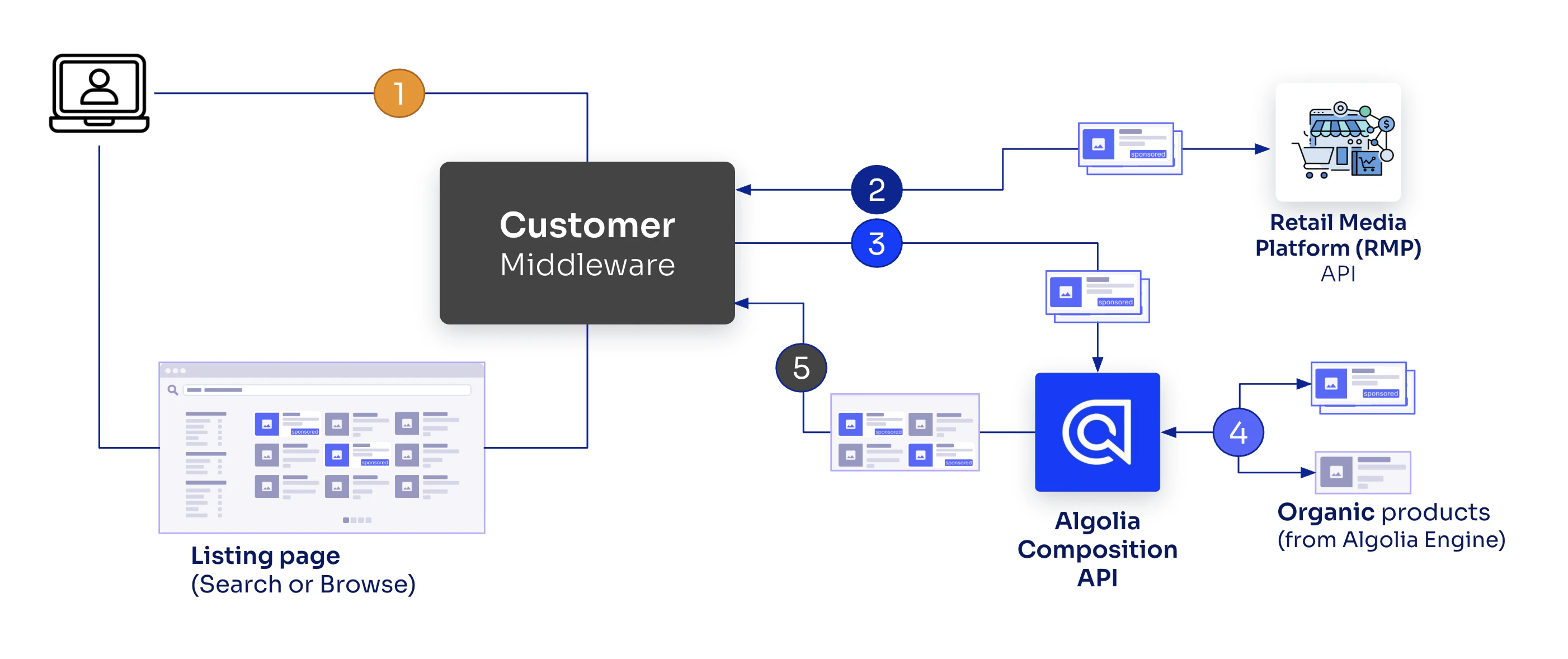 1. User searches or browses, which calls the middleware which, in turn, calls the retail media platform and Algolia.
2. Middleware retrieves sponsored products from the retail media platform (API call 1).
3. Middleware calls Algolia's Composition API with request and sponsored products (API call 2).
4. Algolia re-ranks sponsored results (optional) and merges these with .
5. The Composition API returns a unified response which the middleware forwards.
The external source determines **which** items to promote based on its own logic (such as a bidding system or machine learning model), while Algolia ensures they integrate seamlessly with organic results.
Before you begin, review the [Composition API prerequisites](/doc/guides/compositions#before-you-begin-using-the-compositions-api).
## Configure an external source group
To configure an external source group, you need to create a composition.
### Create a composition
If you haven't already, create a composition for your dynamic results :
1. Go to Merchandising Studio and open **Merch tools > Compositions**.
2. Click **+ Create Composition**.
3. Name your [composition](/doc/guides/compositions/smart-groups/search-based-groups#integrate-compositions) (for example, "Product results - United States"), select the main index, and save.
### Add an external source group
1. Go to **Merch tools > Compositions > Composition Rules**.
2. Select your composition from the drop-down menu.
3. Click **+ New Composition Rule**.
4. Define conditions for when this group should appear (for example, query contains "camera" or category is "Electronics").
5. Click **+ Add group**.
1. User searches or browses, which calls the middleware which, in turn, calls the retail media platform and Algolia.
2. Middleware retrieves sponsored products from the retail media platform (API call 1).
3. Middleware calls Algolia's Composition API with request and sponsored products (API call 2).
4. Algolia re-ranks sponsored results (optional) and merges these with .
5. The Composition API returns a unified response which the middleware forwards.
The external source determines **which** items to promote based on its own logic (such as a bidding system or machine learning model), while Algolia ensures they integrate seamlessly with organic results.
Before you begin, review the [Composition API prerequisites](/doc/guides/compositions#before-you-begin-using-the-compositions-api).
## Configure an external source group
To configure an external source group, you need to create a composition.
### Create a composition
If you haven't already, create a composition for your dynamic results :
1. Go to Merchandising Studio and open **Merch tools > Compositions**.
2. Click **+ Create Composition**.
3. Name your [composition](/doc/guides/compositions/smart-groups/search-based-groups#integrate-compositions) (for example, "Product results - United States"), select the main index, and save.
### Add an external source group
1. Go to **Merch tools > Compositions > Composition Rules**.
2. Select your composition from the drop-down menu.
3. Click **+ New Composition Rule**.
4. Define conditions for when this group should appear (for example, query contains "camera" or category is "Electronics").
5. Click **+ Add group**.
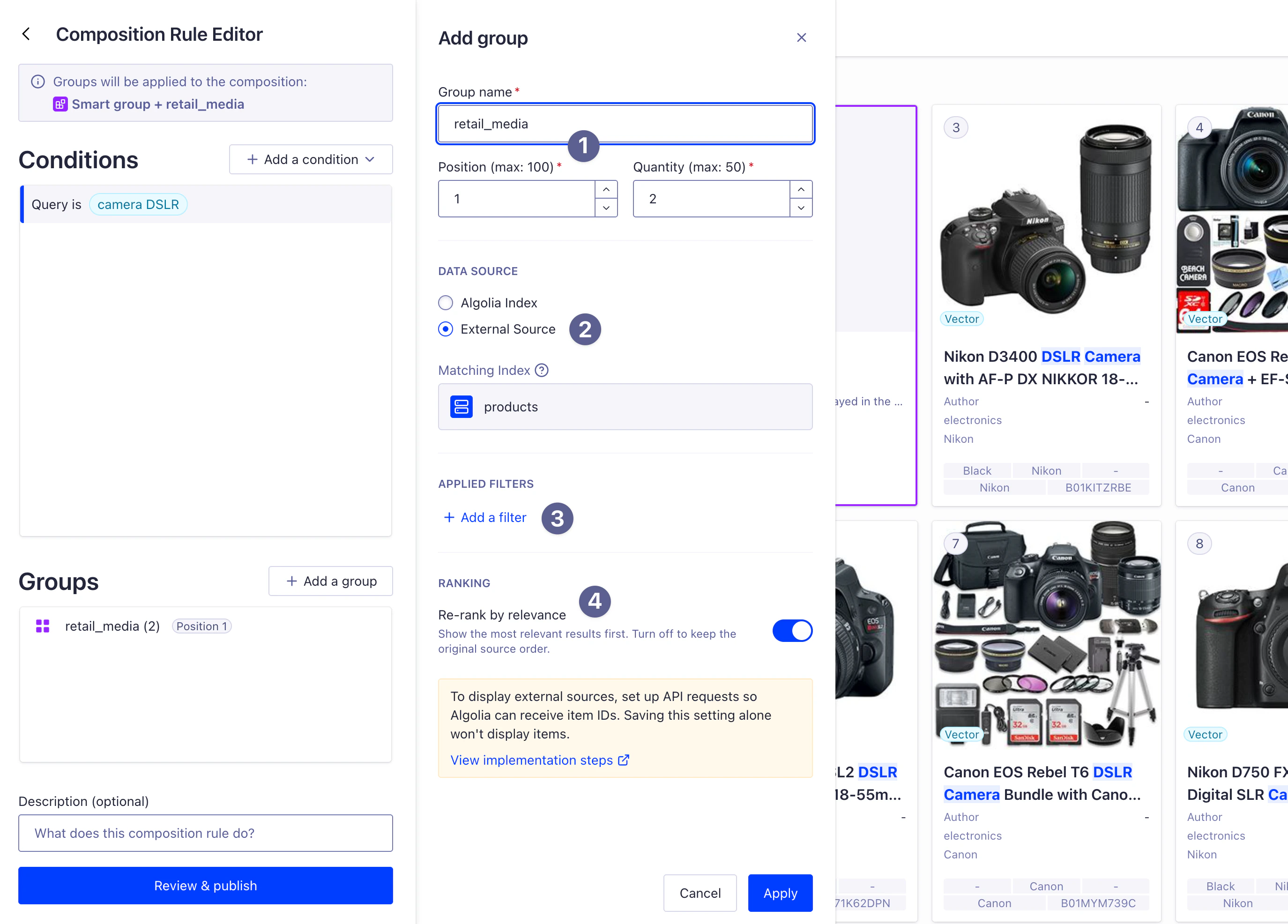 1. Set a unique group key, for example, `retail_media` (used when passing object IDs) (1)
2. Under **Data Source**, select **External Source**. (2)
3. **Optional.** Add filters to constrain the external source results. For example, add `in_stock:true` to only show sponsored products that are available. (3)
4. **Optional.** Configure **Re-rank by relevance** (defaults to enabled). When enabled, Algolia reorders the object IDs you provide based on relevance to the user's query. When turned off, items appear in the exact order you specify. (4)
5. Save the group and publish the composition rule.
You must pass this exact group key (for example, `retail_media`) in the `injectedItems` object when calling the Composition API.
The key links your API request to the group defined in Merchandising Studio.
## Pass object IDs at query time
When calling the Composition API, include the object IDs from your external source in the request.
Your implementation should:
1. Call your external source API (for example, a retail media platform).
2. Extract the object IDs from the response.
3. Pass the object IDs to Algolia's Composition API.
### Example: integrate external data sources into your search UI
```js JavaScript icon=code expandable theme={"system"}
// 1. Call external source (such as a retail media platform) with a timeout.
const RMP_TIMEOUT = 500; // Maximize for fast response
// Helper function to enforce timeout on fetch requests
const fetchWithTimeout = (url, options, timeout) => {
return Promise.race([
fetch(url, options),
new Promise((_, reject) =>
setTimeout(() => reject(new Error('RMP timeout')), timeout)
)
]);
};
let sponsoredItems = [];
try {
// Request sponsored products from RMP
const retailMediaResponse = await fetchWithTimeout(
'https://rmp.example.com/api/bids',
{
method: 'POST',
headers: { 'Content-Type': 'application/json' },
body: JSON.stringify({
query: 'camera',
category: 'electronics',
slots: 2 // Number of sponsored items to request
})
},
RMP_TIMEOUT
);
if (retailMediaResponse.ok) {
sponsoredItems = await retailMediaResponse.json();
// Example response: [
// { objectID: 'camera_123', bid: 2.50 },
// { objectID: 'camera_456', bid: 2.00 }
// ]
}
} catch (error) {
// RMP timeout or error - continue just with organic results
console.warn('RMP unavailable, just showing organic results:', error.message);
}
// 2. Extract object IDs with metadata (only if there are sponsored items)
const injectedItems = sponsoredItems.map(item => ({
objectID: item.objectID,
metadata: {
sponsored: true, // Required for regulatory compliance
source: 'retail_media',
bid: item.bid
}
}));
// 3. Call Algolia Composition API
const response = await client.search({
compositionID: 'YOUR_COMPOSITION_ID',
requestBody: {
params: {
query: 'camera',
hitsPerPage: 20,
// Only include injectedItems if there are sponsored products
...(injectedItems.length > 0 && {
injectedItems: {
retail_media: { // Key must match group name from Merchandising Studio
items: injectedItems
}
}
})
}
}
});
```
You're responsible for ensuring that the , , and configuration sent to your external source (such as a Retail Media Platform) matches the configuration sent to Algolia.
This ensures that sponsored products are relevant to the user's search context and filter configuration.
### Metadata
Each injected item can optionally include a `metadata` field with extra information from your external source. This metadata isn't used by Algolia for ranking but is returned with the search results, making it useful for:
* **Campaign attribution**: include campaign IDs, bid amounts, or advertiser information for analytics.
* **Extra attributes**: add attributes that aren't present in your Algolia index but are needed for display or tracking.
The `metadata` field accepts strings, numbers, boolean values, and nested objects:
```js JavaScript expandable theme={"system"}
const injectedItems = sponsoredItems.map(item => ({
objectID: item.objectID,
metadata: {
// Required for regulatory compliance
sponsored: true,
// Campaign details (can include nested objects)
campaign_id: item.campaign_id,
bid: item.bid_amount,
advertiser: {
name: item.advertiser_name,
id: item.advertiser_id
},
// Extra attributes
promotion_tier: 'premium',
coupon_code: 'SAVE10'
}
}));
```
### Performance considerations
For optimal performance, limit external source groups to **fewer than 50 object IDs** per request.
Requesting more than 50 items can significantly slow down search responses.
## Behavior details
External source groups interact with search results through re-ranking, deduplication, and filtering logic to ensure consistency and relevance.
### Re-ranking by relevance
When **Re-rank by relevance** is enabled (it's the default),
Algolia applies your index's ranking formula to the object IDs provided by the external source.
This ensures the most relevant sponsored items appear first within the group.
For example, if your external source provides 5 object IDs for "camera,"
Algolia scores each item based on how well it matches the query and reorders them accordingly within the group.
**When turned off**, items appear in the exact order you specify in the API request.
### Deduplication
Algolia automatically deduplicates results across groups and organic results to ensure each item appears only once. By default, Algolia uses the `highestInjected` strategy, which prioritises items in their injected group positions over organic results.
If an `objectID` appears in more than one group, the first occurrence is kept and later duplicates are removed.
You can configure the deduplication strategy when creating rules to control how duplicates are resolved. For detailed information about available strategies and how to configure them, see [Deduplication strategy](/doc/guides/compositions/smart-groups/deduplication-strategy).
### Combine with filters
You can add filters to external source groups to enforce extra constraints. For example:
```txt theme={"system"}
in_stock:true AND price < 500
```
Algolia applies these filters to the object IDs provided by the external source.
If a sponsored item doesn't match the filters, it's excluded from the group,
potentially reducing the group size below the specified quantity.
### Handle missing or filtered object IDs
Algolia skips object IDs from external sources if the `objectID`:
* **Isn't in the index.**
* **Is filtered out of organic results:** it's in the index but doesn't match the current query, filters, or other constraints. This filtering ensures your external source only injects relevant items.
In both cases, the group continues with the remaining valid object IDs:
those that are in the index and match the organic results criteria.
## Example use case: retail media platform integration
A typical retail media platform integration looks like this:
```js JavaScript expandable theme={"system"}
// Initialize the Composition client
import { compositionClient } from '@algolia/composition';
const client = compositionClient(
'ALGOLIA_APPLICATION_ID',
'ALGOLIA_API_KEY'
);
// Backend middleware endpoint
app.get('/search', async (req, res) => {
const { query, category } = req.query;
// Call retail media platform with timeout
let sponsoredItems = [];
try {
const rmpResponse = await Promise.race([
callRetailMediaPlatform({
query,
category,
slots: 2, // Request 2 sponsored items
user_id: req.user.id
}),
new Promise((_, reject) =>
setTimeout(() => reject(new Error('RMP timeout')), 500)
)
]);
// Format as Algolia injected items
sponsoredItems = rmpResponse.ads.map(ad => ({
objectID: ad.product_id,
metadata: {
sponsored: true, // Required for regulatory compliance
source: 'retail_media',
campaign_id: ad.campaign_id,
bid: ad.bid_amount
}
}));
} catch (error) {
// RMP timeout or error - continue just with organic results
console.warn('Retail media platform is unavailable:', error.message);
}
// Search with Algolia Composition API
const response = await client.search({
compositionID: 'YOUR_COMPOSITION_ID',
requestBody: {
params: {
query,
...(category && { filters: `category:${category}` }),
hitsPerPage: 20,
...(sponsoredItems.length > 0 && {
injectedItems: {
retail_media: {
items: sponsoredItems
}
}
})
}
}
});
res.json(response);
});
```
## Integrate with your frontend
After configuring the backend integration, update your frontend to use the Composition API client instead of the Search API client.
For InstantSearch,
replace your search client initialization:
```js JavaScript expandable theme={"system"}
import { compositionClient } from '@algolia/composition';
const searchClient = compositionClient(
'YOUR_APP_ID',
'YOUR_SEARCH_API_KEY'
);
// Use with InstantSearch as usual
{/* Your widgets */}
```
[Learn more about frontend integration](/doc/guides/compositions/smart-groups/search-based-groups#integrate-compositions)
## Regulatory requirements
In most regions (including the US, EU, and Canada), sponsored products must have a visual badge (such as "Sponsored") on each injected product.
For that reason, add a `sponsored: true` attribute to each sponsored product result.
Under regulations like the [EU Platform to Business](https://www.ccpc.ie/business/help-for-business/guidelines-for-business/platform-to-business-regulations/), you may also need to disclose how paid placements influence your search ranking.
## Next steps
* [Explore Composition SDK methods](/doc/libraries/sdk/methods/composition)
1. Set a unique group key, for example, `retail_media` (used when passing object IDs) (1)
2. Under **Data Source**, select **External Source**. (2)
3. **Optional.** Add filters to constrain the external source results. For example, add `in_stock:true` to only show sponsored products that are available. (3)
4. **Optional.** Configure **Re-rank by relevance** (defaults to enabled). When enabled, Algolia reorders the object IDs you provide based on relevance to the user's query. When turned off, items appear in the exact order you specify. (4)
5. Save the group and publish the composition rule.
You must pass this exact group key (for example, `retail_media`) in the `injectedItems` object when calling the Composition API.
The key links your API request to the group defined in Merchandising Studio.
## Pass object IDs at query time
When calling the Composition API, include the object IDs from your external source in the request.
Your implementation should:
1. Call your external source API (for example, a retail media platform).
2. Extract the object IDs from the response.
3. Pass the object IDs to Algolia's Composition API.
### Example: integrate external data sources into your search UI
```js JavaScript icon=code expandable theme={"system"}
// 1. Call external source (such as a retail media platform) with a timeout.
const RMP_TIMEOUT = 500; // Maximize for fast response
// Helper function to enforce timeout on fetch requests
const fetchWithTimeout = (url, options, timeout) => {
return Promise.race([
fetch(url, options),
new Promise((_, reject) =>
setTimeout(() => reject(new Error('RMP timeout')), timeout)
)
]);
};
let sponsoredItems = [];
try {
// Request sponsored products from RMP
const retailMediaResponse = await fetchWithTimeout(
'https://rmp.example.com/api/bids',
{
method: 'POST',
headers: { 'Content-Type': 'application/json' },
body: JSON.stringify({
query: 'camera',
category: 'electronics',
slots: 2 // Number of sponsored items to request
})
},
RMP_TIMEOUT
);
if (retailMediaResponse.ok) {
sponsoredItems = await retailMediaResponse.json();
// Example response: [
// { objectID: 'camera_123', bid: 2.50 },
// { objectID: 'camera_456', bid: 2.00 }
// ]
}
} catch (error) {
// RMP timeout or error - continue just with organic results
console.warn('RMP unavailable, just showing organic results:', error.message);
}
// 2. Extract object IDs with metadata (only if there are sponsored items)
const injectedItems = sponsoredItems.map(item => ({
objectID: item.objectID,
metadata: {
sponsored: true, // Required for regulatory compliance
source: 'retail_media',
bid: item.bid
}
}));
// 3. Call Algolia Composition API
const response = await client.search({
compositionID: 'YOUR_COMPOSITION_ID',
requestBody: {
params: {
query: 'camera',
hitsPerPage: 20,
// Only include injectedItems if there are sponsored products
...(injectedItems.length > 0 && {
injectedItems: {
retail_media: { // Key must match group name from Merchandising Studio
items: injectedItems
}
}
})
}
}
});
```
You're responsible for ensuring that the , , and configuration sent to your external source (such as a Retail Media Platform) matches the configuration sent to Algolia.
This ensures that sponsored products are relevant to the user's search context and filter configuration.
### Metadata
Each injected item can optionally include a `metadata` field with extra information from your external source. This metadata isn't used by Algolia for ranking but is returned with the search results, making it useful for:
* **Campaign attribution**: include campaign IDs, bid amounts, or advertiser information for analytics.
* **Extra attributes**: add attributes that aren't present in your Algolia index but are needed for display or tracking.
The `metadata` field accepts strings, numbers, boolean values, and nested objects:
```js JavaScript expandable theme={"system"}
const injectedItems = sponsoredItems.map(item => ({
objectID: item.objectID,
metadata: {
// Required for regulatory compliance
sponsored: true,
// Campaign details (can include nested objects)
campaign_id: item.campaign_id,
bid: item.bid_amount,
advertiser: {
name: item.advertiser_name,
id: item.advertiser_id
},
// Extra attributes
promotion_tier: 'premium',
coupon_code: 'SAVE10'
}
}));
```
### Performance considerations
For optimal performance, limit external source groups to **fewer than 50 object IDs** per request.
Requesting more than 50 items can significantly slow down search responses.
## Behavior details
External source groups interact with search results through re-ranking, deduplication, and filtering logic to ensure consistency and relevance.
### Re-ranking by relevance
When **Re-rank by relevance** is enabled (it's the default),
Algolia applies your index's ranking formula to the object IDs provided by the external source.
This ensures the most relevant sponsored items appear first within the group.
For example, if your external source provides 5 object IDs for "camera,"
Algolia scores each item based on how well it matches the query and reorders them accordingly within the group.
**When turned off**, items appear in the exact order you specify in the API request.
### Deduplication
Algolia automatically deduplicates results across groups and organic results to ensure each item appears only once. By default, Algolia uses the `highestInjected` strategy, which prioritises items in their injected group positions over organic results.
If an `objectID` appears in more than one group, the first occurrence is kept and later duplicates are removed.
You can configure the deduplication strategy when creating rules to control how duplicates are resolved. For detailed information about available strategies and how to configure them, see [Deduplication strategy](/doc/guides/compositions/smart-groups/deduplication-strategy).
### Combine with filters
You can add filters to external source groups to enforce extra constraints. For example:
```txt theme={"system"}
in_stock:true AND price < 500
```
Algolia applies these filters to the object IDs provided by the external source.
If a sponsored item doesn't match the filters, it's excluded from the group,
potentially reducing the group size below the specified quantity.
### Handle missing or filtered object IDs
Algolia skips object IDs from external sources if the `objectID`:
* **Isn't in the index.**
* **Is filtered out of organic results:** it's in the index but doesn't match the current query, filters, or other constraints. This filtering ensures your external source only injects relevant items.
In both cases, the group continues with the remaining valid object IDs:
those that are in the index and match the organic results criteria.
## Example use case: retail media platform integration
A typical retail media platform integration looks like this:
```js JavaScript expandable theme={"system"}
// Initialize the Composition client
import { compositionClient } from '@algolia/composition';
const client = compositionClient(
'ALGOLIA_APPLICATION_ID',
'ALGOLIA_API_KEY'
);
// Backend middleware endpoint
app.get('/search', async (req, res) => {
const { query, category } = req.query;
// Call retail media platform with timeout
let sponsoredItems = [];
try {
const rmpResponse = await Promise.race([
callRetailMediaPlatform({
query,
category,
slots: 2, // Request 2 sponsored items
user_id: req.user.id
}),
new Promise((_, reject) =>
setTimeout(() => reject(new Error('RMP timeout')), 500)
)
]);
// Format as Algolia injected items
sponsoredItems = rmpResponse.ads.map(ad => ({
objectID: ad.product_id,
metadata: {
sponsored: true, // Required for regulatory compliance
source: 'retail_media',
campaign_id: ad.campaign_id,
bid: ad.bid_amount
}
}));
} catch (error) {
// RMP timeout or error - continue just with organic results
console.warn('Retail media platform is unavailable:', error.message);
}
// Search with Algolia Composition API
const response = await client.search({
compositionID: 'YOUR_COMPOSITION_ID',
requestBody: {
params: {
query,
...(category && { filters: `category:${category}` }),
hitsPerPage: 20,
...(sponsoredItems.length > 0 && {
injectedItems: {
retail_media: {
items: sponsoredItems
}
}
})
}
}
});
res.json(response);
});
```
## Integrate with your frontend
After configuring the backend integration, update your frontend to use the Composition API client instead of the Search API client.
For InstantSearch,
replace your search client initialization:
```js JavaScript expandable theme={"system"}
import { compositionClient } from '@algolia/composition';
const searchClient = compositionClient(
'YOUR_APP_ID',
'YOUR_SEARCH_API_KEY'
);
// Use with InstantSearch as usual
{/* Your widgets */}
```
[Learn more about frontend integration](/doc/guides/compositions/smart-groups/search-based-groups#integrate-compositions)
## Regulatory requirements
In most regions (including the US, EU, and Canada), sponsored products must have a visual badge (such as "Sponsored") on each injected product.
For that reason, add a `sponsored: true` attribute to each sponsored product result.
Under regulations like the [EU Platform to Business](https://www.ccpc.ie/business/help-for-business/guidelines-for-business/platform-to-business-regulations/), you may also need to disclose how paid placements influence your search ranking.
## Next steps
* [Explore Composition SDK methods](/doc/libraries/sdk/methods/composition)