> ## Documentation Index
> Fetch the complete documentation index at: https://algolia.com/llms.txt
> Use this file to discover all available pages before exploring further.
# Search-based groups
> How to set up search-based Smart Groups to automatically promote items matching specific criteria.
export const SearchQuery = () =>
search query
;
export const Records = () =>
records
;
export const Index = () =>
index
;
export const Filter = () =>
filter
;
export const FacetValuePair = () =>
facet-value pair
;
export const Facet = () =>
facet
;
export const ApplicationID = () =>
application ID
;
export const APIKey = () =>
API key
;
export const Feed = () =>
feed
;
export const organicResultsDefinition = "These are the search results ranked by relevance and your configuration without compositions.";
export const OrganicResults = () =>
organic results
;
Search-based groups let you automatically promote items that match specific criteria, like brand, category, or custom attributes. You define **what** to promote (with filters), and Algolia determines **which** items match, applying its AI-powered ranking to ensure the most relevant results appear.
For sponsored listings powered by retail media platforms or external recommendation engines,
see [external source groups](/doc/guides/compositions/smart-groups/external-source-groups).
Before you begin, review the [Composition API prerequisites](/doc/guides/compositions#before-you-begin-using-the-compositions-api).
## Create your groups in Merchandising Studio
Creating groups involves two steps:
Compositions help you compose dynamic result feeds with more control.
To create your first composition:
1. Go to the Merchandising Studio and open the **Merch tools** page.
2. Select the **Search all compositions and indices** menu and click **+ Create Composition**.
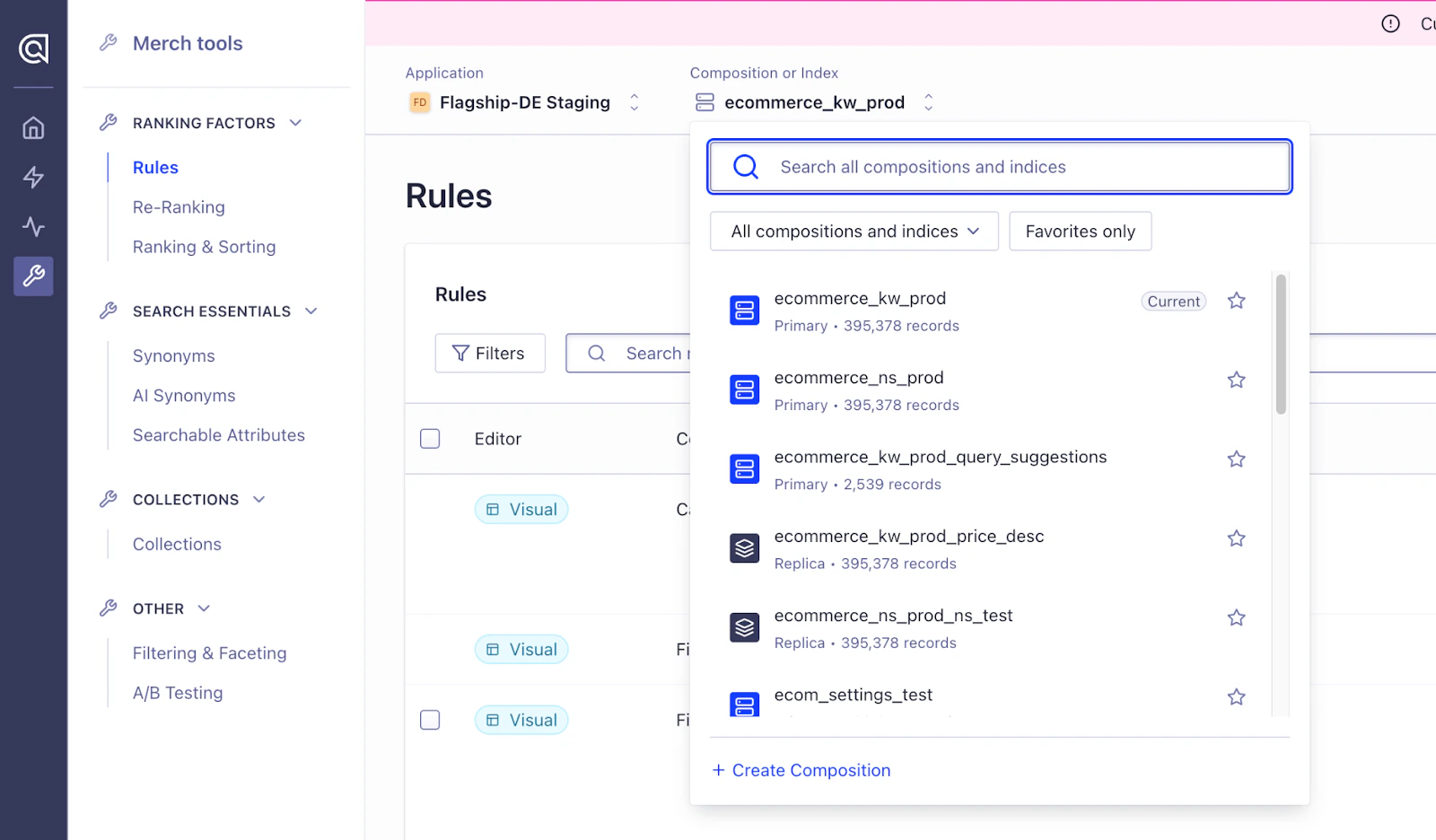 3. In the **New Composition** menu, enter a name for this dynamic results , and an optional description.
Select which main should be associated with this results feed.
3. In the **New Composition** menu, enter a name for this dynamic results , and an optional description.
Select which main should be associated with this results feed.
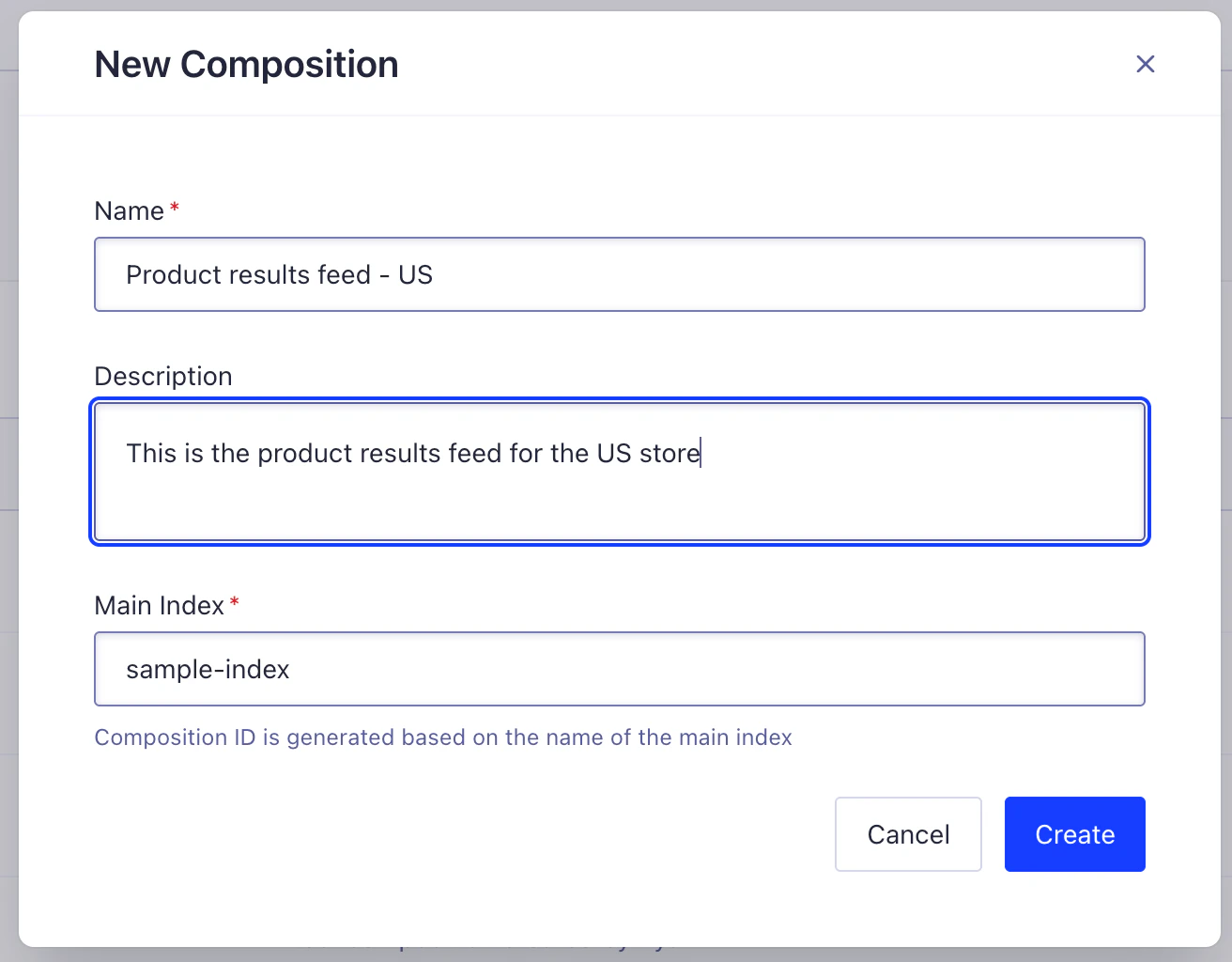 Create one composition per index.
If you have different sites, for example, for different geographical regions,
create one composition per site and index,
such as "Product results feed - US".
Each composition can have rules for the insertion of groups.
If you have 5 sites and one product index each, you need 5 compositions.
Give each composition a short, descriptive, and unique name, and select its main source index.
If you have different sorting strategies,
you also need one composition for each replica (for example, sorted by price from high to low).
After creating your first composition,
you can find it in the **Search all compositions and indices** menu.
To list all your compositions and create new ones,
go to the **Compositions** section in the sidebar and click **All Compositions**.
To insert a curated group of results for a specific query, [category page](/doc/guides/solutions/ecommerce/browse/tutorials/category-pages) or [collection](/doc/guides/solutions/ecommerce/browse/tutorials/collections), define and publish a composition rule.
1. Use the **Index and Compositions** selector to select the relevant composition.
Go to the Merchandising Studio's **Merch tools > Compositions > Composition Rules** page.
In addition to creating and editing Composition rules in the **Merch tools** section,
you can also use the Visual Merchandiser as an entry point,
with the benefit of managing both Composition and index rules in a visual, streamlined workflow.
To do this,
go to the Merchandising Studio's Visual Merchandiser,
select the relevant composition and , category, or collection
and then click **Actions** on the top right.
2. Click **+ New Composition Rule**.
3. In the compositions rules editor, you can configure where to insert your groups given specific conditions,
and based on which filters match the group results.
1. Specify the conditions for triggering your composition rule, for example, search queries, categories, collections and contexts.
Create one composition per index.
If you have different sites, for example, for different geographical regions,
create one composition per site and index,
such as "Product results feed - US".
Each composition can have rules for the insertion of groups.
If you have 5 sites and one product index each, you need 5 compositions.
Give each composition a short, descriptive, and unique name, and select its main source index.
If you have different sorting strategies,
you also need one composition for each replica (for example, sorted by price from high to low).
After creating your first composition,
you can find it in the **Search all compositions and indices** menu.
To list all your compositions and create new ones,
go to the **Compositions** section in the sidebar and click **All Compositions**.
To insert a curated group of results for a specific query, [category page](/doc/guides/solutions/ecommerce/browse/tutorials/category-pages) or [collection](/doc/guides/solutions/ecommerce/browse/tutorials/collections), define and publish a composition rule.
1. Use the **Index and Compositions** selector to select the relevant composition.
Go to the Merchandising Studio's **Merch tools > Compositions > Composition Rules** page.
In addition to creating and editing Composition rules in the **Merch tools** section,
you can also use the Visual Merchandiser as an entry point,
with the benefit of managing both Composition and index rules in a visual, streamlined workflow.
To do this,
go to the Merchandising Studio's Visual Merchandiser,
select the relevant composition and , category, or collection
and then click **Actions** on the top right.
2. Click **+ New Composition Rule**.
3. In the compositions rules editor, you can configure where to insert your groups given specific conditions,
and based on which filters match the group results.
1. Specify the conditions for triggering your composition rule, for example, search queries, categories, collections and contexts.
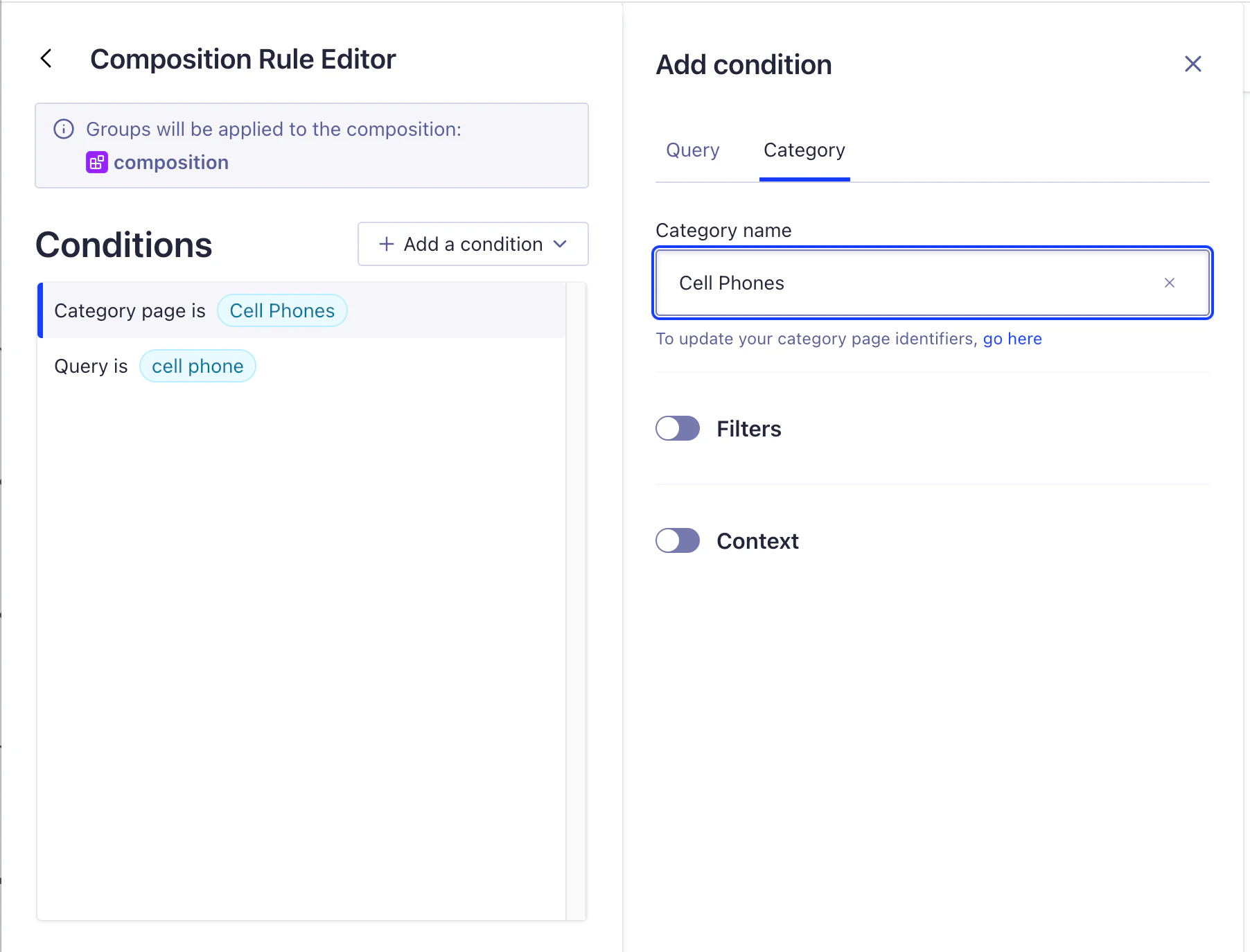 You can select several queries, categories, and collections if you want to inject the same groups for them.
2. Add the groups you would like to create. Select **Algolia Index** as the data source, then use filters with 'and' as well as 'or' operations to curate the items that should appear in the group. Specify the group's starting position in the results, as well as the number of matching to include.
You can select several queries, categories, and collections if you want to inject the same groups for them.
2. Add the groups you would like to create. Select **Algolia Index** as the data source, then use filters with 'and' as well as 'or' operations to curate the items that should appear in the group. Specify the group's starting position in the results, as well as the number of matching to include.
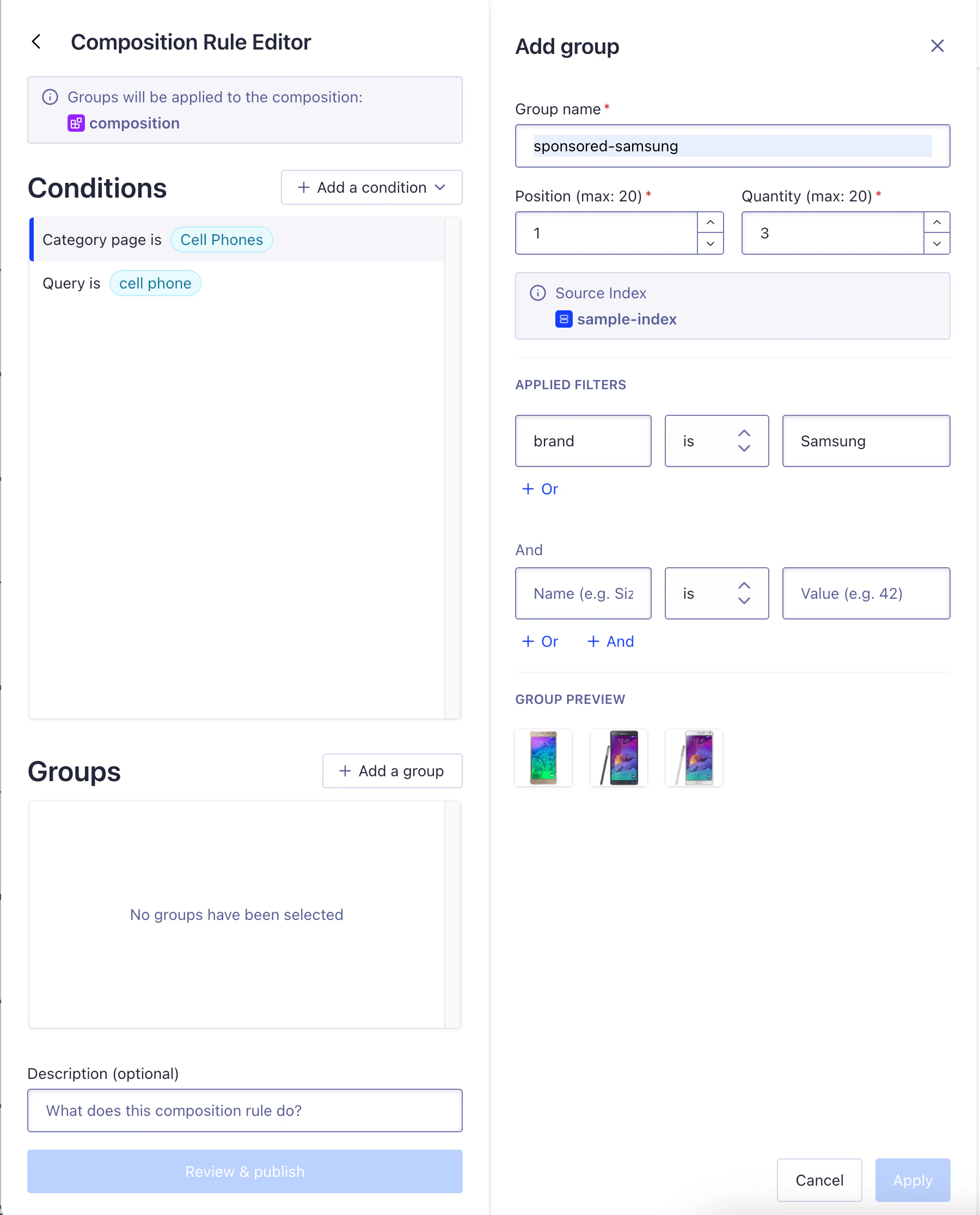 To add a group from a collection, on the `_collections` attribute.
3. Save the group and then the composition rule to apply it.
If not enough records match the filter criteria, a group might have fewer items than you specified.
The included records can vary at query-time, based on their real-time attribute values as well as applied ranking criteria and index-level rules.
Creating and managing compositions and composition rules is only available through Merchandising Studio.
It's not supported by the HTTP APIs, API clients, or the Algolia dashboard.
## Curate groups
You can curate groups further, that is,
change the behavior of the query used to retrieve and rank the group's items,
by applying Index Rules to it
(for example, for a group with promoted Adidas items, the group's sub-query might be query="shoes" and filter: "brand"="Adidas").
For more information,
see [Composition rules and index rules](/doc/guides/compositions/smart-groups/smart-groups#composition-rules-and-index-rules).
For example, you can pin, hide, or boost items within the group:
1. Go to Merchandising Studio's Visual Merchandiser.
2. Select the corresponding Composition and Search query/Category/Collection where the group's Composition Rule is applied.
3. Click Actions > Curate “group name” (or find the group in the visual preview, click the three dots, then select “Curate group”).
4. The Index Rule Visual Editor will open, allowing you to define Consequences (for example pin or hide items) for the group's sub-query.
5. Publish the Index Rule.
The Index Rule is applied to all queries that trigger its conditions—both in the context of the group and in a direct query (in the preceding example other "shoes" queries with the Adidas filter).\
The final results might be different to the ones shown in the Index Rules preview,
due to the deduplication between the main query and groups.
For example, an item might already be part of a previous group and thus not show in the final results in a later group.
You may see more items than the ones shown in the final group, when there are more items that match the criteria than the quantity or length of the group is.
## Integrate compositions
Integrating compositions and smart groups involves these steps:
1. In the [Algolia dashboard](https://dashboard.algolia.com/account/api-keys/),
go to **Settings > API Keys** and copy your and .
The API key needs at least [search permissions](/doc/guides/security/api-keys#access-control-list-acl) for the index used in your composition.
[Client-generated **secured API keys**](/doc/guides/security/api-keys#secured-api-keys) aren't supported for the [Composition API](/doc/rest-api/composition).
2. In Merchandising Studio, go to **Merch tools > Compositions > Composition Rules** and select the composition from the "Composition or Index" selector. Copy the composition ID to your clipboard.
To add a group from a collection, on the `_collections` attribute.
3. Save the group and then the composition rule to apply it.
If not enough records match the filter criteria, a group might have fewer items than you specified.
The included records can vary at query-time, based on their real-time attribute values as well as applied ranking criteria and index-level rules.
Creating and managing compositions and composition rules is only available through Merchandising Studio.
It's not supported by the HTTP APIs, API clients, or the Algolia dashboard.
## Curate groups
You can curate groups further, that is,
change the behavior of the query used to retrieve and rank the group's items,
by applying Index Rules to it
(for example, for a group with promoted Adidas items, the group's sub-query might be query="shoes" and filter: "brand"="Adidas").
For more information,
see [Composition rules and index rules](/doc/guides/compositions/smart-groups/smart-groups#composition-rules-and-index-rules).
For example, you can pin, hide, or boost items within the group:
1. Go to Merchandising Studio's Visual Merchandiser.
2. Select the corresponding Composition and Search query/Category/Collection where the group's Composition Rule is applied.
3. Click Actions > Curate “group name” (or find the group in the visual preview, click the three dots, then select “Curate group”).
4. The Index Rule Visual Editor will open, allowing you to define Consequences (for example pin or hide items) for the group's sub-query.
5. Publish the Index Rule.
The Index Rule is applied to all queries that trigger its conditions—both in the context of the group and in a direct query (in the preceding example other "shoes" queries with the Adidas filter).\
The final results might be different to the ones shown in the Index Rules preview,
due to the deduplication between the main query and groups.
For example, an item might already be part of a previous group and thus not show in the final results in a later group.
You may see more items than the ones shown in the final group, when there are more items that match the criteria than the quantity or length of the group is.
## Integrate compositions
Integrating compositions and smart groups involves these steps:
1. In the [Algolia dashboard](https://dashboard.algolia.com/account/api-keys/),
go to **Settings > API Keys** and copy your and .
The API key needs at least [search permissions](/doc/guides/security/api-keys#access-control-list-acl) for the index used in your composition.
[Client-generated **secured API keys**](/doc/guides/security/api-keys#secured-api-keys) aren't supported for the [Composition API](/doc/rest-api/composition).
2. In Merchandising Studio, go to **Merch tools > Compositions > Composition Rules** and select the composition from the "Composition or Index" selector. Copy the composition ID to your clipboard.
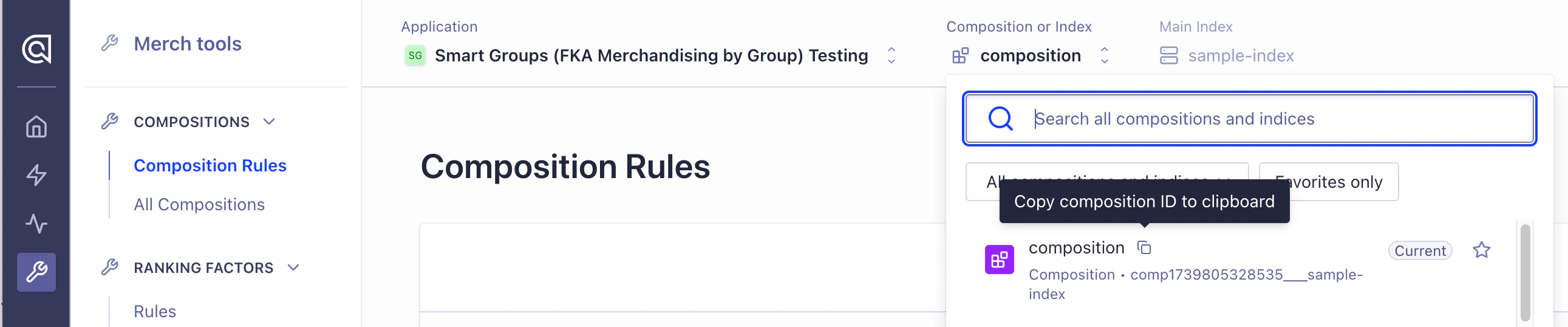 3. Integrate the frontend using one of the integration methods below to query the [Composition API](/doc/rest-api/composition/search) (with [API clients](#integrate-compositions-with-api-clients) or [InstantSearch](#integrate-compositions-with-instantsearch) for web).
Indexing remains the same, with your previous indexing mechanism (for example, the Search API or indexing connectors).
You might need to add extra attributes for identifying groups if this information isn't already indexed.
### Integrate compositions with API clients
Use the [Composition API client](/doc/rest-api/composition) in one of the supported programming languages.
Swift is not supported yet.
The Shopify, Magento, BigCommerce, and Salesforce CommerceCloud (default) frontend integrations don't yet support the Compositions API.
### Integrate compositions with InstantSearch
Start by replacing the Search API client with the [Composition API client](/doc/libraries/sdk/methods/composition).
Compositions require these versions of the InstantSearch libraries:
* [React InstantSearch](#react-instantsearch): version 7.15.5 or later
* [InstantSearch.js](/doc/guides/compositions/smart-groups/search-based-groups#instantsearch-js): version 4.78.1 or later
* [Vue InstantSearch](#vue-instantsearch): version 4.20.6 or later
Compositions have the following limitations:
* InstantSearch iOS and InstantSearch Android aren't supported.
* You can't use the `index` widget.
* Combining Composition API and Search API or Recommend API calls on the same page isn't supported.
* The Autocomplete UI library isn't yet supported. You can't show groups in autocomplete menus, but you can launch a composition-based search results page from there.
#### React InstantSearch
```jsx React icon=code theme={"system"}
import React from "react";
import { compositionClient } from "@algolia/composition";
import { InstantSearch } from "react-instantsearch";
const searchClient = compositionClient(
"ALGOLIA_APPLICATION_ID",
"ALGOLIA_SEARCH_API_KEY",
);
function App() {
return (
{/* Widgets */}
);
}
```
#### InstantSearch.js
```js JavaScript icon=code theme={"system"}
const search = instantsearch({
compositionID: "COMPOSITION_ID",
searchClient: compositionClient("APPID", "APIKEY"),
});
// Add widgets
// ...
search.start();
```
#### Vue InstantSearch
```vue Vue theme={"system"}
```
### Facets (including disjunctive faceting)
Retrieving data for a you're filtering on is called [disjunctive faceting](/doc/guides/managing-results/refine-results/faceting#conjunctive-and-disjunctive-faceting).
The Composition API natively supports disjunctive faceting.
When querying the Composition API, you can annotate any facet with the `disjunctive` modifier to get the correct response in a single API request.
For example:
```js JavaScript icon=code theme={"system"}
facets: ["disjunctive(attribute)"];
```
InstantSearch handles this automatically.
Each request has a limit of 20 disjunctive facets.
Using [facet display](/doc/guides/building-search-ui/ui-and-ux-patterns/facet-display/js)
in InstantSearch with more than 20 facets is also not supported.
### Events setup
When sending [click and conversion events](/doc/guides/sending-events),
you still need to send the underlying index name as `indexName` attribute with your events,
not the composition ID.
No further changes are needed.
InstantSearch's events tracking mechanism handles passing the underlying index name for you,
if you're using the specified versions of the packages.
## Next steps
### Curate group results
You can still create [index rules](/doc/guides/managing-results/rules/rules-overview) for pinning, hiding, boosting, or burying results, or to add banners,
in combination with composition rules (for example, in the **Visual Merchandiser** page, or in **Merch tools** > **Ranking Factors** > **Rules**).
Index rules are triggered for the group subquery used to retrieve the best matching records.
For more information about how this subquery is formed, see [Composition rules and index rules](/doc/guides/compositions/smart-groups/smart-groups#composition-rules-and-index-rules).
You can set up an index rule that triggers for the same query, context, or applied filters,
to curate the group results, for example, to pin or hide items.
The index rule is applied when the group results are retrieved.
### Groups and Dynamic Re-Ranking
If enabled on your index, [Dynamic Re-Ranking](/doc/guides/algolia-ai/re-ranking)
applies to the main results and group subqueries.
In other words, the items included in a group are also re-ranked if Dynamic Re-Ranking is turned on for that subquery.
### Groups and sorting
You can set up a composition for your replica index.
Then, you can curate the replica feed like a standard results feed.
### More than one group
By default, groups insert into the final results feed at the specified start position.
You can't have two groups with the same start position.
If the specified start position of a group overlaps with positions already taken up by another group with a higher start position,
the group is inserted at the next available positions that aren't yet taken up by a preceding group at query time.
For example, if you have a group A of 3 products configured for start position 1 and a group B of 3 products for position 2,
the final results will have products A.1, A.2, A.3, B.1, B.2, B.3 in the first 6 positions,
with the main results starting in position 7.
### Deduplication
Algolia automatically deduplicates results across and group results to ensure each item appears only once. By default, Algolia uses the `highestInjected` strategy, which prioritises items in their injected group positions over organic results.
You can configure the deduplication strategy when creating composition rules to control how duplicates are resolved. For detailed information about available strategies and how to configure them, see [Deduplication strategy](/doc/guides/compositions/smart-groups/deduplication-strategy).
3. Integrate the frontend using one of the integration methods below to query the [Composition API](/doc/rest-api/composition/search) (with [API clients](#integrate-compositions-with-api-clients) or [InstantSearch](#integrate-compositions-with-instantsearch) for web).
Indexing remains the same, with your previous indexing mechanism (for example, the Search API or indexing connectors).
You might need to add extra attributes for identifying groups if this information isn't already indexed.
### Integrate compositions with API clients
Use the [Composition API client](/doc/rest-api/composition) in one of the supported programming languages.
Swift is not supported yet.
The Shopify, Magento, BigCommerce, and Salesforce CommerceCloud (default) frontend integrations don't yet support the Compositions API.
### Integrate compositions with InstantSearch
Start by replacing the Search API client with the [Composition API client](/doc/libraries/sdk/methods/composition).
Compositions require these versions of the InstantSearch libraries:
* [React InstantSearch](#react-instantsearch): version 7.15.5 or later
* [InstantSearch.js](/doc/guides/compositions/smart-groups/search-based-groups#instantsearch-js): version 4.78.1 or later
* [Vue InstantSearch](#vue-instantsearch): version 4.20.6 or later
Compositions have the following limitations:
* InstantSearch iOS and InstantSearch Android aren't supported.
* You can't use the `index` widget.
* Combining Composition API and Search API or Recommend API calls on the same page isn't supported.
* The Autocomplete UI library isn't yet supported. You can't show groups in autocomplete menus, but you can launch a composition-based search results page from there.
#### React InstantSearch
```jsx React icon=code theme={"system"}
import React from "react";
import { compositionClient } from "@algolia/composition";
import { InstantSearch } from "react-instantsearch";
const searchClient = compositionClient(
"ALGOLIA_APPLICATION_ID",
"ALGOLIA_SEARCH_API_KEY",
);
function App() {
return (
{/* Widgets */}
);
}
```
#### InstantSearch.js
```js JavaScript icon=code theme={"system"}
const search = instantsearch({
compositionID: "COMPOSITION_ID",
searchClient: compositionClient("APPID", "APIKEY"),
});
// Add widgets
// ...
search.start();
```
#### Vue InstantSearch
```vue Vue theme={"system"}
```
### Facets (including disjunctive faceting)
Retrieving data for a you're filtering on is called [disjunctive faceting](/doc/guides/managing-results/refine-results/faceting#conjunctive-and-disjunctive-faceting).
The Composition API natively supports disjunctive faceting.
When querying the Composition API, you can annotate any facet with the `disjunctive` modifier to get the correct response in a single API request.
For example:
```js JavaScript icon=code theme={"system"}
facets: ["disjunctive(attribute)"];
```
InstantSearch handles this automatically.
Each request has a limit of 20 disjunctive facets.
Using [facet display](/doc/guides/building-search-ui/ui-and-ux-patterns/facet-display/js)
in InstantSearch with more than 20 facets is also not supported.
### Events setup
When sending [click and conversion events](/doc/guides/sending-events),
you still need to send the underlying index name as `indexName` attribute with your events,
not the composition ID.
No further changes are needed.
InstantSearch's events tracking mechanism handles passing the underlying index name for you,
if you're using the specified versions of the packages.
## Next steps
### Curate group results
You can still create [index rules](/doc/guides/managing-results/rules/rules-overview) for pinning, hiding, boosting, or burying results, or to add banners,
in combination with composition rules (for example, in the **Visual Merchandiser** page, or in **Merch tools** > **Ranking Factors** > **Rules**).
Index rules are triggered for the group subquery used to retrieve the best matching records.
For more information about how this subquery is formed, see [Composition rules and index rules](/doc/guides/compositions/smart-groups/smart-groups#composition-rules-and-index-rules).
You can set up an index rule that triggers for the same query, context, or applied filters,
to curate the group results, for example, to pin or hide items.
The index rule is applied when the group results are retrieved.
### Groups and Dynamic Re-Ranking
If enabled on your index, [Dynamic Re-Ranking](/doc/guides/algolia-ai/re-ranking)
applies to the main results and group subqueries.
In other words, the items included in a group are also re-ranked if Dynamic Re-Ranking is turned on for that subquery.
### Groups and sorting
You can set up a composition for your replica index.
Then, you can curate the replica feed like a standard results feed.
### More than one group
By default, groups insert into the final results feed at the specified start position.
You can't have two groups with the same start position.
If the specified start position of a group overlaps with positions already taken up by another group with a higher start position,
the group is inserted at the next available positions that aren't yet taken up by a preceding group at query time.
For example, if you have a group A of 3 products configured for start position 1 and a group B of 3 products for position 2,
the final results will have products A.1, A.2, A.3, B.1, B.2, B.3 in the first 6 positions,
with the main results starting in position 7.
### Deduplication
Algolia automatically deduplicates results across and group results to ensure each item appears only once. By default, Algolia uses the `highestInjected` strategy, which prioritises items in their injected group positions over organic results.
You can configure the deduplication strategy when creating composition rules to control how duplicates are resolved. For detailed information about available strategies and how to configure them, see [Deduplication strategy](/doc/guides/compositions/smart-groups/deduplication-strategy).