> ## Documentation Index
> Fetch the complete documentation index at: https://algolia.com/llms.txt
> Use this file to discover all available pages before exploring further.
# Boost or penalize records
> How to boost or penalize a subset of records in the search results.
To boost or penalize records,
you need to add a boost attribute that tells Algolia how to rank them.
Algolia doesn't create this attribute for you:
it only uses the value you [send](/doc/guides/sending-and-managing-data/send-and-update-your-data).
Boosted attributes can be boolean or numeric:
* Boolean values create simple boosts.
* Numeric values allow finer control over boosting.
The following examples use the `featured` attribute for boosting.
To run the code examples on this page, [install the latest API client](/doc/libraries/sdk/install).
```json JSON icon=braces theme={"system"}
[
{
"name": "Apricot",
"featured": false
},
{
"name": "Apple",
"featured": true
},
{
"name": "Almonds",
"featured": false
}
]
```
```json JSON icon=braces theme={"system"}
[
{
"name": "Apricot",
"featured": 4
},
{
"name": "Apple",
"featured": 0
},
{
"name": "Almonds",
"featured": 1
}
]
```
Avoid using quoted numbers, such as `"32"`, which are treated as strings.
For finer control, use numeric values.
In the example dataset:
* With the boolean `featured` value, a query for `a` returns "Apple" first.
* With the numeric `featured` value, a query for `a` returns "Apricot" first because it has the highest `featured` value.
Defining the attribute isn't enough on its own:
you must tell Algolia to use it in the ranking formula (in custom ranking).
## Add the boost attribute to custom ranking
[Custom ranking](/doc/guides/managing-results/must-do/custom-ranking) is the last criterion in Algolia's ranking formula.
Add boost attributes here to affect the order of records with the same textual relevance.
It doesn't override Algolia's default ranking criteria.
To boost records, add the attribute you're boosting to the custom ranking from the dashboard or the API.
If your boosted attribute is a boolean,
ensure you set the order of the custom ranking attribute to descending.
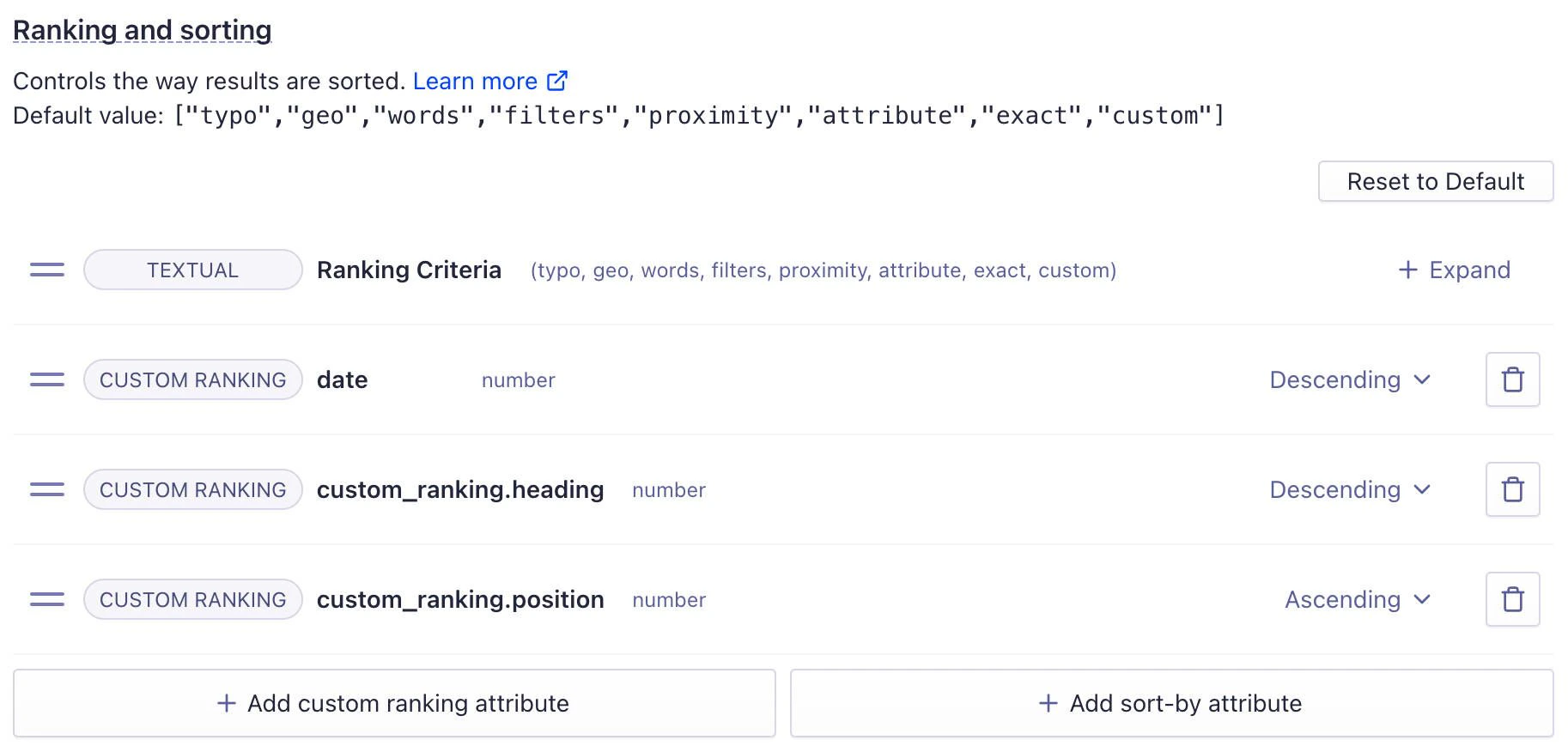
### With the dashboard
On the [ranking and sorting tab](https://dashboard.algolia.com/explorer/configuration/ranking-and-sorting/),
add a new custom ranking attribute.
 ### From the API
```cs C# theme={"system"}
var response = await client.SetSettingsAsync(
"INDEX_NAME",
new IndexSettings { CustomRanking = new List { "desc(boosted)" } }
);
```
```dart Dart theme={"system"}
final response = await client.setSettings(
indexName: "INDEX_NAME",
indexSettings: IndexSettings(
customRanking: [
"desc(boosted)",
],
),
);
```
```go Go theme={"system"}
response, err := client.SetSettings(client.NewApiSetSettingsRequest(
"INDEX_NAME",
search.NewEmptyIndexSettings().SetCustomRanking(
[]string{"desc(boosted)"})))
if err != nil {
// handle the eventual error
panic(err)
}
```
```java Java theme={"system"}
UpdatedAtResponse response = client.setSettings(
"INDEX_NAME",
new IndexSettings().setCustomRanking(Arrays.asList("desc(boosted)"))
);
```
```js JavaScript theme={"system"}
const response = await client.setSettings({
indexName: 'theIndexName',
indexSettings: { customRanking: ['desc(boosted)'] },
});
```
```kotlin Kotlin theme={"system"}
var response =
client.setSettings(
indexName = "INDEX_NAME",
indexSettings = IndexSettings(customRanking = listOf("desc(boosted)")),
)
```
```php PHP theme={"system"}
$response = $client->setSettings(
'INDEX_NAME',
['customRanking' => [
'desc(boosted)',
],
],
);
```
```python Python theme={"system"}
response = client.set_settings(
index_name="INDEX_NAME",
index_settings={
"customRanking": [
"desc(boosted)",
],
},
)
```
```ruby Ruby theme={"system"}
response = client.set_settings(
"INDEX_NAME",
Algolia::Search::IndexSettings.new(custom_ranking: ["desc(boosted)"])
)
```
```scala Scala theme={"system"}
val response = Await.result(
client.setSettings(
indexName = "INDEX_NAME",
indexSettings = IndexSettings(
customRanking = Some(Seq("desc(boosted)"))
)
),
Duration(100, "sec")
)
```
```swift Swift theme={"system"}
let response = try await client.setSettings(
indexName: "INDEX_NAME",
indexSettings: IndexSettings(customRanking: ["desc(boosted)"])
)
```
## Use sorting to group items before ranking them
You can sort records by an attribute before applying the ranking formula.
For example, you might want results to appear in price-based groups (such as high-, medium-, and low-priced items).
To do this,
assign numeric values (for example, 1, 2, and 3) to a defined grouping attribute.
Algolia sorts group 1 first, then group 2, and so on.
Use a separate attribute for grouping.
Don't reuse your boost attribute.
This method uses [sorting](/doc/guides/managing-results/refine-results/sorting),
which applies *before* custom ranking and determines the overall group order.
### From the API
```cs C# theme={"system"}
var response = await client.SetSettingsAsync(
"INDEX_NAME",
new IndexSettings { CustomRanking = new List { "desc(boosted)" } }
);
```
```dart Dart theme={"system"}
final response = await client.setSettings(
indexName: "INDEX_NAME",
indexSettings: IndexSettings(
customRanking: [
"desc(boosted)",
],
),
);
```
```go Go theme={"system"}
response, err := client.SetSettings(client.NewApiSetSettingsRequest(
"INDEX_NAME",
search.NewEmptyIndexSettings().SetCustomRanking(
[]string{"desc(boosted)"})))
if err != nil {
// handle the eventual error
panic(err)
}
```
```java Java theme={"system"}
UpdatedAtResponse response = client.setSettings(
"INDEX_NAME",
new IndexSettings().setCustomRanking(Arrays.asList("desc(boosted)"))
);
```
```js JavaScript theme={"system"}
const response = await client.setSettings({
indexName: 'theIndexName',
indexSettings: { customRanking: ['desc(boosted)'] },
});
```
```kotlin Kotlin theme={"system"}
var response =
client.setSettings(
indexName = "INDEX_NAME",
indexSettings = IndexSettings(customRanking = listOf("desc(boosted)")),
)
```
```php PHP theme={"system"}
$response = $client->setSettings(
'INDEX_NAME',
['customRanking' => [
'desc(boosted)',
],
],
);
```
```python Python theme={"system"}
response = client.set_settings(
index_name="INDEX_NAME",
index_settings={
"customRanking": [
"desc(boosted)",
],
},
)
```
```ruby Ruby theme={"system"}
response = client.set_settings(
"INDEX_NAME",
Algolia::Search::IndexSettings.new(custom_ranking: ["desc(boosted)"])
)
```
```scala Scala theme={"system"}
val response = Await.result(
client.setSettings(
indexName = "INDEX_NAME",
indexSettings = IndexSettings(
customRanking = Some(Seq("desc(boosted)"))
)
),
Duration(100, "sec")
)
```
```swift Swift theme={"system"}
let response = try await client.setSettings(
indexName: "INDEX_NAME",
indexSettings: IndexSettings(customRanking: ["desc(boosted)"])
)
```
## Use sorting to group items before ranking them
You can sort records by an attribute before applying the ranking formula.
For example, you might want results to appear in price-based groups (such as high-, medium-, and low-priced items).
To do this,
assign numeric values (for example, 1, 2, and 3) to a defined grouping attribute.
Algolia sorts group 1 first, then group 2, and so on.
Use a separate attribute for grouping.
Don't reuse your boost attribute.
This method uses [sorting](/doc/guides/managing-results/refine-results/sorting),
which applies *before* custom ranking and determines the overall group order.