> ## Documentation Index
> Fetch the complete documentation index at: https://algolia.com/llms.txt
> Use this file to discover all available pages before exploring further.
# How to declare attributes for faceting in the dashboard
> How to declare attributes for faceting in the Algolia dashboard.
export const Application = () =>
application
;
export const AlgoliaSearch = () => ;
Algolia lets you create categories based on specific attributes so users can filter search results by those categories
For example, if you have an index of books, you could categorize them by author and genre.
This allows users to filter search results by their favorite author or discover new genres.
To enable this categorization, declare your attributes for faceting.
To do this:
1. Go to the [Algolia dashboard](https://dashboard.algolia.com/explorer/browse) and select your Algolia .
2. On the left sidebar, select **Search**.
3. Select your Algolia index.
4. On the **Configuration** tab, click **Facets** (in the Filtering and faceting section).
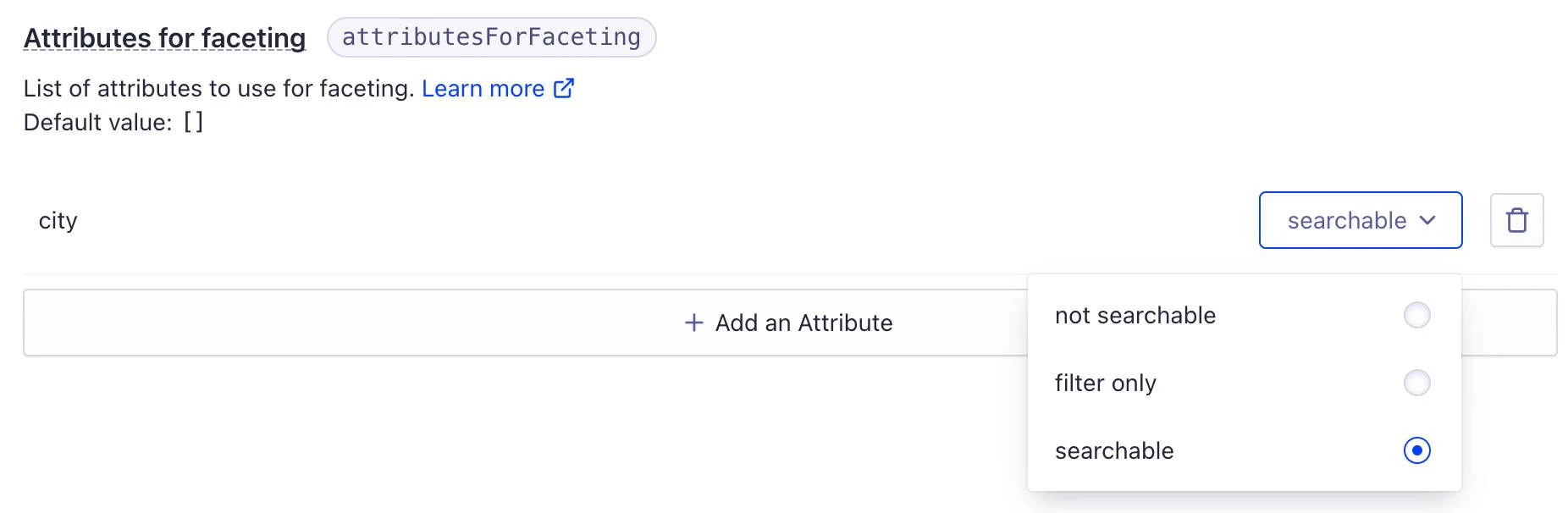
5. In **Attributes for faceting**, click **Add an Attribute**
6. Set the attribute as:
* **searchable** if you want to use the attribute for both searching and filtering. For example, if a product has a `color` attribute, users can search for products of a specific color and also filter search results by color.
* **filter-only** if you want to use the attribute only for filtering.
* **not searchable** if you want the attribute to be used only as a facet.
For more information, see [Difference between facets and filters](/doc/guides/managing-results/refine-results/faceting#difference-between-filters-and-facets)
7. Click **Review and Save Settings**.
## See also
* [How to declare attributes for faceting with the API](/doc/guides/managing-results/refine-results/faceting/how-to/declaring-attributes-for-faceting)
* [Faceting](/doc/guides/managing-results/refine-results/faceting)
* [Auto-selected facets](/doc/guides/solutions/ecommerce/filtering-and-navigation/tutorials/auto-selected-facets)
* [Guided search](/doc/guides/solutions/ecommerce/filtering-and-navigation/tutorials/guided-search)
* [Visual facets](/doc/guides/solutions/ecommerce/filtering-and-navigation/tutorials/visual-facets)
 7. Click **Review and Save Settings**.
## See also
* [How to declare attributes for faceting with the API](/doc/guides/managing-results/refine-results/faceting/how-to/declaring-attributes-for-faceting)
* [Faceting](/doc/guides/managing-results/refine-results/faceting)
* [Auto-selected facets](/doc/guides/solutions/ecommerce/filtering-and-navigation/tutorials/auto-selected-facets)
* [Guided search](/doc/guides/solutions/ecommerce/filtering-and-navigation/tutorials/guided-search)
* [Visual facets](/doc/guides/solutions/ecommerce/filtering-and-navigation/tutorials/visual-facets)
7. Click **Review and Save Settings**.
## See also
* [How to declare attributes for faceting with the API](/doc/guides/managing-results/refine-results/faceting/how-to/declaring-attributes-for-faceting)
* [Faceting](/doc/guides/managing-results/refine-results/faceting)
* [Auto-selected facets](/doc/guides/solutions/ecommerce/filtering-and-navigation/tutorials/auto-selected-facets)
* [Guided search](/doc/guides/solutions/ecommerce/filtering-and-navigation/tutorials/guided-search)
* [Visual facets](/doc/guides/solutions/ecommerce/filtering-and-navigation/tutorials/visual-facets)