> ## Documentation Index
> Fetch the complete documentation index at: https://algolia.com/llms.txt
> Use this file to discover all available pages before exploring further.
# Troubleshooting search
> Troubleshoot your search experience by determining search parameters and reproducing them on the Algolia dashboard.
export const SearchQuery = () =>
search query
;
export const Index = () =>
index
;
If search results aren't what you expect them to be, you can investigate what's happening with a two-step approach:
1. Find out [which search parameters are in use](#retrieve-search-parameters).
2. [Reproduce those search parameters](#reproduce-the-search-in-algolias-dashboard) in the dashboard.
This approach helps you understand why your search behaves a certain way and lets you test improvements and fixes.
## Retrieve search parameters
The first step in troubleshooting is to clarify precisely the search parameters you sent to Algolia, to see what's returned and ensure it matches your intent.
Use your browser's developer tools to check what data you sent in your search requests.
Open your browser's [developer tools](https://developer.mozilla.org/en-US/docs/Learn/Common_questions/Tools_and_setup/What_are_browser_developer_tools) and click **Network**.
The next steps differ depending on your browser:
1. Set "algolia" as a filter.
2. Enter your search request. You should see network requests to Algolia.
3. Click the latest request.
4. Click **Payload**
5. Scroll to **Form Data**
1. Change the network request type to **XHR/Fetch** (the default is **All**)
2. Set "algolia" as a filter.
3. Enter your search request. You should see network requests to Algolia.
4. Click the latest **queries** request.
5. Scroll to **Request Data**
1. Change the network request type to **Fetch/XHR** (the default is **All**)
2. Set "algolia" as a filter.
3. Enter your search request. You should see network requests to Algolia.
4. Click the latest **queries…** request.
5. Click **Payload**
6. Scroll to **Form Data**
1. Change the network request type to **XHR** (the default is **All**)
2. Set "algolia" as a filter.
3. Enter your search request. You should see network requests to Algolia.
4. Click the latest **POST** request.
5. Click **Request**
### Check parameters in the browser developer tools
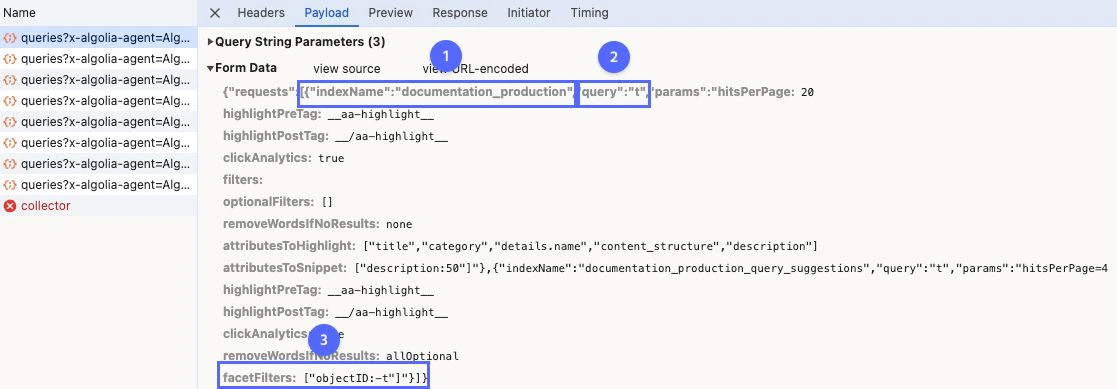 * **Check the name.** Is it correct?
* **Check the .** Has your app incorrectly changed it?
* **Investigate parameters that can alter search results**, for example, [`facetFilters`](/doc/api-reference/api-parameters/facetFilters). Check [`ruleContexts`](/doc/api-reference/api-parameters/ruleContexts) and [`filters`](/doc/api-reference/api-parameters/filters) which are other commonly used parameters that can alter search results. See the API documentation for [the complete list of parameters](/doc/api-reference/api-parameters).
With backend search, check the [parameters sent with your request](/doc/libraries/sdk/v1/methods/search#param-search-parameters) and
the [URL-encoded search parameters](/doc/libraries/sdk/v1/methods/search#param-search-parameters) in the response.
## Reproduce the search in Algolia's dashboard
Use the dashboard to reproduce the same search queries and parameters that you tested in the browser. This process:
* Helps determine if your code is changing search in an undesirable way by comparing results between your app and the dashboard.
* Lets you test potential improvements on the dashboard.
### How to reproduce search queries and parameters
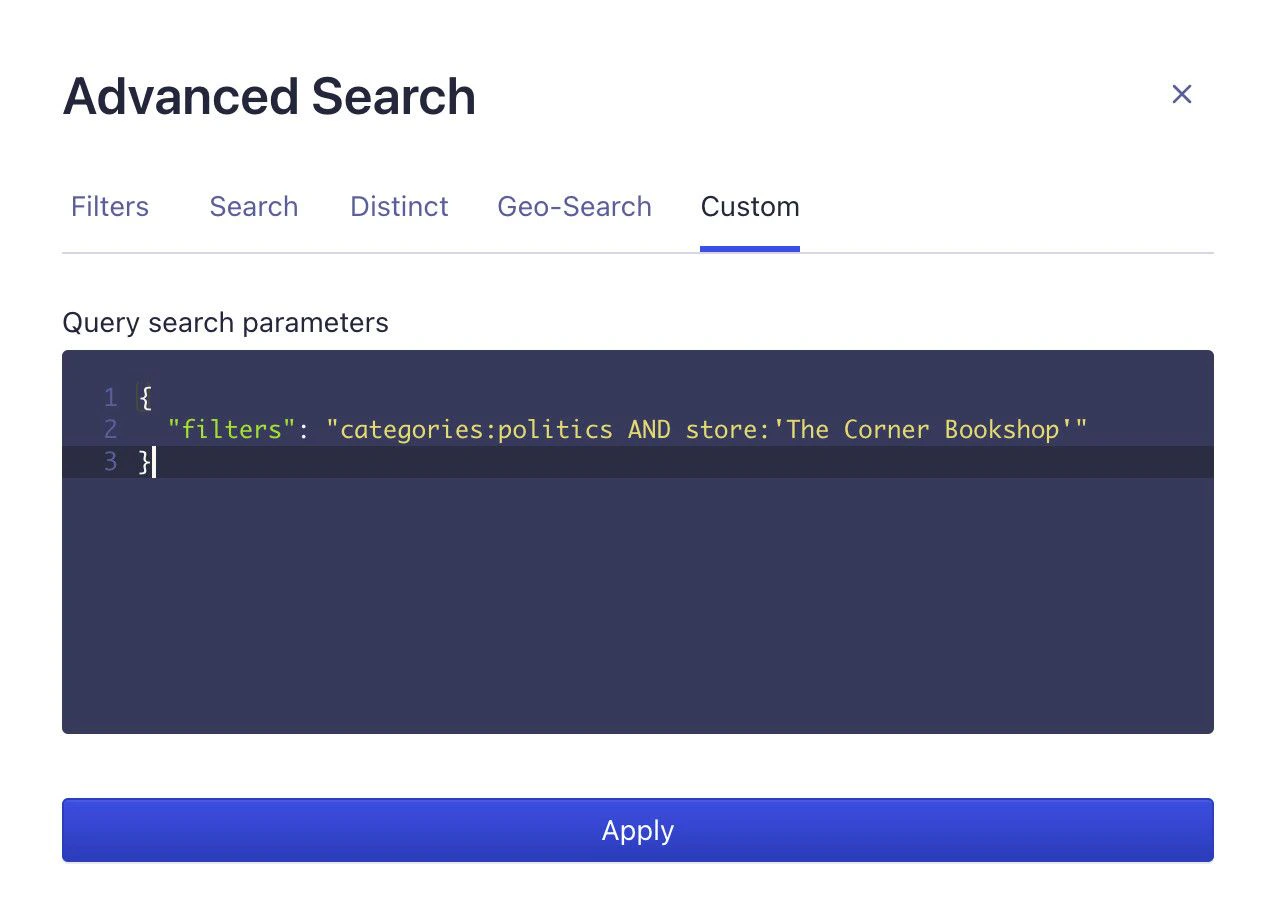
Go to your index in the Algolia dashboard and click **Add Query Parameter** in the **Browse** tab.
* Add tag, facet, and numeric filters in the **Filters** tab.
* Add other search parameters as JSON in the **Custom** tab.
* **Check the name.** Is it correct?
* **Check the .** Has your app incorrectly changed it?
* **Investigate parameters that can alter search results**, for example, [`facetFilters`](/doc/api-reference/api-parameters/facetFilters). Check [`ruleContexts`](/doc/api-reference/api-parameters/ruleContexts) and [`filters`](/doc/api-reference/api-parameters/filters) which are other commonly used parameters that can alter search results. See the API documentation for [the complete list of parameters](/doc/api-reference/api-parameters).
With backend search, check the [parameters sent with your request](/doc/libraries/sdk/v1/methods/search#param-search-parameters) and
the [URL-encoded search parameters](/doc/libraries/sdk/v1/methods/search#param-search-parameters) in the response.
## Reproduce the search in Algolia's dashboard
Use the dashboard to reproduce the same search queries and parameters that you tested in the browser. This process:
* Helps determine if your code is changing search in an undesirable way by comparing results between your app and the dashboard.
* Lets you test potential improvements on the dashboard.
### How to reproduce search queries and parameters
Go to your index in the Algolia dashboard and click **Add Query Parameter** in the **Browse** tab.
* Add tag, facet, and numeric filters in the **Filters** tab.
* Add other search parameters as JSON in the **Custom** tab.
 ## See also
* [Troubleshooting relevance](/doc/guides/managing-results/troubleshooting/troubleshooting-relevance)
* [How do I configure display preferences in the dashboard?](https://support.algolia.com/hc/en-us/articles/4406981890833-How-do-I-configure-display-preferences-in-the-dashboard-#troubleshooting-problems-with-your-images)
* [How can I troubleshoot with Search API Logs in the dashboard?](https://support.algolia.com/hc/en-us/articles/4406981928081)
* [Support policies (including troubleshooting services)](https://www.algolia.com/policies/support/)
## See also
* [Troubleshooting relevance](/doc/guides/managing-results/troubleshooting/troubleshooting-relevance)
* [How do I configure display preferences in the dashboard?](https://support.algolia.com/hc/en-us/articles/4406981890833-How-do-I-configure-display-preferences-in-the-dashboard-#troubleshooting-problems-with-your-images)
* [How can I troubleshoot with Search API Logs in the dashboard?](https://support.algolia.com/hc/en-us/articles/4406981928081)
* [Support policies (including troubleshooting services)](https://www.algolia.com/policies/support/)