> ## Documentation Index
> Fetch the complete documentation index at: https://algolia.com/llms.txt
> Use this file to discover all available pages before exploring further.
# Inspect a user profile
> Learn how to inspect a user profile with Advanced Personalization.
export const UserToken = () =>
user token
;
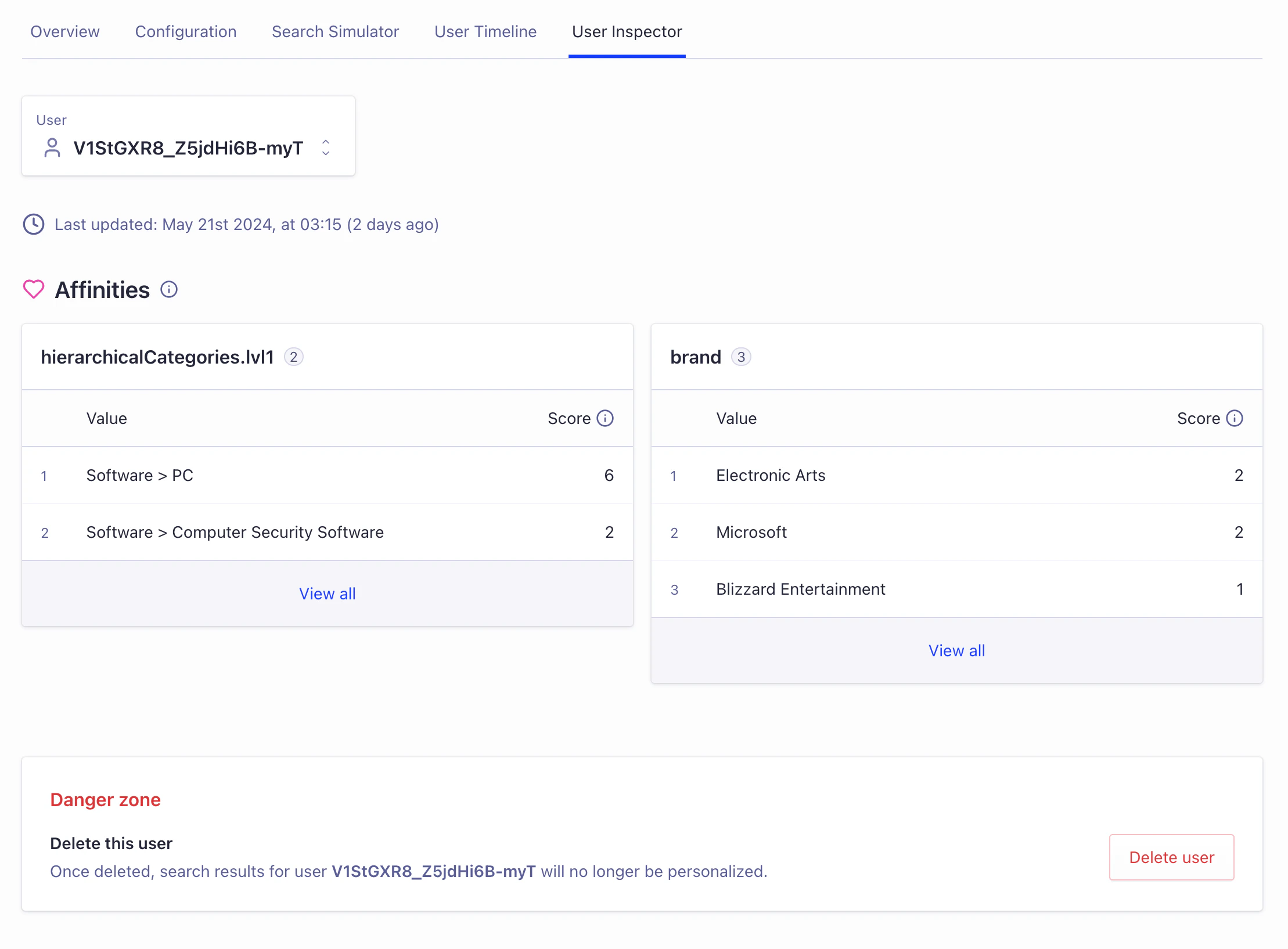
The [**User Inspector**](https://dashboard.algolia.com/advanced-personalization/user) in the Advanced Personalization dashboard shows profiles of users interacting with your Algolia search and discovery experience. This tool offers insights into user preferences and helps troubleshoot personalization issues.
 ## Access the User Inspector
Find the [**User Inspector**](https://dashboard.algolia.com/advanced-personalization/user) in the Algolia Advanced Personalization dashboard.
## Select a user
To inspect a user profile:
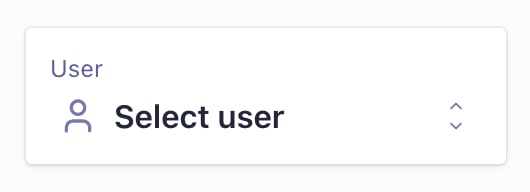
1. Open the user selector to see a list of recent users who have interacted with your app. This list updates dynamically as users engage with your experience.
2. Select a user profile to view by clicking on their in the list.
3. If you can't find the user you want, enter their user token manually to inspect their profile.
## Access the User Inspector
Find the [**User Inspector**](https://dashboard.algolia.com/advanced-personalization/user) in the Algolia Advanced Personalization dashboard.
## Select a user
To inspect a user profile:
1. Open the user selector to see a list of recent users who have interacted with your app. This list updates dynamically as users engage with your experience.
2. Select a user profile to view by clicking on their in the list.
3. If you can't find the user you want, enter their user token manually to inspect their profile.
 ## View last profile update
The **User Inspector** shows when the profile was last computed. This date helps you understand how current the user's profile is and when it last included a meaningful interaction.
## Analyze user affinities
The **User Inspector** groups affinities by attribute. These attributes match the [attributes for affinities](/doc/guides/personalization/advanced-personalization/configure/setup/indices#select-the-attributes-for-affinities) you set up, such as product categories, brands, or other relevant aspects of your data. This organization helps you understand which parts of your catalog appeal most to each user.
User interactions like views, clicks, and conversions create affinities. Unlike explicit preferences a user might state, these affinities come from actual user behavior. For more details, [see how Advanced Personalization builds user profiles](/doc/guides/personalization/advanced-personalization/what-is-advanced-personalization/concepts/user-profiles#how-user-profiles-are-built).
Advanced Personalization uses a scoring system for affinities. Each affinity gets a score from 1 to 20. A score of 1 shows weak interest, while 20 indicates strong preference for that attribute. For example, an affinity score of 18 for "Electronics" suggests high interest in electronic products. Algolia uses these scores to rank search results appropriately.
## View last profile update
The **User Inspector** shows when the profile was last computed. This date helps you understand how current the user's profile is and when it last included a meaningful interaction.
## Analyze user affinities
The **User Inspector** groups affinities by attribute. These attributes match the [attributes for affinities](/doc/guides/personalization/advanced-personalization/configure/setup/indices#select-the-attributes-for-affinities) you set up, such as product categories, brands, or other relevant aspects of your data. This organization helps you understand which parts of your catalog appeal most to each user.
User interactions like views, clicks, and conversions create affinities. Unlike explicit preferences a user might state, these affinities come from actual user behavior. For more details, [see how Advanced Personalization builds user profiles](/doc/guides/personalization/advanced-personalization/what-is-advanced-personalization/concepts/user-profiles#how-user-profiles-are-built).
Advanced Personalization uses a scoring system for affinities. Each affinity gets a score from 1 to 20. A score of 1 shows weak interest, while 20 indicates strong preference for that attribute. For example, an affinity score of 18 for "Electronics" suggests high interest in electronic products. Algolia uses these scores to rank search results appropriately.
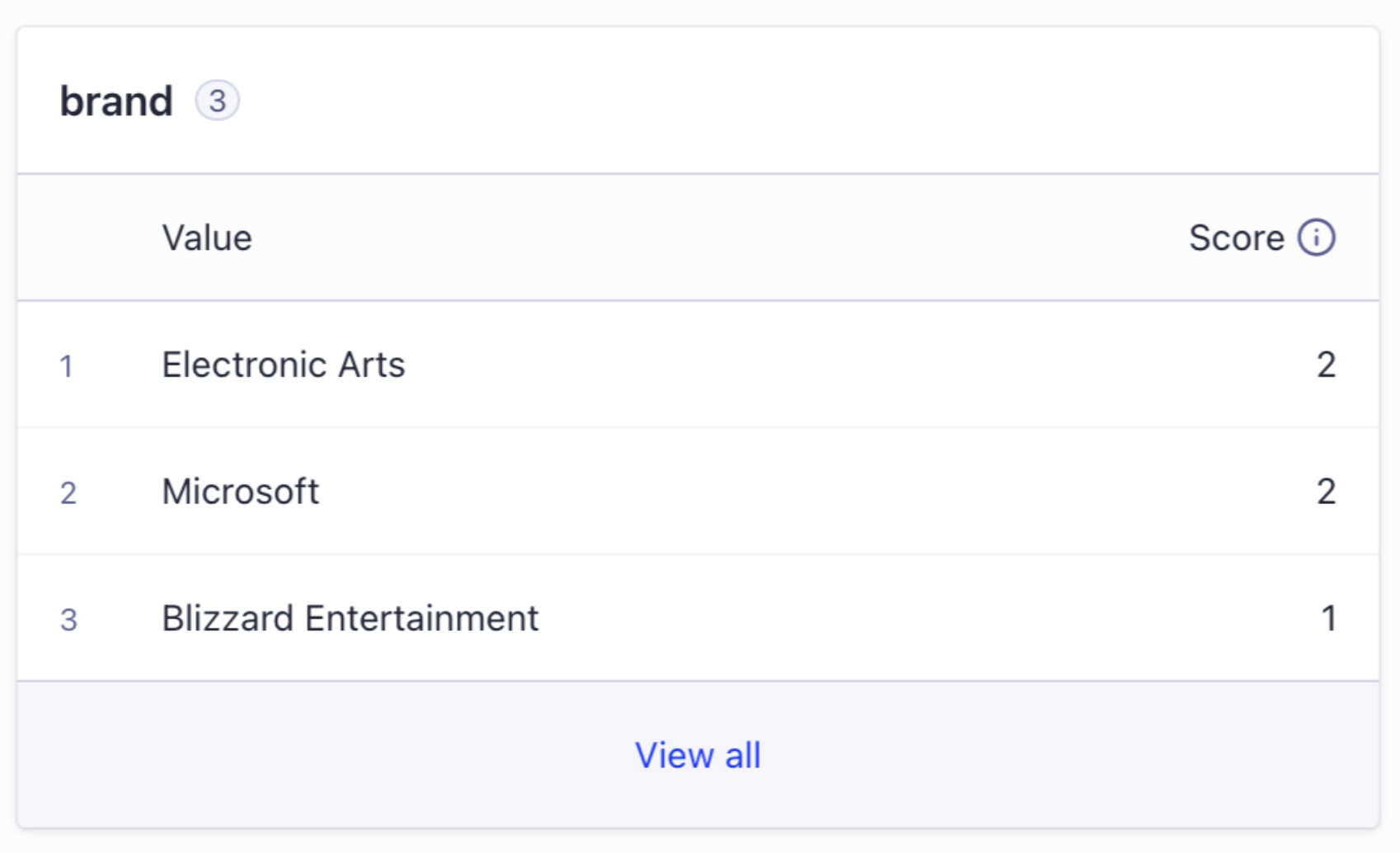 If the user has more than 5 affinities for an attribute, click the **View all** button to see the complete list.
## Manage a user profile
Find the **Danger Zone** section at the bottom of the **User Inspector** page. Here you can [delete a user profile](/doc/guides/personalization/advanced-personalization/monitor/in-depth/delete-a-user-profile) if needed.
## See also
* [User profiles](/doc/guides/personalization/advanced-personalization/what-is-advanced-personalization/concepts/user-profiles)
* [Delete a user profile](/doc/guides/personalization/advanced-personalization/monitor/in-depth/delete-a-user-profile)
If the user has more than 5 affinities for an attribute, click the **View all** button to see the complete list.
## Manage a user profile
Find the **Danger Zone** section at the bottom of the **User Inspector** page. Here you can [delete a user profile](/doc/guides/personalization/advanced-personalization/monitor/in-depth/delete-a-user-profile) if needed.
## See also
* [User profiles](/doc/guides/personalization/advanced-personalization/what-is-advanced-personalization/concepts/user-profiles)
* [Delete a user profile](/doc/guides/personalization/advanced-personalization/monitor/in-depth/delete-a-user-profile)