> ## Documentation Index
> Fetch the complete documentation index at: https://algolia.com/llms.txt
> Use this file to discover all available pages before exploring further.
# Importing from the dashboard
> Learn how to index your data from Algolia's dashboard.
export const Records = () =>
records
;
export const Index = () =>
index
;
Uploading files is useful when you're just starting with Algolia and want to test it with sample data.
Before importing data files, you need to [create an index](#create-a-new-index) to store your data.
You can then upload your files from the Algolia dashboard.
Dashboard uploads can have a file size of up to 100 MB.
For larger files, use the [API, CLI, or the CSV no-code connector](/doc/guides/sending-and-managing-data/send-and-update-your-data) instead.
You can't use the dashboard to update existing data.
To synchronize or update such data, use an [alternative method](/doc/guides/sending-and-managing-data/send-and-update-your-data).
## Import file formats
Algolia uses [JSON to model records](/doc/guides/sending-and-managing-data/prepare-your-data/in-depth/what-is-in-a-record) and can import JSON, CSV, and TSV files:
```json JSON icon=braces theme={"system"}
[
{
"firstname": "Jimmie",
"lastname": "Barninger"
},
{
"firstname": "Warren",
"lastname": "Speach"
}
]
```
```csv CSV theme={"system"}
firstname,lastname
Jimmie,Barninger
Warren,Speach
```
```tsv TSV theme={"system"}
"firstname" "lastname"
"Jimmie" "Barninger"
"Warren" "Speach"
```
## Create a new index
To create a new to import your file data into:
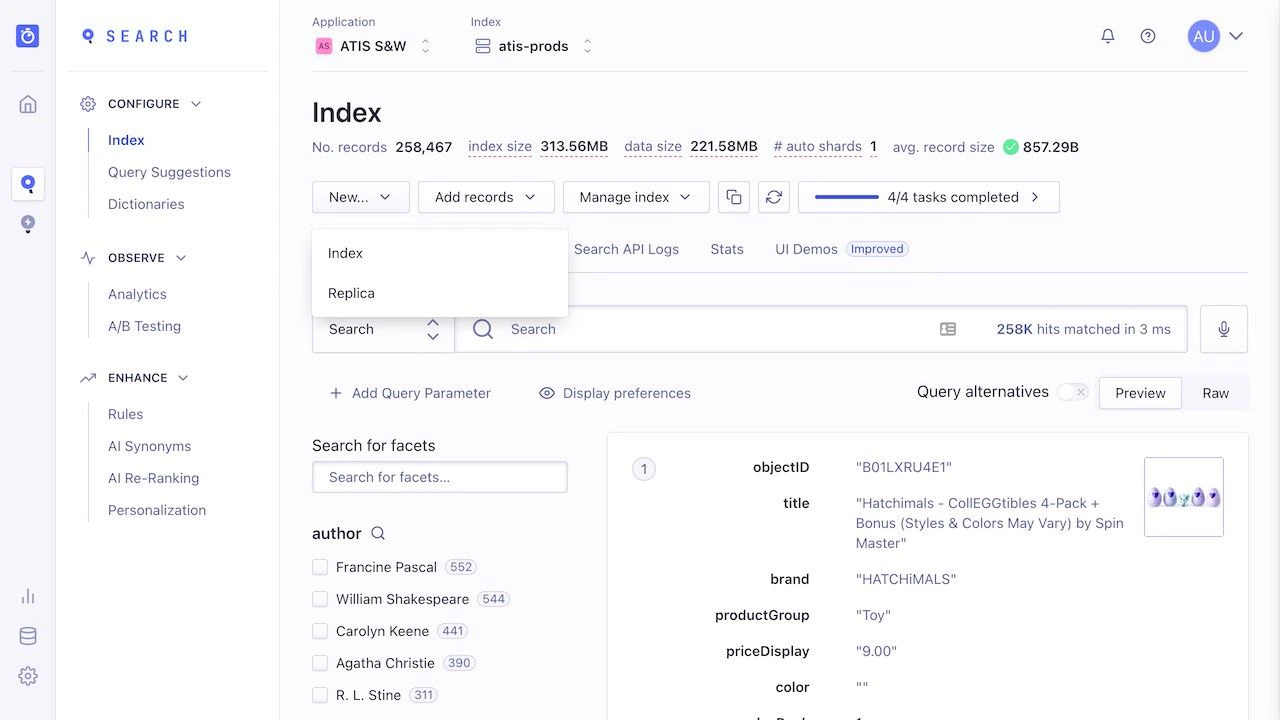
1. Go to the [**Indices** tab](https://dashboard.algolia.com/explorer/browse) in the Algolia dashboard and click **New > Index**.
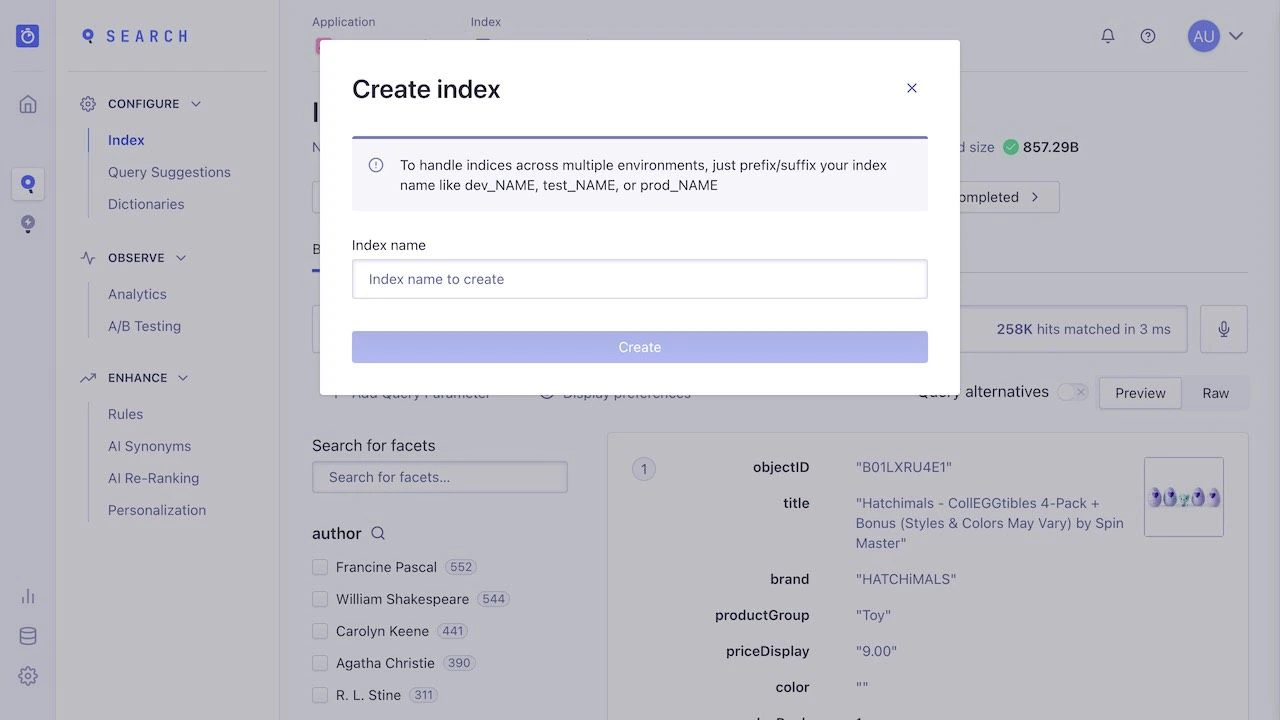
 2. Give your index a name and click **Create**.
 ## Upload the file
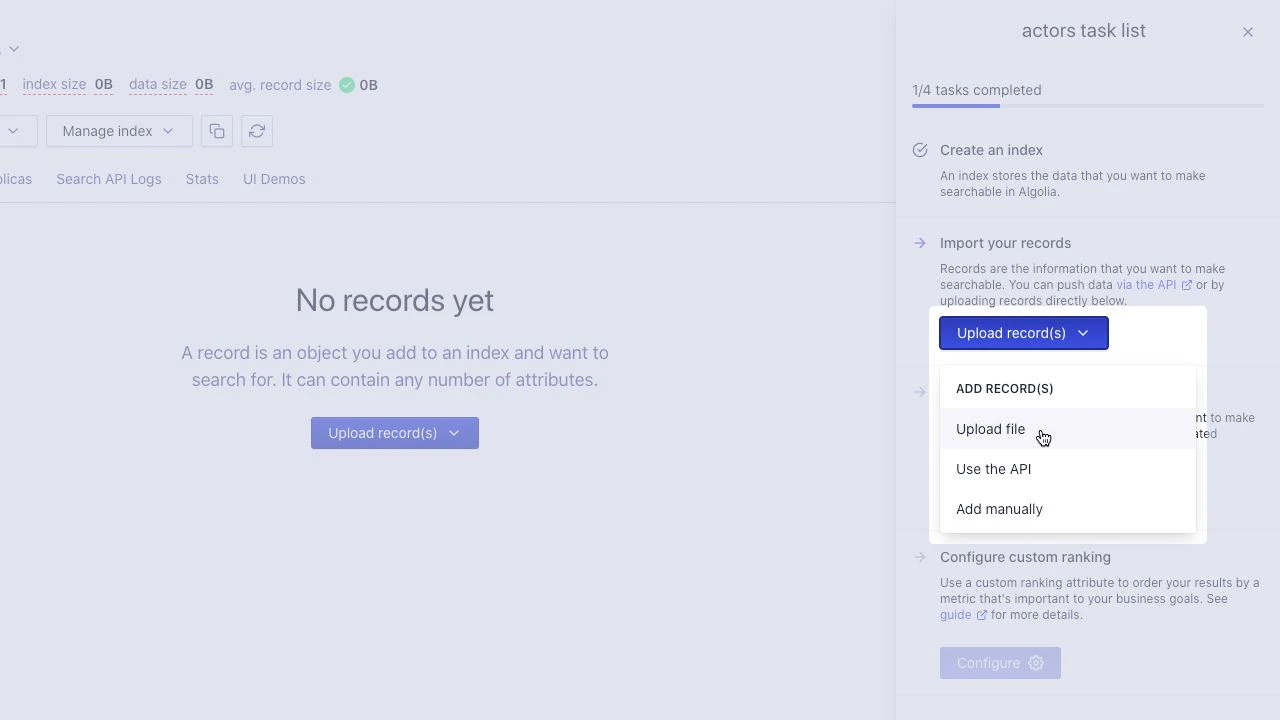
To add to a new index,
click **Upload records > Upload file** to import your file.
## Upload the file
To add to a new index,
click **Upload records > Upload file** to import your file.
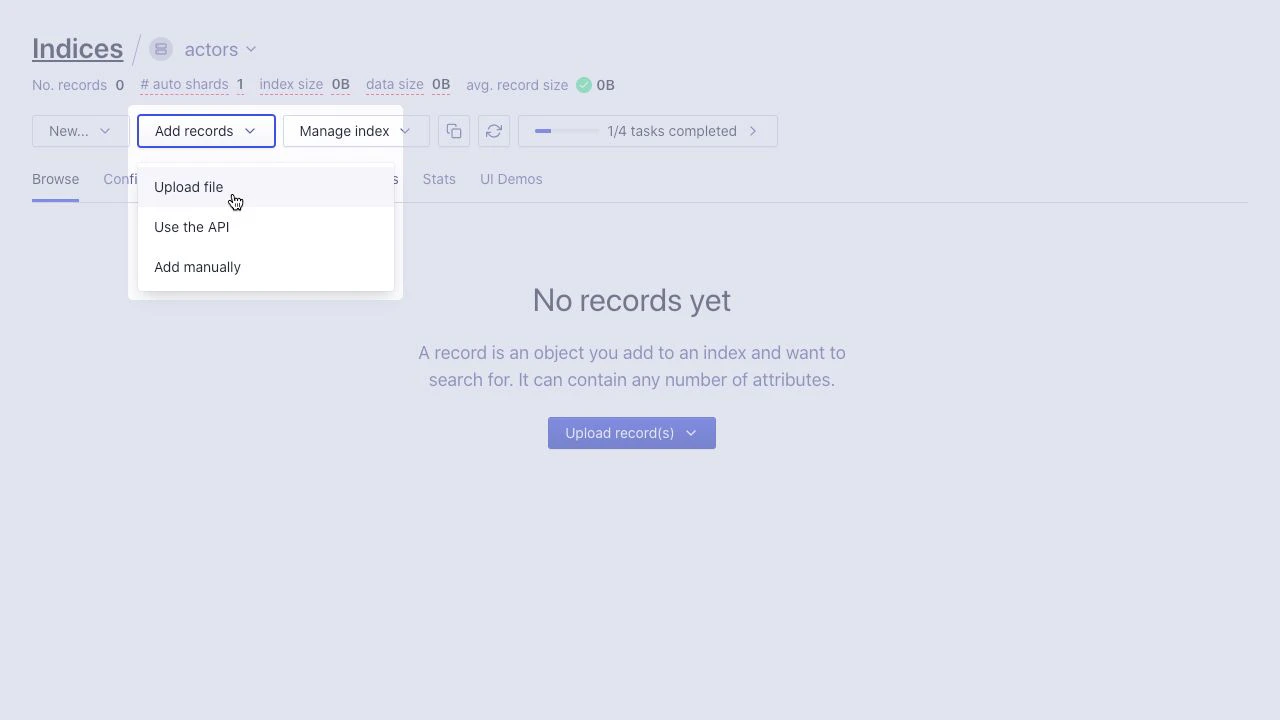 To add records to an existing index:
1. Click **Add records > Upload file**.
To add records to an existing index:
1. Click **Add records > Upload file**.
 2. Drop the file into the **Upload records** box or select it on your file system. Then, click **Upload**.
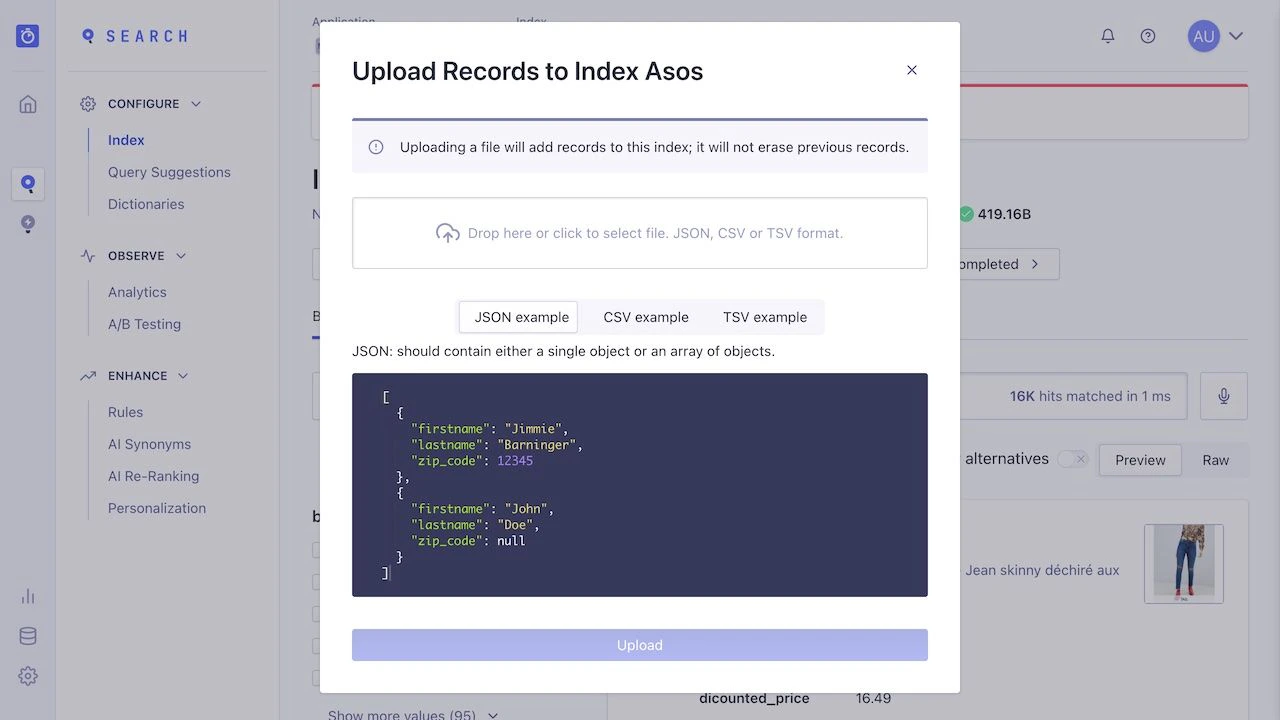 3. Once Algolia has indexed your data, the dashboard will notify you of a successful save.