> ## Documentation Index
> Fetch the complete documentation index at: https://algolia.com/llms.txt
> Use this file to discover all available pages before exploring further.
# Transform your data without code
> Transform your data before writing to your Algolia index.
export const Records = () =>
records
;
export const Index = () =>
index
;
export const Application = () =>
application
;
You can add *transformations* to your connector's destination to manipulate data before it's written to your Algolia indices.
To use transformations, create a task that specifies the data source *and* the destination (usually an Algolia ).
Add transformations during task creation or apply them directly to existing destinations.
To learn more about connectors, read the [Connectors](/doc/guides/sending-and-managing-data/send-and-update-your-data/connectors/overview) overview.
## Get started with no-code transformations
1. Go to the [Algolia dashboard](https://dashboard.algolia.com/explorer/browse) and select your Algolia .
2. On the left sidebar, select **Data sources**.
3. Open the [**Connectors**](https://dashboard.algolia.com/connectors) page.
4. Select a connector and click **Connect** to start creating your task.
5. Configure your data source: create a new source or select an existing one.
6. To create your transformation, click **Create a new transformation** and select **Transform without code**.
To learn more about the available transformation steps, see [Create your transformation](#create-your-transformation).
7. Configure your destination: create a new destination or select an existing one.
8. Configure when your task should run and specify the operation type for writing your Algolia .
9. Confirm whether you want to run your task immediately.
To see your transformation in action, click **Run** and inspect your index records after the task finishes.
## Create your transformation
A no-code transformation consists of one or more steps.
Each step can include a condition,
so it only applies to records that meet specific criteria.
If any of the steps fail, the entire transformation will be marked as failed.
### Available step types
| Step type | Description |
| -------------------------------------------- | ------------------------------------------------------------------------------------------------------------------------ |
| [Add record attribute](#add-attribute) | Adds a new attribute to a record.
The value can be a fixed value or calculated from other attributes in the record. |
| [Remove record attribute](#delete-attribute) | Removes an attribute from a record. |
| [Remove records](#remove-records) | Removes records based on a condition.
For example, you can remove records with a price below a certain threshold. |
#### Add attribute
Use the **Add Attribute** step to create a new attribute in your records,
or to update the value of an existing one:
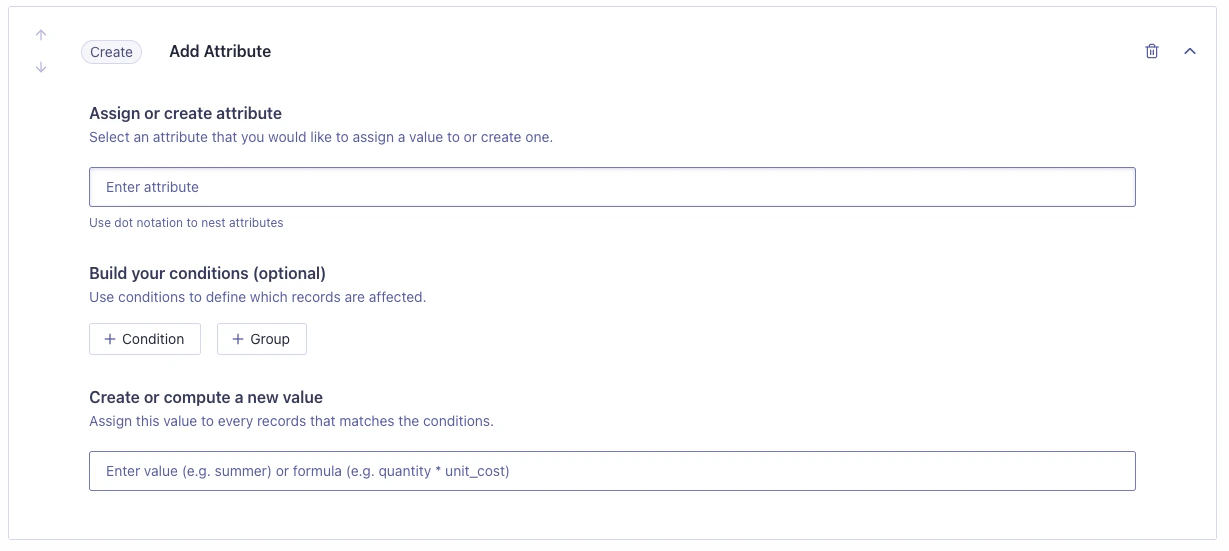 1. On the **Transformation** page, select **Create Attribute**.
2. Enter the name of the attribute you want to add or update.
If the attribute doesn't exist yet, its added to each matching record.
If the attribute already exists, its value is replaced.
If you enter an existing attribute, the values are updated.
Use *dot* notation for nested attributes, such as `prices.discount_pct`.
3. Optional: [Add a condition](#conditions) to select the records for adding or updating attributes.
4. Specify the value for the new or updated attribute:
* To assign the same value to each record matching the conditions,
enter a value, for example, `true`, `10`, or `new`.
* To assign a computed value based on other attributes,
enter a formula, for example, `price * discount_pct`.
**Computed values** are based on other record attributes.
For example, to calculate the discounted price of a product, use the formula:
`price * (1 - discount_pct)`,
where `price` and `discount_pct` are attributes in the record.
For a list of available functions you can use to compute values,
see [Function reference](#function-reference).
### Delete attribute
Use the **Delete Attribute** step to delete an attribute from your records.
This is useful for cleaning up data or removing fields you don't want to send to your Algolia index.
1. On the **Transformation** page, select **Create Attribute**.
2. Enter the name of the attribute you want to add or update.
If the attribute doesn't exist yet, its added to each matching record.
If the attribute already exists, its value is replaced.
If you enter an existing attribute, the values are updated.
Use *dot* notation for nested attributes, such as `prices.discount_pct`.
3. Optional: [Add a condition](#conditions) to select the records for adding or updating attributes.
4. Specify the value for the new or updated attribute:
* To assign the same value to each record matching the conditions,
enter a value, for example, `true`, `10`, or `new`.
* To assign a computed value based on other attributes,
enter a formula, for example, `price * discount_pct`.
**Computed values** are based on other record attributes.
For example, to calculate the discounted price of a product, use the formula:
`price * (1 - discount_pct)`,
where `price` and `discount_pct` are attributes in the record.
For a list of available functions you can use to compute values,
see [Function reference](#function-reference).
### Delete attribute
Use the **Delete Attribute** step to delete an attribute from your records.
This is useful for cleaning up data or removing fields you don't want to send to your Algolia index.
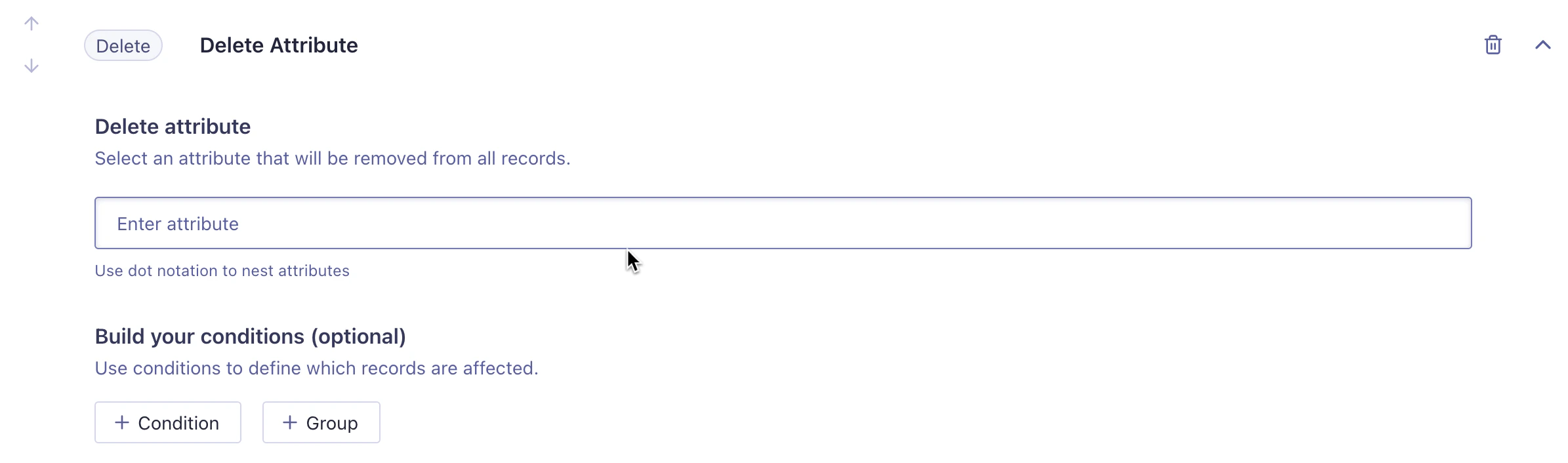 1. Select **Delete Attribute** as the step type.
2. Enter the name of the attribute you want to delete.
For nested attributes, use dot notation, for example, `prices.discount_pct`.
Only that nested field will be deleted, not the entire attribute.
3. Optional: [Add a condition](#conditions) to determine from which records the attribute is removed.
### Remove records
Use the **Remove Records** step to remove records from your index based on specific conditions.
This is useful for excluding records that don't meet your criteria before sending them to your Algolia index.
1. Select **Delete Attribute** as the step type.
2. Enter the name of the attribute you want to delete.
For nested attributes, use dot notation, for example, `prices.discount_pct`.
Only that nested field will be deleted, not the entire attribute.
3. Optional: [Add a condition](#conditions) to determine from which records the attribute is removed.
### Remove records
Use the **Remove Records** step to remove records from your index based on specific conditions.
This is useful for excluding records that don't meet your criteria before sending them to your Algolia index.
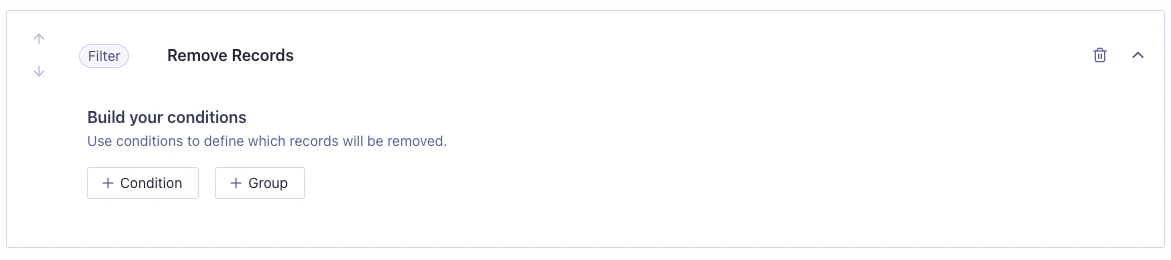 1. Choose **Remove Records** as the step type.
2. [Add a condition](#conditions) to determine which records to remove.
## Conditions
Conditions let you control when a transformation step runs for a particular record:
* **Add Attribute:** Only add or modify an attribute to records that meet the conditions.
* **Delete Attribute:** Only delete attributes from records that meet the conditions.
* **Remove Records:** Only remove records that meet the conditions.
### Parts of conditions
Conditions consist of the following elements:
* **Field.**
The attribute to check, for example, `category` or `price`.
* **Operator.**
The comparison to perform, for example, `equals`, `does not equal`, or `greater than`.
* **Attribute type.**
The data type of the field: String, Number, or Boolean.
This specifies *how* to compare the field to the value.
* **Value.**
The value to compare the field against, for example, `"food"`, `200`, or `true`.
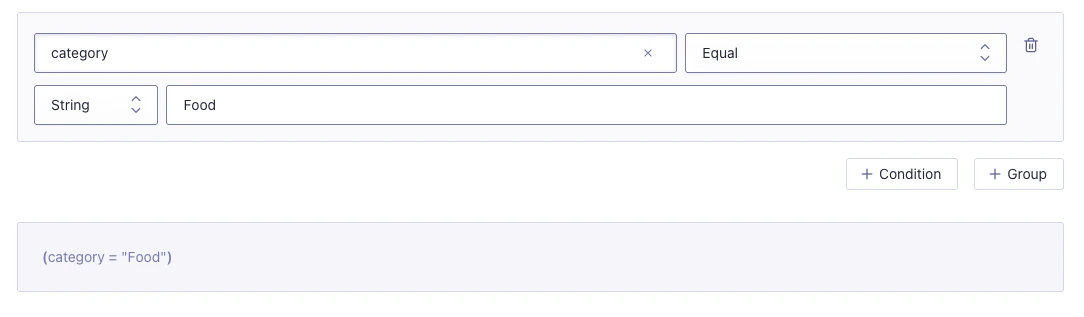
### Example: a basic condition
* Field: `category`
* Operator: `Equals`
* Type: `String`
* Value: `Food`
This condition selects records where the `category` attribute has the value `Food`.
1. Choose **Remove Records** as the step type.
2. [Add a condition](#conditions) to determine which records to remove.
## Conditions
Conditions let you control when a transformation step runs for a particular record:
* **Add Attribute:** Only add or modify an attribute to records that meet the conditions.
* **Delete Attribute:** Only delete attributes from records that meet the conditions.
* **Remove Records:** Only remove records that meet the conditions.
### Parts of conditions
Conditions consist of the following elements:
* **Field.**
The attribute to check, for example, `category` or `price`.
* **Operator.**
The comparison to perform, for example, `equals`, `does not equal`, or `greater than`.
* **Attribute type.**
The data type of the field: String, Number, or Boolean.
This specifies *how* to compare the field to the value.
* **Value.**
The value to compare the field against, for example, `"food"`, `200`, or `true`.
### Example: a basic condition
* Field: `category`
* Operator: `Equals`
* Type: `String`
* Value: `Food`
This condition selects records where the `category` attribute has the value `Food`.
 ### Multiple conditionals
You can combine multiple conditionals using **AND** and **OR** logic.
For example:
* `category equals "food" AND price < 200`
For more complex logic, you can **group** conditionals.
This is similar to using parentheses in a formula.
* `category equals "food" AND (price < 200 OR discount == true)`
### Multiple conditionals
You can combine multiple conditionals using **AND** and **OR** logic.
For example:
* `category equals "food" AND price < 200`
For more complex logic, you can **group** conditionals.
This is similar to using parentheses in a formula.
* `category equals "food" AND (price < 200 OR discount == true)`
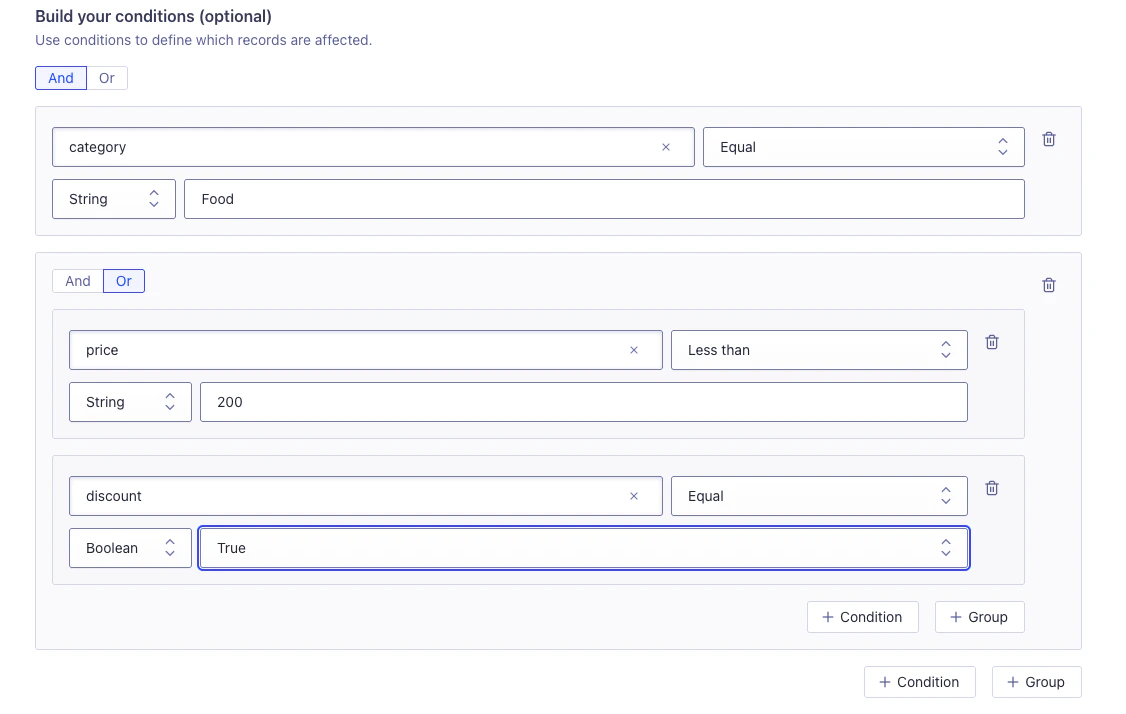 Grouping conditions changes the order in which conditions are evaluated,
allowing for complex logic.
### Supported attribute types
| Type | Description |
| ------- | ------------------------------------- |
| String | A string of text, for example: `food` |
| Number | A number, for example: `200` |
| Boolean | A boolean value: true or false |
Array and object types are not supported in no-code transformations.
## Preview your transformation
At any point during setup, you can preview your transformation.
The preview feature lets you apply your transformation to a sample of your data,
so you can compare the results before and after the changes.
If you data source doesn't support previewing,
you can still preview your transformation by copying a sample record into the text area available in preview.
Not all data sources support previewing.
## Limitations
* You can only add one transformation to a destination.
* Support for data sampling in preview is limited to these data sources:
* Algolia index
* CSV
* JSON
* Edits to a transformation don't support sampling.
* In a given task, you can use either no-code or code transformations, not both.
* Transforming complex records structures (arrays and objects) isn't supported.
## Function reference
The following table lists available functions for [computed values](#add-attribute).
For more information, see the [Expr](https://expr-lang.org/docs/language-definition) documentation.
| Function | Description | Example usage |
| ---------------------- | ---------------------------------------------------------------------- | --------------------------------------- |
| `mean([x, y, ...)]` | Returns the mean of the numbers. | `mean([1, 2, 3])` → `2` |
| `median([x,y, ...])` | Returns the median of the numbers. | `median([1, 2, 3])` → `2` |
| `round(x)` | Rounds `x` to the nearest integer. | `round(2.5)` → `3` |
| `max(a, b)` | Returns the largest of two values | `max(1, 5)` → `5` |
| `min(a, b)` | Returns the smallest of two values. | `min(1, 5, 3)` → `1` |
| `len(x)` | Returns the length of a string. | `len("abc")` → `3` |
| `lower(x)` | Converts a string to lowercase. | `lower("HELLO")` → `"hello"` |
| `upper(x)` | Converts a string to uppercase. | `upper("hello")` → `"HELLO"` |
| `replace(s, old, new)` | Replace all occurrences of `old` with `new` in `s`. | `replace("foo", "o", "a")` → `"faa"` |
| `trim(str[,chars])` | Trim whitespace from start and end of string. Optionally trim `chars`. | `trim(" foo ")` → `"foo"` |
| `split(s, sep)` | Splits string `s` into an array using separator `sep`. | `split("a,b,c", ",")` → `["a","b","c"]` |
| `join(arr, sep)` | Joins elements of array `arr` into a string, separated by `sep`. | `join(["a","b"], ",")` → `"a,b"` |
| `uniq([x,y,...]`) | Removes duplicate values from an array. | `uniq([1, 2, 2, 3])` → `[1, 2, 3]` |
| `now()` | Returns the current time. | `now()` → `"2024-06-07T12:34:56Z"` |
Grouping conditions changes the order in which conditions are evaluated,
allowing for complex logic.
### Supported attribute types
| Type | Description |
| ------- | ------------------------------------- |
| String | A string of text, for example: `food` |
| Number | A number, for example: `200` |
| Boolean | A boolean value: true or false |
Array and object types are not supported in no-code transformations.
## Preview your transformation
At any point during setup, you can preview your transformation.
The preview feature lets you apply your transformation to a sample of your data,
so you can compare the results before and after the changes.
If you data source doesn't support previewing,
you can still preview your transformation by copying a sample record into the text area available in preview.
Not all data sources support previewing.
## Limitations
* You can only add one transformation to a destination.
* Support for data sampling in preview is limited to these data sources:
* Algolia index
* CSV
* JSON
* Edits to a transformation don't support sampling.
* In a given task, you can use either no-code or code transformations, not both.
* Transforming complex records structures (arrays and objects) isn't supported.
## Function reference
The following table lists available functions for [computed values](#add-attribute).
For more information, see the [Expr](https://expr-lang.org/docs/language-definition) documentation.
| Function | Description | Example usage |
| ---------------------- | ---------------------------------------------------------------------- | --------------------------------------- |
| `mean([x, y, ...)]` | Returns the mean of the numbers. | `mean([1, 2, 3])` → `2` |
| `median([x,y, ...])` | Returns the median of the numbers. | `median([1, 2, 3])` → `2` |
| `round(x)` | Rounds `x` to the nearest integer. | `round(2.5)` → `3` |
| `max(a, b)` | Returns the largest of two values | `max(1, 5)` → `5` |
| `min(a, b)` | Returns the smallest of two values. | `min(1, 5, 3)` → `1` |
| `len(x)` | Returns the length of a string. | `len("abc")` → `3` |
| `lower(x)` | Converts a string to lowercase. | `lower("HELLO")` → `"hello"` |
| `upper(x)` | Converts a string to uppercase. | `upper("hello")` → `"HELLO"` |
| `replace(s, old, new)` | Replace all occurrences of `old` with `new` in `s`. | `replace("foo", "o", "a")` → `"faa"` |
| `trim(str[,chars])` | Trim whitespace from start and end of string. Optionally trim `chars`. | `trim(" foo ")` → `"foo"` |
| `split(s, sep)` | Splits string `s` into an array using separator `sep`. | `split("a,b,c", ",")` → `["a","b","c"]` |
| `join(arr, sep)` | Joins elements of array `arr` into a string, separated by `sep`. | `join(["a","b"], ",")` → `"a,b"` |
| `uniq([x,y,...]`) | Removes duplicate values from an array. | `uniq([1, 2, 2, 3])` → `[1, 2, 3]` |
| `now()` | Returns the current time. | `now()` → `"2024-06-07T12:34:56Z"` |