> ## Documentation Index
> Fetch the complete documentation index at: https://algolia.com/llms.txt
> Use this file to discover all available pages before exploring further.
# Send ecommerce events
> Collect user interactions as events in your ecommerce store using search-insights.js
export const UserProfile = () =>
user profile
;
export const SearchRequest = () =>
search request
;
export const SearchQuery = () =>
search query
;
export const Index = () =>
index
;
This page shows ecommerce-specific click and conversion patterns when you send events manually with [`search-insights`](/doc/libraries/search-insights).
For the concepts behind event tracking,
see [Click and conversion events](/doc/guides/sending-events).
For other implementation paths,
see [Choose how to send events](/doc/guides/sending-events/getting-started).
## Set up event collection
Before sending events manually,
make sure your search requests return `queryID` and your frontend can call [`search-insights`](/doc/libraries/search-insights).
Set the [`clickAnalytics`](/doc/api-reference/api-parameters/clickAnalytics?client=javascript) parameter to `true` when making search requests.
This includes the [`queryID`](/doc/guides/sending-events/concepts/event-types#events-related-and-unrelated-to-algolia-requests) parameter in the search response,
which links search-related events to the originating search request.
```js JavaScript icon="code" highlight={7} theme={"system"}
const algoliasearch = require("algoliasearch");
const client = algoliasearch(
"ALGOLIA_APPLICATION_ID",
"ALGOLIA_SEARCH_API_KEY",
);
const index = client.initIndex("YourIndexName");
index
.search("query test", { clickAnalytics: true })
.then(({ queryID, hits }) => {
console.log(hits);
console.log(queryID);
});
```
Install the [`search-insights`](/doc/libraries/search-insights) library.
```html HTML icon=code-xml theme={"system"}
```
```sh NPM theme={"system"}
npm install search-insights
```
After installing [`search-insights`](/doc/libraries/search-insights),
initialize the client in your website.
```js JavaScript icon="code" theme={"system"}
import aa from "search-insights";
aa("init", {
appId: "ALGOLIA_APPLICATION_ID",
apiKey: "ALGOLIA_SEARCH_API_KEY",
});
```
For more on tracking `queryID` and `userToken`,
see [Keep track of query IDs](/doc/guides/sending-events/guides/queryid)
and [User token](/doc/guides/sending-events/concepts/usertoken).
## Map your ecommerce journey to events
Map the steps users take through your website and send events for the actions that lead to the final goal:
the product purchase.
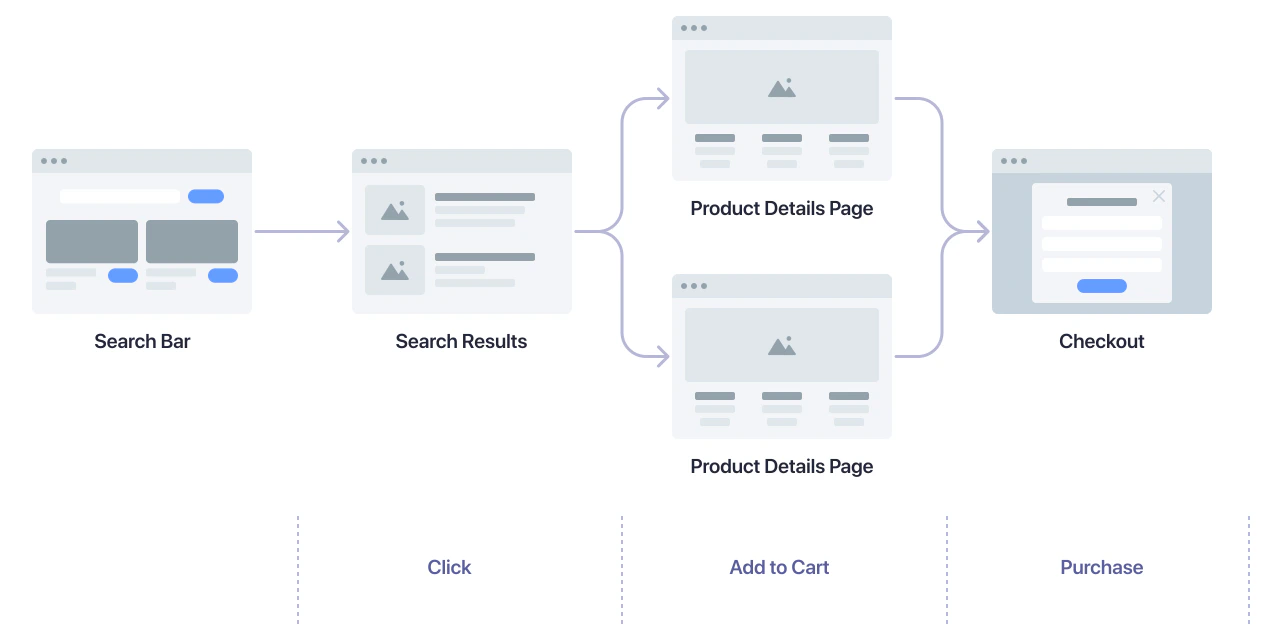 Starting with a search on any of your pages, a user might take the following actions:
1. Select a product from the search results to open the product details page.
2. Add a product to the shopping cart.
3. Buy the product.
Starting with a search on any of your pages, a user might take the following actions:
1. Select a product from the search results to open the product details page.
2. Add a product to the shopping cart.
3. Buy the product.
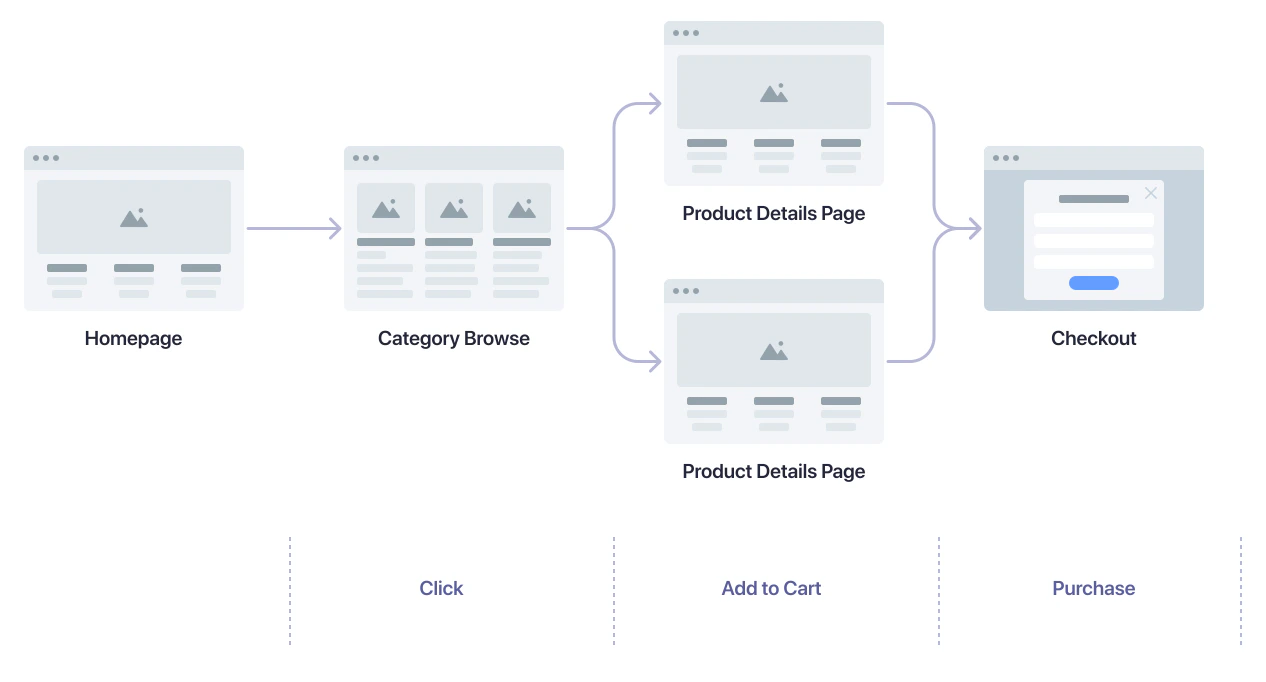 Starting with a visit to your homepage, a user might take the following actions:
1. Select a product category to open a category (product listing) page.
2. Select a product to open a product details page.
3. Add a product to the shopping cart.
4. Buy the product.
Starting with a visit to your homepage, a user might take the following actions:
1. Select a product category to open a category (product listing) page.
2. Select a product to open a product details page.
3. Add a product to the shopping cart.
4. Buy the product.
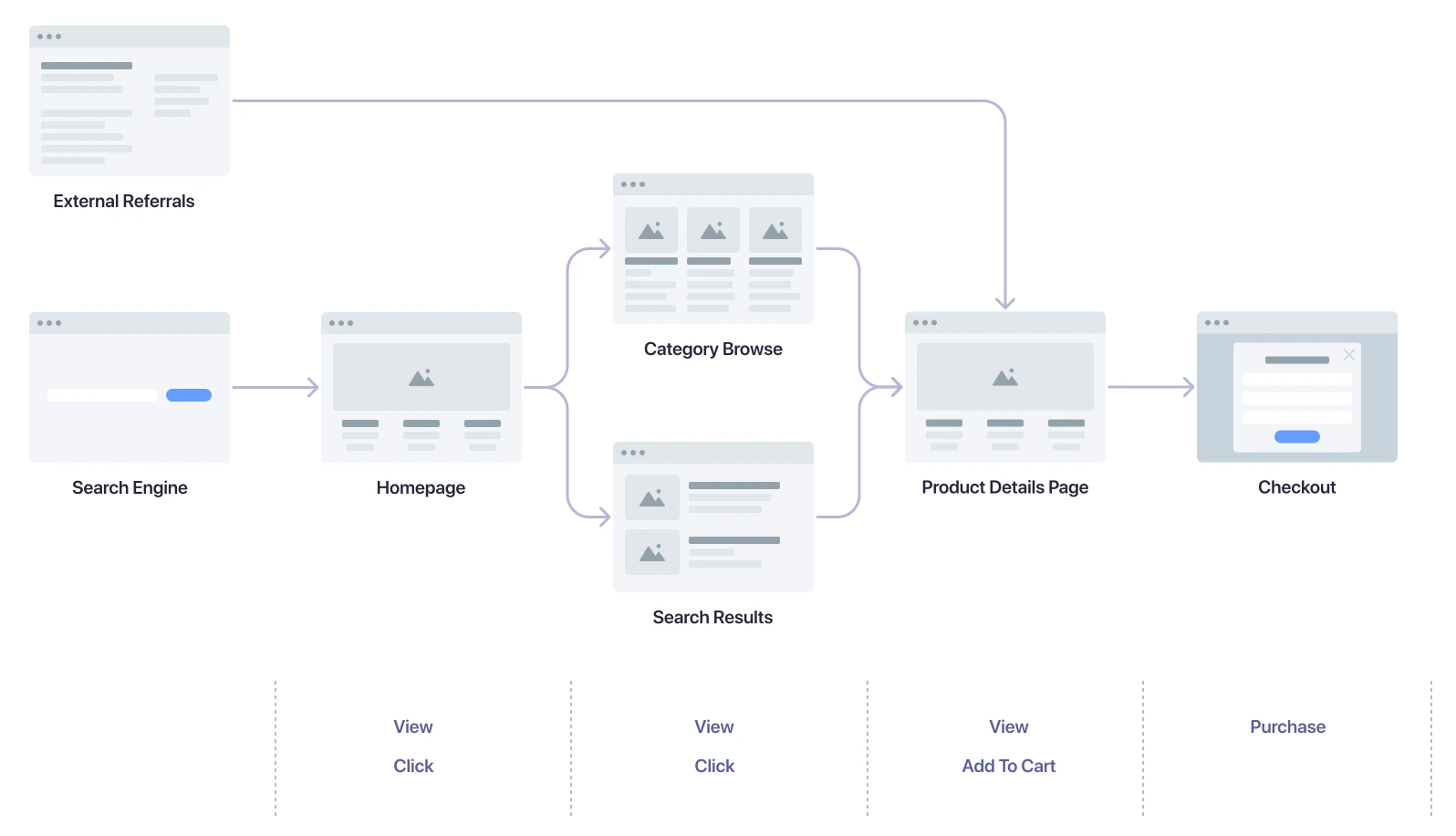 Starting with a search on an internet search engine, with a click on a recommendation, or any other external referral, a user might take the following actions:
1. Click on a (internet) search result, recommendation, or other link to your website.
2. Depending on where the user lands on your website, they continue the same path as if they started with your homepage or with a category page.
#### Search and search results pages
| User action | Method name |
| ---------------------------------- | -------------------------------------------------------------------------------------------------------- |
| User clicks search result | [`clickedObjectIDsAfterSearch`](/doc/libraries/search-insights/clicked-object-ids-after-search) |
| User adds product to shopping cart | [`addedToCartObjectIDsAfterSearch`](/doc/libraries/sdk/v1/methods/added-to-cart-object-ids-after-search) |
| User clicks categories/filters | [`clickedFilters`](/doc/libraries/sdk/v1/methods/clicked-filters) |
| User views search results | [`viewedObjectIDs`](/doc/libraries/sdk/v1/methods/viewed-object-ids) |
#### Product listing and category pages
| User action | Method name |
| ---------------------------------- | -------------------------------------------------------------------------------------------------------- |
| User clicks product | [`clickedObjectIDsAfterSearch`](/doc/libraries/search-insights/clicked-object-ids-after-search) |
| User adds product to shopping cart | [`addedToCartObjectIDsAfterSearch`](/doc/libraries/sdk/v1/methods/added-to-cart-object-ids-after-search) |
| User views category page | [`viewedObjectIDs`](/doc/libraries/sdk/v1/methods/viewed-object-ids) |
#### Product details page
| User action | Method name |
| ------------------------- | -------------------------------------------------------------------------------------------------------- |
| User adds product to cart | [`addedToCartObjectIDsAfterSearch`](/doc/libraries/sdk/v1/methods/added-to-cart-object-ids-after-search) |
| User views product | [`viewedObjectIDs`](/doc/libraries/sdk/v1/methods/viewed-object-ids) |
#### Checkout page
| User action | Method name |
| ----------------- | -------------------------------------------------------------------------------------------------- |
| User buys product | [`purchasedObjectIDsAfterSearch`](/doc/libraries/sdk/v1/methods/purchased-object-ids-after-search) |
## Track query IDs across pages
Conversion events often happen outside the search results page.
* A query ID is returned by the when a user performs a search.
* To associate a conversion with the correct , save this query ID and include it in your conversion events.
* To link conversion events back to the originating search request on your search results or category pages, [track query IDs across your pages](/doc/guides/sending-events/guides/queryid).
## Track click events
To send click events with the Insights client, add the following code
whenever a user clicks on a product.
```js JavaScript icon=code theme={"system"}
aa("clickedObjectIDs", {
index: "YourIndexName",
eventName: "Product Clicked",
objectIDs: ["objectID-1"],
});
```
If you want to track clicks on search results pages, add the following code whenever a user clicks on a product.
```js JavaScript icon=code theme={"system"}
aa("clickedObjectIDsAfterSearch", {
index: "YourIndexName",
queryID: "YourQueryID", // From the search response
eventName: "Product Clicked",
objectIDs: ["objectID-1"],
positions: [1],
});
```
* The `objectID` is included in the search response for each search result as part of the [`hits`](/doc/rest-api/search/search-single-index#response-hits) attribute.
* The `positions` array of the [`clickedObjectIdsAfterSearch`](/doc/libraries/search-insights/clicked-object-ids-after-search) method contains the one-based index of the product hit in the search results.
## Track add-to-cart events
Add the following code to all components and pages where users can add products to their shopping cart.
```js JavaScript icon=code theme={"system"}
aa("addedToCartObjectIDsAfterSearch", {
eventName: "Product Added To Cart",
index: "YourIndexName",
objectIDs: ["objectID-1"],
objectData: [
{
queryID: "queryID-1",
price: 19.99,
discount: 3.99,
quantity: 3,
},
],
currency: "USD",
});
```
* The `objectID` is included in the search response for each search result as part of the `hits` attribute.
Store the query ID with other product details when updating a user's shopping cart.
This helps you record query IDs for each item for any following purchase events.
## Track purchase events
To record when a user completes a purchase,
add the following code:
```js JavaScript icon=code theme={"system"}
aa("purchasedObjectIDsAfterSearch", {
eventName: "Products Purchased",
index: "YourIndexName",
objectIDs: ["objectID-1", "objectID-2"],
objectData: [
{
queryID: "queryID-1",
price: 19.99,
discount: 3.99,
quantity: 3,
},
{
queryID: "queryID-2",
price: 59.99,
quantity: 2,
},
],
currency: "USD",
});
```
Use `objectData` to record per-object data, such as the price and quantity of the purchased products.
Users often purchase items that were added to the cart in response to different queries.
For example, a user might search for "shoes" and add a pair of shoes to their cart.
Then, they search for "lamp" and add a lamp to their cart. Then, they check out and complete the purchase of both items.
In this case, there would be a single purchase event.
Each item—the shoes and the lamp—will have the query ID of
the search they originated from.
When purchases contain items from multiple indices, some Algolia features might not work as expected.
Check [Events Health](/doc/guides/sending-events/guides/validate#events-health) to review feature validity and the event sources configured for each feature.
## Optional: handle purchases across multiple indices
Handling purchases across multiple indices requires a tradeoff:
sending one event is simpler,
but splitting events by index provides more accurate analytics.
If possible, include all purchased products in the same .\
This lets you send one purchase event that accurately reflects the transaction.
If you must split a purchase into multiple events:
* Don't log the full value in each split purchase event. This inflates revenue and average order value.
* Include only the specific items and their value in each event. This prevents double-counting, but analytics is more fragmented.
## Optional: identify known users for Personalization
For effective [personalization](/doc/guides/personalization/classic-personalization/what-is-personalization),
identify users across sessions.
It's best to use an identifier from your authentication system after users sign in.
After getting the identifier from your system,
set it as the `authenticatedUserToken` parameter.
```js JavaScript icon="code" theme={"system"}
// Get a unique, pseudonymous identifier for signed-in users
const authenticatedUserToken = getUserTokenAfterSignIn();
window.aa("setAuthenticatedUserToken", authenticatedUserToken);
```
When you set the `authenticatedUserToken` parameter in the Insights client,
also update the user token you send with your search requests.
```js JavaScript icon="code" theme={"system"}
function getEffectiveUserToken() {
const userToken = window.aa("getUserToken");
const authenticatedUserToken = window.aa("getAuthenticatedUserToken");
return authenticatedUserToken || userToken;
}
index
.search("query", {
clickAnalytics: true,
userToken: getEffectiveUserToken(),
})
.then(({ queryID, hits }) => {
console.log(hits);
console.log(queryID);
});
```
If you can't get persistent user identifiers from your system,
you can store the anonymous user token in a cookie **after obtaining user consent**.
```js JavaScript icon="code" theme={"system"}
// If user consented
aa("init", {
partial: true,
useCookie: true,
});
```
For more on identity strategy and persistence,
see [User token](/doc/guides/sending-events/concepts/usertoken).
## Optional: send view events for Personalization
Personalization benefits from the same click and conversion events,
plus it can use view events to enrich each .
Use the following code snippet to track view events,
such as when a user views search results.
```js JavaScript icon="code" theme={"system"}
window.aa("viewedObjectIDs", {
index: "YourIndexName",
eventName: "Item Viewed",
objectIDs: ["objectID-1"],
});
```
You don't need to send a `queryID` when tracking view events.
Starting with a search on an internet search engine, with a click on a recommendation, or any other external referral, a user might take the following actions:
1. Click on a (internet) search result, recommendation, or other link to your website.
2. Depending on where the user lands on your website, they continue the same path as if they started with your homepage or with a category page.
#### Search and search results pages
| User action | Method name |
| ---------------------------------- | -------------------------------------------------------------------------------------------------------- |
| User clicks search result | [`clickedObjectIDsAfterSearch`](/doc/libraries/search-insights/clicked-object-ids-after-search) |
| User adds product to shopping cart | [`addedToCartObjectIDsAfterSearch`](/doc/libraries/sdk/v1/methods/added-to-cart-object-ids-after-search) |
| User clicks categories/filters | [`clickedFilters`](/doc/libraries/sdk/v1/methods/clicked-filters) |
| User views search results | [`viewedObjectIDs`](/doc/libraries/sdk/v1/methods/viewed-object-ids) |
#### Product listing and category pages
| User action | Method name |
| ---------------------------------- | -------------------------------------------------------------------------------------------------------- |
| User clicks product | [`clickedObjectIDsAfterSearch`](/doc/libraries/search-insights/clicked-object-ids-after-search) |
| User adds product to shopping cart | [`addedToCartObjectIDsAfterSearch`](/doc/libraries/sdk/v1/methods/added-to-cart-object-ids-after-search) |
| User views category page | [`viewedObjectIDs`](/doc/libraries/sdk/v1/methods/viewed-object-ids) |
#### Product details page
| User action | Method name |
| ------------------------- | -------------------------------------------------------------------------------------------------------- |
| User adds product to cart | [`addedToCartObjectIDsAfterSearch`](/doc/libraries/sdk/v1/methods/added-to-cart-object-ids-after-search) |
| User views product | [`viewedObjectIDs`](/doc/libraries/sdk/v1/methods/viewed-object-ids) |
#### Checkout page
| User action | Method name |
| ----------------- | -------------------------------------------------------------------------------------------------- |
| User buys product | [`purchasedObjectIDsAfterSearch`](/doc/libraries/sdk/v1/methods/purchased-object-ids-after-search) |
## Track query IDs across pages
Conversion events often happen outside the search results page.
* A query ID is returned by the when a user performs a search.
* To associate a conversion with the correct , save this query ID and include it in your conversion events.
* To link conversion events back to the originating search request on your search results or category pages, [track query IDs across your pages](/doc/guides/sending-events/guides/queryid).
## Track click events
To send click events with the Insights client, add the following code
whenever a user clicks on a product.
```js JavaScript icon=code theme={"system"}
aa("clickedObjectIDs", {
index: "YourIndexName",
eventName: "Product Clicked",
objectIDs: ["objectID-1"],
});
```
If you want to track clicks on search results pages, add the following code whenever a user clicks on a product.
```js JavaScript icon=code theme={"system"}
aa("clickedObjectIDsAfterSearch", {
index: "YourIndexName",
queryID: "YourQueryID", // From the search response
eventName: "Product Clicked",
objectIDs: ["objectID-1"],
positions: [1],
});
```
* The `objectID` is included in the search response for each search result as part of the [`hits`](/doc/rest-api/search/search-single-index#response-hits) attribute.
* The `positions` array of the [`clickedObjectIdsAfterSearch`](/doc/libraries/search-insights/clicked-object-ids-after-search) method contains the one-based index of the product hit in the search results.
## Track add-to-cart events
Add the following code to all components and pages where users can add products to their shopping cart.
```js JavaScript icon=code theme={"system"}
aa("addedToCartObjectIDsAfterSearch", {
eventName: "Product Added To Cart",
index: "YourIndexName",
objectIDs: ["objectID-1"],
objectData: [
{
queryID: "queryID-1",
price: 19.99,
discount: 3.99,
quantity: 3,
},
],
currency: "USD",
});
```
* The `objectID` is included in the search response for each search result as part of the `hits` attribute.
Store the query ID with other product details when updating a user's shopping cart.
This helps you record query IDs for each item for any following purchase events.
## Track purchase events
To record when a user completes a purchase,
add the following code:
```js JavaScript icon=code theme={"system"}
aa("purchasedObjectIDsAfterSearch", {
eventName: "Products Purchased",
index: "YourIndexName",
objectIDs: ["objectID-1", "objectID-2"],
objectData: [
{
queryID: "queryID-1",
price: 19.99,
discount: 3.99,
quantity: 3,
},
{
queryID: "queryID-2",
price: 59.99,
quantity: 2,
},
],
currency: "USD",
});
```
Use `objectData` to record per-object data, such as the price and quantity of the purchased products.
Users often purchase items that were added to the cart in response to different queries.
For example, a user might search for "shoes" and add a pair of shoes to their cart.
Then, they search for "lamp" and add a lamp to their cart. Then, they check out and complete the purchase of both items.
In this case, there would be a single purchase event.
Each item—the shoes and the lamp—will have the query ID of
the search they originated from.
When purchases contain items from multiple indices, some Algolia features might not work as expected.
Check [Events Health](/doc/guides/sending-events/guides/validate#events-health) to review feature validity and the event sources configured for each feature.
## Optional: handle purchases across multiple indices
Handling purchases across multiple indices requires a tradeoff:
sending one event is simpler,
but splitting events by index provides more accurate analytics.
If possible, include all purchased products in the same .\
This lets you send one purchase event that accurately reflects the transaction.
If you must split a purchase into multiple events:
* Don't log the full value in each split purchase event. This inflates revenue and average order value.
* Include only the specific items and their value in each event. This prevents double-counting, but analytics is more fragmented.
## Optional: identify known users for Personalization
For effective [personalization](/doc/guides/personalization/classic-personalization/what-is-personalization),
identify users across sessions.
It's best to use an identifier from your authentication system after users sign in.
After getting the identifier from your system,
set it as the `authenticatedUserToken` parameter.
```js JavaScript icon="code" theme={"system"}
// Get a unique, pseudonymous identifier for signed-in users
const authenticatedUserToken = getUserTokenAfterSignIn();
window.aa("setAuthenticatedUserToken", authenticatedUserToken);
```
When you set the `authenticatedUserToken` parameter in the Insights client,
also update the user token you send with your search requests.
```js JavaScript icon="code" theme={"system"}
function getEffectiveUserToken() {
const userToken = window.aa("getUserToken");
const authenticatedUserToken = window.aa("getAuthenticatedUserToken");
return authenticatedUserToken || userToken;
}
index
.search("query", {
clickAnalytics: true,
userToken: getEffectiveUserToken(),
})
.then(({ queryID, hits }) => {
console.log(hits);
console.log(queryID);
});
```
If you can't get persistent user identifiers from your system,
you can store the anonymous user token in a cookie **after obtaining user consent**.
```js JavaScript icon="code" theme={"system"}
// If user consented
aa("init", {
partial: true,
useCookie: true,
});
```
For more on identity strategy and persistence,
see [User token](/doc/guides/sending-events/concepts/usertoken).
## Optional: send view events for Personalization
Personalization benefits from the same click and conversion events,
plus it can use view events to enrich each .
Use the following code snippet to track view events,
such as when a user views search results.
```js JavaScript icon="code" theme={"system"}
window.aa("viewedObjectIDs", {
index: "YourIndexName",
eventName: "Item Viewed",
objectIDs: ["objectID-1"],
});
```
You don't need to send a `queryID` when tracking view events.