> ## Documentation Index
> Fetch the complete documentation index at: https://algolia.com/llms.txt
> Use this file to discover all available pages before exploring further.
# Send media events
> Collect user interactions as events on your media website using search-insights.js
export const UserProfile = () =>
user profile
;
export const SearchRequest = () =>
search request
;
export const SearchQuery = () =>
search query
;
This page shows media-specific click and conversion patterns when you send events manually with [`search-insights`](/doc/libraries/search-insights).
For the concepts behind event tracking,
see [Click and conversion events](/doc/guides/sending-events).
For other implementation paths,
see [Choose how to send events](/doc/guides/sending-events/getting-started).
## Set up event collection
Before sending events manually,
make sure your search requests return `queryID` and your frontend can call [`search-insights`](/doc/libraries/search-insights).
Set the [`clickAnalytics`](/doc/api-reference/api-parameters/clickAnalytics?client=javascript) parameter to `true` when making search requests.
This includes the [`queryID`](/doc/guides/sending-events/concepts/event-types#events-related-and-unrelated-to-algolia-requests) parameter in the search response,
which links search-related events to the originating search request.
```js JavaScript icon="code" highlight={7} theme={"system"}
const algoliasearch = require("algoliasearch");
const client = algoliasearch(
"ALGOLIA_APPLICATION_ID",
"ALGOLIA_SEARCH_API_KEY",
);
const index = client.initIndex("YourIndexName");
index
.search("query test", { clickAnalytics: true })
.then(({ queryID, hits }) => {
console.log(hits);
console.log(queryID);
});
```
Install the [`search-insights`](/doc/libraries/search-insights) library.
```html HTML icon=code-xml theme={"system"}
```
```sh NPM theme={"system"}
npm install search-insights
```
After installing [`search-insights`](/doc/libraries/search-insights),
initialize the client in your website.
```js JavaScript icon="code" theme={"system"}
import aa from "search-insights";
aa("init", {
appId: "ALGOLIA_APPLICATION_ID",
apiKey: "ALGOLIA_SEARCH_API_KEY",
});
```
For more on tracking `queryID` and `userToken`,
see [Keep track of query IDs](/doc/guides/sending-events/guides/queryid)
and [User token](/doc/guides/sending-events/concepts/usertoken).
## Map your media journey to events
Map the steps users take through your website and send events for the actions that matter to your media experience,
such as watching a video,
reading an article,
or liking a page.
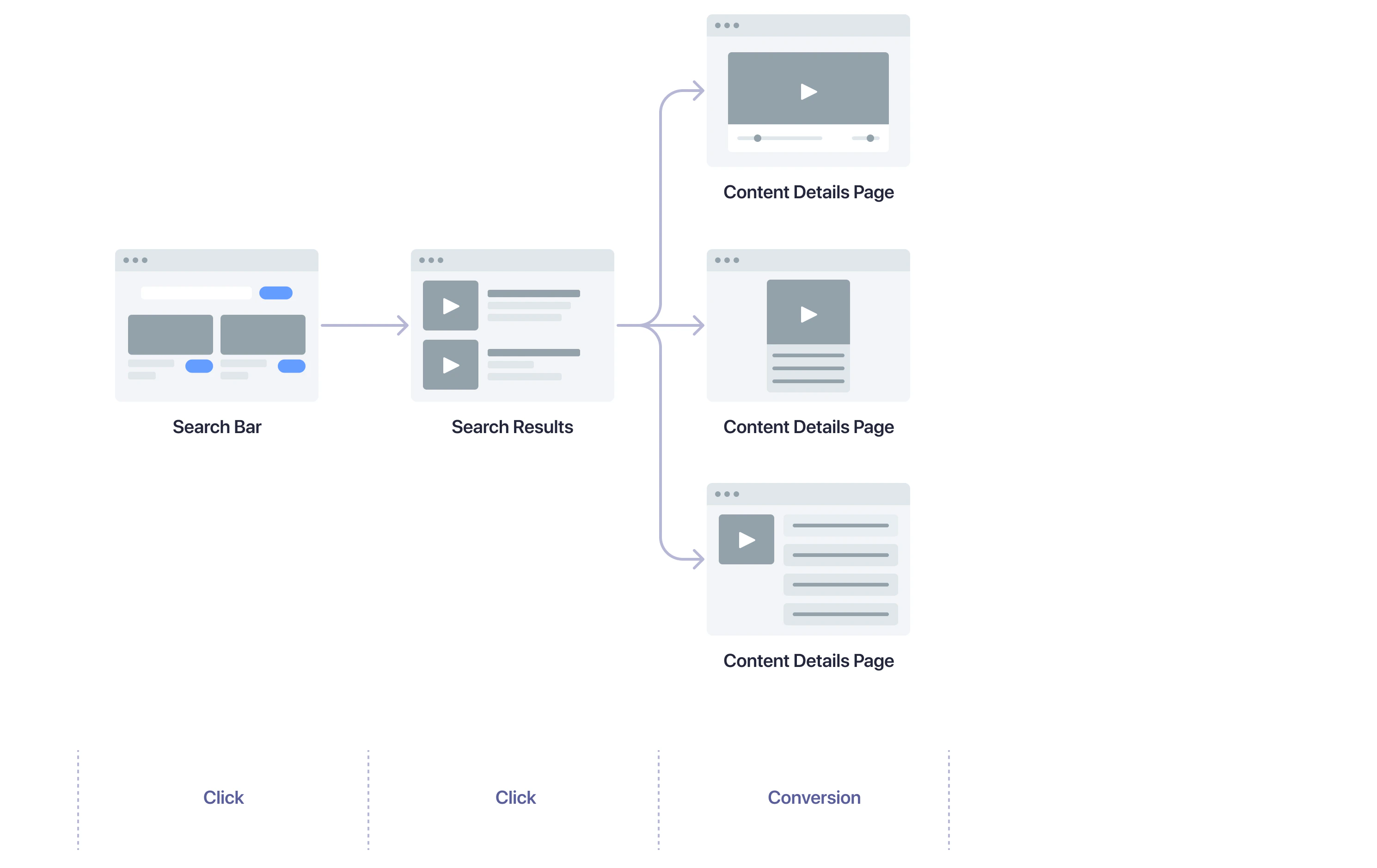 Starting with a search on any of your pages, a user might take the following actions:
1. Select content from the search results to open the content details page.
2. Consume content, such as watching a video, reading an article, or listening to an audio track.
3. Interact with content, such as liking, subscribing, or following.
Starting with a search on any of your pages, a user might take the following actions:
1. Select content from the search results to open the content details page.
2. Consume content, such as watching a video, reading an article, or listening to an audio track.
3. Interact with content, such as liking, subscribing, or following.
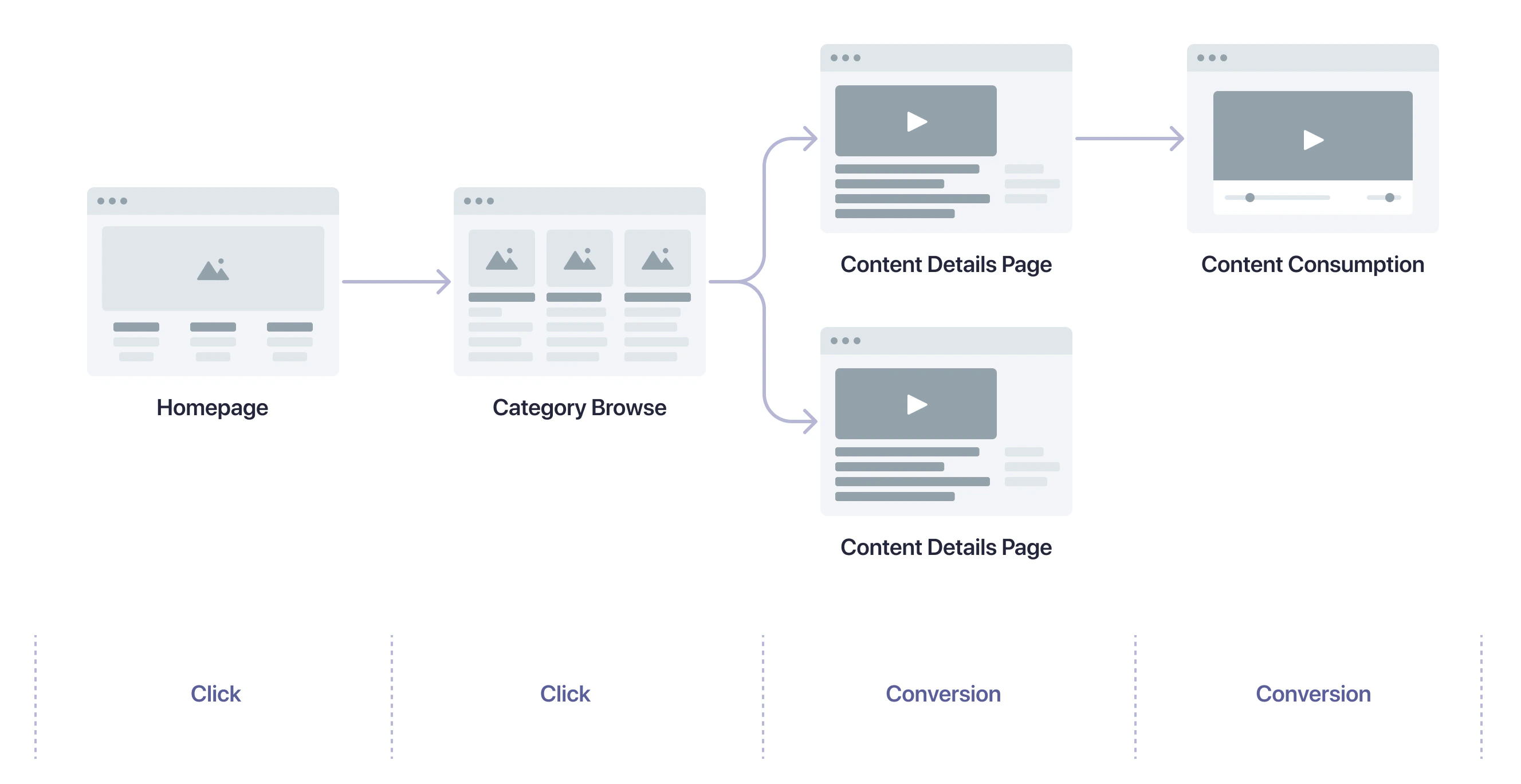 Starting with a visit to your homepage or to a category page, a user might take the following actions:
1. Select a content category to open a category page.
2. Select content displayed on the page to open the content details page.
3. Consume content, such as watching a video, reading an article, or listening to an audio track.
4. Interact with content, such as liking, subscribing, or following.
Starting with a visit to your homepage or to a category page, a user might take the following actions:
1. Select a content category to open a category page.
2. Select content displayed on the page to open the content details page.
3. Consume content, such as watching a video, reading an article, or listening to an audio track.
4. Interact with content, such as liking, subscribing, or following.
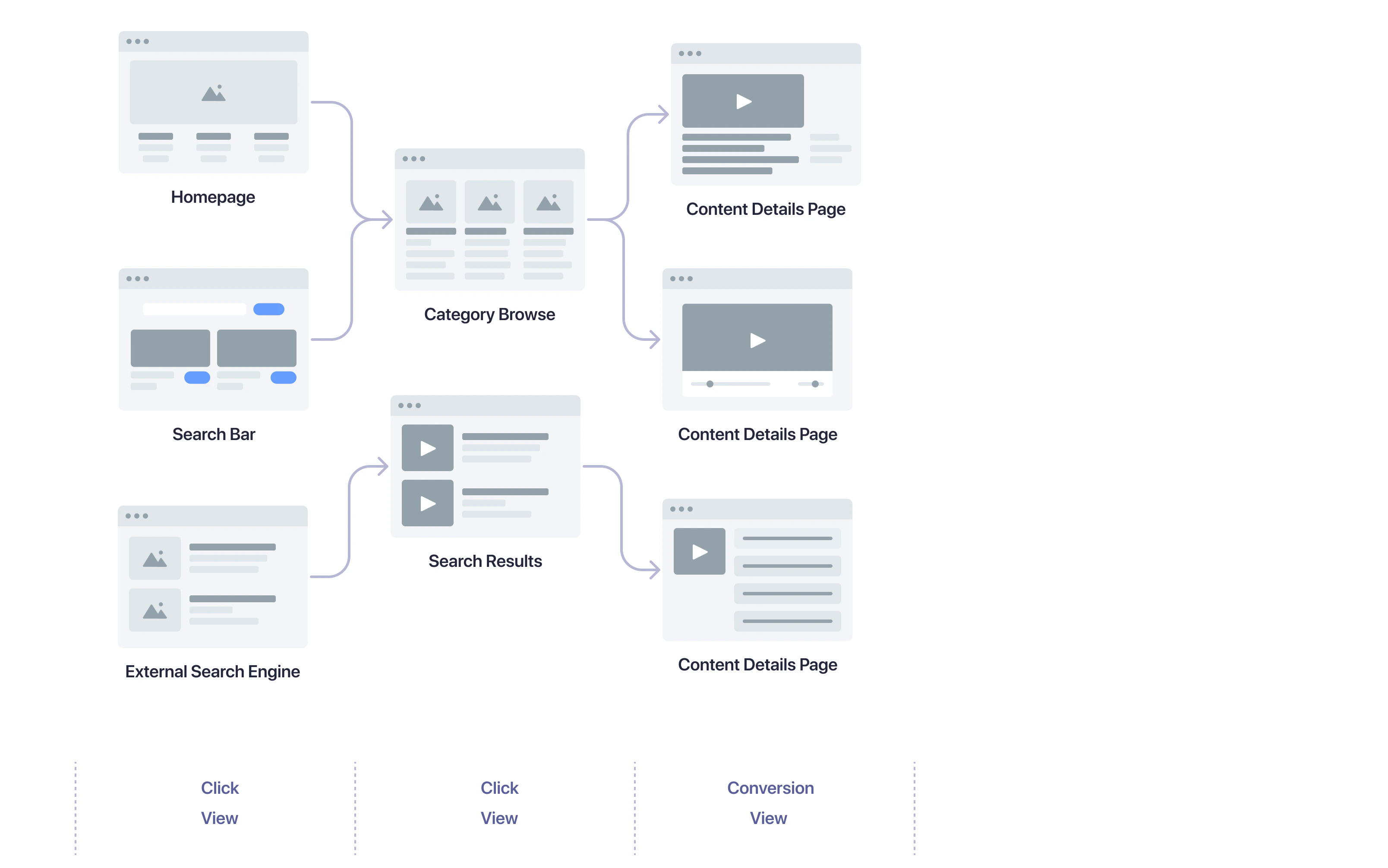 Starting with a search on an internet search engine, with a click on a recommendation, or any other external referral, a user might take the following actions:
1. Click on a (internet) search result, recommendation, or other link to your website.
2. Depending on where the user lands on your website, they continue the same path as if they started with your homepage or with a category page.
#### Search and search results pages
| User action | Method name |
| ------------------------------ | ------------------------------------------------------------------------------------------------ |
| User clicks search result | [`clickedObjectIDsAfterSearch`](/doc/libraries/search-insights/clicked-object-ids-after-search)) |
| User clicks categories/filters | [`clickedFilters`](/doc/libraries/sdk/v1/methods/clicked-filters) |
| User views search results | [`viewedObjectIDs`](/doc/libraries/sdk/v1/methods/viewed-object-ids) |
#### Browse/category page
| User action | Method name |
| ------------------- | ------------------------------------------------------------------------------------------------ |
| User clicks content | [`clickedObjectIDsAfterSearch`](/doc/libraries/search-insights/clicked-object-ids-after-search)) |
| User views content | [`viewedObjectIDs`](/doc/libraries/sdk/v1/methods/viewed-object-ids) |
#### Content details page
| User action | Method name |
| ------------------ | -------------------------------------------------------------------- |
| User views content | [`viewedObjectIDs`](/doc/libraries/sdk/v1/methods/viewed-object-ids) |
## Track query IDs across pages
Conversion events often happen outside the search results page.
* A query ID is returned by the when a user performs a search.
* To associate a conversion with the correct , save this query ID and include it in your conversion events.
* To link conversion events back to the originating search request on your search results or category pages, [track query IDs across your pages](/doc/guides/sending-events/guides/queryid).
## Track media click events
Click events capture when users indicate they want to view
specific pieces of content. Add the following code to track a user navigating to
a piece of content from a search results page:
```js JavaScript icon=code theme={"system"}
window.aa("clickedObjectIDsAfterSearch", {
index: "YourIndexName",
eventName: "Item Clicked",
// Fields from the search response.
queryID: "YourQueryID",
objectIDs: ["objectID-1"],
positions: [1],
});
```
The `queryID` parameter of the [`clickedObjectIDsAfterSearch`](/doc/libraries/search-insights/clicked-object-ids-after-search)) method is used by Algolia to relate the event to a prior search
or browse event.
The `objectIDs` parameter of the `clickedObjectIDsAfterSearch` method should contain the ID of the article.
This can be retrieved from the `objectID` field of the [`hits`](/doc/rest-api/search/search-single-index#response-hits) array returned from the search request.
The `positions` parameter of the `clickedObjectIDsAfterSearch` method indicates the position of the item in the search results.
For example, if the user clicked on the top result on the page, positions should be `[1]`.
If a user found a piece of content without performing a search—for example, they
browsed there from elsewhere on your site, add the following code to track that:
```js JavaScript icon=code theme={"system"}
window.aa("clickedObjectIDs", {
index: "YourIndexName",
eventName: "Item Clicked",
objectIDs: ["objectID-1"],
});
```
## Track media conversion events
An example of a conversion event that may be relevant to your media site:
```js JavaScript icon=code theme={"system"}
// A user reached the bottom of an article page
window.aa("convertedObjectIDsAfterSearch", {
eventName: "Article Read",
index: "YourIndexName",
queryID: "query-1",
objectIDs: ["objectID-1"],
});
```
The `window.aa` object is the API client for the Insights API and is globally available
if you enabled automatic events collection.
The `queryID` parameter of the [`convertedObjectIDsAfterSearch`](/doc/libraries/sdk/v1/methods/converted-object-ids-after-search) method is used by Algolia to relate the event to a prior search.
The `objectIDs` parameter of the `convertedObjectIDsAfterSearch` method indicates which items were part of the conversion.
The `objectID` parameter is included in the search response for each hit.
If the event isn't directly related to a search, for example, it's triggered on the homepage,
use the `convertedObjectIDs` method instead.
```js JavaScript icon=code theme={"system"}
// A user watched a video
window.aa("convertedObjectIDs", {
eventName: "Video Watched",
index: "YourIndexName",
objectIDs: ["objectID-1"],
});
```
Some other examples of conversion events are:
* `Article Bookmarked`: a user bookmarked an article.
* `Article Liked`: a user liked an article.
* `Article Recommended`: a user recommended an article.
* `Playlist Followed`: a user followed a playlist.
* `Author Followed`: a user followed an author.
* `Brand Followed`: a user followed a brand.
## Track more click events
For Algolia Recommend and Personalization, capture additional click events
when users select individual items:
* On your home page
* From recommendations
To send click events with the Insights client, add the following code
whenever a user clicks on an article—for example,
on your homepage.
```js JavaScript icon=code theme={"system"}
window.aa("clickedObjectIDs", {
index: "YourIndexName",
eventName: "Article Clicked",
objectIDs: ["objectID-1"],
});
```
## Optional: identify known users for Personalization
For effective [personalization](/doc/guides/personalization/classic-personalization/what-is-personalization),
identify users across sessions.
It's best to use an identifier from your authentication system after users sign in.
After getting the identifier from your system,
set it as the `authenticatedUserToken` parameter.
```js JavaScript icon="code" theme={"system"}
// Get a unique, pseudonymous identifier for signed-in users
const authenticatedUserToken = getUserTokenAfterSignIn();
window.aa("setAuthenticatedUserToken", authenticatedUserToken);
```
When you set the `authenticatedUserToken` parameter in the Insights client,
also update the user token you send with your search requests.
```js JavaScript icon="code" theme={"system"}
function getEffectiveUserToken() {
const userToken = window.aa("getUserToken");
const authenticatedUserToken = window.aa("getAuthenticatedUserToken");
return authenticatedUserToken || userToken;
}
index
.search("query", {
clickAnalytics: true,
userToken: getEffectiveUserToken(),
})
.then(({ queryID, hits }) => {
console.log(hits);
console.log(queryID);
});
```
If you can't get persistent user identifiers from your system,
you can store the anonymous user token in a cookie **after obtaining user consent**.
```js JavaScript icon="code" theme={"system"}
// If user consented
aa("init", {
partial: true,
useCookie: true,
});
```
For more on identity strategy and persistence,
see [User token](/doc/guides/sending-events/concepts/usertoken).
## Optional: send view events for Personalization
Personalization benefits from the same click and conversion events,
plus it can use view events to enrich each .
Use the following code snippet to track view events,
such as when a user views search results.
```js JavaScript icon="code" theme={"system"}
window.aa("viewedObjectIDs", {
index: "YourIndexName",
eventName: "Item Viewed",
objectIDs: ["objectID-1"],
});
```
You don't need to send a `queryID` when tracking view events.
Starting with a search on an internet search engine, with a click on a recommendation, or any other external referral, a user might take the following actions:
1. Click on a (internet) search result, recommendation, or other link to your website.
2. Depending on where the user lands on your website, they continue the same path as if they started with your homepage or with a category page.
#### Search and search results pages
| User action | Method name |
| ------------------------------ | ------------------------------------------------------------------------------------------------ |
| User clicks search result | [`clickedObjectIDsAfterSearch`](/doc/libraries/search-insights/clicked-object-ids-after-search)) |
| User clicks categories/filters | [`clickedFilters`](/doc/libraries/sdk/v1/methods/clicked-filters) |
| User views search results | [`viewedObjectIDs`](/doc/libraries/sdk/v1/methods/viewed-object-ids) |
#### Browse/category page
| User action | Method name |
| ------------------- | ------------------------------------------------------------------------------------------------ |
| User clicks content | [`clickedObjectIDsAfterSearch`](/doc/libraries/search-insights/clicked-object-ids-after-search)) |
| User views content | [`viewedObjectIDs`](/doc/libraries/sdk/v1/methods/viewed-object-ids) |
#### Content details page
| User action | Method name |
| ------------------ | -------------------------------------------------------------------- |
| User views content | [`viewedObjectIDs`](/doc/libraries/sdk/v1/methods/viewed-object-ids) |
## Track query IDs across pages
Conversion events often happen outside the search results page.
* A query ID is returned by the when a user performs a search.
* To associate a conversion with the correct , save this query ID and include it in your conversion events.
* To link conversion events back to the originating search request on your search results or category pages, [track query IDs across your pages](/doc/guides/sending-events/guides/queryid).
## Track media click events
Click events capture when users indicate they want to view
specific pieces of content. Add the following code to track a user navigating to
a piece of content from a search results page:
```js JavaScript icon=code theme={"system"}
window.aa("clickedObjectIDsAfterSearch", {
index: "YourIndexName",
eventName: "Item Clicked",
// Fields from the search response.
queryID: "YourQueryID",
objectIDs: ["objectID-1"],
positions: [1],
});
```
The `queryID` parameter of the [`clickedObjectIDsAfterSearch`](/doc/libraries/search-insights/clicked-object-ids-after-search)) method is used by Algolia to relate the event to a prior search
or browse event.
The `objectIDs` parameter of the `clickedObjectIDsAfterSearch` method should contain the ID of the article.
This can be retrieved from the `objectID` field of the [`hits`](/doc/rest-api/search/search-single-index#response-hits) array returned from the search request.
The `positions` parameter of the `clickedObjectIDsAfterSearch` method indicates the position of the item in the search results.
For example, if the user clicked on the top result on the page, positions should be `[1]`.
If a user found a piece of content without performing a search—for example, they
browsed there from elsewhere on your site, add the following code to track that:
```js JavaScript icon=code theme={"system"}
window.aa("clickedObjectIDs", {
index: "YourIndexName",
eventName: "Item Clicked",
objectIDs: ["objectID-1"],
});
```
## Track media conversion events
An example of a conversion event that may be relevant to your media site:
```js JavaScript icon=code theme={"system"}
// A user reached the bottom of an article page
window.aa("convertedObjectIDsAfterSearch", {
eventName: "Article Read",
index: "YourIndexName",
queryID: "query-1",
objectIDs: ["objectID-1"],
});
```
The `window.aa` object is the API client for the Insights API and is globally available
if you enabled automatic events collection.
The `queryID` parameter of the [`convertedObjectIDsAfterSearch`](/doc/libraries/sdk/v1/methods/converted-object-ids-after-search) method is used by Algolia to relate the event to a prior search.
The `objectIDs` parameter of the `convertedObjectIDsAfterSearch` method indicates which items were part of the conversion.
The `objectID` parameter is included in the search response for each hit.
If the event isn't directly related to a search, for example, it's triggered on the homepage,
use the `convertedObjectIDs` method instead.
```js JavaScript icon=code theme={"system"}
// A user watched a video
window.aa("convertedObjectIDs", {
eventName: "Video Watched",
index: "YourIndexName",
objectIDs: ["objectID-1"],
});
```
Some other examples of conversion events are:
* `Article Bookmarked`: a user bookmarked an article.
* `Article Liked`: a user liked an article.
* `Article Recommended`: a user recommended an article.
* `Playlist Followed`: a user followed a playlist.
* `Author Followed`: a user followed an author.
* `Brand Followed`: a user followed a brand.
## Track more click events
For Algolia Recommend and Personalization, capture additional click events
when users select individual items:
* On your home page
* From recommendations
To send click events with the Insights client, add the following code
whenever a user clicks on an article—for example,
on your homepage.
```js JavaScript icon=code theme={"system"}
window.aa("clickedObjectIDs", {
index: "YourIndexName",
eventName: "Article Clicked",
objectIDs: ["objectID-1"],
});
```
## Optional: identify known users for Personalization
For effective [personalization](/doc/guides/personalization/classic-personalization/what-is-personalization),
identify users across sessions.
It's best to use an identifier from your authentication system after users sign in.
After getting the identifier from your system,
set it as the `authenticatedUserToken` parameter.
```js JavaScript icon="code" theme={"system"}
// Get a unique, pseudonymous identifier for signed-in users
const authenticatedUserToken = getUserTokenAfterSignIn();
window.aa("setAuthenticatedUserToken", authenticatedUserToken);
```
When you set the `authenticatedUserToken` parameter in the Insights client,
also update the user token you send with your search requests.
```js JavaScript icon="code" theme={"system"}
function getEffectiveUserToken() {
const userToken = window.aa("getUserToken");
const authenticatedUserToken = window.aa("getAuthenticatedUserToken");
return authenticatedUserToken || userToken;
}
index
.search("query", {
clickAnalytics: true,
userToken: getEffectiveUserToken(),
})
.then(({ queryID, hits }) => {
console.log(hits);
console.log(queryID);
});
```
If you can't get persistent user identifiers from your system,
you can store the anonymous user token in a cookie **after obtaining user consent**.
```js JavaScript icon="code" theme={"system"}
// If user consented
aa("init", {
partial: true,
useCookie: true,
});
```
For more on identity strategy and persistence,
see [User token](/doc/guides/sending-events/concepts/usertoken).
## Optional: send view events for Personalization
Personalization benefits from the same click and conversion events,
plus it can use view events to enrich each .
Use the following code snippet to track view events,
such as when a user views search results.
```js JavaScript icon="code" theme={"system"}
window.aa("viewedObjectIDs", {
index: "YourIndexName",
eventName: "Item Viewed",
objectIDs: ["objectID-1"],
});
```
You don't need to send a `queryID` when tracking view events.