{{name}}
{{description}}
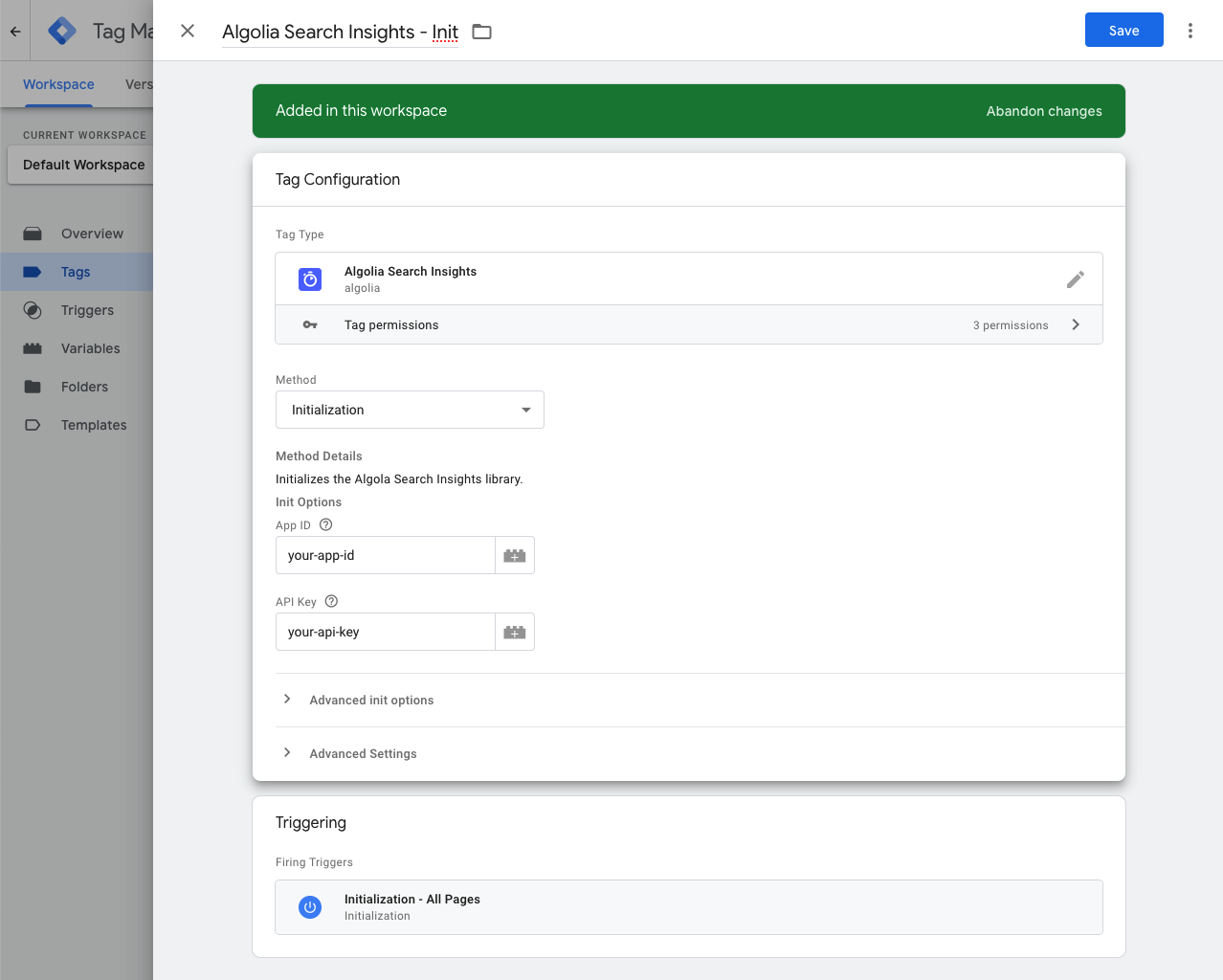
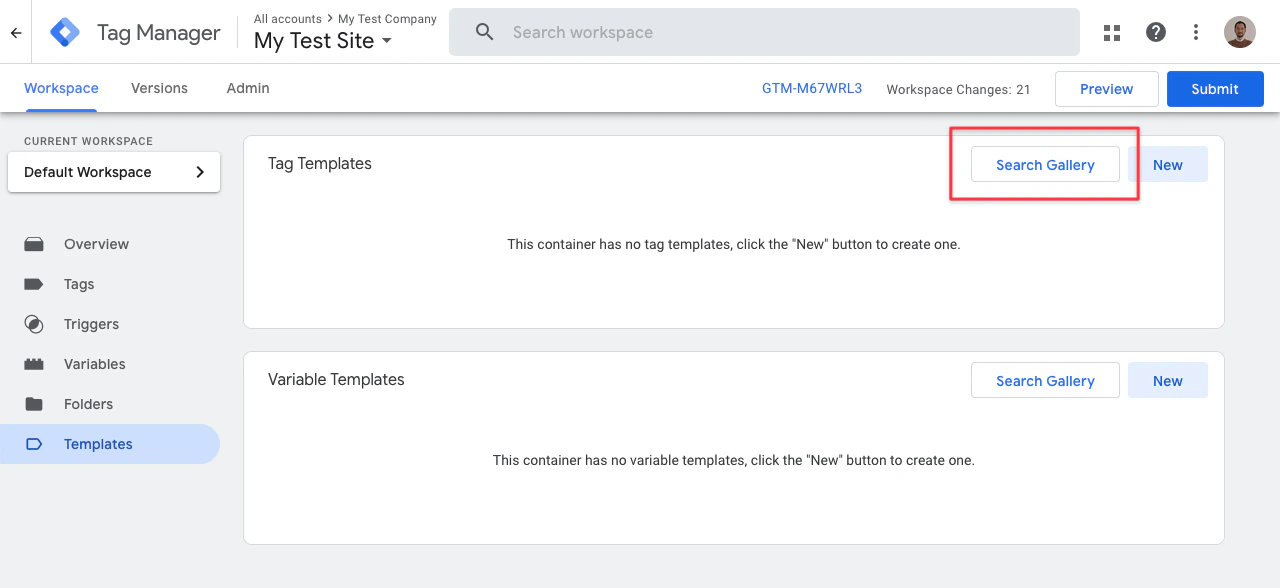 2. Search for the Algolia Search Insights template (by Algolia).
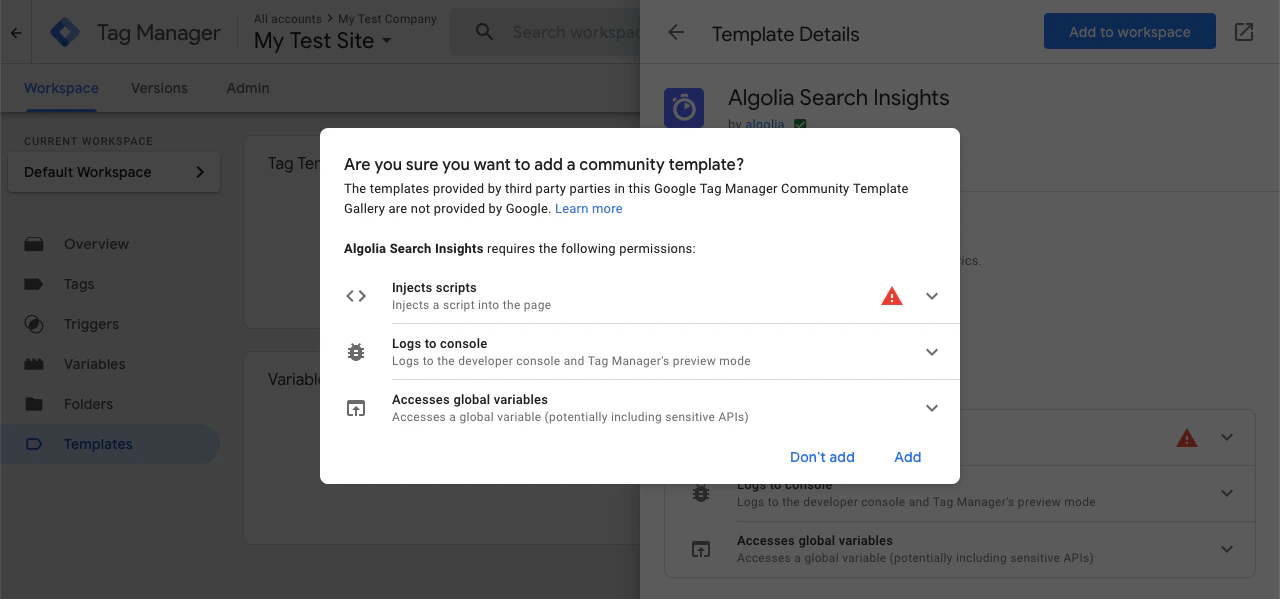
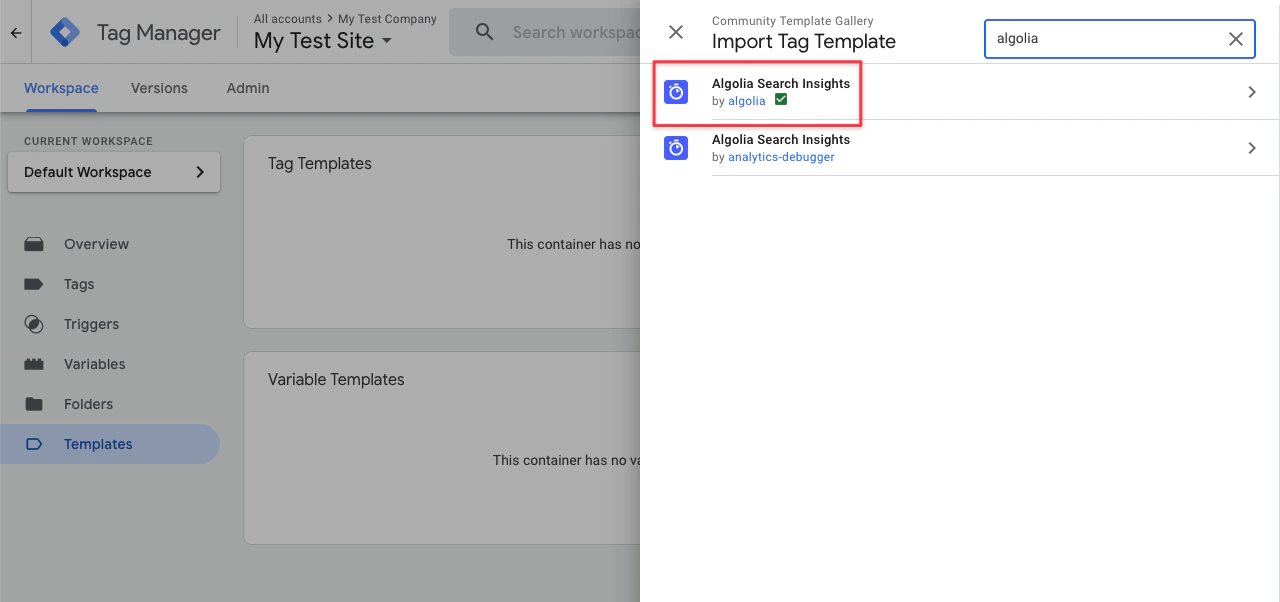 3. Click **Add to workspace** and confirm by clicking **Add**.
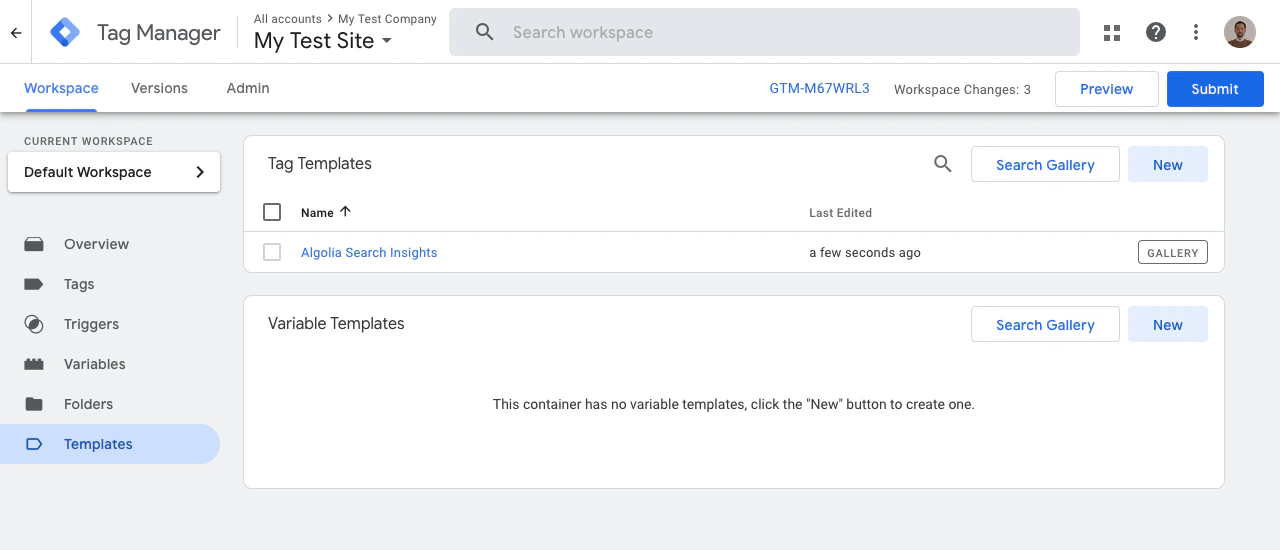
 4. On the **Tag Templates** page, you should now see the **Algolia Search Insights** template:
 ## Add variables
[Variables](https://support.google.com/tagmanager/answer/7683056?hl=en) are named placeholders for values that are populated when code is run on your website or app.
### Built-in variables
First, add the built-in variable **Click Element**.
This variable is associated with the data from your click events.
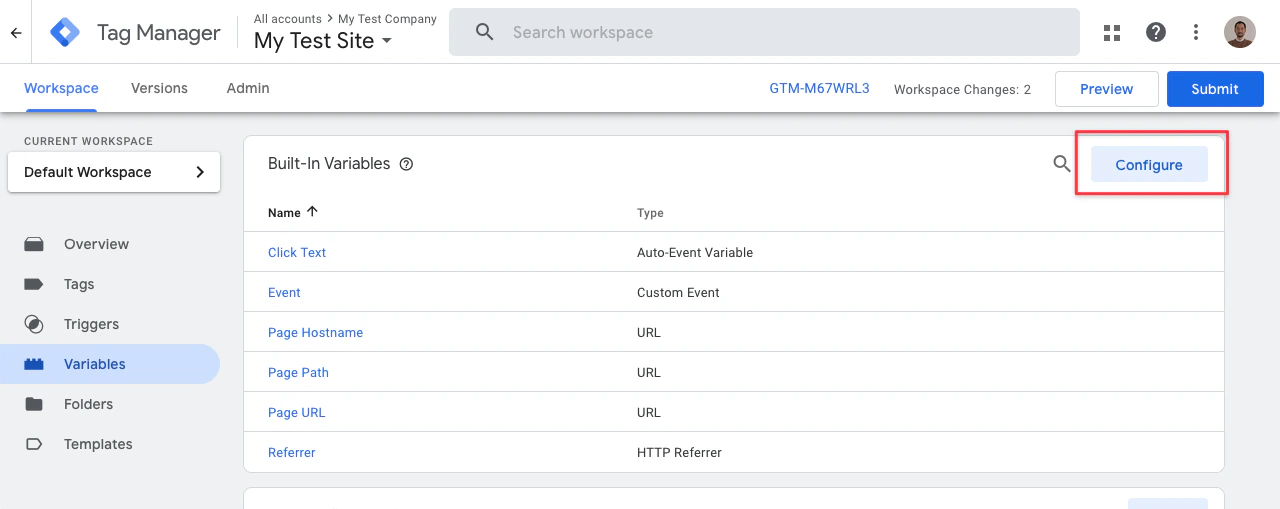
1. In the **Variables** section of your GTM workspace, click **Configure**.
## Add variables
[Variables](https://support.google.com/tagmanager/answer/7683056?hl=en) are named placeholders for values that are populated when code is run on your website or app.
### Built-in variables
First, add the built-in variable **Click Element**.
This variable is associated with the data from your click events.
1. In the **Variables** section of your GTM workspace, click **Configure**.
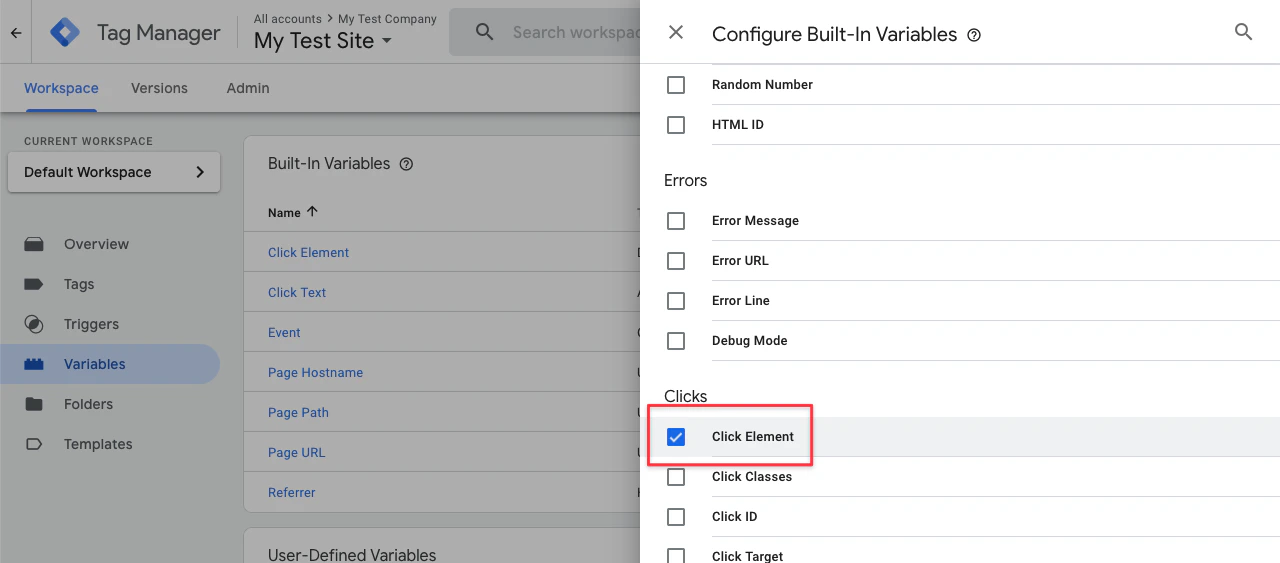
 2. In the **Configure Built-In Variables** dialog, select **Click Element**.
 ### Algolia Insights User Token
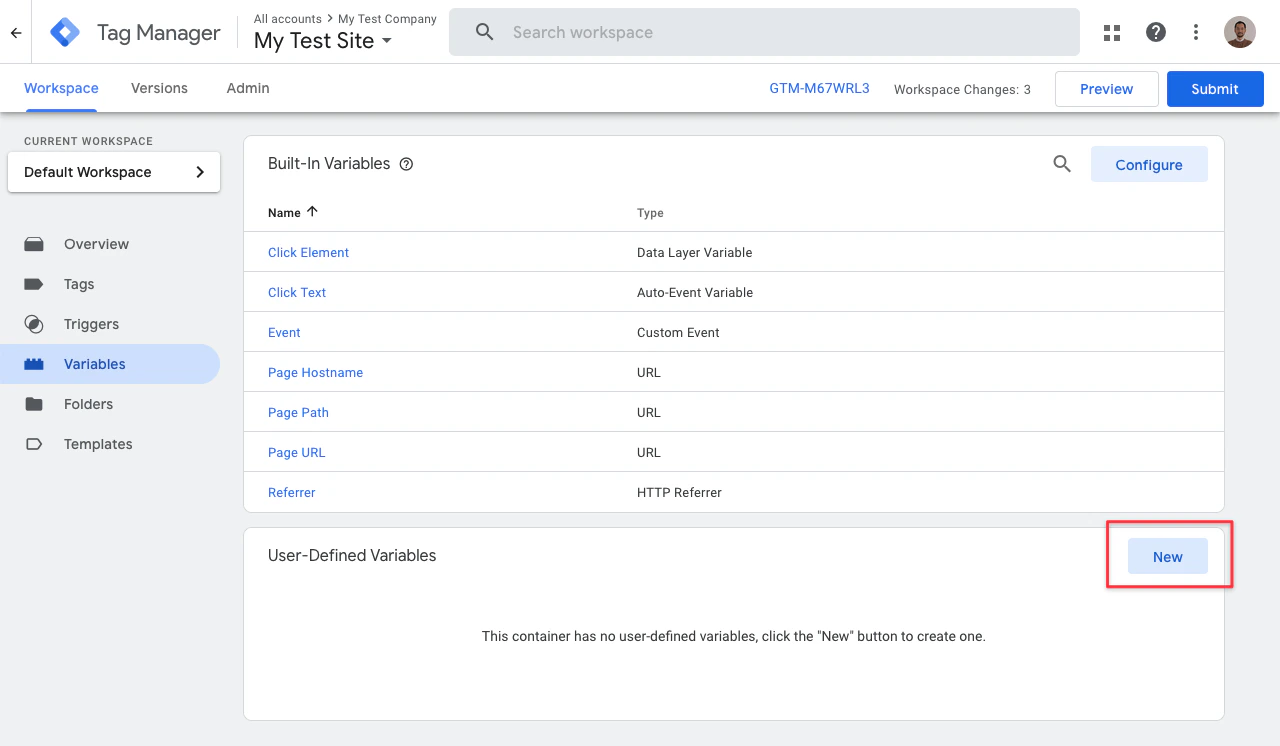
1. In the **Variables** section of your GTM workspace, go to the **User-Defined Variables** section and click **New**.
### Algolia Insights User Token
1. In the **Variables** section of your GTM workspace, go to the **User-Defined Variables** section and click **New**.
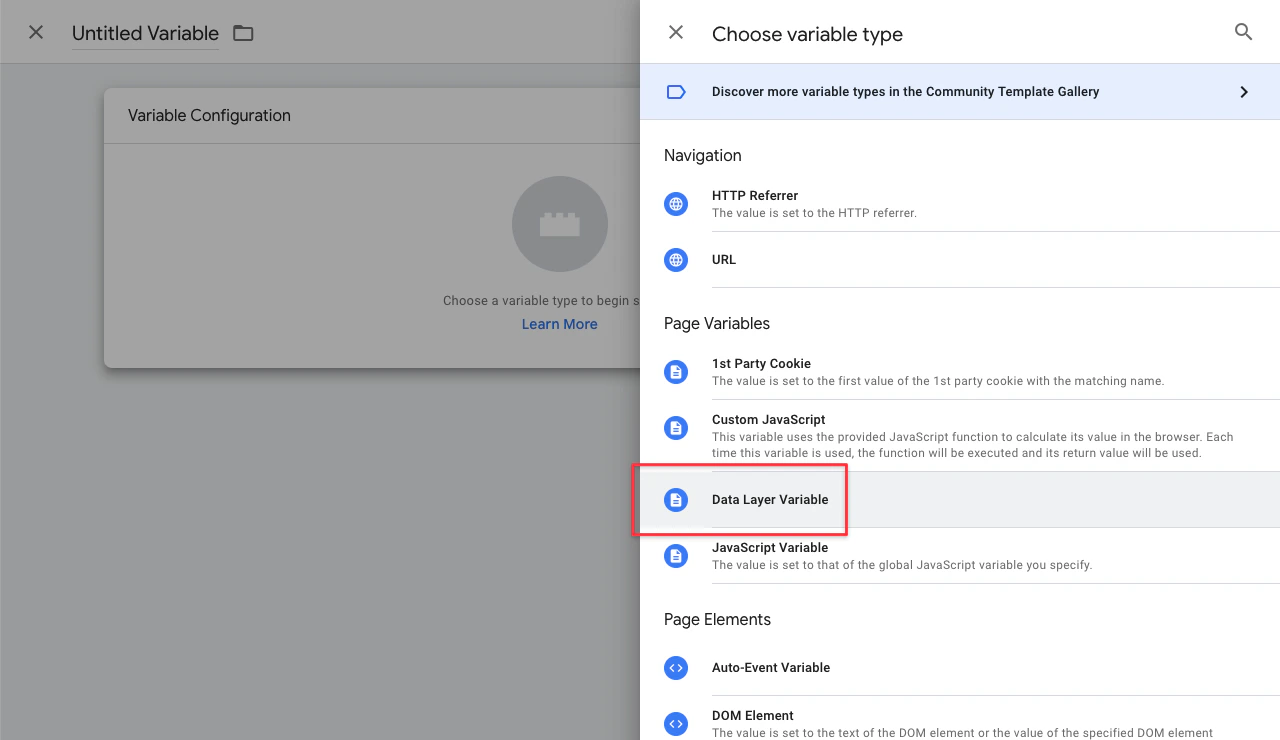
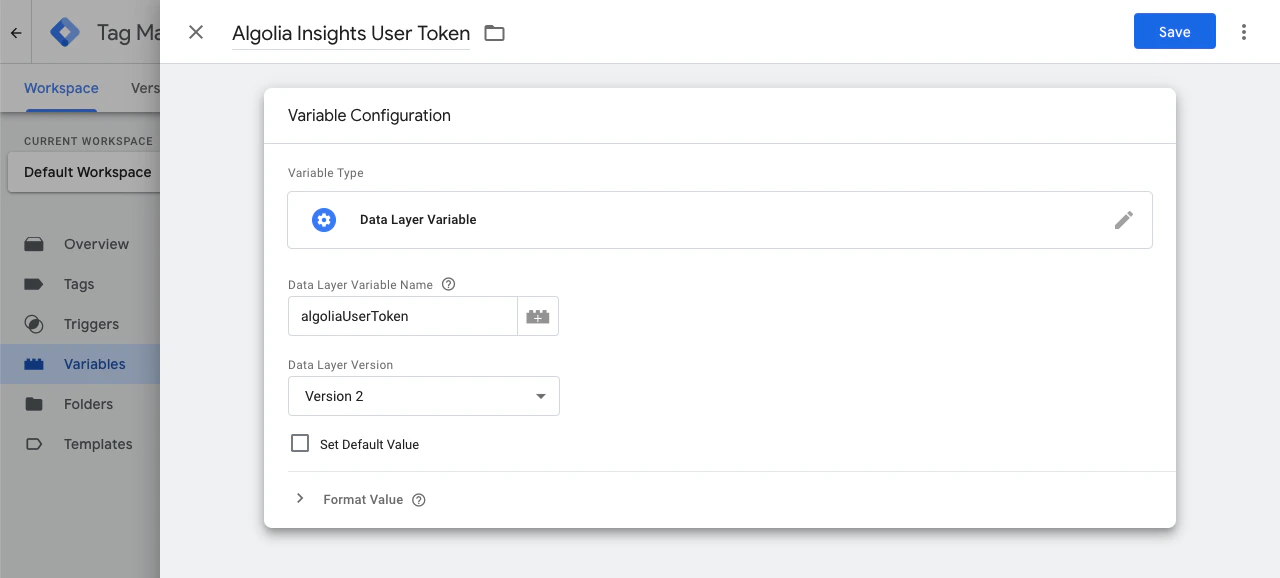
 2. Select **Data Layer Variable**.
 3. Enter `Algolia Insights User Token` as the variable name and `algoliaUserToken` as the data layer variable name.
 ### Algolia Get Data Attributes
1. In the **Variables** section of your GTM workspace, go to the **User-Defined Variables** section and click **New**.
2. Select **Custom JavaScript**.
### Algolia Get Data Attributes
1. In the **Variables** section of your GTM workspace, go to the **User-Defined Variables** section and click **New**.
2. Select **Custom JavaScript**.
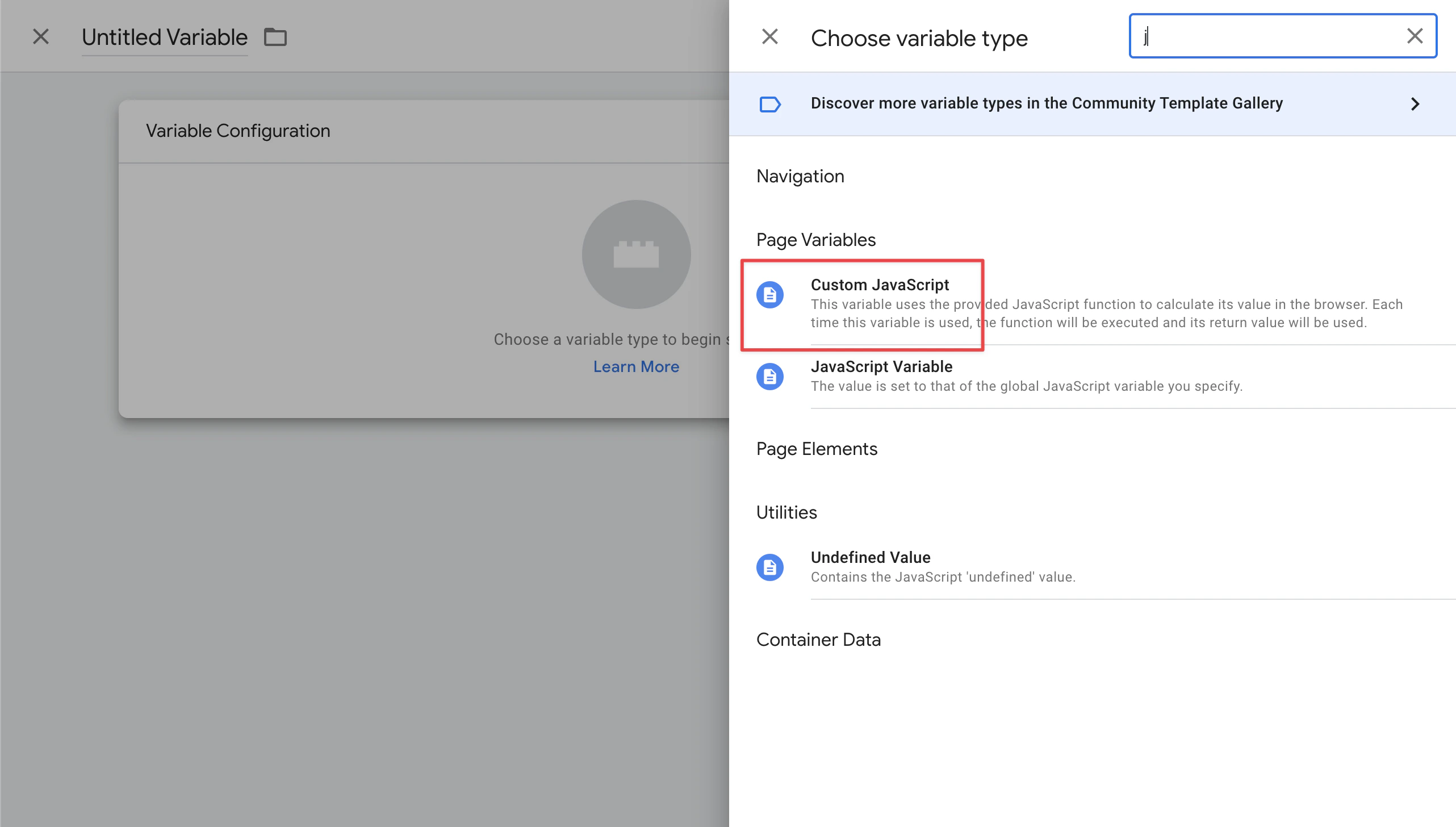 3. Enter `Algolia Get Data Attributes` as variable name and add the following JavaScript code:
```js JavaScript icon=code theme={"system"}
function() {
function findClosest(target, selector) {
while (!target.matches(selector) && !target.matches('body')) {
target = target.parentElement;
}
return target.matches(selector) ? target : undefined;
}
return function (attributeName, containerQuerySelector) {
var clickedElement = {{Click Element}};
// Search for the selector's children
var elements = clickedElement
? [findClosest(clickedElement, '[' + attributeName +']')]
: Array.from(document.querySelectorAll((containerQuerySelector || '') + ' [' + attributeName + ']')).filter(Boolean);
// See if it matches the container itself.
// For example, `#app[data-insights-index]`
if (elements.length === 0 && containerQuerySelector) {
elements = Array.from(document.querySelectorAll(containerQuerySelector + '[' + attributeName + ']')).filter(Boolean);
}
var attributes = elements.map(function (element) {
return element.getAttribute(attributeName);
});
return attributes;
}
}
```
### Algolia Insights index
1. [Add a new user-defined variable](#algolia-get-data-attributes).
2. Enter `Algolia Insights Index` as variable name and add the following JavaScript code:
```js JavaScript icon=code theme={"system"}
function() {
return {{Algolia Get Data Attributes}}('data-insights-index')[0];
}
```
When searching multiple indices, you must specify which
3. Enter `Algolia Get Data Attributes` as variable name and add the following JavaScript code:
```js JavaScript icon=code theme={"system"}
function() {
function findClosest(target, selector) {
while (!target.matches(selector) && !target.matches('body')) {
target = target.parentElement;
}
return target.matches(selector) ? target : undefined;
}
return function (attributeName, containerQuerySelector) {
var clickedElement = {{Click Element}};
// Search for the selector's children
var elements = clickedElement
? [findClosest(clickedElement, '[' + attributeName +']')]
: Array.from(document.querySelectorAll((containerQuerySelector || '') + ' [' + attributeName + ']')).filter(Boolean);
// See if it matches the container itself.
// For example, `#app[data-insights-index]`
if (elements.length === 0 && containerQuerySelector) {
elements = Array.from(document.querySelectorAll(containerQuerySelector + '[' + attributeName + ']')).filter(Boolean);
}
var attributes = elements.map(function (element) {
return element.getAttribute(attributeName);
});
return attributes;
}
}
```
### Algolia Insights index
1. [Add a new user-defined variable](#algolia-get-data-attributes).
2. Enter `Algolia Insights Index` as variable name and add the following JavaScript code:
```js JavaScript icon=code theme={"system"}
function() {
return {{Algolia Get Data Attributes}}('data-insights-index')[0];
}
```
When searching multiple indices, you must specify which 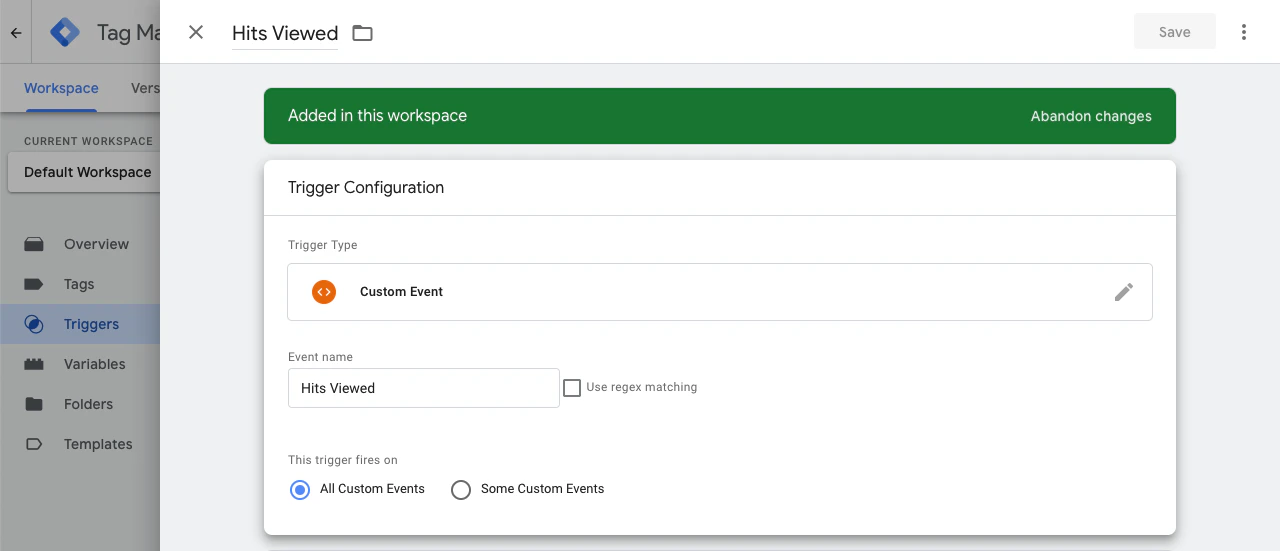 Select the following values for the corresponding fields:
* Trigger name: `Hits Viewed`
* Trigger type: `Custom Event`
* Event name: `Hits Viewed`
### Customize triggers for click events
Click or conversion events come from user actions,
such as clicks on DOM elements.
Consider this template:
```html HTML icon=code-xml theme={"system"}
Select the following values for the corresponding fields:
* Trigger name: `Hits Viewed`
* Trigger type: `Custom Event`
* Event name: `Hits Viewed`
### Customize triggers for click events
Click or conversion events come from user actions,
such as clicks on DOM elements.
Consider this template:
```html HTML icon=code-xml theme={"system"}
{{description}}
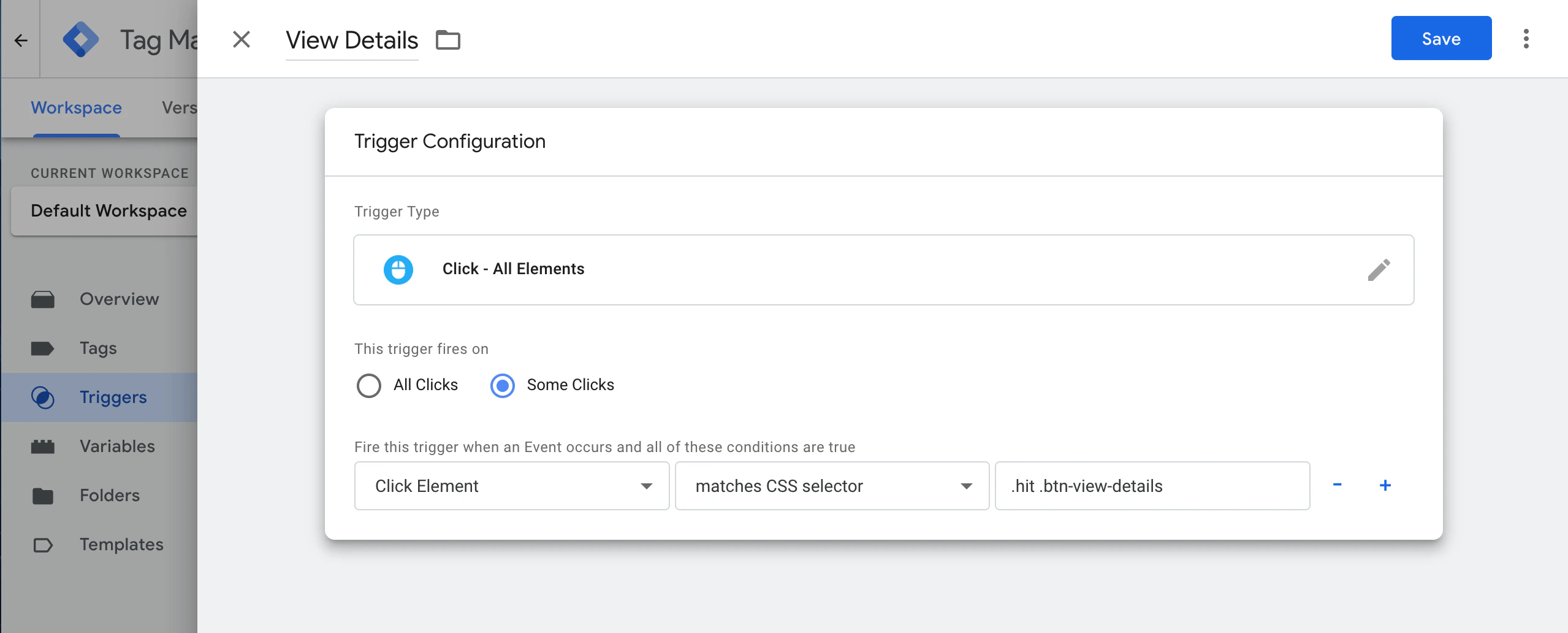
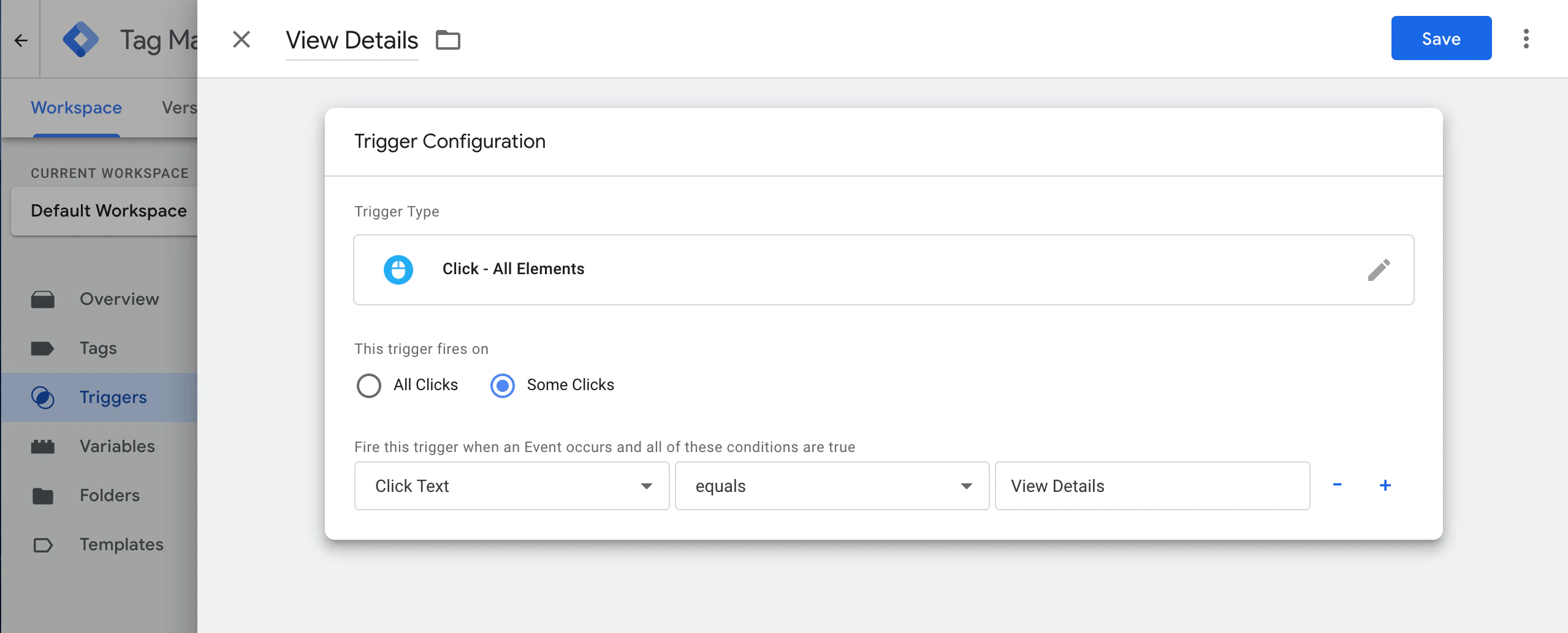 You can also configure the trigger to fire when the click target matches a CSS selector:
 ### Customize triggers for filters
To track clicked filters, create a trigger that matches the CSS selector of your filter elements.
Consider this template:
```html HTML icon=code-xml theme={"system"}
### Customize triggers for filters
To track clicked filters, create a trigger that matches the CSS selector of your filter elements.
Consider this template:
```html HTML icon=code-xml theme={"system"}
 ### Set up view tags for objects
This tag sends a [view event](/doc/guides/sending-events/concepts/event-types) to the Algolia Insights API when search results are rendered.
It corresponds to the [`viewedObjectIDs`](/doc/libraries/sdk/v1/methods/viewed-object-ids) method.
### Set up view tags for objects
This tag sends a [view event](/doc/guides/sending-events/concepts/event-types) to the Algolia Insights API when search results are rendered.
It corresponds to the [`viewedObjectIDs`](/doc/libraries/sdk/v1/methods/viewed-object-ids) method.
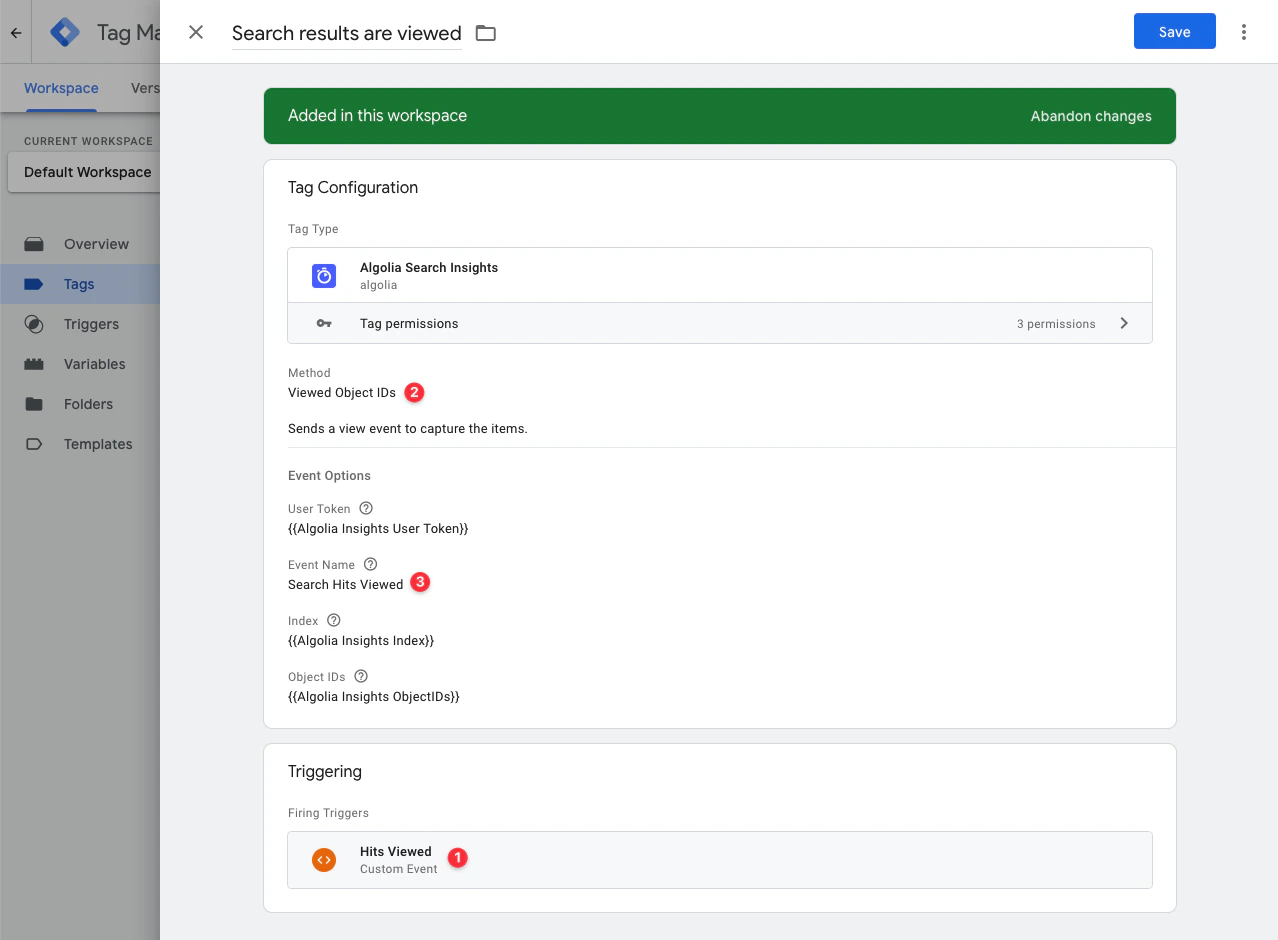 Attributes:
* Trigger: [`Hits Viewed`](#add-a-trigger-for-view-events)
* Tag type: `Algolia Search Insights`
* Tag method: `Viewed Object IDs`
* Event name: select any name for your events but [name your events consistently](https://segment.com/academy/collecting-data/naming-conventions-for-clean-data/).
### Set up view tags for filters
This tag sends a [view event](/doc/guides/sending-events/concepts/event-types) to the Algolia Insights API when a filter is applied to the search query.
It corresponds to the [`viewedFilters`](/doc/libraries/sdk/v1/methods/viewed-filters) method.
Attributes:
* Trigger: [`Hits Viewed`](#add-a-trigger-for-view-events)
* Tag type: `Algolia Search Insights`
* Tag method: `Viewed Filters`
* Filters: [`{{Algolia Insights Viewed Filters}}`](#algolia-insights-viewed-filters)
* Event name: select any name for your events but [name your events consistently](https://segment.com/academy/collecting-data/naming-conventions-for-clean-data/).
### Set up click tags for objects related to search
This tag sends a [click event](/doc/guides/sending-events/concepts/event-types) to capture a search query and the clicked items and their positions.
It corresponds to the [`clickedObjectIDsAfterSearch`](/doc/libraries/sdk/v1/methods/clicked-object-ids-after-search) method.
Attributes:
* Trigger: [`Hits Viewed`](#add-a-trigger-for-view-events)
* Tag type: `Algolia Search Insights`
* Tag method: `Viewed Object IDs`
* Event name: select any name for your events but [name your events consistently](https://segment.com/academy/collecting-data/naming-conventions-for-clean-data/).
### Set up view tags for filters
This tag sends a [view event](/doc/guides/sending-events/concepts/event-types) to the Algolia Insights API when a filter is applied to the search query.
It corresponds to the [`viewedFilters`](/doc/libraries/sdk/v1/methods/viewed-filters) method.
Attributes:
* Trigger: [`Hits Viewed`](#add-a-trigger-for-view-events)
* Tag type: `Algolia Search Insights`
* Tag method: `Viewed Filters`
* Filters: [`{{Algolia Insights Viewed Filters}}`](#algolia-insights-viewed-filters)
* Event name: select any name for your events but [name your events consistently](https://segment.com/academy/collecting-data/naming-conventions-for-clean-data/).
### Set up click tags for objects related to search
This tag sends a [click event](/doc/guides/sending-events/concepts/event-types) to capture a search query and the clicked items and their positions.
It corresponds to the [`clickedObjectIDsAfterSearch`](/doc/libraries/sdk/v1/methods/clicked-object-ids-after-search) method.
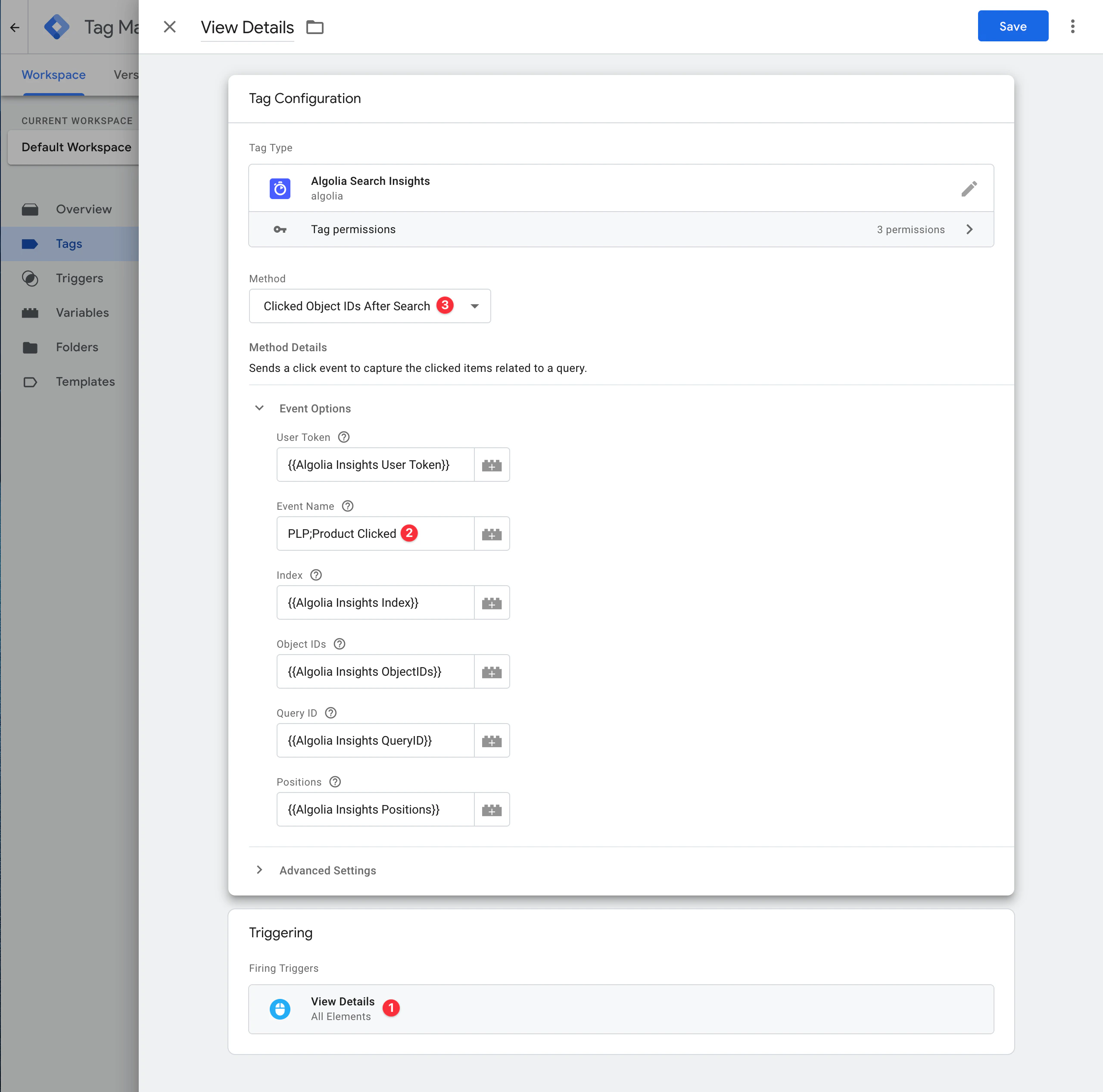 Attributes:
* Trigger: [`View Details`](#customize-triggers-for-click-events)
* Tag type: `Algolia Search Insights`
* Tag method: `Clicked Object IDs After Search`
### Set up click tags for objects
This tag sends a [click event](/doc/guides/sending-events/concepts/event-types) to the Insights API when users select an item from an Algolia index, regardless of the associated query.
This event can be useful on product detail pages or the shopping cart.
This tag corresponds to the [`clickedObjectIDs`](/doc/libraries/sdk/v1/methods/clicked-object-ids) method.
Attributes:
* Trigger: [`View Details`](#customize-triggers-for-click-events)
* Tag type: `Algolia Search Insights`
* Tag method: `Clicked Object IDs`
### Set up click tags for filters
This tag sends a [click event](/doc/guides/sending-events/concepts/event-types) to the Insights API to capture selected filters.
It accepts the [`{{Algolia Insights Clicked Filters}}`](#algolia-insights-clicked-filters) attribute and corresponds to the [`clickedFilters`](/doc/libraries/sdk/v1/methods/clicked-filters) method.
Attributes:
* Trigger: [`View Details`](#customize-triggers-for-filters)
* Tag type: `Algolia Search Insights`
* Tag method: `Clicked Filters`
### Set up conversion tags
The following tags send a [conversion event](/doc/guides/sending-events/concepts/event-types) to the Insights API:
* **Search-related objects**. Captures a search query and the converted items. It corresponds to the [`convertedObjectIDsAfterSearch`](/doc/libraries/sdk/v1/methods/converted-object-ids-after-search) method. Set up this tag like the related [click tag](#set-up-click-tags-for-objects-related-to-search).
* **Objects**. Captures items, regardless of the associated query. It corresponds to the [`convertedObjectIDs`](/doc/libraries/sdk/v1/methods/converted-object-ids) method. Set up this tag like the related [click tag](#set-up-click-tags-for-objects).
* **Filters**. Captures converted filters. It corresponds to the [`convertedFilters`](/doc/libraries/sdk/v1/methods/converted-filters) method. Set up this tag like the related [click tag](#set-up-click-tags-for-filters).
#### Track add-to-cart and purchase events
If you have an ecommerce website, use [conversion tags](/doc/guides/sending-events/connectors/google-tag-manager#set-up-conversion-tags) to track add-to-cart and purchase conversion events.
This enhances Algolia's AI and unlocks features such as revenue analytics.
Configure the additional **event subtype**, **value**, **currency**, and **object data** (**price**, **discount**, **quantity**) attributes for add-to-cart and purchase events.
To track purchases of multiple items that are associated with different searches, use the **Objects** tag and specify the **query ID** values within the **object data** attribute.
For example, if your object IDs list is `["product-1", "product-2"]`, then your object data list might look like:
```json JSON icon=braces theme={"system"}
[
{ "queryID": "query-1", "price": 10, "quantity": 1, "discount": 0 },
{ "queryID": "query-2", "price": 5, "quantity": 2, "discount": 15.5 }
]
```
## Submit your changes and debug your events
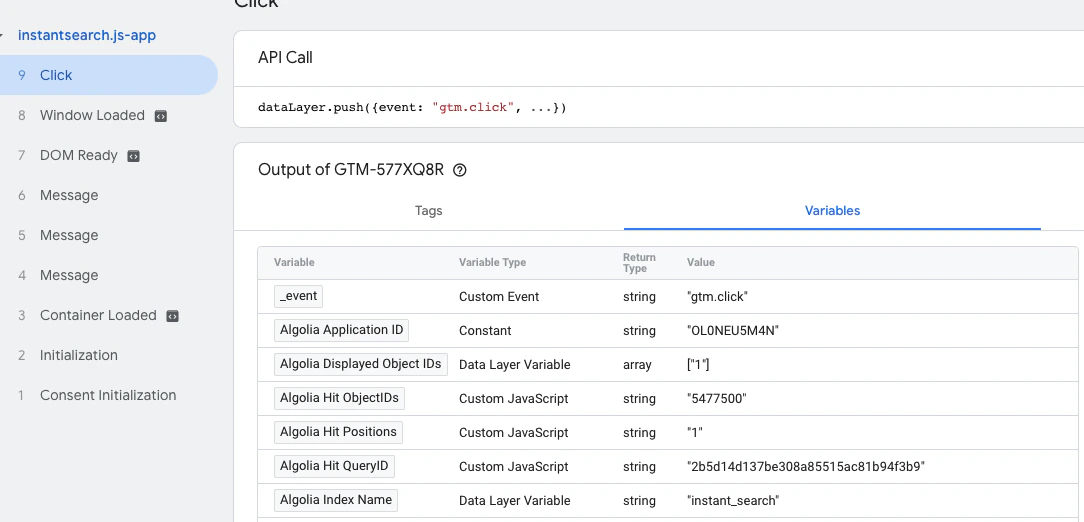
After setting up the variables, tags, and triggers, submit your changes.
To ensure all variables are set correctly, use [Google Tag Assistant](https://tagassistant.google.com/).
Attributes:
* Trigger: [`View Details`](#customize-triggers-for-click-events)
* Tag type: `Algolia Search Insights`
* Tag method: `Clicked Object IDs After Search`
### Set up click tags for objects
This tag sends a [click event](/doc/guides/sending-events/concepts/event-types) to the Insights API when users select an item from an Algolia index, regardless of the associated query.
This event can be useful on product detail pages or the shopping cart.
This tag corresponds to the [`clickedObjectIDs`](/doc/libraries/sdk/v1/methods/clicked-object-ids) method.
Attributes:
* Trigger: [`View Details`](#customize-triggers-for-click-events)
* Tag type: `Algolia Search Insights`
* Tag method: `Clicked Object IDs`
### Set up click tags for filters
This tag sends a [click event](/doc/guides/sending-events/concepts/event-types) to the Insights API to capture selected filters.
It accepts the [`{{Algolia Insights Clicked Filters}}`](#algolia-insights-clicked-filters) attribute and corresponds to the [`clickedFilters`](/doc/libraries/sdk/v1/methods/clicked-filters) method.
Attributes:
* Trigger: [`View Details`](#customize-triggers-for-filters)
* Tag type: `Algolia Search Insights`
* Tag method: `Clicked Filters`
### Set up conversion tags
The following tags send a [conversion event](/doc/guides/sending-events/concepts/event-types) to the Insights API:
* **Search-related objects**. Captures a search query and the converted items. It corresponds to the [`convertedObjectIDsAfterSearch`](/doc/libraries/sdk/v1/methods/converted-object-ids-after-search) method. Set up this tag like the related [click tag](#set-up-click-tags-for-objects-related-to-search).
* **Objects**. Captures items, regardless of the associated query. It corresponds to the [`convertedObjectIDs`](/doc/libraries/sdk/v1/methods/converted-object-ids) method. Set up this tag like the related [click tag](#set-up-click-tags-for-objects).
* **Filters**. Captures converted filters. It corresponds to the [`convertedFilters`](/doc/libraries/sdk/v1/methods/converted-filters) method. Set up this tag like the related [click tag](#set-up-click-tags-for-filters).
#### Track add-to-cart and purchase events
If you have an ecommerce website, use [conversion tags](/doc/guides/sending-events/connectors/google-tag-manager#set-up-conversion-tags) to track add-to-cart and purchase conversion events.
This enhances Algolia's AI and unlocks features such as revenue analytics.
Configure the additional **event subtype**, **value**, **currency**, and **object data** (**price**, **discount**, **quantity**) attributes for add-to-cart and purchase events.
To track purchases of multiple items that are associated with different searches, use the **Objects** tag and specify the **query ID** values within the **object data** attribute.
For example, if your object IDs list is `["product-1", "product-2"]`, then your object data list might look like:
```json JSON icon=braces theme={"system"}
[
{ "queryID": "query-1", "price": 10, "quantity": 1, "discount": 0 },
{ "queryID": "query-2", "price": 5, "quantity": 2, "discount": 15.5 }
]
```
## Submit your changes and debug your events
After setting up the variables, tags, and triggers, submit your changes.
To ensure all variables are set correctly, use [Google Tag Assistant](https://tagassistant.google.com/).
 The next step is to [validate your events](/doc/guides/sending-events/guides/validate).