> ## Documentation Index
> Fetch the complete documentation index at: https://algolia.com/llms.txt
> Use this file to discover all available pages before exploring further.
# Segment
> Send events to the Algolia Insights API with Segment.
export const Application = () =>
application
;
If you're using Twilio Segment to track user interactions on your website or app,
you can set up Algolia as a destination to forward [click and conversion events](/doc/guides/sending-events).
Run and edit the Segment example in CodeSandbox.
Browse the source for the Segment example on GitHub.
To integrating Algolia with Segment:
1. Enable the Algolia destination in Segment.
2. Enable click analytics for your searches.
3. Identify users.
4. Augment your Segment events with Algolia-related data.
## Enable the Algolia destination in Segment
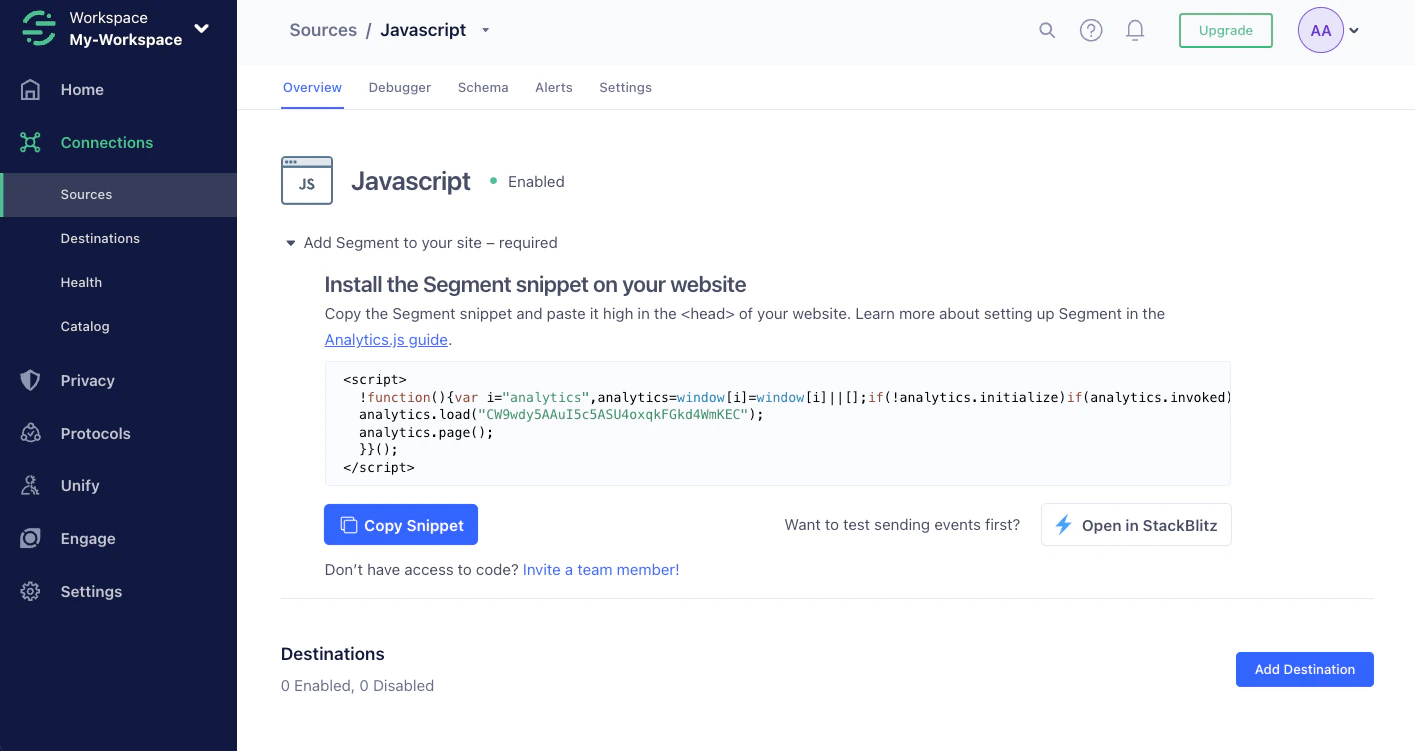
To add the Algolia destination to Segment, follow these steps:
1. Sign in to your Segment web app and select the workspace you want to work in.
2. Select the source you want to set up and click **Add Destination**.
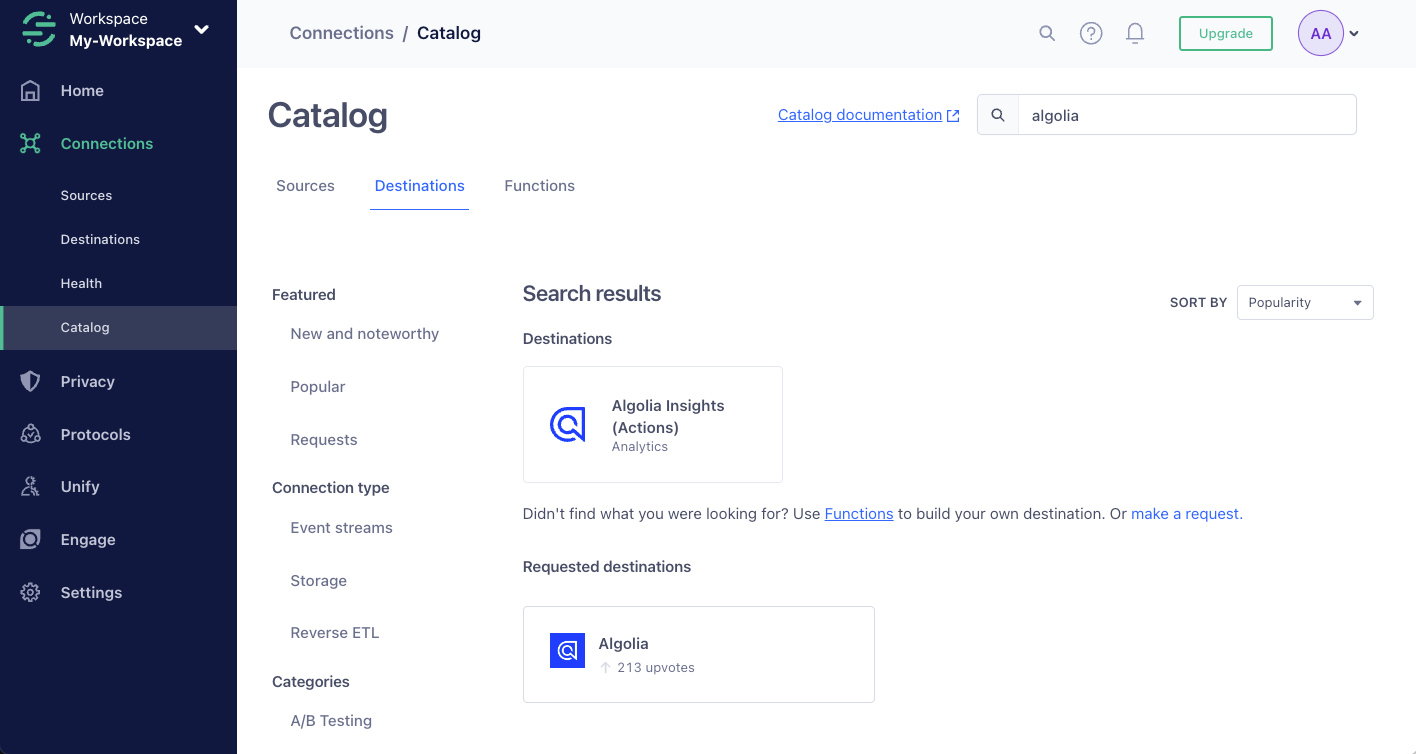
3. Search for the Algolia destination and select it to add it.
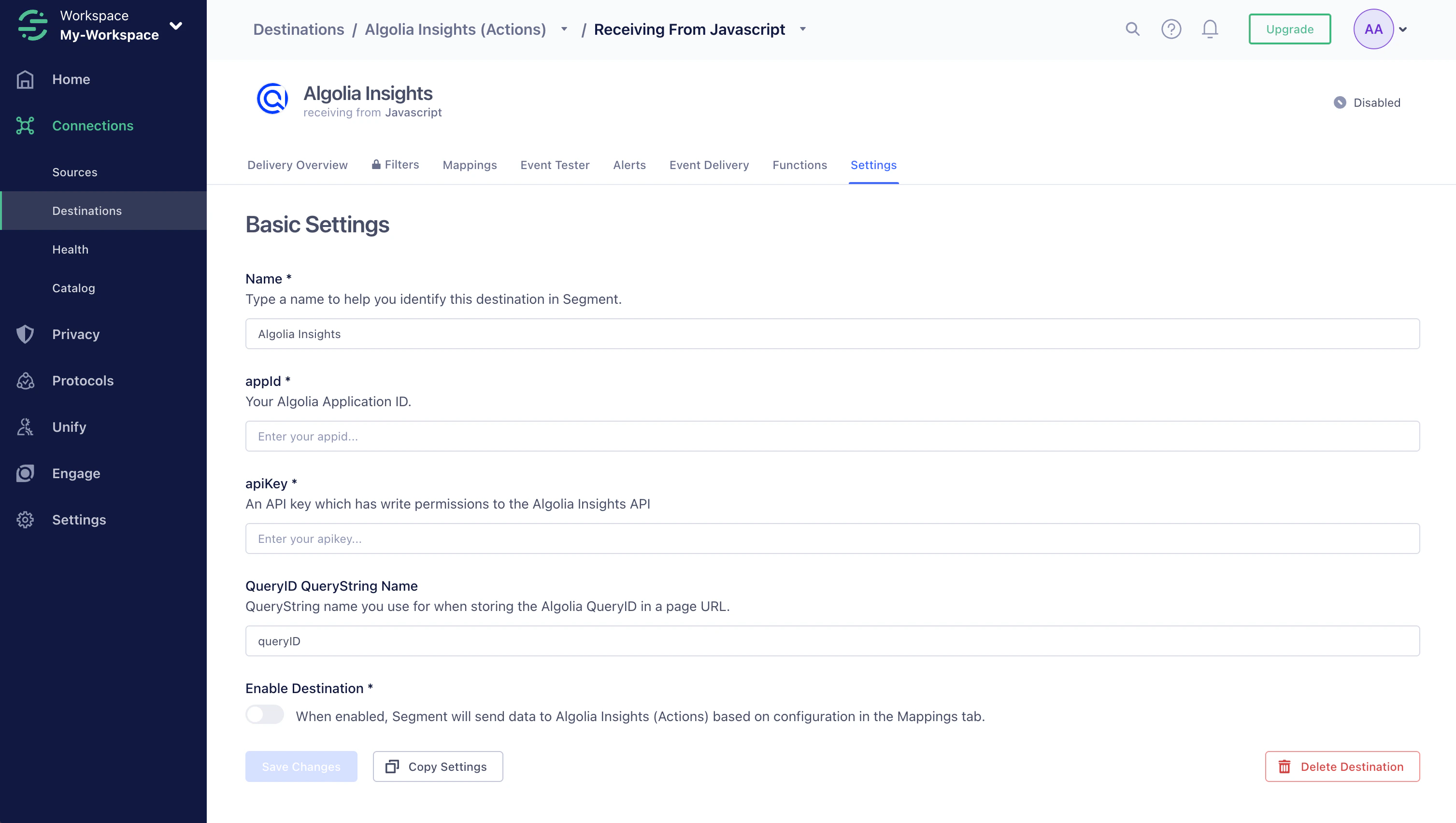
4. Go to the [Algolia dashboard](https://dashboard.algolia.com/explorer/browse) and select your Algolia .
5. Copy your application ID and search API key [from the dashboard](https://dashboard.algolia.com/account/api-keys/) and paste it into Segment.
For more information about adding destinations, see:
* [Send Segment data to destinations](https://segment.com/docs/connections/destinations/add-destination/)
* [Algolia Insights destination](https://segment.com/docs/connections/destinations/catalog/actions-algolia-insights/)
## Enable click analytics for your searches
To relate click and conversion events to searches,
Algolia needs a [query ID](/doc/guides/sending-events/guides/queryid).
To get the `queryID` parameter for a search,
set the [`clickAnalytics`](/doc/api-reference/api-parameters/clickAnalytics) parameter to `true`:
```js JavaScript theme={"system"}
index
.search("YourSearchQuery", {
userToken: "user-1",
clickAnalytics: true,
})
.then(({ hits, queryID }) => {
console.log(hits, queryID);
});
```
```js InstantSearch.js theme={"system"}
instantsearch.widgets.configure({
clickAnalytics: true,
userToken: "user-1",
});
```
```jsx React InstantSearch theme={"system"}
import { Configure } from "react-instantsearch";
;
```
```vue Vue InstantSearch theme={"system"}
```
## Identify users
If you use Segment's `analytics.identify()` function to identify users,
use the same identifier for Algolia by passing it as the [`userToken`](/doc/api-reference/api-parameters/userToken) parameter with your search.
For example, if you want to use [Personalization](/doc/guides/personalization/classic-personalization/personalizing-results#turn-on-personalization-in-production):
```js JavaScript theme={"system"}
index
.search("YourSearchQuery", {
userToken: "user-1",
enablePersonalization: true,
})
.then(({ hits }) => {
console.log(hits);
});
```
```js InstantSearch.js theme={"system"}
instantsearch.widgets.configure({
enablePersonalization: true,
userToken: "user-1",
});
```
```jsx React InstantSearch theme={"system"}
;
```
```vue Vue InstantSearch theme={"system"}
```
## Augment your Segment events with Algolia-related data
Algolia requires these properties that aren't part of the regular Segment specifications:
| Property | Type | Required? |
| -------------- | -------------------------------------------------------------------------------------------------------------------------------------------------- | --------- |
| `index` | `string` | Yes |
| `eventType` | value: `'view'`, `'click'`, or `'conversion'` | Yes |
| `eventSubtype` | value: `'addToCart'` or `'purchase'` (only applicable to `'conversion'` events) | No |
| `queryID` | `string` | No |
| `objectIDs` | `string[]` **or** `objectID`: `string` | No |
| `positions` | `number[]` **or** `position`: `number` | No |
| `filters` | `Array<{ type: string; value: string; }>` **or** `string[]` (`${type}:${value}`. For example, `brand:apple`) | No |
| `objectData` | See the [Insights API reference](/doc/rest-api/insights) for the `objectData` parameter (only applicable to `'addToCart'` and `'purchase'` events) | No |
You can get these properties with the following code:
```js JavaScript theme={"system"}
index
.search("query", {
userToken: "user-1",
})
.then(({ hits, queryID, hitsPerPage, page }) => {
hits.map((hit, index) => {
const position = index + 1 + page * hitsPerPage;
const objectID = hit.objectID;
});
});
```
```js InstantSearch.js theme={"system"}
// Required: InstantSearch.js >= 4.8.3
search.use(
instantsearch.middlewares.createInsightsMiddleware({
insightsClient: null,
onEvent(event) {
const { widgetType, eventType, payload, hits } = event;
if (widgetType === "ais.hits" && eventType === "view") {
analytics.track("Product List Viewed", {
index: payload.index,
eventType: 'view',
queryID: payload.queryID,
objectIDs: payload.objectIDs,
positions: payload.positions,
// the rest
});
} else if (/* ... */) {
// ...
}
},
})
);
// index
// eventType
// queryID
// objectIDs
// positions
// filters
```
```jsx React InstantSearch theme={"system"}
function debounce(fn, delay) {
let timerId;
return function(...args) {
if (timerId) {
clearTimeout(timerId);
}
timerId = setTimeout(() => {
fn(...args);
timerId = null;
}, delay);
};
}
const debouncedHitsRender = debounce(({ hits }) => {
if (hits.length > 0) {
analytics.track("Product List Viewed", {
index: '',
eventType: 'view',
queryID: hits[0].__queryID,
objectIDs: hits.map(hit => hit.objectID),
positions: hits.map(hit => hit.__position),
// the rest
});
}
}, 500);
const SendViewEvent = connectHits((...args) => {
debouncedHitsRender(...args);
return null;
});
// ...
const Hit = ({ hit }) => (
{hit.name}
);
// ...
```
```vue Vue InstantSearch theme={"system"}
```
The following code is an example of a click event tracked with Segment that includes all the necessary Algolia-related properties:
```js JavaScript icon=code theme={"system"}
analytics.track("Product Clicked", {
product_id: "507f1f77bcf86cd799439011",
sku: "G-32",
category: "Games",
name: "Monopoly: 3rd Edition",
brand: "Hasbro",
variant: "200 pieces",
price: 18.99,
quantity: 1,
coupon: "MAYDEALS",
position: 3,
url: "https://www.example.com/product/path",
image_url: "https://www.example.com/product/path.jpg",
// Algolia-related properties
index: "my-algolia-index", // [!code ++]
eventType: "click", // [!code ++]
queryID: "fd0bbaadc287937s7671d00f1d053b88", // [!code ++]
objectID: "131280270", // [!code ++]
});
```
Refer to Segment's [Algolia Insights destination](https://segment.com/docs/connections/destinations/catalog/actions-algolia-insights/#track) documentation for details on which Segment events are supported by default.
## Debug events with Segment
If you have administrator permissions for your Segment source,
you can send test events.
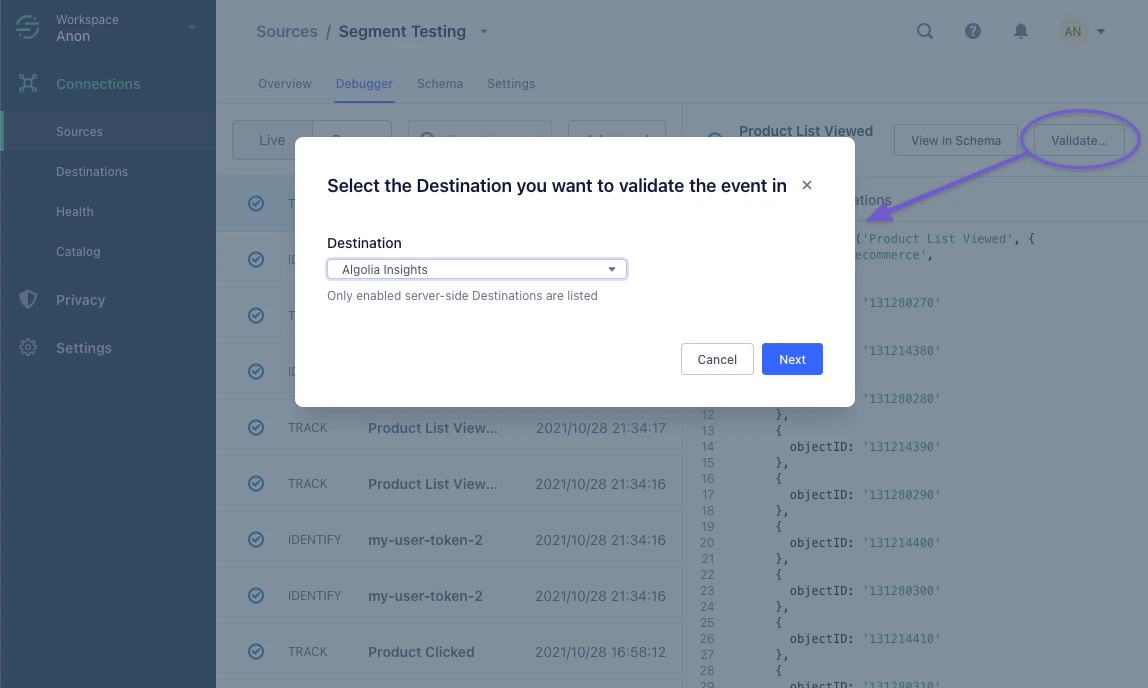
To do this, select your source and click **Validate**.
Select **Algolia Insights** as the destination.
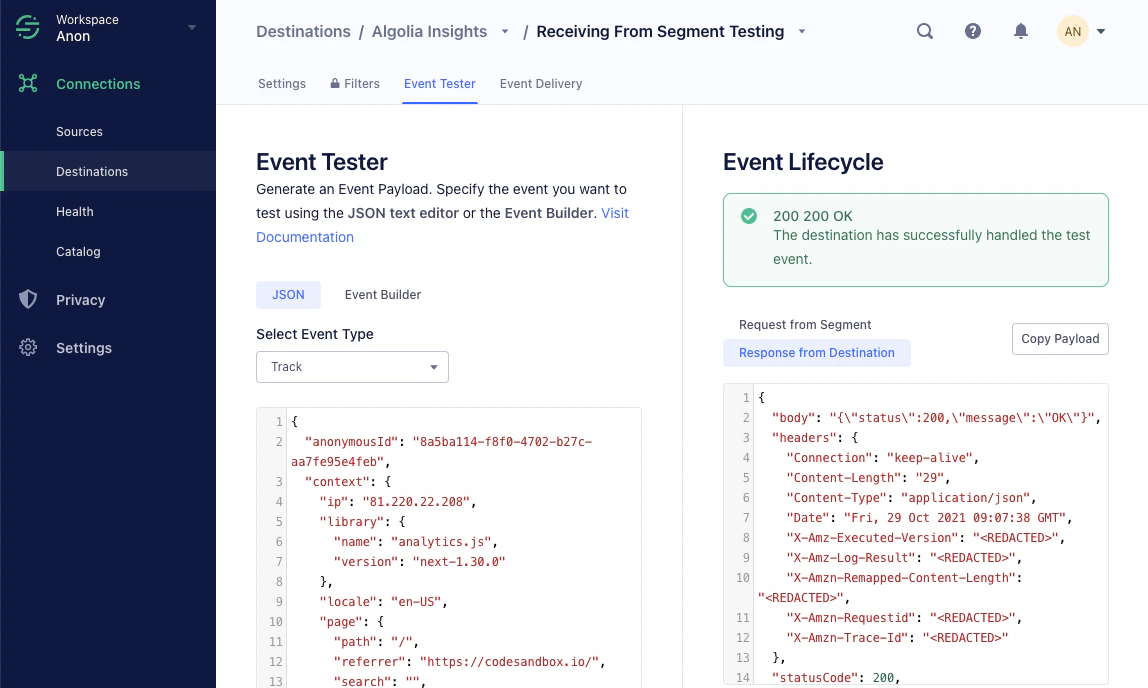
Now, you can send a test event using the **Event builder** or **JSON** editor.
A green box with the status "200 OK" means that Segment successfully sent a test event to the Algolia Insights destination.
To check, if the event delivery was successful, go to the [**Event Delivery**](https://segment.com/docs/connections/event-delivery/) tab.
For example, sending an event with a wrong query ID shows a delivery issue.
To check if Algolia receives your events correctly,
go to the [**Events Debugger**](https://dashboard.algolia.com/events/debugger) in the Algolia dashboard.
 3. Search for the Algolia destination and select it to add it.
 4. Go to the [Algolia dashboard](https://dashboard.algolia.com/explorer/browse) and select your Algolia
  For more information about adding destinations, see:
* [Send Segment data to destinations](https://segment.com/docs/connections/destinations/add-destination/)
* [Algolia Insights destination](https://segment.com/docs/connections/destinations/catalog/actions-algolia-insights/)
## Enable click analytics for your searches
To relate click and conversion events to searches,
Algolia needs a [query ID](/doc/guides/sending-events/guides/queryid).
To get the `queryID` parameter for a search,
set the [`clickAnalytics`](/doc/api-reference/api-parameters/clickAnalytics) parameter to `true`:
For more information about adding destinations, see:
* [Send Segment data to destinations](https://segment.com/docs/connections/destinations/add-destination/)
* [Algolia Insights destination](https://segment.com/docs/connections/destinations/catalog/actions-algolia-insights/)
## Enable click analytics for your searches
To relate click and conversion events to searches,
Algolia needs a [query ID](/doc/guides/sending-events/guides/queryid).
To get the `queryID` parameter for a search,
set the [`clickAnalytics`](/doc/api-reference/api-parameters/clickAnalytics) parameter to `true`:
 Now, you can send a test event using the **Event builder** or **JSON** editor.
 A green box with the status "200 OK" means that Segment successfully sent a test event to the Algolia Insights destination.
To check, if the event delivery was successful, go to the [**Event Delivery**](https://segment.com/docs/connections/event-delivery/) tab.
For example, sending an event with a wrong query ID shows a delivery issue.
To check if Algolia receives your events correctly,
go to the [**Events Debugger**](https://dashboard.algolia.com/events/debugger) in the Algolia dashboard.
A green box with the status "200 OK" means that Segment successfully sent a test event to the Algolia Insights destination.
To check, if the event delivery was successful, go to the [**Event Delivery**](https://segment.com/docs/connections/event-delivery/) tab.
For example, sending an event with a wrong query ID shows a delivery issue.
To check if Algolia receives your events correctly,
go to the [**Events Debugger**](https://dashboard.algolia.com/events/debugger) in the Algolia dashboard.