> ## Documentation Index
> Fetch the complete documentation index at: https://algolia.com/llms.txt
> Use this file to discover all available pages before exploring further.
# Tealium
> Send events to the Algolia Insights API with Tealium.
export const Application = () =>
application
;
If you're using Tealium to track user interactions on your website or app, you can set up the Algolia Insights connector to forward click and conversion events.
Algolia doesn't provide support for the Tealium connector, including installation or troubleshooting.
If you require help with this connector, refer to the [Tealium documentation](https://docs.tealium.com/server-side-connectors/algolia-insights-connector/)
or contact your Tealium team directly.
## Add the Algolia connector in Tealium
1. Sign in to [Tealium's Customer Data Hub](https://sso.tealiumiq.com/) and select the account and profile you want to work in.
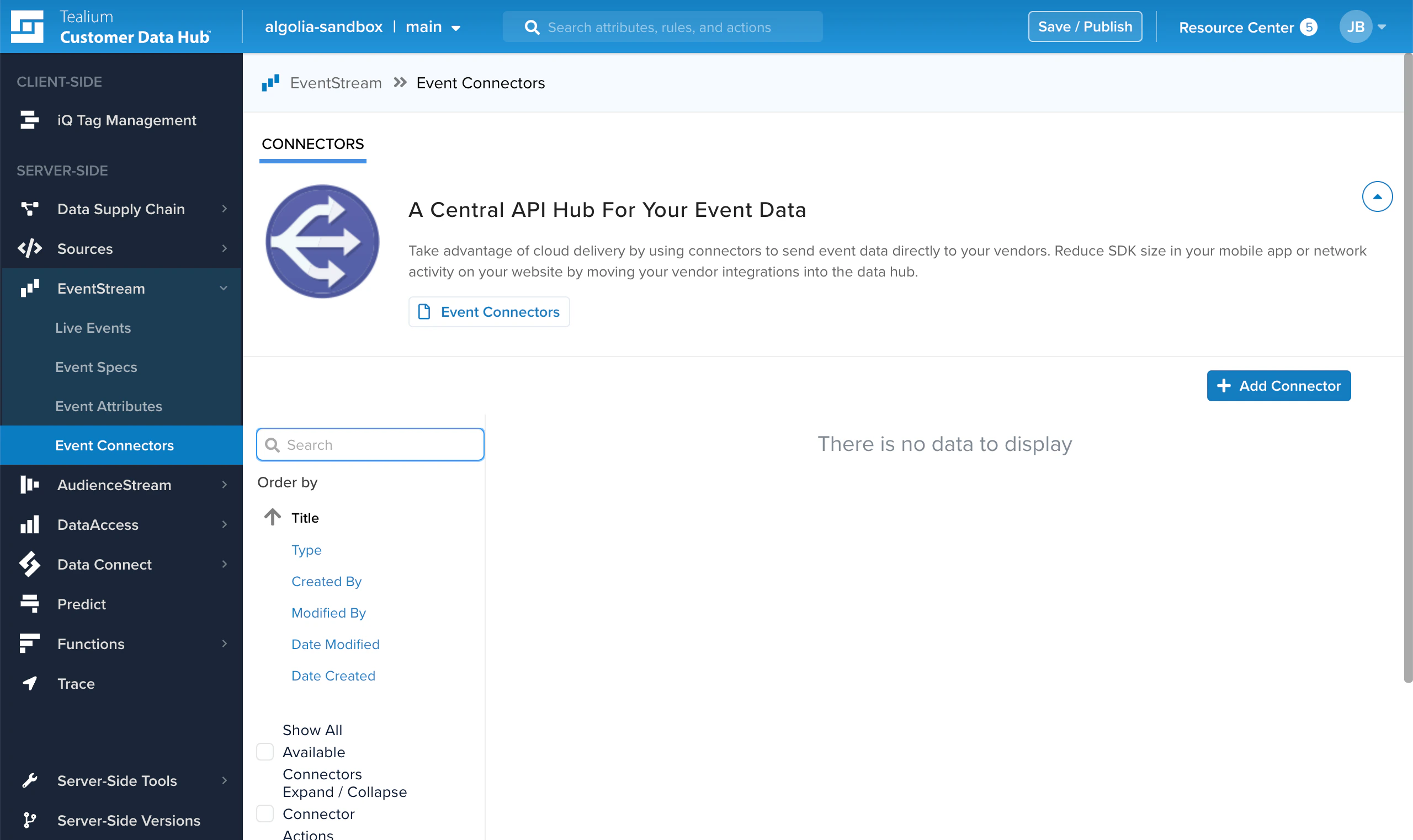
2. On the sidebar, go to **Server-Side > EventStream > Event Connectors** and click **Add Connector**.
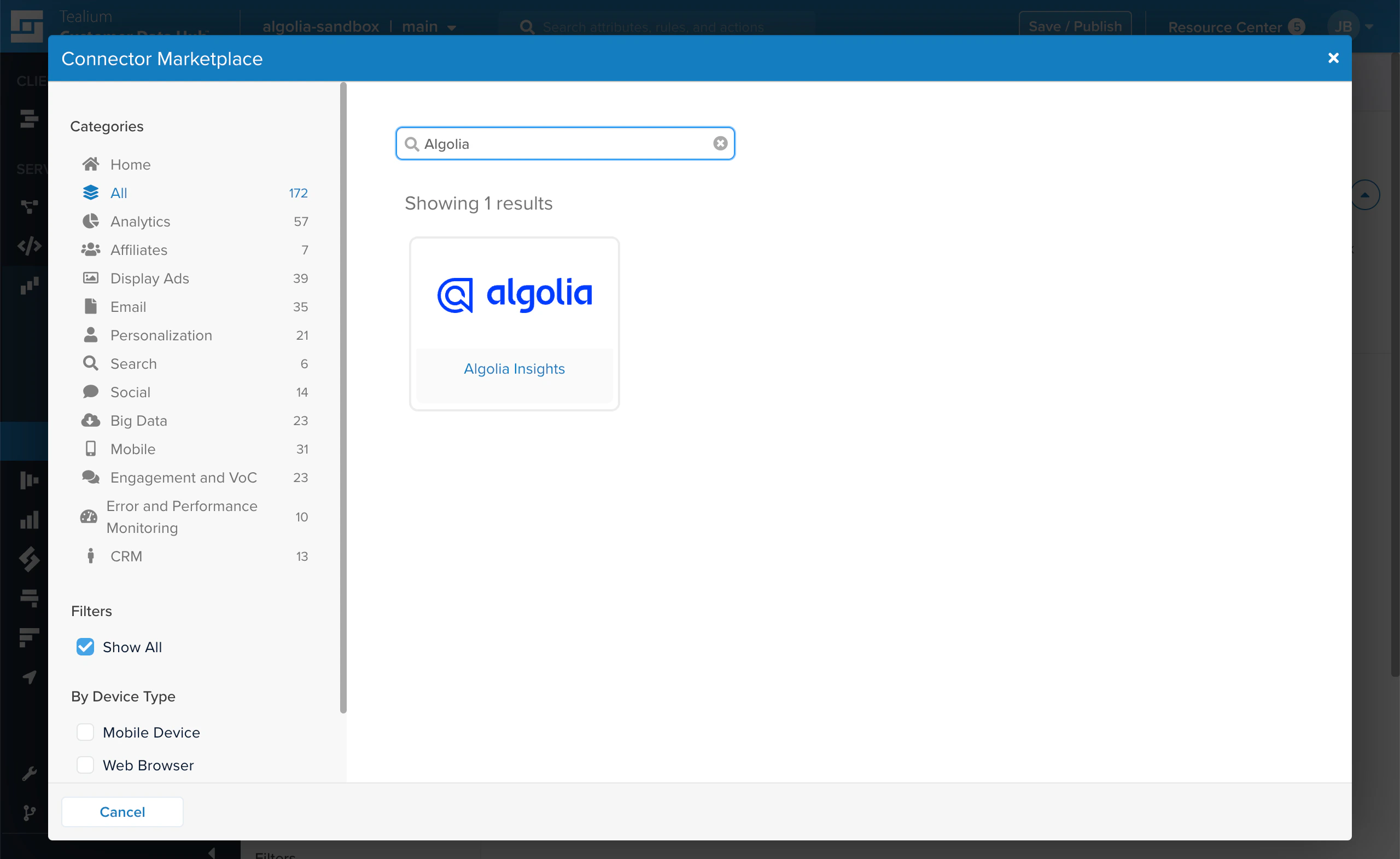
 3. In the **Connector Marketplace**, search for the Algolia Insights connector, select it, and click **Continue**.
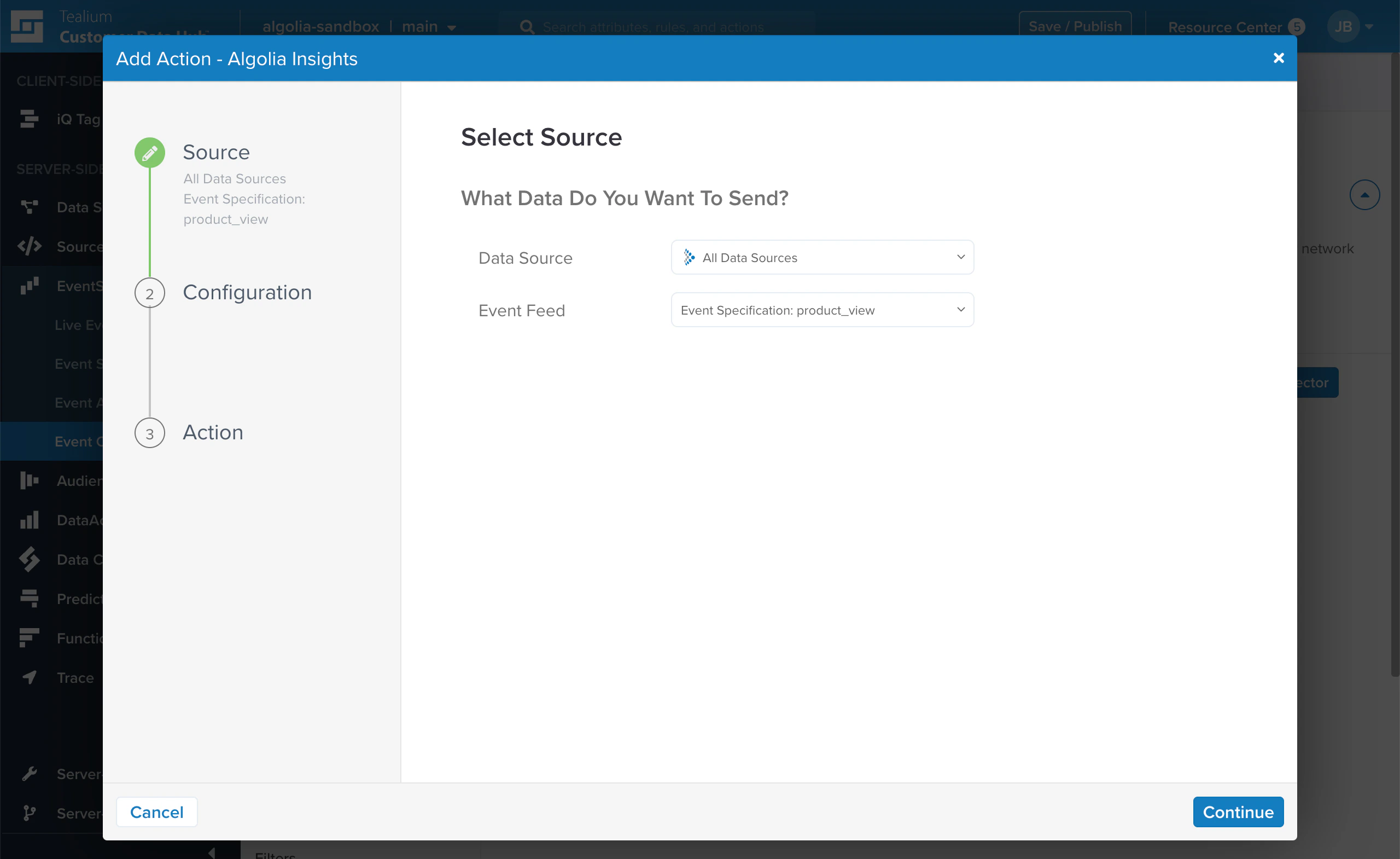
 4. In the **Data Sources** menu, select **All Data Sources** if you want to forward events from all your websites or apps to Algolia,
or select individual sources to only forward events from selected sources.
5. In the **Event Feed** menu, select the type of event you want to forward, such as, `product_view`, `cart_add`, or `purchase`.
6. Click **Continue**.
4. In the **Data Sources** menu, select **All Data Sources** if you want to forward events from all your websites or apps to Algolia,
or select individual sources to only forward events from selected sources.
5. In the **Event Feed** menu, select the type of event you want to forward, such as, `product_view`, `cart_add`, or `purchase`.
6. Click **Continue**.
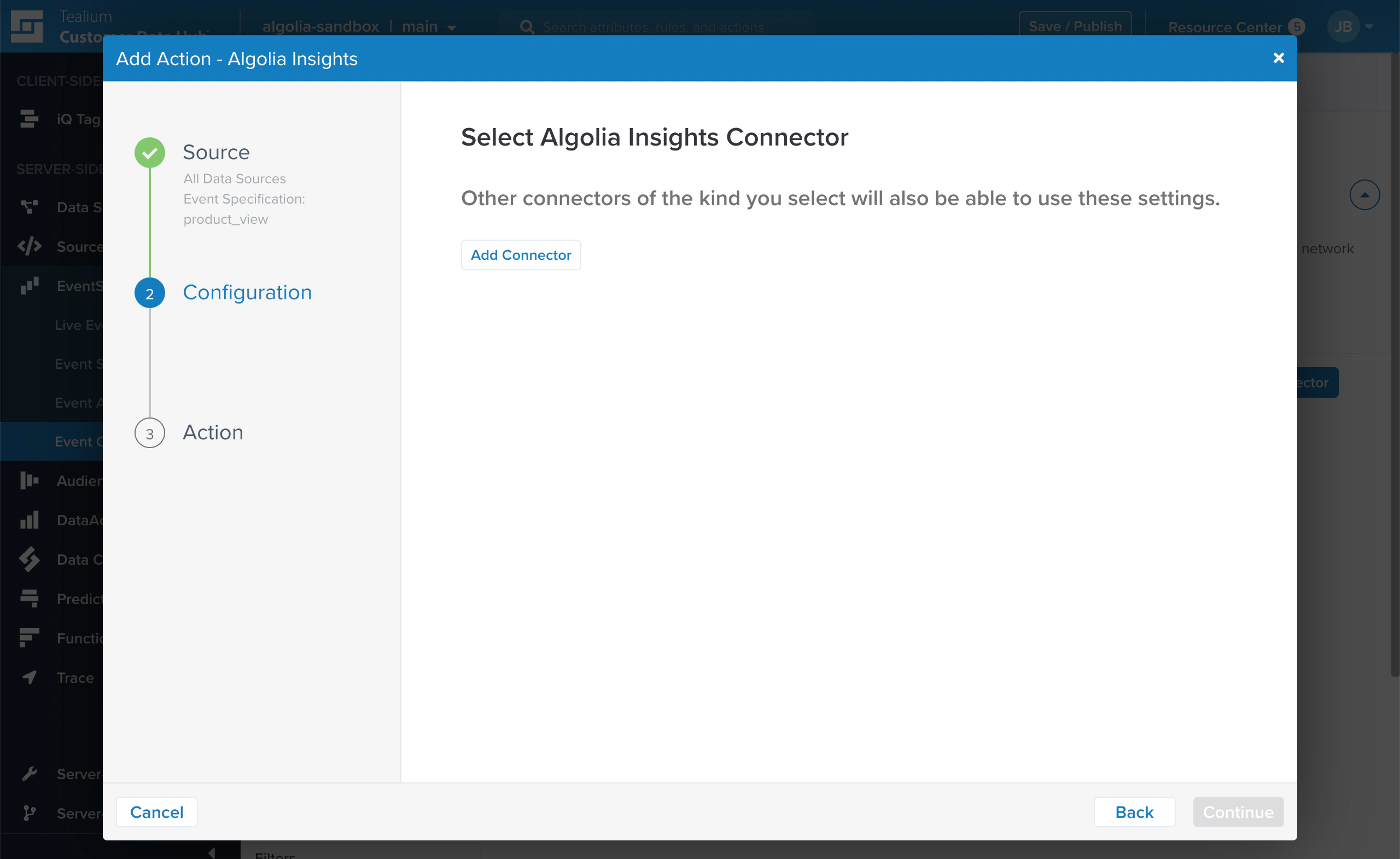
 7. Click **Add Connector**.
 8. Go to the [Algolia dashboard](https://dashboard.algolia.com/explorer/browse) and select your Algolia .
9. Go to the [**API Keys**](https://dashboard.algolia.com/account/api-keys/) page and copy your application ID and search API key.
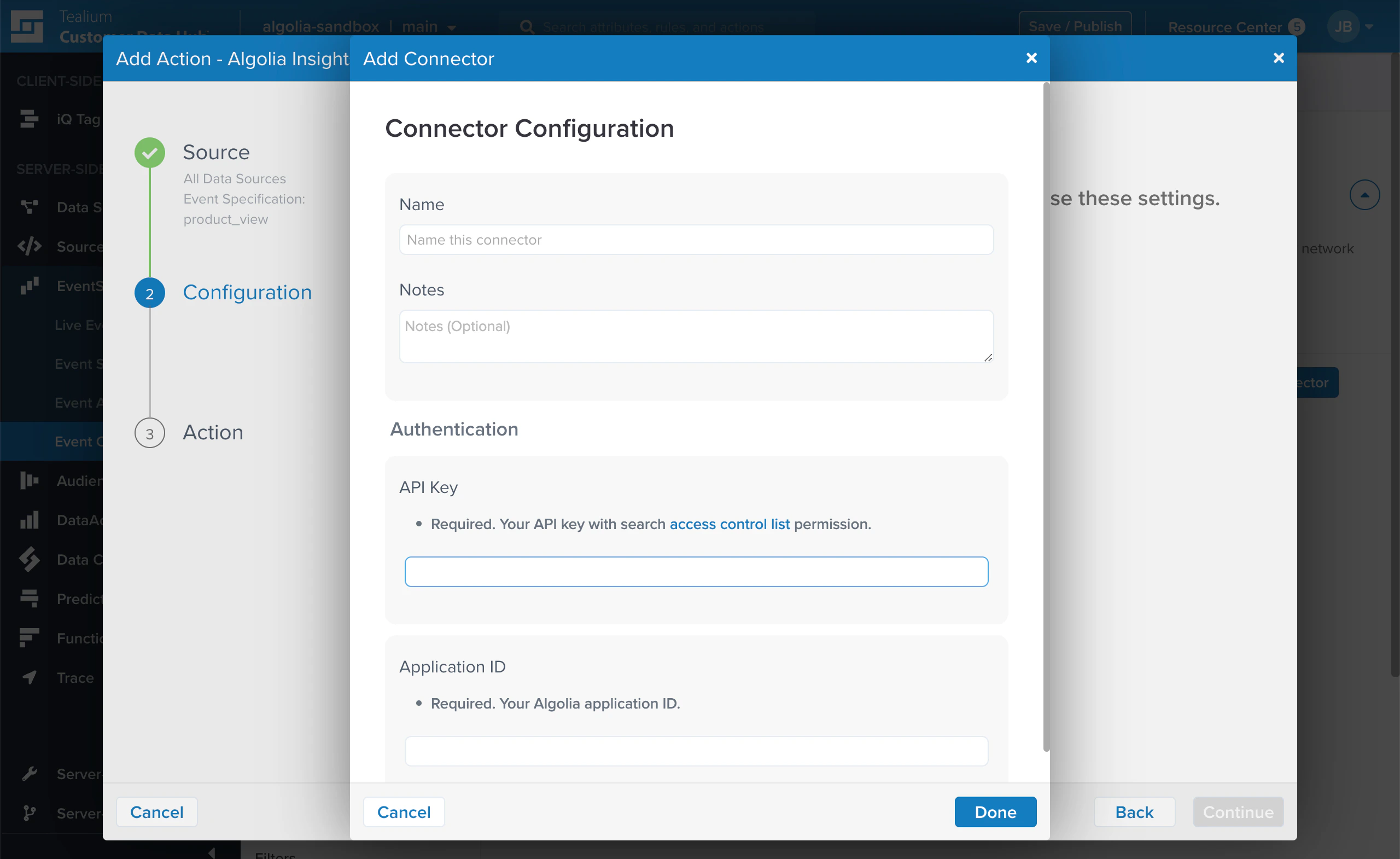
10. In the **Add Connector** dialog, enter a name for this connector and optional notes that help you identify this connector.
In the **Authentication** section, enter your Algolia application ID and search API key.
Click **Done**. Back on the **Add Action** dialog, click **Continue**.
8. Go to the [Algolia dashboard](https://dashboard.algolia.com/explorer/browse) and select your Algolia .
9. Go to the [**API Keys**](https://dashboard.algolia.com/account/api-keys/) page and copy your application ID and search API key.
10. In the **Add Connector** dialog, enter a name for this connector and optional notes that help you identify this connector.
In the **Authentication** section, enter your Algolia application ID and search API key.
Click **Done**. Back on the **Add Action** dialog, click **Continue**.
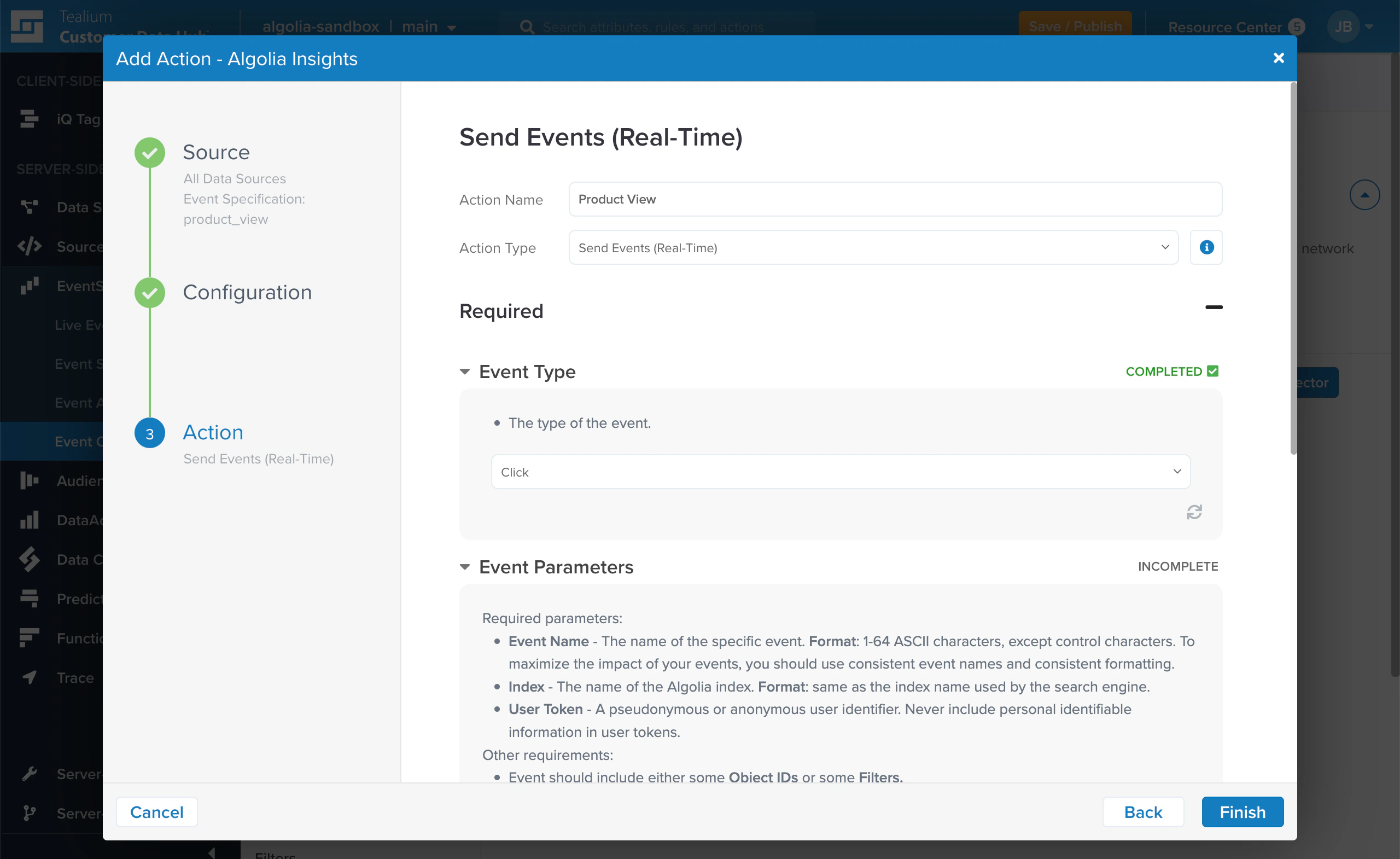
 11. Enter a name for the action, and select an action type.
In most cases, you want to send events as they happen, so select **Send Events (Real-Time)**.
Select the **Event Type**: **Click** to track clicks on search results, **Conversion** for add-to-cart and purchase events.
11. Enter a name for the action, and select an action type.
In most cases, you want to send events as they happen, so select **Send Events (Real-Time)**.
Select the **Event Type**: **Click** to track clicks on search results, **Conversion** for add-to-cart and purchase events.
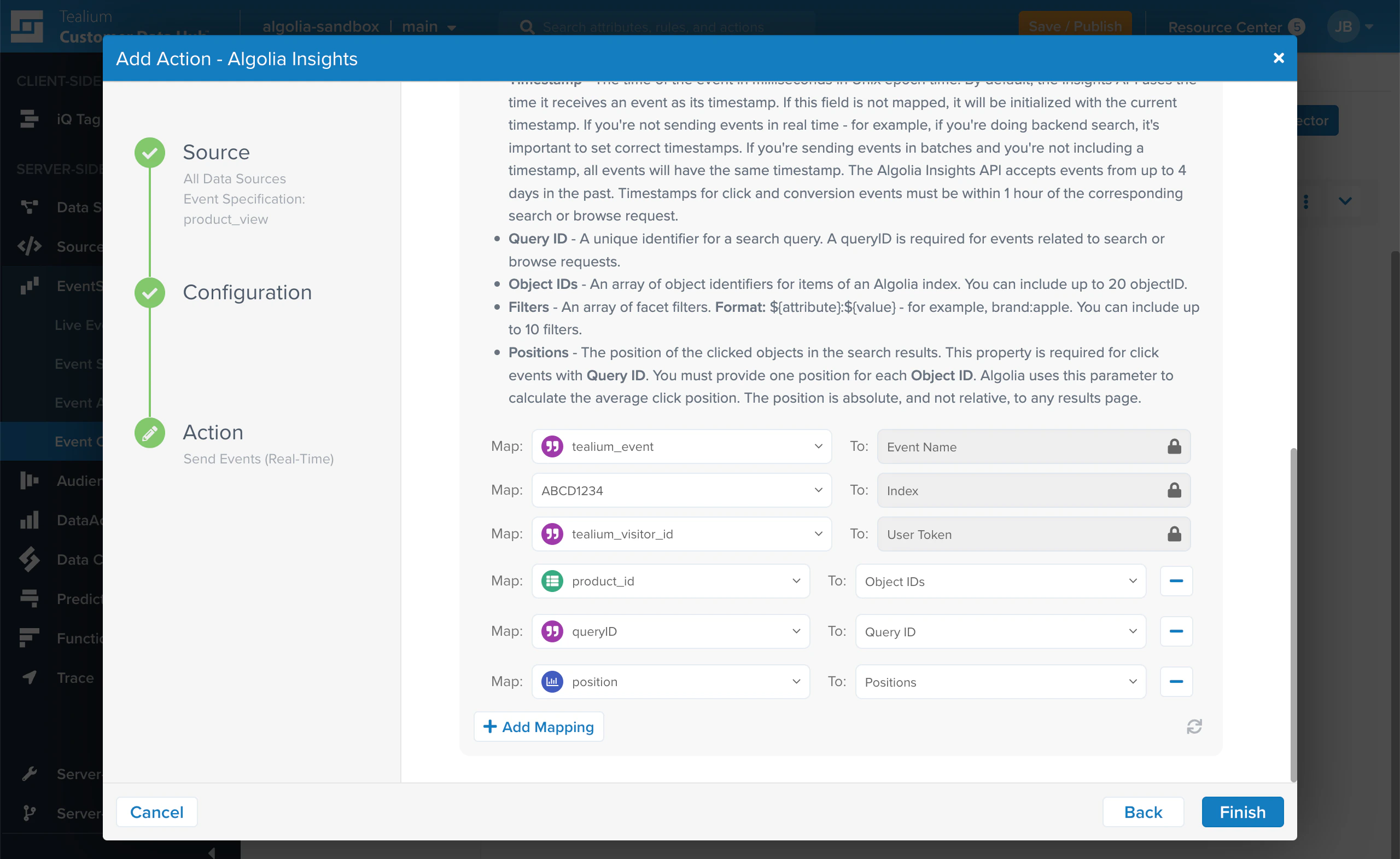
 12. [Map the Tealium event parameters](/doc/guides/sending-events/connectors/tealium#map-event-parameters) to their equivalent in Algolia.
 13. Repeat this process for each additional event you want to forward.
For more information about adding connectors,
see the [Tealium documentation](https://docs.tealium.com/server-side/connectors/add/).
## Enable `clickAnalytics`
To relate click and conversion events to searches,
Algolia needs a [query ID](/doc/guides/sending-events/guides/queryid).
To get the `queryID` parameter for a search,
set the [`clickAnalytics`](/doc/api-reference/api-parameters/clickAnalytics) parameter to `true`:
```js JavaScript theme={"system"}
const response = await client.searchSingleIndex({
indexName: "INDEX_NAME",
searchParams: {
query: "YourSearchQuery",
userToken: "user-1",
clickAnalytics: true,
},
});
const { hits, queryID } = response;
console.log(hits, queryID);
```
```js InstantSearch.js theme={"system"}
instantsearch.widgets.configure({
clickAnalytics: true,
userToken: 'user-1'
});
```
```jsx React InstantSearch theme={"system"}
import { Configure } from 'react-instantsearch';
```
```html Vue InstantSearch theme={"system"}
```
## Map event parameters
Algolia needs these extra parameters that aren't part of the Tealium event specifications:
| Parameter | To | Required? |
| -------------------- | ------------ | ------------------------------------------------------------------------------------------------------------------------------------------- |
| `tealium_event` | `Event Name` | Yes |
| `index` | Index | Yes |
| `tealium_visitor_id` | `User Token` | Yes. See [Personalization](/doc/guides/personalization/classic-personalization/personalizing-results#turn-on-personalization-in-production) |
| `queryID` | `Query ID` | Yes (for events related to search or browse requests) |
| `product_id` | `Object IDs` | Yes |
| `position` | `Positions` | Yes (for click events related to search requests) |
The next step is to [validate your events](/doc/guides/sending-events/guides/validate).
13. Repeat this process for each additional event you want to forward.
For more information about adding connectors,
see the [Tealium documentation](https://docs.tealium.com/server-side/connectors/add/).
## Enable `clickAnalytics`
To relate click and conversion events to searches,
Algolia needs a [query ID](/doc/guides/sending-events/guides/queryid).
To get the `queryID` parameter for a search,
set the [`clickAnalytics`](/doc/api-reference/api-parameters/clickAnalytics) parameter to `true`:
```js JavaScript theme={"system"}
const response = await client.searchSingleIndex({
indexName: "INDEX_NAME",
searchParams: {
query: "YourSearchQuery",
userToken: "user-1",
clickAnalytics: true,
},
});
const { hits, queryID } = response;
console.log(hits, queryID);
```
```js InstantSearch.js theme={"system"}
instantsearch.widgets.configure({
clickAnalytics: true,
userToken: 'user-1'
});
```
```jsx React InstantSearch theme={"system"}
import { Configure } from 'react-instantsearch';
```
```html Vue InstantSearch theme={"system"}
```
## Map event parameters
Algolia needs these extra parameters that aren't part of the Tealium event specifications:
| Parameter | To | Required? |
| -------------------- | ------------ | ------------------------------------------------------------------------------------------------------------------------------------------- |
| `tealium_event` | `Event Name` | Yes |
| `index` | Index | Yes |
| `tealium_visitor_id` | `User Token` | Yes. See [Personalization](/doc/guides/personalization/classic-personalization/personalizing-results#turn-on-personalization-in-production) |
| `queryID` | `Query ID` | Yes (for events related to search or browse requests) |
| `product_id` | `Object IDs` | Yes |
| `position` | `Positions` | Yes (for click events related to search requests) |
The next step is to [validate your events](/doc/guides/sending-events/guides/validate).