> ## Documentation Index
> Fetch the complete documentation index at: https://algolia.com/llms.txt
> Use this file to discover all available pages before exploring further.

# Send media events

> Collect user interactions as events on your media website using InstantSearch.

export const UserProfile = () => <Tooltip tip="A user profile contains data about a single user, including behavior, preferences, and affinities collected from events. Algolia uses this data to deliver personalized content.">
    user profile
  </Tooltip>;

export const SearchRequest = () => <Tooltip tip="A search request is a single HTTP call to the Algolia Search API that can run one or more search operations. It can include multiple queries, for example, when querying several indices at once.">
    search request
  </Tooltip>;

export const SearchQuery = () => <Tooltip tip="The text users enter into a search box. In the Search API, this corresponds to the query parameter. A search query is often used with filters, facets, and other parameters, but these aren't part of the query text itself.">
    search query
  </Tooltip>;

export const Application = () => <Tooltip tip="An Algolia application is a self-contained environment with its own indices, configuration, and API keys. Applications don't share data or settings with each other.">
    application
  </Tooltip>;

This page shows media-specific click and conversion patterns for InstantSearch apps.
For the concepts behind event tracking,
see [Click and conversion events](/doc/guides/sending-events).
For other implementation paths,
see [Choose how to send events](/doc/guides/sending-events/getting-started).

## Enable events collection

To follow this guide,
build search results or category pages with one of these UI libraries:

* InstantSearch.js version 4.59 or later ([Upgrade guide](/doc/guides/building-search-ui/upgrade-guides/js))
* React InstantSearch version 7.2.1 or later ([Upgrade guide](/doc/guides/building-search-ui/upgrade-guides/react))
* Vue InstantSearch version 4.12.0 or later ([Upgrade guide](/doc/guides/building-search-ui/upgrade-guides/vue))

InstantSearch loads the `search-insights` library for you from [jsDelivr](https://www.jsdelivr.com/).
You don't need to install or initialize it yourself.

If you're using a [Content Security Policy](https://developer.mozilla.org/en-US/docs/Web/HTTP/CSP) and
you want to let InstantSearch load `search-insights`,
add `https://cdn.jsdelivr.net` to your list of trusted JavaScript sources.

```txt theme={"system"}
script-src https://cdn.jsdelivr.net/
```

If you prefer self-hosting `search-insights`, [install it](/doc/libraries/search-insights)

InstantSearch doesn't load `search-insights` when it detects it on the page.

You can enable automatic collection in the Algolia dashboard or in your InstantSearch app.

Enabling automatic events collection does the following:

* Adds the `search-insights` library to your project and makes it globally available as `window.aa`
* Sets an anonymous [`userToken`](/doc/guides/sending-events/concepts/usertoken) for events and search requests
* Includes the [`queryID`](/doc/guides/sending-events/concepts/event-types#events-related-and-unrelated-to-algolia-requests) parameter in the search response
* Sends [default click and view events](/doc/guides/building-search-ui/events/js#default-events) for your InstantSearch widgets

Go to the [Events hub](https://dashboard.algolia.com/events/) in the Algolia dashboard to check the default events arriving from your website or app.
For more information,
see [Validate your events](/doc/guides/sending-events/guides/validate).

### No code

1. Go to the [Algolia dashboard](https://dashboard.algolia.com/explorer/browse) and select your Algolia <Application />.
2. On the left sidebar, select **Data sources** > **Events** > **Settings**.
3. Click **Enable automatic events collection**.

### Code

Enable the [`insights`](/doc/api-reference/widgets/instantsearch/js#param-insights) option:

<CodeGroup>
  ```js JavaScript theme={"system"}
  const search = instantsearch({
    searchClient,
    indexName: "YourIndexName",
    insights: true, // [!code ++]
  });
  // Add your InstantSearch widgets here
  search.start();
  ```

  ```jsx React theme={"system"}
  <InstantSearch
    searchClient={searchClient}
    indexName="YourIndexName"
    insights={true} // [!code ++]
  >
    {/* Add your InstantSearch widgets here */}
  </InstantSearch>;
  ```

  ```vue Vue theme={"system"}
  <template>
    <ais-instant-search
      :index-name="YourIndexName"
      :search-client="searchClient"
      :insights="true" // [!code ++]
    >
      <!-- Add your InstantSearch widgets here -->
    </ais-instant-search>
  </template>
  ```
</CodeGroup>

For more on tracking `queryID` and `userToken`,
see [Keep track of query IDs](/doc/guides/sending-events/guides/queryid)
and [User token](/doc/guides/sending-events/concepts/usertoken).

## Map your media journey to events

Map the steps users take through your website and add events that aren't [automatically captured by InstantSearch widgets](/doc/guides/building-search-ui/events/js#default-events).
This is especially useful for actions such as watching a video,
reading an article,
or liking a page.

<Tabs>
  <Tab title="Search results page">
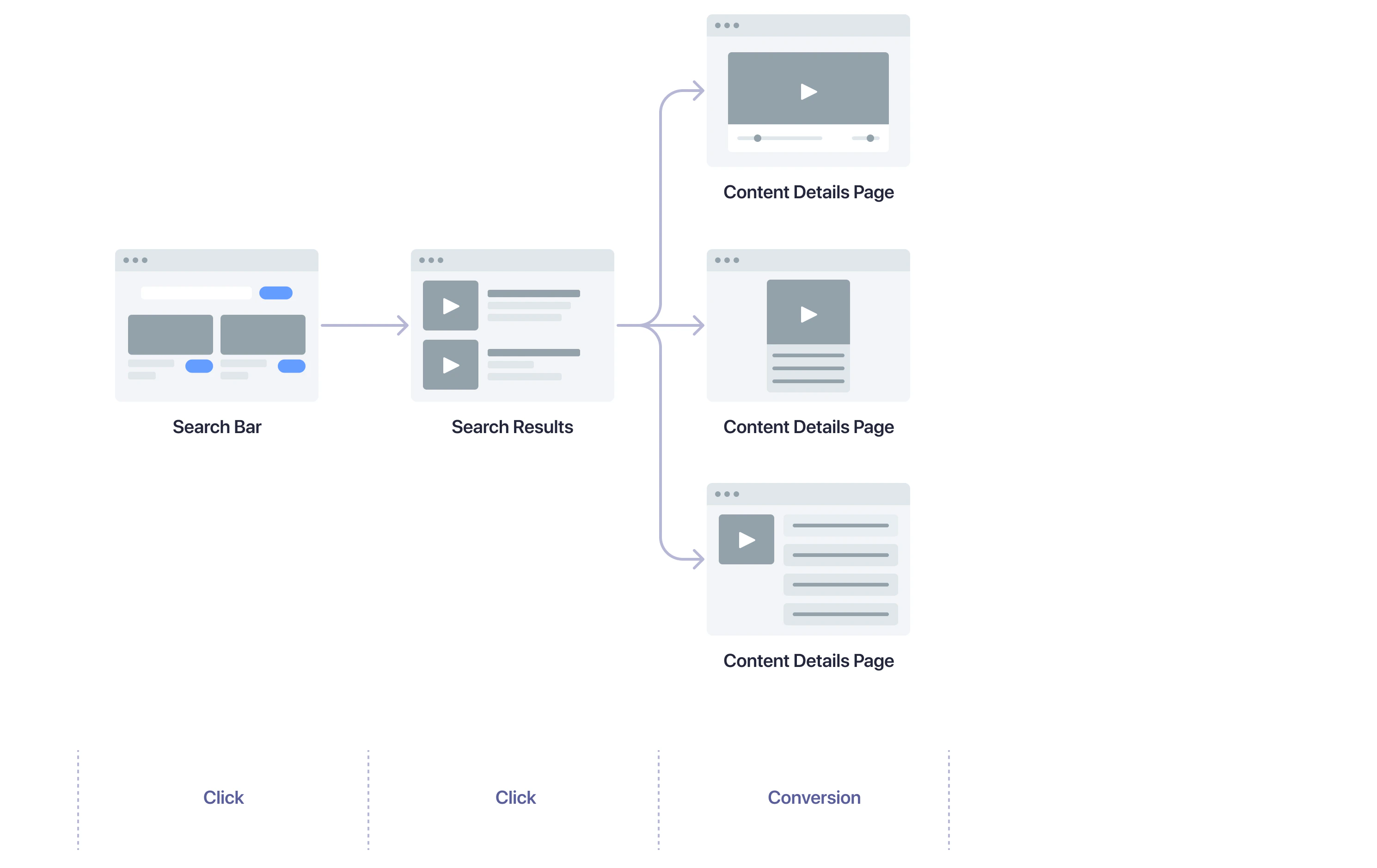
    <img src="https://mintcdn.com/algolia/2qKY7HStIjENri6J/images/sending-events/search-events-media.png?fit=max&auto=format&n=2qKY7HStIjENri6J&q=85&s=b5ed6a5a28ae23361dae4527d3473442" width="2979" height="1878" data-path="images/sending-events/search-events-media.png" />

    Starting with a search on any of your pages, a user might take the following actions:

    1. Select content from the search results to open the content details page.
    2. Consume content, such as watching a video, reading an article, or listening to an audio track.
    3. Interact with content, such as liking, subscribing, or following.
  </Tab>

  <Tab title="Browse page">
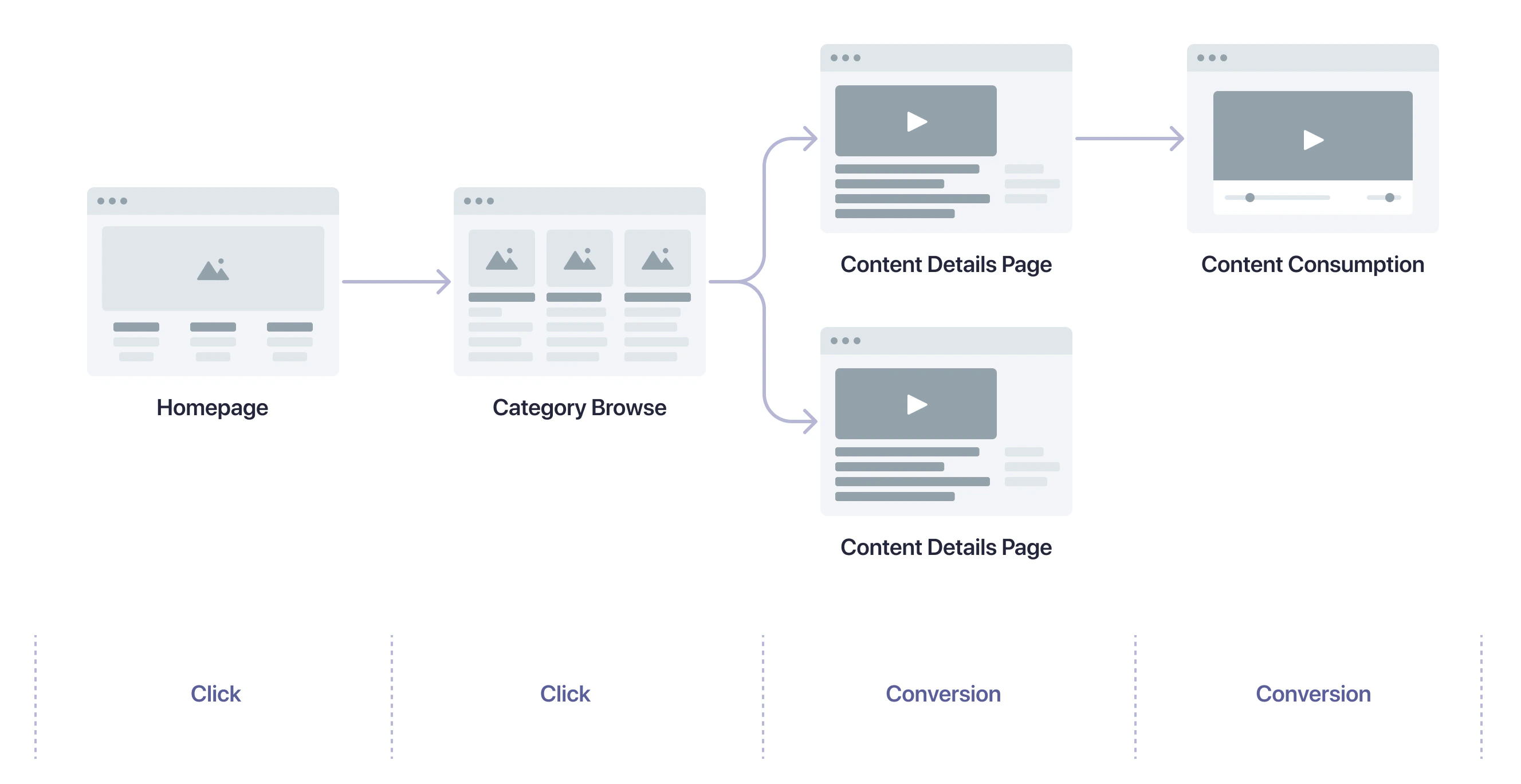
    <img src="https://mintcdn.com/algolia/2qKY7HStIjENri6J/images/sending-events/browse-events-media.png?fit=max&auto=format&n=2qKY7HStIjENri6J&q=85&s=ddf15cbf7606e4d88f9f317a571a086d" width="2655" height="1369" data-path="images/sending-events/browse-events-media.png" />

    Starting with a visit to your homepage or to a category page, a user might take the following actions:

    1. Select a content category to open a category page.
    2. Select content displayed on the page to open the content details page.
    3. Consume content, such as watching a video, reading an article, or listening to an audio track.
    4. Interact with content, such as liking, subscribing, or following.
  </Tab>

  <Tab title="External referrals">
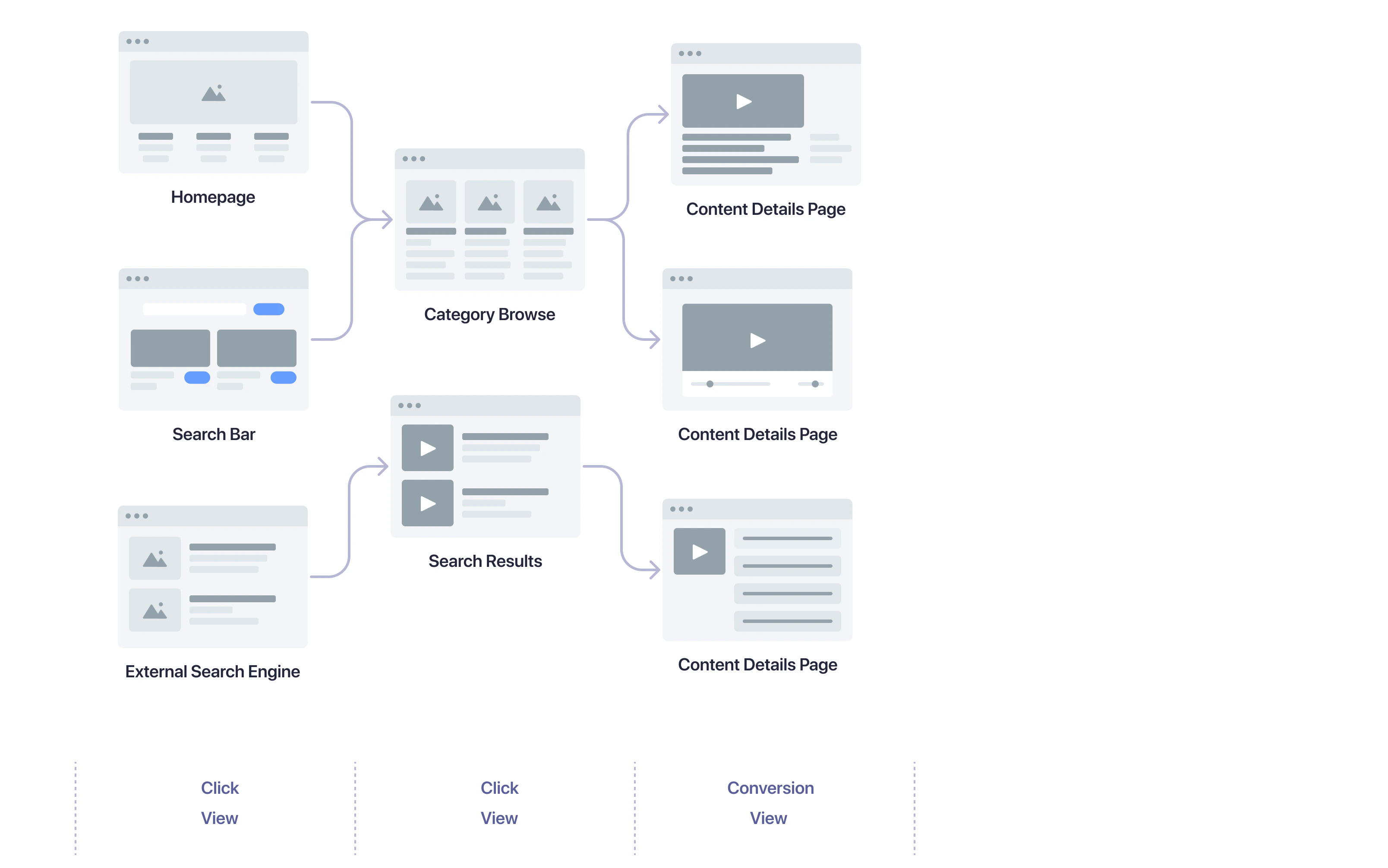
    <img src="https://mintcdn.com/algolia/2qKY7HStIjENri6J/images/sending-events/personalization-events-media.png?fit=max&auto=format&n=2qKY7HStIjENri6J&q=85&s=3dd843811b38c6af8d426c5aadce4686" width="3216" height="2012" data-path="images/sending-events/personalization-events-media.png" />

    Starting with a search on an internet search engine, with a click on a recommendation, or any other external referral, a user might take the following actions:

    1. Click on a (internet) search result, recommendation, or other link to your website.
    2. Depending on where the user lands on your website, they continue the same path as if they started with your homepage or with a category page.
  </Tab>
</Tabs>

#### Search and search results pages

| User action                    | Method name                   | Automatically collected?                                                                        |
| ------------------------------ | ----------------------------- | ----------------------------------------------------------------------------------------------- |
| User clicks search result      | `clickedObjectIDsAfterSearch` | [**Yes**](/doc/guides/building-search-ui/events/js#default-click-events-for-results-widgets)    |
| User clicks categories/filters | `clickedFilters`              | [**Yes**](/doc/guides/building-search-ui/events/js#default-click-events-for-refinement-widgets) |
| User views search results      | `viewedObjectIDs`             | [**Yes**](/doc/guides/building-search-ui/events/js#default-view-events-for-results-widgets)     |

#### Browse/category page

| User action         | Method name                   | Automatically collected?                                                                     |
| ------------------- | ----------------------------- | -------------------------------------------------------------------------------------------- |
| User clicks content | `clickedObjectIDsAfterSearch` | [**Yes**](/doc/guides/building-search-ui/events/js#default-click-events-for-results-widgets) |
| User views content  | `viewedObjectIDs`             | [**Yes**](/doc/guides/building-search-ui/events/js#default-view-events-for-results-widgets)  |

#### Content details page

| User action        | Method name       | Automatically collected? |
| ------------------ | ----------------- | ------------------------ |
| User views content | `viewedObjectIDs` | **No**                   |

## Track query IDs across pages

Conversion events often happen outside the search results page.

* A query ID is returned by the <SearchRequest /> when a user performs a search.
* To associate a conversion with the correct <SearchQuery />, save this query ID and include it in your conversion events.
* To link conversion events back to the originating search request on your search results or category pages, [track query IDs across your pages](/doc/guides/sending-events/guides/queryid).

## Track media conversion events

### Send events from InstantSearch widgets

You can use the `sendEvent` function to send conversion events from your InstantSearch app.

<CodeGroup>
  ```js JavaScript theme={"system"}
  hits({
    templates: {
      item(hit, { html, components, sendEvent }) {
        return html`
          <h2>${components.Highlight({ attribute: "name", hit })}</h2>
          <p>${hit.description}</p>
          <button
            onClick="${() =>
              sendEvent("conversion", hit, "Article Added To Favorites");
            }"
          >
            Add to favorites
          </button>
        `;
      },
    },
  });
  ```

  ```jsx React theme={"system"}
  function Hit({ hit, sendEvent }) {
    return (
      <>
        <h2>
          <Highlight hit={hit} attribute="name" />
        </h2>
        <p>{hit.description}</p>
        <button
          onClick={() =>
            sendEvent("conversion", hit, "Article Added To Favorites")
          }
        >
          Add to favorites
        </button>
      </>
    );
  }
  ```

  ```vue Vue theme={"system"}
  <ais-hits>
    <template v-slot:item="{ item, sendEvent }">
      <h2><ais-highlight attribute="name" :hit="item" /></h2>
      <p>{{ item.description }}</p>
      <button @click="sendEvent('conversion', item, 'Article Added To Favorites')">
        Add to favorites
      </button>
    </template>
  </ais-hits>
  ```
</CodeGroup>

<Note>
  Setting custom `conversion` events doesn't prevent the custom `click` event from being sent.
</Note>

### On pages without InstantSearch widgets

An example of a conversion event that may be relevant to your media site:

```js JavaScript icon=code theme={"system"}
// A user reached the bottom of an article page
window.aa("convertedObjectIDsAfterSearch", {
  eventName: "Article Read",
  index: "YourIndexName",
  queryID: "query-1",
  objectIDs: ["objectID-1"],
});
```

The `window.aa` object is the API client for the Insights API and is globally available
if you enabled automatic events collection.

The `queryID` parameter of the [`convertedObjectIDsAfterSearch`](/doc/libraries/sdk/v1/methods/converted-object-ids-after-search) method is used by Algolia to relate the event to a prior search.

The `objectIDs` parameter of the [`convertedObjectIDsAfterSearch`](/doc/libraries/sdk/v1/methods/converted-object-ids-after-search) method indicates which items were part of the conversion.

The `objectID` parameter is included in the search response for each hit.

If the event isn't directly related to a search, for example, it's triggered on the homepage,
use the `convertedObjectIDs` method instead.

```js JavaScript icon=code theme={"system"}
// A user watched a video
window.aa("convertedObjectIDs", {
  eventName: "Video Watched",
  index: "YourIndexName",
  objectIDs: ["objectID-1"],
});
```

Some other examples of conversion events are:

* `Article Bookmarked`: a user bookmarked an article.
* `Article Liked`: a user liked an article.
* `Article Recommended`: a user recommended an article.
* `Playlist Followed`: a user followed a playlist.
* `Author Followed`: a user followed an author.
* `Brand Followed`: a user followed a brand.

## Track media click events

### Override default click events

The [`hits`](/doc/api-reference/widgets/hits/js) and [`infiniteHits`](/doc/api-reference/widgets/infinite-hits/js) widgets expose a `sendEvent` function. Use it to send `click` events when users interact with your search results.

<CodeGroup>
  ```js JavaScript theme={"system"}
  hits({
    templates: {
      item(hit, { html, components, sendEvent }) {
        return html`
          <div onClick="${() => sendEvent("click", hit, "Article Clicked")}">
            <h2>${components.Highlight({ attribute: "name", hit })}</h2>
            <p>${hit.description}</p>
          </div>
        `;
      },
    },
  });
  ```

  ```jsx React theme={"system"}
  import { InstantSearch, Hits, Highlight } from "react-instantsearch";

  function Hit({ hit, sendEvent }) {
    return (
      <div onClick={() => sendEvent("click", hit, "Article Clicked")}>
        <h2>
          <Highlight hit={hit} attribute="name" />
        </h2>
        <p>{hit.description}</p>
      </div>
    );
  }

  function App(props) {
    return (
      <InstantSearch {...props}>
        <Hits hitComponent={Hit} />
      </InstantSearch>
    );
  }
  ```

  ```vue Vue theme={"system"}
  <ais-hits>
    <template v-slot:item="{ item, sendEvent }">
      <div @click="sendEvent('click', item, 'Article Clicked')">
        <h2>
          <ais-highlight attribute="name" :hit="item" />
        </h2>
        <p>{{ item.description }}</p>
      </div>
    </template>
  </ais-hits>
  ```
</CodeGroup>

You can set more events on specific parts of your template. In the following example, when clicking on the **View more info** button, two events are sent to the Insights API:

* A `click` event with the `eventName` "Article More Info Clicked"
* A `click` event with the `eventName` "Article Clicked" (through event propagation)

<CodeGroup>
  ```js JavaScript theme={"system"}
  hits({
    templates: {
      item(hit, { html, components, sendEvent }) {
        return html`
          <div onClick="${() => sendEvent("click", hit, "Article Clicked")}">
            <h2>${components.Highlight({ attribute: "name", hit })}</h2>
            <p>${hit.description}</p>
            <button
              onClick="${() =>
                sendEvent("click", hit, "Article More Info Clicked")
              }"
            >
              View more info
            </button>
          </div>
        `;
      },
    },
  });
  ```

  ```jsx React theme={"system"}
  function Hit({ hit, sendEvent }) {
    return (
      <div onClick={() => sendEvent("click", hit, "Article Clicked")}>
        <h2>
          <Highlight hit={hit} attribute="name" />
        </h2>
        <p>{hit.description}</p>
        <button
          onClick={() => sendEvent("click", hit, "Article More Info Clicked")}
        >
          View more info
        </button>
      </div>
    );
  }
  ```

  ```vue Vue theme={"system"}
  <ais-hits>
    <template v-slot:item="{ item, sendEvent }">
      <div @click="sendEvent('click', item, 'Article Clicked')">
        <h2>
          <ais-highlight attribute="name" :hit="item" />
        </h2>
        <p>{{ item.description }}</p>
        <button @click="sendEvent('click', item, 'Article More Info Clicked')">
          View more info
        </button>
      </div>
    </template>
  </ais-hits>
  ```
</CodeGroup>

To only send the most specific event per clicked element,
you can use [`Event.stopPropagation`](https://developer.mozilla.org/en-US/docs/Web/API/Event/stopPropagation) in your event handler.

<CodeGroup>
  ```js JavaScript theme={"system"}
  hits({
    templates: {
      item(hit, { html, components, sendEvent }) {
        return html`
          <div onClick="${() => sendEvent("click", hit, "Article Clicked")}">
            <!-- ... -->
            <button
              onClick="${(event) => {
                event.stopPropagation(); // [!code ++]

                sendEvent("click", hit, "Article More Info Clicked");
              }}"
            >
              View more info
            </button>
          </div>
        `;
      },
    },
  });
  ```

  ```jsx React theme={"system"}
  function Hit({ hit, sendEvent }) {
    return (
      <div onClick={() => sendEvent("click", hit, "Article Clicked")}>
        <h2>
          <Highlight hit={hit} attribute="name" />
        </h2>
        <p>{hit.description}</p>
        <button
          onClick={(event) => {
            event.stopPropagation(); // [!code ++]

            sendEvent("click", hit, "Article More Info Clicked");
          }}
        >
          View more info
        </button>
      </div>
    );
  }
  ```

  ```vue Vue theme={"system"}
  <ais-hits>
      <template v-slot:item="{ item, sendEvent }">
        <div @click="sendEvent('click', item, 'Article Clicked')">
          <!-- … -->
          <button @click="(event) => {
            event.stopPropagation(); // [!code ++]

            sendEvent('click', item, 'Article More Info Clicked')
          }">
            View more info
          </button>
        </div>
      </template>
  </ais-hits>
  ```
</CodeGroup>

When InstantSearch captures a custom `click` event that you defined,
it doesn't send the default `click` event. In the following example,
when clicking the **View more info** button, only the "Article More Info Clicked" event is sent.

<CodeGroup>
  ```js JavaScript theme={"system"}
  hits({
    templates: {
      item(hit, { html, components, sendEvent }) {
        return html`
          <h2>${components.Highlight({ attribute: "name", hit })}</h2>
          <p>${hit.description}</p>
          <button
            onClick="${() =>
              sendEvent("click", hit, "Article More Info Clicked")
            }"
          >
            View more info
          </button>
        `;
      },
    },
  });
  ```

  ```jsx React theme={"system"}
  function Hit({ hit, sendEvent }) {
    return (
      <>
        <h2>
          <Highlight hit={hit} attribute="name" />
        </h2>
        <p>{hit.description}</p>
        <button
          onClick={() => sendEvent("click", hit, "Article More Info Clicked")}
        >
          View more info
        </button>
      </>
    );
  }
  ```

  ```vue Vue theme={"system"}
  <ais-hits>
    <template v-slot:item="{ item, sendEvent }">
      <h2>
        <ais-highlight attribute="name" :hit="item" />
      </h2>
      <p>{{ item.description }}</p>
      <button @click="sendEvent('click', item, 'Article More Info Clicked')">
        View more info
      </button>
    </template>
  </ais-hits>
  ```
</CodeGroup>

### Track more click events

For Algolia Recommend and Personalization, capture additional click events
when users select individual items:

* On your home page
* From recommendations

To send click events with the Insights client, add the following code
whenever a user clicks on an article—for example,
on your homepage.

```js JavaScript icon=code theme={"system"}
window.aa("clickedObjectIDs", {
  index: "YourIndexName",
  eventName: "Article Clicked",
  objectIDs: ["objectID-1"],
});
```

## Optional: identify known users for Personalization

For effective [personalization](/doc/guides/personalization/classic-personalization/what-is-personalization),
identify users across sessions.
It's best to use an identifier from your authentication system after users sign in.

After getting the identifier from your system,
set it as the `authenticatedUserToken` parameter.

```js JavaScript icon="code" theme={"system"}
// Get a unique, pseudonymous identifier for signed-in users
const authenticatedUserToken = getUserTokenAfterSignIn();
window.aa("setAuthenticatedUserToken", authenticatedUserToken);
```

If you can't get persistent user identifiers from your system,
you can store the anonymous user token in a cookie **after obtaining user consent**.

```js JavaScript icon="code" theme={"system"}
// If user consented
aa("init", {
  partial: true,
  useCookie: true,
});
```

If you don't use persistent user identifiers,
a new anonymous user token is generated on every page refresh.

For more on identity strategy and persistence,
see [User token](/doc/guides/sending-events/concepts/usertoken).

InstantSearch automatically sends view events for search results and category pages.
Send additional view events for experiences outside InstantSearch widgets,
such as a homepage hero or editorial module.

## Optional: send view events for Personalization

Personalization benefits from the same click and conversion events,
plus it can use view events to enrich each <UserProfile />.

Use the following code snippet to track view events,
such as when a user views search results.

```js JavaScript icon="code" theme={"system"}
window.aa("viewedObjectIDs", {
  index: "YourIndexName",
  eventName: "Item Viewed",
  objectIDs: ["objectID-1"],
});
```

<Note>
  You don't need to send a `queryID` when tracking view events.
</Note>

## Examples

* InstantSearch.js:

  * [Demo](https://codesandbox.io/s/github/algolia/doc-code-samples/tree/master/instantsearch.js/algolia-insights)
  * [Source code](https://github.com/algolia/doc-code-samples/tree/master/instantsearch.js/algolia-insights)

* React InstantSearch:

  * [Demo](https://codesandbox.io/s/github/algolia/doc-code-samples/tree/master/react-instantsearch/algolia-insights)
  * [Source code](https://github.com/algolia/doc-code-samples/tree/master/react-instantsearch/algolia-insights)

* Vue InstantSearch:

  * [Demo](https://codesandbox.io/s/github/algolia/doc-code-samples/tree/master/vue-instantsearch/algolia-insights)
  * [Source code](https://github.com/algolia/doc-code-samples/tree/master/vue-instantsearch/algolia-insights)

### Add events to a React InstantSearch application

<Frame>
  <iframe width="644" height="363" src="https://www.youtube.com/embed/UPOc9pIuvk4" title="Adding Events to an InstantSearch Application" frameborder="0" allow="accelerometer; autoplay; clipboard-write; encrypted-media; gyroscope; picture-in-picture; web-share" referrerpolicy="strict-origin-when-cross-origin" allowfullscreen className="video-embed" />
</Frame>
