> ## Documentation Index
> Fetch the complete documentation index at: https://algolia.com/llms.txt
> Use this file to discover all available pages before exploring further.
# Category pages
> Showcase a single category of your catalog using Algolia.
export const Records = () =>
records
;
export const Index = () =>
index
;
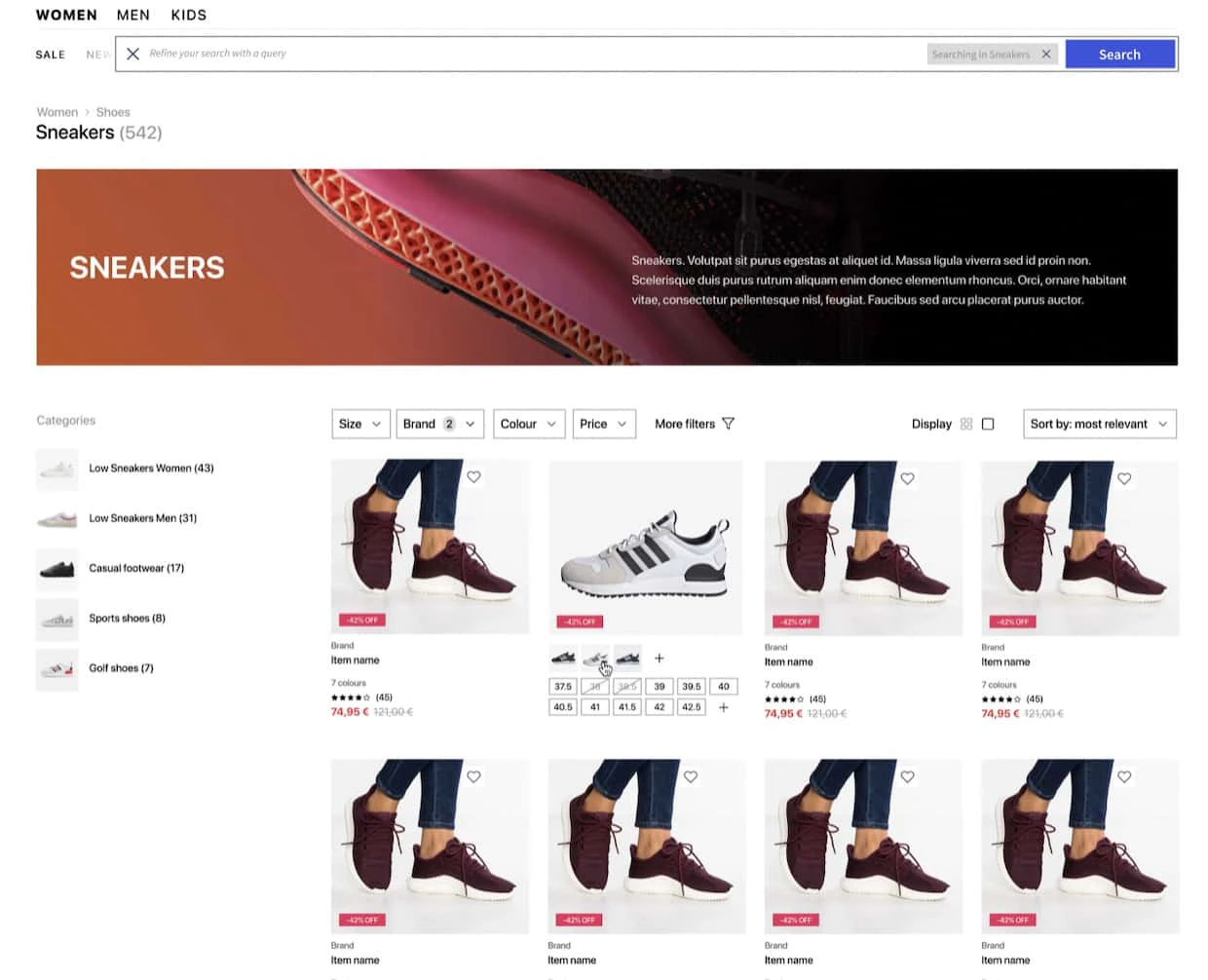
Category pages are **product listing pages** that are already filtered on.
The product listing page is a gateway to the product detail page.
Examples of category pages include:
* On Sale
* New Arrivals
* Brands
* Product types
* Items for certain gender, size, or color
 This guide shows you how to implement category pages:
* Using the **API client or REST API**
* Using **InstantSearch** on the frontend
## High-level approach
* You create a category page by sending an API request with an empty [`query`](/doc/api-reference/api-parameters/query) and a [`filters`](/doc/api-reference/api-parameters/filters) parameter based on a category page identifier.
* The API response returns a list of products based on the category page identifier in the [`hits`](/doc/guides/building-search-ui/going-further/backend-search/in-depth/understanding-the-api-response#hits) attribute.
## Implementation steps
You can create category pages using different combinations of filter values.
Although Algolia doesn't impose any restrictions on the amount of filters you pass,
best practice is to tag each item with an array of category page identifiers.
A **category page identifier** is a unique identifier that references a particular category page.
It can be a string or an integer.
You can name it `categories`, `categoryId`, `categoryPageId` or anything else.
Importantly, you can automate tagging the with the category page identifier to ensure that the right products always show up on the right category pages. You use this identifier:
* In the query, to filter on the product to generate each category page
* As a category page reference, for visual merchandising in the dashboard
It's best to set the category page identifier to something more prescriptive such as `On Sale` or `Women > Clothing > Dresses`.
This way, business users, when merchandising, can easily reference the category page based on a less technical name.
Look at the sample record below.
This item belongs to multiple category pages:
```json JSON icon=braces theme={"system"}
{
"objectID":"1696302",
"name":"Nike Blue Joggers on Sale",
"categoryPageId": [
"On Sale",
"New In",
"Summer Clearance",
"Clothing",
"Nike",
"Clothing",
"Clothing > Men",
"Clothing > Men > Pants",
"Clothing > Men > Pants > Joggers"
],
"brand":"Nike",
"hierarchicalCategories": {
"lvl0": "Clothing",
"lvl1": "Clothing > Men",
"lvl2": "Clothing > Men > Pants",
"lvl3": "Clothing > Men > Pants > Joggers"
},
"color": "Blue",
"inStock":true,
"visibility": true,
"summerClearance": true,
"onSale": true,
"newArrival": true,
"description":"....",
"price":70,
"image":"...jpg"
}
```
For example, here are sone filters you can apply for different category pages:
| Page Type | Method A: Filter on multiple attributes | Method B: Filter on Category Page ID (Recommended) |
| ------------------------------------------------- | --------------------------------------------------------------------------------------------------- | -------------------------------------------------- |
| **On Sale** | - `onSale: true`
This guide shows you how to implement category pages:
* Using the **API client or REST API**
* Using **InstantSearch** on the frontend
## High-level approach
* You create a category page by sending an API request with an empty [`query`](/doc/api-reference/api-parameters/query) and a [`filters`](/doc/api-reference/api-parameters/filters) parameter based on a category page identifier.
* The API response returns a list of products based on the category page identifier in the [`hits`](/doc/guides/building-search-ui/going-further/backend-search/in-depth/understanding-the-api-response#hits) attribute.
## Implementation steps
You can create category pages using different combinations of filter values.
Although Algolia doesn't impose any restrictions on the amount of filters you pass,
best practice is to tag each item with an array of category page identifiers.
A **category page identifier** is a unique identifier that references a particular category page.
It can be a string or an integer.
You can name it `categories`, `categoryId`, `categoryPageId` or anything else.
Importantly, you can automate tagging the with the category page identifier to ensure that the right products always show up on the right category pages. You use this identifier:
* In the query, to filter on the product to generate each category page
* As a category page reference, for visual merchandising in the dashboard
It's best to set the category page identifier to something more prescriptive such as `On Sale` or `Women > Clothing > Dresses`.
This way, business users, when merchandising, can easily reference the category page based on a less technical name.
Look at the sample record below.
This item belongs to multiple category pages:
```json JSON icon=braces theme={"system"}
{
"objectID":"1696302",
"name":"Nike Blue Joggers on Sale",
"categoryPageId": [
"On Sale",
"New In",
"Summer Clearance",
"Clothing",
"Nike",
"Clothing",
"Clothing > Men",
"Clothing > Men > Pants",
"Clothing > Men > Pants > Joggers"
],
"brand":"Nike",
"hierarchicalCategories": {
"lvl0": "Clothing",
"lvl1": "Clothing > Men",
"lvl2": "Clothing > Men > Pants",
"lvl3": "Clothing > Men > Pants > Joggers"
},
"color": "Blue",
"inStock":true,
"visibility": true,
"summerClearance": true,
"onSale": true,
"newArrival": true,
"description":"....",
"price":70,
"image":"...jpg"
}
```
For example, here are sone filters you can apply for different category pages:
| Page Type | Method A: Filter on multiple attributes | Method B: Filter on Category Page ID (Recommended) |
| ------------------------------------------------- | --------------------------------------------------------------------------------------------------- | -------------------------------------------------- |
| **On Sale** | - `onSale: true`
- `inStock: true` | - `categoryPageId: On Sale` |
| **Summer Clearance** | - `summerClearance: true` | - `categoryPageId: Summer Clearance` |
| **New Arrivals** | - `newArrival: true`
- `arrivalTime > [timestamp]`
- `inStock: true` | - `categoryPageId: New in` |
| **Product Collections** | - `hierarchicalCategories.lvl0: Clothing`
- `inStock: true` | - `categoryPageId: Clothing` |
| **Brand Collections** | - `brand: Nike`
- `inStock: true` | - `categoryPageId: Nike` |
| **Hierarchical Categories (Top / Subcategories)** | - `hierarchicalCategories.lvl1: Clothing > Men`
- `inStock: true` | - `categoryPageId: Clothing > Men` |
| **Items for certain gender or size** | - `Gender: Men`
- `hierarchicalCategories.lvl2: Clothing > Men > Pants`
- `inStock: true` | - `categoryPageId: Clothing > Men > Pants` |
It's best to use method B for two reasons:
* To use the [**Category Merchandising**](/doc/guides/managing-results/rules/merchandising-and-promoting/how-to/merchandising-category-pages) feature in the Visual Editor, your dataset must contain a unique category page identifier.
* Having a unique ID per category page makes it easier for merchandisers to reference the page and to merchandise products accordingly.
If you use method A, you can't use the **Category Merchandising** feature in the Visual Editor.
Using method A, introduces room for errors for business users.
Business users who use the Visual Editor to create merchandising rules have to take an additional step to add `inStock: true` or `visibility: true` as a Rule condition for every rule. Avoid that complexity by automatically updating the category page identifier for each record.
For more information, see:
* [Prepare your records for indexing](/doc/guides/sending-and-managing-data/prepare-your-data)
* [What's a facet?](/doc/guides/managing-results/refine-results/faceting#whats-a-facet)
* [Hierarchical facets](/doc/guides/managing-results/refine-results/faceting#hierarchical-facets)
Set up [data synchronization](/doc/guides/sending-and-managing-data/send-and-update-your-data/in-depth/the-different-synchronization-strategies) to automate the process of keeping records up to date with the right category page identifier
To keep records updated with relevant values,
push a [partial update](/doc/libraries/sdk/v1/methods/partial-update-objects) on the `categoryPageId` attribute based on stock availability or other dynamic values that affect the visibility of products on a given page.
Partial record updates lets you change only some attributes, in this case `categoryPageId`, which improves indexing performance.
```cs C# theme={"system"}
var response = await client.PartialUpdateObjectAsync(
"INDEX_NAME",
"productId",
new Dictionary
{
{
"categoryPageId",
new Dictionary
{
{ "_operation", "Add" },
{ "value", "men-clothing-pants" },
}
},
}
);
```
```dart Dart theme={"system"}
final response = await client.partialUpdateObject(
indexName: "INDEX_NAME",
objectID: "productId",
attributesToUpdate: {
'categoryPageId': {
'_operation': "Add",
'value': "men-clothing-pants",
},
},
);
```
```go Go theme={"system"}
response, err := client.PartialUpdateObject(client.NewApiPartialUpdateObjectRequest(
"INDEX_NAME", "productId", map[string]any{"categoryPageId": map[string]any{"_operation": "Add", "value": "men-clothing-pants"}}))
if err != nil {
// handle the eventual error
panic(err)
}
```
```java Java theme={"system"}
UpdatedAtWithObjectIdResponse response = client.partialUpdateObject(
"INDEX_NAME",
"productId",
new HashMap() {
{
put(
"categoryPageId",
new HashMap() {
{
put("_operation", "Add");
put("value", "men-clothing-pants");
}
}
);
}
}
);
```
```js JavaScript theme={"system"}
const response = await client.partialUpdateObject({
indexName: 'theIndexName',
objectID: 'productId',
attributesToUpdate: { categoryPageId: { _operation: 'Add', value: 'men-clothing-pants' } },
});
```
```kotlin Kotlin theme={"system"}
var response =
client.partialUpdateObject(
indexName = "INDEX_NAME",
objectID = "productId",
attributesToUpdate =
buildJsonObject {
put(
"categoryPageId",
buildJsonObject {
put("_operation", JsonPrimitive("Add"))
put("value", JsonPrimitive("men-clothing-pants"))
},
)
},
)
```
```php PHP theme={"system"}
$response = $client->partialUpdateObject(
'INDEX_NAME',
'productId',
['categoryPageId' => ['_operation' => 'Add',
'value' => 'men-clothing-pants',
],
],
);
```
```python Python theme={"system"}
response = client.partial_update_object(
index_name="INDEX_NAME",
object_id="productId",
attributes_to_update={
"categoryPageId": {
"_operation": "Add",
"value": "men-clothing-pants",
},
},
)
```
```ruby Ruby theme={"system"}
response = client.partial_update_object(
"INDEX_NAME",
"productId",
{categoryPageId: {_operation: "Add", value: "men-clothing-pants"}}
)
```
```scala Scala theme={"system"}
val response = Await.result(
client.partialUpdateObject(
indexName = "INDEX_NAME",
objectID = "productId",
attributesToUpdate = JObject(
List(
JField(
"categoryPageId",
JObject(List(JField("_operation", JString("Add")), JField("value", JString("men-clothing-pants"))))
)
)
)
),
Duration(100, "sec")
)
```
```swift Swift theme={"system"}
let response = try await client.partialUpdateObject(
indexName: "INDEX_NAME",
objectID: "productId",
attributesToUpdate: ["categoryPageId": ["_operation": "Add", "value": "men-clothing-pants"]]
)
```
To remove products from a particular category page:
```cs C# theme={"system"}
var response = await client.PartialUpdateObjectAsync(
"INDEX_NAME",
"productId",
new Dictionary
{
{
"categoryPageId",
new Dictionary
{
{ "_operation", "Remove" },
{ "value", "men-clothing-pants" },
}
},
}
);
```
```dart Dart theme={"system"}
final response = await client.partialUpdateObject(
indexName: "INDEX_NAME",
objectID: "productId",
attributesToUpdate: {
'categoryPageId': {
'_operation': "Remove",
'value': "men-clothing-pants",
},
},
);
```
```go Go theme={"system"}
response, err := client.PartialUpdateObject(client.NewApiPartialUpdateObjectRequest(
"INDEX_NAME", "productId", map[string]any{"categoryPageId": map[string]any{"_operation": "Remove", "value": "men-clothing-pants"}}))
if err != nil {
// handle the eventual error
panic(err)
}
```
```java Java theme={"system"}
UpdatedAtWithObjectIdResponse response = client.partialUpdateObject(
"INDEX_NAME",
"productId",
new HashMap() {
{
put(
"categoryPageId",
new HashMap() {
{
put("_operation", "Remove");
put("value", "men-clothing-pants");
}
}
);
}
}
);
```
```js JavaScript theme={"system"}
const response = await client.partialUpdateObject({
indexName: 'theIndexName',
objectID: 'productId',
attributesToUpdate: { categoryPageId: { _operation: 'Remove', value: 'men-clothing-pants' } },
});
```
```kotlin Kotlin theme={"system"}
var response =
client.partialUpdateObject(
indexName = "INDEX_NAME",
objectID = "productId",
attributesToUpdate =
buildJsonObject {
put(
"categoryPageId",
buildJsonObject {
put("_operation", JsonPrimitive("Remove"))
put("value", JsonPrimitive("men-clothing-pants"))
},
)
},
)
```
```php PHP theme={"system"}
$response = $client->partialUpdateObject(
'INDEX_NAME',
'productId',
['categoryPageId' => ['_operation' => 'Remove',
'value' => 'men-clothing-pants',
],
],
);
```
```python Python theme={"system"}
response = client.partial_update_object(
index_name="INDEX_NAME",
object_id="productId",
attributes_to_update={
"categoryPageId": {
"_operation": "Remove",
"value": "men-clothing-pants",
},
},
)
```
```ruby Ruby theme={"system"}
response = client.partial_update_object(
"INDEX_NAME",
"productId",
{categoryPageId: {_operation: "Remove", value: "men-clothing-pants"}}
)
```
```scala Scala theme={"system"}
val response = Await.result(
client.partialUpdateObject(
indexName = "INDEX_NAME",
objectID = "productId",
attributesToUpdate = JObject(
List(
JField(
"categoryPageId",
JObject(List(JField("_operation", JString("Remove")), JField("value", JString("men-clothing-pants"))))
)
)
)
),
Duration(100, "sec")
)
```
```swift Swift theme={"system"}
let response = try await client.partialUpdateObject(
indexName: "INDEX_NAME",
objectID: "productId",
attributesToUpdate: ["categoryPageId": ["_operation": "Remove", "value": "men-clothing-pants"]]
)
```
Declare `categoryPageId` as a searchable [`attributesForFaceting`](/doc/api-reference/api-parameters/attributesForFaceting).
You can do this using the API or the dashboard.
To add `categoryPageId` as a searchable [`attributesForFaceting`](/doc/api-reference/api-parameters/attributesForFaceting), follow these steps:
1. Select the **Search** product icon on your dashboard and then select your index.
2. Click the **Configuration** tab.
3. In the **Facets** subsection of **Filtering and Faceting**, click the **Add an attribute** button and select the `categoryPageId` attribute from the drop-down menu.
4. Set **searchable facet** on `categoryPageId`.
5. Save your changes.
```cs C# theme={"system"}
var response = await client.SetSettingsAsync(
"INDEX_NAME",
new IndexSettings
{
AttributesForFaceting = new List { "searchable(categoryPageId)" },
}
);
```
```dart Dart theme={"system"}
final response = await client.setSettings(
indexName: "INDEX_NAME",
indexSettings: IndexSettings(
attributesForFaceting: [
"searchable(categoryPageId)",
],
),
);
```
```go Go theme={"system"}
response, err := client.SetSettings(client.NewApiSetSettingsRequest(
"INDEX_NAME",
search.NewEmptyIndexSettings().SetAttributesForFaceting(
[]string{"searchable(categoryPageId)"})))
if err != nil {
// handle the eventual error
panic(err)
}
```
```java Java theme={"system"}
UpdatedAtResponse response = client.setSettings(
"INDEX_NAME",
new IndexSettings().setAttributesForFaceting(Arrays.asList("searchable(categoryPageId)"))
);
```
```js JavaScript theme={"system"}
const response = await client.setSettings({
indexName: 'INDEX_NAME',
indexSettings: { attributesForFaceting: ['searchable(categoryPageId)'] },
});
```
```kotlin Kotlin theme={"system"}
var response =
client.setSettings(
indexName = "INDEX_NAME",
indexSettings = IndexSettings(attributesForFaceting = listOf("searchable(categoryPageId)")),
)
```
```php PHP theme={"system"}
$response = $client->setSettings(
'INDEX_NAME',
['attributesForFaceting' => [
'searchable(categoryPageId)',
],
],
);
```
```python Python theme={"system"}
response = client.set_settings(
index_name="INDEX_NAME",
index_settings={
"attributesForFaceting": [
"searchable(categoryPageId)",
],
},
)
```
```ruby Ruby theme={"system"}
response = client.set_settings(
"INDEX_NAME",
Algolia::Search::IndexSettings.new(attributes_for_faceting: ["searchable(categoryPageId)"])
)
```
```scala Scala theme={"system"}
val response = Await.result(
client.setSettings(
indexName = "INDEX_NAME",
indexSettings = IndexSettings(
attributesForFaceting = Some(Seq("searchable(categoryPageId)"))
)
),
Duration(100, "sec")
)
```
```swift Swift theme={"system"}
let response = try await client.setSettings(
indexName: "INDEX_NAME",
indexSettings: IndexSettings(attributesForFaceting: ["searchable(categoryPageId)"])
)
```
The [query](/doc/libraries/sdk/v1/methods/search) should include the following:
* Empty string
* [Facet filter](/doc/guides/managing-results/refine-results/filtering/how-to/filter-by-attributes#filter-by-string) on `categoryPageId`
* [Analytics tags](/doc/api-reference/api-parameters/analyticsTags), which lets you view in the dashboard the click and conversion performance of specific category pages
```cs C# theme={"system"}
var response = await client.SearchSingleIndexAsync(
"INDEX_NAME",
new SearchParams(
new SearchParamsObject
{
Filters = "categoryPageId: Men's Clothing",
HitsPerPage = 50,
AnalyticsTags = new List { "mens-clothing" },
}
)
);
```
```dart Dart theme={"system"}
final response = await client.searchSingleIndex(
indexName: "INDEX_NAME",
searchParams: SearchParamsObject(
filters: "categoryPageId: Men's Clothing",
hitsPerPage: 50,
analyticsTags: [
"mens-clothing",
],
),
);
```
```go Go theme={"system"}
response, err := client.SearchSingleIndex(client.NewApiSearchSingleIndexRequest(
"INDEX_NAME").WithSearchParams(search.SearchParamsObjectAsSearchParams(
search.NewEmptySearchParamsObject().SetFilters("categoryPageId: Men's Clothing").SetHitsPerPage(50).SetAnalyticsTags(
[]string{"mens-clothing"}))))
if err != nil {
// handle the eventual error
panic(err)
}
```
```java Java theme={"system"}
SearchResponse response = client.searchSingleIndex(
"INDEX_NAME",
new SearchParamsObject()
.setFilters("categoryPageId: Men's Clothing")
.setHitsPerPage(50)
.setAnalyticsTags(Arrays.asList("mens-clothing")),
Hit.class
);
```
```js JavaScript theme={"system"}
const response = await client.searchSingleIndex({
indexName: 'indexName',
searchParams: { filters: "categoryPageId: Men's Clothing", hitsPerPage: 50, analyticsTags: ['mens-clothing'] },
});
```
```kotlin Kotlin theme={"system"}
var response =
client.searchSingleIndex(
indexName = "INDEX_NAME",
searchParams =
SearchParamsObject(
filters = "categoryPageId: Men's Clothing",
hitsPerPage = 50,
analyticsTags = listOf("mens-clothing"),
),
)
```
```php PHP theme={"system"}
$response = $client->searchSingleIndex(
'INDEX_NAME',
['filters' => "categoryPageId: Men's Clothing",
'hitsPerPage' => 50,
'analyticsTags' => [
'mens-clothing',
],
],
);
```
```python Python theme={"system"}
response = client.search_single_index(
index_name="INDEX_NAME",
search_params={
"filters": "categoryPageId: Men's Clothing",
"hitsPerPage": 50,
"analyticsTags": [
"mens-clothing",
],
},
)
```
```ruby Ruby theme={"system"}
response = client.search_single_index(
"INDEX_NAME",
Algolia::Search::SearchParamsObject.new(
filters: "categoryPageId: Men's Clothing",
hits_per_page: 50,
analytics_tags: ["mens-clothing"]
)
)
```
```scala Scala theme={"system"}
val response = Await.result(
client.searchSingleIndex(
indexName = "INDEX_NAME",
searchParams = Some(
SearchParamsObject(
filters = Some("categoryPageId: Men's Clothing"),
hitsPerPage = Some(50),
analyticsTags = Some(Seq("mens-clothing"))
)
)
),
Duration(100, "sec")
)
```
```swift Swift theme={"system"}
let response: SearchResponse = try await client.searchSingleIndex(
indexName: "INDEX_NAME",
searchParams: SearchSearchParams.searchSearchParamsObject(SearchSearchParamsObject(
filters: "categoryPageId: Men's Clothing",
analyticsTags: ["mens-clothing"],
hitsPerPage: 50
))
)
```
To apply the query parameters in the frontend, instantiate the [`configure`](/doc/api-reference/widgets/configure/js) widget and add the parameters from the previous **Build the query** step.
```js JavaScript theme={"system"}
InstantSearch.widgets.configure({
filters: "categoryPageId: 'Men\'s Clothing'",
hitsPerPage: 50,
analyticsTags: ['browse', 'mens-clothing']
});
```
```jsx React theme={"system"}
```
```vue Vue theme={"system"}
```
## Next steps
After configuring category pages, you can add Rules to curate them,
you can use Dynamic Re-Ranking to adjust the order of categories dynamically,
or you can personalize the category pages.
* [Merchandise category pages](/doc/guides/managing-results/rules/merchandising-and-promoting/how-to/merchandising-category-pages)
* [Add Dynamic Re-Ranking to category pages](/doc/guides/algolia-ai/re-ranking/tutorials/re-rank-category-pages)
* [Personalize results](/doc/guides/personalization/classic-personalization/personalizing-results)