> ## Documentation Index
> Fetch the complete documentation index at: https://algolia.com/llms.txt
> Use this file to discover all available pages before exploring further.
# Auto-selected facets
> When a user's search query matches specific keywords, automatically filter the results to improve relevance.
export const Facet = () =>
facet
;
export const Application = () =>
application
;
export const AlgoliaSearch = () => ;
A lets users narrow down their search results.
For example, when searching for "battery chargers",
if all they want to see are Apple products, they can click the "Apple" refinement.
However, users don't always think about refining their search.
They type their queries and don't always pay attention to filtering options.
To manage this and create a better user experience,
you can automate facet selection by adding a [rule](/doc/guides/managing-results/rules/rules-overview).
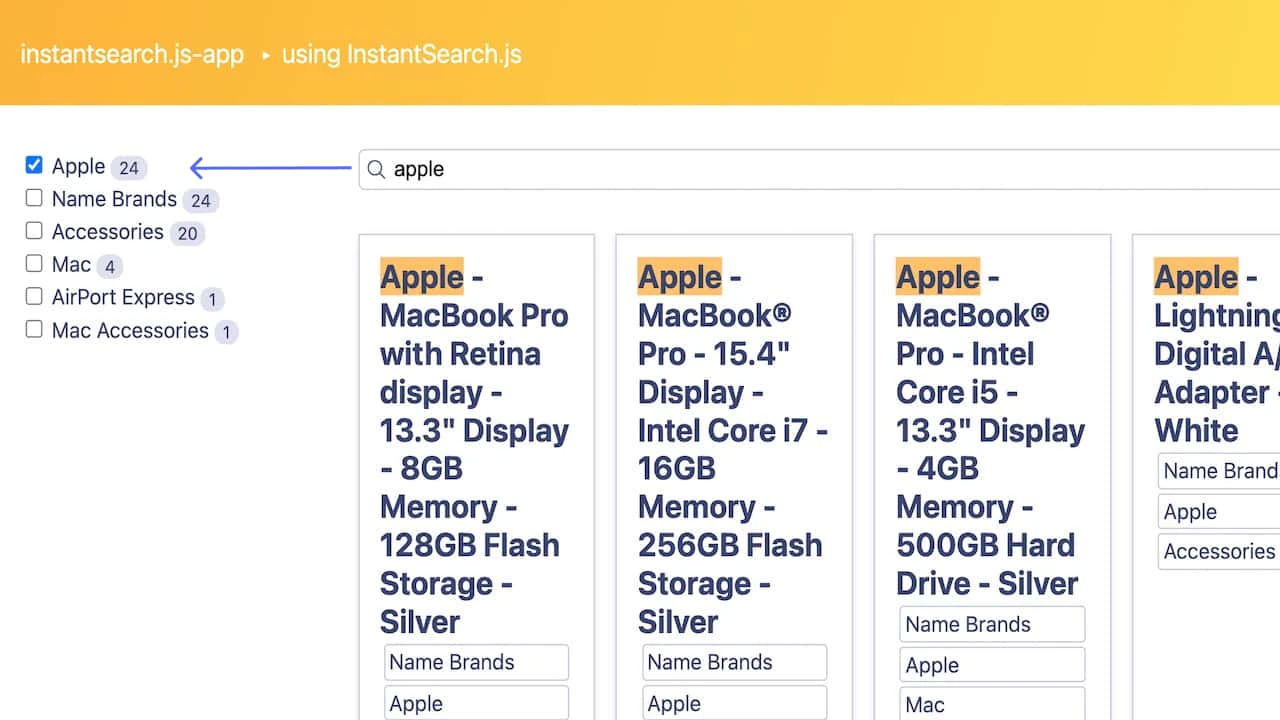
This rule automatically selects the "Apple" refinement whenever a user types the word "apple",
as in the query "battery chargers apple". This simplifies the user experience by interpreting what they mean and removing manual steps.
Automatic filtering can be surprising to users if they don't see it.
**This solution makes the behavior obvious by visually selecting,
on screen, the refinement that the rule has automatically selected.**
## Before you begin
This tutorial requires [InstantSearch.js](/doc/guides/building-search-ui/getting-started/js) or [React InstantSearch](/doc/guides/building-search-ui/getting-started/react).
## Implementation guide
This solution is a two-step process:
1. Create a rule to detect facet values from the query.
2. Automate refinement selection on the frontend.
## Create a rule to detect facet values from the query
To filter on the `category` attribute,
you first need to set it in [`attributesForFaceting`](/doc/api-reference/api-parameters/attributesForFaceting).
To learn more, see:
* [Declare attributes for faceting in the dashboard](/doc/guides/managing-results/refine-results/faceting/how-to/declaring-attributes-for-faceting-with-dashboard)
* [Declare attributes for faceting with the API](/doc/guides/managing-results/refine-results/faceting/how-to/declaring-attributes-for-faceting)
You can then create your rule: if a user types a term that's one of the facet values of the `category` attribute,
then automatically filter the query on that value.
You can create the rule from the Algolia dashboard or with one of the API clients.
To create this rule in the dashboard, follow these steps:
1. Go to the [Algolia dashboard](https://dashboard.algolia.com/explorer/browse) and select your Algolia .
2. On the left sidebar, select **Search**.
3. Select your Algolia index and go to the **[Rules](https://dashboard.algolia.com/rules)** page.
4. Select **Create your first rule** or **New rule** and select **Manual Editor**.
5. In the **Condition(s)** section, click **Query contains**, search for "categories", and select `{facet:categories}`.
6. In the **Consequence(s)** section set the following consequence:
7. Choose **Filter/Boost Matching Attributes**.
8. Search for "categories" and select the facet "categories".
It appears as **Add Facet "categories"**.
If you are using one of the API clients, you should create the [`saveRule`](/doc/libraries/sdk/v1/methods/save-rule)
with the following JSON.
```json JSON icon=braces theme={"system"}
{
"conditions": [
{
"pattern": "{facet:categories}",
"anchoring": "contains",
"alternatives": true
}
],
"consequence": {
"params": {
"automaticFacetFilters": [
{
"facet": "categories"
}
]
},
"filterPromotes": true
},
"enabled": true,
"objectID": "qr-1595323648567-0"
}
```
## Automate refinement selection on the frontend
This solution uses a standard InstantSearch implementation.
To automatically select refinements based on a rule, you need to:
1. Retrieve information from the rule you created earlier to select the refinements.
2. Automatically select the onscreen refinements.
* [InstantSearch.js](https://codesandbox.io/s/github/algolia/solutions/tree/master/facet-selection-autofilter)
* [React InstantSearch](https://codesandbox.io/s/github/algolia/solutions/tree/master/facet-selection-autofilter-react)
* [InstantSearch.js](https://github.com/algolia/solutions/tree/master/facet-selection-autofilter)
* [React InstantSearch](https://github.com/algolia/solutions/tree/master/facet-selection-autofilter-react)
#### Retrieve active rule information
To retrieve data on the applied rule,
you can use the `explain` query parameter in the [`configure`](/doc/api-reference/widgets/configure/js) widget.
Sending `explain: ['*']` with a query tells the engine to add extra rule details to the `explain` attribute of the response.
These details help to debug or, as here, implement specific frontend logic.
```js JavaScript theme={"system"}
search.addWidgets([
// ...
configure({
explain: ['*'],
}),
]);
```
```jsx React theme={"system"}
```
Here, the API returns information about the rule you created earlier.
Later on, you can use this information to decide what refinements to select.
```json JSON icon=braces theme={"system"}
{
"explain": {
"params": {
"rules": {
"facetFilters": ["category:groceries"]
}
}
}
}
```
#### Automatically select the relevant facet
You can automatically select the relevant facets by transforming the items in the [`refinementList`](/doc/api-reference/widgets/refinement-list/js) widget.
You can retrieve information about the rule-generated facet in the search response and use it to transform the matching item and mark it as refined.
When using React InstantSearch, you can retrieve information about the rule-generated facet in the search response with [`useInstantSearch()`](/doc/api-reference/widgets/use-instantsearch/react). You can do this in a React component that wraps [``](/doc/api-reference/widgets/refinement-list/react) and replaces it in your implementation.
```js JavaScript theme={"system"}
search.addWidgets([
refinementList({
// ...
transformItems(items) {
const facetFilters =
(search.helper.lastResults.explain &&
search.helper.lastResults.explain.params.rules.facetFilters) ||
[];
return items.map((item) => ({
...item,
isRefined:
item.isRefined ||
facetFilters.includes(`categories:${item.value.toLocaleLowerCase()}`),
}));
},
}),
]);
```
```jsx React theme={"system"}
function AutofilteredRefinementList(props) {
const { results } = useInstantSearch();
const [facetFilter] = results?.explain?.params?.rules?.facetFilters || [];
const transformItems = useCallback((items) => items.map((item) => ({
...item,
isRefined:
item.isRefined ||
facetFilter === `categories:${item.value.toLocaleLowerCase()}`,
})), [facetFilter]);
return ;
}
```
## See also
* [Guided search](/doc/guides/solutions/ecommerce/filtering-and-navigation/tutorials/guided-search)
* [Visual facets](/doc/guides/solutions/ecommerce/filtering-and-navigation/tutorials/visual-facets)
* [Seven examples of great search UI: instant filtering from the search box (blog)](https://www.algolia.com/blog/ux/7-examples-of-great-site-search-ui/)
* [A great faceted search experience (blog)](https://www.algolia.com/blog/ux/faceted-search-and-navigation/)
 ## Before you begin
This tutorial requires [InstantSearch.js](/doc/guides/building-search-ui/getting-started/js) or [React InstantSearch](/doc/guides/building-search-ui/getting-started/react).
## Implementation guide
This solution is a two-step process:
1. Create a rule to detect facet values from the query.
2. Automate refinement selection on the frontend.
## Create a rule to detect facet values from the query
To filter on the `category` attribute,
you first need to set it in [`attributesForFaceting`](/doc/api-reference/api-parameters/attributesForFaceting).
To learn more, see:
* [Declare attributes for faceting in the dashboard](/doc/guides/managing-results/refine-results/faceting/how-to/declaring-attributes-for-faceting-with-dashboard)
* [Declare attributes for faceting with the API](/doc/guides/managing-results/refine-results/faceting/how-to/declaring-attributes-for-faceting)
You can then create your rule: if a user types a term that's one of the facet values of the `category` attribute,
then automatically filter the query on that value.
You can create the rule from the Algolia dashboard or with one of the API clients.
## Before you begin
This tutorial requires [InstantSearch.js](/doc/guides/building-search-ui/getting-started/js) or [React InstantSearch](/doc/guides/building-search-ui/getting-started/react).
## Implementation guide
This solution is a two-step process:
1. Create a rule to detect facet values from the query.
2. Automate refinement selection on the frontend.
## Create a rule to detect facet values from the query
To filter on the `category` attribute,
you first need to set it in [`attributesForFaceting`](/doc/api-reference/api-parameters/attributesForFaceting).
To learn more, see:
* [Declare attributes for faceting in the dashboard](/doc/guides/managing-results/refine-results/faceting/how-to/declaring-attributes-for-faceting-with-dashboard)
* [Declare attributes for faceting with the API](/doc/guides/managing-results/refine-results/faceting/how-to/declaring-attributes-for-faceting)
You can then create your rule: if a user types a term that's one of the facet values of the `category` attribute,
then automatically filter the query on that value.
You can create the rule from the Algolia dashboard or with one of the API clients.