> ## Documentation Index
> Fetch the complete documentation index at: https://algolia.com/llms.txt
> Use this file to discover all available pages before exploring further.

# Autocomplete with Federated Search

> Combine suggestions from multiple indices in a single interface.

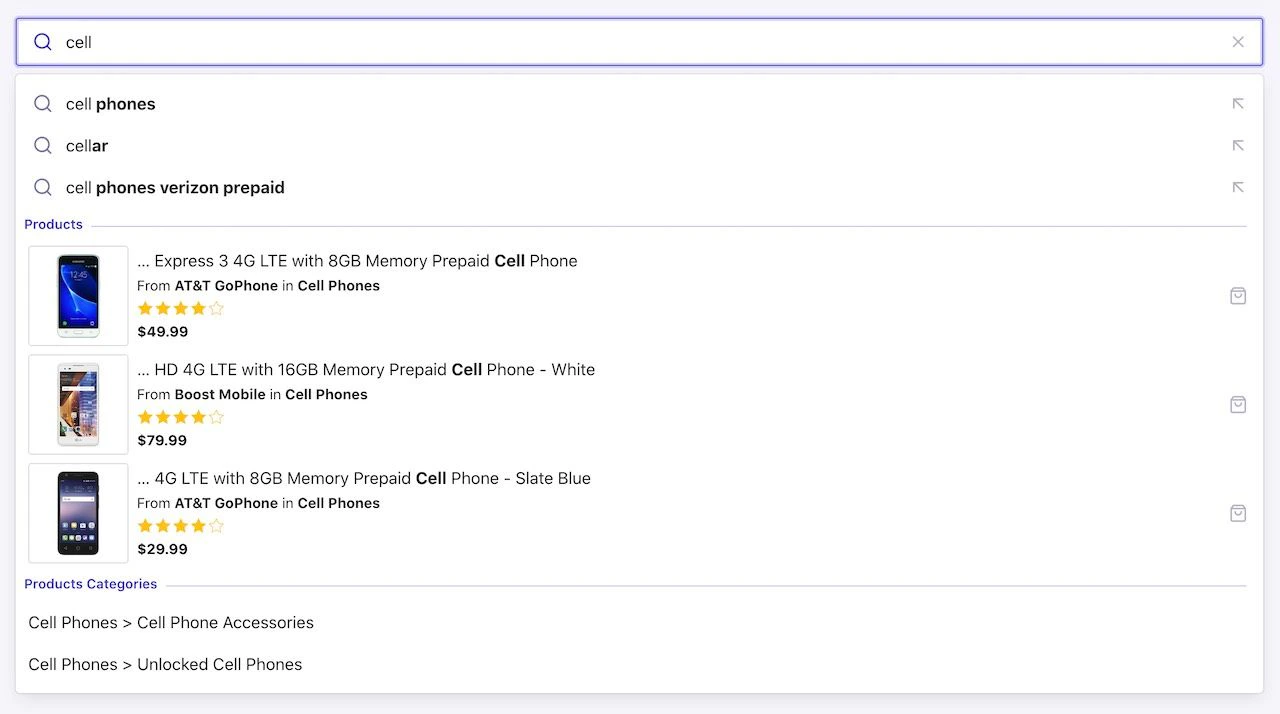
A federated search offers search results, Query Suggestions, product categories, and other content from multiple indices in a single interface.

<img src="https://mintcdn.com/algolia/u8QjGPGZbKOqOFEr/images/guides/solutions/solutions-autocomplete-federated-search.jpg?fit=max&auto=format&n=u8QjGPGZbKOqOFEr&q=85&s=6c709352d5539907455974ef239a4c7b" alt="Screenshot of a search interface showing autocomplete suggestions for 'cell' with product results and categories." width="1280" height="714" data-path="images/guides/solutions/solutions-autocomplete-federated-search.jpg" />

<Columns>
  <Card title="Open CodeSandbox" icon="codesandbox" href="https://codesandbox.io/s/github/algolia/solutions/tree/master/federated-search-autocomplete-demo">
    Run and edit the Autocomplete with Federated Search example in CodeSandbox.
  </Card>

  <Card title="View code on GitHub" icon="github" href="https://github.com/algolia/solutions/tree/master/federated-search-autocomplete-demo">
    View the Autocomplete with Federated Search example code on GitHub.
  </Card>
</Columns>

## Before you begin

This tutorial extends [Build a Query Suggestions UI with Autocomplete](/doc/ui-libraries/autocomplete/guides/adding-suggested-searches).

## Combine different data sources

With different indices for different content types, you can optimize the relevance for each type.
For example, blog posts might require a different ranking strategy than products.
Federated search can search multiple indices simultaneously and show the results in the same interface.

You can combine data sources in four different ways:

| Data sources                                                | Example                                                                                                                                                                                                                                              |
| ----------------------------------------------------------- | ---------------------------------------------------------------------------------------------------------------------------------------------------------------------------------------------------------------------------------------------------- |
| **Two or more Algolia indices**                             | One index for Query Suggestions, another for products, and another for a blog. Each index has different data types, data structures, and ranking strategies.                                                                                         |
| **One Algolia index with different filters**                | You can apply filters to contextualize and get extra data sets from the same index. For example, if your index has both movies and books, you can query a single index twice: one query with a filter for "movies" and the second query for "books". |
| **One Algolia index and filter values from the same index** | In a "product" index, you can have a set of category filters. You can apply these category filters and return relevant category values.                                                                                                              |
| **One Algolia index and third-party data**                  | You can search both an Algolia index and a third-party API asynchronously. For example, you can search into an Algolia index of restaurants and get a list of nearby addresses using the Google Places API.                                          |

## Implement federated search

You can add multiple data sources to Autocomplete with [`getSources`](/doc/ui-libraries/autocomplete/core-concepts/sources). In this tutorial, Autocomplete uses these data sources:

* **Query Suggestions** from the index `instant_search_demo_query_suggestions`
* **Product catalog** from the index `instant_search`
* **Hierarchical product categories** from `instant_search`

### Add Query Suggestions as first data source

Follow the steps in [Adding Query Suggestions](/doc/ui-libraries/autocomplete/guides/adding-suggested-searches#add-query-suggestions) to set up [`autocomplete-plugin-query-suggestions`](/doc/ui-libraries/autocomplete/api-reference/autocomplete-plugin-query-suggestions).

### Add search results for products as second data source

First, import [`getAlgoliaResults`](/doc/ui-libraries/autocomplete/api-reference/autocomplete-js/getAlgoliaResults) from the `autocomplete-js` package to get results from an Algolia index.

```js JavaScript icon=code theme={"system"}
import { autocomplete, getAlgoliaResults } from "@algolia/autocomplete-js";
```

Next, use `getSources` and `getAlgoliaResults` to get matching products from the Algolia index `instant_search`. This example uses custom rendering with [Preact](https://preactjs.com/) components.

```jsx JavaScript icon=code theme={"system"}
// ...
autocomplete({
  // ...
  // Add the product display
  getSources({ query, state }) {
    if (!query) {
      return [];
    }
    return [
      {
        sourceId: "products",
        getItems() {
          // Get the products from an Algolia index
          return getAlgoliaResults({
            searchClient,
            queries: [
              {
                indexName: "instant_search",
                params: {
                  query,
                  hitsPerPage: 3,
                  attributesToSnippet: ["name:10"],
                  snippetEllipsisText: "…",
                },
              },
            ],
          });
        },
        // Control how products are shown in Autocomplete
        templates: {
          // Show `Products` before the search results
          header() {
            return (
              <Fragment>
                <span className="aa-SourceHeaderTitle">Products</span>
                <div className="aa-SourceHeaderLine" />
              </Fragment>
            );
          },
          // Control the rendering of the actual product
          item({ item, components }) {
            return (
              // This Preact component is defined below
              <ProductItem hit={item} components={components} />
            );
          },
          // Display this text when no products match the query
          noResults() {
            return "No products for this query.";
          },
        },
      },
    ];
  },
});

// A Preact component to render a product item with an image on the left and
// product details on the right
function ProductItem({ hit, components }) {
  return (
    <a href={hit.url} className="aa-ItemLink">
      <div className="aa-ItemContent">
        <div className="aa-ItemIcon aa-ItemIcon--picture aa-ItemIcon--alignTop">
          <img src={hit.image} alt={hit.name} width="40" height="40" />
        </div>
        <div className="aa-ItemContentBody">
          <div className="aa-ItemContentTitle">
            <components.Snippet hit={hit} attribute="name" />
          </div>
          <div className="aa-ItemContentDescription">
            From <strong>{hit.brand}</strong> in{" "}
            <strong>{hit.categories[0]}</strong>
          </div>
          {hit.rating > 0 && (
            <div className="aa-ItemContentDescription">
              <div style={{ display: "flex", gap: 1, color: "#ffc107" }}>
                {Array.from({ length: 5 }, (_value, index) => {
                  const isFilled = hit.rating >= index + 1;

                  return (
                    <svg
                      key={index}
                      width="16"
                      height="16"
                      viewBox="0 0 24 24"
                      fill={isFilled ? "currentColor" : "none"}
                      stroke="currentColor"
                      strokeWidth="3"
                      strokeLinecap="round"
                      strokeLinejoin="round"
                    >
                      <polygon points="12 2 15.09 8.26 22 9.27 17 14.14 18.18 21.02 12 17.77 5.82 21.02 7 14.14 2 9.27 8.91 8.26 12 2" />
                    </svg>
                  );
                })}
              </div>
            </div>
          )}
          <div className="aa-ItemContentDescription" style={{ color: "#000" }}>
            <strong>${hit.price.toLocaleString()}</strong>
          </div>
        </div>
      </div>
      <div className="aa-ItemActions">
        <button
          className="aa-ItemActionButton aa-DesktopOnly aa-ActiveOnly"
          type="button"
          title="Select"
          style={{ pointerEvents: "none" }}
        >
          <svg viewBox="0 0 24 24" width="20" height="20" fill="currentColor">
            <path d="M18.984 6.984h2.016v6h-15.188l3.609 3.609-1.406 1.406-6-6 6-6 1.406 1.406-3.609 3.609h13.172v-4.031z" />
          </svg>
        </button>
        <button
          className="aa-ItemActionButton"
          type="button"
          title="Add to cart"
        >
          <svg viewBox="0 0 24 24" width="18" height="18" fill="currentColor">
            <path d="M19 5h-14l1.5-2h11zM21.794 5.392l-2.994-3.992c-0.196-0.261-0.494-0.399-0.8-0.4h-12c-0.326 0-0.616 0.156-0.8 0.4l-2.994 3.992c-0.043 0.056-0.081 0.117-0.111 0.182-0.065 0.137-0.096 0.283-0.095 0.426v14c0 0.828 0.337 1.58 0.879 2.121s1.293 0.879 2.121 0.879h14c0.828 0 1.58-0.337 2.121-0.879s0.879-1.293 0.879-2.121v-14c0-0.219-0.071-0.422-0.189-0.585-0.004-0.005-0.007-0.010-0.011-0.015zM4 7h16v13c0 0.276-0.111 0.525-0.293 0.707s-0.431 0.293-0.707 0.293h-14c-0.276 0-0.525-0.111-0.707-0.293s-0.293-0.431-0.293-0.707zM15 10c0 0.829-0.335 1.577-0.879 2.121s-1.292 0.879-2.121 0.879-1.577-0.335-2.121-0.879-0.879-1.292-0.879-2.121c0-0.552-0.448-1-1-1s-1 0.448-1 1c0 1.38 0.561 2.632 1.464 3.536s2.156 1.464 3.536 1.464 2.632-0.561 3.536-1.464 1.464-2.156 1.464-3.536c0-0.552-0.448-1-1-1s-1 0.448-1 1z" />
          </svg>
        </button>
      </div>
    </a>
  );
}
```

### Add product categories as third data source

To add categories to the federated search, import [`getAlgoliaFacets`](/doc/ui-libraries/autocomplete/api-reference/autocomplete-js/getAlgoliaFacets) from `autocomplete-js`.

```js JavaScript icon=code theme={"system"}
import {
  autocomplete,
  getAlgoliaResults,
  getAlgoliaFacets,
} from "@algolia/autocomplete-js";
// ...
```

Now add `getAlgoliaFacets` to `getSources` to add the product categories:

```jsx JavaScript icon=code theme={"system"}
// ...
autocomplete({
  // ...
  getSources() {
    return [
      {
        // The source for the products
        // ...
      },
      {
        sourceId: "productsCategories",
        getItems({ query }) {
          // Use the product categories as facets
          return getAlgoliaFacets({
            searchClient,
            queries: [
              {
                indexName: "instant_search",
                facet: "hierarchicalCategories.lvl1",
                params: {
                  facetQuery: query,
                  maxFacetHits: 2,
                },
              },
            ],
          });
        },
        // Control the rendering of the product categories
        templates: {
          header() {
            return (
              // Show 'Product Categories' before the actual categories
              <Fragment>
                <span className="aa-SourceHeaderTitle">
                  Products Categories
                </span>
                <div className="aa-SourceHeaderLine" />
              </Fragment>
            );
          },
          item({ item }) {
            return <div>{item.label}</div>;
          },
        },
      },
    ];
  },
});
```

## Next steps

Beyond this example, you can [add more data sources](/doc/ui-libraries/autocomplete/guides/including-multiple-result-types).
To make your data sources reusable and shareable,
encapsulate them as plugins.
For more information, see [Build your own plugin](/doc/ui-libraries/autocomplete/core-concepts/plugins#build-your-own-plugin).

You can also add more features, such as:

* **Merchandising.** Use [Rules and merchandising](/doc/guides/managing-results/rules/merchandising-and-promoting) to promote queries or items in the empty-search state or no-results state.
* **Personalization.** Use Algolia's [personalization](/doc/guides/personalization/classic-personalization/what-is-personalization) feature to enhance Query Suggestions or products.
* **Dynamic Re-ranking.** Let Algolia's [Dynamic Re-ranking](/doc/guides/algolia-ai/re-ranking) feature boost popular Query Suggestions or products.

## See also

* [What's federated search? (blog)](https://www.algolia.com/blog/ux/what-is-federated-search/)
* [Best practices for federated search (blog)](https://www.algolia.com/blog/product/best-practices-for-federated-search/)
* [Autocomplete works best with federated search (blog)](https://www.algolia.com/blog/ux/autocomplete-how-search-suggestions-increase-conversions/)
