> ## Documentation Index
> Fetch the complete documentation index at: https://algolia.com/llms.txt
> Use this file to discover all available pages before exploring further.
# Install Algolia for BigCommerce
> Connect your BigCommerce store with Algolia in a few clicks without writing code.
The Algolia BigCommerce integration handles the data connection between your BigCommerce store and Algolia.
## Before you begin
To connect BigCommerce and Algolia,
you need a BigCommerce store with owner access and an Algolia application with administrator access on the [build or elevate plan](https://www.algolia.com/pricing/). You can [create one for free](/doc/guides/sending-and-managing-data/manage-indices-and-apps/manage-your-apps).
Stores using BigCommerce [Catalyst](https://www.catalyst.dev/) can use the Algolia BigCommerce application for indexing,
but the search settings within the application won't be available.
## Install the Algolia for BigCommerce app
1. Go to the [Algolia for BigCommerce app](https://www.bigcommerce.com/apps/algolia-search-discovery/).
2. Click **Get this app**.
3. Existing BigCommerce store - Log in
4. New to BigCommerce - Sign up
5. Click **Install**.
## Connect BigCommerce with Algolia
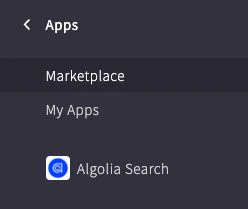
1. Select the Algolia Search app from the app list in the sidebar.
 2. Select **Confirm** on the permissions prompt.
3. Select **Login With Algolia**.
In the dialog, enter your Algolia credentials if you're not already signed in.
4. Select the Algolia app you want to connect to your BigCommerce store.
2. Select **Confirm** on the permissions prompt.
3. Select **Login With Algolia**.
In the dialog, enter your Algolia credentials if you're not already signed in.
4. Select the Algolia app you want to connect to your BigCommerce store.
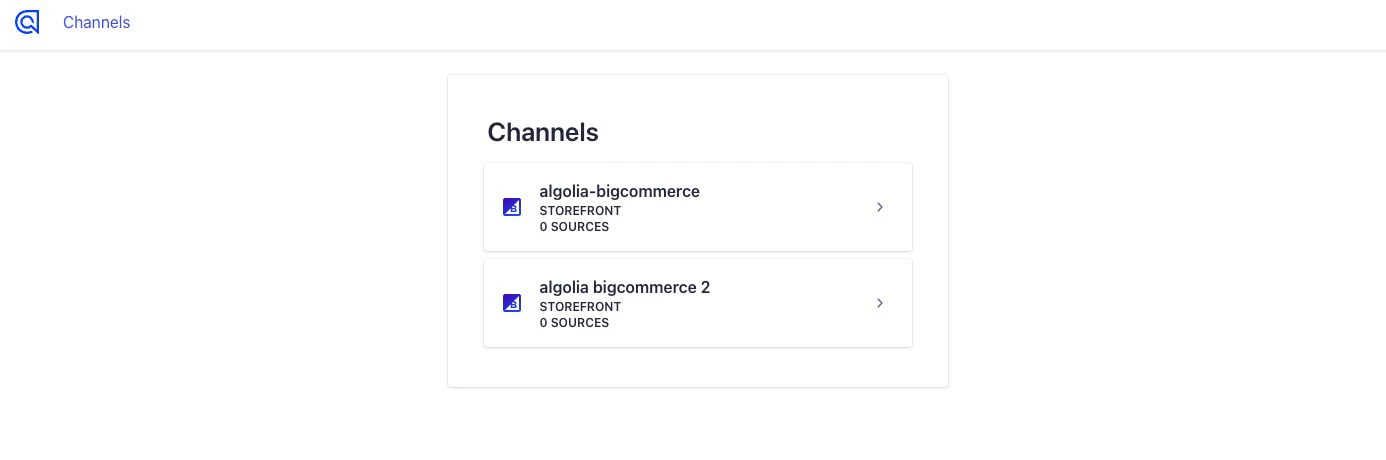
 5. Select the BigCommerce channel you want to connect to your Algolia application.
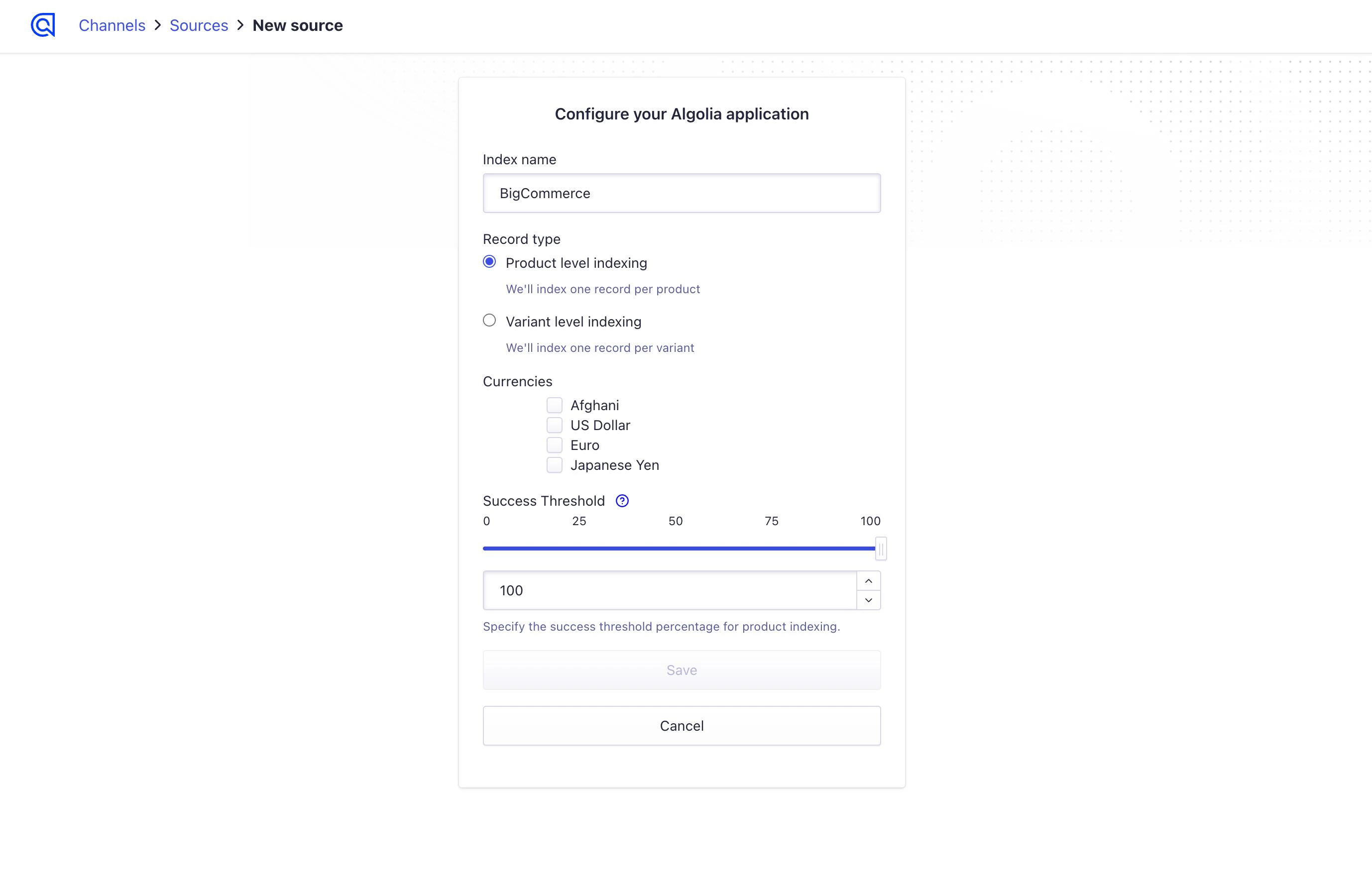
 6. Name the index and choose between product or variant-level indexing:
* **Product level indexing.** Each product has a record assigned to it.
* **Variant level indexing.** Each [product variant](https://developer.bigcommerce.com/docs/rest-catalog/product-variants) has a record assigned to it.
7. Select one or more currencies for indexing.
8. Enter an indexing success threshold in percent to indicate how many products must be imported without issues for a successful indexing.
9. Click **Connect to BigCommerce**.
6. Name the index and choose between product or variant-level indexing:
* **Product level indexing.** Each product has a record assigned to it.
* **Variant level indexing.** Each [product variant](https://developer.bigcommerce.com/docs/rest-catalog/product-variants) has a record assigned to it.
7. Select one or more currencies for indexing.
8. Enter an indexing success threshold in percent to indicate how many products must be imported without issues for a successful indexing.
9. Click **Connect to BigCommerce**.
 10. Select when to index your products:
* **Yes, index now** if you want to index your BigCommerce products now.
* **No, index later** if you want to index your products later.
You won't see your products in an Algolia index until you [trigger a full reindex](/doc/integration/bigcommerce/get-started/configuration#trigger-a-full-reindex).
10. Select when to index your products:
* **Yes, index now** if you want to index your BigCommerce products now.
* **No, index later** if you want to index your products later.
You won't see your products in an Algolia index until you [trigger a full reindex](/doc/integration/bigcommerce/get-started/configuration#trigger-a-full-reindex).