> ## Documentation Index
> Fetch the complete documentation index at: https://algolia.com/llms.txt
> Use this file to discover all available pages before exploring further.
# Monitor BigCommerce indexing
> Monitor the BigCommerce indexing process
You can add BigCommerce products to an Algolia index in the following ways:
* **Manually** indexing all products for a particular source
* Through **real-time updates**,
which are triggered automatically when a product is updated and published in BigCommerce
To check the progress of an indexing operation, follow these steps:
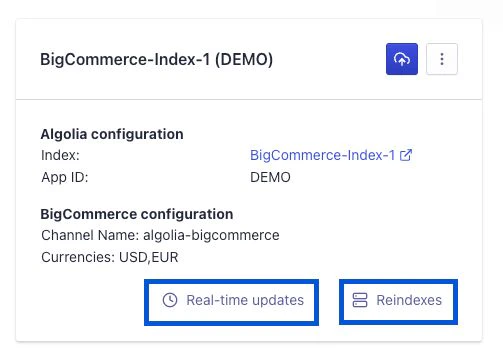
1. Go to the source list for your BigCommerce channel.
2. Click **Real-time updates** to view the real time indexing log.
Click **Reindexes** to view manually triggered indexing operations.
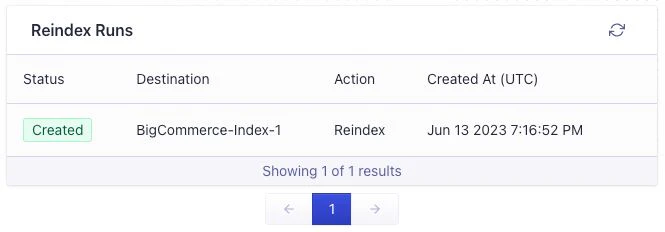
 3. The **Reindex Runs** box shows reindexing details such as the status,
the destination index, and a timestamp for each run.
3. The **Reindex Runs** box shows reindexing details such as the status,
the destination index, and a timestamp for each run.
 4. Click a reindex run from the list to open the **Run Details** box,
which shows the progress and details of an individual reindexing run.
4. Click a reindex run from the list to open the **Run Details** box,
which shows the progress and details of an individual reindexing run.
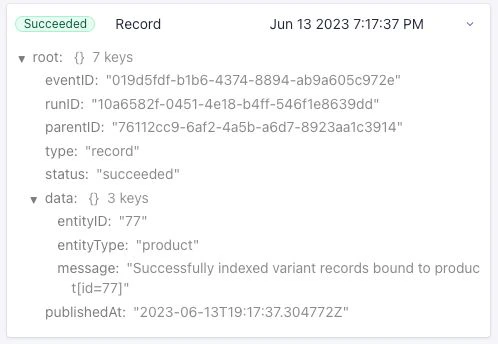
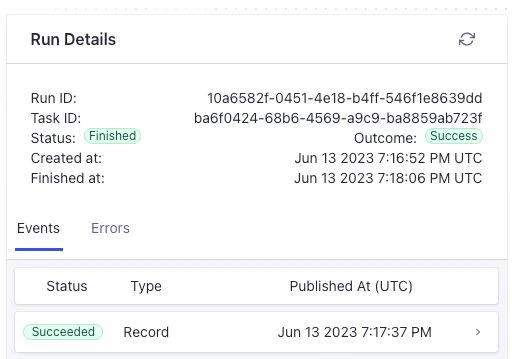 5. To check the API responses for all events associated with the reindex run,
click **Events** in the **Run Details** dialog.
Any errors in this indexing run are shown in the **Errors** tab.
5. To check the API responses for all events associated with the reindex run,
click **Events** in the **Run Details** dialog.
Any errors in this indexing run are shown in the **Errors** tab.
 The number of products you can index depends on your [Algolia plan](https://www.algolia.com/pricing/).
If you run into "Record quota exceeded" errors,
check your [Algolia account](https://dashboard.algolia.com/billing/overview/).
The number of products you can index depends on your [Algolia plan](https://www.algolia.com/pricing/).
If you run into "Record quota exceeded" errors,
check your [Algolia account](https://dashboard.algolia.com/billing/overview/).