> ## Documentation Index
> Fetch the complete documentation index at: https://algolia.com/llms.txt
> Use this file to discover all available pages before exploring further.
# Autocomplete
> Configure Algolia Autocomplete for BigCommerce.
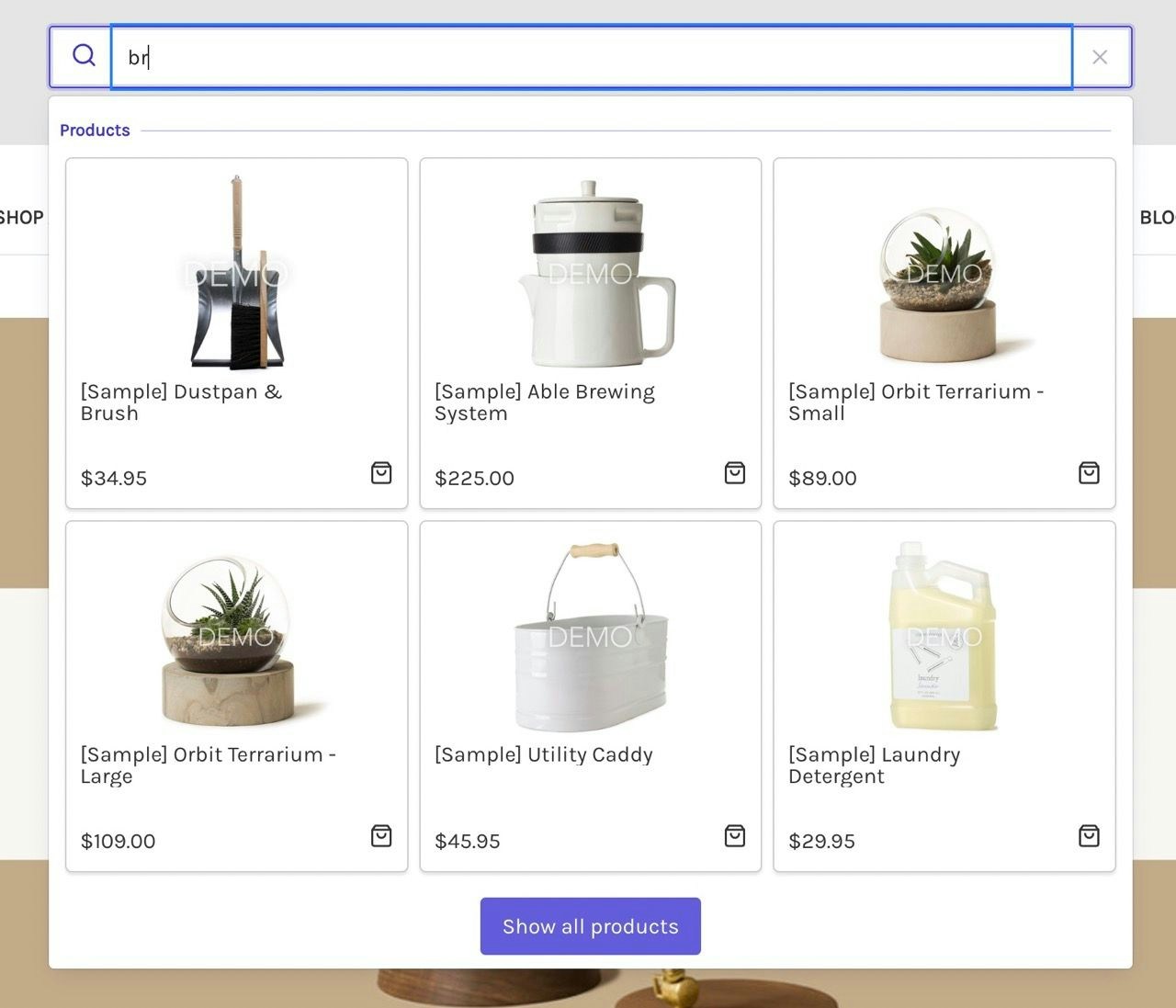
The Algolia integration for BigCommerce includes an autocomplete menu that replaces the default BigCommerce search box and provides results as-you-type.
The autocomplete menu uses Algolia's [Autocomplete UI library](/doc/ui-libraries/autocomplete/introduction/what-is-autocomplete).
 ## Configure the autocomplete menu
To configure the autocomplete menu,
select a channel in your BigCommerce app and open the **Search settings** tab.
## Configure the autocomplete menu
To configure the autocomplete menu,
select a channel in your BigCommerce app and open the **Search settings** tab.
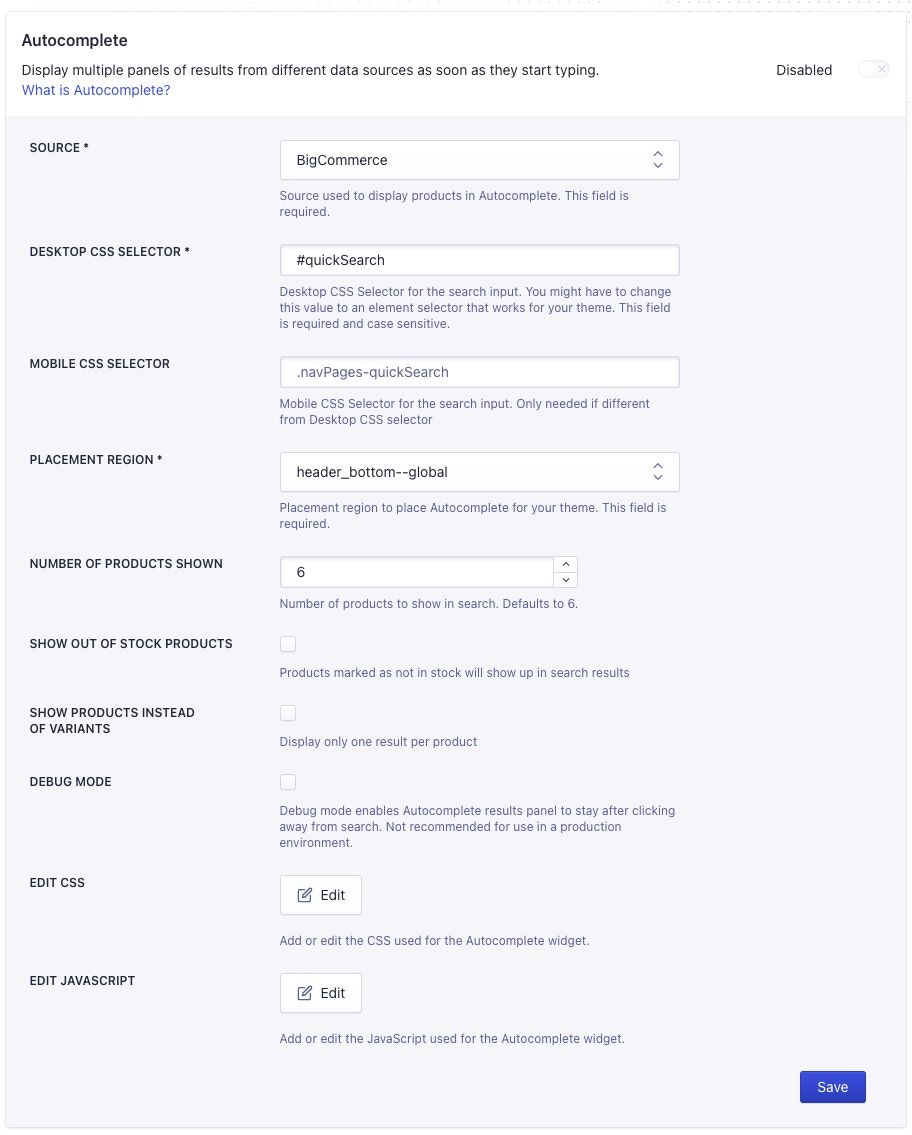 The **Desktop CSS Selector** option targets the search box on large screens.
The default value is `#quickSearch`.
If your theme uses separate search boxes for large and small screens,
use the **Mobile CSS Selector** option to target the search box on small screens.
The default value is `.navPages-quickSearch`.
When providing a mobile selector,
use the **Max Mobile Width** option to specify the breakpoint for switching between the small screen and large screen versions of the search box.
The default value is `800px`.
After making changes to the settings, click **Save**.
## Customize the autocomplete menu
Autocomplete is pre-configured for the *Cornerstone* theme in BigCommerce.
For other themes, you might need to tweak the Autocomplete menu to match.
You can adjust both the CSS and JavaScript for Autocomplete.
To configure the Autocomplete CSS and JavaScript,
go to the **Search settings** tab and select **Edit CSS** or **Edit JavaScript**.
The **Desktop CSS Selector** option targets the search box on large screens.
The default value is `#quickSearch`.
If your theme uses separate search boxes for large and small screens,
use the **Mobile CSS Selector** option to target the search box on small screens.
The default value is `.navPages-quickSearch`.
When providing a mobile selector,
use the **Max Mobile Width** option to specify the breakpoint for switching between the small screen and large screen versions of the search box.
The default value is `800px`.
After making changes to the settings, click **Save**.
## Customize the autocomplete menu
Autocomplete is pre-configured for the *Cornerstone* theme in BigCommerce.
For other themes, you might need to tweak the Autocomplete menu to match.
You can adjust both the CSS and JavaScript for Autocomplete.
To configure the Autocomplete CSS and JavaScript,
go to the **Search settings** tab and select **Edit CSS** or **Edit JavaScript**.
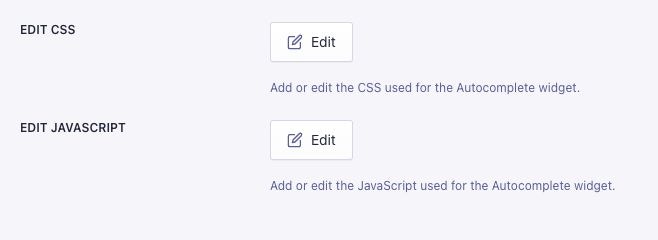 In the editor, you can change the Autocomplete CSS or JavaScript.
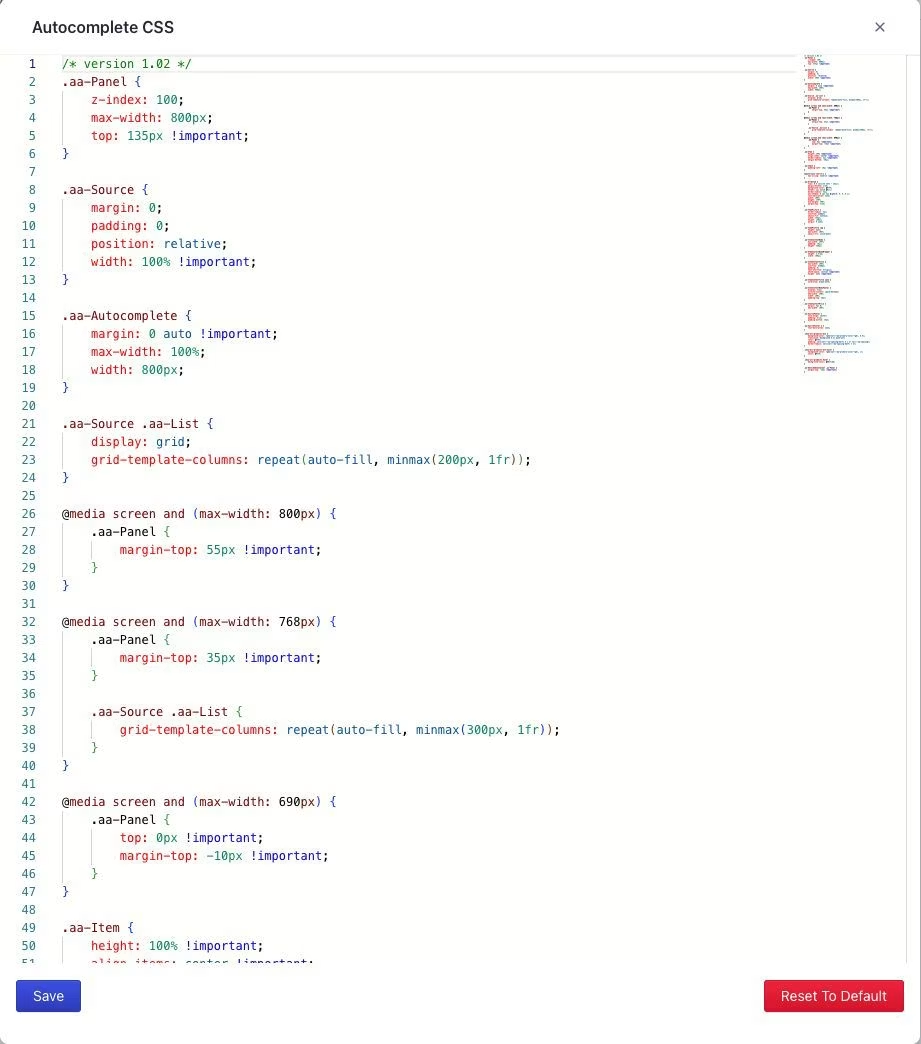 When you're done, click **Save** at the bottom left of the editor,
and click **Save** again on the main search settings page for Autocomplete to publish your changes.
## Restore default CSS and JavaScript
1. Go to the **Search settings** tab and select **Edit CSS** or **Edit JavaScript**.
2. Pick **Reset to default** on the bottom right of the editor.
3. Confirm that you want to reset the CSS or JavaScript code to its default. This action overwrites any changes you've made.
4. Click **Save** at the bottom left within the editor, then click **Save** on the main search settings page for Autocomplete to publish your changes.
## Update Autocomplete CSS and JavaScript
When there's an Autocomplete CSS and JavaScript update,
the **Search settings** tab shows **Updates available** badges for CSS or JavaScript.
To update, click **Edit CSS** or **Edit JavaScript**.
When you're done, click **Save** at the bottom left of the editor,
and click **Save** again on the main search settings page for Autocomplete to publish your changes.
## Restore default CSS and JavaScript
1. Go to the **Search settings** tab and select **Edit CSS** or **Edit JavaScript**.
2. Pick **Reset to default** on the bottom right of the editor.
3. Confirm that you want to reset the CSS or JavaScript code to its default. This action overwrites any changes you've made.
4. Click **Save** at the bottom left within the editor, then click **Save** on the main search settings page for Autocomplete to publish your changes.
## Update Autocomplete CSS and JavaScript
When there's an Autocomplete CSS and JavaScript update,
the **Search settings** tab shows **Updates available** badges for CSS or JavaScript.
To update, click **Edit CSS** or **Edit JavaScript**.
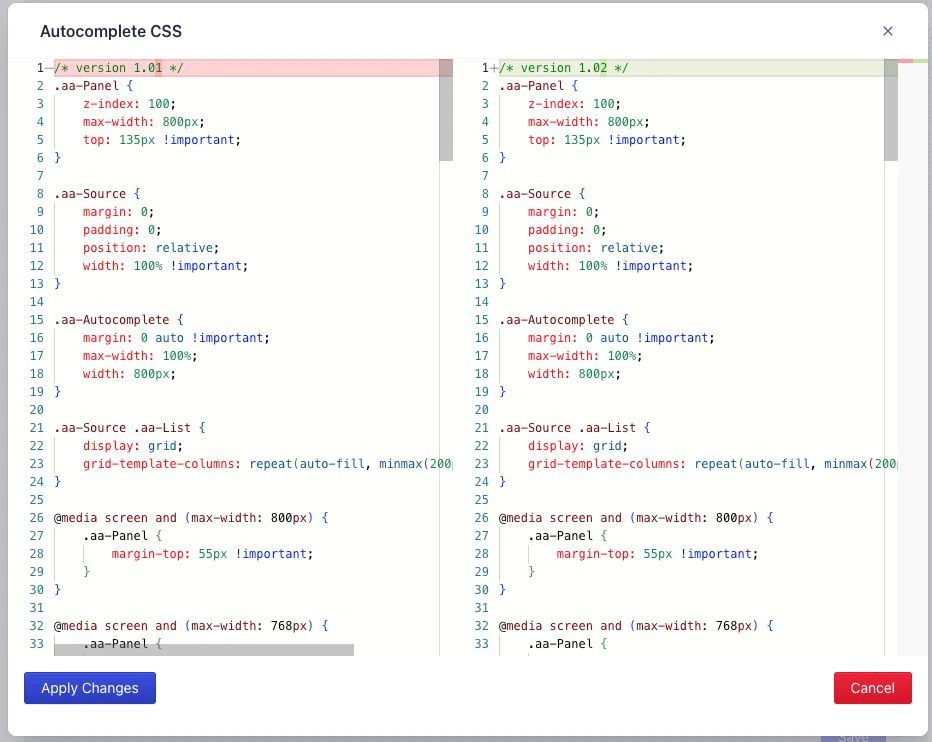
 The editor shows the difference between your existing code and the new version.
Paste your custom code and click **Apply Changes**.
The editor shows the difference between your existing code and the new version.
Paste your custom code and click **Apply Changes**.