> ## Documentation Index
> Fetch the complete documentation index at: https://algolia.com/llms.txt
> Use this file to discover all available pages before exploring further.
# Customize search settings
> Customize Autocomplete and InstantSearch CSS and JavaScript in BigCommerce.
## Customize CSS and JavaScript
Autocomplete and InstantSearch are pre-configured for BigCommerce's [Cornerstone theme](https://support.bigcommerce.com/s/article/Cornerstone-Theme-Manual).
For other themes, you might need to adjust the Autocomplete or InstantSearch CSS and JavaScript.
To do this,
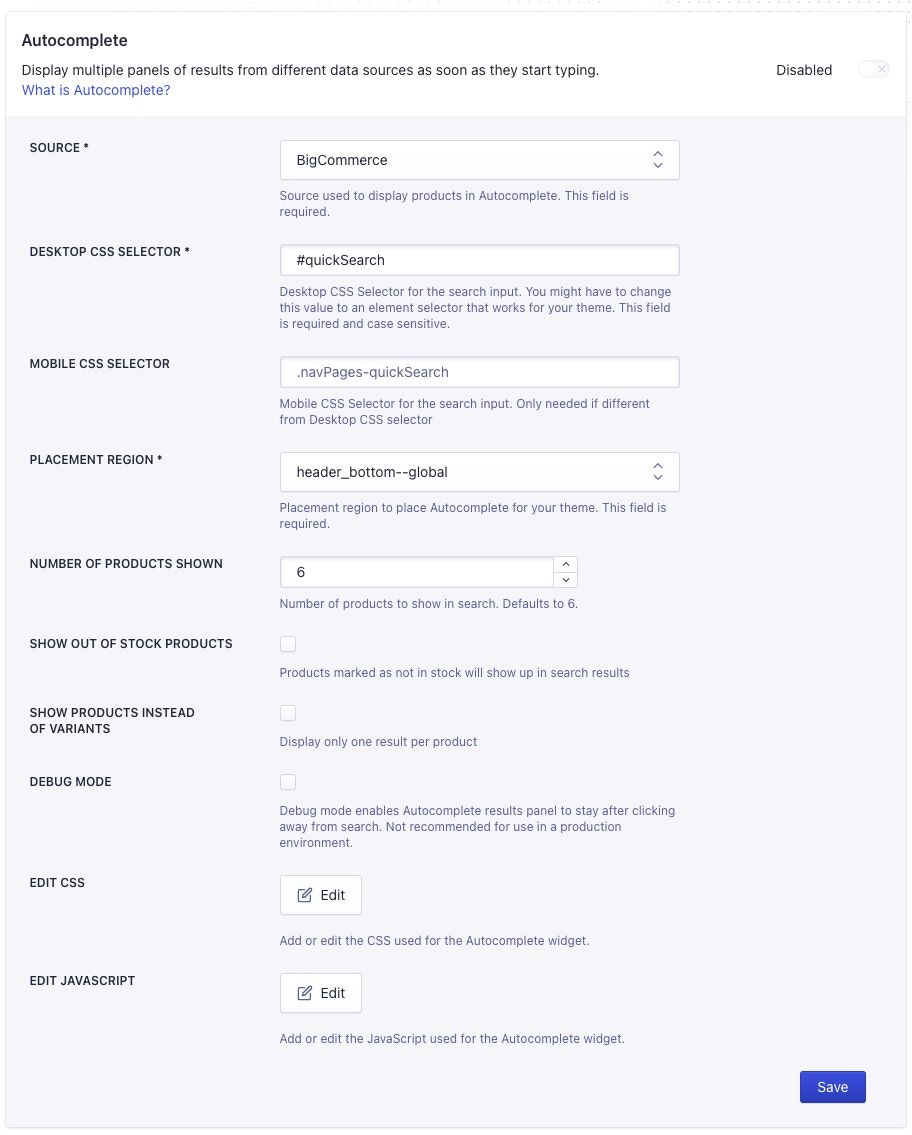
open the **Search settings** tab in your BigCommerce app and click the **Edit** button for CSS or JavaScript.
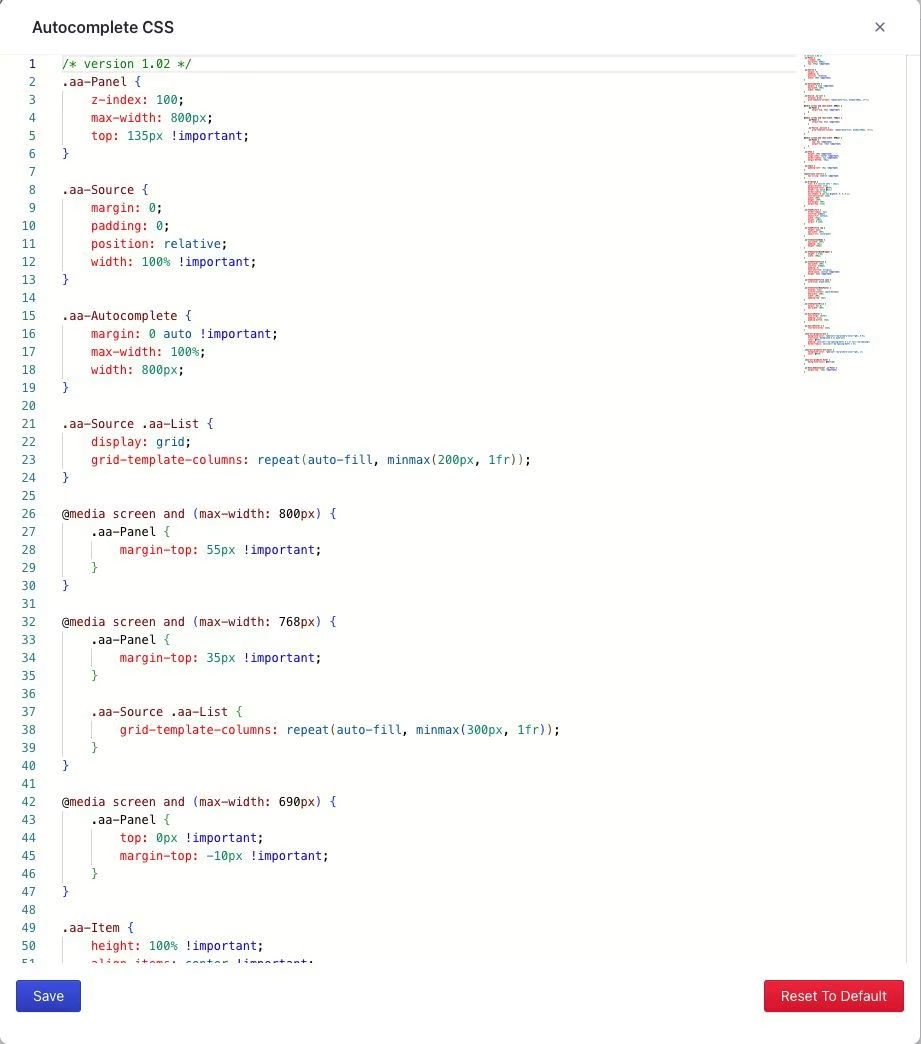 When ready, click **Save** at the bottom of the editor,
then click **Save** on the main search settings page to publish your changes.
## Restore default CSS and JavaScript
1. On the **Search settings** tab in your BigCommerce app,
click **Edit** for CSS or JavaScript.
When ready, click **Save** at the bottom of the editor,
then click **Save** on the main search settings page to publish your changes.
## Restore default CSS and JavaScript
1. On the **Search settings** tab in your BigCommerce app,
click **Edit** for CSS or JavaScript.
 2. Click **Reset to default** at the bottom of the editor.
3. Confirm that you want to reset the CSS or JavaScript code to its default.
This removes [your customizations](#customize-css-and-javascript).
4. Click **Save** at the bottom of the editor,
then click **Save** on the main Search settings page to publish your changes.
## Update CSS and JavaScript
When there are updates available for the Autocomplete or InstantSearch CSS and JavaScript code,
the **Search settings** tab shows **Updates available** badges.
To update the CSS or JavaScript, click the **Edit** button.
Algolia performs updates periodically,
so you might not see an update available immediately.
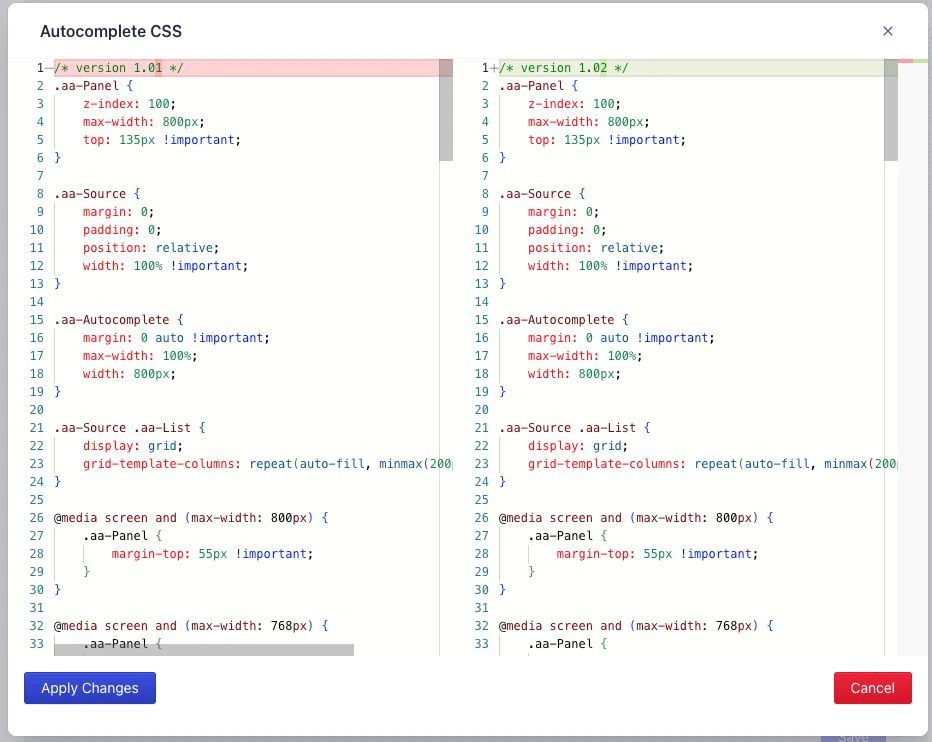
The editor shows the differences between your existing code and the new code.
Paste or edit your custom code, then click **Apply Changes**.
2. Click **Reset to default** at the bottom of the editor.
3. Confirm that you want to reset the CSS or JavaScript code to its default.
This removes [your customizations](#customize-css-and-javascript).
4. Click **Save** at the bottom of the editor,
then click **Save** on the main Search settings page to publish your changes.
## Update CSS and JavaScript
When there are updates available for the Autocomplete or InstantSearch CSS and JavaScript code,
the **Search settings** tab shows **Updates available** badges.
To update the CSS or JavaScript, click the **Edit** button.
Algolia performs updates periodically,
so you might not see an update available immediately.
The editor shows the differences between your existing code and the new code.
Paste or edit your custom code, then click **Apply Changes**.