> ## Documentation Index
> Fetch the complete documentation index at: https://algolia.com/llms.txt
> Use this file to discover all available pages before exploring further.
# Click and conversion events
> Send click and conversion events from your BigCommerce store to the Algolia Insights API.
export const UserToken = () =>
user token
;
By default, you'll send [click and view events](/doc/guides/sending-events/concepts/event-types) when users view or select search results.
To turn off sending events,
clear the **Use click analytics** checkbox.
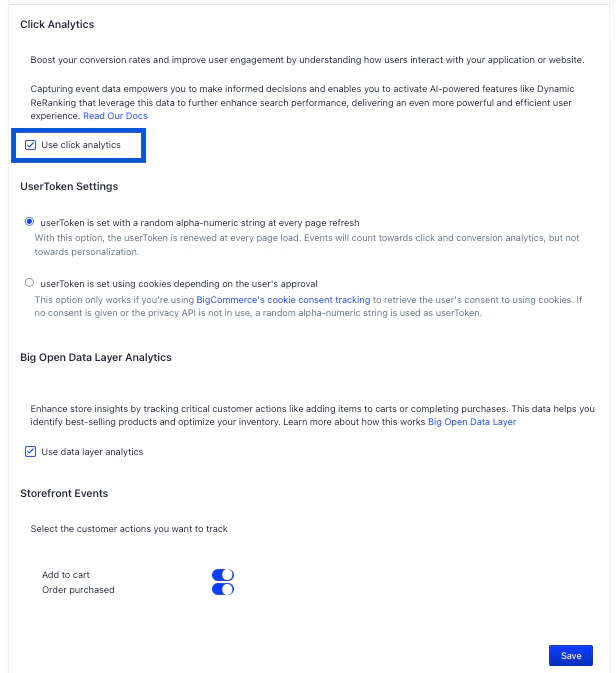 By default, a new anonymous is generated on every page refresh.
For more persistent user tokens, select **userToken is set using cookies depending on the user's approval**.
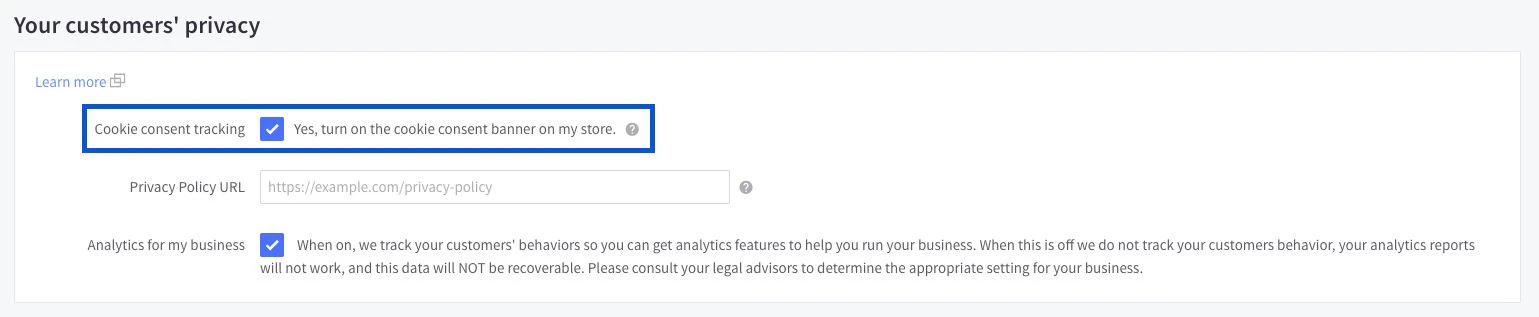
Before you can use cookies to store the user token,
you must turn on "Cookie consent tracking" in your BigCommerce control panel.
To find this option in your BigCommerce store,
go to **Settings > Security & Privacy > Your customers' privacy.**
By default, a new anonymous is generated on every page refresh.
For more persistent user tokens, select **userToken is set using cookies depending on the user's approval**.
Before you can use cookies to store the user token,
you must turn on "Cookie consent tracking" in your BigCommerce control panel.
To find this option in your BigCommerce store,
go to **Settings > Security & Privacy > Your customers' privacy.**
 ## Big Open Data Layer analytics
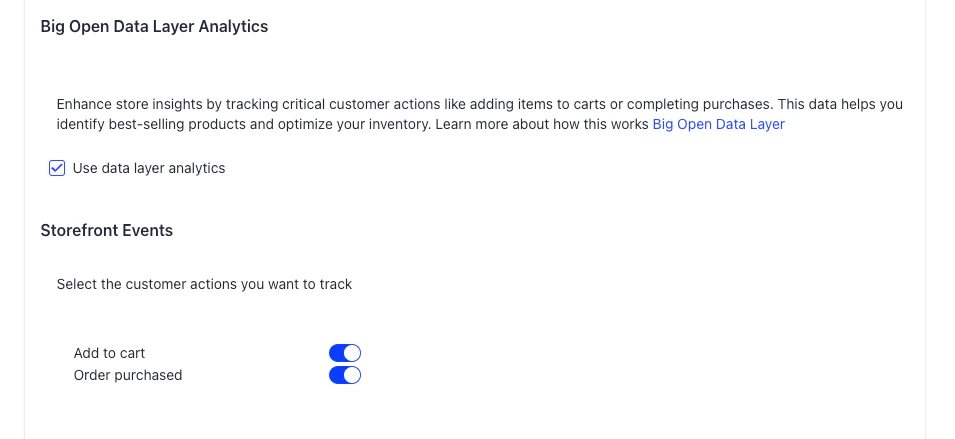
1. Check **Use data layer analytics** to enable [Big Open Data Layer](https://developer.bigcommerce.com/docs/integrations/hosted-analytics).
2. Select **Add to cart**, **Order purchased**, or both events.
3. Select the type of user interaction to track:
* **Add to cart**. Send an event when a user add a product to their cart.
* **Order purchased.** Send an event when a user completes a purchase.
## Big Open Data Layer analytics
1. Check **Use data layer analytics** to enable [Big Open Data Layer](https://developer.bigcommerce.com/docs/integrations/hosted-analytics).
2. Select **Add to cart**, **Order purchased**, or both events.
3. Select the type of user interaction to track:
* **Add to cart**. Send an event when a user add a product to their cart.
* **Order purchased.** Send an event when a user completes a purchase.