> ## Documentation Index
> Fetch the complete documentation index at: https://algolia.com/llms.txt
> Use this file to discover all available pages before exploring further.
# InstantSearch
> Configure Algolia InstantSearch for BigCommerce.
export const SearchQuery = () =>
search query
;
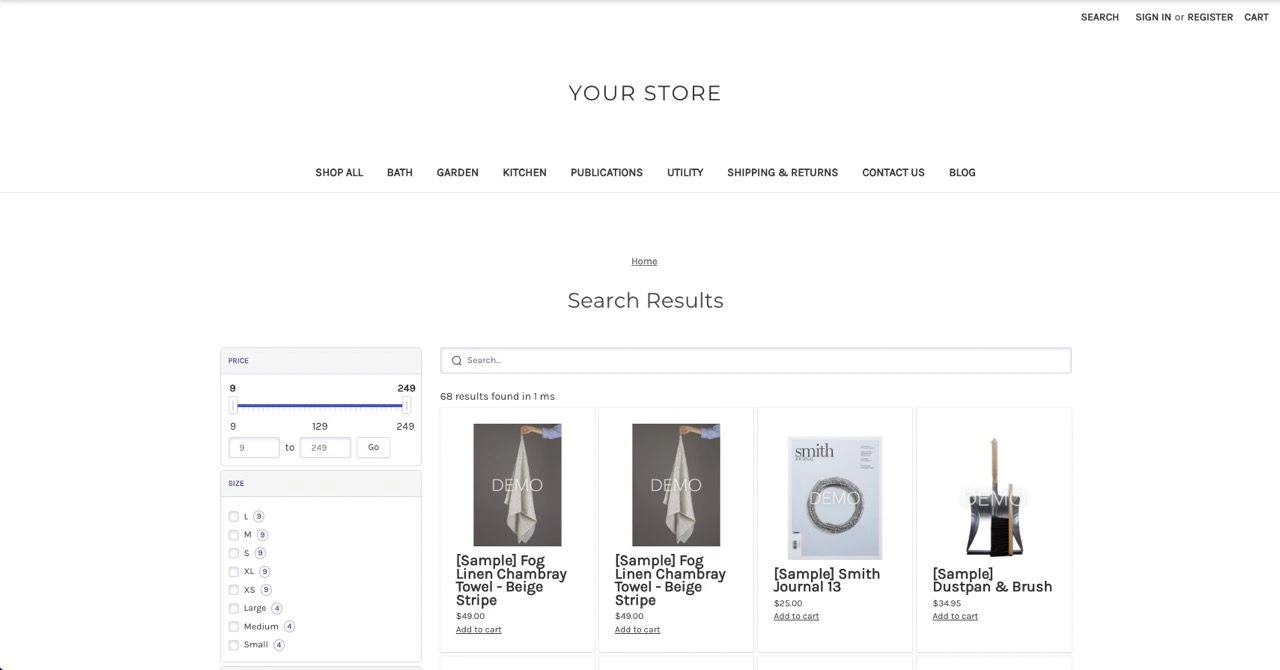
The Algolia integration for BigCommerce replaces the built-in BigCommerce search results page with [InstantSearch.js](/doc/guides/building-search-ui/what-is-instantsearch/js).
 ## Configuration
To configure the InstantSearch page,
select a channel in your BigCommerce app and open the **Search settings** tab.
## Configuration
To configure the InstantSearch page,
select a channel in your BigCommerce app and open the **Search settings** tab.
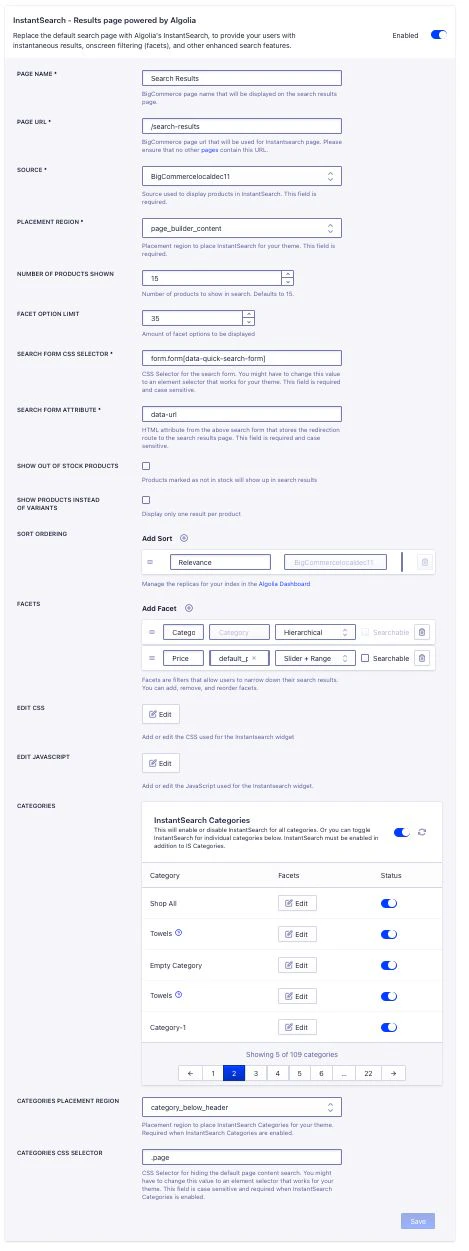 The **Search Form CSS Selector** option targets the main element of your search results page.
The **Search Form Attribute** option stores the HTML attribute that contains the route to the search results page.
The default value is `data-url`.
## Customize facets
The InstantSearch page uses the `default_price` attribute as default facet.
To add a new facet,
click **Add facet** and enter the name of the facet,
the attribute to use,
and the widget to use to display the facet.
Then, click **Confirm facet**.
Configure [attributes for faceting](/doc/guides/managing-results/refine-results/faceting/how-to/declaring-attributes-for-faceting-with-dashboard).
Make the facet searchable to let users enter a value to filter results for that facet.
For example: color or size.
The **Search Form CSS Selector** option targets the main element of your search results page.
The **Search Form Attribute** option stores the HTML attribute that contains the route to the search results page.
The default value is `data-url`.
## Customize facets
The InstantSearch page uses the `default_price` attribute as default facet.
To add a new facet,
click **Add facet** and enter the name of the facet,
the attribute to use,
and the widget to use to display the facet.
Then, click **Confirm facet**.
Configure [attributes for faceting](/doc/guides/managing-results/refine-results/faceting/how-to/declaring-attributes-for-faceting-with-dashboard).
Make the facet searchable to let users enter a value to filter results for that facet.
For example: color or size.
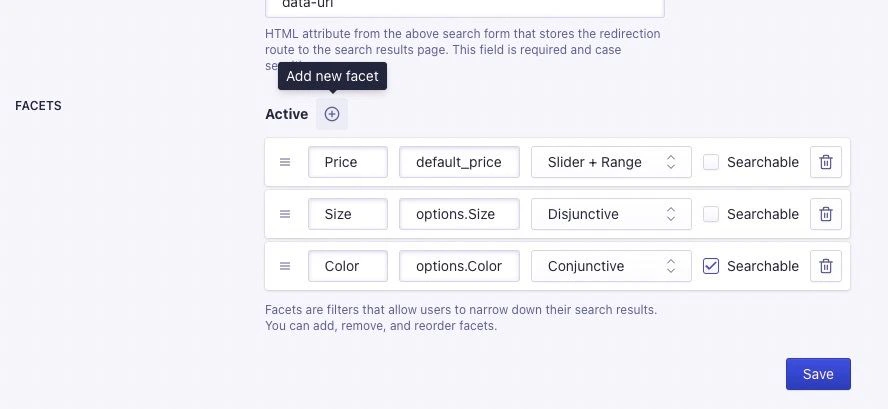 Facets can be displayed in these ways:
* **Conjunctive List.**
Users select multiple options.
All selected criteria must match for items to appear.
* **Disjunctive List.**
Users choose any combination of options.
Items matching any selected criteria show.
* **Input Range.**
Users specify a numeric range.
For example, price or date, and items within that range display.
* **Slider.**
Users adjust a value along a scale.
For example, updating the price or rating.
To reorder the facets, drag them around in the list.
To remove a facet, click **Remove**.
To limit the number of facet values displayed in InstantSearch, change the **Facet Option Limit** setting.
After making changes to the facets, click **Save**.
When you save facet settings in the BigCommerce app,
it updates the `attributesForFaceting` setting of your Algolia index.
Any facets configured outside the app, for example, in the Algolia dashboard or through the API, are preserved.
If you remove a facet from the app, it's also removed from your Algolia index settings.
## Customize sort order
By default, InstantSearch sorts results by [relevance](/doc/guides/managing-results/refine-results/sorting#relevant-sorting),
which means products are ranked based on how well they match the user's .
No other sort options are available unless you configure them.
Custom sort order lets you give users more ways to sort search results, such as by price, newest arrivals, or popularity.
It helps them find products more easily based on their preferences.
To enable additional sort options,
[add replica indices](/doc/guides/managing-results/refine-results/sorting).
Each replica index represents a different sort order (for example, "Price: Low to High" or "Newest First").
Once your replica indices are set up, you can add them as sort options in the InstantSearch settings.
Facets can be displayed in these ways:
* **Conjunctive List.**
Users select multiple options.
All selected criteria must match for items to appear.
* **Disjunctive List.**
Users choose any combination of options.
Items matching any selected criteria show.
* **Input Range.**
Users specify a numeric range.
For example, price or date, and items within that range display.
* **Slider.**
Users adjust a value along a scale.
For example, updating the price or rating.
To reorder the facets, drag them around in the list.
To remove a facet, click **Remove**.
To limit the number of facet values displayed in InstantSearch, change the **Facet Option Limit** setting.
After making changes to the facets, click **Save**.
When you save facet settings in the BigCommerce app,
it updates the `attributesForFaceting` setting of your Algolia index.
Any facets configured outside the app, for example, in the Algolia dashboard or through the API, are preserved.
If you remove a facet from the app, it's also removed from your Algolia index settings.
## Customize sort order
By default, InstantSearch sorts results by [relevance](/doc/guides/managing-results/refine-results/sorting#relevant-sorting),
which means products are ranked based on how well they match the user's .
No other sort options are available unless you configure them.
Custom sort order lets you give users more ways to sort search results, such as by price, newest arrivals, or popularity.
It helps them find products more easily based on their preferences.
To enable additional sort options,
[add replica indices](/doc/guides/managing-results/refine-results/sorting).
Each replica index represents a different sort order (for example, "Price: Low to High" or "Newest First").
Once your replica indices are set up, you can add them as sort options in the InstantSearch settings.
 To add a new sort order:
1. Click the **Plus** icon next to **Add Sort**.
2. Enter the title you want to display for the sort order (for example, "Price: Low to High").
3. Select the corresponding replica index from the list.
After making changes to the sort order, click **Save** to apply them.
Once configured and saved,
users see a drop-down list of sort options on your search results page.
Selecting a sort option reorders the results according to the chosen criteria.
### Limitations
* Create a separate replica index in Algolia for each sort order you want to offer. This may increase your index count and usage.
* If no replica indices are added, only the default **Relevance** sort is available.
* Changes to sort options may take a few moments to appear on your storefront, depending on cache and propagation times.
* Removing a replica index from Algolia without updating your InstantSearch settings may cause errors or missing sort options.
For more information about creating and managing replica indices,
see [Sorting](/doc/guides/managing-results/refine-results/sorting).
## InstantSearch categories
InstantSearch categories let you display InstantSearch on category pages with different facets and settings for each category.
To enable InstantSearch categories, you need:
* InstantSearch configured, saved, and enabled for your shop
* At least one category in your shop
* At least one category with products in it.
To enable InstantSearch categories,
click the toggle next to **InstantSearch Categories**.
To add a new sort order:
1. Click the **Plus** icon next to **Add Sort**.
2. Enter the title you want to display for the sort order (for example, "Price: Low to High").
3. Select the corresponding replica index from the list.
After making changes to the sort order, click **Save** to apply them.
Once configured and saved,
users see a drop-down list of sort options on your search results page.
Selecting a sort option reorders the results according to the chosen criteria.
### Limitations
* Create a separate replica index in Algolia for each sort order you want to offer. This may increase your index count and usage.
* If no replica indices are added, only the default **Relevance** sort is available.
* Changes to sort options may take a few moments to appear on your storefront, depending on cache and propagation times.
* Removing a replica index from Algolia without updating your InstantSearch settings may cause errors or missing sort options.
For more information about creating and managing replica indices,
see [Sorting](/doc/guides/managing-results/refine-results/sorting).
## InstantSearch categories
InstantSearch categories let you display InstantSearch on category pages with different facets and settings for each category.
To enable InstantSearch categories, you need:
* InstantSearch configured, saved, and enabled for your shop
* At least one category in your shop
* At least one category with products in it.
To enable InstantSearch categories,
click the toggle next to **InstantSearch Categories**.
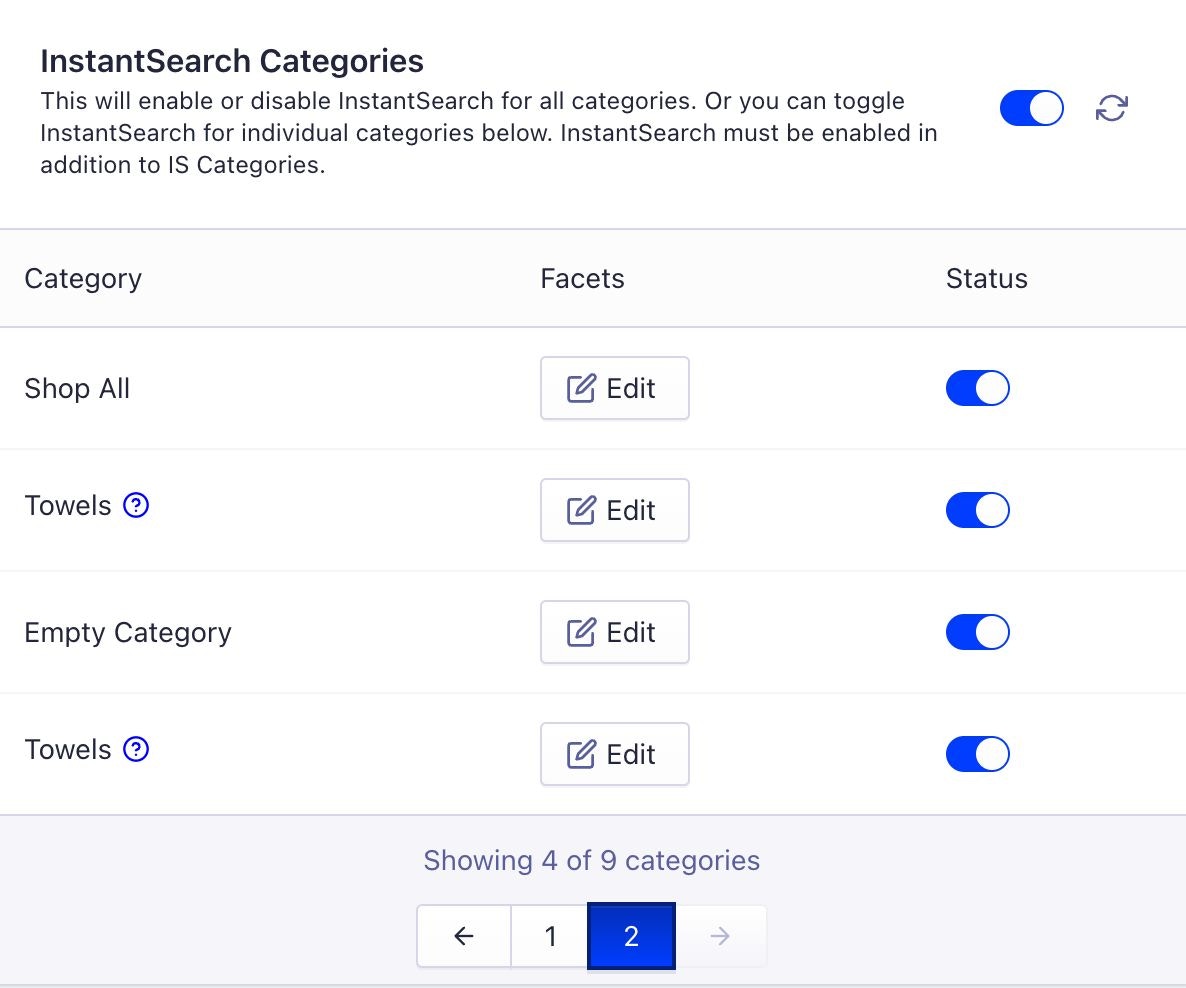 You can also turn individual InstantSearch categories on or off.
Any duplicate category names are marked with an icon ("Towels" in the screenshot).
When you update, delete, or create a category, you must click:
* **Refresh** to update the category data from BigCommerce
* **Save** to send the changes to the Algolia for BigCommerce integration.
**Categories placement region** lets you specify where on the category page the InstantSearch categories widget should be displayed.
The default is `category_below_header`.
**Categories CSS selector** targets the main element of your category page.
## Customize InstantSearch categories facets
InstantSearch categories facets lets you display different facets for different categories in your shop.
If you don't select a facet for a category, the default InstantSearch facets are used.
To add, remove, or reorder InstantSearch categories facets,
click **Edit** next to the appropriate category.
You can also turn individual InstantSearch categories on or off.
Any duplicate category names are marked with an icon ("Towels" in the screenshot).
When you update, delete, or create a category, you must click:
* **Refresh** to update the category data from BigCommerce
* **Save** to send the changes to the Algolia for BigCommerce integration.
**Categories placement region** lets you specify where on the category page the InstantSearch categories widget should be displayed.
The default is `category_below_header`.
**Categories CSS selector** targets the main element of your category page.
## Customize InstantSearch categories facets
InstantSearch categories facets lets you display different facets for different categories in your shop.
If you don't select a facet for a category, the default InstantSearch facets are used.
To add, remove, or reorder InstantSearch categories facets,
click **Edit** next to the appropriate category.
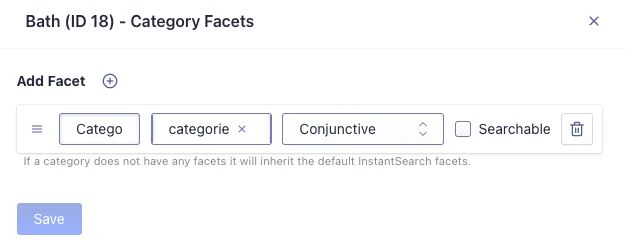 Click **Save** to apply the facets to the category.
Facet data, including their ordering,
is then sent to BigCommerce metafields (and pulled from there when the category page is loaded).
### Limitations of InstantSearch categories
When turning InstantSearch categories on or off,
it can take 30 or more seconds for the changes to be applied to your shop
(due to BigCommerce API rate limitations).
## Customize the InstantSearch menu
InstantSearch is pre-configured for the *Cornerstone* theme in BigCommerce.
For other themes, you might need to adjust the InstantSearch menu to match.
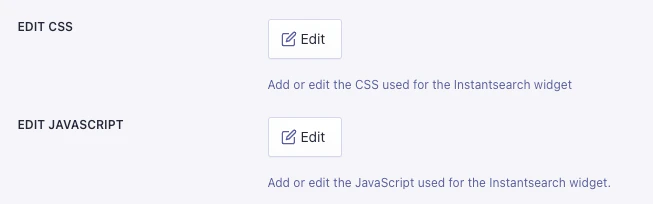
You can edit both the CSS and JavaScript for InstantSearch.
To configure the InstantSearch CSS and JavaScript,
open the **Search settings** tab and select **Edit CSS** or **Edit JavaScript**.
Click **Save** to apply the facets to the category.
Facet data, including their ordering,
is then sent to BigCommerce metafields (and pulled from there when the category page is loaded).
### Limitations of InstantSearch categories
When turning InstantSearch categories on or off,
it can take 30 or more seconds for the changes to be applied to your shop
(due to BigCommerce API rate limitations).
## Customize the InstantSearch menu
InstantSearch is pre-configured for the *Cornerstone* theme in BigCommerce.
For other themes, you might need to adjust the InstantSearch menu to match.
You can edit both the CSS and JavaScript for InstantSearch.
To configure the InstantSearch CSS and JavaScript,
open the **Search settings** tab and select **Edit CSS** or **Edit JavaScript**.
 Use the editor to edit InstantSearch's CSS or JavaScript.
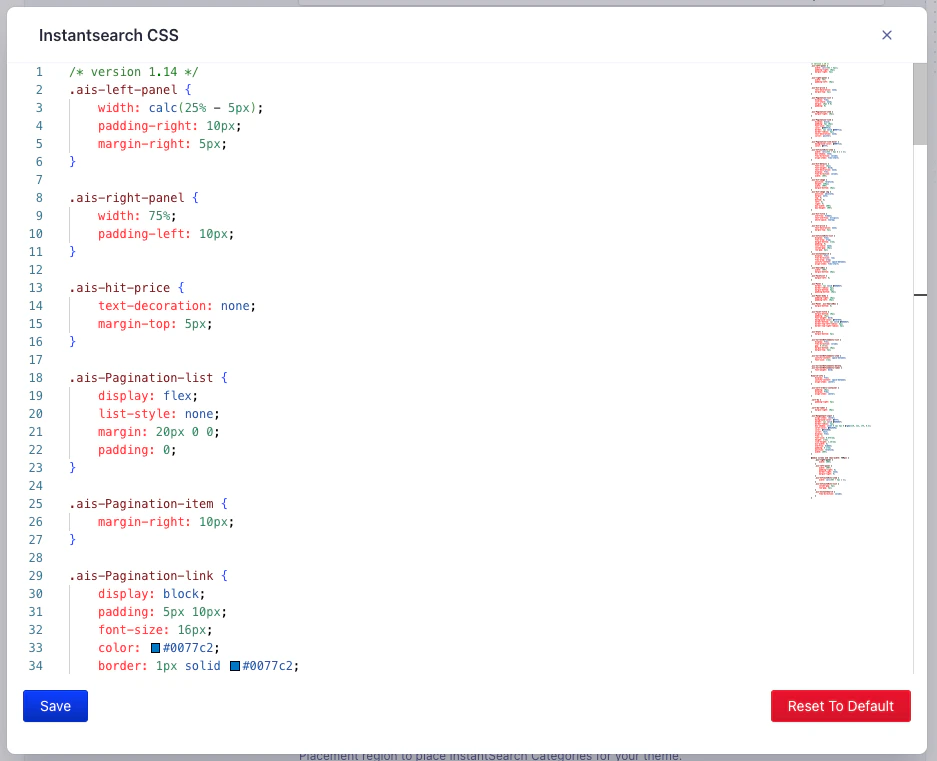 When you're done, save your changes in the editor.
Then, click **Save** on the search settings page for InstantSearch to publish your changes.
## Restore default CSS and JavaScript
1. Open the **Search settings** tab and select **Edit CSS** or **Edit JavaScript**.
2. Click **Reset to default** at the bottom of the editor.
3. Confirm that you want to reset the CSS or JavaScript code to its default.
This action overwrites any changes you've made.
4. Save your changes in the editor,
then click **Save** on the main search settings page for InstantSearch to publish your changes.
## Update InstantSearch CSS and JavaScript
If there's an update for the InstantSearch CSS and JavaScript code available,
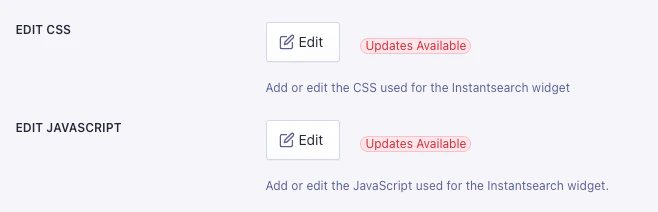
the **Search settings** tab shows **Updates available** badges.
To update, click **Edit CSS** or **Edit JavaScript**.
When you're done, save your changes in the editor.
Then, click **Save** on the search settings page for InstantSearch to publish your changes.
## Restore default CSS and JavaScript
1. Open the **Search settings** tab and select **Edit CSS** or **Edit JavaScript**.
2. Click **Reset to default** at the bottom of the editor.
3. Confirm that you want to reset the CSS or JavaScript code to its default.
This action overwrites any changes you've made.
4. Save your changes in the editor,
then click **Save** on the main search settings page for InstantSearch to publish your changes.
## Update InstantSearch CSS and JavaScript
If there's an update for the InstantSearch CSS and JavaScript code available,
the **Search settings** tab shows **Updates available** badges.
To update, click **Edit CSS** or **Edit JavaScript**.
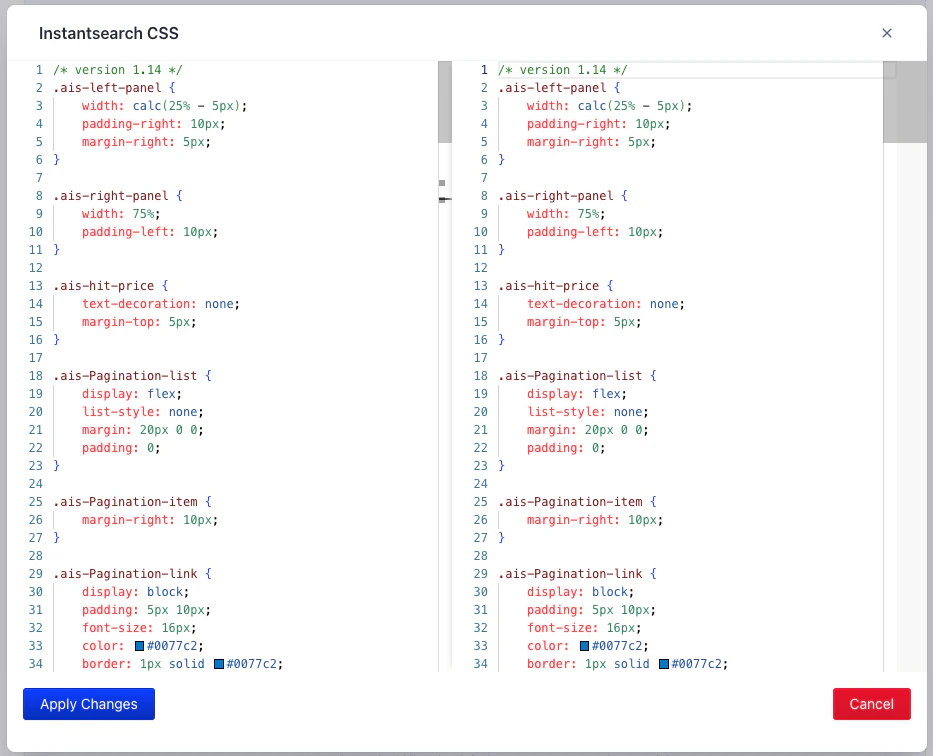
 The editor shows the differences between your existing code and the updated version.
Make any changes, click **Apply Changes**, then save your changes.
The editor shows the differences between your existing code and the updated version.
Make any changes, click **Apply Changes**, then save your changes.