> ## Documentation Index
> Fetch the complete documentation index at: https://algolia.com/llms.txt
> Use this file to discover all available pages before exploring further.
# Recommend for BigCommerce
> Configure Algolia Recommend for BigCommerce.
The Algolia integration for BigCommerce includes a widget template built with [Algolia Recommend](/doc/guides/algolia-recommend/overview) that you can add to your store's pages to show product recommendations.
 ## Before you begin
Before you can show recommendations in your store, check that you've set up Recommend:
* You're sending [click and conversion events](/doc/integration/bigcommerce/search-settings/events).
Algolia Recommend relies on click and conversion events to continuously improve its recommendations.
To get started, you can also [upload events from a CSV file](/doc/guides/algolia-recommend/how-to/csv-upload).
* You have a trained [Recommend model](/doc/guides/algolia-recommend/how-to/set-up#train-the-recommend-models) in your Algolia dashboard.
## Configure the Recommend widget
To configure the Recommend widget,
select a channel in your BigCommerce app and go to the **Recommend** tab.
## Before you begin
Before you can show recommendations in your store, check that you've set up Recommend:
* You're sending [click and conversion events](/doc/integration/bigcommerce/search-settings/events).
Algolia Recommend relies on click and conversion events to continuously improve its recommendations.
To get started, you can also [upload events from a CSV file](/doc/guides/algolia-recommend/how-to/csv-upload).
* You have a trained [Recommend model](/doc/guides/algolia-recommend/how-to/set-up#train-the-recommend-models) in your Algolia dashboard.
## Configure the Recommend widget
To configure the Recommend widget,
select a channel in your BigCommerce app and go to the **Recommend** tab.
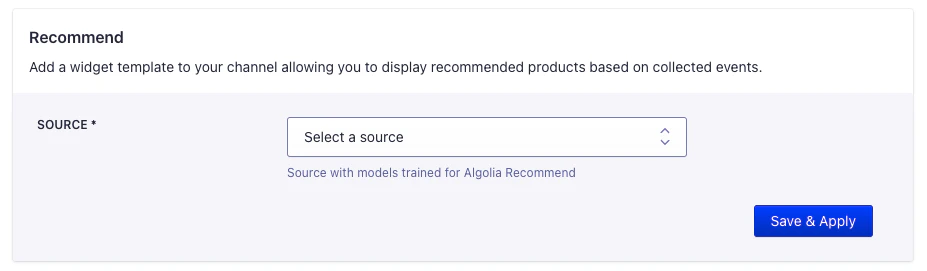 The source you select must have trained models for [Algolia Recommend](/doc/guides/algolia-recommend/how-to/set-up#train-the-recommend-models).
## Add the Recommend widget to your store
To add the Recommend widget to your store,
place the widget template on your store's pages.
1. In the BigCommerce dashboard,
go to **Channel Manager** and click **Edit Theme**.
The source you select must have trained models for [Algolia Recommend](/doc/guides/algolia-recommend/how-to/set-up#train-the-recommend-models).
## Add the Recommend widget to your store
To add the Recommend widget to your store,
place the widget template on your store's pages.
1. In the BigCommerce dashboard,
go to **Channel Manager** and click **Edit Theme**.
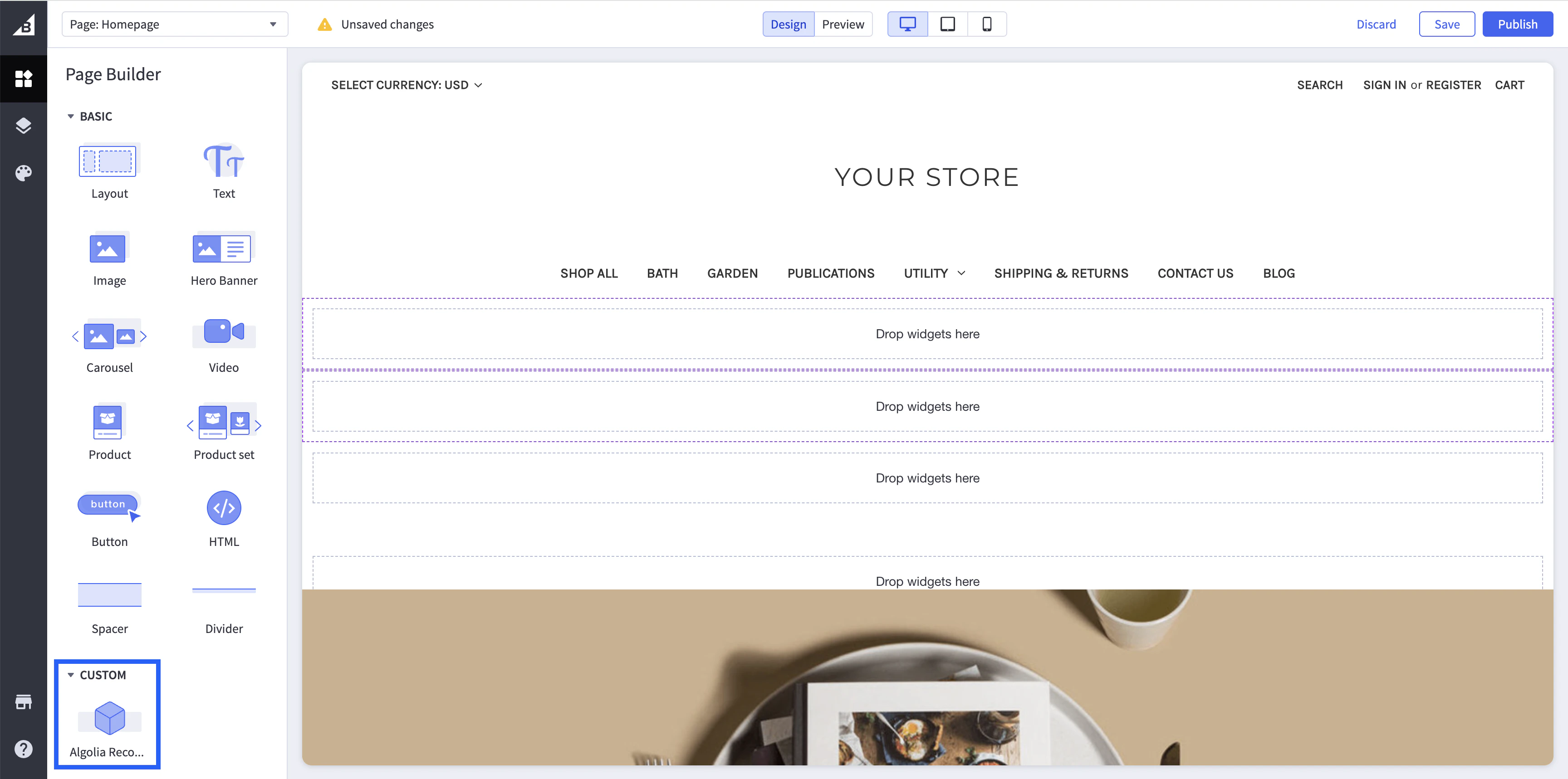
 2. From the **Page Builder** widgets,
go to **Custom** and drag the **Algolia Recommend** widget to where you want to show the recommendations on your page.
2. From the **Page Builder** widgets,
go to **Custom** and drag the **Algolia Recommend** widget to where you want to show the recommendations on your page.
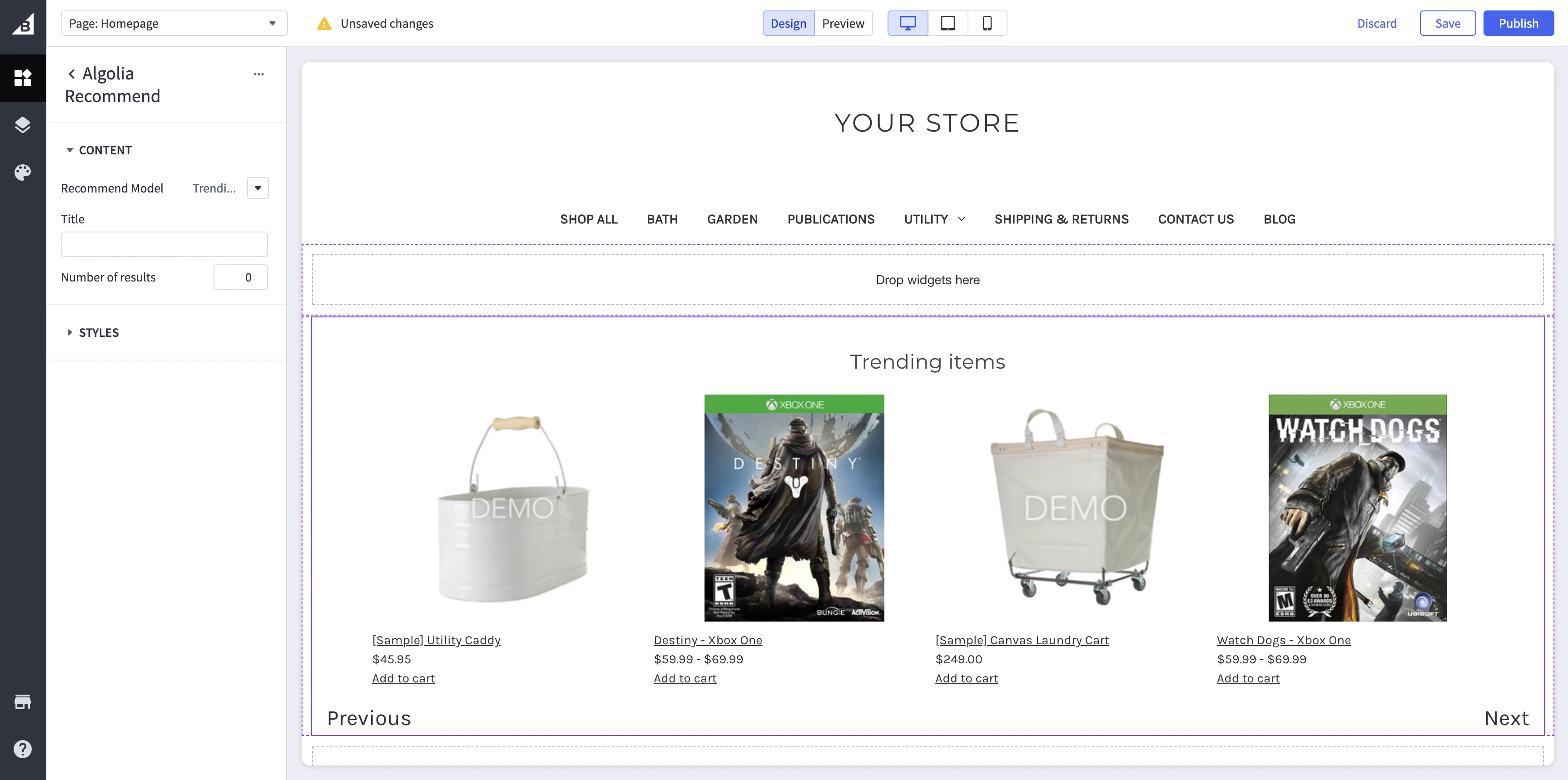
 3. Open the **Algolia Recommend** widget settings and select the **Recommend Model** you want to use.
 Available models:
* **Trending Items** (for use on any page)
* **Frequently bought together** (for use on product pages)
* **Related items** (for use on product pages)
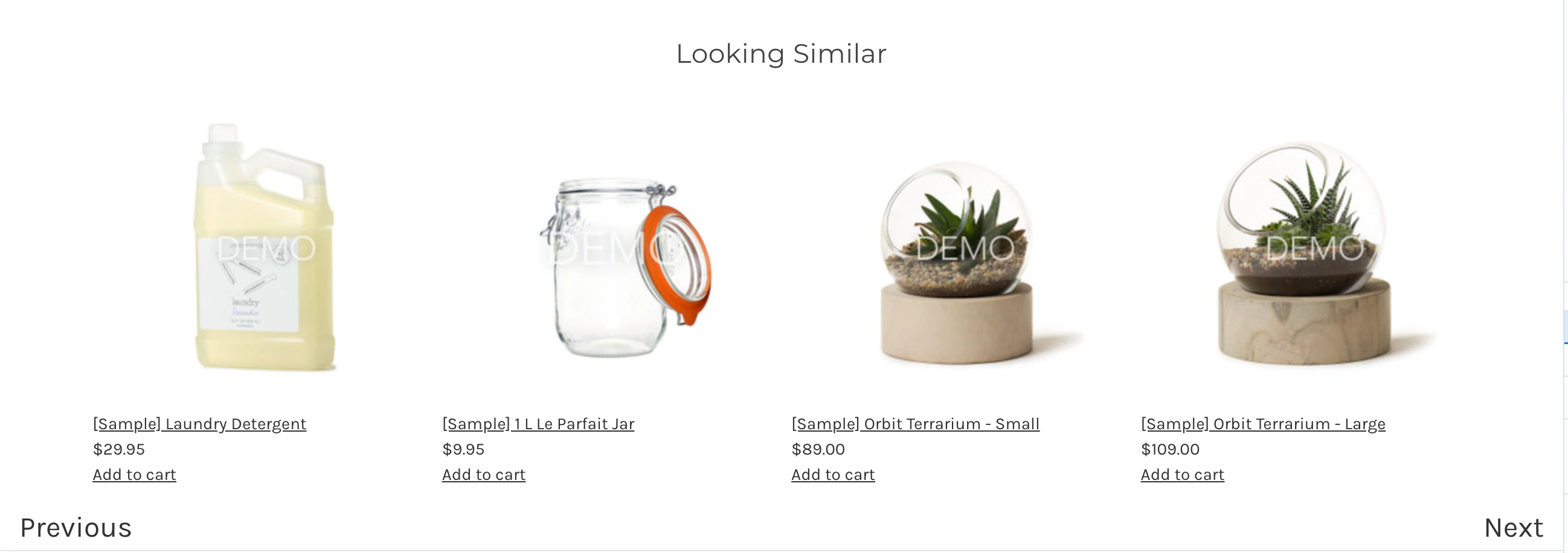
* **Looking Similar** (for use on product pages)
## Customize the Recommend widget
Edit the widget's CSS to match your store's theme in the widget's settings.
Available models:
* **Trending Items** (for use on any page)
* **Frequently bought together** (for use on product pages)
* **Related items** (for use on product pages)
* **Looking Similar** (for use on product pages)
## Customize the Recommend widget
Edit the widget's CSS to match your store's theme in the widget's settings.
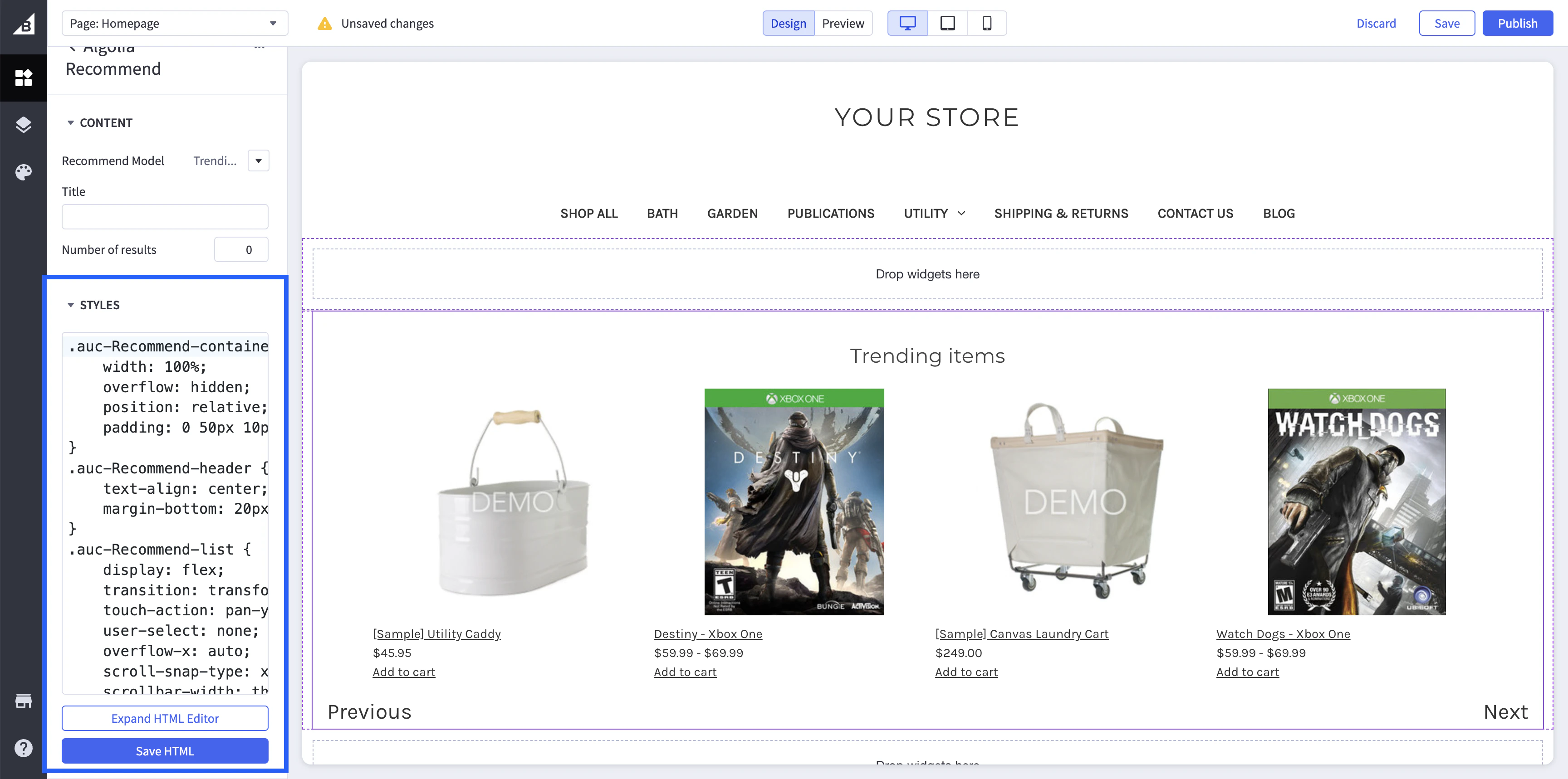 Save your changes by clicking **Save HTML**.
To customize the widget's title,
edit the **Title** field in the widget's settings.
To customize the number of recommendations shown,
edit the **Number of results** field in the widget's settings.
The default setting is 0, which shows all recommendations.
Save your changes by clicking **Save HTML**.
To customize the widget's title,
edit the **Title** field in the widget's settings.
To customize the number of recommendations shown,
edit the **Number of results** field in the widget's settings.
The default setting is 0, which shows all recommendations.