> ## Documentation Index
> Fetch the complete documentation index at: https://algolia.com/llms.txt
> Use this file to discover all available pages before exploring further.
# Uninstall Algolia for BigCommerce
> Uninstall the Algolia for BigCommerce integration.
1. If the InstantSearch categories feature is enabled in your Algolia for BigCommerce app, turn it off.
If you uninstall the application without turning off InstantSearch categories,
you might leave behind unused metafields.
2. If the Recommend widget template is enabled in your Algolia for BigCommerce app,
remove it in the Recommend tab.
If you omit this step, the widget template might be left on your store.
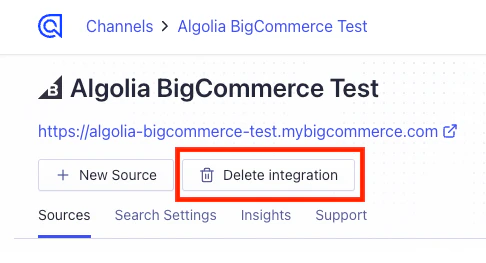
3. Click **Delete integration** in the [Algolia for BigCommerce app](https://www.bigcommerce.com/apps/algolia-search-discovery/)
 4. [Uninstall](https://support.bigcommerce.com/s/article/How-do-I-access-and-install-the-new-single-click-apps-within-my-Bigcommerce-store-control-panel#uninstalling) the app in BigCommerce.
5. Optional: to confirm deletion of pages, scripts, and widgets, see [Manual removal](#manual-removal).
## Manual removal
**If you didn't follow the preceding automatic process,**
you must manually remove pages, scripts, and widgets.
## Remove the InstantSearch page
1. Check the [BigCommerce web pages](https://support.bigcommerce.com/s/article/Web-Pages)
created for each of your store's channels.
2. The InstantSearch **Page name** matches what you named it in your [configuration](/doc/integration/bigcommerce/search-settings/instantsearch#configuration).
4. [Uninstall](https://support.bigcommerce.com/s/article/How-do-I-access-and-install-the-new-single-click-apps-within-my-Bigcommerce-store-control-panel#uninstalling) the app in BigCommerce.
5. Optional: to confirm deletion of pages, scripts, and widgets, see [Manual removal](#manual-removal).
## Manual removal
**If you didn't follow the preceding automatic process,**
you must manually remove pages, scripts, and widgets.
## Remove the InstantSearch page
1. Check the [BigCommerce web pages](https://support.bigcommerce.com/s/article/Web-Pages)
created for each of your store's channels.
2. The InstantSearch **Page name** matches what you named it in your [configuration](/doc/integration/bigcommerce/search-settings/instantsearch#configuration).
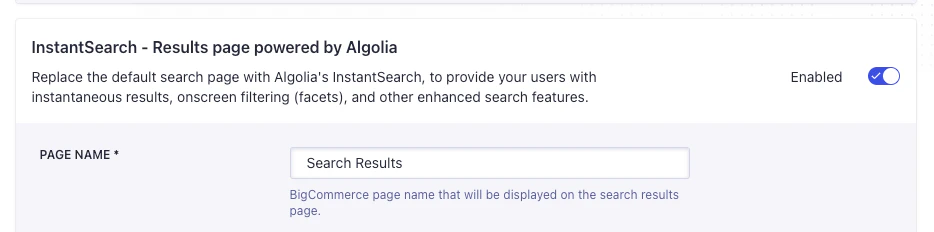 3. If you can find the InstantSearch page,
[delete it](https://support.bigcommerce.com/s/article/Web-Pages#deleting)
## Remove Algolia for BigCommerce scripts
1. Use the [BigCommerce Script Manager](https://support.bigcommerce.com/s/article/Using-Script-Manager) to examine all scripts in each of your store's channels.
2. [Delete](https://support.bigcommerce.com/s/article/Using-Script-Manager#delete) the following Algolia for BigCommerce scripts:
* Algolia Autocomplete Script
* Algolia InstantSearch Script
* Algolia InstantSearch Form Script
## Remove Algolia for BigCommerce widgets
1. Go to the [BigCommerce Page Builder](https://support.bigcommerce.com/s/article/Page-Builder)
2. In the sidebar, click **Layers**.
3. If you can find the InstantSearch page,
[delete it](https://support.bigcommerce.com/s/article/Web-Pages#deleting)
## Remove Algolia for BigCommerce scripts
1. Use the [BigCommerce Script Manager](https://support.bigcommerce.com/s/article/Using-Script-Manager) to examine all scripts in each of your store's channels.
2. [Delete](https://support.bigcommerce.com/s/article/Using-Script-Manager#delete) the following Algolia for BigCommerce scripts:
* Algolia Autocomplete Script
* Algolia InstantSearch Script
* Algolia InstantSearch Form Script
## Remove Algolia for BigCommerce widgets
1. Go to the [BigCommerce Page Builder](https://support.bigcommerce.com/s/article/Page-Builder)
2. In the sidebar, click **Layers**.
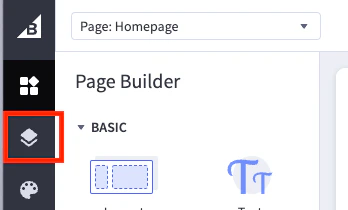 3. Note the name of the **Placement region** in your [Autocomplete configuration](/doc/integration/bigcommerce/search-settings/autocomplete#configure-the-autocomplete-menu).
 4. Click the **Layer** of the **Placement region** (used to display the layer's widgets):
it's labeled as **Static Widget**.
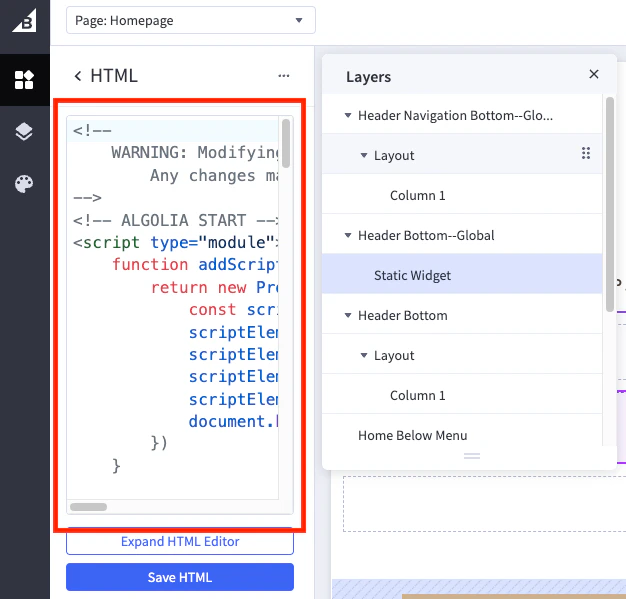
5. Click the **Static Widget** in your placement to display the HTML code editor.
4. Click the **Layer** of the **Placement region** (used to display the layer's widgets):
it's labeled as **Static Widget**.
5. Click the **Static Widget** in your placement to display the HTML code editor.
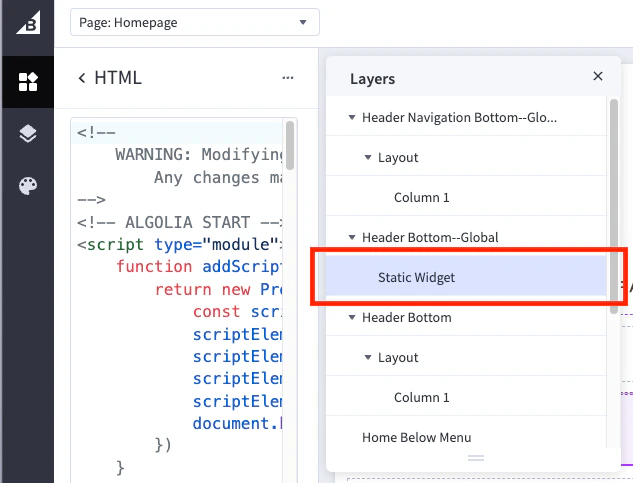 6. Use the code editor to verify you are viewing the correct widget
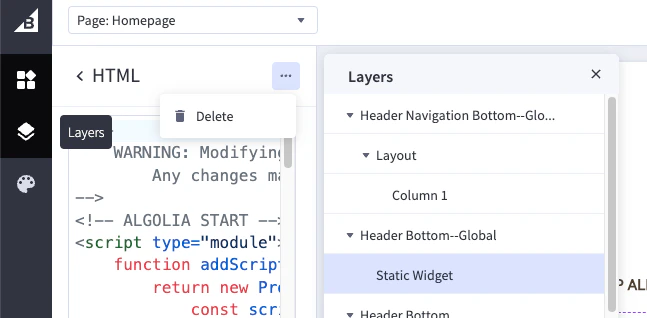
 7. Delete the widget.
 8. [Save and publish](https://support.bigcommerce.com/s/article/Page-Builder#using) the theme.
## Remove Algolia for BigCommerce widget templates
1. Retrieve all widget templates from the [BigCommerce API](https://developer.bigcommerce.com/docs/rest-content/widgets/widget-template#get-all-widget-templates) and make a note of the **Algolia Recommend** template's UUID.
2. Use the UUID to [delete](https://developer.bigcommerce.com/docs/rest-content/widgets/widget-template#delete-a-widget-template) the **Algolia Recommend** template. Deleting the widget template will delete all instances of the widget on your store.
3. Optional: check the [BigCommerce Page Builder](https://support.bigcommerce.com/s/article/Page-Builder) to ensure the widget template is removed.
8. [Save and publish](https://support.bigcommerce.com/s/article/Page-Builder#using) the theme.
## Remove Algolia for BigCommerce widget templates
1. Retrieve all widget templates from the [BigCommerce API](https://developer.bigcommerce.com/docs/rest-content/widgets/widget-template#get-all-widget-templates) and make a note of the **Algolia Recommend** template's UUID.
2. Use the UUID to [delete](https://developer.bigcommerce.com/docs/rest-content/widgets/widget-template#delete-a-widget-template) the **Algolia Recommend** template. Deleting the widget template will delete all instances of the widget on your store.
3. Optional: check the [BigCommerce Page Builder](https://support.bigcommerce.com/s/article/Page-Builder) to ensure the widget template is removed.