> ## Documentation Index
> Fetch the complete documentation index at: https://algolia.com/llms.txt
> Use this file to discover all available pages before exploring further.
# Configure commercetools sources for Algolia
> Configure the sources for Algolia's commercetools integration.
export const Records = () =>
records
;
export const Index = () =>
index
;
## Configure your data source
A **source** defines how to authenticate with your commercetools project,
and which store and languages you want to index.
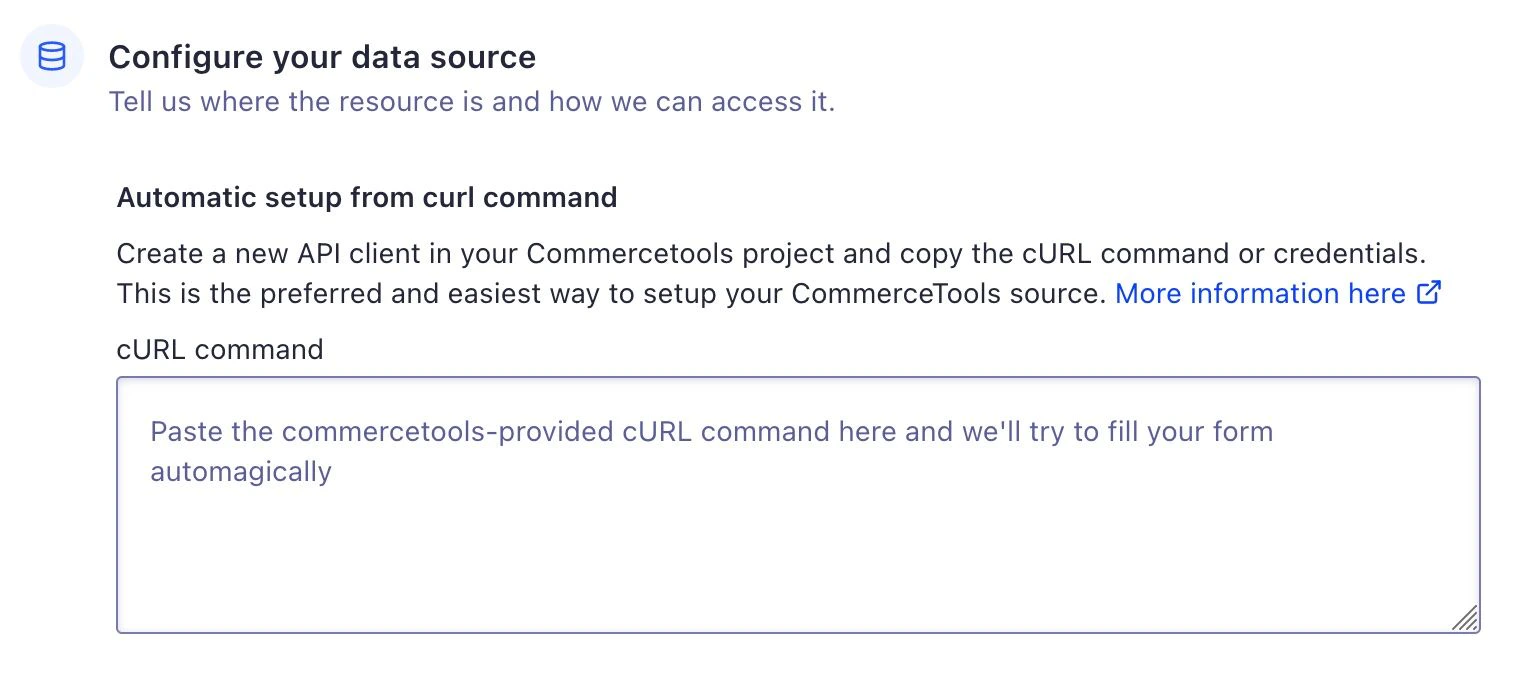
In the **Configure your data source** form,
paste the [curl command from your commercetools API client](/doc/integration/commercetools/get-started/installation#create-a-commercetools-api-client). This automatically fills the form with details about your commercetools project and creates an authentication method.
 If you want to enter custom information, manually fill the form.
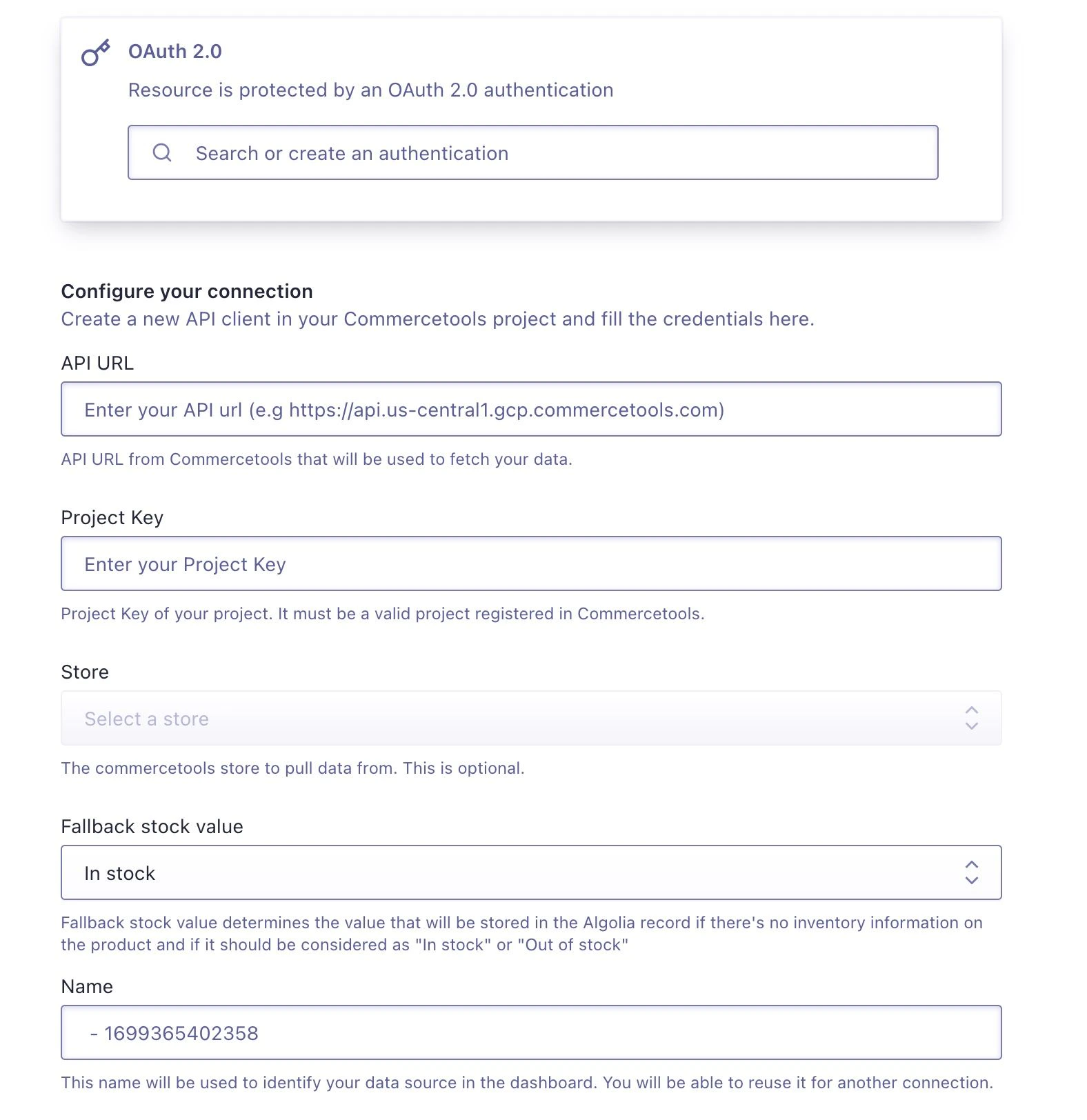 This form includes the following information:
* **OAuth 2.0** authentication so that Algolia can connect to your commercetools project.
* **API URL** and **Project Key** to identify which project to fetch.
* **Store** and **Languages** to index.
* **Fallback stock value** which determines which value is stored in the Algolia record if there is no inventory information about the product.
Select the commercetools store you want to index.
Under **Languages**, select one or more product data languages for your store.
After filling the form, click **Create source** to set up the source.
### Product query predicate
The [product query predicate](https://docs.commercetools.com/api/predicates/query#on-product-attributes)
is an **optional** filter that gets appended to the [product-projection endpoint in commercetools' API](https://docs.commercetools.com/api/projects/productProjections#query-productprojections)
when fetching product information.
Only products returned by the commercetools API after applying this filter are indexed.
For example:
* `variants(prices(value(centAmount < 20000)))`: index products that have at least one variant with a price less than 200.
* `masterVariant(attributes(name="Brand" and value="Algolia"))`: index products for which the `Brand` attribute is `Algolia`.
## Configure your destination
A **destination** defines where and how the data will be stored in the Algolia indices.
This form includes the following information:
* **OAuth 2.0** authentication so that Algolia can connect to your commercetools project.
* **API URL** and **Project Key** to identify which project to fetch.
* **Store** and **Languages** to index.
* **Fallback stock value** which determines which value is stored in the Algolia record if there is no inventory information about the product.
Select the commercetools store you want to index.
Under **Languages**, select one or more product data languages for your store.
After filling the form, click **Create source** to set up the source.
### Product query predicate
The [product query predicate](https://docs.commercetools.com/api/predicates/query#on-product-attributes)
is an **optional** filter that gets appended to the [product-projection endpoint in commercetools' API](https://docs.commercetools.com/api/projects/productProjections#query-productprojections)
when fetching product information.
Only products returned by the commercetools API after applying this filter are indexed.
For example:
* `variants(prices(value(centAmount < 20000)))`: index products that have at least one variant with a price less than 200.
* `masterVariant(attributes(name="Brand" and value="Algolia"))`: index products for which the `Brand` attribute is `Algolia`.
## Configure your destination
A **destination** defines where and how the data will be stored in the Algolia indices.
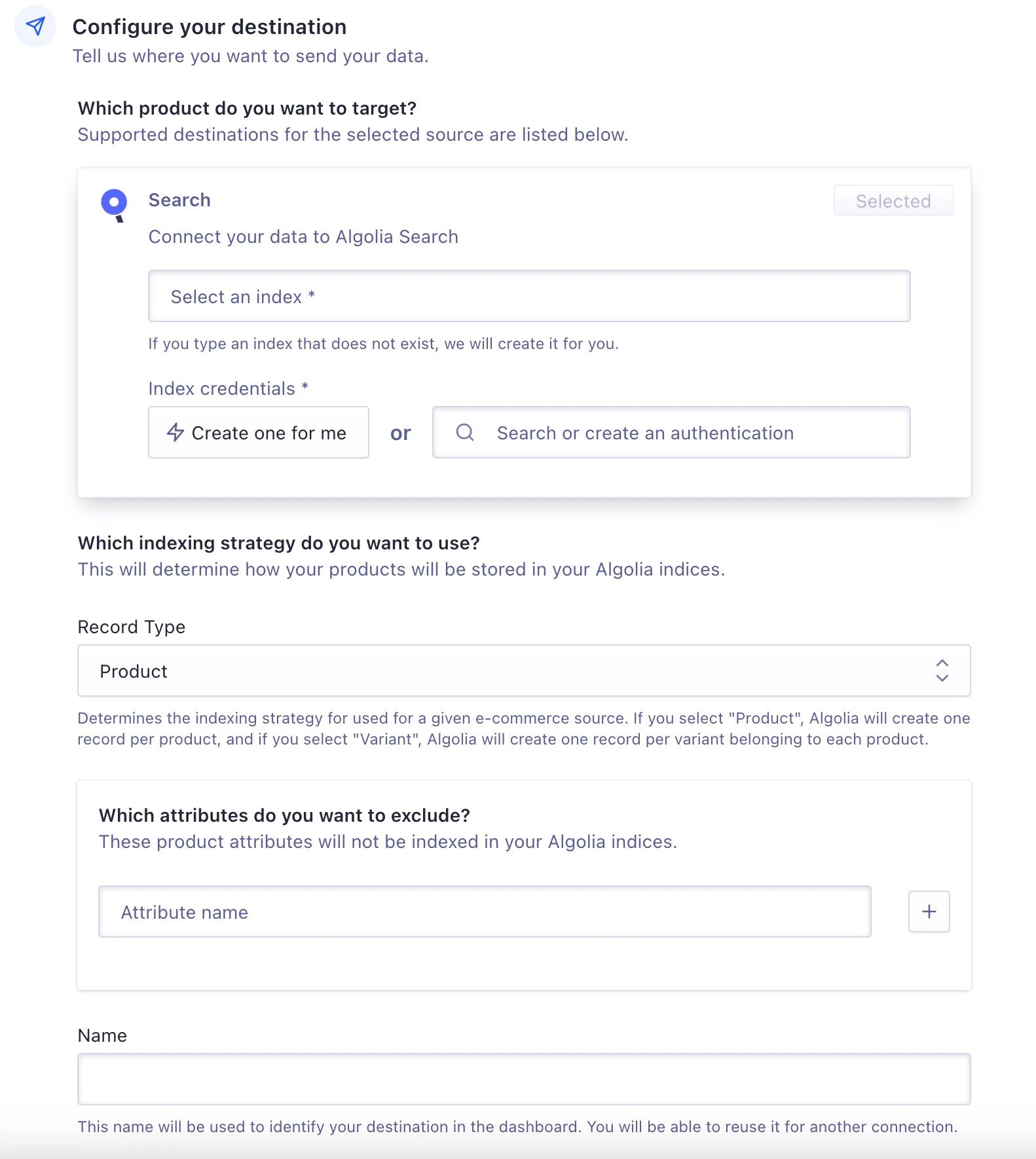 After selecting an name and providing the credentials,
choose if you want to index products or product-variants:
* **Product**. A record is assigned to each product.
* **Variant**. A record is assigned to each [product variant](https://docs.commercetools.com/learning-composable-commerce-administrator/product-modeling/products).
For more information about:
* The schema for each option, see [Product schema](/doc/integration/commercetools/indexing/product-schema)
* Which model best suits your needs, see [Ecommerce records](/doc/guides/sending-and-managing-data/prepare-your-data/how-to/ecommerce-records).
Finally, you can add a list of attributes you want to exclude from your records.
Finish setting up the destination by clicking **Create destination**.
## Configure your tasks
A **task** is the link between source and destination.
You run tasks to launch the indexing process.
After selecting an name and providing the credentials,
choose if you want to index products or product-variants:
* **Product**. A record is assigned to each product.
* **Variant**. A record is assigned to each [product variant](https://docs.commercetools.com/learning-composable-commerce-administrator/product-modeling/products).
For more information about:
* The schema for each option, see [Product schema](/doc/integration/commercetools/indexing/product-schema)
* Which model best suits your needs, see [Ecommerce records](/doc/guides/sending-and-managing-data/prepare-your-data/how-to/ecommerce-records).
Finally, you can add a list of attributes you want to exclude from your records.
Finish setting up the destination by clicking **Create destination**.
## Configure your tasks
A **task** is the link between source and destination.
You run tasks to launch the indexing process.
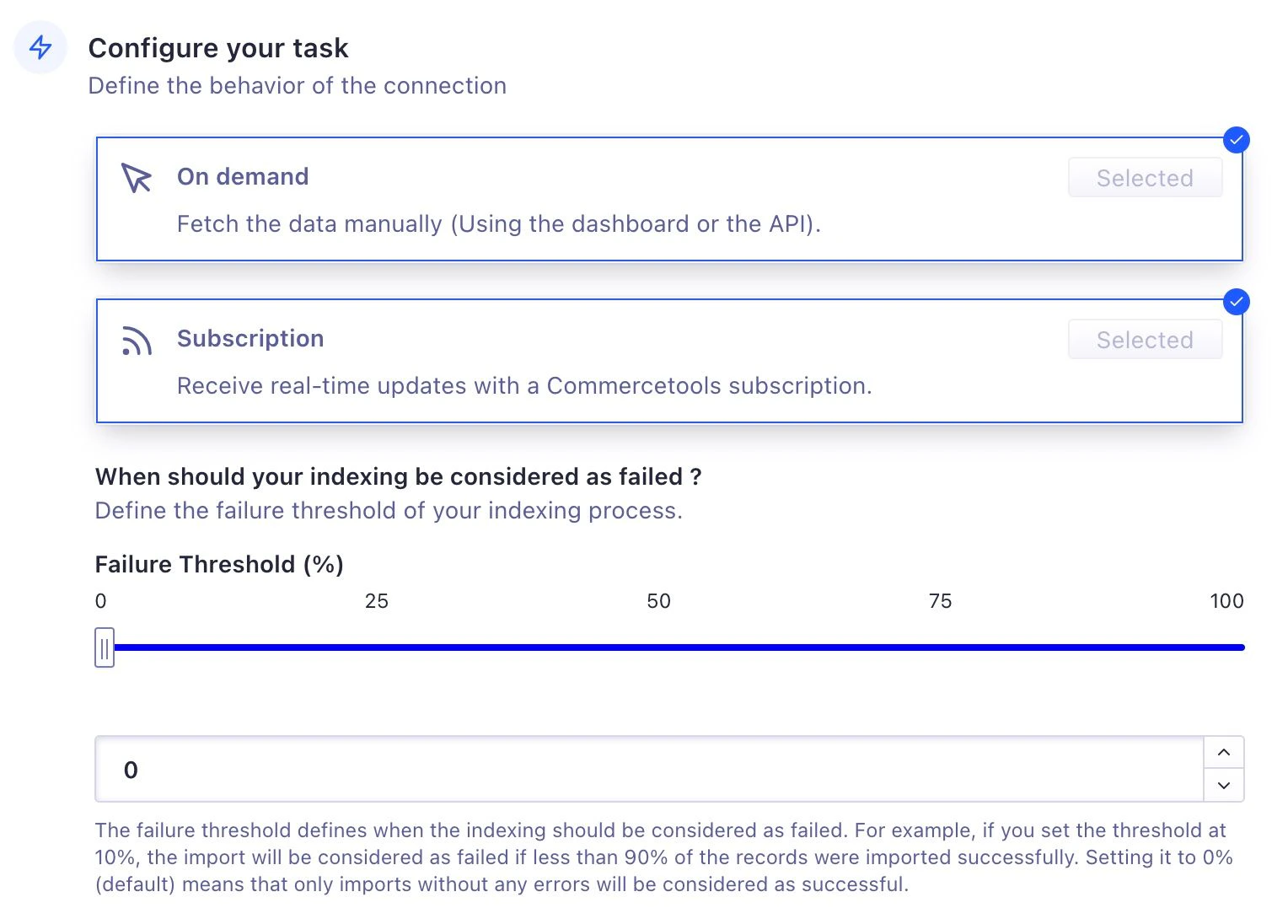 The commercetools integration creates two tasks:
* An **On demand** task that you can use to trigger a full reindex of your products.
The task has a **Failure Threshold** setting that lets you specify a percentage of allowed indexing failures.
For example, a failure threshold of 10% requires 90% of your records to import without errors.
* A **Subscription** task that automatically updates indexes when a product changes and is published in commercetools.
The **Subscription** task has two options:
* **Partial record updates.**
Only attributes coming from commercetools are updated in the existing records.
If your records have attributes added from another source, they won't be updated.
If a record doesn't exist, it will be added.
* **Full record updates.**
The existing records are replaced with commercetools records
(see [Product schema](/doc/integration/commercetools/indexing/product-schema)).
If a record doesn't exist, it will be added.
Click **Create task** to finish setup.
You can choose when to index your products.
Click **Run** to immediately start indexing your commercetools products.
The commercetools integration creates two tasks:
* An **On demand** task that you can use to trigger a full reindex of your products.
The task has a **Failure Threshold** setting that lets you specify a percentage of allowed indexing failures.
For example, a failure threshold of 10% requires 90% of your records to import without errors.
* A **Subscription** task that automatically updates indexes when a product changes and is published in commercetools.
The **Subscription** task has two options:
* **Partial record updates.**
Only attributes coming from commercetools are updated in the existing records.
If your records have attributes added from another source, they won't be updated.
If a record doesn't exist, it will be added.
* **Full record updates.**
The existing records are replaced with commercetools records
(see [Product schema](/doc/integration/commercetools/indexing/product-schema)).
If a record doesn't exist, it will be added.
Click **Create task** to finish setup.
You can choose when to index your products.
Click **Run** to immediately start indexing your commercetools products.
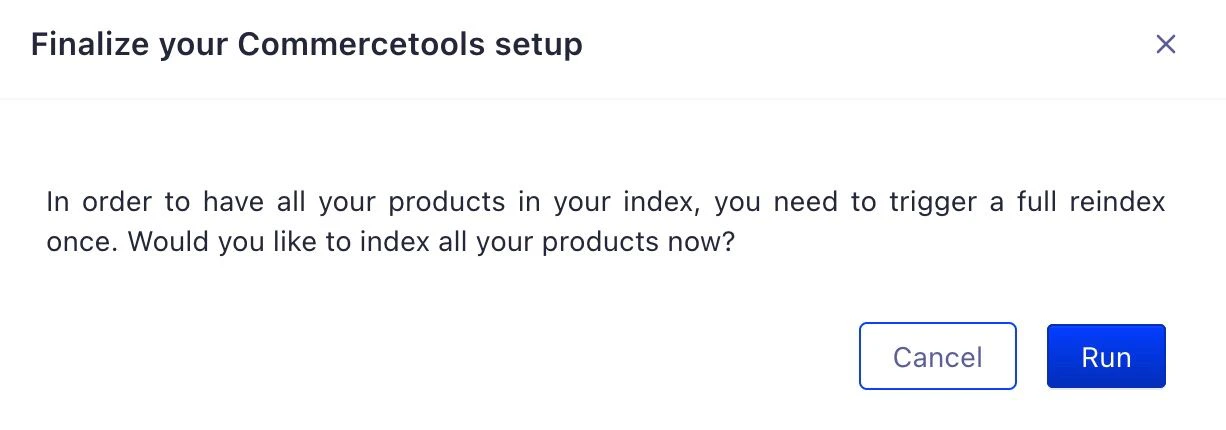 You won't see your products in your Algolia index until you trigger a full reindex.
## Trigger a full reindex
After installing a commercetools connector,
you need to trigger a full reindex at least once.
You should also reindex if you changed,
added, or deleted a source or a destination.
To trigger a full reindex,
run the **On demand** task by clicking **Run task**:
You won't see your products in your Algolia index until you trigger a full reindex.
## Trigger a full reindex
After installing a commercetools connector,
you need to trigger a full reindex at least once.
You should also reindex if you changed,
added, or deleted a source or a destination.
To trigger a full reindex,
run the **On demand** task by clicking **Run task**:
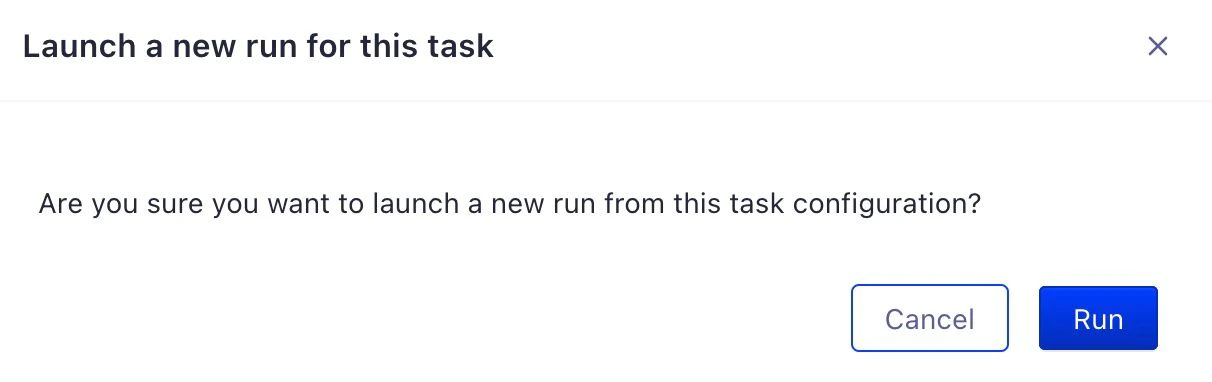
 Confirm by clicking **Run**.
 To check the progress and status of your reindex run,
go to the [Connector Debugger](https://dashboard.algolia.com/connectors/debugger) in the Algolia dashboard.
To check the progress and status of your reindex run,
go to the [Connector Debugger](https://dashboard.algolia.com/connectors/debugger) in the Algolia dashboard.