> ## Documentation Index
> Fetch the complete documentation index at: https://algolia.com/llms.txt
> Use this file to discover all available pages before exploring further.
# Install Algolia for commercetools
> Connect your commercetools store with Algolia in a few clicks without writing code.
The Algolia commercetools integration handles the **data connection** between your commercetools store and Algolia.
To integrate Algolia in your frontend, you can use these UI libraries:
* [Autocomplete](/doc/ui-libraries/autocomplete/introduction/what-is-autocomplete)
* [InstantSearch](/doc/guides/building-search-ui/what-is-instantsearch/js)
## Before you begin
To connect commercetools and Algolia, you need a commercetools [account](https://docs.commercetools.com/merchant-center/accounts) and [store](https://docs.commercetools.com/api/projects/stores) with administrator access.
You also need an Algolia app with administrator access.
You can [create one for free](/doc/guides/sending-and-managing-data/manage-indices-and-apps/manage-your-apps).
## Create a commercetools API client
To let Algolia interact with your store,
set up a new commercetools API client:
1. Sign in to the Merchant Center of your commercetools project.
2. On the sidebar, go to **Settings > Developer settings**.
3. Click **Create new API client**.
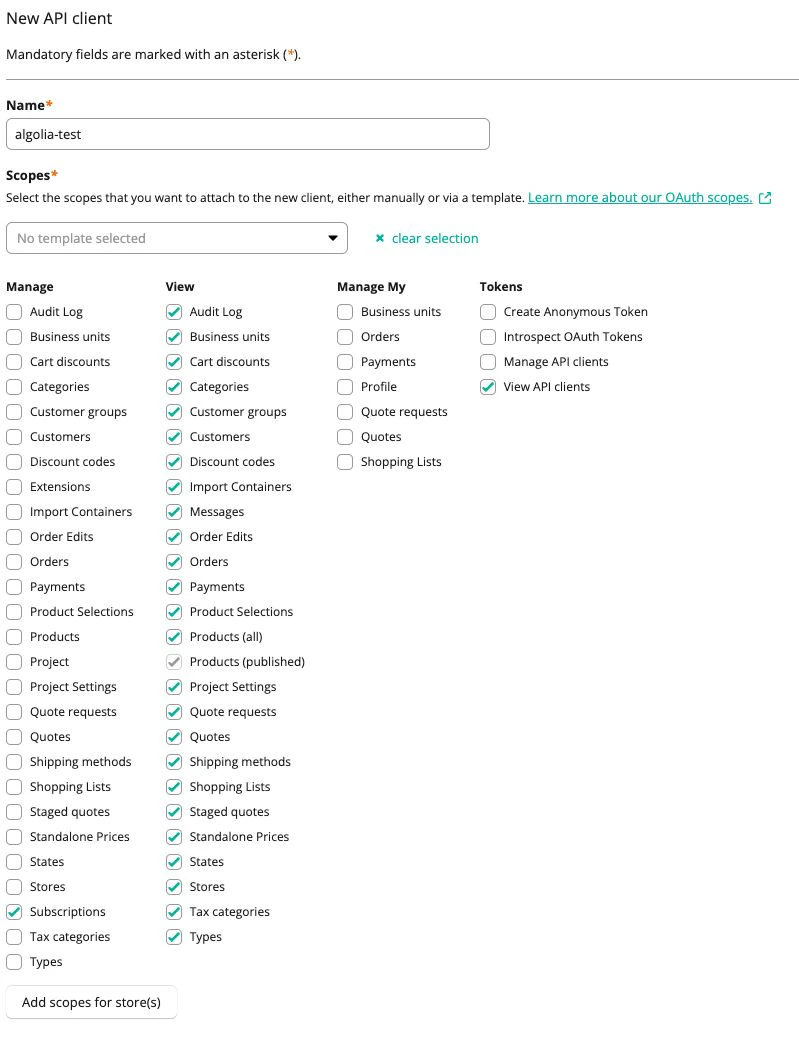
4. Enter a name for the API client and select the API scopes for the new client.
You need at least the following scopes:
* All items under the **View** column
* **View API clients**
* **Subscriptions**
 5. Click **Create API client**.
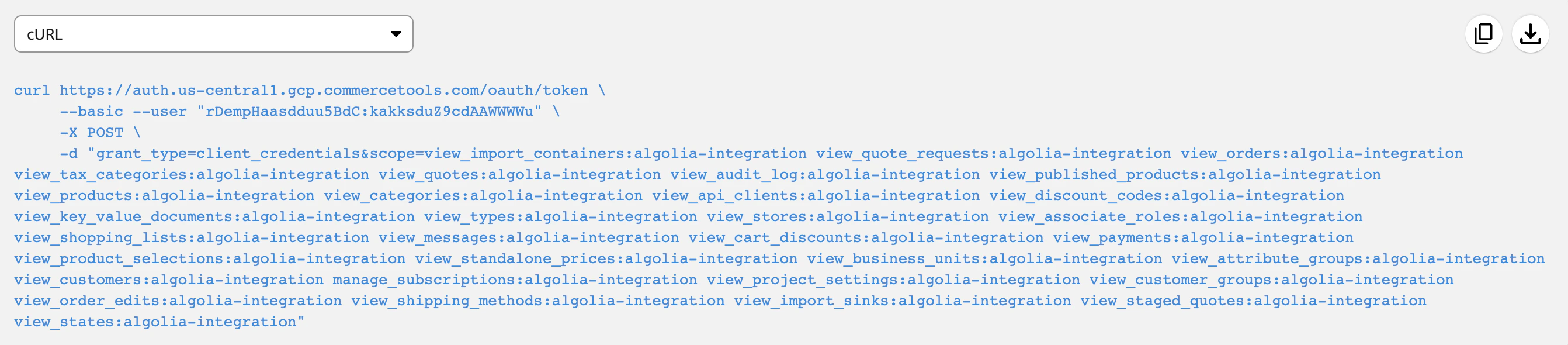
6. Copy the curl command.
You need it to configure your commercetools integration in Algolia.
5. Click **Create API client**.
6. Copy the curl command.
You need it to configure your commercetools integration in Algolia.
 For more information, see [Get your API client](https://docs.commercetools.com/getting-started/create-api-client)
in the commercetools documentation.
## Connect commercetools in the Algolia dashboard
1. Sign in to the [Algolia dashboard](https://dashboard.algolia.com/users/sign_in).
2. On the left sidebar, select **Data sources**.
3. Click **Connectors**.
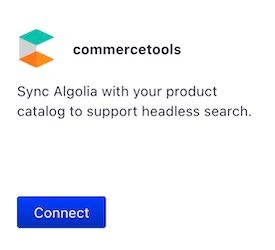
4. Find the **commercetools** connector and click **Connect**.
For more information, see [Get your API client](https://docs.commercetools.com/getting-started/create-api-client)
in the commercetools documentation.
## Connect commercetools in the Algolia dashboard
1. Sign in to the [Algolia dashboard](https://dashboard.algolia.com/users/sign_in).
2. On the left sidebar, select **Data sources**.
3. Click **Connectors**.
4. Find the **commercetools** connector and click **Connect**.
 5. To start your [configuration](/doc/integration/commercetools/get-started/configuration),
click **Get started**.
5. To start your [configuration](/doc/integration/commercetools/get-started/configuration),
click **Get started**.