> ## Documentation Index
> Fetch the complete documentation index at: https://algolia.com/llms.txt
> Use this file to discover all available pages before exploring further.

# Autocomplete menu

> Customize the features and design of the Algolia Autocomplete menu for Adobe Commerce and Magento Open Source.

export const SearchRequest = () => <Tooltip tip="A search request is a single HTTP call to the Algolia Search API that can run one or more search operations. It can include multiple queries, for example, when querying several indices at once.">
    search request
  </Tooltip>;

<Frame>
  <iframe width="100%" height="400" src="https://www.youtube.com/embed/S6yuPl-bsFQ" title="YouTube video player" frameborder="0" allow="accelerometer; autoplay; clipboard-write; encrypted-media; gyroscope; picture-in-picture" allowfullscreen className="video-embed" style={{ "--video-embed-max-width": "711px" }} />
</Frame>

The Algolia extension for Adobe Commerce and Magento Open Source uses the [Autocomplete](/doc/ui-libraries/autocomplete/introduction/what-is-autocomplete) UI library to create the menu that appears below the search box.
You can find all templates, JavaScript files and style sheets in the directory: `vendor/algolia/algoliasearch-magento-2/view/frontend/web`.

As a starting point for your customizations, use the [CustomAlgolia starter code](https://github.com/algolia/algoliasearch-custom-algolia-magento-2).

## Concepts

**Frontend events** let you run functions (*hooks*) at specific stages in the lifecycle of the autocomplete menu.
You can use them to change the structure of your data, its sources, and the configuration options for your autocomplete menu.
For more information, see [Frontend custom events](/doc/integration/magento-2/customize/custom-front-end-events#autocomplete-menu-events).

**Templates** let you control the look of your autocomplete menu with
[JavaScript template literals](https://developer.mozilla.org/en-US/docs/Web/JavaScript/Reference/Template_literals).

## Basic configuration options

| Autocomplete option | Description                                                                                |
| ------------------- | ------------------------------------------------------------------------------------------ |
| `placeholder`       | Text shown in the search box before users type                                             |
| `debug`             | If true, the Autocomplete menu stays open even if you click outside it                     |
| `openOnFocus`       | If true, the Autocomplete menu displays as soon as a user clicks on the search input field |

To change the autocomplete options, use the `afterAutocompleteOptions` hook.
For example:

```js JavaScript icon=code theme={"system"}
algolia.registerHook("afterAutocompleteOptions", function (options) {
  // Add or modify options, then return them
  options.debug = true;
  return options;
});
```

## Sources

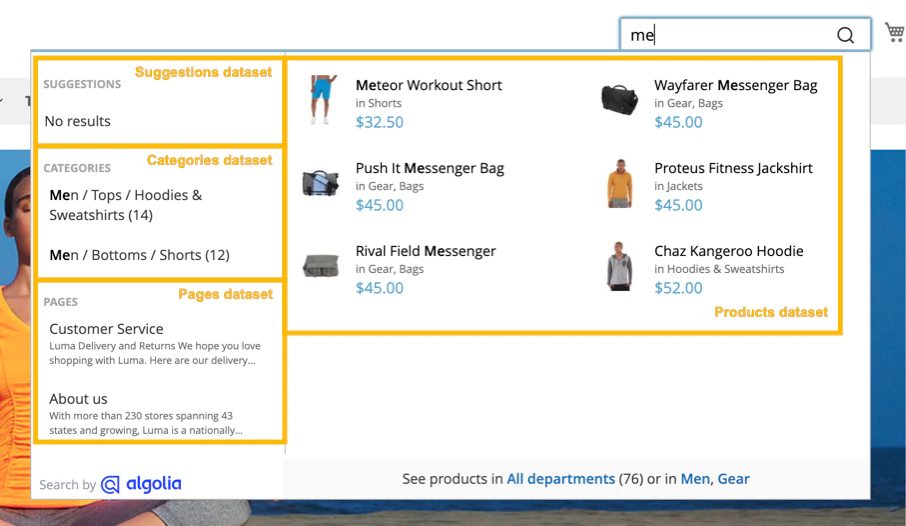
[Sources](/doc/ui-libraries/autocomplete/core-concepts/sources) provide the data for items that your users can search for in the autocomplete menu.
Specifying multiple sources lets you create a [federated search](/doc/guides/solutions/ecommerce/search/autocomplete/federated-search) experience.

<img src="https://mintcdn.com/algolia/OE79PcXc4TKi8BZa/doc/integration/magento-2/customize/autocomplete-datasets.png?fit=max&auto=format&n=OE79PcXc4TKi8BZa&q=85&s=a423e67696cba8078b9bb01110206b80" alt="Autocomplete sources show matches from different indices or other data sources" width="906" height="526" data-path="doc/integration/magento-2/customize/autocomplete-datasets.png" />

The Algolia extension comes with default sources.
To change them, go to **Stores > Configuration > Algolia Search > Autocomplete** in your Magento Admin.
You can select these sources:

| Autocomplete source   | Description                                             |
| --------------------- | ------------------------------------------------------- |
| `products`            | Products from your catalog                              |
| `categories`          | Product categories                                      |
| `pages`               | Pages                                                   |
| `suggestions`         | Suggestions from popular searches                       |
| `additional_sections` | Additional sections you configured in the Magento Admin |

### Add new sources

To add new sources to the autocomplete menu or change existing ones,
use the `afterAutocompleteSources` hook.

The callback function for `afterAutocompleteSources` must return the complete sources array.

For example:

```js JavaScript icon=code theme={"system"}
algolia.registerHook(
  "afterAutocompleteSources",
  function (sources, algoliaClient) {
    // Add or modify sources, then return them
    return sources;
  },
);
```

The callback for `afterAutocompleteSources` accepts two parameters:

| Parameter      | Type                                        | Description                       |
| -------------- | ------------------------------------------- | --------------------------------- |
| `sources`      | Array of [sources](#sources-data-structure) | Data for autocomplete items       |
| `searchClient` | Search client                               | Initialized Algolia search client |

If you need access to other objects,
such as `algoliaAnalytics`,
use RequireJS to define them as dependency for your `algoliaHooks` implementation.

#### Sources data structure

A minimal configuration for your source object might look like the following:

```js JavaScript icon=code theme={"system"}
{
  sourceID: 'my-custom-source',
  indexName: 'my_custom_index',
  templates: {
    item({item, html}) {
      return html`<a href="${item.url}">${item.title}</a>`;

    }
  }
}
```

Each source in the `sources` array is a JavaScript object with the following properties:

| Property            | Type                                                                             | Required                                                                        | Description                                                                                                                                                                                                                                                |
| ------------------- | -------------------------------------------------------------------------------- | ------------------------------------------------------------------------------- | ---------------------------------------------------------------------------------------------------------------------------------------------------------------------------------------------------------------------------------------------------------- |
| `sourceID`          | String                                                                           | Required                                                                        | Unique identifier for your source. Use a `sourceID` of a built-in source to override it.                                                                                                                                                                   |
| `indexName`         | String                                                                           | Required                                                                        | Index name. It's records will be searchable in the autocomplete menu. To reference a Magento store index, use `algoliaConfig.indexName` as prefix.                                                                                                         |
| `templates`         | [Autocomplete templates](/doc/ui-libraries/autocomplete/core-concepts/templates) | `item` template is required                                                     | Templates for rendering items (`item`), no-results display (`noResults`), a header (`header`), and footer (`footer`).                                                                                                                                      |
| `getItemUrl`        | function                                                                         |                                                                                 | Function to return the URL for an item for [keyboard navigation](/doc/ui-libraries/autocomplete/core-concepts/keyboard-navigation).                                                                                                                        |
| `transformResponse` | function                                                                         |                                                                                 | Function to transform the response from the Algolia API before turning it to Autocomplete items. For more information, see [`getAlgoliaResults`](/doc/ui-libraries/autocomplete/api-reference/autocomplete-js/getAlgoliaResults#param-transform-response). |
| `options`           | [Search parameters](/doc/api-reference/search-api-parameters)                    | Add or override Algolia search parameters, such as the `hitsPerPage` parameter. |                                                                                                                                                                                                                                                            |

### Examples

The following example hook adds a new source:

```js JavaScript expandable theme={"system"}
algolia.registerHook(
  "afterAutocompleteSources",
  function (sources, searchClient) {
    // Add new source to the sources array
    sources.push({
      sourceID: "my-custom-source",
      // Use `algoliaConfig.indexName` to get the index prefix by store scope
      indexName: algoliaConfig.indexName + "_my_custom_index",
      // Add search parameter
      options: { hitsPerPage: 3 },
      templates: {
        // Template for the menu when no results are found
        noResults() {
          return "No results found";
        },
        // Template for a custom header displayed before all items of this source
        header() {
          return "Custom source example";
        },
        // Template for each autocomplete item
        item({ item, html }) {
          return html`<a class="aa-ItemLink" href="${item.url}"
            >${item.title}</a
          >`;
        },
      },
    });

    // Return the complete sources array
    return sources;
  },
);
```

The following example changes an existing source:

```js JavaScript icon=code theme={"system"}
algolia.registerHook(
  "afterAutocompleteSources",
  function (sources, searchClient) {
    // Modify the "pages" source
    const pages = sources.find(source => source.sourceID === 'pages');
    pages.transformResponse = ({ hits }) => {
      // Do something with the hits returned by this source
      return hits;
    };
    return sources;
}
```

## Plugins

[Plugins](/doc/ui-libraries/autocomplete/core-concepts/plugins) extend Autocomplete---for example, by adding new sources.
The Magento extension includes the [Query Suggestions plugin](/doc/ui-libraries/autocomplete/api-reference/autocomplete-plugin-query-suggestions).
This plugin shows popular searches in your autocomplete menu as search suggestions.

To add new plugins or change existing ones, use the `afterAutocompletePlugins` hook.

For example, to add [recent searches](/doc/ui-libraries/autocomplete/api-reference/autocomplete-plugin-recent-searches) to your autocomplete menu:

```js JavaScript icon=code theme={"system"}
algolia.registerHook('afterAutocompletePlugins', (plugins, searchClient) => {
  const recentSearchesPlugin = algoliaRecentSearches.createLocalStorageRecentSearchesPlugin({
      key: 'navbar',
      transformSource({source}) {
          return {
              ...source,
              templates: {
                  ...source.templates,
                  header: () => 'Recent searches',
                  item: ({item, html}) => {
                      return html`<a class="aa-ItemLink" href="${algoliaConfig.resultPageUrl}?q=${encodeURIComponent(item.label)}">${item.label}</a>`;
                  }
              }
          }
      }
  });

  plugins.push(recentSearchesPlugin);

  return plugins;
}
```

## Click events

When a user selects an item in the menu, [Autocomplete sends a click event](/doc/integration/magento-2/how-it-works/events).
To track custom events, see [Custom frontend events](/doc/integration/magento-2/customize/custom-front-end-events#insights-events).

## Keyboard navigation

<Info>
  Keyboard navigation is available in the Algolia extension for Magento Open Source and Adobe Commerce version 3.9.2 or later.
</Info>

To turn off [keyboard navigation](/doc/ui-libraries/autocomplete/core-concepts/keyboard-navigation),
go to **Stores > Configuration > Algolia Search > Enable keyboard navigation** in the Magento Admin.
By default, keyboard navigation is turned on.

<img src="https://mintcdn.com/algolia/OE79PcXc4TKi8BZa/doc/integration/magento-2/customize/autocomplete-keyboard-navigation.png?fit=max&auto=format&n=OE79PcXc4TKi8BZa&q=85&s=7b4f0a57bd06eec40a65cbdce2b918e3" alt="Screenshot of two drop-down menu: 'Enable autocomplete menu's debug mode' and 'Enable keyboard navigation', both set to 'Yes'." width="2084" height="390" data-path="doc/integration/magento-2/customize/autocomplete-keyboard-navigation.png" />

<Info>
  Autocomplete implements the WAI-ARIA [combobox pattern](https://www.w3.org/WAI/ARIA/apg/patterns/combobox/#keyboardinteraction).
</Info>

## Autocomplete menu templates

When updating templates, keep the changes in your theme directory.
Avoid editing the theme files in the extension directory.
Follow [theme development best practices](https://developer.adobe.com/commerce/frontend-core/guide/best-practices).

To change the appearance of the autocomplete menu, override these templates in your theme:

| Template file                                                                                                                                              | Description         |
| ---------------------------------------------------------------------------------------------------------------------------------------------------------- | ------------------- |
| [`autocomplete.phtml`](https://github.com/algolia/algoliasearch-magento-2/tree/master/view/frontend/templates/autocomplete.phtml)                          | Autocomplete menu   |
| [`products.js`](https://github.com/algolia/algoliasearch-magento-2/tree/master/view/frontend/web/js/template/autocomplete/products.js)                     | Products            |
| [`categories.js`](https://github.com/algolia/algoliasearch-magento-2/tree/master/view/frontend/web/js/template/autocomplete/categories.js)                 | Categories          |
| [`pages.js`](https://github.com/algolia/algoliasearch-magento-2/tree/master/view/frontend/web/js/template/autocomplete/pages.js)                           | Pages               |
| [`suggestions.js`](https://github.com/algolia/algoliasearch-magento-2/tree/master/view/frontend/web/js/template/autocomplete/suggestions.js)               | Search suggestions  |
| [`additional-section.js`](https://github.com/algolia/algoliasearch-magento-2/tree/master/view/frontend/web/js/template/autocomplete/additional-section.js) | Additional sections |

You can find all template files in the [`web/js/template/autocomplete/`](https://github.com/algolia/algoliasearch-magento-2/tree/master/view/frontend/web/js/template) directory.

## JavaScript mixins with RequireJS

Mixins let you change the rendering of specific parts of a template without having to override the entire file.

To do this, create a `requirejs-config.js` file in your theme or custom module:

```js JavaScript icon=code theme={"system"}
var config = {
  config: {
    mixins: {
      "Algolia_AlgoliaSearch/js/template/autocomplete/products": {
        "Algolia_CustomAlgolia/js/template/autocomplete/products-mixin": true,
      },
    },
  },
};
```

The following mixin example adds the product's SKU to each product in the autocomplete menu.
It overrides the `getItemHtml` function, leaving other aspects unchanged.

```js JavaScript expandable theme={"system"}
// products-mixin.js
define(function () {
  "use strict";

  const mixin = {
    getItemHtml: function ({ item, components, html }) {
      return html`<a
        class="algoliasearch-autocomplete-hit"
        href="${item.__autocomplete_queryID != null
          ? item.urlForInsights
          : item.url}"
      >
        <div class="thumb">
          <img src="${item.thumbnail_url || ""}" alt="${item.name || ''}" />
        </div>
        <div class="info">
          ${components.Highlight({ hit: item, attribute: "name" })}

          <!-- BEGIN SAMPLE CUSTOMIZATION -->
          <!-- (Adding SKU to Autocomplete HTML output) -->
          <div class="sku">${item.sku}</div>
          <!-- END SAMPLE CUSTOMIZATION -->

          <div class="algoliasearch-autocomplete-category">
            ${this.getColorHtml(item, components, html)}
            ${this.getCategoriesHtml(item, components, html)}
          </div>

          ${this.getPricingHtml(item, html)}
        </div>
      </a>`;
    },
  };

  return function (target) {
    return { ...target, ...mixin };
  };
});
```

To only change specific aspects, you can create mixins for methods such as `getColorHtml` or `getCategoriesHtml` without editing the `getItemHtml` function.

### Customization with wrappers

You can also extend templates with Magento's `mage/utils/wrapper` JavaScript module.
Wrappers let you invoke the original template function and include its output with the `_super` method.

The following example overrides the `getHeaderHtml` method of the Autocomplete category hit template:

```js Javascript icon=code theme={"system"}
// SAMPLE CATEGORIES MIXIN
define(["mage/utils/wrapper"], function (wrapper) {
  "use strict";

  return function (template) {
    template.getHeaderHtml = wrapper.wrapSuper(
      template.getHeaderHtml,
      function (args) {
        const orig = this._super(args);
        return `${orig}: This category template was customized!`;
      },
    );
    return template;
  };
});
```

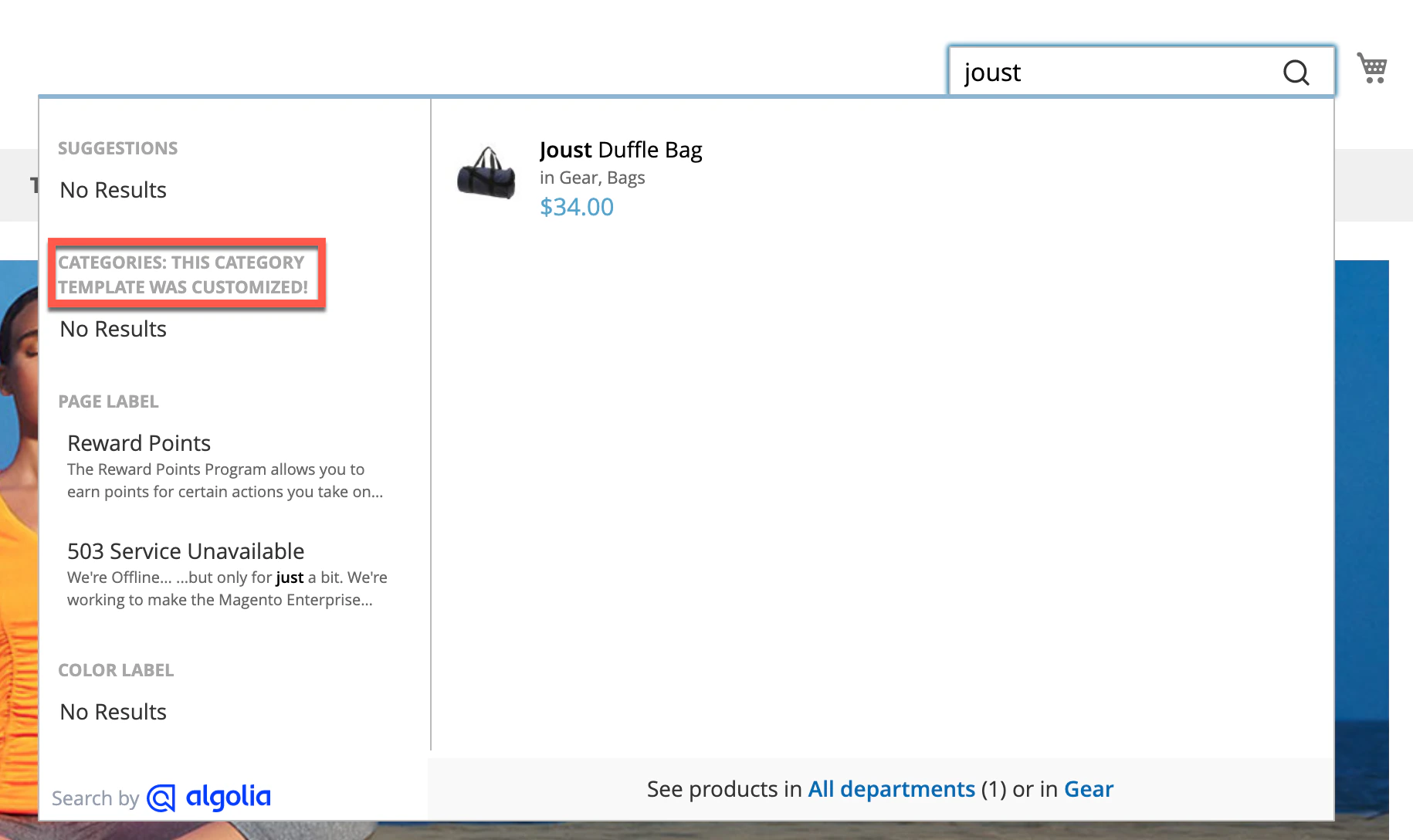
This renders the following results:

<img src="https://mintcdn.com/algolia/OE79PcXc4TKi8BZa/doc/integration/magento-2/customize/autocomplete-mixin-wrapper.png?fit=max&auto=format&n=OE79PcXc4TKi8BZa&q=85&s=e5342dc5a3f392d0e870c7e8fc88ca4e" alt="Using wrappers in your mixins for invoking the original method and using its output" width="1830" height="1088" data-path="doc/integration/magento-2/customize/autocomplete-mixin-wrapper.png" />

For more information, see [JavaScript mixins](https://developer.adobe.com/commerce/frontend-core/javascript/mixins) in the Adobe Commerce documentation.

## Custom Algolia module

To help you build your mixins faster,
try the `Algolia_CustomAlgolia` extension which installs a set of starter templates for your customizations.

For more information, see [Create a custom extension](/doc/integration/magento-2/guides/create-a-custom-extension#customalgolia).

## Styling

To keep the autocomplete menu open when making changes, turn on the debug mode.
To enable the debug mode, go to **Stores > Configuration > Algolia Search > Autocomplete > Enable autocomplete menu's debug mode**.

<img src="https://mintcdn.com/algolia/OE79PcXc4TKi8BZa/doc/integration/magento-2/customize/autocomplete-debug-mode.png?fit=max&auto=format&n=OE79PcXc4TKi8BZa&q=85&s=731990956bf87a3d2c11de7d5957e88a" alt="Using wrappers in your mixins for invoking the original method and using its output" width="956" height="127" data-path="doc/integration/magento-2/customize/autocomplete-debug-mode.png" />

### Debouncing

*Debouncing* waits to send a <SearchRequest /> until the user stops typing for a short time.
This reduces the number of API requests and UI updates but it also delays showing results.
Debouncing can help users who [prefer reduced motion](https://developer.mozilla.org/en-US/docs/Web/CSS/@media/prefers-reduced-motion).

To change the debounce settings,
go to **Stores > Configuration > Algolia Search > Autocomplete** in the Magento Admin.

#### Debounce requests

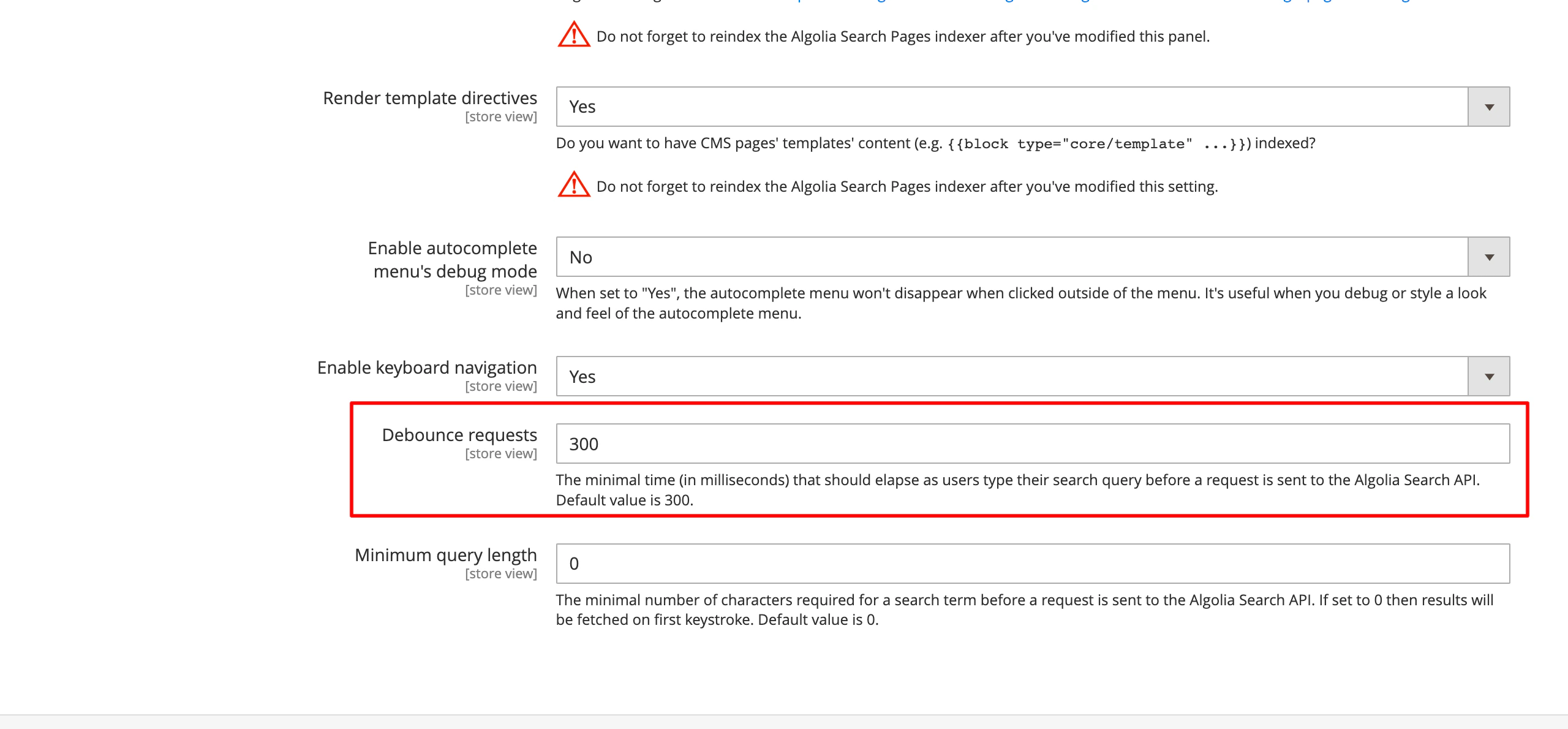
The **Debounce requests** setting defines the delay after the last keystroke before triggering a search.
By default, a search is triggered 300 milliseconds after the last keystroke.

<img src="https://mintcdn.com/algolia/OE79PcXc4TKi8BZa/doc/integration/magento-2/customize/debounce-requests.png?fit=max&auto=format&n=OE79PcXc4TKi8BZa&q=85&s=bf47496ee385b16f2c0cc41146e338b9" alt="Screenshot of the 'Debounce requests' setting set to 300 milliseconds for the Algolia Search API." width="2560" height="1190" data-path="doc/integration/magento-2/customize/debounce-requests.png" />

#### Minimum query length

The **Minimum query length** setting defines how many characters users have to enter before triggering a search.
If you set it to 0, searches are triggered from the first keystroke.
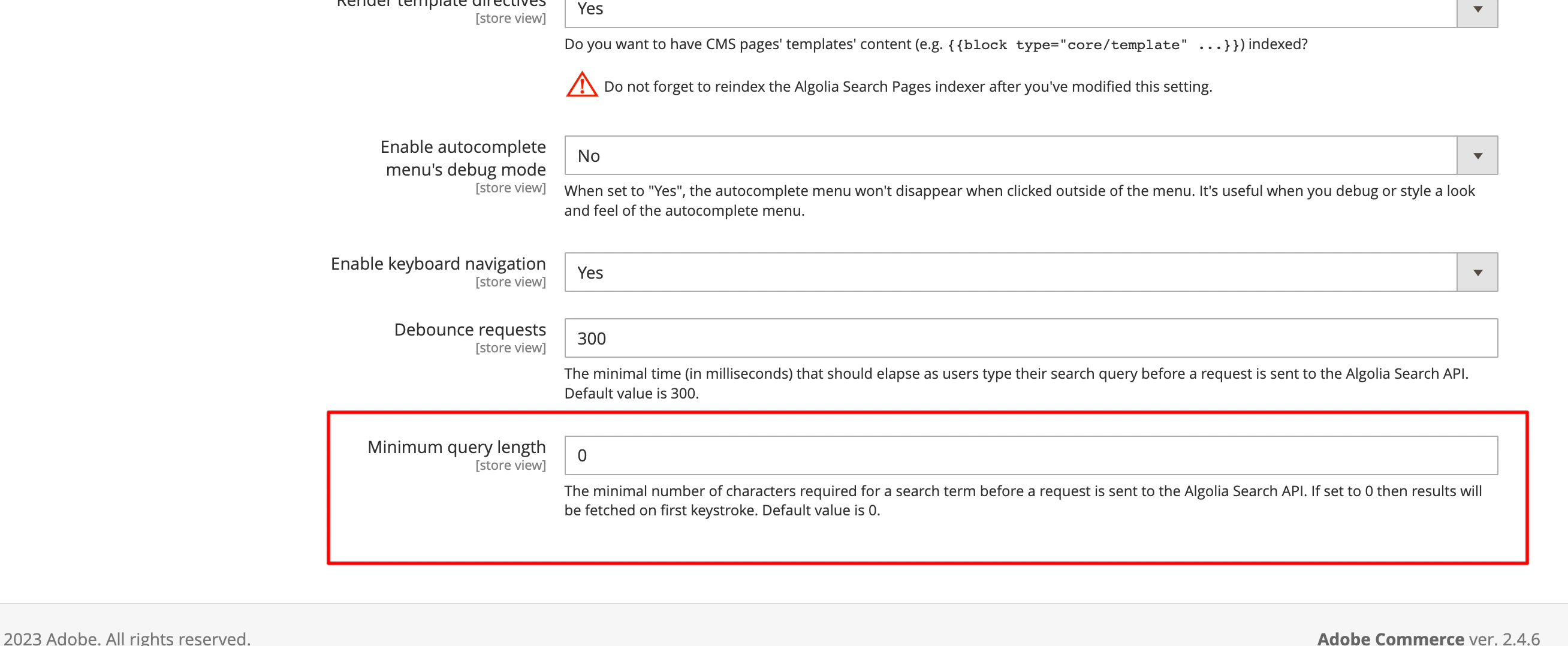
<img src="https://mintcdn.com/algolia/OE79PcXc4TKi8BZa/doc/integration/magento-2/customize/debounce-minimum-query-length.png?fit=max&auto=format&n=OE79PcXc4TKi8BZa&q=85&s=30c06c5fba74a15b2338697972bce1ce" alt="Screenshot of a settings form with 'Minimum query length' set to '0' for search queries." width="2616" height="1078" data-path="doc/integration/magento-2/customize/debounce-minimum-query-length.png" />

### Custom theme

By default, the extension overrides the `topSearch` block of the template.
If you're using a custom theme without the `topSearch` block,
update the DOM selector for the search input.

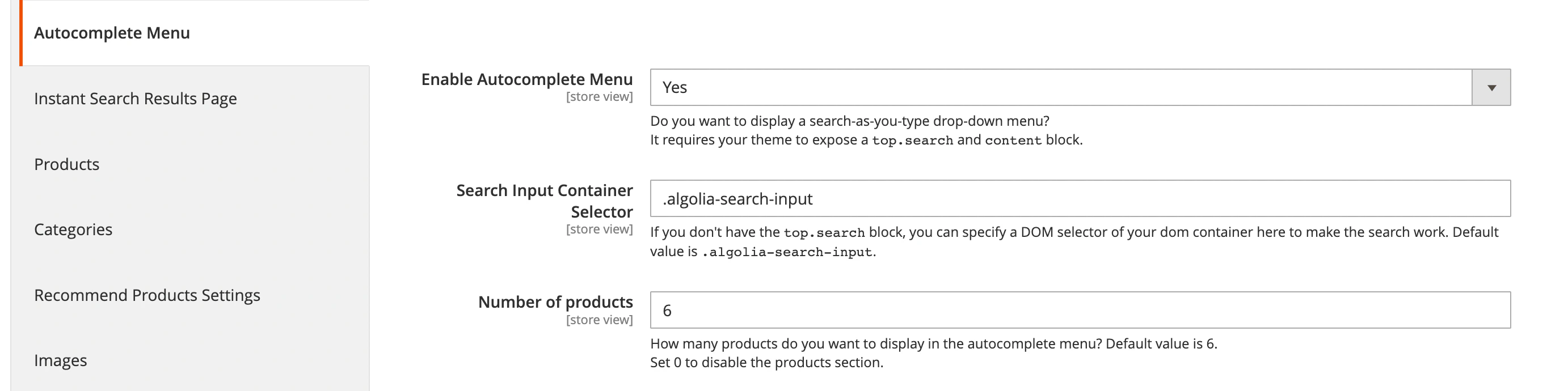
Go to **Stores > Algolia Search > Autocomplete Menu** in the Magento Admin, and change the **Search Input Container Selector** setting:
<img src="https://mintcdn.com/algolia/OE79PcXc4TKi8BZa/doc/integration/magento-2/customize/search-input-selector.png?fit=max&auto=format&n=OE79PcXc4TKi8BZa&q=85&s=d8cc763f77cf1d225291189a51abd8b2" alt="Screenshot of settings with 'Enable Autocomplete Menu' set to 'Yes', 'Search Input Container Selector' as '.Algolia-search-input', and 'Number of products' set to '6'." width="2764" height="690" data-path="doc/integration/magento-2/customize/search-input-selector.png" />

## Console error after reindexing

If you see the "can't read property 'autocomplete' of undefined" error after reindexing, this indicates the extension's templates weren't rendered.

1. Since the templates are rendered into the `before_body_end` block, ensure the theme renders this block.
2. If the block *is* rendered, confirm that symlinks are enabled in Magento's configuration.

Enable this in the administration section by going to **System > Configuration > Advanced > Developer**.