> ## Documentation Index
> Fetch the complete documentation index at: https://algolia.com/llms.txt
> Use this file to discover all available pages before exploring further.
# InstantSearch page
> Learn how to customize the features and design of InstantSearch results page in Algolia extension for Magento 2
export const SearchQuery = () =>
search query
;
export const Index = () =>
index
;
export const Filter = () =>
filter
;
For pages powered by [InstantSearch](/doc/guides/building-search-ui/what-is-instantsearch/js), such as catalog search and category pages,
the extension automatically configures the following based on your settings:
* Adds InstantSearch [widgets](/doc/api-reference/widgets/js) for the core elements of your search experience, including the search box, facets, sorting, and results list
* Provides UI templates for search interface elements, such as selection, search results, and the toolbar
All the necessary files are in the `vendor/algolia/algoliasearch-magento-2/view/frontend` folder, which contains the templates, JavaScript, and style sheets in use.
## Widgets
The InstantSearch UI consists of widgets,
which have a predefined behavior and rendering.
For example, the search input field is a widget, and the results is another widget.
The extension defines a set of widgets for your InstantSearch UI based on your configuration settings in **Stores > Configuration > Algolia Search > InstantSearch Results Page**
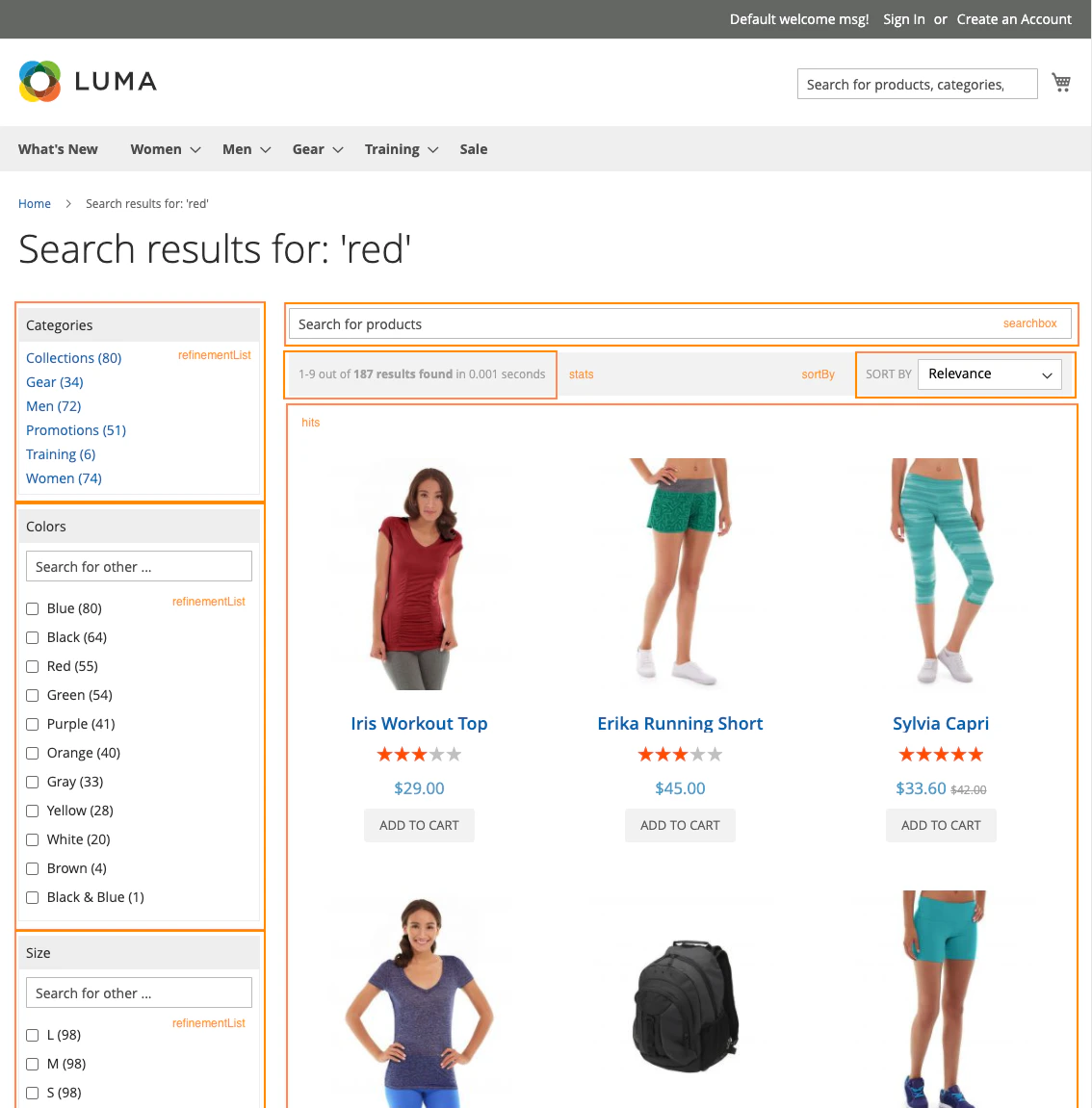
Here are some widgets that the extension uses for its UI:
* [`searchBox`](/doc/api-reference/widgets/search-box/js)
* [`stats`](/doc/api-reference/widgets/stats/js)
* [`sortBy`](/doc/api-reference/widgets/sort-by/js)
* [`currentRefinements`](/doc/api-reference/widgets/current-refinements/js)
* [`queryRuleCustomData`](/doc/api-reference/widgets/query-rule-custom-data/js)
* [`infiniteHits`](/doc/api-reference/widgets/infinite-hits/js) or [`hits`](/doc/api-reference/widgets/hits/js)
* [`pagination`](/doc/api-reference/widgets/pagination/js)
* [`rangeInput`](/doc/api-reference/widgets/range-input/js)
* [`refinementList`](/doc/api-reference/widgets/refinement-list/js)
* [`rangeSlider`](/doc/api-reference/widgets/range-slider/js)
In the image below of a basic InstantSearch configuration,
each highlighted section is a widget:
If you need to add or change these preconfigured widgets,
use the `beforeWidgetInitialization` event provided by the extension.
```js JavaScript icon=code theme={"system"}
algolia.registerHook(
"beforeWidgetInitialization",
function (allWidgetConfiguration, algoliaBundle) {
// add your code here
return allWidgetConfiguration;
},
);
```
The `allWidgetConfiguration` parameter has access to the set variable `allWidgetConfiguration`.
This variable has all the InstantSearch widget configurations already created for you based on your extension settings.
Using this event, you can return a modified `allWidgetConfiguration` for InstantSearch to render.
The following sections reviews key implementation concepts to help better understand what events to target when customizing InstantSearch.
### Layered navigation or facets
Magento defines the filters on the left column as layered navigation.
Algolia calls them **facets**.
InstantSearch builds these facet filters with refinement widgets like:
* [`rangeInput`](/doc/api-reference/widgets/range-input/js)
* [`refinementList`](/doc/api-reference/widgets/refinement-list/js)
* [`rangeSlider`](/doc/api-reference/widgets/range-slider/js)
The extension uses the configuration for facets set in **Stores > Configuration > Algolia Search > InstantSearch Results Page > Facets**, to define which refinement widget to use.
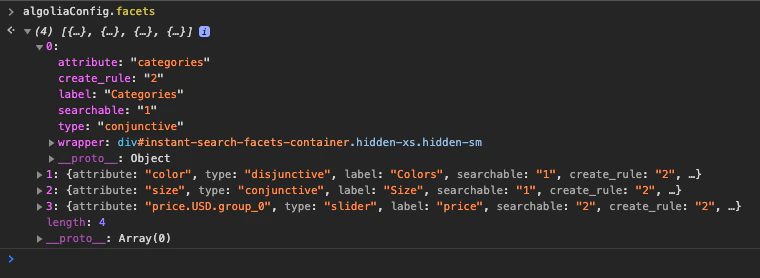
You can use the `algoliaConfig` global in your developer tools console to review the configurations for the implementation using `algoliaConfig.facets` in your store front.
### Product results or hits
The `hits` and `infiniteHits` widgets display the product results from a search.
The extension can configure either options.
You can enable `infiniteHits` in **Stores > Configuration > Algolia Search > InstantSearch Results Page > Enable Infinite Scrolling?**
Both widgets use the same template to render the item template:
`view/frontend/templates/instant/hit.phtml`.
To change the rendering of the product result,
copy the template in your theme, and edit the copy instead of directly in the extension.
If you need to add complex display conditions to your product hits,
use the `beforeWidgetInitialization` event hook to transform the hit before passing in the variable to the template.
These widgets have the option to `transformItems`, which accepts a callback function.
As the extension already utilizes this parameter,
make sure that you run the already created function before yours. For example:
```js JavaScript icon=code theme={"system"}
define([
'jquery',
'algoliaCommon',
'algoliaInstantSearchLib',
],
function (
$,
algolia,
instantsearch // Directly inject the instantsearch library as needed
) {
algolia.registerHook('beforeWidgetInitialization', function(allWidgetConfiguration) {
$.each(allWidgetConfiguration, function (widgetType) {
if (widgetType == 'hits') {
var callbackTransform = allWidgetConfiguration[widgetType].transformItems;
allWidgetConfiguration[widgetType].transformItems = function(items, { results }) {
items = callbackTransform(items, { results });
return items.map(function (item) {
// add your modification to item result
item.exampleNewVariable = 'This is an example that will be applied to all items.';
console.log(item)
return item;
})
}
}
});
return allWidgetConfiguration;
});
});
```
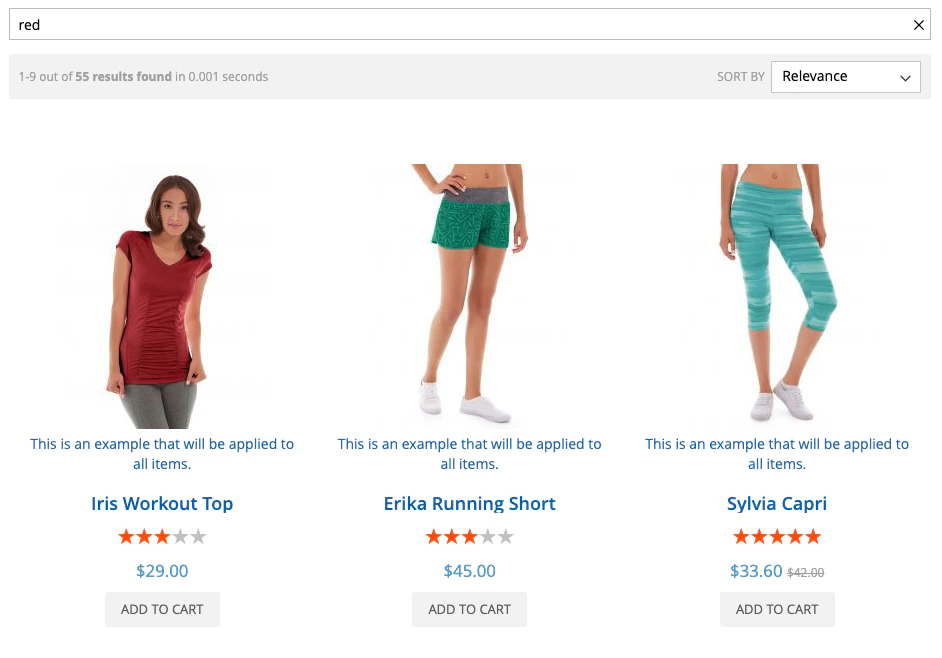
The preceding example adds a new attribute variable on the fly for the hits. You can access the new attribute variable by adding the variable to the hits template:
`{{{exampleNewVariable}}}`
Use the `beforeWidgetInitialization` frontend hook to add more complex logic for your product listing.
## Custom events
The extension offers several events within the InstantSearch implementation:
* `beforeInstantsearchInit(instantsearchOptions)`
Changes default [`instantsearch` options](/doc/api-reference/widgets/instantsearch/js#options).
* `beforeWidgetInitialization(allWidgetConfiguration)`
Adds, removes, or updates any [widget](/doc/api-reference/widgets/js).
* `beforeInstantsearchStart(search)`
Changes the [`instantsearch` instance](/doc/api-reference/widgets/instantsearch/js) before calling the [`start()`](/doc/api-reference/widgets/instantsearch/js#param-start) method.
* `afterInstantsearchStart(search)`
Changes the `instantsearch` instance after calling the `start()` method.
* `beforeFacetInitialization(builders)`
Modifies the rendering logic for any facet.
All custom methods **must** return the manipulated first parameter.
### Change search options
If you need to change the InstantSearch [search options](/doc/api-reference/widgets/instantsearch/js),
whether changing the name or tapping directly to InstantSearch events,
you can use the event: `beforeInstantsearchInit`
Use this event to change the `instantsearchOptions` option which accepts a callback function.
As the extension already utilizes this parameter,
make sure that you run the already created function before yours.
For example:
```js JavaScript icon=code theme={"system"}
// Modify default `instantsearchOptions`
algolia.registerHook(
"beforeInstantsearchInit",
function (instantsearchOptions, algoliaBundle) {
instantsearchOptions.numberLocale = "fr";
instantsearchOptions.onStateChange = function ({ uiState, setUiState }) {
// Add your logic here
setUiState(uiState);
};
return instantsearchOptions;
},
);
```
### Change search parameters
The method to change the `searchParameters` for your depends on your extension version.
In version 1, change this parameter in search options.
In versions 2 and later, the `configure` widget sets the search parameters.
This widget accepts an object of `searchParameters`. For example:
```js v2 theme={"system"}
instantsearch.widgets.configure({
hitsPerPage: 8,
distinct: true,
clickAnalytics: true,
enablePersonalization: true,
});
```
```js v1 theme={"system"}
var instantsearchOptions = {
appId: algoliaConfig.applicationId,
apiKey: algoliaConfig.apiKey,
indexName: algoliaConfig.indexName + '_products',
searchParameters: {
hitsPerPage: algoliaConfig.hitsPerPage,
ruleContexts: ruleContexts
},
[...]
};
```
As the extension implements the `configure` widget for you,
use `beforeWidgetInitialization` to make any changes to it.
The example below shows how to change and add preconfigured values using the event hook:
```js v2 theme={"system"}
// Modify default `searchParameters`
// see: https://www.algolia.com/doc/api-reference/api-parameters/
algolia.registerHook(
"beforeWidgetInitialization",
function (allWidgetConfiguration) {
allWidgetConfiguration["configure"] =
allWidgetConfiguration["configure"] || {};
// change hitsPerPage
allWidgetConfiguration["configure"].hitsPerPage = 20;
// change enabledPersonalization
allWidgetConfiguration["configure"].enabledPersonalization = true;
// Adding a custom query rule context
var newQueryRuleContext = "new-custom-query-rule-context";
allWidgetConfiguration["configure"].ruleContexts.push(newQueryRuleContext);
return allWidgetConfiguration;
},
);
```
```js v1 theme={"system"}
algolia.registerHook(
"beforeInstantsearchInit",
function (instantsearchOptions, algoliaBundle) {
// change hitsPerPage
instantsearchOptions.searchParameters["hitsPerPage"] = 20;
// change enabledPersonalization
instantsearchOptions.searchParameters["enabledPersonalization"] = true;
// Adding a custom query rule context
var newQueryRuleContext = "new-custom-query-rule-context";
instantsearchOptions.searchParameters["ruleContext"].push(
newQueryRuleContext,
);
return allWidgetConfiguration;
},
);
```
### Add new widgets
The following code shows how to add the [`toggle-refinement`](/doc/api-reference/widgets/toggle-refinement/js) widget to the InstantSearch page:
```js v2 theme={"system"}
algolia.registerHook(
"beforeWidgetInitialization",
function (allWidgetConfiguration) {
const wrapper = document.getElementById("instant-search-facets-container");
const widgetConfig = {
container: wrapper.appendChild(createISWidgetContainer("in_stock")),
attribute: "in_stock",
on: 1,
templates: {
label: "In Stock",
},
};
if (typeof allWidgetConfiguration["toggleRefinement"] === "undefined") {
allWidgetConfiguration["toggleRefinement"] = [widgetConfig];
} else {
allWidgetConfiguration["toggleRefinement"].push(widgetConfig);
}
return allWidgetConfiguration;
},
);
```
```js v1 theme={"system"}
algolia.registerHook(
"beforeWidgetInitialization",
function (allWidgetConfiguration) {
const wrapper = document.getElementById("instant-search-facets-container");
const widgetConfig = {
container: wrapper.appendChild(createISWidgetContainer("in_stock")),
attributeName: "in_stock",
label: "In Stock",
values: {
on: 1,
},
templates: {
header: '
Is in stock
',
},
};
if (typeof allWidgetConfiguration["toggle"] === "undefined") {
allWidgetConfiguration["toggle"] = [widgetConfig];
} else {
allWidgetConfiguration["toggle"].push(widgetConfig);
}
return allWidgetConfiguration;
},
);
```
## Templates
Follow best practices when you update templates in the extension.
Keep changes in your theme directory and avoid directly editing the extension.
### InstantSearch page wrapper
The wrapper template holds the layout of the InstantSearch results page,
along with all other templates rendered in to it.
To alter the layout of this page,
go to the `templates` directory,
and locate the [`wrapper.phtml`](https://github.com/algolia/algoliasearch-magento-2/blob/master/view/frontend/templates/instant/wrapper.phtml) file.
This file is a standard Magento template file.
### InstantSearch results page
To change the structure of the widgets on the results page,
go to the [`instant`](https://github.com/algolia/algoliasearch-magento-2/blob/master/view/frontend/templates/instant/) folder of the `templates` directory.
Here are the files used to render the configured widgets:
* [`hit.phtml`](https://github.com/algolia/algoliasearch-magento-2/blob/master/view/frontend/templates/instant/hit.phtml). Product template.
* [`facet.phtml`](https://github.com/algolia/algoliasearch-magento-2/blob/master/view/frontend/templates/instant/facet.phtml). Facet template.
* [`wrapper.phtml`](https://github.com/algolia/algoliasearch-magento-2/blob/master/view/frontend/templates/instant/wrapper.phtml). InstantSearch results page layout template.
* [`stats.phtml`](https://github.com/algolia/algoliasearch-magento-2/blob/master/view/frontend/templates/instant/stats.phtml). Search statistics template.
## Mustache templates
In the Magento extension, the Autocomplete and Recommend templates use the JavaScript-based approach.
The InstantSearch templates still rely on Hogan.js which is still supported in InstantSearch.js v4.
A Mustache-based template parser, such as Hogan.js, must be loaded explicitly in these files:
1. `wrapper.phtml`
2. `stats.phtml`
If you relied on the bundled Hogan.js library in your customizations,
you need to update your code.
In previous versions, Hogan.js was included in `algoliaBundle`.
Since the [`algoliaBundle` is discontinued](/doc/integration/magento-2/customize/custom-front-end-events#frontend-javascript-libraries-and-the-legacy-bundle) in version 3.15.0,
Hogan.js is now packaged as a separate library that can be loaded through RequireJS as needed.
However, Hogan.js [is unmaintained](https://github.com/twitter/hogan.js/releases/tag/v3.0.2) and [security concerns persist](https://github.com/rtfpessoa/diff2html/issues/435). That's why [Mustache.js](https://github.com/janl/mustache.js) is the default templating engine.
## Template engines
You don't have to use Mustache.js if it doesn't suit your purpose.
You can use RequireJS mixins to specify an alternate template engine.
For example, to use Hogan.js instead of Mustache.js,
you can write a mixin on the `getSelectedEngineType` function:
* `requirejs-config.js`
```js js icon=code theme={"system"}
const config = {
config: {
mixins: {
"Algolia_AlgoliaSearch/js/internals/template-engine": {
"Algolia_CustomAlgolia/js/internals/template-engine-mixin": true,
},
},
}
};
```
* `template-engine-mixin.js`
```js JavaScript icon=code theme={"system"}
define(function () {
"use strict";
return function (target) {
const mixin = {
getSelectedEngineType: function () {
return target.ENGINE_TYPE_HOGAN;
},
};
return { ...target, ...mixin };
};
});
```
For more examples of how to use mixins or hooks to customize the Algolia frontend in Magento,
see the [`CustomAlgolia`](https://github.com/algolia/algoliasearch-custom-algolia-magento-2) sample module.
 If you need to add or change these preconfigured widgets,
use the `beforeWidgetInitialization` event provided by the extension.
```js JavaScript icon=code theme={"system"}
algolia.registerHook(
"beforeWidgetInitialization",
function (allWidgetConfiguration, algoliaBundle) {
// add your code here
return allWidgetConfiguration;
},
);
```
The `allWidgetConfiguration` parameter has access to the set variable `allWidgetConfiguration`.
This variable has all the InstantSearch widget configurations already created for you based on your extension settings.
Using this event, you can return a modified `allWidgetConfiguration` for InstantSearch to render.
The following sections reviews key implementation concepts to help better understand what events to target when customizing InstantSearch.
### Layered navigation or facets
Magento defines the filters on the left column as layered navigation.
Algolia calls them **facets**.
InstantSearch builds these facet filters with refinement widgets like:
* [`rangeInput`](/doc/api-reference/widgets/range-input/js)
* [`refinementList`](/doc/api-reference/widgets/refinement-list/js)
* [`rangeSlider`](/doc/api-reference/widgets/range-slider/js)
The extension uses the configuration for facets set in **Stores > Configuration > Algolia Search > InstantSearch Results Page > Facets**, to define which refinement widget to use.
You can use the `algoliaConfig` global in your developer tools console to review the configurations for the implementation using `algoliaConfig.facets` in your store front.
If you need to add or change these preconfigured widgets,
use the `beforeWidgetInitialization` event provided by the extension.
```js JavaScript icon=code theme={"system"}
algolia.registerHook(
"beforeWidgetInitialization",
function (allWidgetConfiguration, algoliaBundle) {
// add your code here
return allWidgetConfiguration;
},
);
```
The `allWidgetConfiguration` parameter has access to the set variable `allWidgetConfiguration`.
This variable has all the InstantSearch widget configurations already created for you based on your extension settings.
Using this event, you can return a modified `allWidgetConfiguration` for InstantSearch to render.
The following sections reviews key implementation concepts to help better understand what events to target when customizing InstantSearch.
### Layered navigation or facets
Magento defines the filters on the left column as layered navigation.
Algolia calls them **facets**.
InstantSearch builds these facet filters with refinement widgets like:
* [`rangeInput`](/doc/api-reference/widgets/range-input/js)
* [`refinementList`](/doc/api-reference/widgets/refinement-list/js)
* [`rangeSlider`](/doc/api-reference/widgets/range-slider/js)
The extension uses the configuration for facets set in **Stores > Configuration > Algolia Search > InstantSearch Results Page > Facets**, to define which refinement widget to use.
You can use the `algoliaConfig` global in your developer tools console to review the configurations for the implementation using `algoliaConfig.facets` in your store front.
 ### Product results or hits
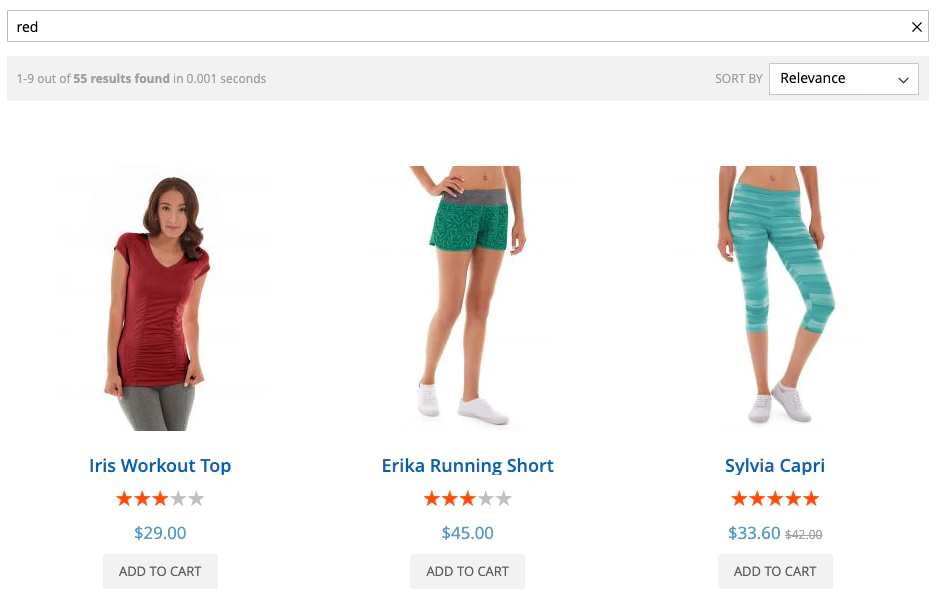 The `hits` and `infiniteHits` widgets display the product results from a search.
The extension can configure either options.
You can enable `infiniteHits` in **Stores > Configuration > Algolia Search > InstantSearch Results Page > Enable Infinite Scrolling?**
Both widgets use the same template to render the item template:
`view/frontend/templates/instant/hit.phtml`.
To change the rendering of the product result,
copy the template in your theme, and edit the copy instead of directly in the extension.
If you need to add complex display conditions to your product hits,
use the `beforeWidgetInitialization` event hook to transform the hit before passing in the variable to the template.
These widgets have the option to `transformItems`, which accepts a callback function.
As the extension already utilizes this parameter,
make sure that you run the already created function before yours. For example:
```js JavaScript icon=code theme={"system"}
define([
'jquery',
'algoliaCommon',
'algoliaInstantSearchLib',
],
function (
$,
algolia,
instantsearch // Directly inject the instantsearch library as needed
) {
algolia.registerHook('beforeWidgetInitialization', function(allWidgetConfiguration) {
$.each(allWidgetConfiguration, function (widgetType) {
if (widgetType == 'hits') {
var callbackTransform = allWidgetConfiguration[widgetType].transformItems;
allWidgetConfiguration[widgetType].transformItems = function(items, { results }) {
items = callbackTransform(items, { results });
return items.map(function (item) {
// add your modification to item result
item.exampleNewVariable = 'This is an example that will be applied to all items.';
console.log(item)
return item;
})
}
}
});
return allWidgetConfiguration;
});
});
```
The preceding example adds a new attribute variable on the fly for the hits. You can access the new attribute variable by adding the variable to the hits template:
`{{{exampleNewVariable}}}`
The `hits` and `infiniteHits` widgets display the product results from a search.
The extension can configure either options.
You can enable `infiniteHits` in **Stores > Configuration > Algolia Search > InstantSearch Results Page > Enable Infinite Scrolling?**
Both widgets use the same template to render the item template:
`view/frontend/templates/instant/hit.phtml`.
To change the rendering of the product result,
copy the template in your theme, and edit the copy instead of directly in the extension.
If you need to add complex display conditions to your product hits,
use the `beforeWidgetInitialization` event hook to transform the hit before passing in the variable to the template.
These widgets have the option to `transformItems`, which accepts a callback function.
As the extension already utilizes this parameter,
make sure that you run the already created function before yours. For example:
```js JavaScript icon=code theme={"system"}
define([
'jquery',
'algoliaCommon',
'algoliaInstantSearchLib',
],
function (
$,
algolia,
instantsearch // Directly inject the instantsearch library as needed
) {
algolia.registerHook('beforeWidgetInitialization', function(allWidgetConfiguration) {
$.each(allWidgetConfiguration, function (widgetType) {
if (widgetType == 'hits') {
var callbackTransform = allWidgetConfiguration[widgetType].transformItems;
allWidgetConfiguration[widgetType].transformItems = function(items, { results }) {
items = callbackTransform(items, { results });
return items.map(function (item) {
// add your modification to item result
item.exampleNewVariable = 'This is an example that will be applied to all items.';
console.log(item)
return item;
})
}
}
});
return allWidgetConfiguration;
});
});
```
The preceding example adds a new attribute variable on the fly for the hits. You can access the new attribute variable by adding the variable to the hits template:
`{{{exampleNewVariable}}}`
 Use the `beforeWidgetInitialization` frontend hook to add more complex logic for your product listing.
## Custom events
The extension offers several events within the InstantSearch implementation:
* `beforeInstantsearchInit(instantsearchOptions)`
Changes default [`instantsearch` options](/doc/api-reference/widgets/instantsearch/js#options).
* `beforeWidgetInitialization(allWidgetConfiguration)`
Adds, removes, or updates any [widget](/doc/api-reference/widgets/js).
* `beforeInstantsearchStart(search)`
Changes the [`instantsearch` instance](/doc/api-reference/widgets/instantsearch/js) before calling the [`start()`](/doc/api-reference/widgets/instantsearch/js#param-start) method.
* `afterInstantsearchStart(search)`
Changes the `instantsearch` instance after calling the `start()` method.
* `beforeFacetInitialization(builders)`
Modifies the rendering logic for any facet.
Use the `beforeWidgetInitialization` frontend hook to add more complex logic for your product listing.
## Custom events
The extension offers several events within the InstantSearch implementation:
* `beforeInstantsearchInit(instantsearchOptions)`
Changes default [`instantsearch` options](/doc/api-reference/widgets/instantsearch/js#options).
* `beforeWidgetInitialization(allWidgetConfiguration)`
Adds, removes, or updates any [widget](/doc/api-reference/widgets/js).
* `beforeInstantsearchStart(search)`
Changes the [`instantsearch` instance](/doc/api-reference/widgets/instantsearch/js) before calling the [`start()`](/doc/api-reference/widgets/instantsearch/js#param-start) method.
* `afterInstantsearchStart(search)`
Changes the `instantsearch` instance after calling the `start()` method.
* `beforeFacetInitialization(builders)`
Modifies the rendering logic for any facet.