> ## Documentation Index
> Fetch the complete documentation index at: https://algolia.com/llms.txt
> Use this file to discover all available pages before exploring further.
# Set up Algolia for Adobe Commerce and Magento Open Source
> Get started using Algolia in your Adobe Commerce and Magento Open Source store.
export const Application = () =>
application
;
The Algolia AI Search & Discovery extension for Adobe Commerce and Magento Open Source elevates the search experience of your store.
It replaces the default search with a menu and a dynamic search results page that updates with products and categories in real time.
## Before you begin
Ensure you have the following tools and accounts ready:
* A Magento Open Source 2.4.x or Adobe Commerce 2.4.x store.
* **An Algolia account.** If you don't have one, [create a new account](https://www.algolia.com/users/sign_up) for free.
When signing up, select a data center closest to the data center of your Magento installation.
This ensures better performance.
You can use Algolia AI Search & Discovery with Algolia's [Grow or Premium plans](https://www.algolia.com/pricing/),
but some features are only available in the Premium plan.
* [PHP](https://www.php.net/downloads.php) version 8.2 to 8.4. For more information, see the [System requirements](https://experienceleague.adobe.com/en/docs/commerce-operations/installation-guide/system-requirements) in the Adobe Commerce documentation.
* [Composer](https://getcomposer.org/) version 2.
* Algolia AI Search & Discovery extension. You can install the extension with Composer or from the Adobe Commerce Marketplace.
On Windows, use PowerShell, not Command Prompt,
and ensure PHP and Composer are available in your PATH.
```sh Command line icon=square-terminal theme={"system"}
composer require algolia/algoliasearch-magento-2
php bin/magento module:enable Algolia_AlgoliaSearch
php bin/magento setup:upgrade
php bin/magento setup:di:compile
php bin/magento setup:static-content:deploy
php bin/magento cache:flush
```
1. Change to developer [mode](https://experienceleague.adobe.com/en/docs/commerce-operations/configuration-guide/cli/set-mode):
```sh Command line icon=square-terminal theme={"system"}
php bin/magento deploy:mode:set developer
```
2. Install the extension:
```sh Command line icon=square-terminal theme={"system"}
composer require algolia/algoliasearch-magento-2
php bin/magento module:enable Algolia_AlgoliaSearch
php bin/magento setup:upgrade
# Optional: prebuild assets for speed / exact output
php bin/magento setup:static-content:deploy -f
php bin/magento cache:flush
```
Go to the [Adobe Commerce Marketplace](https://marketplace.magento.com/algolia-algoliasearch-magento-2.html) to get the extension and follow the install steps.
If you encounter missing dependency errors, resolve them by running `composer update`.
## Quickstart
Connect your store to Algolia and run the initial indexing to sync your catalog.
1. Go to the [API Keys](https://dashboard.algolia.com/account/api-keys) page in the Algolia dashboard to find your credentials:
* Application ID
* Search API key
* Admin API key
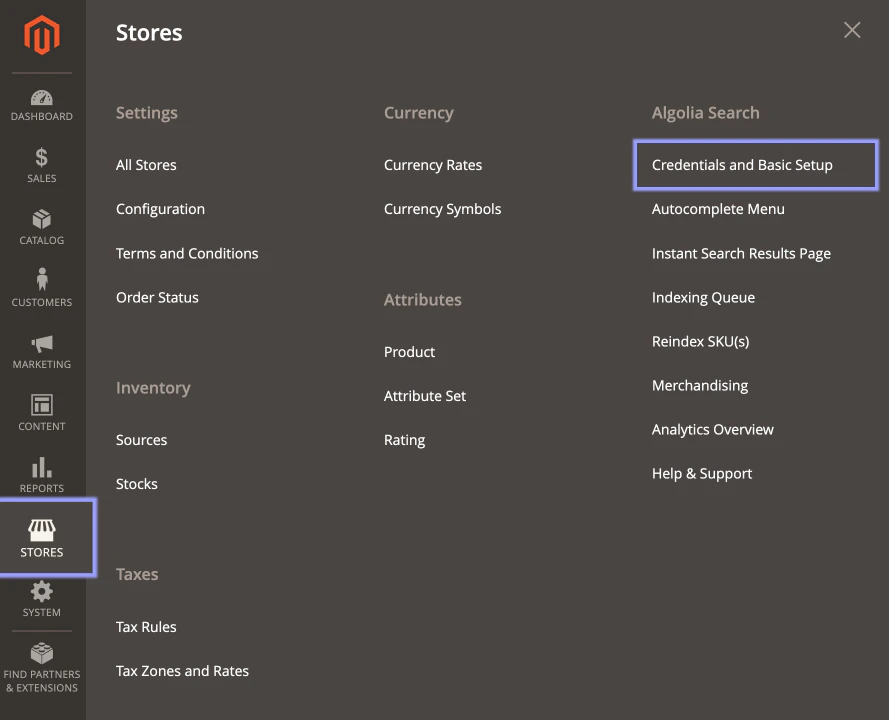
2. In the Admin panel of your Magento project, go to **Stores > Algolia Search > Credentials and Basic Setup** to open the configuration page for Algolia.
 3. Enter your Algolia credentials and choose a name for the **Index Name Prefix**.
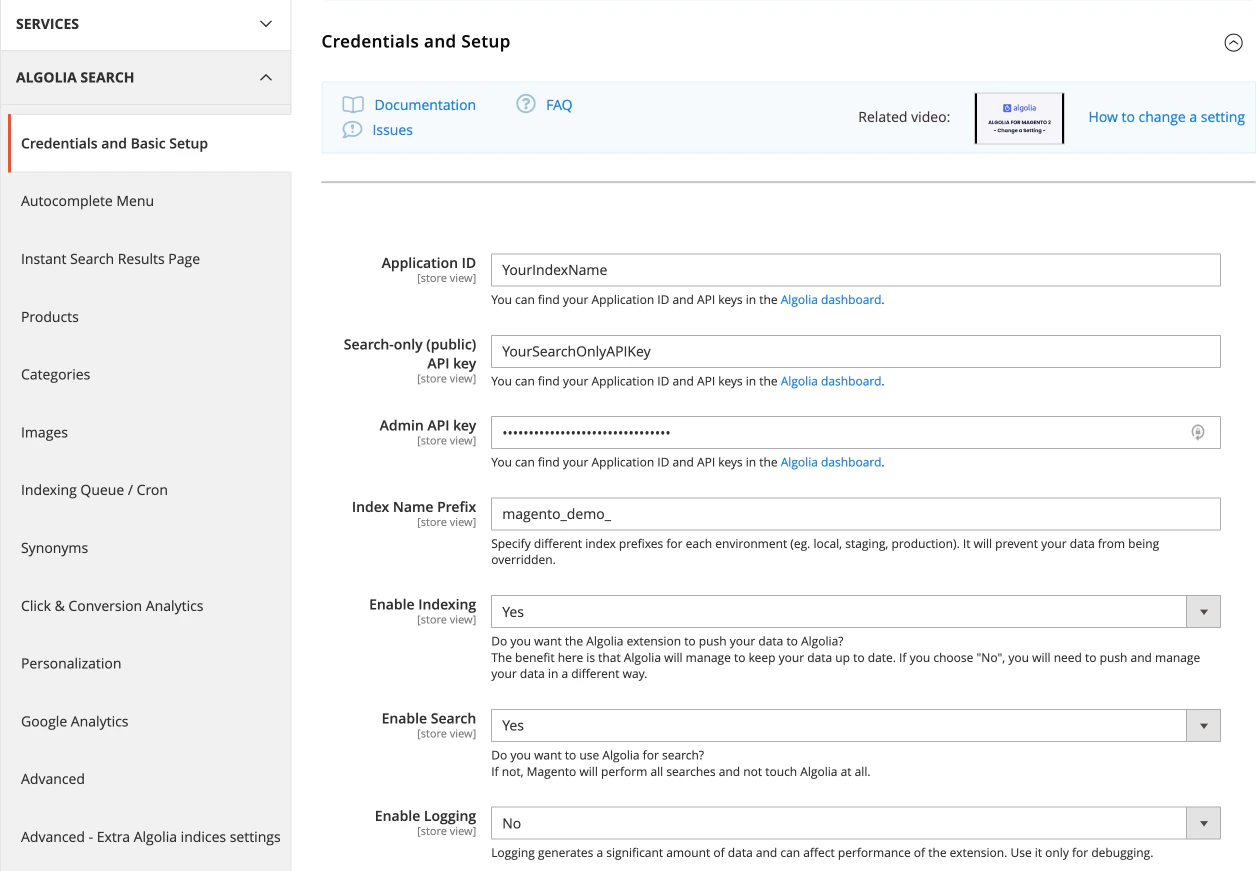 4. Click **Save Config** at the top right to save your configuration.
Start the indexing process to copy the data from your Magento store to Algolia.
To do this, run the following command from the root of your Magento project:
```sh Extension version 3.16 and higher icon="square-terminal" theme={"system"}
php bin/magento algolia:reindex:all
```
```sh Extension version 3.15.x and lower icon="square-terminal" theme={"system"}
php bin/magento indexer:reindex \
algolia_products \
algolia_categories \
algolia_pages \
algolia_suggestions \
algolia_additional_sections
```
## Use multiple application IDs
Starting with version 3.15.0,
the Algolia AI Search & Discovery extension lets you use different application IDs for each website in your Magento store.
For example, if your store includes **website A** and **website B**,
you can connect each to a separate Algolia .
To do this:
1. In the default configuration, enter the credentials for **application A**.
2. Select **website B**, clear the **Use default** option,
and enter the credentials for **application B**.
3. Clear the cache.
Each website is now indexed into its corresponding Algolia application.
The frontend retrieves data from the configured application for each website.
Ensure each application has access to the Algolia features you're using.
## See also
* [Indexing](/doc/integration/magento-2/how-it-works/indexing)
* [Extensions from Adobe](https://experienceleague.adobe.com/en/docs/commerce-admin/start/resources/extensions)
* [Algolia for Magento extension source code (GitHub)](https://github.com/algolia/algoliasearch-magento-2)
4. Click **Save Config** at the top right to save your configuration.
Start the indexing process to copy the data from your Magento store to Algolia.
To do this, run the following command from the root of your Magento project:
```sh Extension version 3.16 and higher icon="square-terminal" theme={"system"}
php bin/magento algolia:reindex:all
```
```sh Extension version 3.15.x and lower icon="square-terminal" theme={"system"}
php bin/magento indexer:reindex \
algolia_products \
algolia_categories \
algolia_pages \
algolia_suggestions \
algolia_additional_sections
```
## Use multiple application IDs
Starting with version 3.15.0,
the Algolia AI Search & Discovery extension lets you use different application IDs for each website in your Magento store.
For example, if your store includes **website A** and **website B**,
you can connect each to a separate Algolia .
To do this:
1. In the default configuration, enter the credentials for **application A**.
2. Select **website B**, clear the **Use default** option,
and enter the credentials for **application B**.
3. Clear the cache.
Each website is now indexed into its corresponding Algolia application.
The frontend retrieves data from the configured application for each website.
Ensure each application has access to the Algolia features you're using.
## See also
* [Indexing](/doc/integration/magento-2/how-it-works/indexing)
* [Extensions from Adobe](https://experienceleague.adobe.com/en/docs/commerce-admin/start/resources/extensions)
* [Algolia for Magento extension source code (GitHub)](https://github.com/algolia/algoliasearch-magento-2)