> ## Documentation Index
> Fetch the complete documentation index at: https://algolia.com/llms.txt
> Use this file to discover all available pages before exploring further.
# Category pages
> Show a single category of your catalog, combining Magento and Algolia features.
export const SearchQuery = () =>
search query
;
export const Records = () =>
records
;
export const Filter = () =>
filter
;
Category pages are pre-filtered product listing pages that show specific product selections.
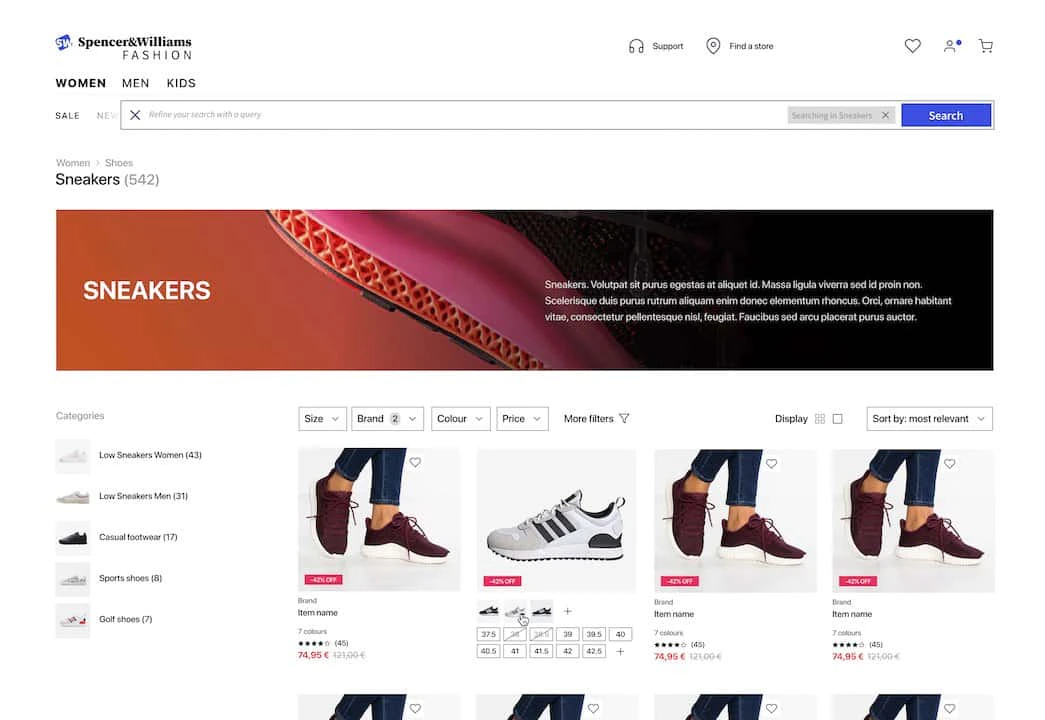 The Algolia extension lets you create category pages using InstantSearch widgets.
Choose from: price range, sorting, pagination, hierarchical menu, and widgets.
## Enable category pages
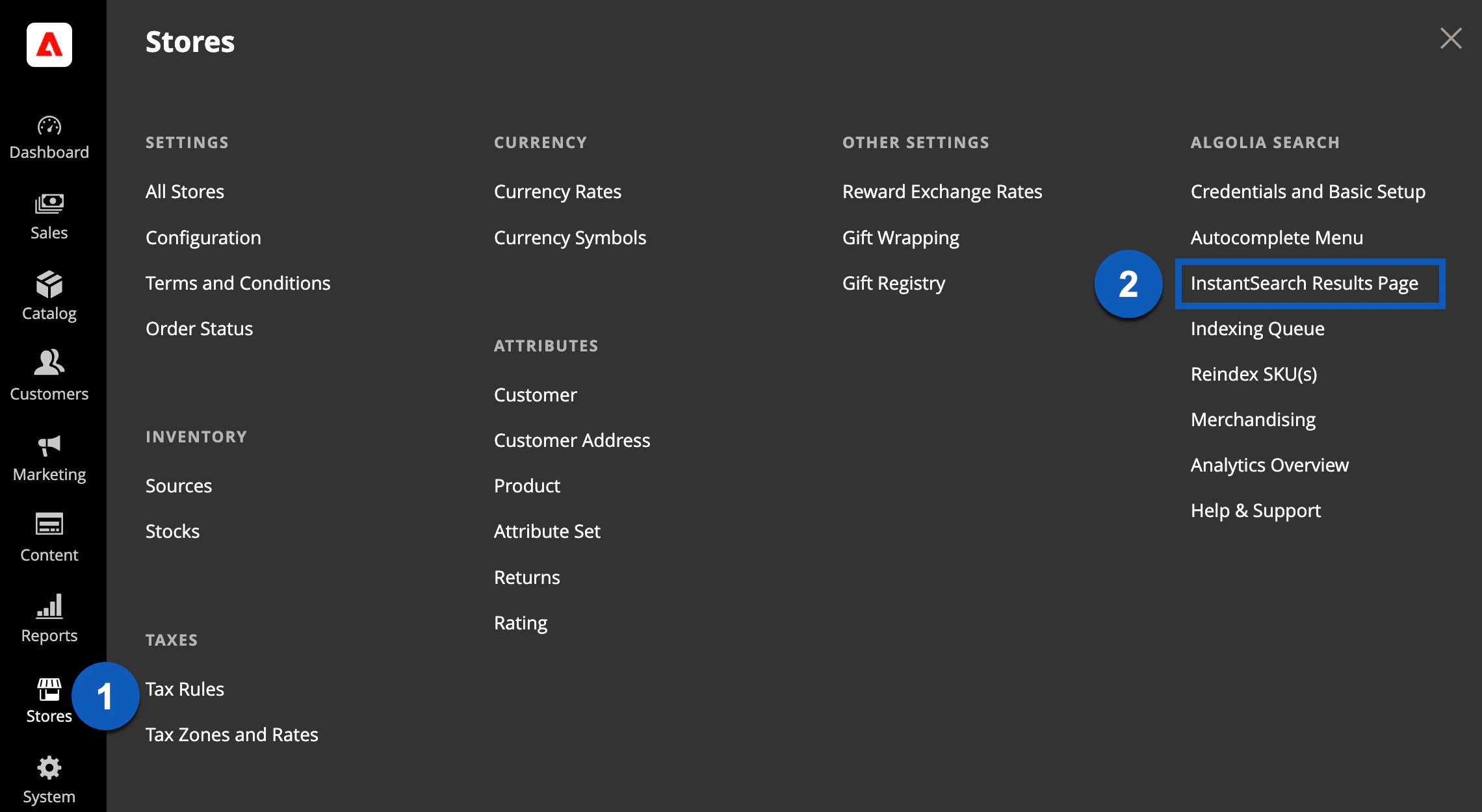
1. Go to **Stores > Configuration > Algolia Search > InstantSearch Results Page**.
The Algolia extension lets you create category pages using InstantSearch widgets.
Choose from: price range, sorting, pagination, hierarchical menu, and widgets.
## Enable category pages
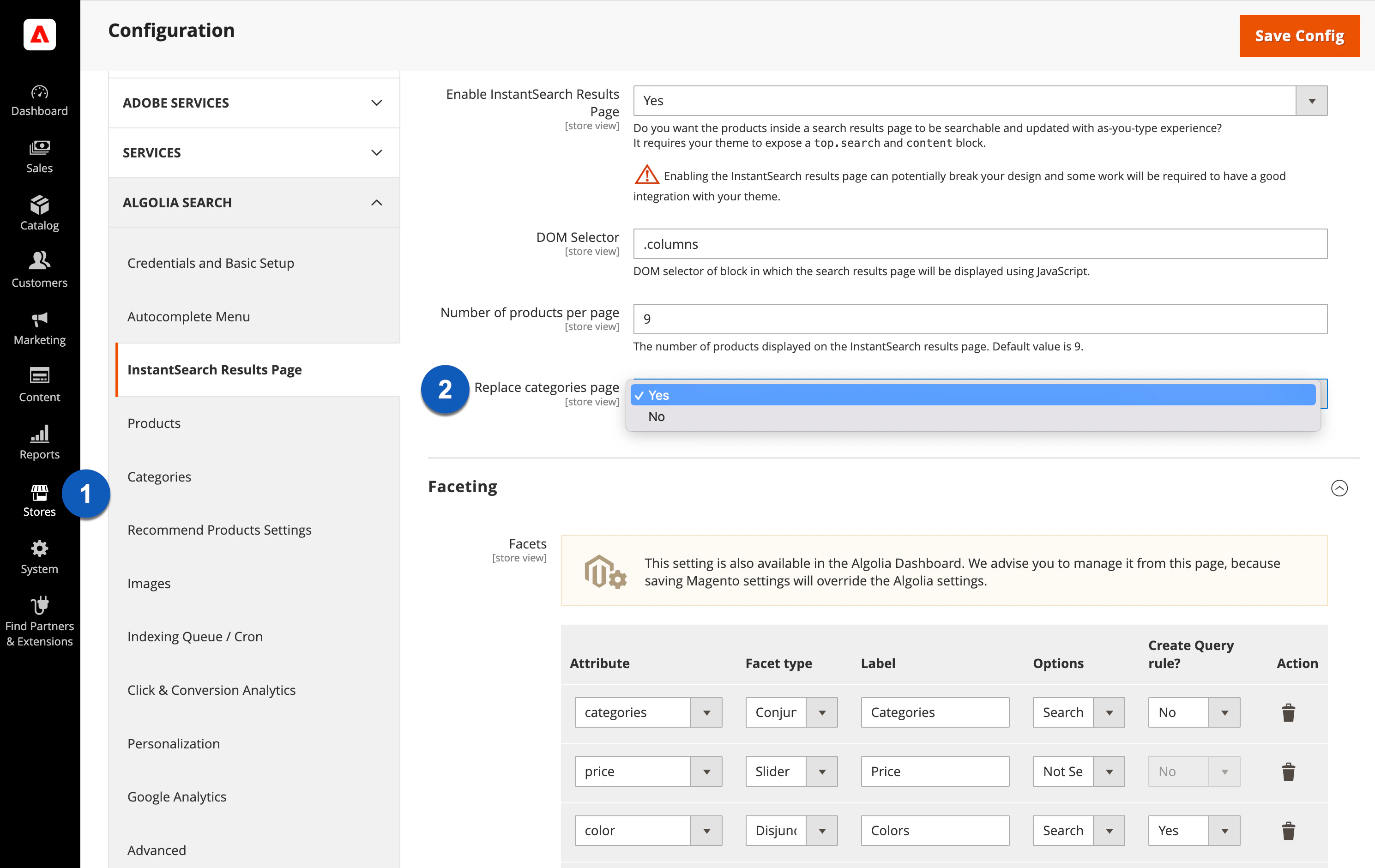
1. Go to **Stores > Configuration > Algolia Search > InstantSearch Results Page**.
 2. Set **Replace categories page** to **Yes**.
 After enabling category pages, the following happens:
* During indexing, Algolia adds a new `categoryId` attribute to each record.
This attribute is an array containing the category page IDs for each product.
You can use these page IDs to create [rules](/doc/guides/managing-results/rules/rules-overview) for pinning, hiding, boosting, or burying .
* InstantSearch widgets display the category pages.
* To display the category page, send an empty string as a and the relevant categories as `facetFilters` in the frontend code.
If you want to use the API directly or build a custom frontend for your store,
see [Category pages](/doc/guides/solutions/ecommerce/browse/tutorials/category-pages) for more information.
## Algolia Rules
You can use Algolia Rules to change how records display in search results:
* [Pin records to the top of the search results](/doc/guides/managing-results/rules/merchandising-and-promoting/how-to/promote-hits)
* [Hide records](/doc/guides/managing-results/rules/merchandising-and-promoting/how-to/how-to-hide-hits)
* [Boost or bury search results](/doc/guides/managing-results/rules/merchandising-and-promoting/how-to/how-to-promote-with-optional-filters)
* [Create banners](/doc/guides/managing-results/rules/merchandising-and-promoting/how-to/add-banners)
## Further reading
* [Landing page builder](/doc/integration/magento-2/merchandising/landing-page-builder)
* [Category merchandising](/doc/integration/magento-2/merchandising/category-merchandising)
* [Merchandising studio](/doc/integration/magento-2/merchandising/merchandising-studio)
After enabling category pages, the following happens:
* During indexing, Algolia adds a new `categoryId` attribute to each record.
This attribute is an array containing the category page IDs for each product.
You can use these page IDs to create [rules](/doc/guides/managing-results/rules/rules-overview) for pinning, hiding, boosting, or burying .
* InstantSearch widgets display the category pages.
* To display the category page, send an empty string as a and the relevant categories as `facetFilters` in the frontend code.
If you want to use the API directly or build a custom frontend for your store,
see [Category pages](/doc/guides/solutions/ecommerce/browse/tutorials/category-pages) for more information.
## Algolia Rules
You can use Algolia Rules to change how records display in search results:
* [Pin records to the top of the search results](/doc/guides/managing-results/rules/merchandising-and-promoting/how-to/promote-hits)
* [Hide records](/doc/guides/managing-results/rules/merchandising-and-promoting/how-to/how-to-hide-hits)
* [Boost or bury search results](/doc/guides/managing-results/rules/merchandising-and-promoting/how-to/how-to-promote-with-optional-filters)
* [Create banners](/doc/guides/managing-results/rules/merchandising-and-promoting/how-to/add-banners)
## Further reading
* [Landing page builder](/doc/integration/magento-2/merchandising/landing-page-builder)
* [Category merchandising](/doc/integration/magento-2/merchandising/category-merchandising)
* [Merchandising studio](/doc/integration/magento-2/merchandising/merchandising-studio)