> ## Documentation Index
> Fetch the complete documentation index at: https://algolia.com/llms.txt
> Use this file to discover all available pages before exploring further.
# Indexing queue
> Learn how the indexing queue works in Algolia extension for Adobe Commerce and Magento Open Source.
export const Records = () =>
records
;
To make your Adobe Commerce and Magento Open Source data searchable,
upload it to an Algolia [index](/doc/integration/magento-2/how-it-works/indexing).
The indexing queue sends product, category, page, and other updates to Algolia, so your data stays synchronized.
With the queue enabled, you don't have to wait after each change.
## Configure the queue
To enable the indexing queue in production environments (recommended),
go to **Stores > Configuration > Algolia Search > Indexing Queue/Cron** in the Magento Admin.
Magento stores queued operations in the `algoliasearch_queue` database table.
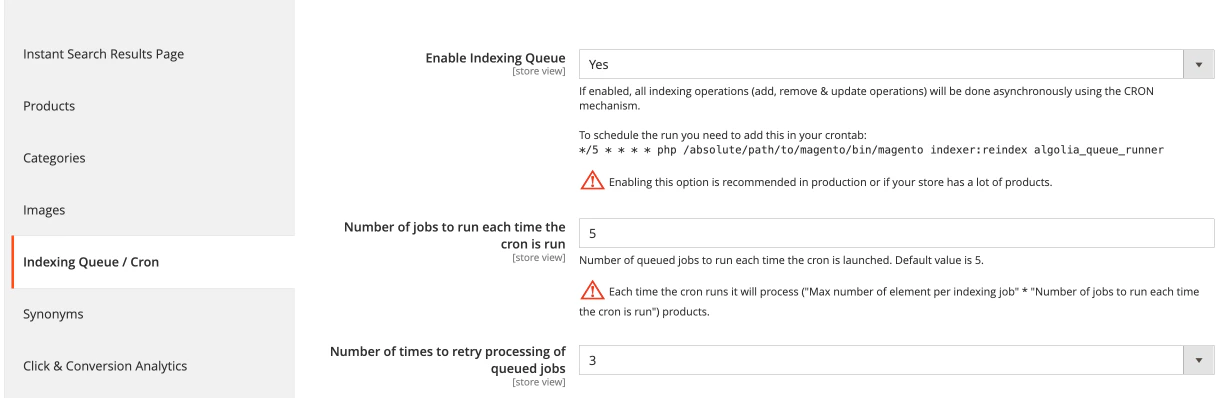 After turning on the indexing queue in the Magento Admin,
you need to [set up processing the queue](/doc/integration/magento-2/how-it-works/indexing-queue#run-the-indexing-queue-automatically).
By default, the queue processes up to five operations at the same time.
Depending on the available resources on your server, you can adjust this number
by changing the **Number of jobs to run each time the cron is run** setting.
To keep Magento and Algolia synchronized,
the queue must finish processing before the next cron run.
To choose a value for **Number of jobs to run each time the cron is run**
(in this example, the queue runs every 5 minutes):
1. [Turn off automatic indexing](#run-the-indexing-queue-automatically)
2. Set **Number of jobs to run each time the cron is run** to 10.
3. [Run the indexing queue manually](#run-the-indexing-queue-manually).
4. Measure how long the queue processing takes.
5. If it takes less than 4 minutes, increase the number of jobs.
6. Repeat from step 3 until processing takes longer than 4 minutes.
7. Turn automatic indexing back on.
Keep a margin in case the cron job is slower, for example, due to a high server load.
That's why the example uses 4 minutes as a threshold.
For more information about how to configure cron jobs and groups,
see the [official Adobe documentation](https://experienceleague.adobe.com/en/docs/commerce-operations/configuration-guide/crons/custom-cron-reference).
### Failed operations
If an operation fails while processing the queue, the Algolia AI Search & Discovery extension adds it back into the queue.
To avoid endless retries, change **Number of times to retry processing of queued jobs**.
## Temporary index usage
In version 3.17.0 and later, you can turn off temporary index creation during product reindexing.
To change this setting,
go to **Stores > Configuration > Algolia Search > Indexing Queue / Cron** and
turn off **Use a temporary index for full products reindex**.
This setting is on by default.
Turning it off changes indexing behavior as follows:
* **Live updates:** `saveObjects` operations update the production index so that changes appear without waiting for a full reindex.
* **Simplified queue:** `MoveIndex` operations aren't required or added to the queue.
* **Parallel processing:** full reindexing and updates can run simultaneously on the production index.
If you turn off temporary indexing,
the Algolia AI Search & Discovery extension updates the existing product index instead of rebuilding it.
If you remove products in Magento but they still appear in your Algolia index,
run the [remove inactive products command](/doc/integration/magento-2/how-it-works/indexing#remove-inactive-products) to remove stale .
## Process the queue
After enabling the queue, set up queue processing.
### Run the indexing queue automatically
The preferred way to handle the queue is by processing it at a regular time interval.
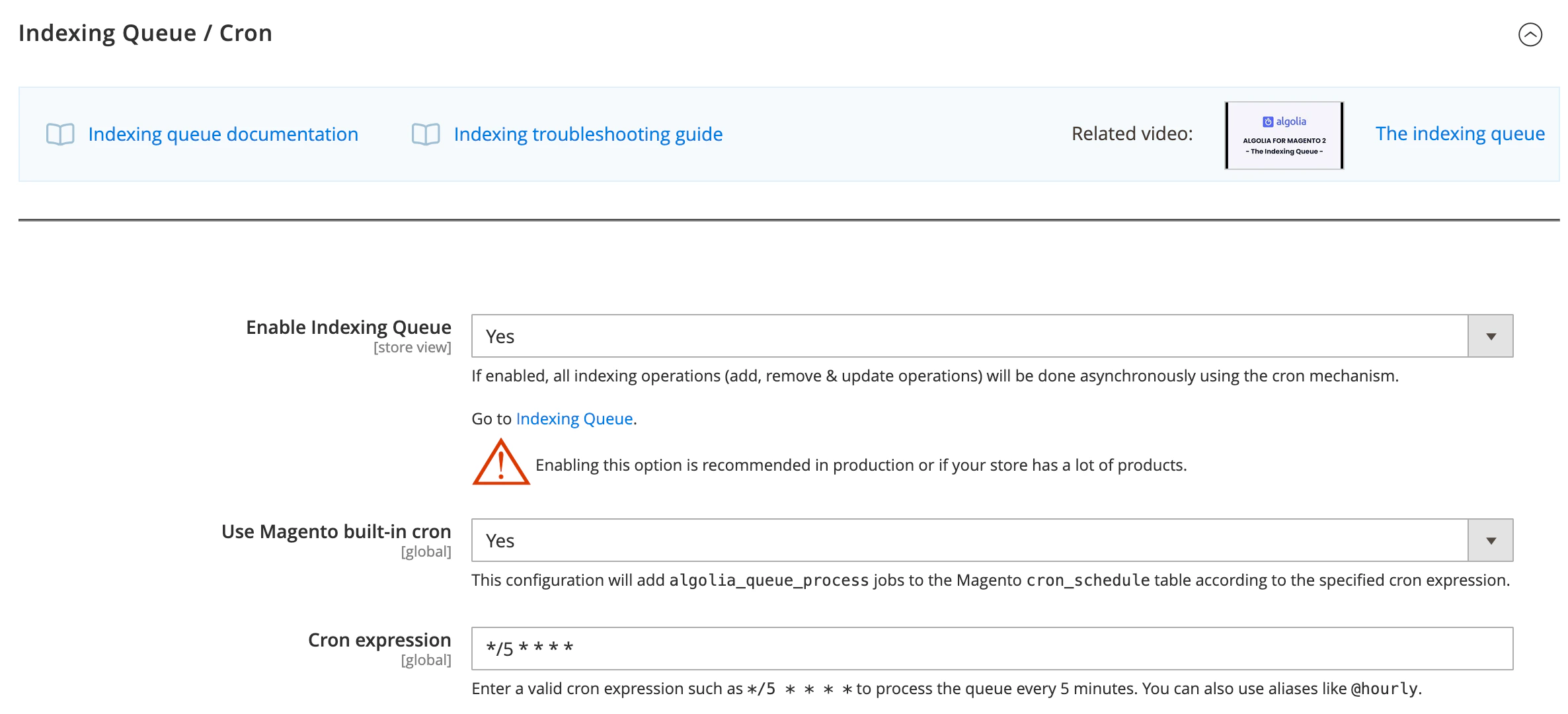
Turn on **Stores > Algolia Search > Indexing Queue > Use Magento built-in cron** in the Magento Admin.
This adds `algolia_queue_process` jobs to the `cron_schedule` database table based on the [expression](https://crontab.cronhub.io/) (the default is `*/5 * * * *`).
After turning on the indexing queue in the Magento Admin,
you need to [set up processing the queue](/doc/integration/magento-2/how-it-works/indexing-queue#run-the-indexing-queue-automatically).
By default, the queue processes up to five operations at the same time.
Depending on the available resources on your server, you can adjust this number
by changing the **Number of jobs to run each time the cron is run** setting.
To keep Magento and Algolia synchronized,
the queue must finish processing before the next cron run.
To choose a value for **Number of jobs to run each time the cron is run**
(in this example, the queue runs every 5 minutes):
1. [Turn off automatic indexing](#run-the-indexing-queue-automatically)
2. Set **Number of jobs to run each time the cron is run** to 10.
3. [Run the indexing queue manually](#run-the-indexing-queue-manually).
4. Measure how long the queue processing takes.
5. If it takes less than 4 minutes, increase the number of jobs.
6. Repeat from step 3 until processing takes longer than 4 minutes.
7. Turn automatic indexing back on.
Keep a margin in case the cron job is slower, for example, due to a high server load.
That's why the example uses 4 minutes as a threshold.
For more information about how to configure cron jobs and groups,
see the [official Adobe documentation](https://experienceleague.adobe.com/en/docs/commerce-operations/configuration-guide/crons/custom-cron-reference).
### Failed operations
If an operation fails while processing the queue, the Algolia AI Search & Discovery extension adds it back into the queue.
To avoid endless retries, change **Number of times to retry processing of queued jobs**.
## Temporary index usage
In version 3.17.0 and later, you can turn off temporary index creation during product reindexing.
To change this setting,
go to **Stores > Configuration > Algolia Search > Indexing Queue / Cron** and
turn off **Use a temporary index for full products reindex**.
This setting is on by default.
Turning it off changes indexing behavior as follows:
* **Live updates:** `saveObjects` operations update the production index so that changes appear without waiting for a full reindex.
* **Simplified queue:** `MoveIndex` operations aren't required or added to the queue.
* **Parallel processing:** full reindexing and updates can run simultaneously on the production index.
If you turn off temporary indexing,
the Algolia AI Search & Discovery extension updates the existing product index instead of rebuilding it.
If you remove products in Magento but they still appear in your Algolia index,
run the [remove inactive products command](/doc/integration/magento-2/how-it-works/indexing#remove-inactive-products) to remove stale .
## Process the queue
After enabling the queue, set up queue processing.
### Run the indexing queue automatically
The preferred way to handle the queue is by processing it at a regular time interval.
Turn on **Stores > Algolia Search > Indexing Queue > Use Magento built-in cron** in the Magento Admin.
This adds `algolia_queue_process` jobs to the `cron_schedule` database table based on the [expression](https://crontab.cronhub.io/) (the default is `*/5 * * * *`).
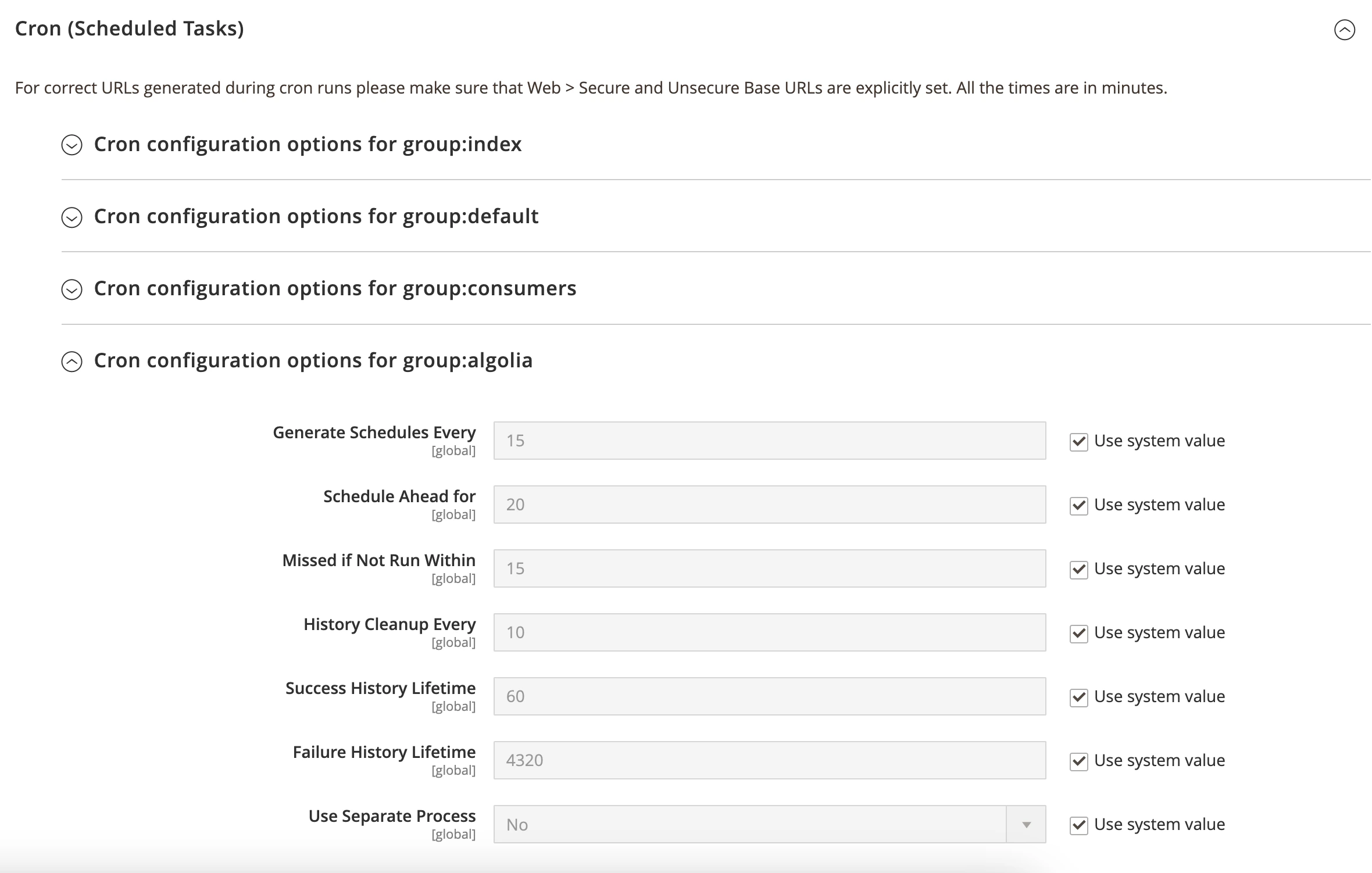
 These jobs run in the `algolia` cron group.
To configure the group, go to **Stores > Configuration > Advanced > System > Cron (Scheduled Tasks)**.
These jobs run in the `algolia` cron group.
To configure the group, go to **Stores > Configuration > Advanced > System > Cron (Scheduled Tasks)**.
 Use the `algolia_queue_runner` indexer by adding the following crontab entry:
```txt theme={"system"}
*/5 * * * * php absolute/path/to/magento/bin/magento indexer:reindex algolia_queue_runner
```
### Run the indexing queue manually
To trigger the indexing jobs manually, run:
```sh Extension version 3.16 and higher theme={"system"}
php absolute/path/to/magento/bin/magento algolia:reindex:process_queue
```
```sh Extension version 3.15.x and lower theme={"system"}
php path/to/magento/bin/magento indexer:reindex algolia_queue_runner
```
If you manually process the indexing queue,
it only runs the specified number of operations (the default is 5).
**This might not empty the queue.**
## Process the full queue
**Don't use `PROCESS_FULL_QUEUE` in a production environment.** For more information,
see [Memory exhaustion during full queue processing](/doc/integration/magento-2/troubleshooting/data-indexes-queues#memory-exhaustion-during-full-queue-processing).
Use `PROCESS_FULL_QUEUE` only for one-off [troubleshooting](/doc/integration/magento-2/troubleshooting/data-indexes-queues), never as a regular or scheduled task.
In production, [process the queue automatically with cron](#run-the-indexing-queue-automatically) and [tune the number of jobs per run](#configure-the-queue).
To process all operations and empty the queue,
add the environment variable `PROCESS_FULL_QUEUE=1` to the command:
```sh Extension version 3.16 and higher theme={"system"}
PROCESS_FULL_QUEUE=1 php path/to/magento/bin/magento algolia:reindex:process_queue
```
```sh Extension version 3.15.x and lower theme={"system"}
PROCESS_FULL_QUEUE=1 php path/to/magento/bin/magento indexer:reindex algolia_queue_runner
```
## Clear the queue
To clear your queue, go to **Stores > Algolia Search > Indexing Queue** in the Magento Admin and click **Clear Queue** to remove all jobs from the queue.
You can also empty the queue in the database by truncating the `algoliasearch_queue` database table.
However you clear your indexing queue,
perform a full reindex afterwards so that your Algolia indices are up to date.
## Indexing queue logs
To check the performance of your indexing queue,
review the `algoliasearch_queue_log` database table.
Each row represents one process of the queue, whether from the cron job or a manual run.
The `duration` column shows the time in seconds needed to process the indexing queue.
To account for extra processing time and server load variations,
the duration should be **at least 1 minute shorter** than your cron job interval.
For example, if you set the cron interval to 5 minutes (300 seconds),
the duration of the indexing jobs should be less than 240 seconds (4 minutes).
If the queue finishes well under the recommended duration, increase the number of jobs to process per run.
If the queue takes longer than the recommended duration, reduce the number of jobs.
Find this setting in **Stores > Configuration > Algolia Search > Indexing queue / Cron > Number of jobs to run each time the cron is run**.
To see the indexing queue logs, go to **Stores > Algolia Search > Indexing Queue > See Run Logs** in the Magento Admin.
## Indexing queue archives
Go to **Stores > Algolia Search > Advanced > Indexing Queue** in the Magento Admin and set **Enable enhanced archive** to **Yes**.
This archives processed jobs and preserves stack traces for troubleshooting.
## Magento indexing modes
Magento indexers can run in two [modes](https://developer.adobe.com/commerce/php/development/components/indexing/#indexing-modes):
`Update on Save` or `Update on Schedule`.
For the Algolia AI Search & Discovery extension,
keep the queue runner on `Update on Save`.
You can set the following indexers to `Update on Schedule`:
| Indexer name | Indexer ID |
| ------------------------- | -------------------- |
| Algolia Search Products | `algolia_products` |
| Algolia Search Categories | `algolia_categories` |
| Algolia Search Pages | `algolia_pages` |
Don't set the **Algolia Search Queue Runner** (`algolia_queue_runner`) to `Update on Schedule`.
With scheduled queue processing,
this can cause concurrent processing issues and unexpected indexing results.
Use the `algolia_queue_runner` indexer by adding the following crontab entry:
```txt theme={"system"}
*/5 * * * * php absolute/path/to/magento/bin/magento indexer:reindex algolia_queue_runner
```
### Run the indexing queue manually
To trigger the indexing jobs manually, run:
```sh Extension version 3.16 and higher theme={"system"}
php absolute/path/to/magento/bin/magento algolia:reindex:process_queue
```
```sh Extension version 3.15.x and lower theme={"system"}
php path/to/magento/bin/magento indexer:reindex algolia_queue_runner
```
If you manually process the indexing queue,
it only runs the specified number of operations (the default is 5).
**This might not empty the queue.**
## Process the full queue
**Don't use `PROCESS_FULL_QUEUE` in a production environment.** For more information,
see [Memory exhaustion during full queue processing](/doc/integration/magento-2/troubleshooting/data-indexes-queues#memory-exhaustion-during-full-queue-processing).
Use `PROCESS_FULL_QUEUE` only for one-off [troubleshooting](/doc/integration/magento-2/troubleshooting/data-indexes-queues), never as a regular or scheduled task.
In production, [process the queue automatically with cron](#run-the-indexing-queue-automatically) and [tune the number of jobs per run](#configure-the-queue).
To process all operations and empty the queue,
add the environment variable `PROCESS_FULL_QUEUE=1` to the command:
```sh Extension version 3.16 and higher theme={"system"}
PROCESS_FULL_QUEUE=1 php path/to/magento/bin/magento algolia:reindex:process_queue
```
```sh Extension version 3.15.x and lower theme={"system"}
PROCESS_FULL_QUEUE=1 php path/to/magento/bin/magento indexer:reindex algolia_queue_runner
```
## Clear the queue
To clear your queue, go to **Stores > Algolia Search > Indexing Queue** in the Magento Admin and click **Clear Queue** to remove all jobs from the queue.
You can also empty the queue in the database by truncating the `algoliasearch_queue` database table.
However you clear your indexing queue,
perform a full reindex afterwards so that your Algolia indices are up to date.
## Indexing queue logs
To check the performance of your indexing queue,
review the `algoliasearch_queue_log` database table.
Each row represents one process of the queue, whether from the cron job or a manual run.
The `duration` column shows the time in seconds needed to process the indexing queue.
To account for extra processing time and server load variations,
the duration should be **at least 1 minute shorter** than your cron job interval.
For example, if you set the cron interval to 5 minutes (300 seconds),
the duration of the indexing jobs should be less than 240 seconds (4 minutes).
If the queue finishes well under the recommended duration, increase the number of jobs to process per run.
If the queue takes longer than the recommended duration, reduce the number of jobs.
Find this setting in **Stores > Configuration > Algolia Search > Indexing queue / Cron > Number of jobs to run each time the cron is run**.
To see the indexing queue logs, go to **Stores > Algolia Search > Indexing Queue > See Run Logs** in the Magento Admin.
## Indexing queue archives
Go to **Stores > Algolia Search > Advanced > Indexing Queue** in the Magento Admin and set **Enable enhanced archive** to **Yes**.
This archives processed jobs and preserves stack traces for troubleshooting.
## Magento indexing modes
Magento indexers can run in two [modes](https://developer.adobe.com/commerce/php/development/components/indexing/#indexing-modes):
`Update on Save` or `Update on Schedule`.
For the Algolia AI Search & Discovery extension,
keep the queue runner on `Update on Save`.
You can set the following indexers to `Update on Schedule`:
| Indexer name | Indexer ID |
| ------------------------- | -------------------- |
| Algolia Search Products | `algolia_products` |
| Algolia Search Categories | `algolia_categories` |
| Algolia Search Pages | `algolia_pages` |
Don't set the **Algolia Search Queue Runner** (`algolia_queue_runner`) to `Update on Schedule`.
With scheduled queue processing,
this can cause concurrent processing issues and unexpected indexing results.