> ## Documentation Index
> Fetch the complete documentation index at: https://algolia.com/llms.txt
> Use this file to discover all available pages before exploring further.
# Indexing
> Learn how the indexing works in the Algolia extension for Adobe Commerce and Magento Open Source
export const Records = () =>
records
;
export const Index = () =>
index
;
The Algolia AI Search & Discovery extension transforms products, categories, and pages from your store into searchable .
This process is called *indexing*.
You can index your data through these methods:
* Automatically with an indexing queue
* Manually from your store's Magento Admin
* Manually on the command line
The extension keeps your data up to date with two indexing mechanisms:
* **Section reindex.** The extension reindexes an entire catalog section (products, categories, or pages).
* **Single item reindex.** The extension reindexes one product, category, or page when it changes.
By default, the indexing operations run synchronously, and you must wait until the indexing process finishes before you can continue.
This is inconvenient and can have [unexpected side effects](/doc/integration/magento-2/troubleshooting/data-indexes-queues).
Use the [indexing queue](/doc/integration/magento-2/how-it-works/indexing-queue) instead.
It processes all indexing operations in the background and helps prevent errors.
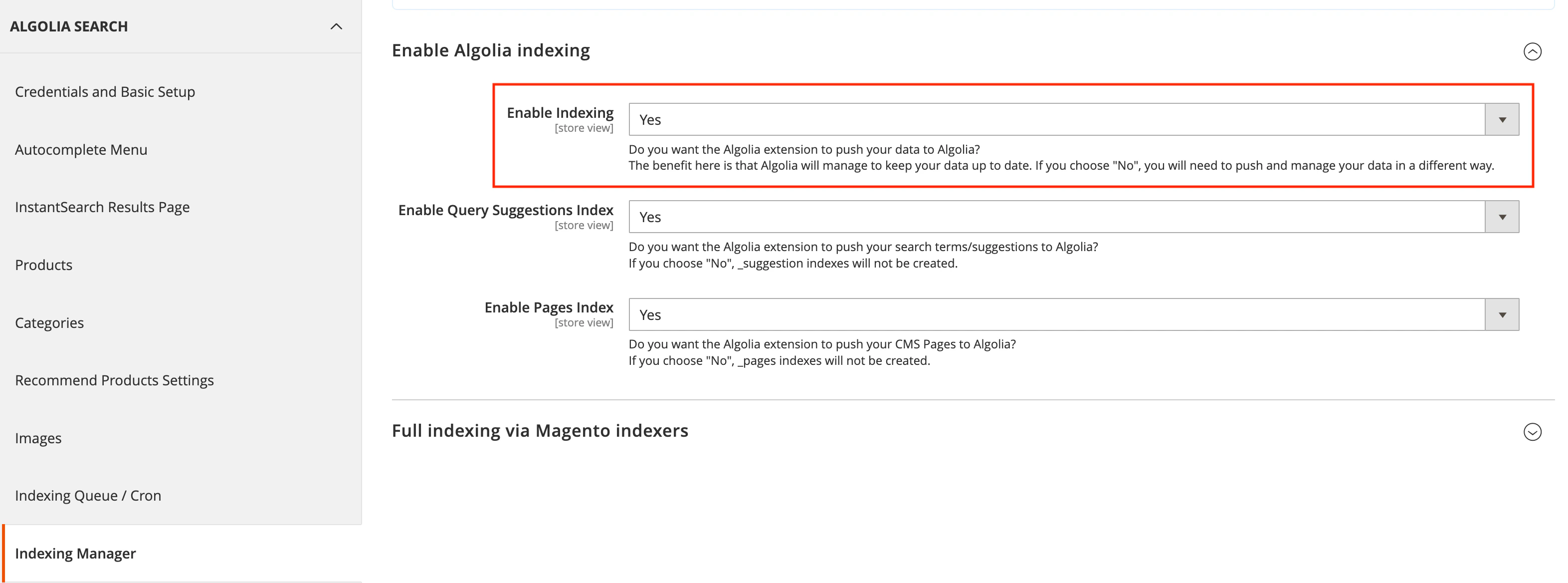
## Enable Algolia indexing
To enable Algolia indexing,
go to **Stores > Algolia Search > Indexing Manager > Enable Indexing** and select **Yes**.
 ## Section reindex with an indexing queue
The [indexing queue](/doc/integration/magento-2/how-it-works/indexing-queue) uses temporary indices to reindex products.
Instead of updating the production directly,
Algolia creates a temporary copy.
It replaces the production index only after the update is complete.
Index changes are visible once the temporary index replaces the production index.
When you enable this option,
the Algolia AI Search & Discovery extension speeds up indexing by running reads and writes on separate indices.
Turn off this option if you need updates to appear in your index without waiting for a full reindex.
## Section reindex without an indexing queue
Without the indexing queue, reindexing the complete catalog is synchronous: everything has to wait until the process completes.
Processing [large indices](/doc/integration/magento-2/troubleshooting/data-indexes-queues) synchronously may trigger PHP timeouts.
Without a queue, reindexing uses more time *and* resources.
It's also less reliable:
if you update products during a reindex, Algolia may serve outdated data.
Enable the indexing queue for any full reindexing, especially if you have large catalogs.
## Automatic indexing
The Algolia AI Search & Discovery extension sends every change and deletion on products or categories to Algolia's servers to keep all data up to date.
## Index manually
To index your data manually:
To turn off the [indexing queue](/doc/integration/magento-2/how-it-works/indexing-queue),
set **Stores > Configuration > Algolia Search > Indexing Queue/Cron > Enable Indexing Queue** to **No** in the Magento Admin.
Use the command line to send manual updates to Algolia's server.
For example, to reindex all products:
```sh Extension version 3.16 and higher theme={"system"}
php path/to/magento/bin/magento algolia:reindex:products
```
```sh Extension version 3.15.x and lower theme={"system"}
php path/to/magento/bin/magento indexer:reindex algolia_products
```
Use the same command for all other indices created by the extension:
| Command (version 3.16 and higher) | Command (version 3.15.x and lower) | Action |
| ------------------------------------- | --------------------------------------------- | --------------------------------------------- |
| `algolia:reindex:all` | Not available | Reindex all entities |
| `algolia:reindex:products` | `indexer:reindex algolia_products` | Reindex all products |
| `algolia:reindex:categories` | `indexer:reindex algolia_categories` | Reindex all categories |
| `algolia:reindex:pages` | `indexer:reindex algolia_pages` | Reindex all CMS pages |
| `algolia:reindex:suggestions` | `indexer:reindex algolia_suggestions` | Reindex all query suggestions |
| `algolia:reindex:additional_sections` | `indexer:reindex algolia_additional_sections` | Reindex all additional sections |
| `algolia:reindex:process_queue` | `indexer:reindex algolia_queue_runner` | Process jobs in the indexing queue |
| `algolia:reindex:delete_products` | `indexer:reindex algolia_delete_products` | Remove inactive products from Algolia indices |
## Index manually with the indexing queue
To reindex with the indexing queue enabled, run the queue runner manually or
rely on cron to process the queue when your data changes.
To add *all* products to the indexing queue, run:
```sh Extension version 3.16 and higher theme={"system"}
php path/to/magento/bin/magento algolia:reindex:products
PROCESS_FULL_QUEUE=1 php path/to/magento/bin/magento algolia:reindex:process_queue
```
```sh Extension version 3.15.x and lower theme={"system"}
php path/to/magento/bin/magento indexer:reindex algolia_products
PROCESS_FULL_QUEUE=1 php path/to/magento/bin/magento indexer:reindex algolia_queue_runner
```
You should only implement this as a [troubleshooting](/doc/integration/magento-2/troubleshooting/data-indexes-queues) activity, not as a regular task.
## Indexing Manager
Extension version 3.16.0 introduces the **Indexing Manager**, which includes a new configuration section and a dedicated page in your store's Magento Admin for triggering full entity indexing.
### Configuration
To configure the Indexing Manager, go to **Stores > Configuration > Algolia Search > Indexing Manager**.
Starting with extension version 3.16.0, you can turn off the legacy Magento indexers for full indexing.
The extension still uses these indexers for incremental updates triggered by Magento materialized views or individual entity save events.
For earlier versions of the extension, Magento indexers handle both full and incremental indexing.
For full reindexing, run the new commands *or* use the Indexing Manager to run a full reindex.
### Run a full reindex with the Indexing Manager
To reindex, go to **Stores > Indexing Manager**.
## Section reindex with an indexing queue
The [indexing queue](/doc/integration/magento-2/how-it-works/indexing-queue) uses temporary indices to reindex products.
Instead of updating the production directly,
Algolia creates a temporary copy.
It replaces the production index only after the update is complete.
Index changes are visible once the temporary index replaces the production index.
When you enable this option,
the Algolia AI Search & Discovery extension speeds up indexing by running reads and writes on separate indices.
Turn off this option if you need updates to appear in your index without waiting for a full reindex.
## Section reindex without an indexing queue
Without the indexing queue, reindexing the complete catalog is synchronous: everything has to wait until the process completes.
Processing [large indices](/doc/integration/magento-2/troubleshooting/data-indexes-queues) synchronously may trigger PHP timeouts.
Without a queue, reindexing uses more time *and* resources.
It's also less reliable:
if you update products during a reindex, Algolia may serve outdated data.
Enable the indexing queue for any full reindexing, especially if you have large catalogs.
## Automatic indexing
The Algolia AI Search & Discovery extension sends every change and deletion on products or categories to Algolia's servers to keep all data up to date.
## Index manually
To index your data manually:
To turn off the [indexing queue](/doc/integration/magento-2/how-it-works/indexing-queue),
set **Stores > Configuration > Algolia Search > Indexing Queue/Cron > Enable Indexing Queue** to **No** in the Magento Admin.
Use the command line to send manual updates to Algolia's server.
For example, to reindex all products:
```sh Extension version 3.16 and higher theme={"system"}
php path/to/magento/bin/magento algolia:reindex:products
```
```sh Extension version 3.15.x and lower theme={"system"}
php path/to/magento/bin/magento indexer:reindex algolia_products
```
Use the same command for all other indices created by the extension:
| Command (version 3.16 and higher) | Command (version 3.15.x and lower) | Action |
| ------------------------------------- | --------------------------------------------- | --------------------------------------------- |
| `algolia:reindex:all` | Not available | Reindex all entities |
| `algolia:reindex:products` | `indexer:reindex algolia_products` | Reindex all products |
| `algolia:reindex:categories` | `indexer:reindex algolia_categories` | Reindex all categories |
| `algolia:reindex:pages` | `indexer:reindex algolia_pages` | Reindex all CMS pages |
| `algolia:reindex:suggestions` | `indexer:reindex algolia_suggestions` | Reindex all query suggestions |
| `algolia:reindex:additional_sections` | `indexer:reindex algolia_additional_sections` | Reindex all additional sections |
| `algolia:reindex:process_queue` | `indexer:reindex algolia_queue_runner` | Process jobs in the indexing queue |
| `algolia:reindex:delete_products` | `indexer:reindex algolia_delete_products` | Remove inactive products from Algolia indices |
## Index manually with the indexing queue
To reindex with the indexing queue enabled, run the queue runner manually or
rely on cron to process the queue when your data changes.
To add *all* products to the indexing queue, run:
```sh Extension version 3.16 and higher theme={"system"}
php path/to/magento/bin/magento algolia:reindex:products
PROCESS_FULL_QUEUE=1 php path/to/magento/bin/magento algolia:reindex:process_queue
```
```sh Extension version 3.15.x and lower theme={"system"}
php path/to/magento/bin/magento indexer:reindex algolia_products
PROCESS_FULL_QUEUE=1 php path/to/magento/bin/magento indexer:reindex algolia_queue_runner
```
You should only implement this as a [troubleshooting](/doc/integration/magento-2/troubleshooting/data-indexes-queues) activity, not as a regular task.
## Indexing Manager
Extension version 3.16.0 introduces the **Indexing Manager**, which includes a new configuration section and a dedicated page in your store's Magento Admin for triggering full entity indexing.
### Configuration
To configure the Indexing Manager, go to **Stores > Configuration > Algolia Search > Indexing Manager**.
Starting with extension version 3.16.0, you can turn off the legacy Magento indexers for full indexing.
The extension still uses these indexers for incremental updates triggered by Magento materialized views or individual entity save events.
For earlier versions of the extension, Magento indexers handle both full and incremental indexing.
For full reindexing, run the new commands *or* use the Indexing Manager to run a full reindex.
### Run a full reindex with the Indexing Manager
To reindex, go to **Stores > Indexing Manager**.
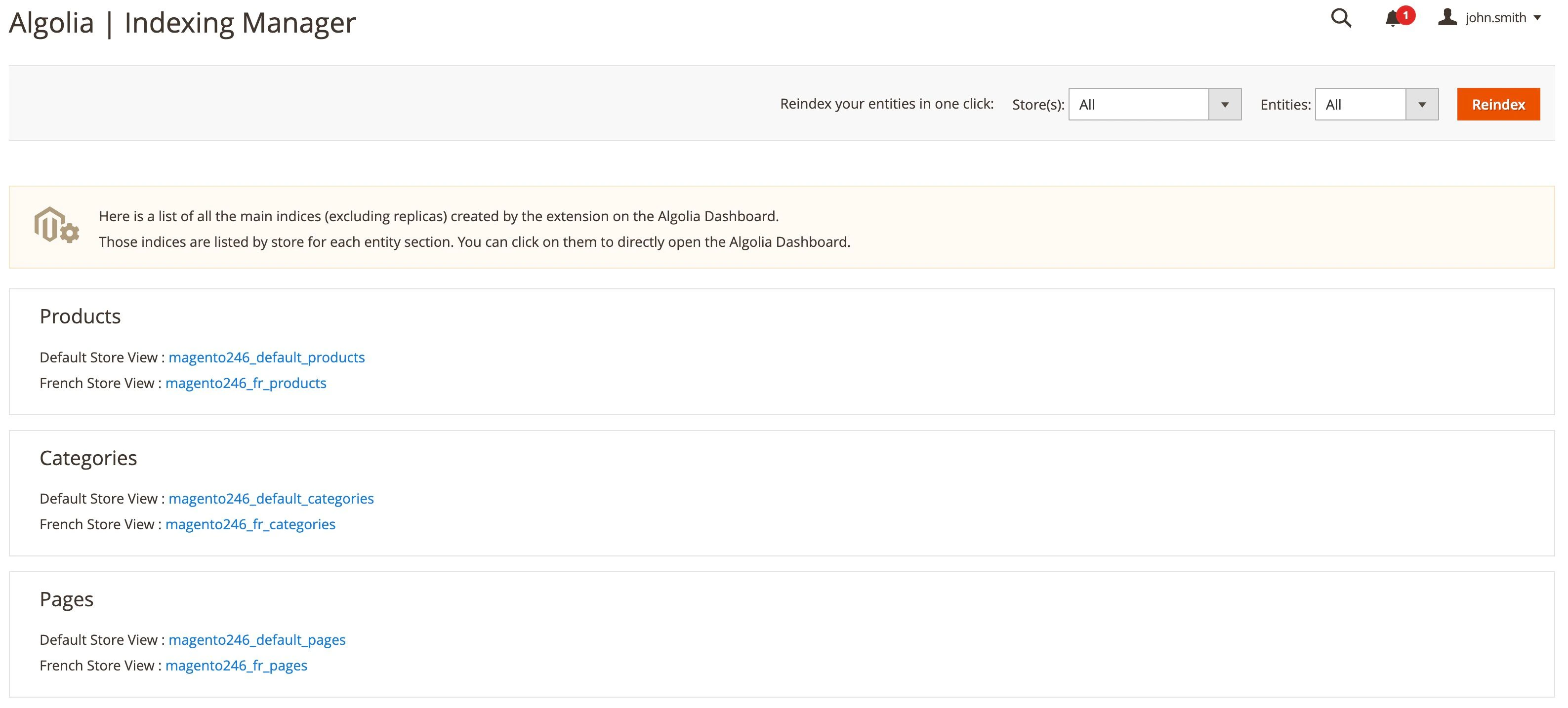 This page consists of two sections:
* At the top, you can select specific **Entities** and **Store(s)** for reindexing.
* Below, there's a list of indices managed by the extension (linked to their Algolia dashboard entry).
## Batching optimizer
Version 3.17.0 introduces the **batching optimizer**,
a feature that performs a catalog analysis and provides recommendations about the optimal batching size for indexing.
Because product indexing is the most resource-intensive process,
the optimizer bases its recommendation on product records.
The **Maximum number of records sent per indexing request** setting controls batch size during indexing.
It's a key configuration to improve your indexing speed.
The default is **1000**.
To change it,
in Magento go to **Stores > Configuration > Algolia Search > Advanced > Maximum number of records sent per indexing request**.
The setting estimates the number of product records that fit in a 10 MB batch.
```sh Command line icon=square-terminal theme={"system"}
# A recommendation for all stores
php path/to/magento/bin/magento algolia:batching:optimize
# A recommendation for store_id=42
php path/to/magento/bin/magento algolia:batching:optimize 42
```
After running the command,
you should see output like this:
```txt theme={"system"}
====== Products for store Default Store View ======
Simple Products: 100000 (99.36% of total)
Complex Products: 640 (0.64% of total)
============
Total: 100640 products
============
Sample (20 products):
- 925B (sku: product_dynamic_83490)
- 927B (sku: product_dynamic_55623)
- 922B (sku: product_dynamic_68051)
- 928B (sku: product_dynamic_58422)
- 925B (sku: product_dynamic_91435)
- 923B (sku: product_dynamic_1291)
- 920B (sku: product_dynamic_7178)
- 923B (sku: product_dynamic_51995)
- 925B (sku: product_dynamic_41909)
- 917B (sku: product_dynamic_4882)
- 926B (sku: product_dynamic_107461)
- 919B (sku: product_dynamic_41446)
- 927B (sku: product_dynamic_80410)
- 925B (sku: product_dynamic_65295)
- 920B (sku: product_dynamic_2577)
- 924B (sku: product_dynamic_17259)
- 922B (sku: product_dynamic_94861)
- 924B (sku: product_dynamic_15753)
- 922B (sku: product_dynamic_78834)
- 922B (sku: product_dynamic_60771)
============
Min record size : 917B
Max record size : 928B
Average record size : 923B
Estimated Max batch count : 10834 records
Standard Deviation : 2.87
Safety margin : 0.25
============
Recommended batch count : 10825 records
Important: Those numbers are estimates only. Indexing activity should be monitored after making changes to ensure batches are not exceeding the recommended size of 10 MB.
============
This will override your "Maximum number of records sent per indexing request" configuration to 10825 for store "Default Store View".
Are you sure wish to proceed? (y/n)
```
This command runs a Magento catalog scan,
takes a representative sample of the catalog,
calculates an optimal batch count,
and updates the Magento configuration.
### Magento catalog scan
This step performs a full scan of your catalog and returns the following:
* **Expected product index size** for your store (based on the configured [visibility](#indexable-products)).
* Percentage of **simple products** (`simple`, `virtual`, `downloadable`, and `giftcard`).
* Percentage of **complex products** (`configurable`, `grouped`, and `bundle`).
### Representative sample
Based on the values returned by the Magento catalog scan,
this step selects a representative product sample.
By default, the sample contains 20 products.
For example, if your catalog contains 75% simple and 25% complex products,
the sample includes 15 simple and 5 complex products.
The Algolia AI Search & Discovery extension converts each product into a record and shows the record size in the output.
To change the sample size, add `-s` (`--sample-size`) to the command, up to 1,000 products.
For example:
```sh Command line icon=square-terminal theme={"system"}
php path/to/magento/bin/magento algolia:batching:optimize -s 50
# or
php path/to/magento/bin/magento algolia:batching:optimize --sample-size=50
```
### Calculate optimal batch count
After the command defines the representative sample, it calculates the following values:
* **Minimum** record size.
* **Maximum** record size.
* **Average** record size.
* **Estimated maximum batch count**, based on a 10 MB limit and the average record size.
* **Standard deviation**, to show record size volatility.
The command uses these values to calculate a **recommended batch count**.
It applies a **safety margin** (0.25 to 3) to keep batches under the 10 MB limit.
Change the safety margin by passing a `-m` (`--margin`) parameter to the command.
For example:
```sh Command line icon=square-terminal theme={"system"}
# A higher margin results in a more conservative recommendation.
php path/to/magento/bin/magento algolia:batching:optimize -m 1.5
# or
php path/to/magento/bin/magento algolia:batching:optimize --margin=1.5
```
### Update configuration
At the end of the process, you're prompted to update the **Maximum number of records sent per indexing request** setting for your store.
**If you *do* update this value,
make sure you then clear the Magento cache.**
These numbers are estimates.
Monitor indexing activity after updating the configuration.
If batches exceed 10 MB,
lower the **Maximum number of records sent per indexing request** value.
## Index products
It's essential for your business to have exact and up-to-date product data in your search.
### Run a full reindex
To fully reindex all your products, run:
```sh Extension version 3.16 and higher theme={"system"}
php path/to/magento/bin/magento algolia:reindex:products
```
```sh Extension version 3.15.x and lower theme={"system"}
php path/to/magento/bin/magento indexer:reindex algolia_products
```
### Indexable products
To limit indexed products and reduce indexing operations,
Algolia only indexes products that appear in your online store.
Algolia only indexes products that are:
* Visible, either in the catalog, the search, or both
* Enabled
* Not deleted
* In stock, unless you configure Magento to show out-of-stock products.
If you miss a product in your search, make sure the product meets all four criteria.
For troubleshooting information, see [Troubleshooting data, indexes, and queues](/doc/integration/magento-2/troubleshooting/data-indexes-queues)
### Missing products
If search can't find some products,
go to the [Algolia dashboard](https://dashboard.algolia.com/explorer),
select the index that contains your products and search there.
* If you can find the product,
confirm that it has the correct [visibility](#indexable-products) setting.
If products are only visible in the catalog,
they won't show up while searching.
They only show up on the InstantSearch page (in the category section).
* If you can't find the product,
Algolia doesn't have it yet.
Make sure the product meets the [indexing requirements](#indexable-products),
then reindex it.
If the problem persists, turn on logging and investigate the log files to see what's going on during the reindexing process.
### Price indexing
When creating product records for the corresponding index,
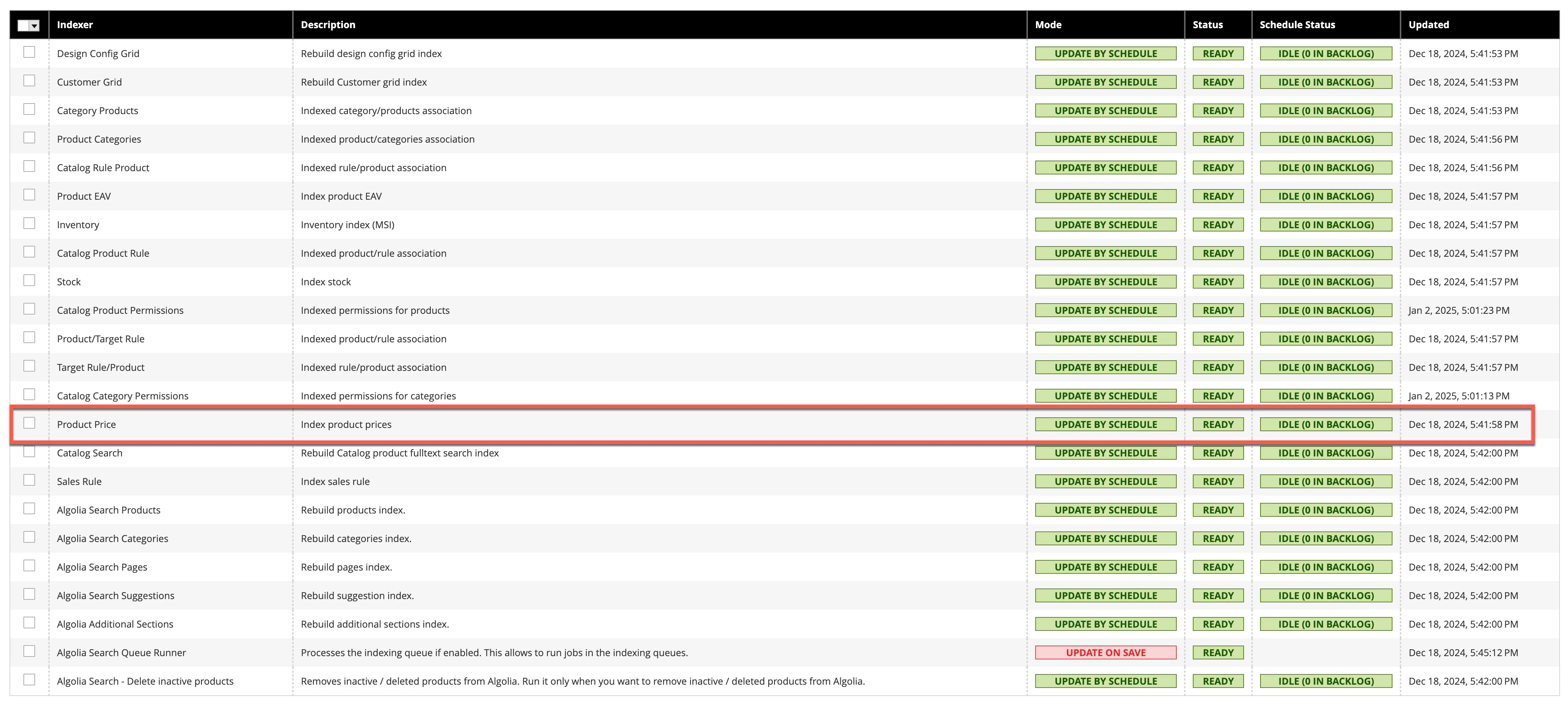
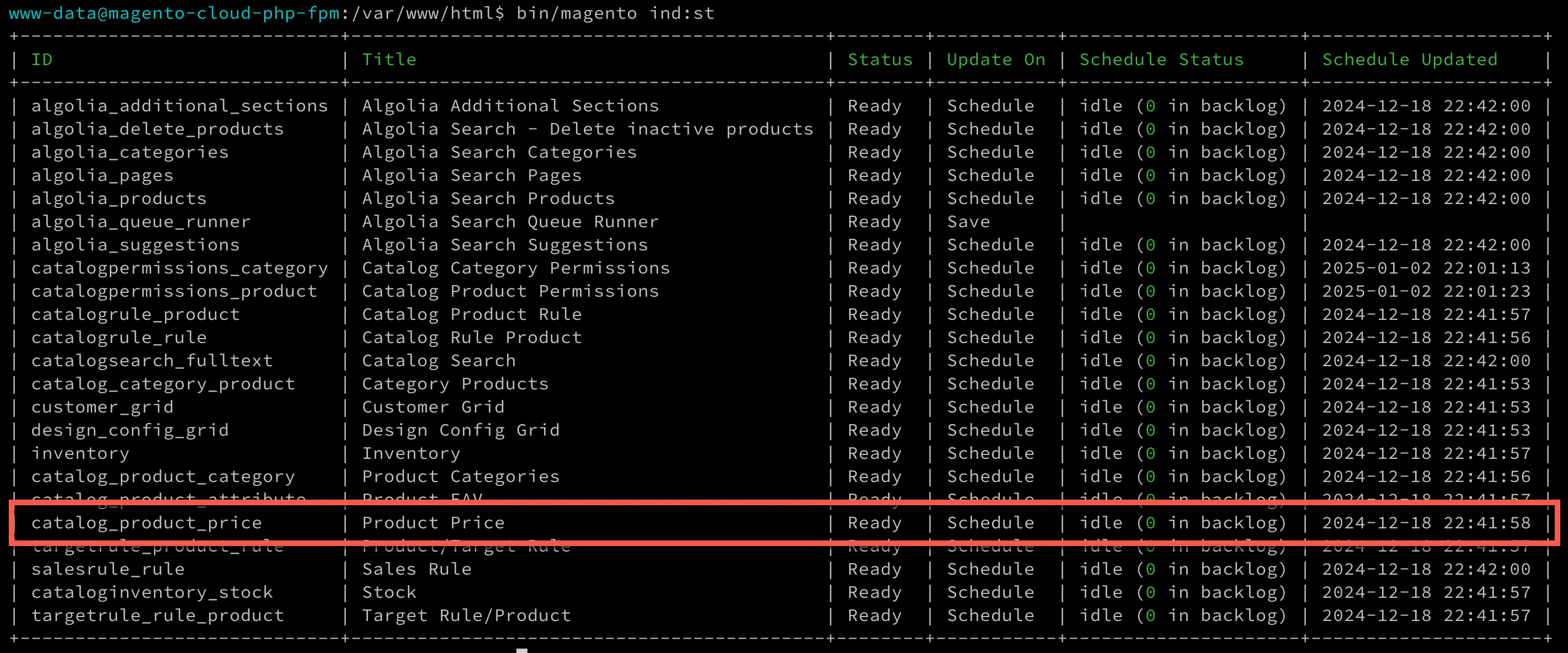
Algolia extracts pricing information from Magento's core "Product Price" index.
The *Product Price* index must be up-to-date each time the Algolia indexer runs.
Review the state of the *Product Price* index from the Magento Admin or the Magento command line.
* **Magento Admin**, under **System > Index Management**
This page consists of two sections:
* At the top, you can select specific **Entities** and **Store(s)** for reindexing.
* Below, there's a list of indices managed by the extension (linked to their Algolia dashboard entry).
## Batching optimizer
Version 3.17.0 introduces the **batching optimizer**,
a feature that performs a catalog analysis and provides recommendations about the optimal batching size for indexing.
Because product indexing is the most resource-intensive process,
the optimizer bases its recommendation on product records.
The **Maximum number of records sent per indexing request** setting controls batch size during indexing.
It's a key configuration to improve your indexing speed.
The default is **1000**.
To change it,
in Magento go to **Stores > Configuration > Algolia Search > Advanced > Maximum number of records sent per indexing request**.
The setting estimates the number of product records that fit in a 10 MB batch.
```sh Command line icon=square-terminal theme={"system"}
# A recommendation for all stores
php path/to/magento/bin/magento algolia:batching:optimize
# A recommendation for store_id=42
php path/to/magento/bin/magento algolia:batching:optimize 42
```
After running the command,
you should see output like this:
```txt theme={"system"}
====== Products for store Default Store View ======
Simple Products: 100000 (99.36% of total)
Complex Products: 640 (0.64% of total)
============
Total: 100640 products
============
Sample (20 products):
- 925B (sku: product_dynamic_83490)
- 927B (sku: product_dynamic_55623)
- 922B (sku: product_dynamic_68051)
- 928B (sku: product_dynamic_58422)
- 925B (sku: product_dynamic_91435)
- 923B (sku: product_dynamic_1291)
- 920B (sku: product_dynamic_7178)
- 923B (sku: product_dynamic_51995)
- 925B (sku: product_dynamic_41909)
- 917B (sku: product_dynamic_4882)
- 926B (sku: product_dynamic_107461)
- 919B (sku: product_dynamic_41446)
- 927B (sku: product_dynamic_80410)
- 925B (sku: product_dynamic_65295)
- 920B (sku: product_dynamic_2577)
- 924B (sku: product_dynamic_17259)
- 922B (sku: product_dynamic_94861)
- 924B (sku: product_dynamic_15753)
- 922B (sku: product_dynamic_78834)
- 922B (sku: product_dynamic_60771)
============
Min record size : 917B
Max record size : 928B
Average record size : 923B
Estimated Max batch count : 10834 records
Standard Deviation : 2.87
Safety margin : 0.25
============
Recommended batch count : 10825 records
Important: Those numbers are estimates only. Indexing activity should be monitored after making changes to ensure batches are not exceeding the recommended size of 10 MB.
============
This will override your "Maximum number of records sent per indexing request" configuration to 10825 for store "Default Store View".
Are you sure wish to proceed? (y/n)
```
This command runs a Magento catalog scan,
takes a representative sample of the catalog,
calculates an optimal batch count,
and updates the Magento configuration.
### Magento catalog scan
This step performs a full scan of your catalog and returns the following:
* **Expected product index size** for your store (based on the configured [visibility](#indexable-products)).
* Percentage of **simple products** (`simple`, `virtual`, `downloadable`, and `giftcard`).
* Percentage of **complex products** (`configurable`, `grouped`, and `bundle`).
### Representative sample
Based on the values returned by the Magento catalog scan,
this step selects a representative product sample.
By default, the sample contains 20 products.
For example, if your catalog contains 75% simple and 25% complex products,
the sample includes 15 simple and 5 complex products.
The Algolia AI Search & Discovery extension converts each product into a record and shows the record size in the output.
To change the sample size, add `-s` (`--sample-size`) to the command, up to 1,000 products.
For example:
```sh Command line icon=square-terminal theme={"system"}
php path/to/magento/bin/magento algolia:batching:optimize -s 50
# or
php path/to/magento/bin/magento algolia:batching:optimize --sample-size=50
```
### Calculate optimal batch count
After the command defines the representative sample, it calculates the following values:
* **Minimum** record size.
* **Maximum** record size.
* **Average** record size.
* **Estimated maximum batch count**, based on a 10 MB limit and the average record size.
* **Standard deviation**, to show record size volatility.
The command uses these values to calculate a **recommended batch count**.
It applies a **safety margin** (0.25 to 3) to keep batches under the 10 MB limit.
Change the safety margin by passing a `-m` (`--margin`) parameter to the command.
For example:
```sh Command line icon=square-terminal theme={"system"}
# A higher margin results in a more conservative recommendation.
php path/to/magento/bin/magento algolia:batching:optimize -m 1.5
# or
php path/to/magento/bin/magento algolia:batching:optimize --margin=1.5
```
### Update configuration
At the end of the process, you're prompted to update the **Maximum number of records sent per indexing request** setting for your store.
**If you *do* update this value,
make sure you then clear the Magento cache.**
These numbers are estimates.
Monitor indexing activity after updating the configuration.
If batches exceed 10 MB,
lower the **Maximum number of records sent per indexing request** value.
## Index products
It's essential for your business to have exact and up-to-date product data in your search.
### Run a full reindex
To fully reindex all your products, run:
```sh Extension version 3.16 and higher theme={"system"}
php path/to/magento/bin/magento algolia:reindex:products
```
```sh Extension version 3.15.x and lower theme={"system"}
php path/to/magento/bin/magento indexer:reindex algolia_products
```
### Indexable products
To limit indexed products and reduce indexing operations,
Algolia only indexes products that appear in your online store.
Algolia only indexes products that are:
* Visible, either in the catalog, the search, or both
* Enabled
* Not deleted
* In stock, unless you configure Magento to show out-of-stock products.
If you miss a product in your search, make sure the product meets all four criteria.
For troubleshooting information, see [Troubleshooting data, indexes, and queues](/doc/integration/magento-2/troubleshooting/data-indexes-queues)
### Missing products
If search can't find some products,
go to the [Algolia dashboard](https://dashboard.algolia.com/explorer),
select the index that contains your products and search there.
* If you can find the product,
confirm that it has the correct [visibility](#indexable-products) setting.
If products are only visible in the catalog,
they won't show up while searching.
They only show up on the InstantSearch page (in the category section).
* If you can't find the product,
Algolia doesn't have it yet.
Make sure the product meets the [indexing requirements](#indexable-products),
then reindex it.
If the problem persists, turn on logging and investigate the log files to see what's going on during the reindexing process.
### Price indexing
When creating product records for the corresponding index,
Algolia extracts pricing information from Magento's core "Product Price" index.
The *Product Price* index must be up-to-date each time the Algolia indexer runs.
Review the state of the *Product Price* index from the Magento Admin or the Magento command line.
* **Magento Admin**, under **System > Index Management**
 * **Magento command line**, identified as `catalog_product_price`, by running:
`bin/magento indexer:status`
* **Magento command line**, identified as `catalog_product_price`, by running:
`bin/magento indexer:status`
 If the *Product Price* index is invalid or is missing records,
the Algolia indexer can't sync the related products.
If [products are missing](#missing-products) on your storefront,
even after confirming that they meet the [criteria for visibility](#indexable-products),
this could be the result of missing *Product Price* index records.
For details of how to resolve this issue,
see the [troubleshooting guide](/doc/integration/magento-2/troubleshooting/data-indexes-queues#price-index-dependencies).
### Searchable attributes
Choose which attributes Algolia searches when users type queries.
To edit the [searchable attributes](/doc/guides/managing-results/must-do/searchable-attributes) list,
go to **Stores > Configuration > Algolia Search > Products**.
If the *Product Price* index is invalid or is missing records,
the Algolia indexer can't sync the related products.
If [products are missing](#missing-products) on your storefront,
even after confirming that they meet the [criteria for visibility](#indexable-products),
this could be the result of missing *Product Price* index records.
For details of how to resolve this issue,
see the [troubleshooting guide](/doc/integration/magento-2/troubleshooting/data-indexes-queues#price-index-dependencies).
### Searchable attributes
Choose which attributes Algolia searches when users type queries.
To edit the [searchable attributes](/doc/guides/managing-results/must-do/searchable-attributes) list,
go to **Stores > Configuration > Algolia Search > Products**.
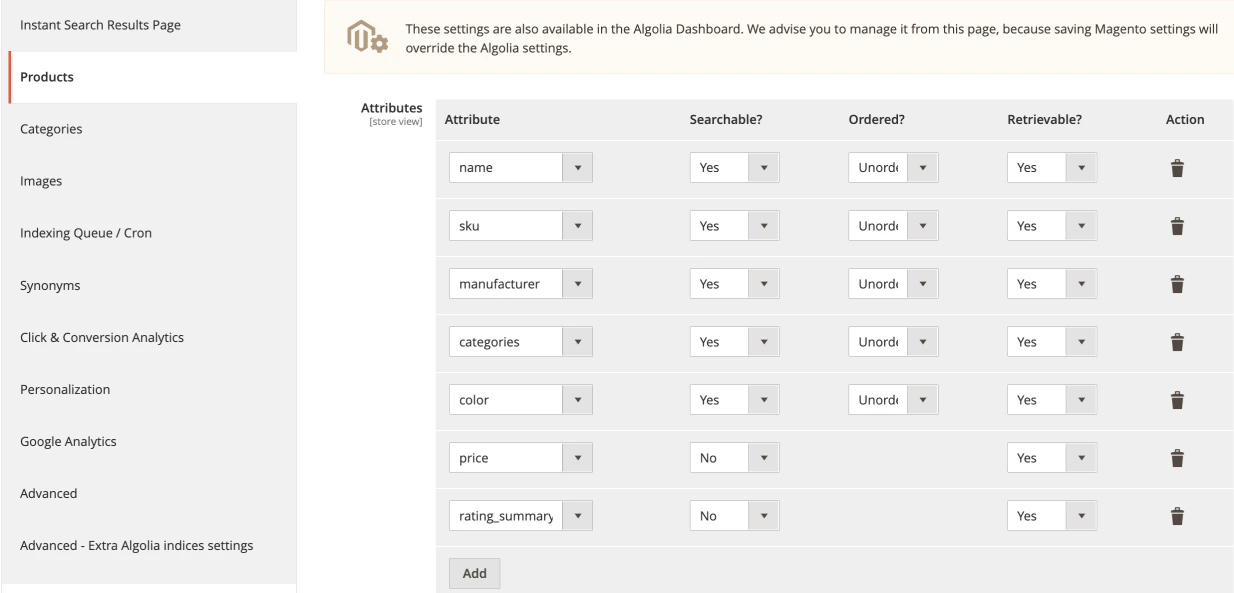 In the **Products** tab, set each attribute to *searchable*, *retrievable*, or *ordered*.
By default, the Algolia AI Search & Discovery extension searches attributes as *unordered*.
Keep this default unless you have a specific reason to change it.
For more information, see [Configuring searchable attributes the right way](/doc/guides/managing-results/must-do/searchable-attributes/how-to/configuring-searchable-attributes-the-right-way#word-position)
#### Default indexed attributes
The extension indexes the following attributes by default,
regardless of your configuration.
Not all these attributes are searchable but you can use them for
filtering, sorting, ranking, and building the results page.
| Attribute | Description |
| ------------------------- | ----------------------------------------------- |
| `name` | Name |
| `url` | URL |
| `visibility_search` | Visibility in the search |
| `visibility_catalog` | Visibility in the catalog |
| `categories` | Categories, formatted as a tree path |
| `categories_without_path` | Categories, without the tree path |
| `thumbnail_url` | Thumbnail image |
| `image_url` | Main image |
| `in_stock` | Stock availability |
| `type_id` | Type (simple, configurable, bundled, and so on) |
#### `image_url` start with `/pub`
This error can occur when you set `pub/` as the document root for your Magento installation.
This setup is common but it can affect how the Algolia AI Search & Discovery extension builds image URLs.
The extension can't detect your document root, so it assumes the Magento base directory is the root folder.
The best way to handle this problem is to [make your server](https://gist.github.com/julienbourdeau/ad4fadd9bbf9f99c46f8f8e28fb14ffc) ignore `/pub` in the URL.
If you can't change the server configuration,
enable **Stores > Configuration > Algolia Search > Advanced > Remove /pub/ from image URLs**.
After you change this setting, reindex the catalog.
### Product price indexing
From version 3.17.0, the `price` attribute isn't indexed by default.
To opt out of indexing it,
remove `price` from each of the following:
* Stores > Configuration > Algolia Search > Products > **Attributes**
* Stores > Configuration > Algolia Search > Products > **Ranking**
* Stores > Configuration > Algolia Search > InstantSearch Results Page > **Facets**
* Stores > Configuration > Algolia Search > InstantSearch Results Page > **Sorts**
### Facets
Facets are attributes used to filter search results.
Common facets include price, color, categories, and brand.
You may need to adjust the facets of the products you sell and how your users search for these products.
For each facet, you can specify:
* The attribute
* The label: displayed above the filter
* The facet type
In the **Products** tab, set each attribute to *searchable*, *retrievable*, or *ordered*.
By default, the Algolia AI Search & Discovery extension searches attributes as *unordered*.
Keep this default unless you have a specific reason to change it.
For more information, see [Configuring searchable attributes the right way](/doc/guides/managing-results/must-do/searchable-attributes/how-to/configuring-searchable-attributes-the-right-way#word-position)
#### Default indexed attributes
The extension indexes the following attributes by default,
regardless of your configuration.
Not all these attributes are searchable but you can use them for
filtering, sorting, ranking, and building the results page.
| Attribute | Description |
| ------------------------- | ----------------------------------------------- |
| `name` | Name |
| `url` | URL |
| `visibility_search` | Visibility in the search |
| `visibility_catalog` | Visibility in the catalog |
| `categories` | Categories, formatted as a tree path |
| `categories_without_path` | Categories, without the tree path |
| `thumbnail_url` | Thumbnail image |
| `image_url` | Main image |
| `in_stock` | Stock availability |
| `type_id` | Type (simple, configurable, bundled, and so on) |
#### `image_url` start with `/pub`
This error can occur when you set `pub/` as the document root for your Magento installation.
This setup is common but it can affect how the Algolia AI Search & Discovery extension builds image URLs.
The extension can't detect your document root, so it assumes the Magento base directory is the root folder.
The best way to handle this problem is to [make your server](https://gist.github.com/julienbourdeau/ad4fadd9bbf9f99c46f8f8e28fb14ffc) ignore `/pub` in the URL.
If you can't change the server configuration,
enable **Stores > Configuration > Algolia Search > Advanced > Remove /pub/ from image URLs**.
After you change this setting, reindex the catalog.
### Product price indexing
From version 3.17.0, the `price` attribute isn't indexed by default.
To opt out of indexing it,
remove `price` from each of the following:
* Stores > Configuration > Algolia Search > Products > **Attributes**
* Stores > Configuration > Algolia Search > Products > **Ranking**
* Stores > Configuration > Algolia Search > InstantSearch Results Page > **Facets**
* Stores > Configuration > Algolia Search > InstantSearch Results Page > **Sorts**
### Facets
Facets are attributes used to filter search results.
Common facets include price, color, categories, and brand.
You may need to adjust the facets of the products you sell and how your users search for these products.
For each facet, you can specify:
* The attribute
* The label: displayed above the filter
* The facet type
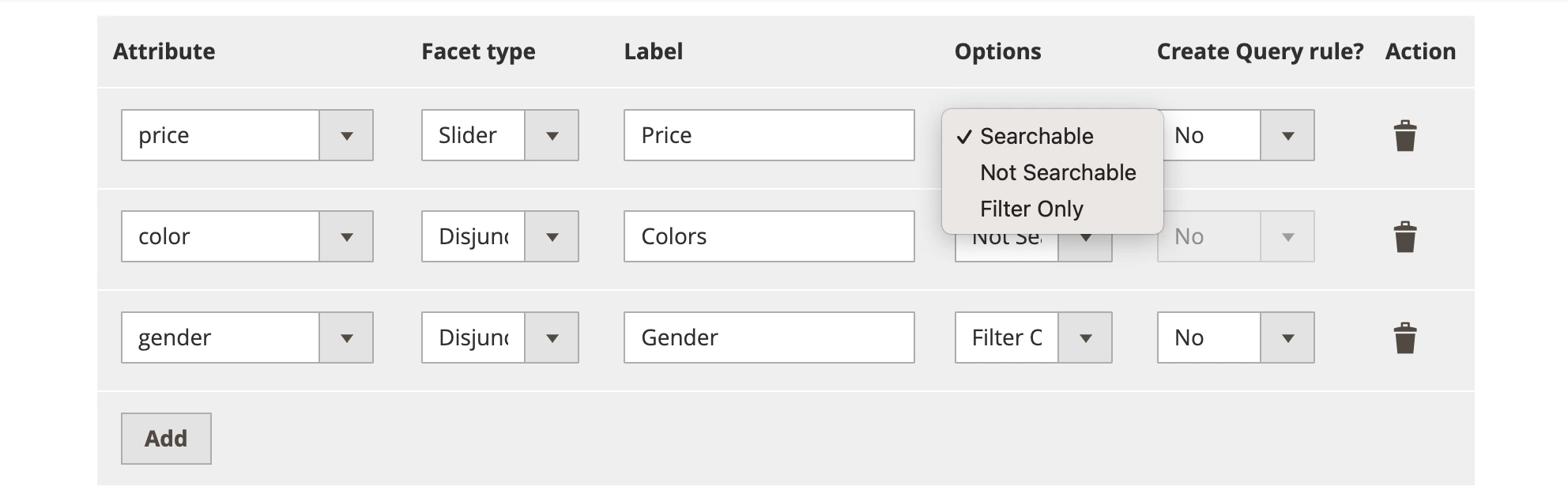 Select one of the modifiers from the **Options** drop-down menu to make facet values [searchable, not searchable, or filterable (not "facetable")](/doc/api-reference/api-parameters/attributesForFaceting#modifiers).
Use the `filterOnly` modifier if you only want to use the **filtering** feature.
This will help optimize search speed and reduce index size.
You can attach facets to [rules](/doc/guides/managing-results/rules/rules-overview).
If you set **Create Query rule** to **Yes**, Algolia uses the attribute as a [filter](/doc/guides/managing-results/rules/detecting-intent).
Suppose you create a rule for the *color* attribute and users search for products with a specific color,
for example, "red shorts".
In that case, Algolia filters all results with "red" as the *color* attribute.
When you attach a rule to an attribute,
the Algolia AI Search & Discovery extensdion applies it to both the Autocomplete menu and the InstantSearch results page.
Rules are only available on [Grow and Premium plans](https://www.algolia.com/pricing/).
By default, the extension adds facets for *price*, *categories*, and *color*.
For numeric attributes, like price, the UI uses a slider.
Attributes specified as facets are automatically indexed as retrievable but **not** searchable.
You don't need to add them manually to the [searchable attributes](#searchable-attributes).
#### How to add numeric attributes as non-castable
To access the configuration page for Algolia in your Magento project,
go to **Stores > Algolia Search > Credentials and Basic Setup > Advanced** in the Magento Admin.
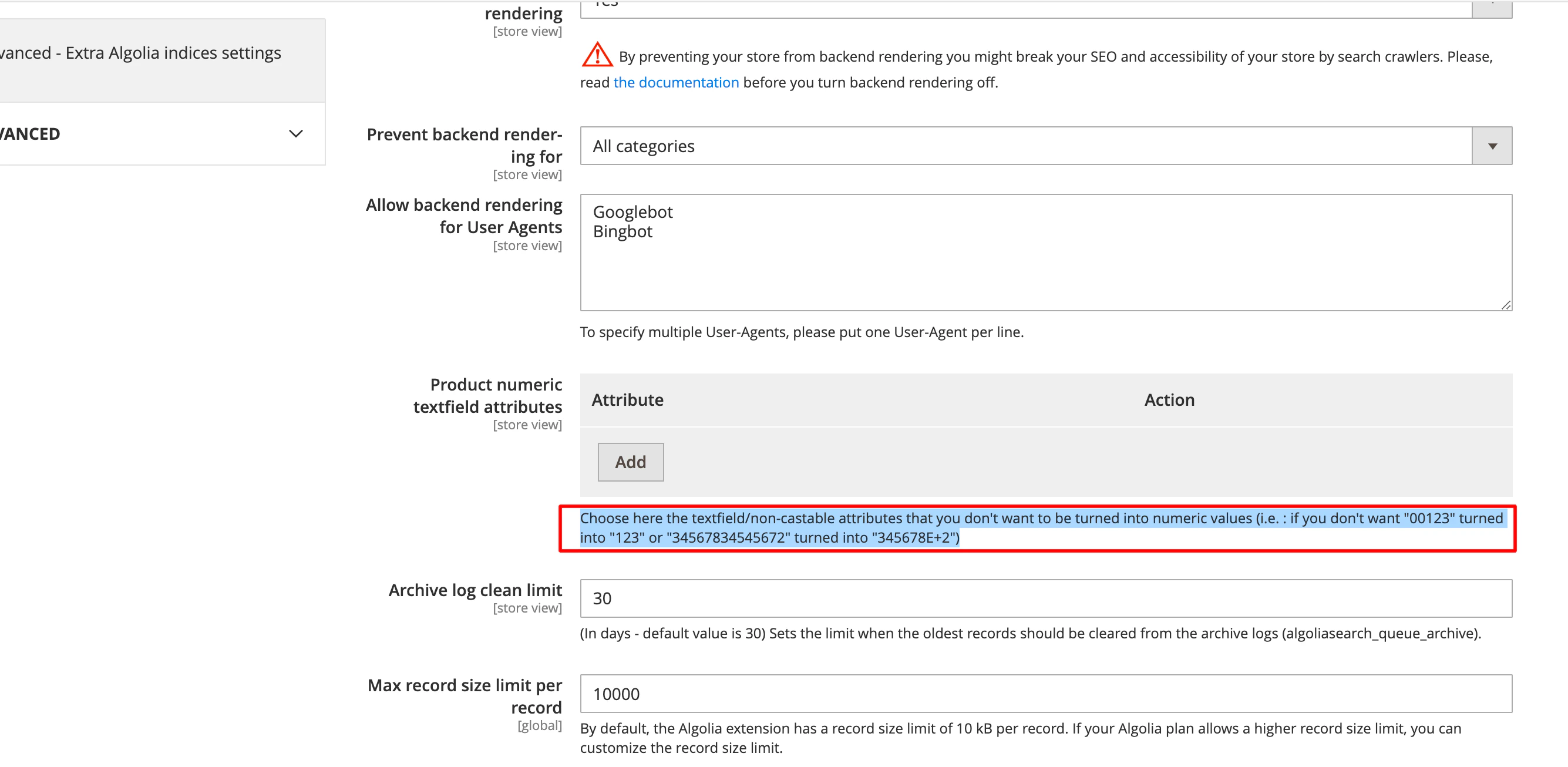
From there, add text fields or non-castable attributes under **Product numeric textfield attributes** to prevent Magento from converting them into numeric fields.
Select one of the modifiers from the **Options** drop-down menu to make facet values [searchable, not searchable, or filterable (not "facetable")](/doc/api-reference/api-parameters/attributesForFaceting#modifiers).
Use the `filterOnly` modifier if you only want to use the **filtering** feature.
This will help optimize search speed and reduce index size.
You can attach facets to [rules](/doc/guides/managing-results/rules/rules-overview).
If you set **Create Query rule** to **Yes**, Algolia uses the attribute as a [filter](/doc/guides/managing-results/rules/detecting-intent).
Suppose you create a rule for the *color* attribute and users search for products with a specific color,
for example, "red shorts".
In that case, Algolia filters all results with "red" as the *color* attribute.
When you attach a rule to an attribute,
the Algolia AI Search & Discovery extensdion applies it to both the Autocomplete menu and the InstantSearch results page.
Rules are only available on [Grow and Premium plans](https://www.algolia.com/pricing/).
By default, the extension adds facets for *price*, *categories*, and *color*.
For numeric attributes, like price, the UI uses a slider.
Attributes specified as facets are automatically indexed as retrievable but **not** searchable.
You don't need to add them manually to the [searchable attributes](#searchable-attributes).
#### How to add numeric attributes as non-castable
To access the configuration page for Algolia in your Magento project,
go to **Stores > Algolia Search > Credentials and Basic Setup > Advanced** in the Magento Admin.
From there, add text fields or non-castable attributes under **Product numeric textfield attributes** to prevent Magento from converting them into numeric fields.
 #### Handle empty attribute values in filters
If a product doesn't have a value for an attribute,
Magento sets the attribute value to `No`.
To stop indexing these fallback values, set `Index empty value` to `No` for the [searchable attributes](/doc/integration/magento-2/how-it-works/indexing#searchable-attributes) you want to exclude.
Changing any index setting requires a full reindex of all data.
### Sorting strategies
Sorting is only available on the InstantSearch Results page.
By default, the Algolia AI Search & Discovery extension uses the *exhaustive* sorting strategy with standard replicas,
but you can switch to the *relevant* sorting strategy using [virtual replicas](/doc/guides/managing-results/refine-results/sorting/in-depth/replicas#standard-and-virtual-replicas).
When searching for products,
users may expect multiple ways to sort the result set.
For example, they want to sort by relevance, popularity, price, or date.
By default, search results sort by relevance.
Define any other sorting strategy in the sort settings.
For each strategy, define an attribute, sort order (ascending or descending), and label.
You can also specify whether to create a virtual replica (instead of a standard replica) for the sorting strategy.
#### Handle empty attribute values in filters
If a product doesn't have a value for an attribute,
Magento sets the attribute value to `No`.
To stop indexing these fallback values, set `Index empty value` to `No` for the [searchable attributes](/doc/integration/magento-2/how-it-works/indexing#searchable-attributes) you want to exclude.
Changing any index setting requires a full reindex of all data.
### Sorting strategies
Sorting is only available on the InstantSearch Results page.
By default, the Algolia AI Search & Discovery extension uses the *exhaustive* sorting strategy with standard replicas,
but you can switch to the *relevant* sorting strategy using [virtual replicas](/doc/guides/managing-results/refine-results/sorting/in-depth/replicas#standard-and-virtual-replicas).
When searching for products,
users may expect multiple ways to sort the result set.
For example, they want to sort by relevance, popularity, price, or date.
By default, search results sort by relevance.
Define any other sorting strategy in the sort settings.
For each strategy, define an attribute, sort order (ascending or descending), and label.
You can also specify whether to create a virtual replica (instead of a standard replica) for the sorting strategy.
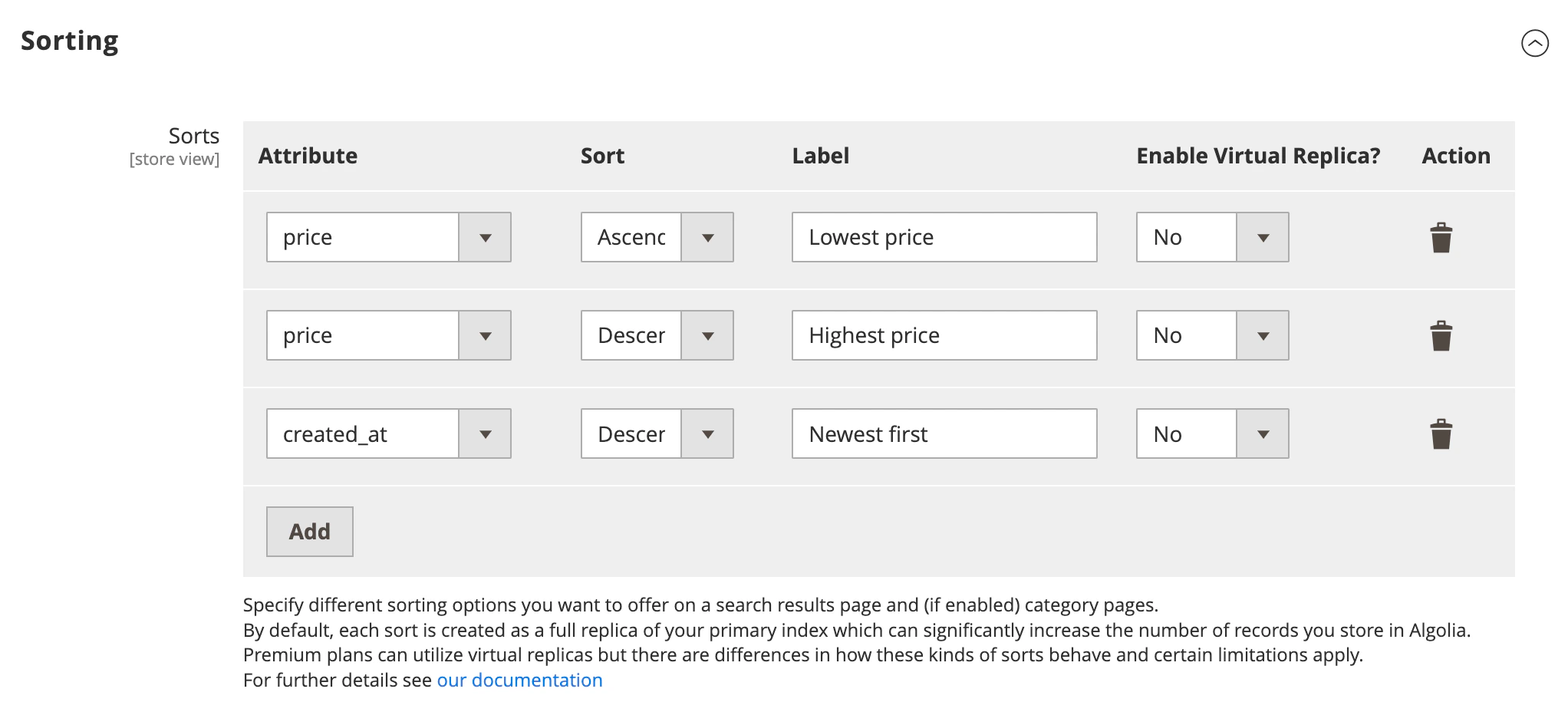 By default, there are three sorting strategies:
* From lowest price to highest price
* From highest price to lowest price
* From newest to oldest
If you've chosen to use standard replicas,
each sorting strategy creates a new standard replica index,
which increases the [number of records](#number-of-records-created) used by your plan.
Attributes configured for sorting are automatically indexed as retrievable but **not** searchable.
You don't need to add them manually to the [searchable attributes](#searchable-attributes).
Saving sorting changes in your store's Magento Admin updates replica indices in Algolia.
When you remove a sorting attribute, Algolia deletes the corresponding replica index.
If you experience issues with your replica configuration in Algolia or can't save changes from the Magento Admin,
refer to the [Troubleshooting guidance](/doc/integration/magento-2/troubleshooting/back-end-issues#migrate-to-granular-virtual-replicas).
You can also apply sorting strategies to your InstantSearch results pages with [Merchandising Studio](/doc/integration/magento-2/merchandising/merchandising-studio#a-new-way-to-merchandise-with-magento).
With this method, you can add [rules](/doc/guides/managing-results/rules/rules-overview) that apply alternative sorting strategies when certain conditions are met.
The extension doesn't manage these indices.
#### Number of records created
Algolia precomputes part of the sort order during indexing to speed up searches.
Each index supports only one sort order,
so every additional sort creates another replica index.
Standard replicas (default) can increase storage more than virtual replicas.
By default, the Algolia AI Search & Discovery extension creates these indices in Magento:
* One per store
* One per store per additional sort order (such as by price or by date)
For example,
a Magento store has two store views (two languages) and each store view has 100 products.
You configure two extra sort orders per store view:
price and date.
This creates four sort orders:
| Sort | Records | Total |
| ----------------- | ------- | ----- |
| Default sorting | 100×2 | 200 |
| Custom sorting | 100×2×4 | 800 |
| **Total records** | | 1000 |
If the *customer group* feature is enabled, each customer group will result in an extra index on **the pricing sorting**.
Following the preceding example, but with a total of 5 customer groups:
| Sort | Records | Total |
| ----------------- | --------- | ----- |
| Default sorting | 100×2 | 200 |
| Pricing sorting | 100×2×2×5 | 2000 |
| Custom sorting | 100×2×2 | 400 |
| **Total records** | | 2600 |
The number of indexed records can be lowered by either removing some sorting strategies or by converting them to using [virtual replicas](/doc/guides/managing-results/refine-results/sorting/in-depth/replicas#standard-and-virtual-replicas).
(Virtual replicas do require some additional storage but this is [marginal relative to the number of records](/doc/guides/managing-results/refine-results/sorting/in-depth/replicas#differences).)
Configure sorts in the extension's administration panel:
#### Switch to virtual replicas
Virtual replicas are not available on the [Grow](https://www.algolia.com/pricing/) plan.
To configure Virtual Replicas for Sorting,
go to **Stores > Configuration > Algolia Search > InstantSearch Results Page > Sorting**.
By default, there are three sorting strategies:
* From lowest price to highest price
* From highest price to lowest price
* From newest to oldest
If you've chosen to use standard replicas,
each sorting strategy creates a new standard replica index,
which increases the [number of records](#number-of-records-created) used by your plan.
Attributes configured for sorting are automatically indexed as retrievable but **not** searchable.
You don't need to add them manually to the [searchable attributes](#searchable-attributes).
Saving sorting changes in your store's Magento Admin updates replica indices in Algolia.
When you remove a sorting attribute, Algolia deletes the corresponding replica index.
If you experience issues with your replica configuration in Algolia or can't save changes from the Magento Admin,
refer to the [Troubleshooting guidance](/doc/integration/magento-2/troubleshooting/back-end-issues#migrate-to-granular-virtual-replicas).
You can also apply sorting strategies to your InstantSearch results pages with [Merchandising Studio](/doc/integration/magento-2/merchandising/merchandising-studio#a-new-way-to-merchandise-with-magento).
With this method, you can add [rules](/doc/guides/managing-results/rules/rules-overview) that apply alternative sorting strategies when certain conditions are met.
The extension doesn't manage these indices.
#### Number of records created
Algolia precomputes part of the sort order during indexing to speed up searches.
Each index supports only one sort order,
so every additional sort creates another replica index.
Standard replicas (default) can increase storage more than virtual replicas.
By default, the Algolia AI Search & Discovery extension creates these indices in Magento:
* One per store
* One per store per additional sort order (such as by price or by date)
For example,
a Magento store has two store views (two languages) and each store view has 100 products.
You configure two extra sort orders per store view:
price and date.
This creates four sort orders:
| Sort | Records | Total |
| ----------------- | ------- | ----- |
| Default sorting | 100×2 | 200 |
| Custom sorting | 100×2×4 | 800 |
| **Total records** | | 1000 |
If the *customer group* feature is enabled, each customer group will result in an extra index on **the pricing sorting**.
Following the preceding example, but with a total of 5 customer groups:
| Sort | Records | Total |
| ----------------- | --------- | ----- |
| Default sorting | 100×2 | 200 |
| Pricing sorting | 100×2×2×5 | 2000 |
| Custom sorting | 100×2×2 | 400 |
| **Total records** | | 2600 |
The number of indexed records can be lowered by either removing some sorting strategies or by converting them to using [virtual replicas](/doc/guides/managing-results/refine-results/sorting/in-depth/replicas#standard-and-virtual-replicas).
(Virtual replicas do require some additional storage but this is [marginal relative to the number of records](/doc/guides/managing-results/refine-results/sorting/in-depth/replicas#differences).)
Configure sorts in the extension's administration panel:
#### Switch to virtual replicas
Virtual replicas are not available on the [Grow](https://www.algolia.com/pricing/) plan.
To configure Virtual Replicas for Sorting,
go to **Stores > Configuration > Algolia Search > InstantSearch Results Page > Sorting**.
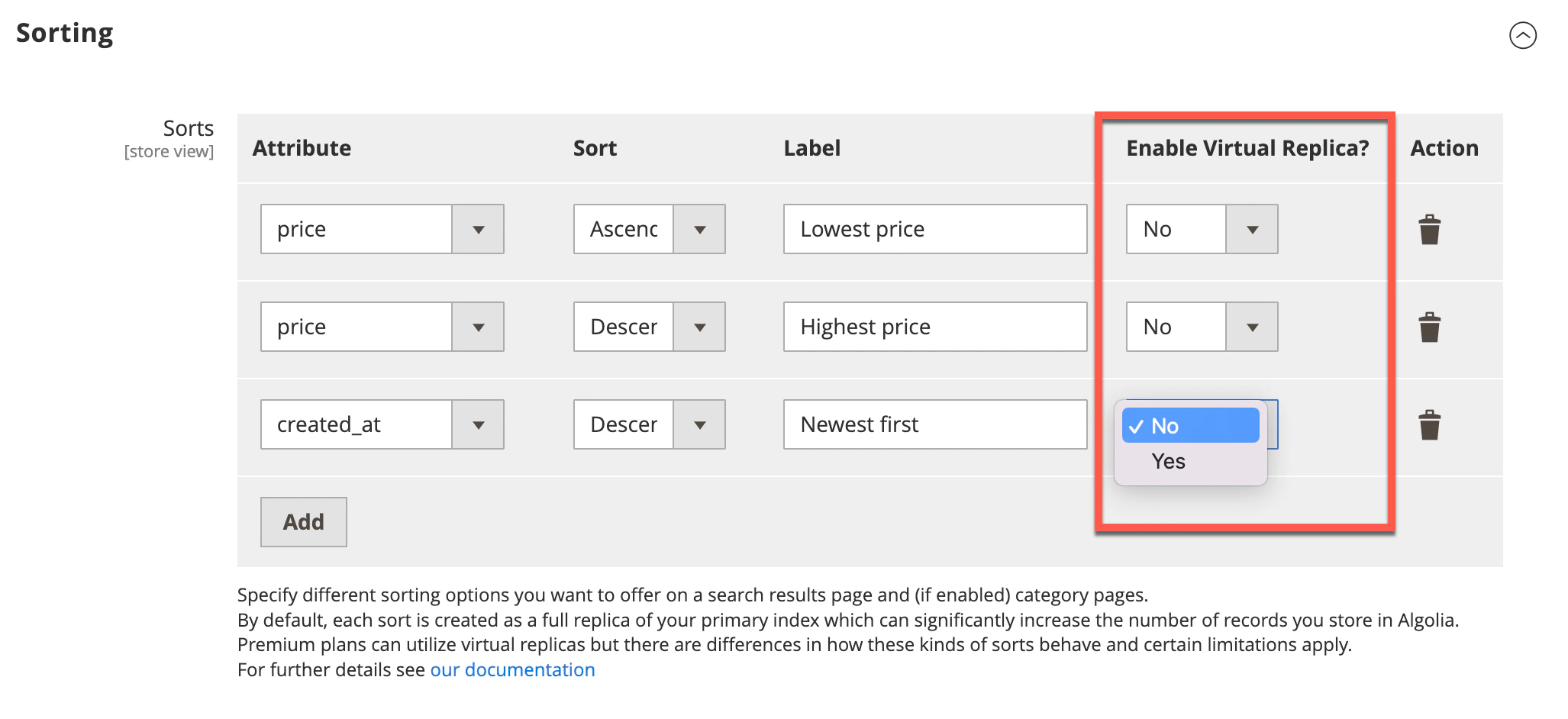 In the grid, enable virtual replicas for each desired attribute by setting **Enable Virtual Replica?** to **Yes**.
When you switch a sorting attribute to a virtual replica,
Algolia deletes the *standard* replica and creates a *virtual* replica index in its place.
If you reset this value to **No**, the opposite happens.
Virtual replicas slightly increase the primary index's size (less than 10 MB per million records),
but they don't affect the number of records.
For more information, see [Standard and virtual replicas](/doc/guides/managing-results/refine-results/sorting/in-depth/replicas#standard-and-virtual-replicas).
You can enable [up to 20 virtual replicas](/doc/guides/scaling/algolia-service-limits#application-record-and-index-limits) per index.
The Algolia AI Search & Discovery extension informs you if you exceed this limit.
#### Scoped configuration
The Algolia AI Search & Discovery extension creates a product index for each Algolia-enabled store (or "store view") in your Magento instance.
To keep within the virtual replica limits on an index,
use the [store view selector](/doc/integration/magento-2/troubleshooting/back-end-issues?client=php#different-configuration-on-store-view-or-website-level) to configure your sorting attributes for each store independently.
Choose the website or store view where you wish to apply the desired changes.
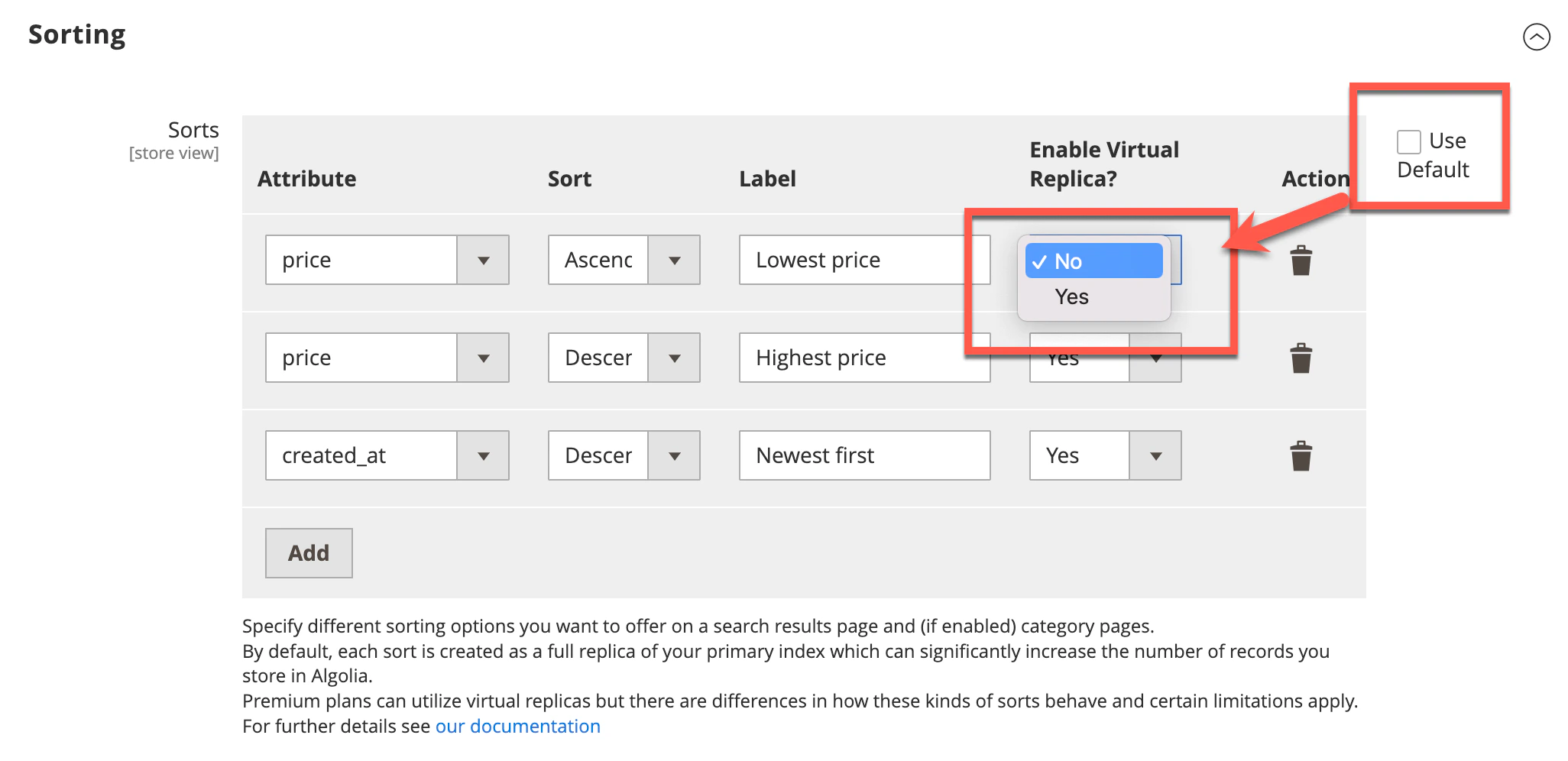
For a website scope, remove the **Use Default** check mark and configure your sorting attributes accordingly:
In the grid, enable virtual replicas for each desired attribute by setting **Enable Virtual Replica?** to **Yes**.
When you switch a sorting attribute to a virtual replica,
Algolia deletes the *standard* replica and creates a *virtual* replica index in its place.
If you reset this value to **No**, the opposite happens.
Virtual replicas slightly increase the primary index's size (less than 10 MB per million records),
but they don't affect the number of records.
For more information, see [Standard and virtual replicas](/doc/guides/managing-results/refine-results/sorting/in-depth/replicas#standard-and-virtual-replicas).
You can enable [up to 20 virtual replicas](/doc/guides/scaling/algolia-service-limits#application-record-and-index-limits) per index.
The Algolia AI Search & Discovery extension informs you if you exceed this limit.
#### Scoped configuration
The Algolia AI Search & Discovery extension creates a product index for each Algolia-enabled store (or "store view") in your Magento instance.
To keep within the virtual replica limits on an index,
use the [store view selector](/doc/integration/magento-2/troubleshooting/back-end-issues?client=php#different-configuration-on-store-view-or-website-level) to configure your sorting attributes for each store independently.
Choose the website or store view where you wish to apply the desired changes.
For a website scope, remove the **Use Default** check mark and configure your sorting attributes accordingly:
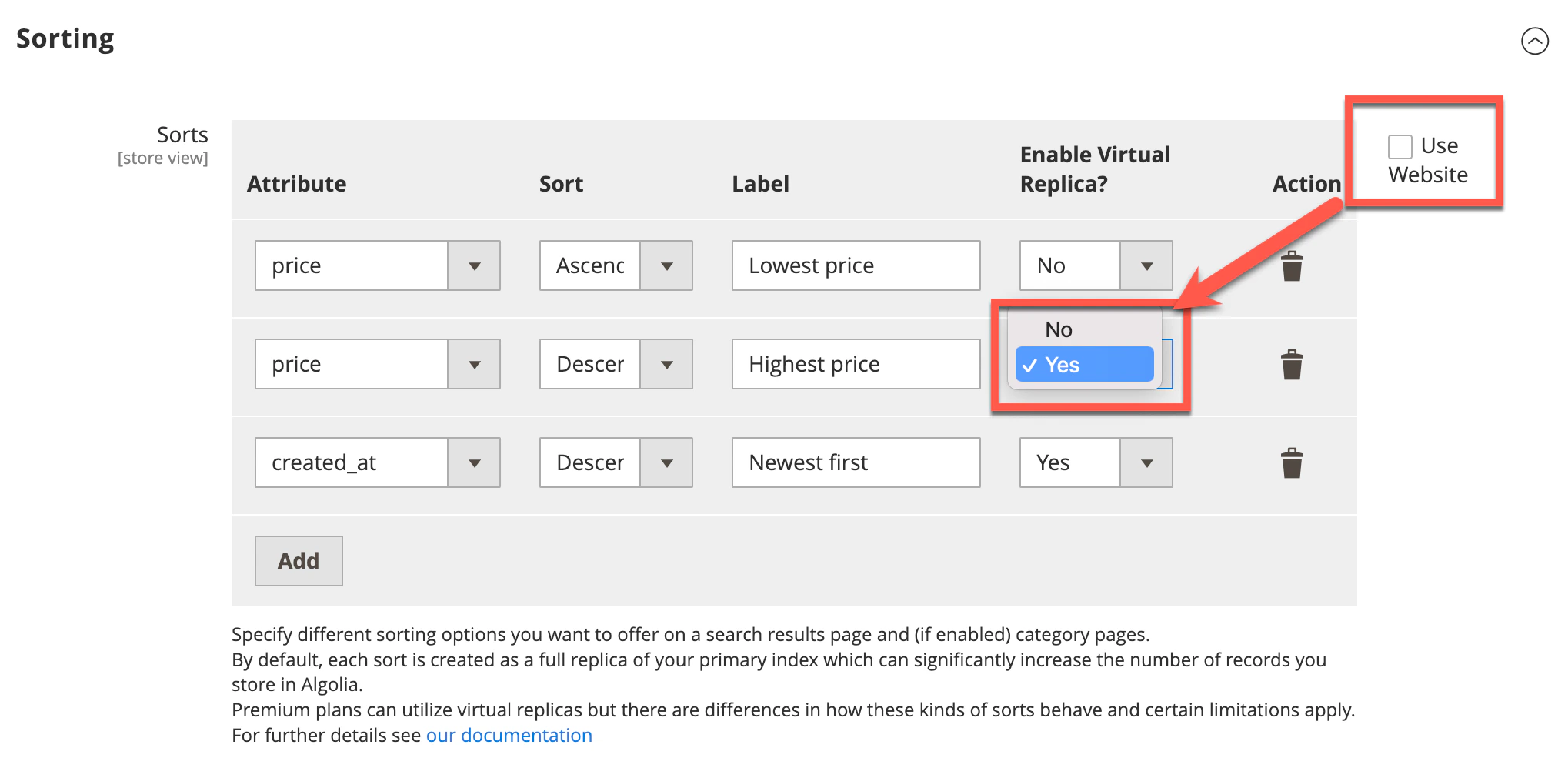
 For a store scope, remove the **Use Website** check mark:
 For more information, see [Adobe's documentation](https://experienceleague.adobe.com/en/docs/commerce-admin/start/setup/websites-stores-views).
### Index settings
Configure these *product* index settings in your store's Magento Admin:
* [`searchableAttributes`](/doc/api-reference/api-parameters/searchableAttributes)
* [`customRanking`](/doc/api-reference/api-parameters/customRanking)
* [`unretrievableAttributes`](/doc/api-reference/api-parameters/unretrievableAttributes)
* [`attributesForFaceting`](/doc/api-reference/api-parameters/attributesForFaceting)
* [`maxValuesPerFacet`](/doc/api-reference/api-parameters/maxValuesPerFacet)
* [`removeWordsIfNoResults`](/doc/api-reference/api-parameters/removeWordsIfNoResults)
Any changes in the Algolia dashboard override these settings **until** you perform a full reindex or make updates to your Algolia configuration from the Magento Admin.
Manage additional index settings in the [Algolia dashboard](https://dashboard.algolia.com).
To set default values from Magento,
configure this under ["Advanced Algolia indices settings"](/doc/integration/magento-2/customize/override-index-settings#advanced-algolia-indices-settings).
To change the settings programmatically,
you can hook into the `algolia_products_index_before_set_settings` event provided by the Algolia AI Search & Discovery extension.
For more information, see [Custom backend events](/doc/integration/magento-2/customize/custom-back-end-events).
## Index from the Magento products grid
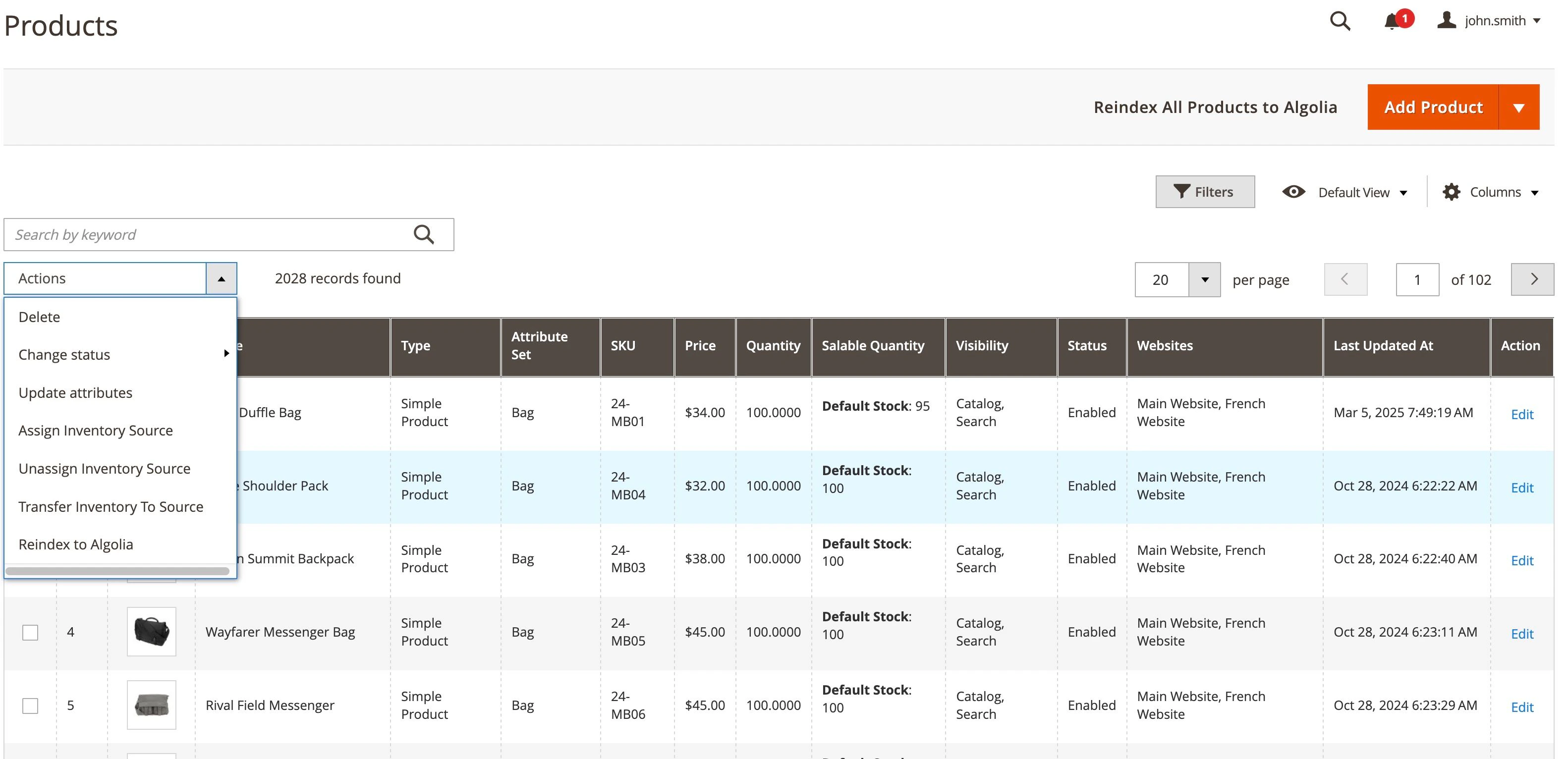
Version 3.16.0 introduced new features to the Magento products grid:
* You can select products in the grid and reindex them with the **Actions** drop-down menu in the top-left corner: select **Reindex to Algolia**.
* You can trigger full product reindexing by clicking **Reindex All Products to Algolia** in the main toolbar at the top of the page.
For more information, see [Adobe's documentation](https://experienceleague.adobe.com/en/docs/commerce-admin/start/setup/websites-stores-views).
### Index settings
Configure these *product* index settings in your store's Magento Admin:
* [`searchableAttributes`](/doc/api-reference/api-parameters/searchableAttributes)
* [`customRanking`](/doc/api-reference/api-parameters/customRanking)
* [`unretrievableAttributes`](/doc/api-reference/api-parameters/unretrievableAttributes)
* [`attributesForFaceting`](/doc/api-reference/api-parameters/attributesForFaceting)
* [`maxValuesPerFacet`](/doc/api-reference/api-parameters/maxValuesPerFacet)
* [`removeWordsIfNoResults`](/doc/api-reference/api-parameters/removeWordsIfNoResults)
Any changes in the Algolia dashboard override these settings **until** you perform a full reindex or make updates to your Algolia configuration from the Magento Admin.
Manage additional index settings in the [Algolia dashboard](https://dashboard.algolia.com).
To set default values from Magento,
configure this under ["Advanced Algolia indices settings"](/doc/integration/magento-2/customize/override-index-settings#advanced-algolia-indices-settings).
To change the settings programmatically,
you can hook into the `algolia_products_index_before_set_settings` event provided by the Algolia AI Search & Discovery extension.
For more information, see [Custom backend events](/doc/integration/magento-2/customize/custom-back-end-events).
## Index from the Magento products grid
Version 3.16.0 introduced new features to the Magento products grid:
* You can select products in the grid and reindex them with the **Actions** drop-down menu in the top-left corner: select **Reindex to Algolia**.
* You can trigger full product reindexing by clicking **Reindex All Products to Algolia** in the main toolbar at the top of the page.
 ### Index cache
From version 3.17.0, you can use a local cache to speed up full reindexing by skipping queries that retrieve collection sizes in large catalogs.
To enable it,
go to **System > Tools > Cache Management** as *Algolia Indexer* or
run the following from the command line:
```sh Command line icon=square-terminal theme={"system"}
bin/magento cache:enable algolia_indexer
```
Magento clears this cache automatically when the catalog size changes.
To clear it manually,
go to **System > Tools > Cache Management** or run:
```sh Command line icon=square-terminal theme={"system"}
bin/magento cache:flush algolia_indexer
```
To turn off the cache,
go to **System > Tools > Cache Management** or run:
```sh Command line icon=square-terminal theme={"system"}
bin/magento cache:disable algolia_indexer
```
## Index categories
To keep the number of records and indexing operations as low as possible, Algolia only indexes active categories.
To show all categories in the Autocomplete menu and InstantSearch Results page, set **Show categories that aren't included in the navigation menu** to **Yes**.
### Index cache
From version 3.17.0, you can use a local cache to speed up full reindexing by skipping queries that retrieve collection sizes in large catalogs.
To enable it,
go to **System > Tools > Cache Management** as *Algolia Indexer* or
run the following from the command line:
```sh Command line icon=square-terminal theme={"system"}
bin/magento cache:enable algolia_indexer
```
Magento clears this cache automatically when the catalog size changes.
To clear it manually,
go to **System > Tools > Cache Management** or run:
```sh Command line icon=square-terminal theme={"system"}
bin/magento cache:flush algolia_indexer
```
To turn off the cache,
go to **System > Tools > Cache Management** or run:
```sh Command line icon=square-terminal theme={"system"}
bin/magento cache:disable algolia_indexer
```
## Index categories
To keep the number of records and indexing operations as low as possible, Algolia only indexes active categories.
To show all categories in the Autocomplete menu and InstantSearch Results page, set **Show categories that aren't included in the navigation menu** to **Yes**.
 ### Full reindexing
```sh Extension version 3.16 and higher theme={"system"}
php path/to/magento/bin/magento algolia:reindex:categories
```
```sh Extension version 3.15.x and lower theme={"system"}
php path/to/magento/bin/magento indexer:reindex algolia_categories
```
### Missing categories
If a category isn't indexed in Algolia, check that it's enabled and included in the menu.
### Full reindexing
```sh Extension version 3.16 and higher theme={"system"}
php path/to/magento/bin/magento algolia:reindex:categories
```
```sh Extension version 3.15.x and lower theme={"system"}
php path/to/magento/bin/magento indexer:reindex algolia_categories
```
### Missing categories
If a category isn't indexed in Algolia, check that it's enabled and included in the menu.
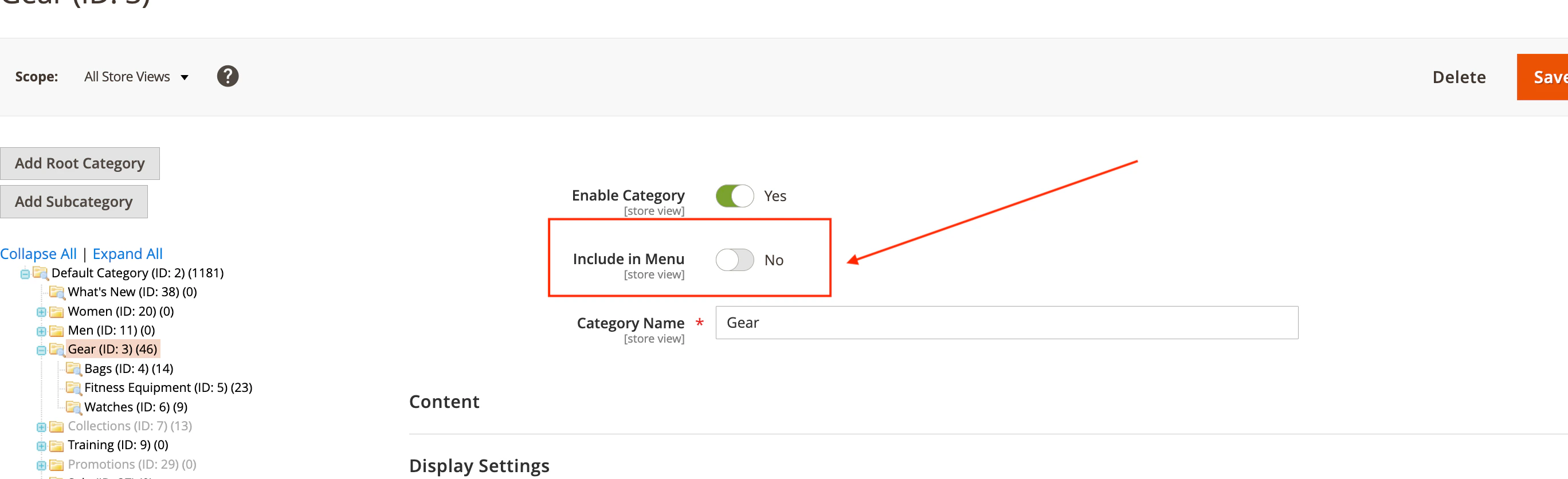 If all categories are missing from your Algolia index, check the root category (for example, "Default Category").
Make sure it's enabled, then run a full reindex.
### Searchable attributes
Choose which attributes Algolia searches when users type queries.
To update the [searchable attributes](/doc/guides/managing-results/must-do/searchable-attributes) list,
go to **Stores > Algolia Search > Categories**.
In the **Categories** tab, set each attribute to *searchable*, *retrievable*, or *ordered*.
By default, the Algolia AI Search & Discovery extension searches attributes as *unordered*.
Keep this default unless you have a specific reason to change it.
For more information, see [Configuring searchable attributes the right way](/doc/guides/managing-results/must-do/searchable-attributes/how-to/configuring-searchable-attributes-the-right-way#word-position).
#### Default searchable category attributes
The Algolia AI Search & Discovery extension indexes the following attributes regardless of your configuration.
Not all these attributes are *searchable* but
you can use them to filter, sort, customize ranking, and build the results page.
| Attribute | Description |
| ----------------- | --------------------------------------------------------------------- |
| `name` | Name |
| `url` | URL |
| `path` | Path (parent categories) |
| `level` | Level in the category tree |
| `include_in_menu` | Visibility in the menu |
| `_tags` | *Filled automatically by the Algolia AI Search & Discovery extension* |
| `popularity` | Popularity |
| `product_count` | Amount of products |
### Index settings
Configure these *category* index settings in your store's Magento Admin:
* [`searchableAttributes`](/doc/api-reference/api-parameters/searchableAttributes)
* [`customRanking`](/doc/api-reference/api-parameters/customRanking)
* [`unretrievableAttributes`](/doc/api-reference/api-parameters/unretrievableAttributes)
Any changes in the Algolia dashboard override these settings **until** you perform a full reindex or make updates to your Algolia configuration from Magento Admin.
Manage additional index settings in the [Algolia dashboard](https://dashboard.algolia.com).
To set default values from Magento,
configure this under ["Advanced Algolia indices settings"](/doc/integration/magento-2/customize/override-index-settings#advanced-algolia-indices-settings).
To change the settings programmatically,
you can hook into the `algolia_categories_index_before_set_settings` event provided by the Algolia AI Search & Discovery extension.
For more information, see [Custom backend events](/doc/integration/magento-2/customize/custom-back-end-events).
## Index pages
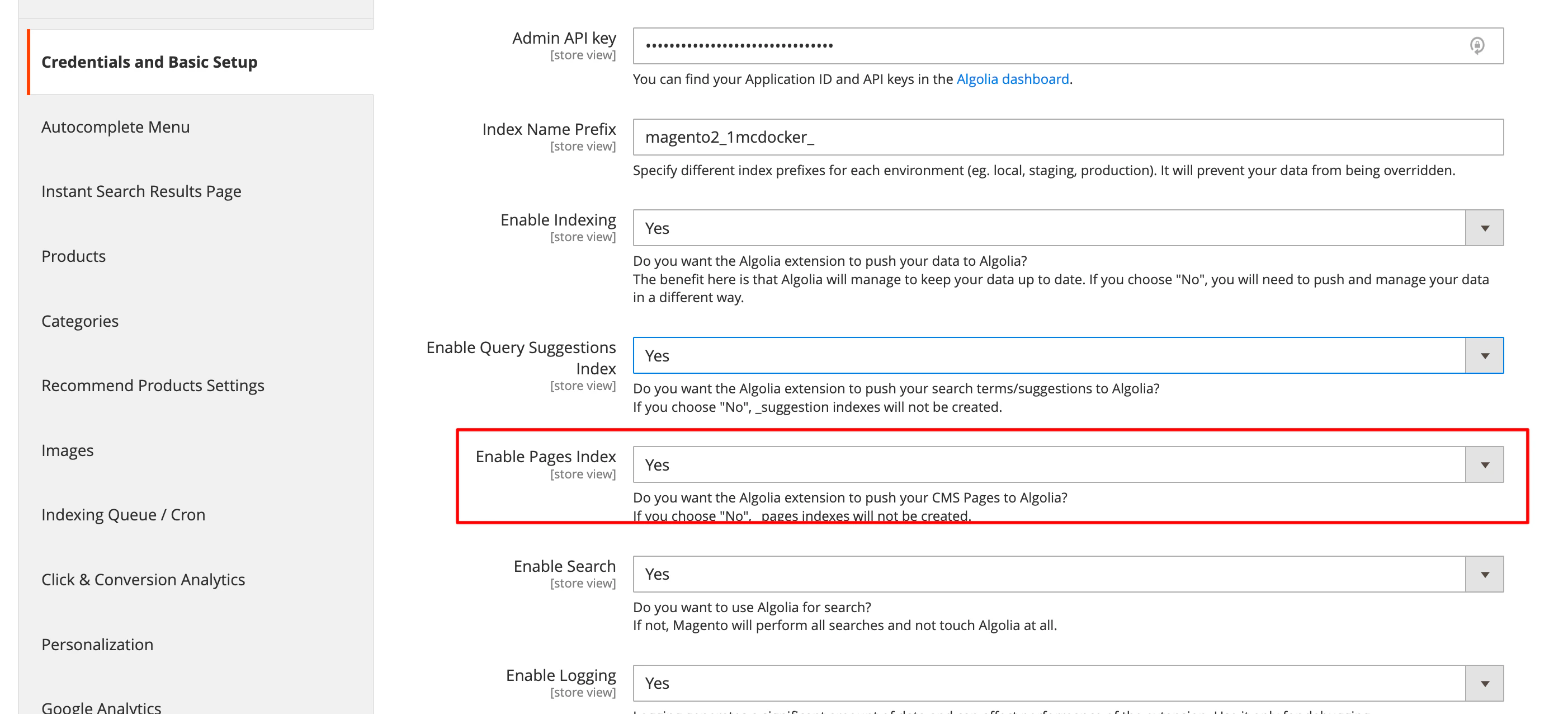
Set **Stores > Algolia Search > Indexing Manager > Enable Pages Index** to **Yes** to index CMS pages and show them in the Autocomplete menu.
By default, the Algolia AI Search & Discovery extension indexes all active pages.
If all categories are missing from your Algolia index, check the root category (for example, "Default Category").
Make sure it's enabled, then run a full reindex.
### Searchable attributes
Choose which attributes Algolia searches when users type queries.
To update the [searchable attributes](/doc/guides/managing-results/must-do/searchable-attributes) list,
go to **Stores > Algolia Search > Categories**.
In the **Categories** tab, set each attribute to *searchable*, *retrievable*, or *ordered*.
By default, the Algolia AI Search & Discovery extension searches attributes as *unordered*.
Keep this default unless you have a specific reason to change it.
For more information, see [Configuring searchable attributes the right way](/doc/guides/managing-results/must-do/searchable-attributes/how-to/configuring-searchable-attributes-the-right-way#word-position).
#### Default searchable category attributes
The Algolia AI Search & Discovery extension indexes the following attributes regardless of your configuration.
Not all these attributes are *searchable* but
you can use them to filter, sort, customize ranking, and build the results page.
| Attribute | Description |
| ----------------- | --------------------------------------------------------------------- |
| `name` | Name |
| `url` | URL |
| `path` | Path (parent categories) |
| `level` | Level in the category tree |
| `include_in_menu` | Visibility in the menu |
| `_tags` | *Filled automatically by the Algolia AI Search & Discovery extension* |
| `popularity` | Popularity |
| `product_count` | Amount of products |
### Index settings
Configure these *category* index settings in your store's Magento Admin:
* [`searchableAttributes`](/doc/api-reference/api-parameters/searchableAttributes)
* [`customRanking`](/doc/api-reference/api-parameters/customRanking)
* [`unretrievableAttributes`](/doc/api-reference/api-parameters/unretrievableAttributes)
Any changes in the Algolia dashboard override these settings **until** you perform a full reindex or make updates to your Algolia configuration from Magento Admin.
Manage additional index settings in the [Algolia dashboard](https://dashboard.algolia.com).
To set default values from Magento,
configure this under ["Advanced Algolia indices settings"](/doc/integration/magento-2/customize/override-index-settings#advanced-algolia-indices-settings).
To change the settings programmatically,
you can hook into the `algolia_categories_index_before_set_settings` event provided by the Algolia AI Search & Discovery extension.
For more information, see [Custom backend events](/doc/integration/magento-2/customize/custom-back-end-events).
## Index pages
Set **Stores > Algolia Search > Indexing Manager > Enable Pages Index** to **Yes** to index CMS pages and show them in the Autocomplete menu.
By default, the Algolia AI Search & Discovery extension indexes all active pages.
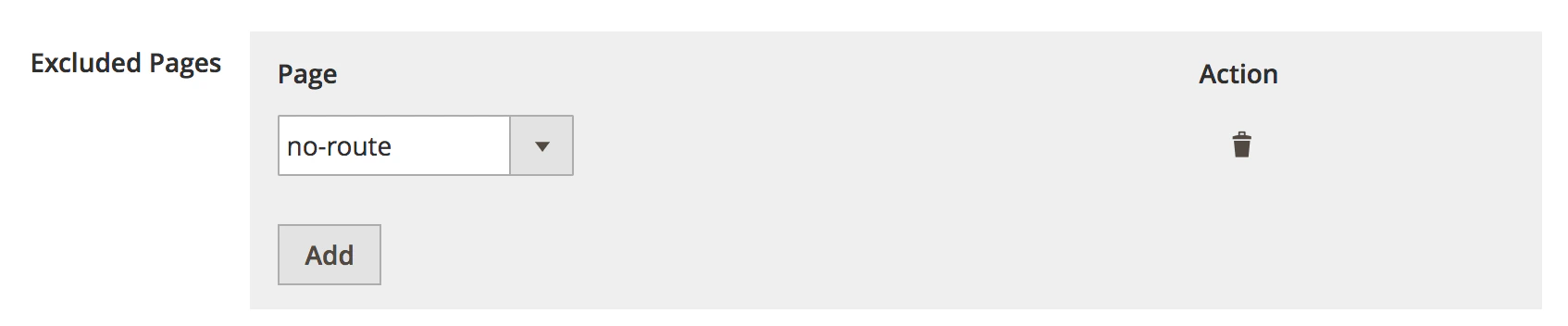
 You can exclude specific pages,
like error pages, so they don't appear in the search results.
You can exclude specific pages,
like error pages, so they don't appear in the search results.
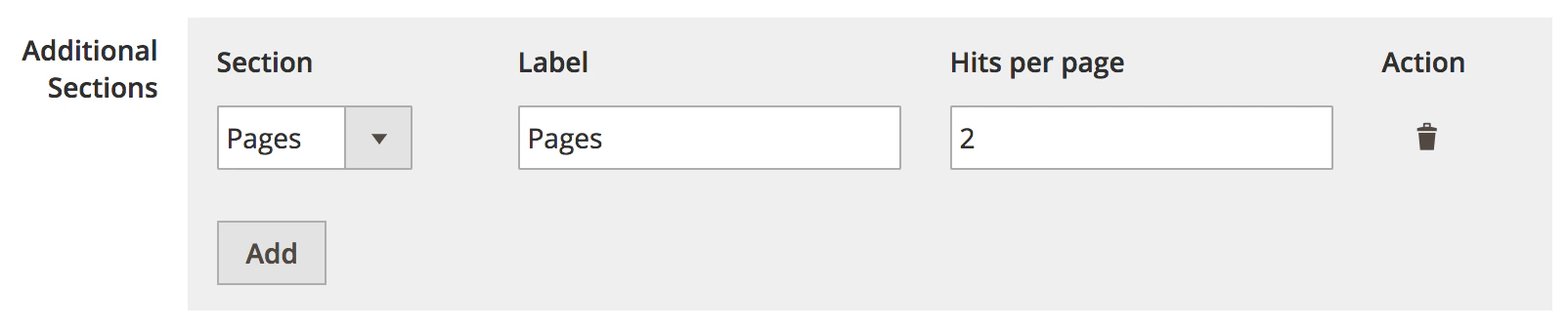
 Turn off this indexing of pages in **Additional Sections**.
 ### Full reindexing
```sh Extension version 3.16 and higher theme={"system"}
php path/to/magento/bin/magento algolia:reindex:pages
```
```sh Extension version 3.15.x and lower theme={"system"}
php path/to/magento/bin/magento indexer:reindex algolia_pages
```
### Searchable attributes
You can't configure the searchable attributes for pages in Magento Admin.
You *can* change them programmatically by hooking into the `algolia_after_create_page_object` event.
For more information, see [Custom backend events](/doc/integration/magento-2/customize/custom-back-end-events).
#### Default searchable page attributes
These attributes are always indexed and aren't all *searchable*.
You can use them for filtering, sorting, custom ranking, and building the search results page.
These page attributes are **always** indexed:
| Attribute | Description |
| --------- | ----------- |
| `name` | Name |
| `url` | URL |
| `slug` | Slug |
| `content` | Content |
The Algolia AI Search & Discovery extension skips records larger than [your plan's limit](https://support.algolia.com/hc/en-us/articles/4406981897617-Is-there-a-size-limit-for-my-index-records).
In such casse, only the page name remains searchable.
### Index settings
The following *page* index settings are always set.
You can't change them from the Algolia AI Search & Discovery extension interface:
* [`searchableAttributes`](/doc/api-reference/api-parameters/searchableAttributes): `unordered(slug)`, `unordered(name)` and `unordered(content)`
* [`attributesToSnippet`](/doc/api-reference/api-parameters/attributesToSnippet): `content:7`
Any changes in the Algolia dashboard override these settings **until** you perform a full reindex or make updates to your Algolia configuration from Magento Admin.
Manage additional index settings in the [Algolia dashboard](https://dashboard.algolia.com).
To set default values from Magento,
configure this under ["Advanced Algolia indices settings"](/doc/integration/magento-2/customize/override-index-settings#advanced-algolia-indices-settings).
You can also change the settings programmatically,
by hooking into the `algolia_pages_index_before_set_settings` event provided by the extension.
For more information, see [Custom Backend Events](/doc/integration/magento-2/customize/custom-back-end-events).
### Index with the Magento pages grid
Version 3.16.0 introduced new features to the Magento pages grid:
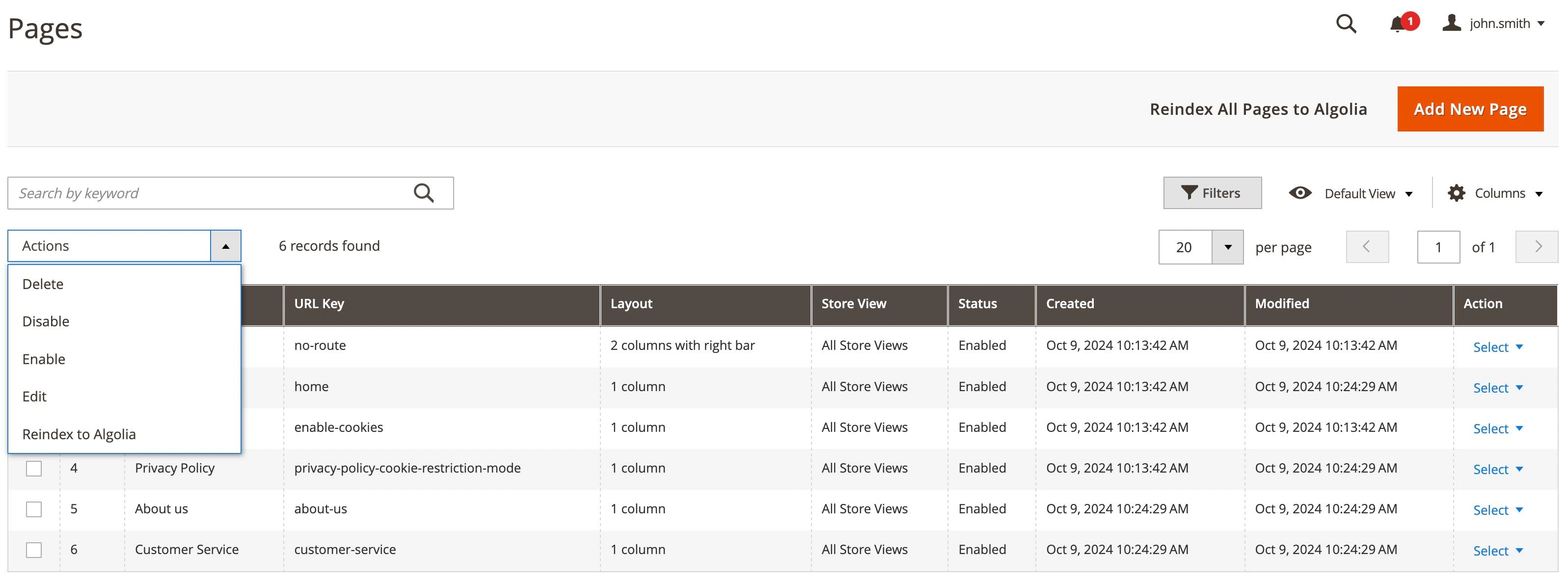
* Users can now select pages in the grid and trigger a reindex for them with the **Actions** drop-down menu on the top-left corner by selecting **Reindex to Algolia**.
* Users can now trigger a full pages reindexing by clicking **Reindex All Pages to Algolia** in the main toolbar on top of the page.
### Full reindexing
```sh Extension version 3.16 and higher theme={"system"}
php path/to/magento/bin/magento algolia:reindex:pages
```
```sh Extension version 3.15.x and lower theme={"system"}
php path/to/magento/bin/magento indexer:reindex algolia_pages
```
### Searchable attributes
You can't configure the searchable attributes for pages in Magento Admin.
You *can* change them programmatically by hooking into the `algolia_after_create_page_object` event.
For more information, see [Custom backend events](/doc/integration/magento-2/customize/custom-back-end-events).
#### Default searchable page attributes
These attributes are always indexed and aren't all *searchable*.
You can use them for filtering, sorting, custom ranking, and building the search results page.
These page attributes are **always** indexed:
| Attribute | Description |
| --------- | ----------- |
| `name` | Name |
| `url` | URL |
| `slug` | Slug |
| `content` | Content |
The Algolia AI Search & Discovery extension skips records larger than [your plan's limit](https://support.algolia.com/hc/en-us/articles/4406981897617-Is-there-a-size-limit-for-my-index-records).
In such casse, only the page name remains searchable.
### Index settings
The following *page* index settings are always set.
You can't change them from the Algolia AI Search & Discovery extension interface:
* [`searchableAttributes`](/doc/api-reference/api-parameters/searchableAttributes): `unordered(slug)`, `unordered(name)` and `unordered(content)`
* [`attributesToSnippet`](/doc/api-reference/api-parameters/attributesToSnippet): `content:7`
Any changes in the Algolia dashboard override these settings **until** you perform a full reindex or make updates to your Algolia configuration from Magento Admin.
Manage additional index settings in the [Algolia dashboard](https://dashboard.algolia.com).
To set default values from Magento,
configure this under ["Advanced Algolia indices settings"](/doc/integration/magento-2/customize/override-index-settings#advanced-algolia-indices-settings).
You can also change the settings programmatically,
by hooking into the `algolia_pages_index_before_set_settings` event provided by the extension.
For more information, see [Custom Backend Events](/doc/integration/magento-2/customize/custom-back-end-events).
### Index with the Magento pages grid
Version 3.16.0 introduced new features to the Magento pages grid:
* Users can now select pages in the grid and trigger a reindex for them with the **Actions** drop-down menu on the top-left corner by selecting **Reindex to Algolia**.
* Users can now trigger a full pages reindexing by clicking **Reindex All Pages to Algolia** in the main toolbar on top of the page.
 ## Index suggestions
Magento stores every query,
the number of results, and the number of searches in the `search_query` table in the database.
Magento only stores backend searches. As-you-type searches aren't stored.
To learn more about handling as-you-type searches, see [Algolia Query Suggestions](/doc/integration/magento-2/guides/algolia-query-suggestions).
The Algolia AI Search & Discovery extension indexes Magento's tracked queries and displays them in the Autocomplete menu.
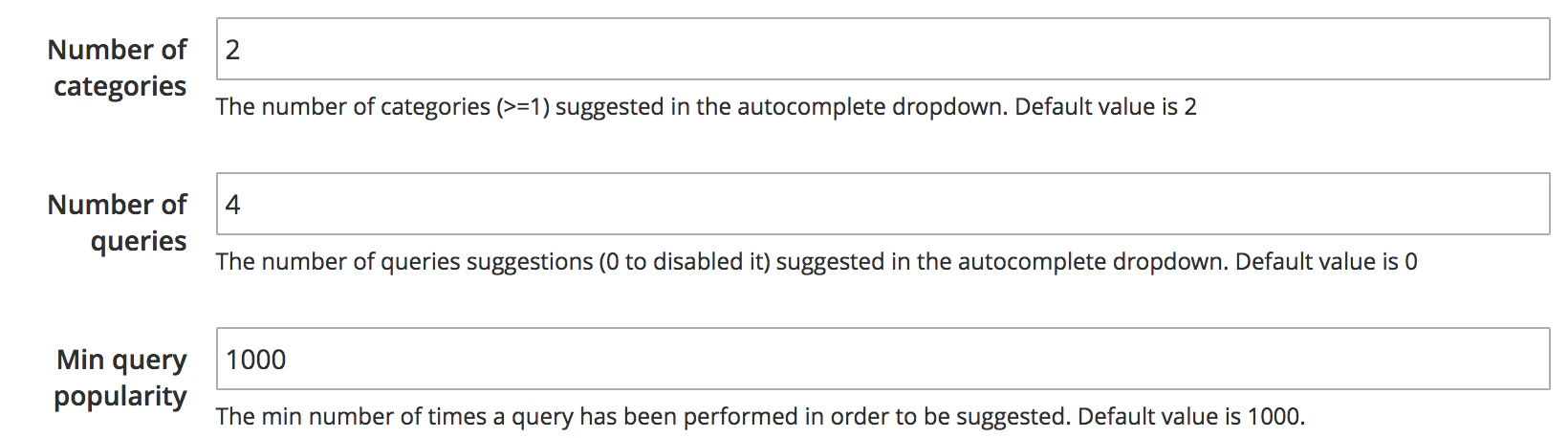
In the settings, under **Stores > Configuration > Algolia Search > Autocomplete Menu**, you can filter relevant queries, for example, by the minimum number of results or minimum popularity.
To show suggestions, set the **Number of queries** to **greater than 0**:
## Index suggestions
Magento stores every query,
the number of results, and the number of searches in the `search_query` table in the database.
Magento only stores backend searches. As-you-type searches aren't stored.
To learn more about handling as-you-type searches, see [Algolia Query Suggestions](/doc/integration/magento-2/guides/algolia-query-suggestions).
The Algolia AI Search & Discovery extension indexes Magento's tracked queries and displays them in the Autocomplete menu.
In the settings, under **Stores > Configuration > Algolia Search > Autocomplete Menu**, you can filter relevant queries, for example, by the minimum number of results or minimum popularity.
To show suggestions, set the **Number of queries** to **greater than 0**:
 Next, enable the creation of the search suggestions index at **Stores > Configuration > Algolia Search > Indexing Manager > Enable Query Suggestions Index**
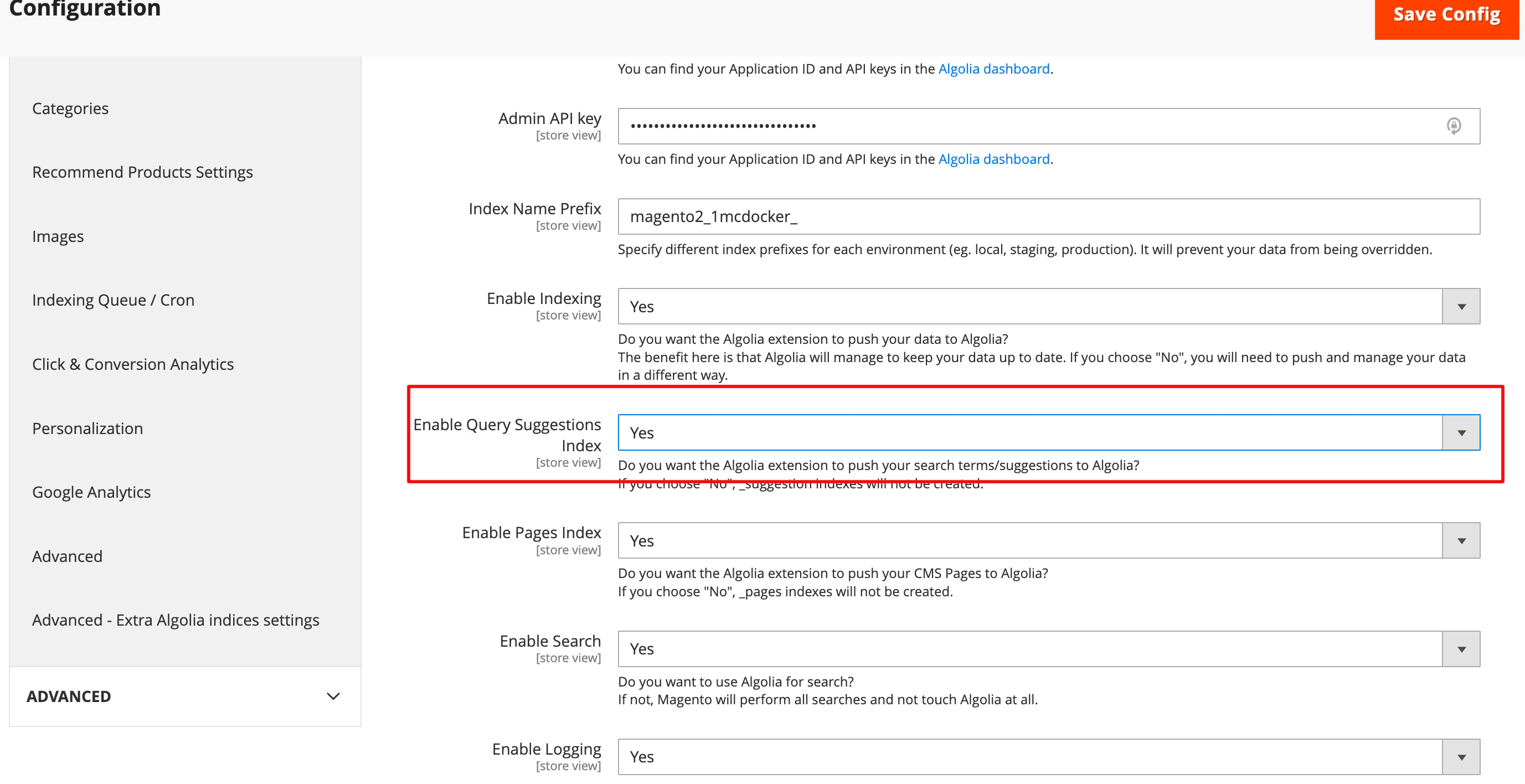 With these options enabled, the extension processes backend searches.
Since the data in `search_query` is also updated,
the queries in this table become more relevant over time.
By default, suggestions aren't indexed automatically. When enabling the indexing of suggestions, you need to trigger a manual reindex.
Another way to start the indexing of suggestions is by adding a recurring job to the cron table:
```txt Extension version 3.16 and higher theme={"system"}
1 * * * * php path/to/magento/bin/magento algolia:reindex:suggestions
```
```txt Extension version 3.15.x and lower theme={"system"}
1 * * * * php path/to/magento/bin/magento indexer:reindex algolia_suggestions
```
Instead of Magento suggestions, you can also use Algolia's Query Suggestions feature.
For more information, see [Algolia Query Suggestions](/doc/integration/magento-2/how-it-works/query-suggestions).
### Full reindexing
```sh Extension version 3.16 and higher theme={"system"}
php path/to/magento/bin/magento algolia:reindex:suggestions
```
```sh Extension version 3.15.x and lower theme={"system"}
php path/to/magento/bin/magento indexer:reindex algolia_suggestions
```
### Searchable attributes
You can't configure searchable attributes for suggestions in Magento Admin.
You *can* change them programmatically by hooking them into the `algolia_after_create_suggestion_object` event.
For more information, see [Custom backend events](/doc/integration/magento-2/customize/custom-back-end-events).
#### Default searchable query attributes
These attributes are always indexed and aren't all *searchable*.
You can use these attributes for filtering, sorting, custom ranking, and building the search results page.
These query attributes are **always** indexed:
| Attribute | Description |
| ------------------- | --------------------- |
| `query` | Value |
| `number_of_results` | Number of results |
| `popularity` | Number of searches |
| `updated_at` | Last update timestamp |
### Index settings
The following *query suggestion* index settings are always set.
You can't change them in Magento Admin:
* [`searchableAttributes`](/doc/api-reference/api-parameters/searchableAttributes): `unordered(query)`
* [`customRanking`](/doc/api-reference/api-parameters/customRanking): `desc(popularity)`, `desc(number_of_results)`
* [`typoTolerance`](/doc/api-reference/api-parameters/typoTolerance): `false`
* [`attributesToRetrieve`](/doc/api-reference/api-parameters/attributesToRetrieve): `query`
* [`removeWordsIfNoResults`](/doc/api-reference/api-parameters/removeWordsIfNoResults): `lastWords`
Any changes in the Algolia dashboard override these settings **until** you perform a full reindex or make updates to your Algolia configuration from the Magento Admin.
Manage additional settings in the [Algolia dashboard](https://dashboard.algolia.com).
To set default values from Magento,
configure this under ["Advanced Algolia indices settings"](/doc/integration/magento-2/customize/override-index-settings#advanced-algolia-indices-settings).
To change the settings programmatically,
you can hook into the `algolia_suggestions_index_before_set_settings` event provided by the Algolia AI Search & Discovery extension.
For more information, see [Custom backend events](/doc/integration/magento-2/customize/custom-back-end-events).
## Index additional sections
The Autocomplete menu lets you display other sections from attributes, such as colors and brands.
For this feature to work, you **must** enable the InstantSearch Results Page.
To use additional sections, set the attributes as attributes for faceting.
With these options enabled, the extension processes backend searches.
Since the data in `search_query` is also updated,
the queries in this table become more relevant over time.
By default, suggestions aren't indexed automatically. When enabling the indexing of suggestions, you need to trigger a manual reindex.
Another way to start the indexing of suggestions is by adding a recurring job to the cron table:
```txt Extension version 3.16 and higher theme={"system"}
1 * * * * php path/to/magento/bin/magento algolia:reindex:suggestions
```
```txt Extension version 3.15.x and lower theme={"system"}
1 * * * * php path/to/magento/bin/magento indexer:reindex algolia_suggestions
```
Instead of Magento suggestions, you can also use Algolia's Query Suggestions feature.
For more information, see [Algolia Query Suggestions](/doc/integration/magento-2/how-it-works/query-suggestions).
### Full reindexing
```sh Extension version 3.16 and higher theme={"system"}
php path/to/magento/bin/magento algolia:reindex:suggestions
```
```sh Extension version 3.15.x and lower theme={"system"}
php path/to/magento/bin/magento indexer:reindex algolia_suggestions
```
### Searchable attributes
You can't configure searchable attributes for suggestions in Magento Admin.
You *can* change them programmatically by hooking them into the `algolia_after_create_suggestion_object` event.
For more information, see [Custom backend events](/doc/integration/magento-2/customize/custom-back-end-events).
#### Default searchable query attributes
These attributes are always indexed and aren't all *searchable*.
You can use these attributes for filtering, sorting, custom ranking, and building the search results page.
These query attributes are **always** indexed:
| Attribute | Description |
| ------------------- | --------------------- |
| `query` | Value |
| `number_of_results` | Number of results |
| `popularity` | Number of searches |
| `updated_at` | Last update timestamp |
### Index settings
The following *query suggestion* index settings are always set.
You can't change them in Magento Admin:
* [`searchableAttributes`](/doc/api-reference/api-parameters/searchableAttributes): `unordered(query)`
* [`customRanking`](/doc/api-reference/api-parameters/customRanking): `desc(popularity)`, `desc(number_of_results)`
* [`typoTolerance`](/doc/api-reference/api-parameters/typoTolerance): `false`
* [`attributesToRetrieve`](/doc/api-reference/api-parameters/attributesToRetrieve): `query`
* [`removeWordsIfNoResults`](/doc/api-reference/api-parameters/removeWordsIfNoResults): `lastWords`
Any changes in the Algolia dashboard override these settings **until** you perform a full reindex or make updates to your Algolia configuration from the Magento Admin.
Manage additional settings in the [Algolia dashboard](https://dashboard.algolia.com).
To set default values from Magento,
configure this under ["Advanced Algolia indices settings"](/doc/integration/magento-2/customize/override-index-settings#advanced-algolia-indices-settings).
To change the settings programmatically,
you can hook into the `algolia_suggestions_index_before_set_settings` event provided by the Algolia AI Search & Discovery extension.
For more information, see [Custom backend events](/doc/integration/magento-2/customize/custom-back-end-events).
## Index additional sections
The Autocomplete menu lets you display other sections from attributes, such as colors and brands.
For this feature to work, you **must** enable the InstantSearch Results Page.
To use additional sections, set the attributes as attributes for faceting.
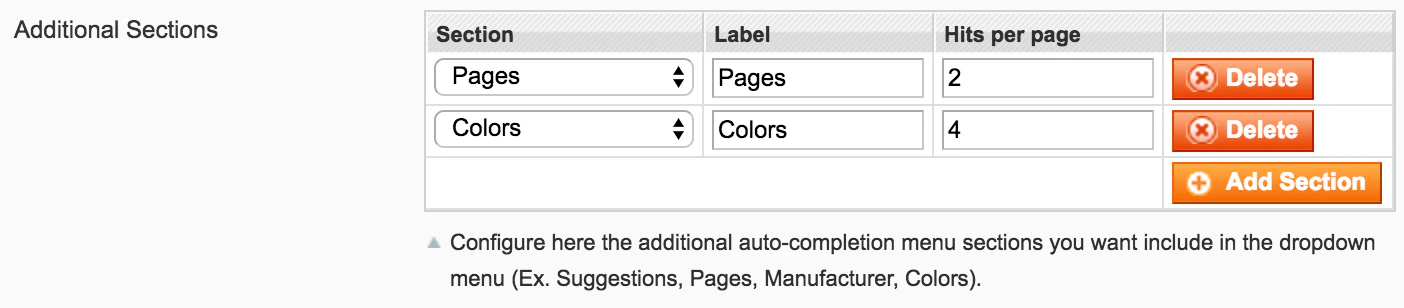 ```sh Extension version 3.16 and higher theme={"system"}
php path/to/magento/bin/magento algolia:reindex:additional_sections
```
```sh Extension version 3.15.x and lower theme={"system"}
php path/to/magento/bin/magento indexer:reindex algolia_additional_sections
```
### Searchable attributes
Manage additional index settings in the [Algolia dashboard](https://dashboard.algolia.com/).
It's also possible to change the settings programmatically,
by hooking into the `algolia_additional_sections_index_before_set_settings` event provided by the Algolia AI Search & Discovery extension.
For more information, see [Custom Backend Events](/doc/integration/magento-2/customize/custom-back-end-events).
#### Default searchable attributes
The Algolia AI Search & Discovery extension indexes these attributes by default.
Not all are *searchable* but
you can use them to filter, sort, customize ranking, and build the results page.
The attributes that are **always** indexed:
| Attribute | Description |
| --------- | -------------------------------------------------- |
| **value** | The attributes' value, for example, Red, XL, Nike. |
### Index settings
You can't change this *additional section* index settings in the Algolia AI Search & Discovery extension interface.
The extension always applies it:
* [`searchableAttributes`](/doc/api-reference/api-parameters/searchableAttributes): `unordered(value)`
Any changes in the Algolia dashboard override this setting **until** you perform a full reindex or make updates to your Algolia configuration from the Magento Admin.
Manage additional index settings in the [Algolia dashboard](https://dashboard.algolia.com).
To set default values from Magento, configure this under ["Advanced Algolia indices settings"](/doc/integration/magento-2/customize/override-index-settings#advanced-algolia-indices-settings).
It's also possible to change the settings programmatically, by hooking into the `algolia_additional_sections_index_before_set_settings` event provided by the extension.
For more information, see [Custom backend events](/doc/integration/magento-2/customize/custom-back-end-events).
## Remove inactive products
To remove products from your Algolia index,
use the `algolia_delete_products` indexer:
```sh Extension version 3.16 and higher theme={"system"}
php path/to/magento/bin/magento algolia:reindex:delete_products
```
```sh Extension version 3.15.x and lower theme={"system"}
php path/to/magento/bin/magento indexer:reindex algolia_delete_products
```
This indexer removes products from Algolia indices that you don't want to include in search.
This helps if you delete or deactivate products directly in Magento's database and need to remove them from Algolia.
The reindexer doesn't delete products from your Magento database. Products are only removed from Algolia indices.
## Incorrect links
If your store's Magento URLs include `/magento/`, enable web server rewrites.
1. In Magento Admin, go to **Stores > Configuration > General > Web > Search Engine Optimization**.
2. Set **Use Web Server Rewrites** to **Yes**.
3. Run a full reindex to apply the change.
```sh Extension version 3.16 and higher theme={"system"}
php path/to/magento/bin/magento algolia:reindex:additional_sections
```
```sh Extension version 3.15.x and lower theme={"system"}
php path/to/magento/bin/magento indexer:reindex algolia_additional_sections
```
### Searchable attributes
Manage additional index settings in the [Algolia dashboard](https://dashboard.algolia.com/).
It's also possible to change the settings programmatically,
by hooking into the `algolia_additional_sections_index_before_set_settings` event provided by the Algolia AI Search & Discovery extension.
For more information, see [Custom Backend Events](/doc/integration/magento-2/customize/custom-back-end-events).
#### Default searchable attributes
The Algolia AI Search & Discovery extension indexes these attributes by default.
Not all are *searchable* but
you can use them to filter, sort, customize ranking, and build the results page.
The attributes that are **always** indexed:
| Attribute | Description |
| --------- | -------------------------------------------------- |
| **value** | The attributes' value, for example, Red, XL, Nike. |
### Index settings
You can't change this *additional section* index settings in the Algolia AI Search & Discovery extension interface.
The extension always applies it:
* [`searchableAttributes`](/doc/api-reference/api-parameters/searchableAttributes): `unordered(value)`
Any changes in the Algolia dashboard override this setting **until** you perform a full reindex or make updates to your Algolia configuration from the Magento Admin.
Manage additional index settings in the [Algolia dashboard](https://dashboard.algolia.com).
To set default values from Magento, configure this under ["Advanced Algolia indices settings"](/doc/integration/magento-2/customize/override-index-settings#advanced-algolia-indices-settings).
It's also possible to change the settings programmatically, by hooking into the `algolia_additional_sections_index_before_set_settings` event provided by the extension.
For more information, see [Custom backend events](/doc/integration/magento-2/customize/custom-back-end-events).
## Remove inactive products
To remove products from your Algolia index,
use the `algolia_delete_products` indexer:
```sh Extension version 3.16 and higher theme={"system"}
php path/to/magento/bin/magento algolia:reindex:delete_products
```
```sh Extension version 3.15.x and lower theme={"system"}
php path/to/magento/bin/magento indexer:reindex algolia_delete_products
```
This indexer removes products from Algolia indices that you don't want to include in search.
This helps if you delete or deactivate products directly in Magento's database and need to remove them from Algolia.
The reindexer doesn't delete products from your Magento database. Products are only removed from Algolia indices.
## Incorrect links
If your store's Magento URLs include `/magento/`, enable web server rewrites.
1. In Magento Admin, go to **Stores > Configuration > General > Web > Search Engine Optimization**.
2. Set **Use Web Server Rewrites** to **Yes**.
3. Run a full reindex to apply the change.