> ## Documentation Index
> Fetch the complete documentation index at: https://algolia.com/llms.txt
> Use this file to discover all available pages before exploring further.
# Algolia Recommend for Magento
> Learn how to recommend products with Algolia Recommend for Magento Open Source and Adobe Commerce.
[Algolia Recommend](/doc/guides/algolia-recommend/overview) lets you display recommendations from your product catalog on your website.
Users can jump to similar or complementary items if an item isn't what they're looking for.
## Before you begin
Before using Algolia Recommend with Magento, check the following requirements:
* Algolia extension for Magento Open Source and Adobe Commerce version 3.8 or later.
* You're sending [click and conversion events](/doc/integration/magento-2/how-it-works/events).
Algolia Recommend relies on click and conversion events to continuously improve its recommendations.
You can also [upload events from a CSV file](/doc/guides/algolia-recommend/how-to/csv-upload).
* You have trained Recommend models.
You can check the status of your models on the [Algolia Recommend](https://dashboard.algolia.com/recommend/models) page in the dashboard, in the **Existing models** section.
 For more information, see:
* [Set up Algolia Recommend](/doc/guides/algolia-recommend/how-to/set-up)
* [Algolia Recommend for Adobe Commerce (blog)](https://www.algolia.com/blog/product/algolia-recommend-for-adobe-commerce)
## Configure Algolia Recommend for Magento
In your Magento dashboard, go to **Stores > Configuration > Algolia Search > Recommend Products Settings**.
You can enable these recommendation models:
* [Frequently Bought Together](/doc/guides/algolia-recommend/overview#frequently-bought-together)
* [Related Items](/doc/guides/algolia-recommend/overview#related-items)
* [Trending Items and Trending facets](/doc/guides/algolia-recommend/overview#trending-items-and-trending-facet-values)
* [Looking Similar](/doc/guides/algolia-recommend/overview#looking-similar)
### Frequently Bought Together
For more information, see:
* [Set up Algolia Recommend](/doc/guides/algolia-recommend/how-to/set-up)
* [Algolia Recommend for Adobe Commerce (blog)](https://www.algolia.com/blog/product/algolia-recommend-for-adobe-commerce)
## Configure Algolia Recommend for Magento
In your Magento dashboard, go to **Stores > Configuration > Algolia Search > Recommend Products Settings**.
You can enable these recommendation models:
* [Frequently Bought Together](/doc/guides/algolia-recommend/overview#frequently-bought-together)
* [Related Items](/doc/guides/algolia-recommend/overview#related-items)
* [Trending Items and Trending facets](/doc/guides/algolia-recommend/overview#trending-items-and-trending-facet-values)
* [Looking Similar](/doc/guides/algolia-recommend/overview#looking-similar)
### Frequently Bought Together
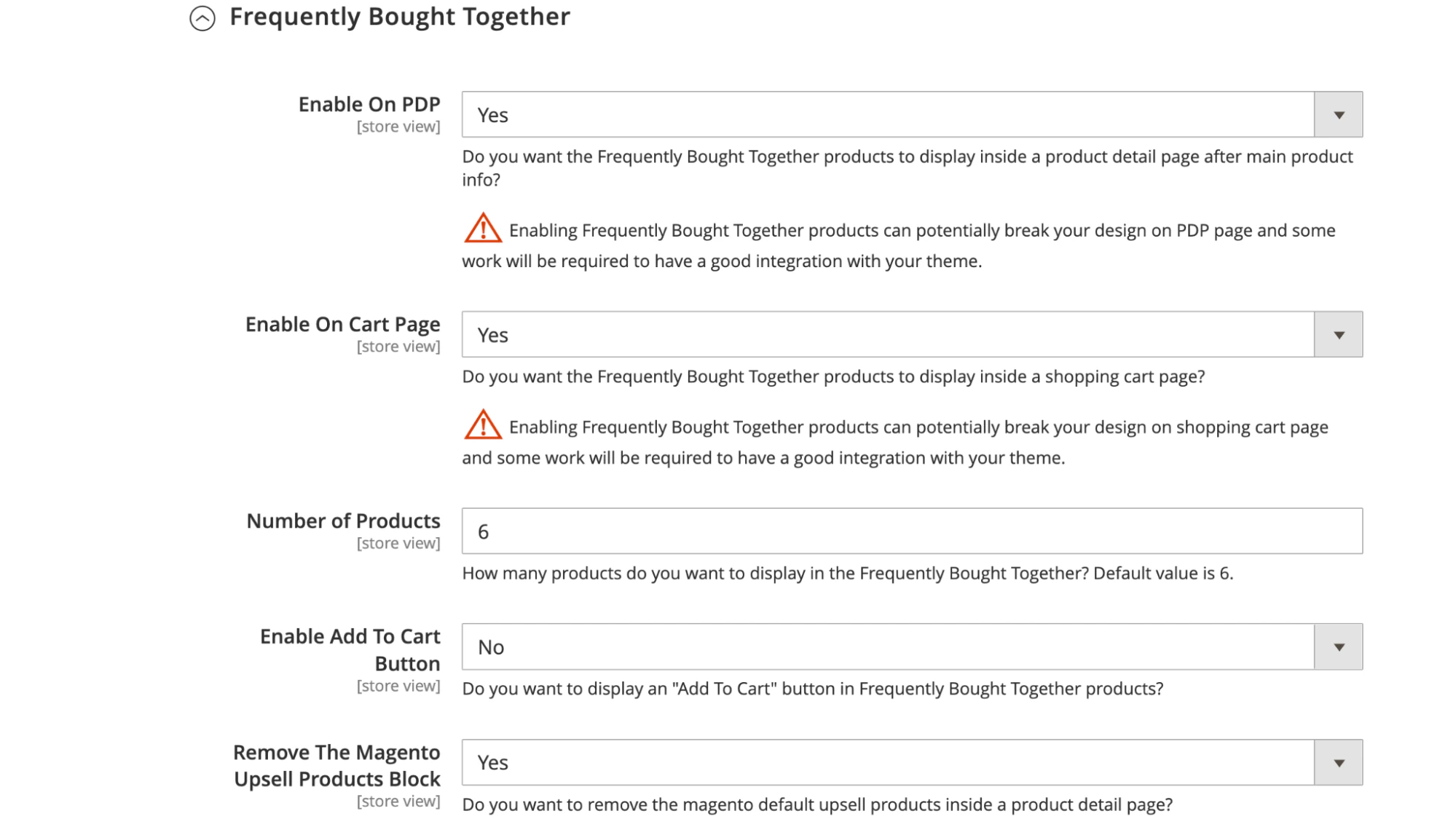 * Set **Enable on PDP** to **Yes** to show recommendations from this model on product detail pages below the main product information.
If you're using recommendations from Algolia's Frequently Bought Together model,
[remove the default upsell products](#remove-the-magento-related-items-block) from the user interface.
* Set **Enable on Cart Page** to **Yes** to show Frequently Bought Together recommendations on the shopping cart page below the **More choices** section.
#### Remove the Magento upsell products block
To hide Magento's default upsell products, set **Remove The Magento Upsell Products Block** to **Yes**.
### Related Items
* Set **Enable on PDP** to **Yes** to show recommendations from this model on product detail pages below the main product information.
If you're using recommendations from Algolia's Frequently Bought Together model,
[remove the default upsell products](#remove-the-magento-related-items-block) from the user interface.
* Set **Enable on Cart Page** to **Yes** to show Frequently Bought Together recommendations on the shopping cart page below the **More choices** section.
#### Remove the Magento upsell products block
To hide Magento's default upsell products, set **Remove The Magento Upsell Products Block** to **Yes**.
### Related Items
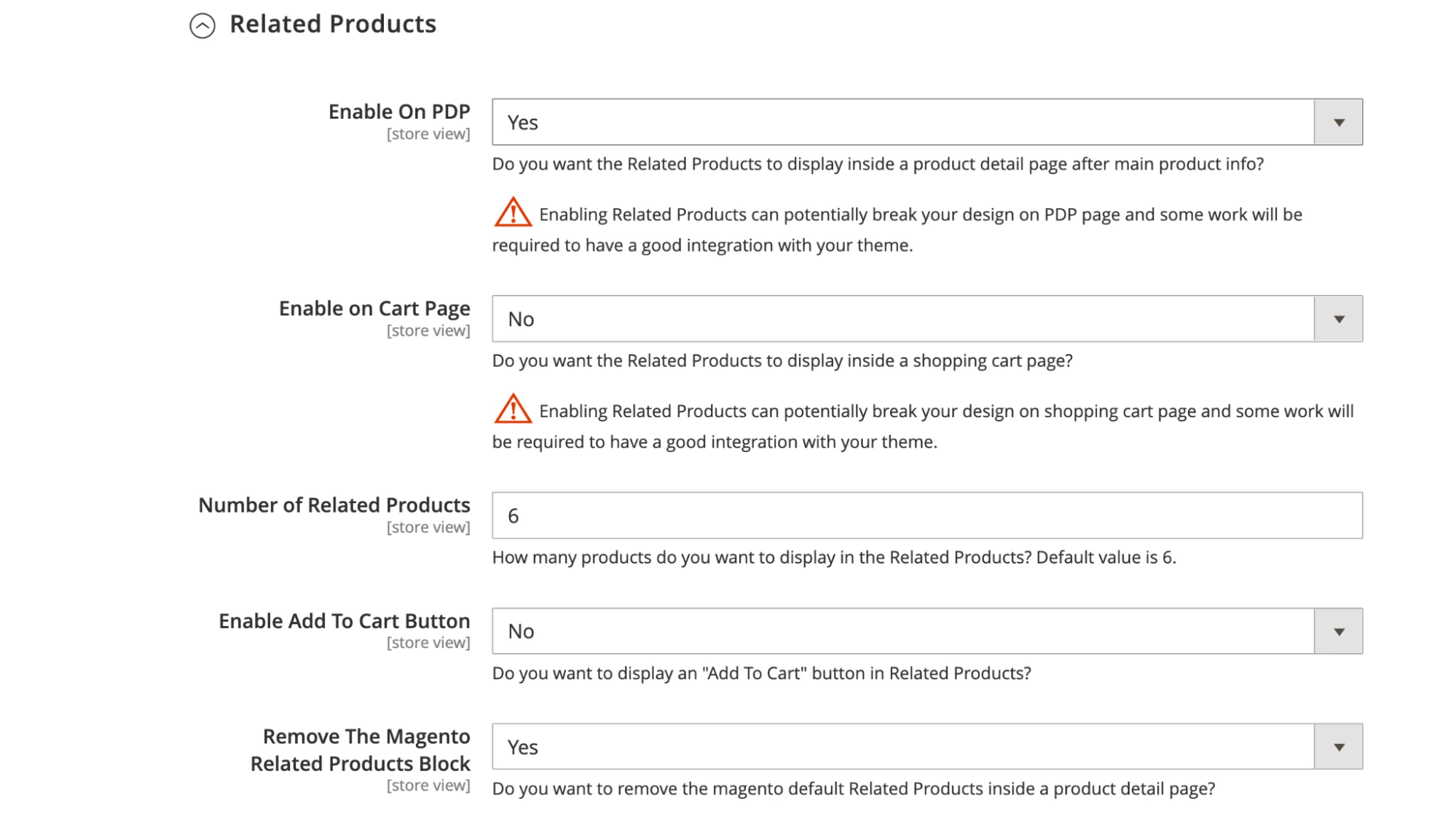 * Set **Enable on PDP** to **Yes** to show recommendations from this model on product detail pages.
The recommendations appear below the main product information after the Frequently Bought Together recommendations (if active).
If you're using recommendations from Algolia's Related Items model,
[remove the default related items](#remove-the-magento-related-items-block) from the user interface.
* Set **Enable on Cart Page** to **Yes** to show Related Items recommendations on the shopping cart page.
You can configure [content-based filtering](/doc/guides/algolia-recommend/how-to/set-up#train-the-recommend-models) in the Algolia dashboard.
#### Remove the Magento related items block
To hide Magento's default related items, set **Remove The Magento Related Items Block** to **Yes**.
### Trending Items
* Set **Enable on PDP** to **Yes** to show recommendations from this model on product detail pages.
The recommendations appear below the main product information after the Frequently Bought Together recommendations (if active).
If you're using recommendations from Algolia's Related Items model,
[remove the default related items](#remove-the-magento-related-items-block) from the user interface.
* Set **Enable on Cart Page** to **Yes** to show Related Items recommendations on the shopping cart page.
You can configure [content-based filtering](/doc/guides/algolia-recommend/how-to/set-up#train-the-recommend-models) in the Algolia dashboard.
#### Remove the Magento related items block
To hide Magento's default related items, set **Remove The Magento Related Items Block** to **Yes**.
### Trending Items
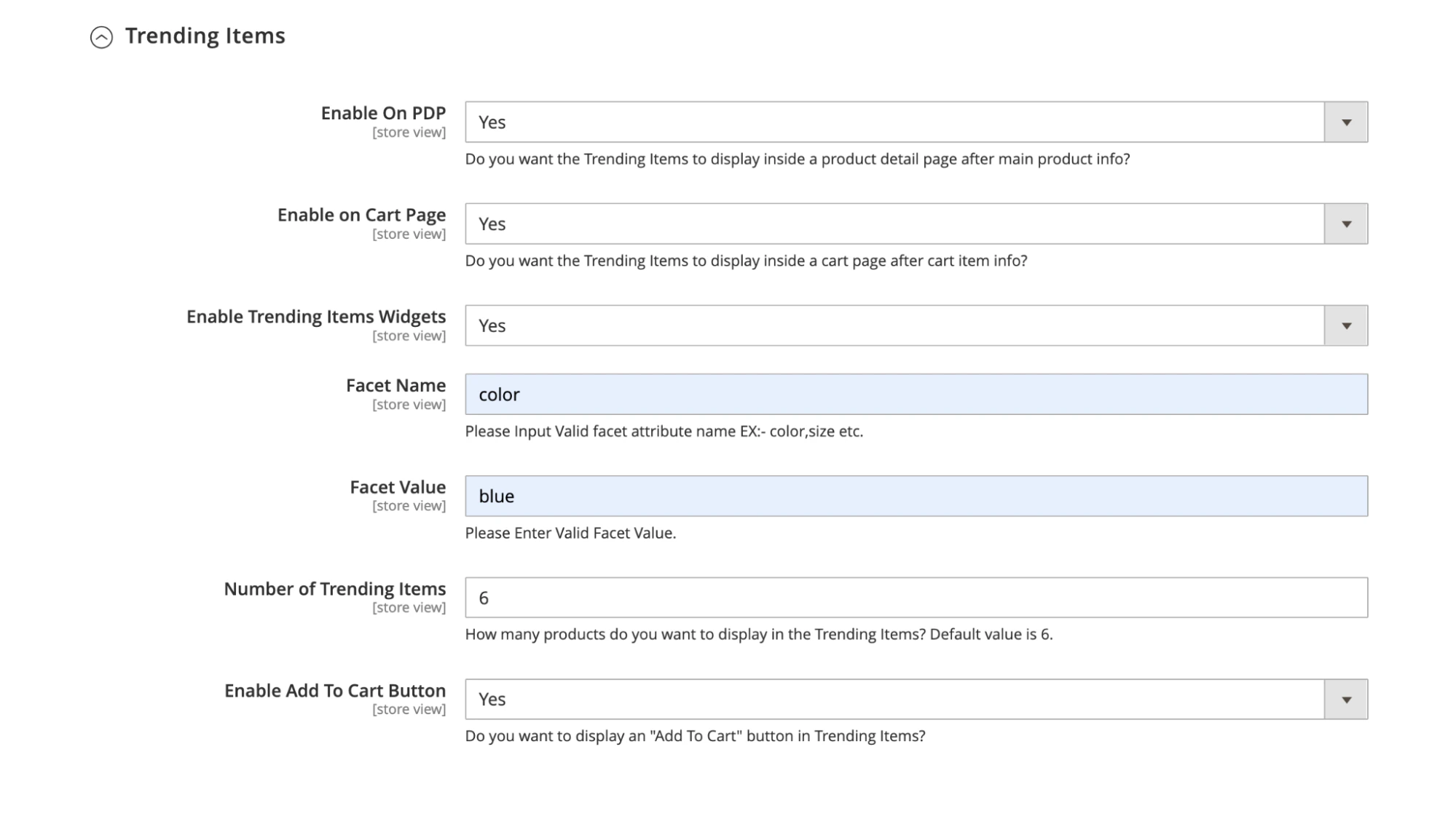 Display a list of trending items using the **Trending Items** model from Algolia Recommend on product detail,
shopping cart, and other pages.
* Set **Enable on PDP** to **Yes** to show the recommendations from the Trending Items model on product detail pages.
The recommendations appear below the main product information after the Frequently Bought Together and Related Items recommendations (if active).
* Set **Enable On Cart Page** to **Yes** to show the Trending Items recommendations on the shopping cart page.
* Set **Enable Trending Items Widgets** to **Yes** to show the Trending Items recommendations on the CMS pages where the Trending Items widget is present.
#### Configure the Trending Items widget
Add a Trending Items widget with the **Algolia Recommend Trending Items** widget.
Display a list of trending items using the **Trending Items** model from Algolia Recommend on product detail,
shopping cart, and other pages.
* Set **Enable on PDP** to **Yes** to show the recommendations from the Trending Items model on product detail pages.
The recommendations appear below the main product information after the Frequently Bought Together and Related Items recommendations (if active).
* Set **Enable On Cart Page** to **Yes** to show the Trending Items recommendations on the shopping cart page.
* Set **Enable Trending Items Widgets** to **Yes** to show the Trending Items recommendations on the CMS pages where the Trending Items widget is present.
#### Configure the Trending Items widget
Add a Trending Items widget with the **Algolia Recommend Trending Items** widget.
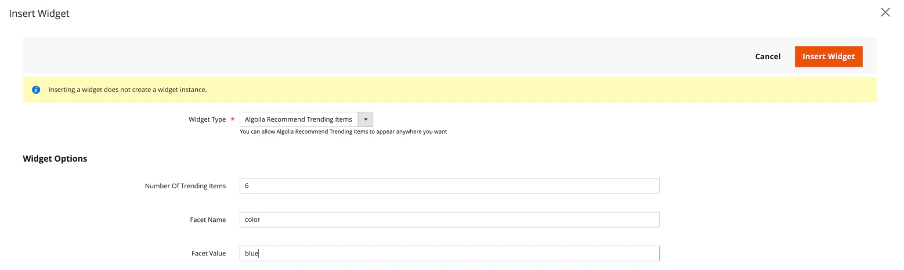 To configure this widget, add these details:
* **Number of Trending Items.** Select the number of recommendations you want to show in the widget.
* **Facet name.** Select a facet for filtering the recommendations. For example, `color`.
* **Facet value.** Select a value corresponding to the Facet name. For example, if you selected `color` as the facet name, selecting `blue` will only show blue products in your recommendations.
### Looking Similar
To configure this widget, add these details:
* **Number of Trending Items.** Select the number of recommendations you want to show in the widget.
* **Facet name.** Select a facet for filtering the recommendations. For example, `color`.
* **Facet value.** Select a value corresponding to the Facet name. For example, if you selected `color` as the facet name, selecting `blue` will only show blue products in your recommendations.
### Looking Similar
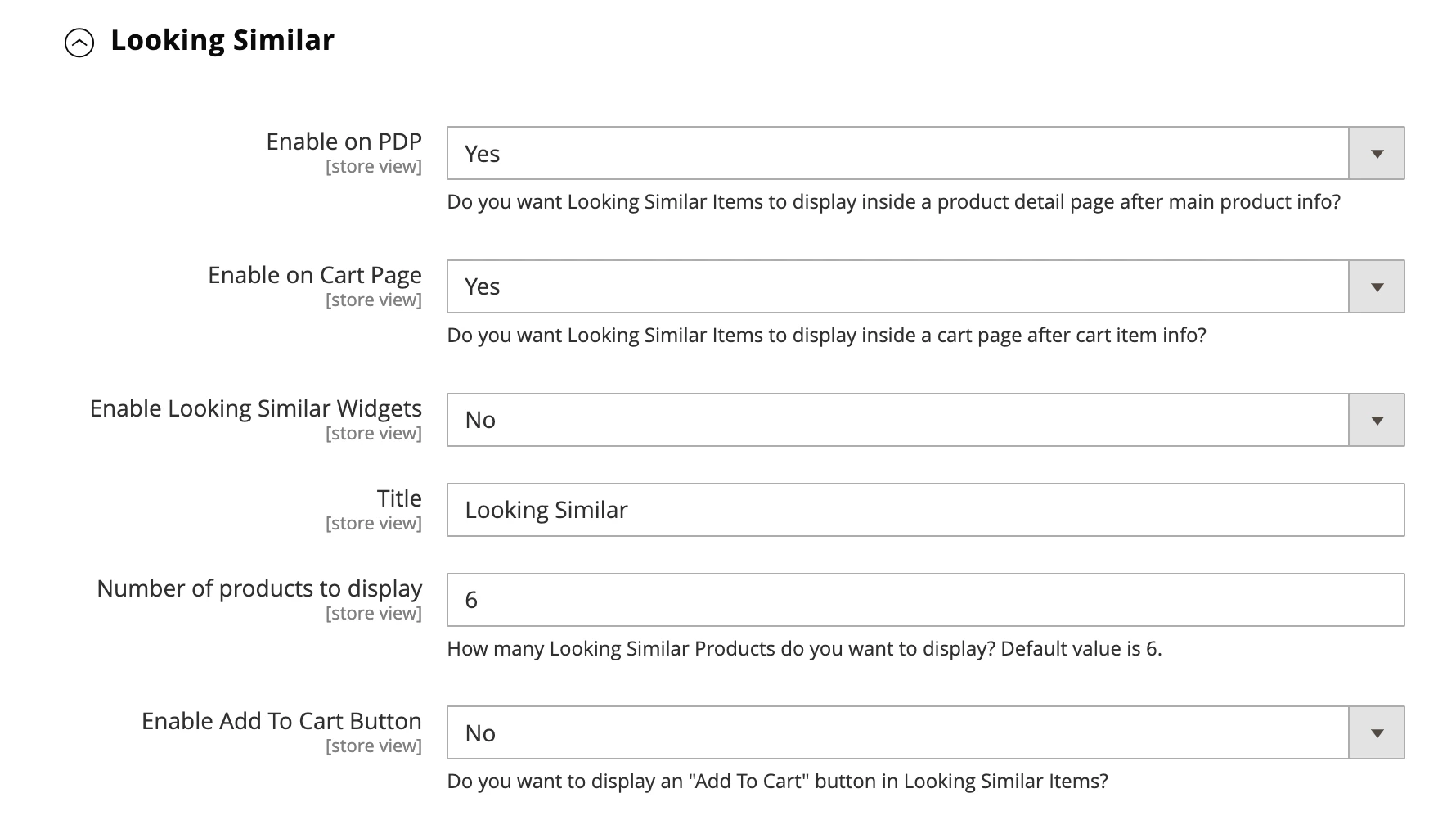 Display a list of similar-looking items using the **Looking Similar** model from Algolia Recommend on the product detail,
shopping cart, and other pages.
* Set **Enable on PDP** to **Yes** to show similar-looking items at the bottom of the product detail page.
* Set **Enable On Cart Page** to **Yes** to show similar-looking items on the cart page.
* Set **Enable Looking Similar Widgets** to **Yes** to show similar-looking items on the CMS or other pages where widgets can be added.
#### Configure Looking Similar widgets
Create a widget with the **Algolia Looking Similar Items** widget.
Display a list of similar-looking items using the **Looking Similar** model from Algolia Recommend on the product detail,
shopping cart, and other pages.
* Set **Enable on PDP** to **Yes** to show similar-looking items at the bottom of the product detail page.
* Set **Enable On Cart Page** to **Yes** to show similar-looking items on the cart page.
* Set **Enable Looking Similar Widgets** to **Yes** to show similar-looking items on the CMS or other pages where widgets can be added.
#### Configure Looking Similar widgets
Create a widget with the **Algolia Looking Similar Items** widget.
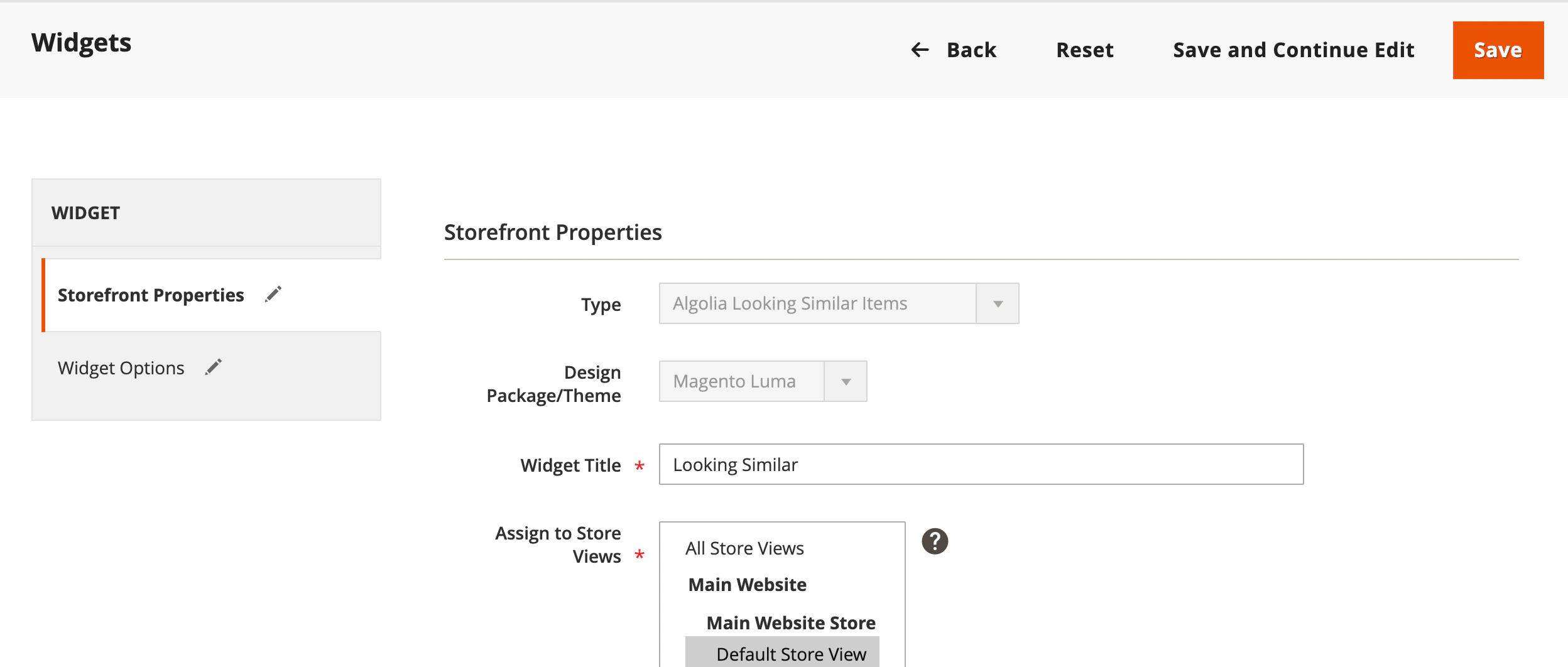 To configure this widget, add these details:
* **Number of Looking Similar Items.** Select the number of similar-looking items you want to show in the widget. Default is 6.
* **Product IDs** (required). Enter product IDs (separated by commas).
### Change the layout of Algolia Recommend models
#### Frequently Bought Together, Related Items and Trending Items
[Override](https://developer.adobe.com/commerce/frontend-core/guide/layouts/override) the file [`view/frontend/web/js/template/recommend/products.js`](https://github.com/algolia/algoliasearch-magento-2/blob/master/view/frontend/web/js/template/recommend/products.js) from the original extension.
### Add fallback recommendation
Fallback recommendations are shown when the Algolia Recommend model doesn't return any recommendations.
This can happen when a product doesn't have enough events associated with it.
You can show fallback recommendations with `fallbackParameters` and `fallbackComponent`.
To add fallback recommendations, [override](https://developer.adobe.com/commerce/frontend-core/guide/layouts/override) the file `view/frontend/web/js/recommend.js` from the original extension.
The `fallbackParameters` for each model's [`requests`](/doc/rest-api/recommend/get-recommendations#body-requests) object has search parameters to use as an alternative when no recommendations are available.
Add `fallbackParameters` to the following files as needed:
* [Related Items](https://github.com/algolia/algoliasearch-magento-2/blob/master/view/frontend/web/js/recommend.js#L34-L47)
* [Trending Items](https://github.com/algolia/algoliasearch-magento-2/blob/master/view/frontend/web/js/recommend.js#L34-L47)
For example:
```js JavaScript icon=code theme={"system"}
recommendJs.relatedProducts({
container: "#relatedProducts",
recommendClient,
indexName,
objectIDs: currentObjectID,
maxRecommendations: this.config.recommend.limitRelatedProducts,
fallbackParameters: {
numericFilters: ["ordered_qty > 2"],
},
itemComponent({ item, createElement, Fragment }) {
if (config.recommend.isAddToCartEnabledInRelatedProduct) {
return renderRecommendDataWithAddToCart(item, createElement);
} else {
return renderRecommendData(item, createElement);
}
},
});
```
[`fallbackComponent`](https://algolia.com/old-docs/deprecated/recommend/api-reference/recommend-js/frequentlyBoughtTogether/#param-fallbackcomponent) is used for rendering when no recommendations are returned. Add [`fallbackComponent`](https://algolia.com/old-docs/deprecated/recommend/api-reference/recommend-js/frequentlyBoughtTogether/#param-fallbackcomponent) to the following files as needed:
* [Frequently Bought Together](https://github.com/algolia/algoliasearch-magento-2/blob/master/view/frontend/web/js/recommend.js#L24)
For example:
```js JavaScript expandable theme={"system"}
recommendJs.frequentlyBoughtTogether({
container: "#frequentlyBoughtTogether",
recommendClient,
indexName,
objectIDs: config.algoliObjectId,
maxRecommendations: algoliaConfig.recommend.limitFBTProducts,
transformItems: function (items) {
return items.map((item, index) => ({
...item,
position: index + 1,
}));
},
headerComponent({ html }) {
return recommendProductsHtml.getHeaderHtml(
html,
algoliaConfig.recommend.FBTTitle,
);
},
itemComponent({ item, html }) {
return recommendProductsHtml.getItemHtml(
item,
html,
algoliaConfig.recommend.isAddToCartEnabledInFBT,
);
},
fallbackComponent() {
recommendJs.relatedProducts({
container: "#frequentlyBoughtTogether",
recommendClient,
indexName,
objectIDs: config.algoliObjectId,
maxRecommendations: algoliaConfig.recommend.limitRelatedProducts,
transformItems: function (items) {
return items.map((item, index) => ({
...item,
position: index + 1,
}));
},
headerComponent({ html }) {
return recommendProductsHtml.getHeaderHtml(
html,
algoliaConfig.recommend.relatedProductsTitle,
);
},
itemComponent({ item, html }) {
return recommendProductsHtml.getItemHtml(
item,
html,
algoliaConfig.recommend.isAddToCartEnabledInRelatedProduct,
);
},
});
},
});
```
## Customize styles
To customize the style of the recommendations,
[update `view/frontend/web/css/recommend.css`](https://developer.adobe.com/commerce/frontend-core/guide/layouts/override).
To configure this widget, add these details:
* **Number of Looking Similar Items.** Select the number of similar-looking items you want to show in the widget. Default is 6.
* **Product IDs** (required). Enter product IDs (separated by commas).
### Change the layout of Algolia Recommend models
#### Frequently Bought Together, Related Items and Trending Items
[Override](https://developer.adobe.com/commerce/frontend-core/guide/layouts/override) the file [`view/frontend/web/js/template/recommend/products.js`](https://github.com/algolia/algoliasearch-magento-2/blob/master/view/frontend/web/js/template/recommend/products.js) from the original extension.
### Add fallback recommendation
Fallback recommendations are shown when the Algolia Recommend model doesn't return any recommendations.
This can happen when a product doesn't have enough events associated with it.
You can show fallback recommendations with `fallbackParameters` and `fallbackComponent`.
To add fallback recommendations, [override](https://developer.adobe.com/commerce/frontend-core/guide/layouts/override) the file `view/frontend/web/js/recommend.js` from the original extension.
The `fallbackParameters` for each model's [`requests`](/doc/rest-api/recommend/get-recommendations#body-requests) object has search parameters to use as an alternative when no recommendations are available.
Add `fallbackParameters` to the following files as needed:
* [Related Items](https://github.com/algolia/algoliasearch-magento-2/blob/master/view/frontend/web/js/recommend.js#L34-L47)
* [Trending Items](https://github.com/algolia/algoliasearch-magento-2/blob/master/view/frontend/web/js/recommend.js#L34-L47)
For example:
```js JavaScript icon=code theme={"system"}
recommendJs.relatedProducts({
container: "#relatedProducts",
recommendClient,
indexName,
objectIDs: currentObjectID,
maxRecommendations: this.config.recommend.limitRelatedProducts,
fallbackParameters: {
numericFilters: ["ordered_qty > 2"],
},
itemComponent({ item, createElement, Fragment }) {
if (config.recommend.isAddToCartEnabledInRelatedProduct) {
return renderRecommendDataWithAddToCart(item, createElement);
} else {
return renderRecommendData(item, createElement);
}
},
});
```
[`fallbackComponent`](https://algolia.com/old-docs/deprecated/recommend/api-reference/recommend-js/frequentlyBoughtTogether/#param-fallbackcomponent) is used for rendering when no recommendations are returned. Add [`fallbackComponent`](https://algolia.com/old-docs/deprecated/recommend/api-reference/recommend-js/frequentlyBoughtTogether/#param-fallbackcomponent) to the following files as needed:
* [Frequently Bought Together](https://github.com/algolia/algoliasearch-magento-2/blob/master/view/frontend/web/js/recommend.js#L24)
For example:
```js JavaScript expandable theme={"system"}
recommendJs.frequentlyBoughtTogether({
container: "#frequentlyBoughtTogether",
recommendClient,
indexName,
objectIDs: config.algoliObjectId,
maxRecommendations: algoliaConfig.recommend.limitFBTProducts,
transformItems: function (items) {
return items.map((item, index) => ({
...item,
position: index + 1,
}));
},
headerComponent({ html }) {
return recommendProductsHtml.getHeaderHtml(
html,
algoliaConfig.recommend.FBTTitle,
);
},
itemComponent({ item, html }) {
return recommendProductsHtml.getItemHtml(
item,
html,
algoliaConfig.recommend.isAddToCartEnabledInFBT,
);
},
fallbackComponent() {
recommendJs.relatedProducts({
container: "#frequentlyBoughtTogether",
recommendClient,
indexName,
objectIDs: config.algoliObjectId,
maxRecommendations: algoliaConfig.recommend.limitRelatedProducts,
transformItems: function (items) {
return items.map((item, index) => ({
...item,
position: index + 1,
}));
},
headerComponent({ html }) {
return recommendProductsHtml.getHeaderHtml(
html,
algoliaConfig.recommend.relatedProductsTitle,
);
},
itemComponent({ item, html }) {
return recommendProductsHtml.getItemHtml(
item,
html,
algoliaConfig.recommend.isAddToCartEnabledInRelatedProduct,
);
},
});
},
});
```
## Customize styles
To customize the style of the recommendations,
[update `view/frontend/web/css/recommend.css`](https://developer.adobe.com/commerce/frontend-core/guide/layouts/override).