> ## Documentation Index
> Fetch the complete documentation index at: https://algolia.com/llms.txt
> Use this file to discover all available pages before exploring further.
# Visual category merchandising
> Learn how to merchandise products on Algolia powered category pages in the Algolia extension for Magento 2
export const ConversionRate = () =>
conversion rate (CVR)
;
The Visual Category Merchandising tool lets you customize product display on Algolia-powered category pages,
which can help improve your online store's .
You can find this tool on the edit page of a category,
in the **Algolia Merchandising** tab.
For more merchandising features, see [Visual merchandising](/doc/integration/magento-2/merchandising/visual-merchandising).
## Merchandising
The Visual Merchandiser lets you manage the order in which products are shown on a category page.
Through the drag-and-drop feature,
or the arrow keys, products can be moved up or down in the hierarchy to move them to the desired position.
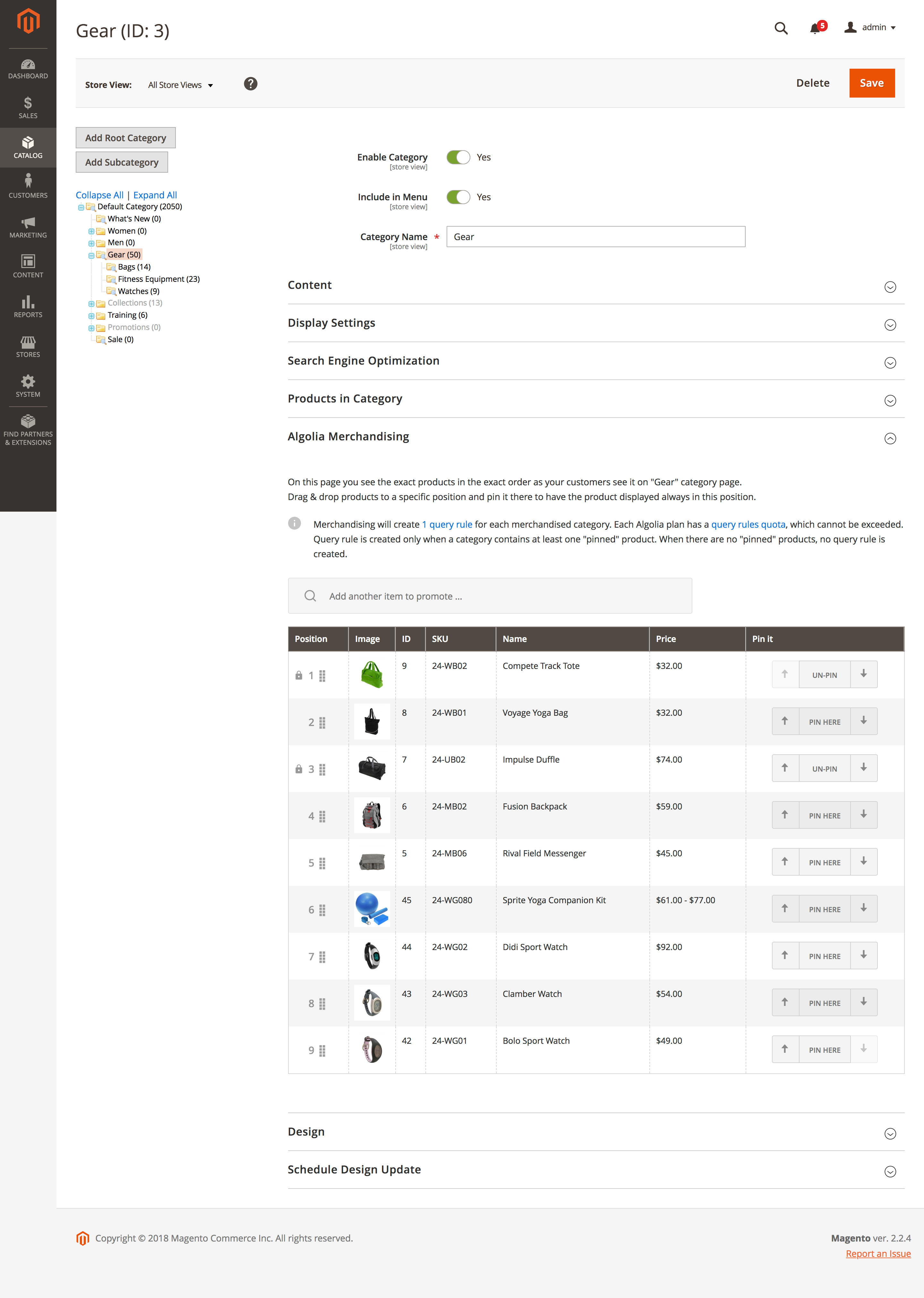 Products can be pinned to a position.
This means this product **always** shows up at the position it's pinned.
To unpin a product, click **Un-pin**.
The Visual Merchandiser only displays the first page of results in the admin section of Magento.
To pin products from any other page, use the autocomplete menu to find the desired product.
This autocomplete menu only shows products from the current category.
When you select a product from this menu, it's automatically pinned to the first position.
You can move the product up or down for pinning it to other positions.
Products can be pinned to a position.
This means this product **always** shows up at the position it's pinned.
To unpin a product, click **Un-pin**.
The Visual Merchandiser only displays the first page of results in the admin section of Magento.
To pin products from any other page, use the autocomplete menu to find the desired product.
This autocomplete menu only shows products from the current category.
When you select a product from this menu, it's automatically pinned to the first position.
You can move the product up or down for pinning it to other positions.
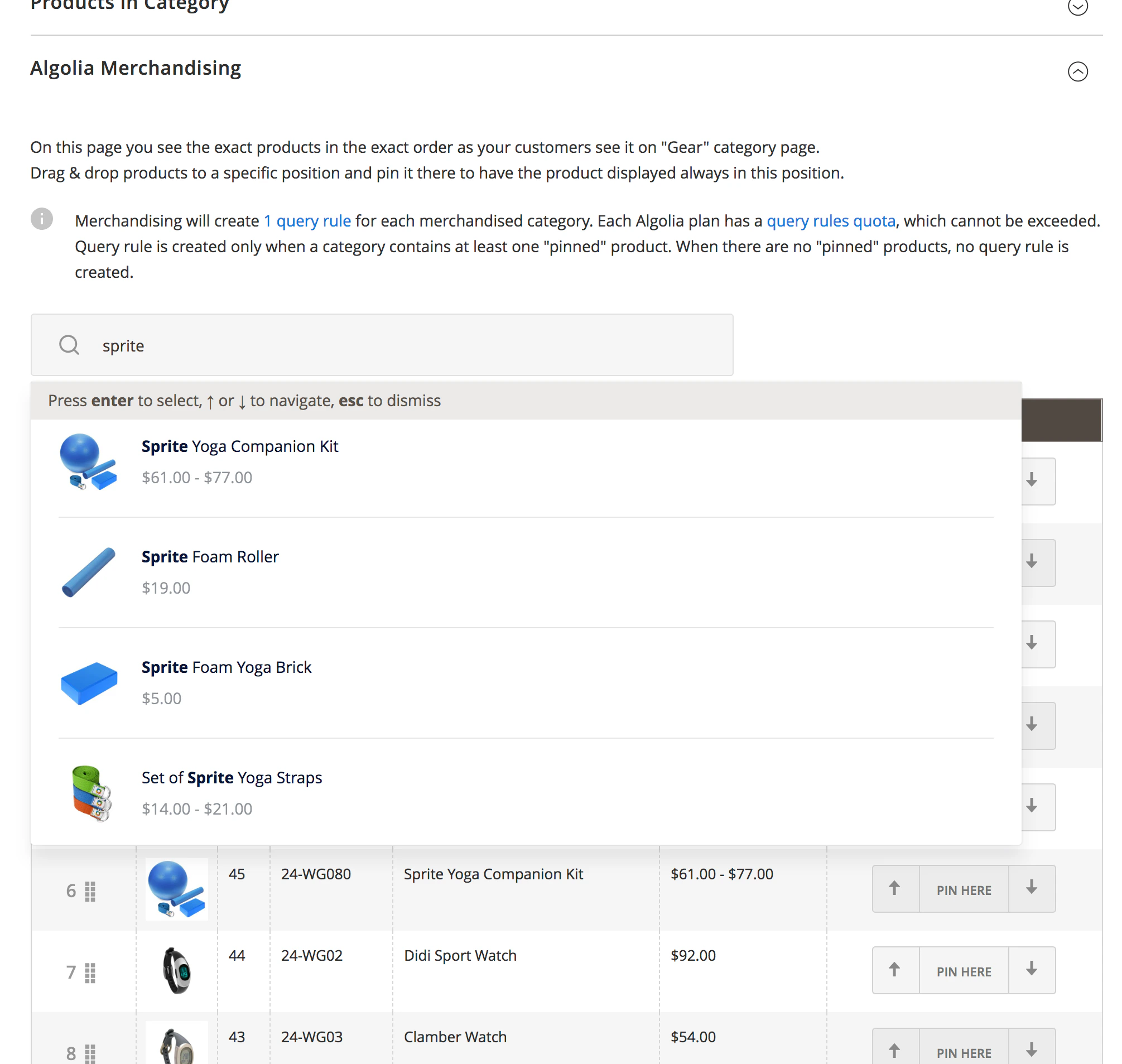 All pinned positions are saved when the whole category is saved.
## Rules
The Visual Merchandising Tool uses [Rules](/doc/guides/managing-results/rules/rules-overview)
to pin products to a certain position.
To preserve the position of these products,
a query rule is created for every category with *at least* one pinned product.
All pinned positions are saved when the whole category is saved.
## Rules
The Visual Merchandising Tool uses [Rules](/doc/guides/managing-results/rules/rules-overview)
to pin products to a certain position.
To preserve the position of these products,
a query rule is created for every category with *at least* one pinned product.