> ## Documentation Index
> Fetch the complete documentation index at: https://algolia.com/llms.txt
> Use this file to discover all available pages before exploring further.
# Landing Page Builder
> Boost your organic reach by creating dynamic landing pages from Algolia results.
export const SearchQuery = () =>
search query
;
export const Filter = () =>
filter
;
export const ConversionRate = () =>
conversion rate (CVR)
;
With the Landing Page Builder,
you can create a page with a custom URL, custom content, and
a merchandised product listing with a pre-filled and selection.
With the Landing Page Builder, you can:
* Create new pages in a few clicks, displaying the results for a certain keyword.
* Fine-tune your SEO by adding content or promotional banners.
* Promote specific products and offer tailored results using the merchandising tool.
You can use this to:
* Create promotional pages for limited campaigns and special sales.
* Catch traffic from search engines for products you don't have yet, and advertise alternative products.
* Offer dedicated pages to your most popular search queries, to improve .
## Get started
You can access the Landing Page Builder directly from your Magento back office.
In the main menu, go to
**Stores > Algolia Search > Merchandising > Landing Page Builder**.
### Landing page listing
On the merchandising page, you can find the landing page listing.
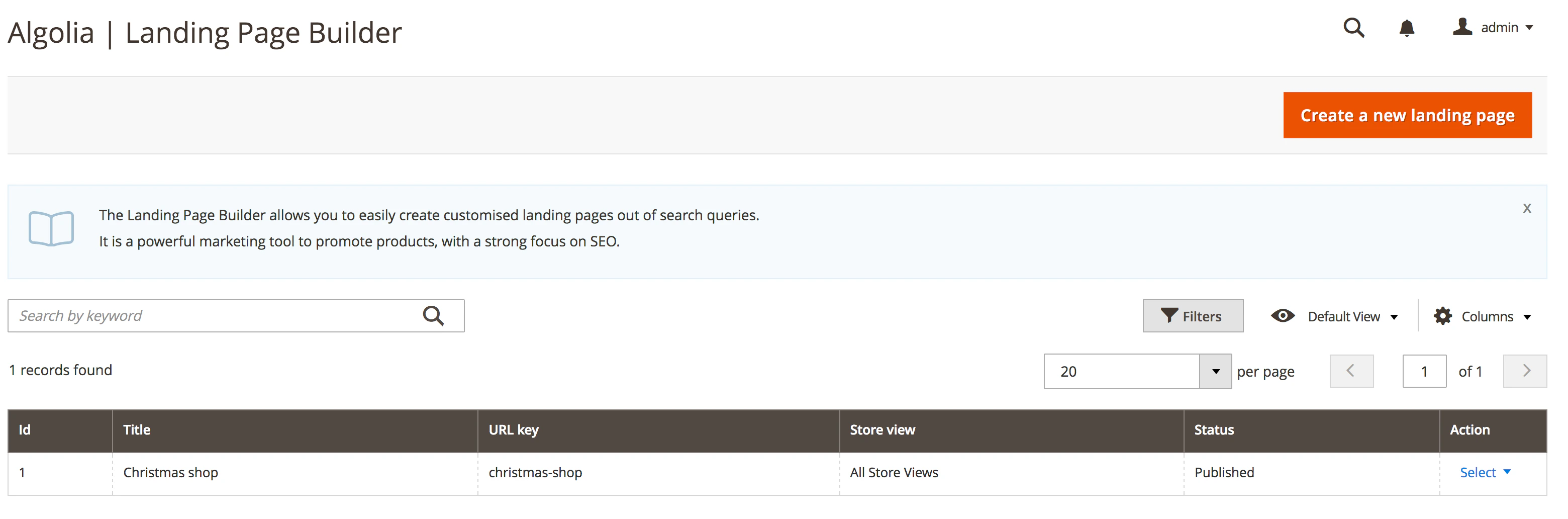 The listing contains six columns:
* **ID**: Magento identifier of the landing page (used to set the correct context of your pages)
* **Store view**: Determines on which store the landing page is displayed
* **Title**: Title of the Landing page
* **URL key**: Path of the landing page inside your store view. This is where your page will be on the site.
* **Status**: Determines whether the landing page is published or not.
* **Action**: List the actions available for the landing page:
* **Edit** the landing page (see the following section)
* **Duplicate** the landing page. A new landing page with the same settings is created with a temporary URL key.
* **Delete** the landing page (this completely removes the landing page, its URL rewrites, and its configuration inside the Algolia dashboard)
If no landing page has been created yet, a link to create a new landing page will be displayed.
You can also use the **Create a new landing page** button to create a new landing page.
### Create and edit a landing page
The edit page will open when you edit, create, or duplicate a landing page.
The edit page contains the following buttons:
* **Back**: return to the landing pages listing.
* **Delete**: delete the current landing page and return to the landing pages listing.
* **Duplicate**: duplicate the current landing page with a temporary URL and go to the newly created landing page.
* **View**: open a new tab in your browser and display the landing page on the frontend.
* **Save and continue edit**: save the landing page and stay on the page.
* **Save**: save the landing page and return to the landing pages listing.
The edit page consists of three sections, the *Page Settings*, *CMS Editor*, and *Displayed Products*:
#### Page settings
In this section, you can change and configure the SEO of the current landing page.
The listing contains six columns:
* **ID**: Magento identifier of the landing page (used to set the correct context of your pages)
* **Store view**: Determines on which store the landing page is displayed
* **Title**: Title of the Landing page
* **URL key**: Path of the landing page inside your store view. This is where your page will be on the site.
* **Status**: Determines whether the landing page is published or not.
* **Action**: List the actions available for the landing page:
* **Edit** the landing page (see the following section)
* **Duplicate** the landing page. A new landing page with the same settings is created with a temporary URL key.
* **Delete** the landing page (this completely removes the landing page, its URL rewrites, and its configuration inside the Algolia dashboard)
If no landing page has been created yet, a link to create a new landing page will be displayed.
You can also use the **Create a new landing page** button to create a new landing page.
### Create and edit a landing page
The edit page will open when you edit, create, or duplicate a landing page.
The edit page contains the following buttons:
* **Back**: return to the landing pages listing.
* **Delete**: delete the current landing page and return to the landing pages listing.
* **Duplicate**: duplicate the current landing page with a temporary URL and go to the newly created landing page.
* **View**: open a new tab in your browser and display the landing page on the frontend.
* **Save and continue edit**: save the landing page and stay on the page.
* **Save**: save the landing page and return to the landing pages listing.
The edit page consists of three sections, the *Page Settings*, *CMS Editor*, and *Displayed Products*:
#### Page settings
In this section, you can change and configure the SEO of the current landing page.
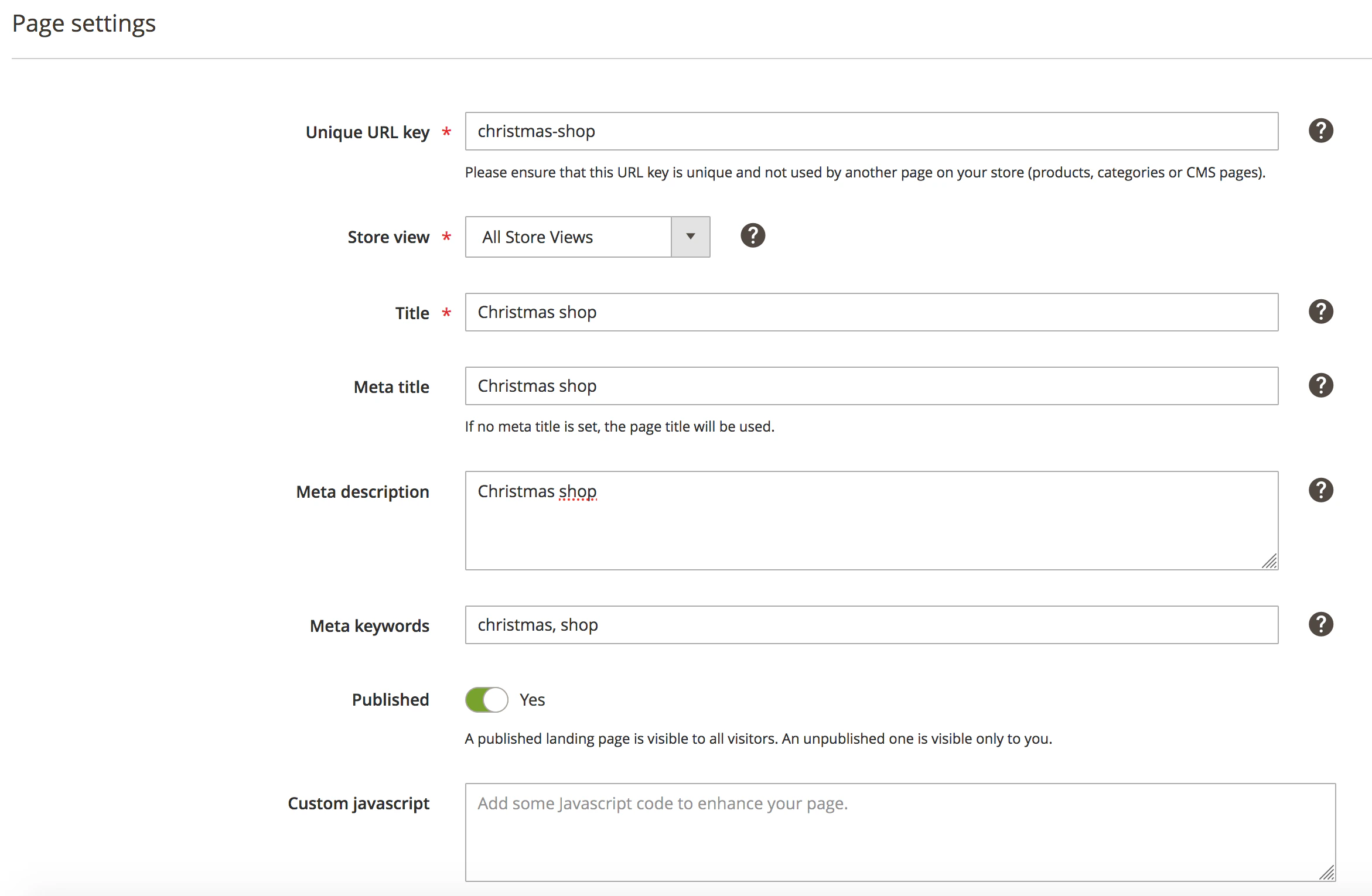 The settings are composed of these fields:
* **Unique URL key**: Path of the landing page inside your store view (a uniqueness check is performed each time you change it to be sure that the URL is available).
* **Store view**: By default, set to "All stores", but you can specify a particular store if needed.
* **Title**: Sets the main title of the page (**h1 tag**)
* **Meta title**: Sets the content of the **title** tag
* **Meta description**: Sets the content of the **meta description** tag
* **Meta keywords**: Sets the content of the **meta keywords** tag
* **Published**: Publish or un-publish a landing page (if the page is unpublished, it won't be accessible on the frontend)
* **Custom JavaScript**: Add custom JavaScript.
* **Custom CSS**: Add custom CSS.
The created landing page will be available on the URL you set.
You can view the page directly by clicking **View** or by going to the URL in your browser.
Once this page is saved, the extension will automatically create an entry into the URL rewrite table of Magento, to ensure it remains safe and is not overridden by another module.
#### CMS editor
This section contains a native Magento CMS editor which lets you add content at the top of your landing page.
The settings are composed of these fields:
* **Unique URL key**: Path of the landing page inside your store view (a uniqueness check is performed each time you change it to be sure that the URL is available).
* **Store view**: By default, set to "All stores", but you can specify a particular store if needed.
* **Title**: Sets the main title of the page (**h1 tag**)
* **Meta title**: Sets the content of the **title** tag
* **Meta description**: Sets the content of the **meta description** tag
* **Meta keywords**: Sets the content of the **meta keywords** tag
* **Published**: Publish or un-publish a landing page (if the page is unpublished, it won't be accessible on the frontend)
* **Custom JavaScript**: Add custom JavaScript.
* **Custom CSS**: Add custom CSS.
The created landing page will be available on the URL you set.
You can view the page directly by clicking **View** or by going to the URL in your browser.
Once this page is saved, the extension will automatically create an entry into the URL rewrite table of Magento, to ensure it remains safe and is not overridden by another module.
#### CMS editor
This section contains a native Magento CMS editor which lets you add content at the top of your landing page.
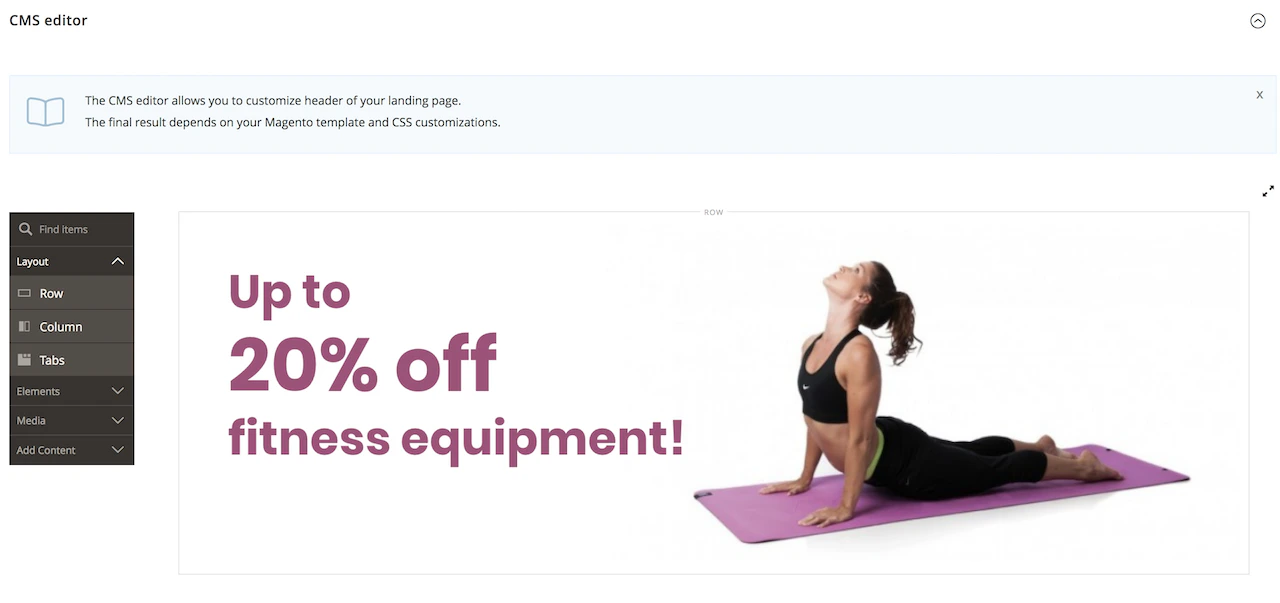 By default, the content is displayed between the main menu and the product listing,
but you can change the position if needed with a standard layout override.
#### Displayed products and merchandising
By default, the content is displayed between the main menu and the product listing,
but you can change the position if needed with a standard layout override.
#### Displayed products and merchandising
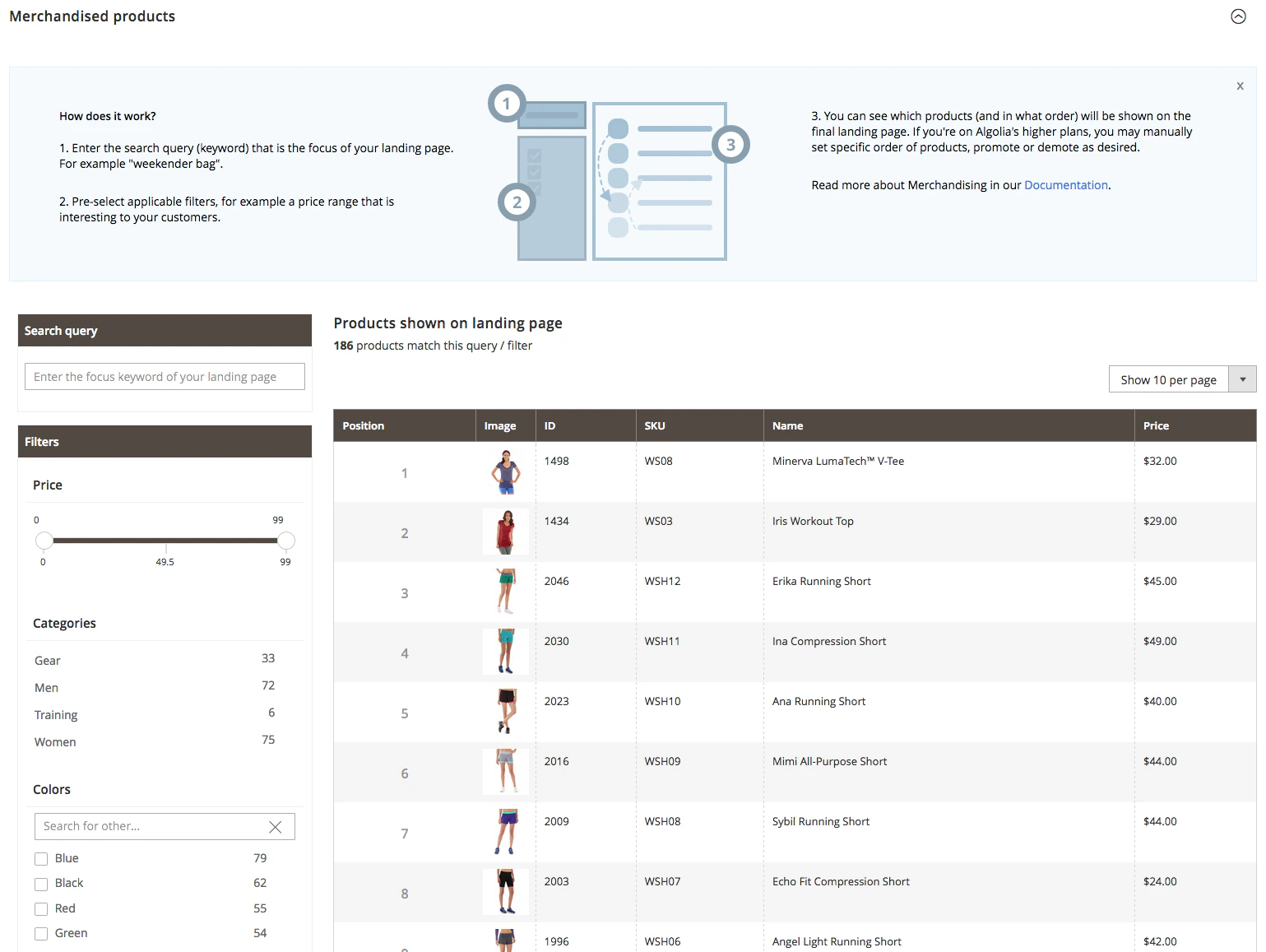 This section is divided into three parts:
* **The search query field**: pre-fill the search input on your landing page. The products shown on the page will adapt to the keyword you type here, so you should choose a search term in relation to your landing page theme.
* **The applicable pre-selected filters**: apply filters by default on your landing page.
* **The merchandised product listing**: visualize which products are displayed on the page.
If you're on Algolia's higher plans,
you can also manually set a specific order of products,
by promoting or demoting as desired.
You can also use the search box to add products that you would like to see on this page.
The page is pre-filled with the query and filters you set here,
and products are displayed in the order they're set in the merchandised product listing.
As soon as you pin at least one product and you save the landing page,
a [rule](/doc/guides/managing-results/rules/rules-overview)
related to this landing page (context: `magento-landingpage-[landingpageID]`)
is created inside the relevant product indices in your Algolia dashboard.
This query rule will be automatically deleted if you delete the landing page in the Magento back office.
These landing pages are managed by the caching system of your server.
To see the changes after editing them in the back office,
you might need to clear the Magento cache.
This section is divided into three parts:
* **The search query field**: pre-fill the search input on your landing page. The products shown on the page will adapt to the keyword you type here, so you should choose a search term in relation to your landing page theme.
* **The applicable pre-selected filters**: apply filters by default on your landing page.
* **The merchandised product listing**: visualize which products are displayed on the page.
If you're on Algolia's higher plans,
you can also manually set a specific order of products,
by promoting or demoting as desired.
You can also use the search box to add products that you would like to see on this page.
The page is pre-filled with the query and filters you set here,
and products are displayed in the order they're set in the merchandised product listing.
As soon as you pin at least one product and you save the landing page,
a [rule](/doc/guides/managing-results/rules/rules-overview)
related to this landing page (context: `magento-landingpage-[landingpageID]`)
is created inside the relevant product indices in your Algolia dashboard.
This query rule will be automatically deleted if you delete the landing page in the Magento back office.
These landing pages are managed by the caching system of your server.
To see the changes after editing them in the back office,
you might need to clear the Magento cache.