> ## Documentation Index
> Fetch the complete documentation index at: https://algolia.com/llms.txt
> Use this file to discover all available pages before exploring further.
# Backend issues
> Technical troubleshooting - backend issues.
export const Records = () =>
records
;
export const Index = () =>
index
;
If you encounter an issue,
ensure your Algolia Magento Open Source and Adobe Commerce extension is up to date.
A new release may have fixed your issue, and you'll also benefit from improvements to the extension's performance and security.
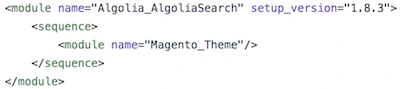
**To check the extension's version,** check the [GitHub repository](https://github.com/algolia/algoliasearch-magento-2/releases). Compare this version to the version stated in the `etc/module.xml` file in your Magento installation:
 You can also check for updates from Algolia's [dashboard](https://dashboard.algolia.com/dashboard).
Find the API clients using your indices by going to **Monitoring > Operations > API Client**. If a new version is available, it will be displayed next to the version in use.
You can also check for updates from Algolia's [dashboard](https://dashboard.algolia.com/dashboard).
Find the API clients using your indices by going to **Monitoring > Operations > API Client**. If a new version is available, it will be displayed next to the version in use.
 To update the extension, read the [upgrading](/doc/integration/magento-2/getting-started/upgrading) guide.
## Understand how your Magento configuration determines the number of indices to create
You must add your account credentials when setting up the extension for the first time. The extension will then automatically add all the indices your account requires. You can check which indices have been created from Algolia's [dashboard](https://dashboard.algolia.com/dashboard) if you wish.
### Sorting
By default, the extension creates **three** [replicas](/doc/guides/managing-results/refine-results/sorting/how-to/creating-replicas) for each product .
These replicas are directly related to the sorting configuration in the InstantSearch section.
To update the extension, read the [upgrading](/doc/integration/magento-2/getting-started/upgrading) guide.
## Understand how your Magento configuration determines the number of indices to create
You must add your account credentials when setting up the extension for the first time. The extension will then automatically add all the indices your account requires. You can check which indices have been created from Algolia's [dashboard](https://dashboard.algolia.com/dashboard) if you wish.
### Sorting
By default, the extension creates **three** [replicas](/doc/guides/managing-results/refine-results/sorting/how-to/creating-replicas) for each product .
These replicas are directly related to the sorting configuration in the InstantSearch section.
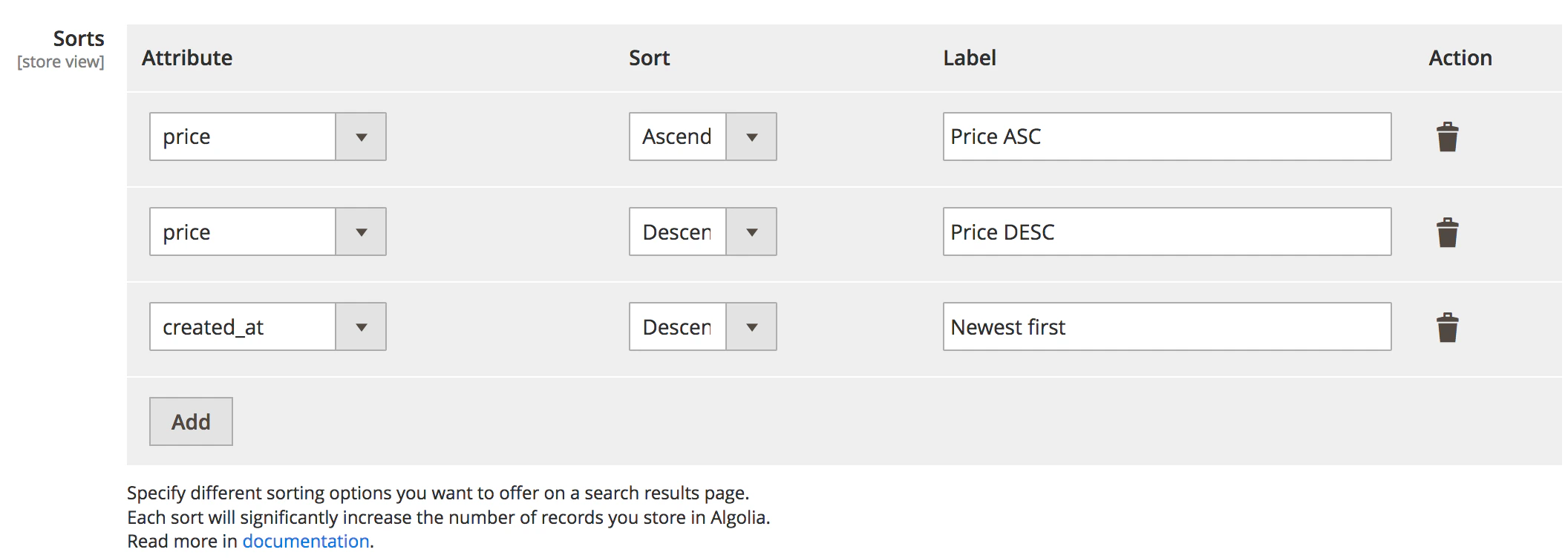 Modifying sorting directly affects the number of created .
### Indices
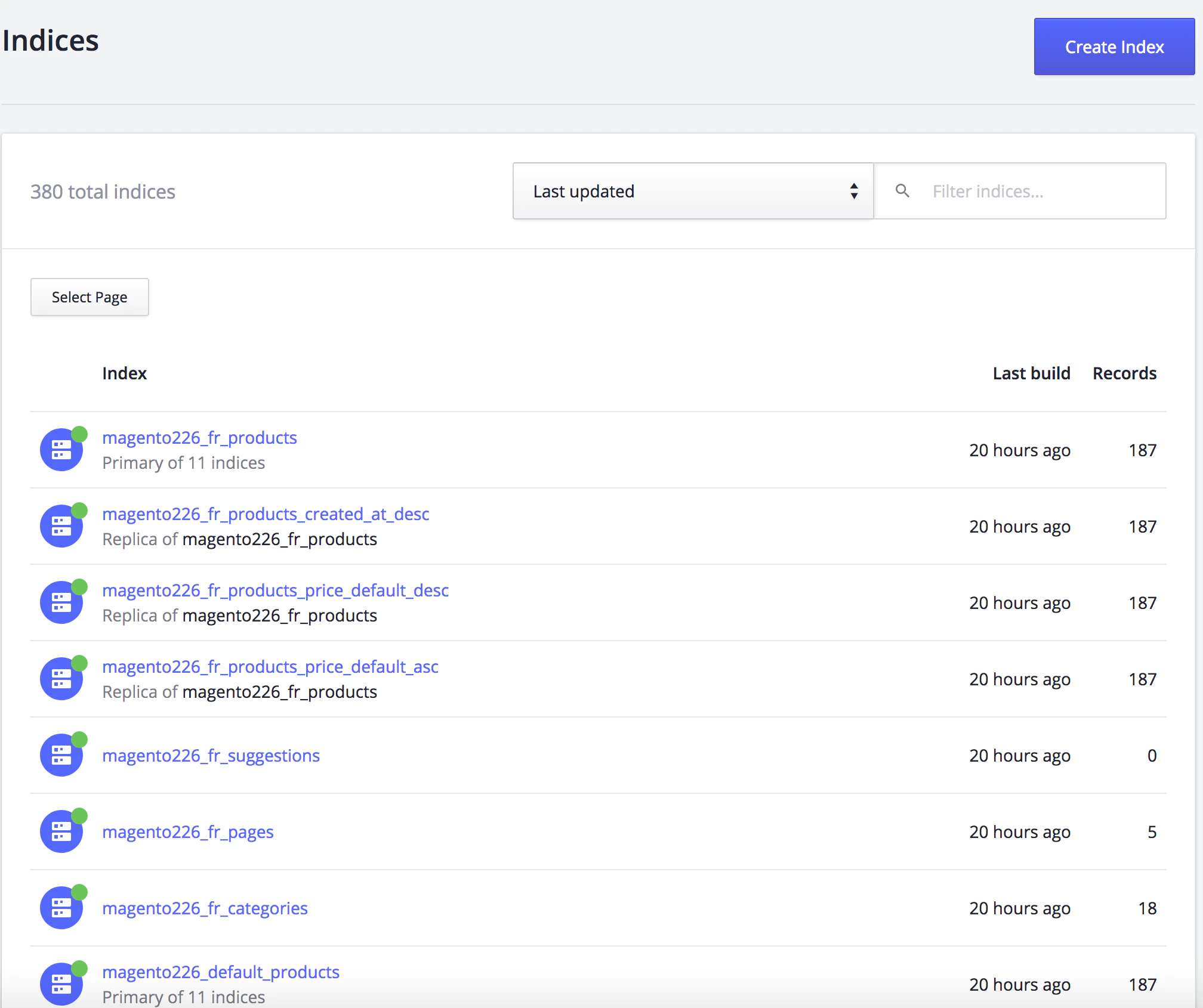
Algolia's [dashboard](https://dashboard.algolia.com/dashboard) provides insight into how the Magento extension uses indices.
Indices created by the extension depend on how Magento configures indices for products, categories, and additional sections. The index name is influenced by the **index name prefix** defined in the Magento configuration.
If you use the extension in production, you probably want to use it in an acceptance/staging or development environment.
Defining meaningful prefixes to identify instantly "which index belongs to which environment" is good practice,
resulting in indices like `prod_magento`, `staging_magento`, and
`dev_magento`.
To ensure accurate indexing, configure your Adobe Commerce and Magento Open Source setup correctly.
This helps you anticipate [the number of indices created](https://dashboard.algolia.com/explorer/indices) by the Algolia AI Search & Discovery extension.
If the number of indices doesn't match your expectations,
check your configuration settings.
Modifying sorting directly affects the number of created .
### Indices
Algolia's [dashboard](https://dashboard.algolia.com/dashboard) provides insight into how the Magento extension uses indices.
Indices created by the extension depend on how Magento configures indices for products, categories, and additional sections. The index name is influenced by the **index name prefix** defined in the Magento configuration.
If you use the extension in production, you probably want to use it in an acceptance/staging or development environment.
Defining meaningful prefixes to identify instantly "which index belongs to which environment" is good practice,
resulting in indices like `prod_magento`, `staging_magento`, and
`dev_magento`.
To ensure accurate indexing, configure your Adobe Commerce and Magento Open Source setup correctly.
This helps you anticipate [the number of indices created](https://dashboard.algolia.com/explorer/indices) by the Algolia AI Search & Discovery extension.
If the number of indices doesn't match your expectations,
check your configuration settings.
 ### Incorrect configuration
The following are examples of Magento configurations that can lead to an unexpected number of indices.
#### Different configuration on store view or website level
Magento allows users to define a default configuration *and* a configuration for a specific store view or website. You can configure some extension settings this way too.
For example, you can sort differently on two websites in the same Magento installation, creating a different number of indices for these two websites. Since Magento only displays the default configuration when landing on the settings page, this manual configuration can be overlooked, especially with more than one administrator.
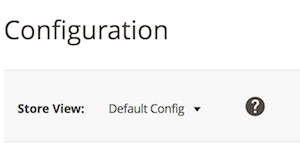
If an unexpected number of indices is created, ensure no unwanted configuration has been set by **switching from the default settings to a store view or a website-specific configuration**.
### Incorrect configuration
The following are examples of Magento configurations that can lead to an unexpected number of indices.
#### Different configuration on store view or website level
Magento allows users to define a default configuration *and* a configuration for a specific store view or website. You can configure some extension settings this way too.
For example, you can sort differently on two websites in the same Magento installation, creating a different number of indices for these two websites. Since Magento only displays the default configuration when landing on the settings page, this manual configuration can be overlooked, especially with more than one administrator.
If an unexpected number of indices is created, ensure no unwanted configuration has been set by **switching from the default settings to a store view or a website-specific configuration**.
 #### All stores configuration
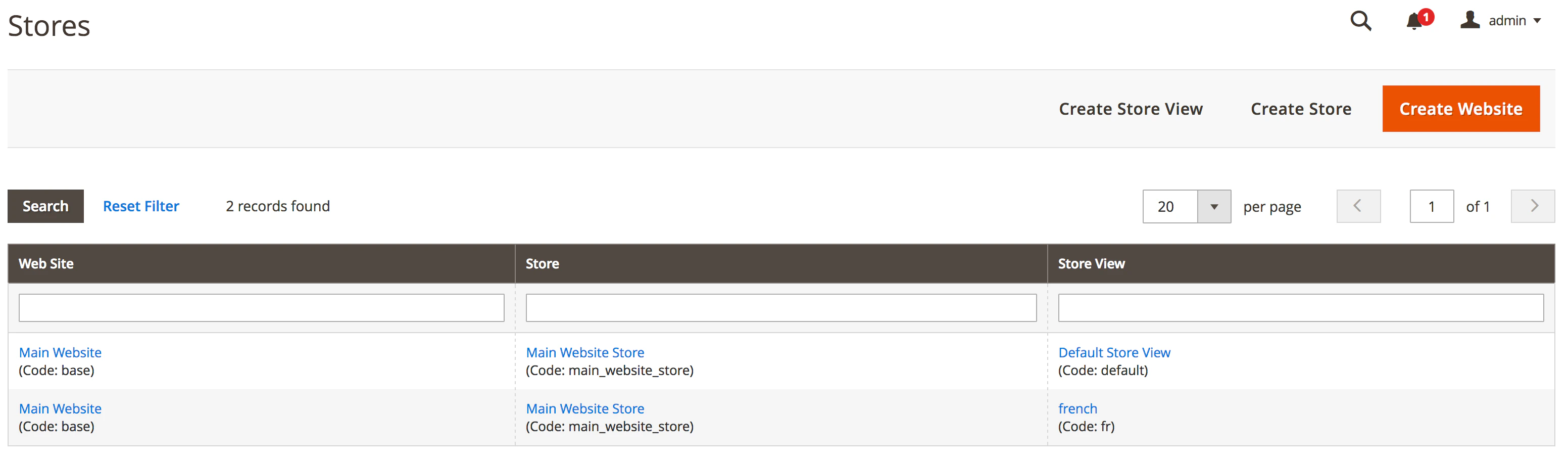
The extension adheres to [Magento's list of websites, stores, and views](https://experienceleague.adobe.com/docs/commerce-operations/configuration-guide/multi-sites/ms-admin.html). Find these by going to **Stores > Settings > All Stores**.
If you have a multilingual site that uses the extension, every language needs its own indices, and the total number of indices can significantly increase because of this.
#### All stores configuration
The extension adheres to [Magento's list of websites, stores, and views](https://experienceleague.adobe.com/docs/commerce-operations/configuration-guide/multi-sites/ms-admin.html). Find these by going to **Stores > Settings > All Stores**.
If you have a multilingual site that uses the extension, every language needs its own indices, and the total number of indices can significantly increase because of this.
 #### Customer group configuration
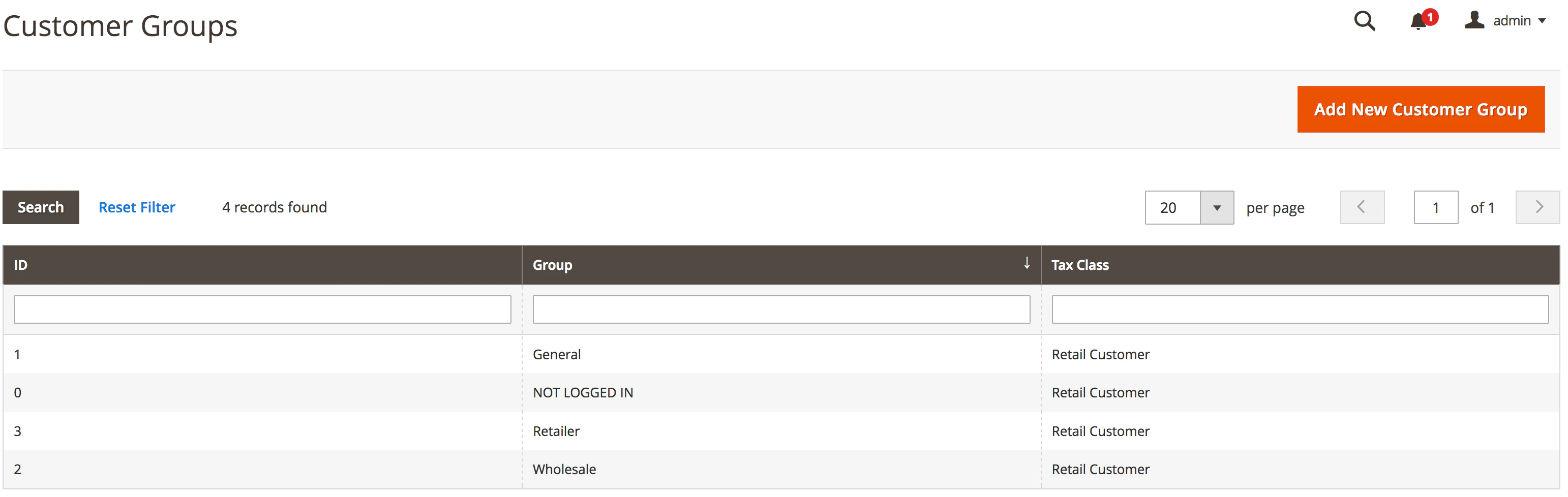
By default, Magento creates a set of four customer groups (*General*, *Not logged in*, *Retailer*, and *Wholesale*). Third-party extensions can create their own customer groups in the Magento installation, sometimes even hundreds of them.
The extension lets you manage customer groups in the *advanced* section of the configuration.
Be careful when enabling this feature. Every customer group will create new replica indices for every sort-by-price option, per store.
If a third-party extension creates hundreds of customer groups, Algolia's extension will create hundreds more indices **per store view**.
#### Customer group configuration
By default, Magento creates a set of four customer groups (*General*, *Not logged in*, *Retailer*, and *Wholesale*). Third-party extensions can create their own customer groups in the Magento installation, sometimes even hundreds of them.
The extension lets you manage customer groups in the *advanced* section of the configuration.
Be careful when enabling this feature. Every customer group will create new replica indices for every sort-by-price option, per store.
If a third-party extension creates hundreds of customer groups, Algolia's extension will create hundreds more indices **per store view**.
 ### Out of sync data
If it seems like data isn't being pushed to Algolia's servers:
1. An error may have occurred during the indexing process: [investigate the logs](#investigate-the-logs)
2. If the indexing queue is turned on, there could be [a queue processing problem](#the-queue-may-be-stuck)
3. The product or category being indexed has a particular status preventing it from being indexed.
Read about the requirements for a [product](/doc/integration/magento-2/how-it-works/indexing#indexable-products) or [category](/doc/integration/magento-2/how-it-works/indexing#index-categories) to be indexed in the [indexing](/doc/integration/magento-2/how-it-works/indexing) guide.
#### Debug missing products or categories
If your data isn't showing up but meets the requirements listed on the [indexing](/doc/integration/magento-2/how-it-works/indexing) page:
1. Go to the Magento back-office and find the product or category missing.
2. Save the item without changing anything. This should trigger the Magento `save` event and send any data that requires updating to Algolia's servers. This also works if the indexing queue is turned off.
3. Go to Algolia's [dashboard](https://dashboard.algolia.com/dashboard).
4. Check if the extension has updated the product or category. Find the index, look up the product/category and check the `algoliaLastUpdateAtCET` attribute. This attribute contains the date and time the records were updated (Central European Time).
### Out of sync data
If it seems like data isn't being pushed to Algolia's servers:
1. An error may have occurred during the indexing process: [investigate the logs](#investigate-the-logs)
2. If the indexing queue is turned on, there could be [a queue processing problem](#the-queue-may-be-stuck)
3. The product or category being indexed has a particular status preventing it from being indexed.
Read about the requirements for a [product](/doc/integration/magento-2/how-it-works/indexing#indexable-products) or [category](/doc/integration/magento-2/how-it-works/indexing#index-categories) to be indexed in the [indexing](/doc/integration/magento-2/how-it-works/indexing) guide.
#### Debug missing products or categories
If your data isn't showing up but meets the requirements listed on the [indexing](/doc/integration/magento-2/how-it-works/indexing) page:
1. Go to the Magento back-office and find the product or category missing.
2. Save the item without changing anything. This should trigger the Magento `save` event and send any data that requires updating to Algolia's servers. This also works if the indexing queue is turned off.
3. Go to Algolia's [dashboard](https://dashboard.algolia.com/dashboard).
4. Check if the extension has updated the product or category. Find the index, look up the product/category and check the `algoliaLastUpdateAtCET` attribute. This attribute contains the date and time the records were updated (Central European Time).
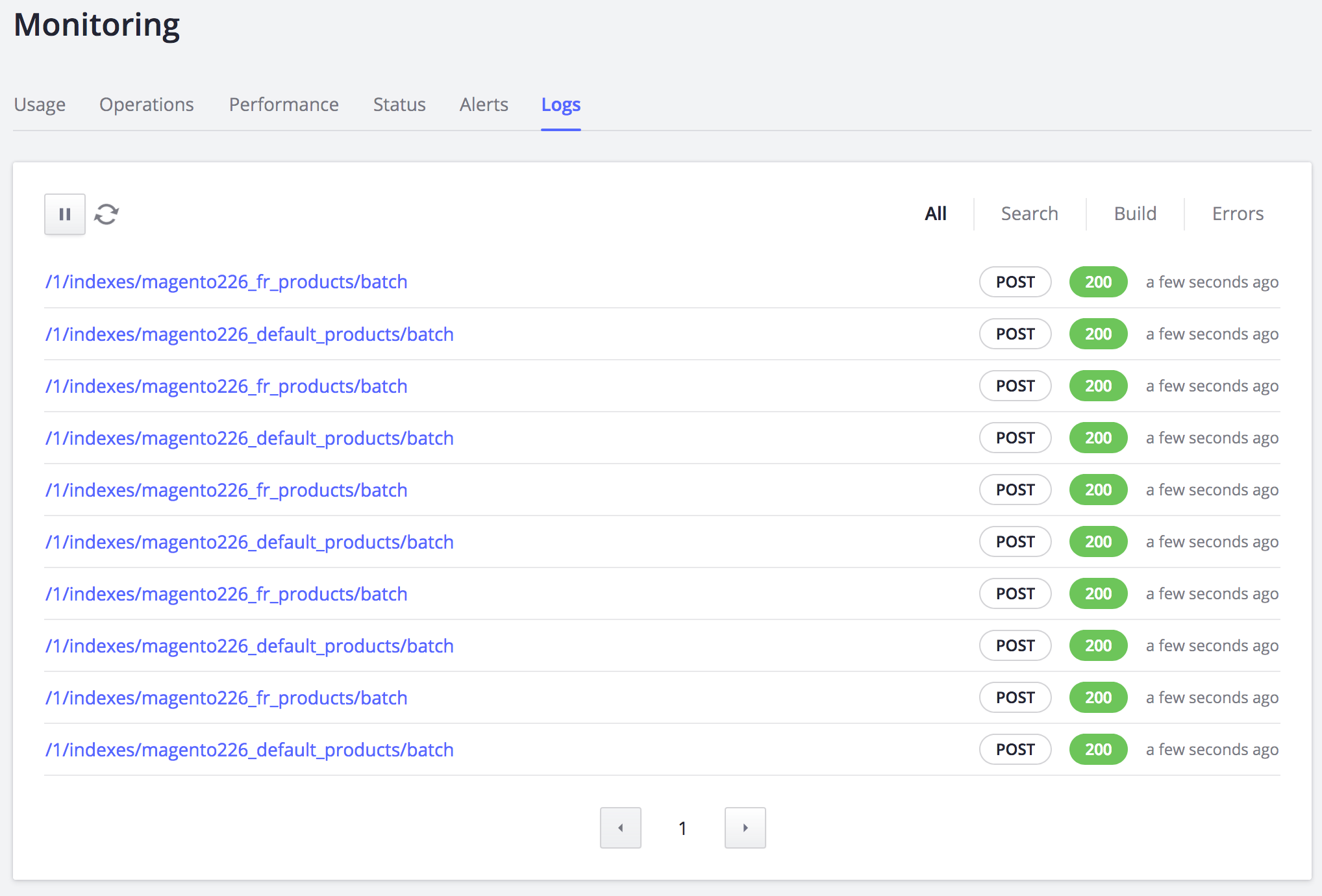
 5. If products are still out of sync, check the logs on Algolia's dashboard: go to [API Monitoring > Search API Logs](https://dashboard.algolia.com/monitoring/logs). Reindexing triggers a POST request that should appear at the top of the list. The URL should be something like `/1/indexes/[INDEX_NAME]/batch`. By clicking the link, the request details will show up. The extension successfully sent the record to Algolia's servers if you can see the attributes in the **Request body** tab (under the *AddObject* action).
 6. If the attributes aren't updated, *and* the `algoliaLastUpdateAtCET` attribute in the index's object isn't updated, use the [SKU reindexing form](/doc/integration/magento-2/how-it-works/sku-reindexing-form). This form gives you feedback on *why* the product hasn't updated.
#### Third-party extensions
The extension uses Magento's [plug-in system](https://developer.adobe.com/commerce/php/development/components/plugins) to apply Algolia's logic to the following Magento classes:
* `Magento\Catalog\Model\ResourceModel\Product`
* `Magento\Catalog\Model\Product\Action`
* `Magento\CatalogInventory\Model\ResourceModel\Stock\Item`
* `Magento\Catalog\Model\ResourceModel\Category`
* `Magento\Catalog\Model\Category\Action`
Any third-party extension that updates resources **without** triggering Magento's `save` events on the preceding classes will break the real-time updating of the catalog. To fix this, you must manually trigger reindexing.
#### Updates aren't sent to Algolia
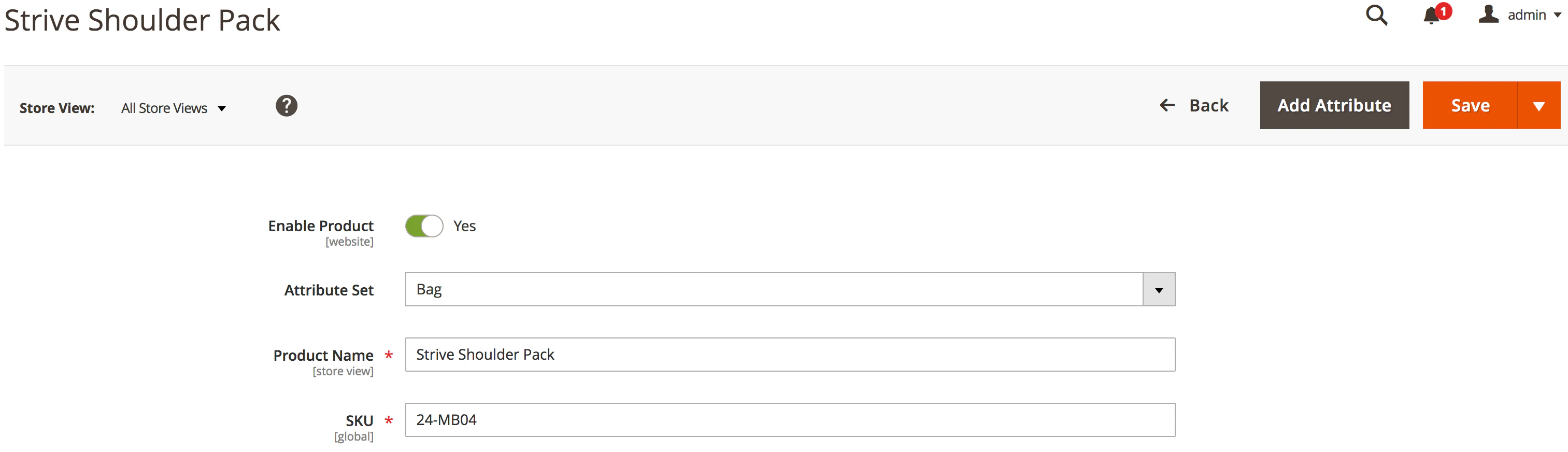
If the data in Algolia's [dashboard](https://dashboard.algolia.com/dashboard) has unexpected values, look at the attributes specific to the store view or website. The extension respects settings set at the store view and website level, which may override the default settings. To check if this is the case, change the view to show the store view or website setting by using Magento's store switcher (top-left corner of the window).
6. If the attributes aren't updated, *and* the `algoliaLastUpdateAtCET` attribute in the index's object isn't updated, use the [SKU reindexing form](/doc/integration/magento-2/how-it-works/sku-reindexing-form). This form gives you feedback on *why* the product hasn't updated.
#### Third-party extensions
The extension uses Magento's [plug-in system](https://developer.adobe.com/commerce/php/development/components/plugins) to apply Algolia's logic to the following Magento classes:
* `Magento\Catalog\Model\ResourceModel\Product`
* `Magento\Catalog\Model\Product\Action`
* `Magento\CatalogInventory\Model\ResourceModel\Stock\Item`
* `Magento\Catalog\Model\ResourceModel\Category`
* `Magento\Catalog\Model\Category\Action`
Any third-party extension that updates resources **without** triggering Magento's `save` events on the preceding classes will break the real-time updating of the catalog. To fix this, you must manually trigger reindexing.
#### Updates aren't sent to Algolia
If the data in Algolia's [dashboard](https://dashboard.algolia.com/dashboard) has unexpected values, look at the attributes specific to the store view or website. The extension respects settings set at the store view and website level, which may override the default settings. To check if this is the case, change the view to show the store view or website setting by using Magento's store switcher (top-left corner of the window).
 ## Investigate the logs
Figure out if your indexing process generates errors.
Since the process can be asynchronous, errors can happen without you being aware.
During the asynchronous indexing process, the extension generates temporary indices suffixed by `_tmp`.
For example, if the main product index is `magento_products_default`,
the extension will generate an index named `magento_products_default_tmp`.
This feature is enabled by default.
To change this setting,
go to **Stores > Configuration > Algolia Search > Indexing Queue / Cron** and update **Use a temporary index for full products reindex**.
The temporary indices are created to do an [atomic reindex](/doc/libraries/sdk/v1/methods/replace-all-objects) to prevent production indices from being corrupted.
Because the temporary index is only swapped *after* the whole process completes, if there is an error, the temporary index will still exist.
Check Algolia's [dashboard](https://dashboard.algolia.com/dashboard) to see if any indices end with a `_tmp` suffix and **haven't been updated in a while**.
All errors are logged by default in Magento.
The `var/log` folder in the Magento installation contains two log files:
* `system.log`
* `exception.log`
If you want to see if anything gets logged during the indexing process,
run the following command from the terminal (from the root folder of the Magento installation) before re-running the indexing process again:
```sh Command line icon=square-terminal theme={"system"}
tail -f var/log/system.log var/log/exception.log
```
The error messages in the log will help you pinpoint the issue's source.
You can also request [more detailed logging](/doc/integration/magento-2/customize/logging-and-debugging) during the indexing process.
## Detailed logging
Enable [detailed logging](/doc/integration/magento-2/customize/logging-and-debugging) to provide additional information about how Magento
indexes your data.
As of version `3.15` this information is written to `var/log/algolia.log`. To monitor this during indexing operations, run the following command from the root folder of the Magento installation:
```sh Command line icon=square-terminal theme={"system"}
tail -f var/log/algolia.log
```
## `deleteObject` requests
If the Algolia indexing process determines that a product [shouldn't be visible](/doc/integration/magento-2/how-it-works/indexing#indexable-products) on the storefront or if it fails to find a corresponding record in the [Magento price index](/doc/integration/magento-2/troubleshooting/data-indexes-queues#price-index-dependencies),
Algolia treats this as a removed product and issues a [`deleteObject` request](/doc/rest-api/search/delete-object).
If this is unexpected, use [detailed logging](#detailed-logging) to investigate the cause and take appropriate steps to address it.
After enabling logging, inspect the logs for the message `BEGIN REMOVE FROM ALGOLIA`:
## Investigate the logs
Figure out if your indexing process generates errors.
Since the process can be asynchronous, errors can happen without you being aware.
During the asynchronous indexing process, the extension generates temporary indices suffixed by `_tmp`.
For example, if the main product index is `magento_products_default`,
the extension will generate an index named `magento_products_default_tmp`.
This feature is enabled by default.
To change this setting,
go to **Stores > Configuration > Algolia Search > Indexing Queue / Cron** and update **Use a temporary index for full products reindex**.
The temporary indices are created to do an [atomic reindex](/doc/libraries/sdk/v1/methods/replace-all-objects) to prevent production indices from being corrupted.
Because the temporary index is only swapped *after* the whole process completes, if there is an error, the temporary index will still exist.
Check Algolia's [dashboard](https://dashboard.algolia.com/dashboard) to see if any indices end with a `_tmp` suffix and **haven't been updated in a while**.
All errors are logged by default in Magento.
The `var/log` folder in the Magento installation contains two log files:
* `system.log`
* `exception.log`
If you want to see if anything gets logged during the indexing process,
run the following command from the terminal (from the root folder of the Magento installation) before re-running the indexing process again:
```sh Command line icon=square-terminal theme={"system"}
tail -f var/log/system.log var/log/exception.log
```
The error messages in the log will help you pinpoint the issue's source.
You can also request [more detailed logging](/doc/integration/magento-2/customize/logging-and-debugging) during the indexing process.
## Detailed logging
Enable [detailed logging](/doc/integration/magento-2/customize/logging-and-debugging) to provide additional information about how Magento
indexes your data.
As of version `3.15` this information is written to `var/log/algolia.log`. To monitor this during indexing operations, run the following command from the root folder of the Magento installation:
```sh Command line icon=square-terminal theme={"system"}
tail -f var/log/algolia.log
```
## `deleteObject` requests
If the Algolia indexing process determines that a product [shouldn't be visible](/doc/integration/magento-2/how-it-works/indexing#indexable-products) on the storefront or if it fails to find a corresponding record in the [Magento price index](/doc/integration/magento-2/troubleshooting/data-indexes-queues#price-index-dependencies),
Algolia treats this as a removed product and issues a [`deleteObject` request](/doc/rest-api/search/delete-object).
If this is unexpected, use [detailed logging](#detailed-logging) to investigate the cause and take appropriate steps to address it.
After enabling logging, inspect the logs for the message `BEGIN REMOVE FROM ALGOLIA`:
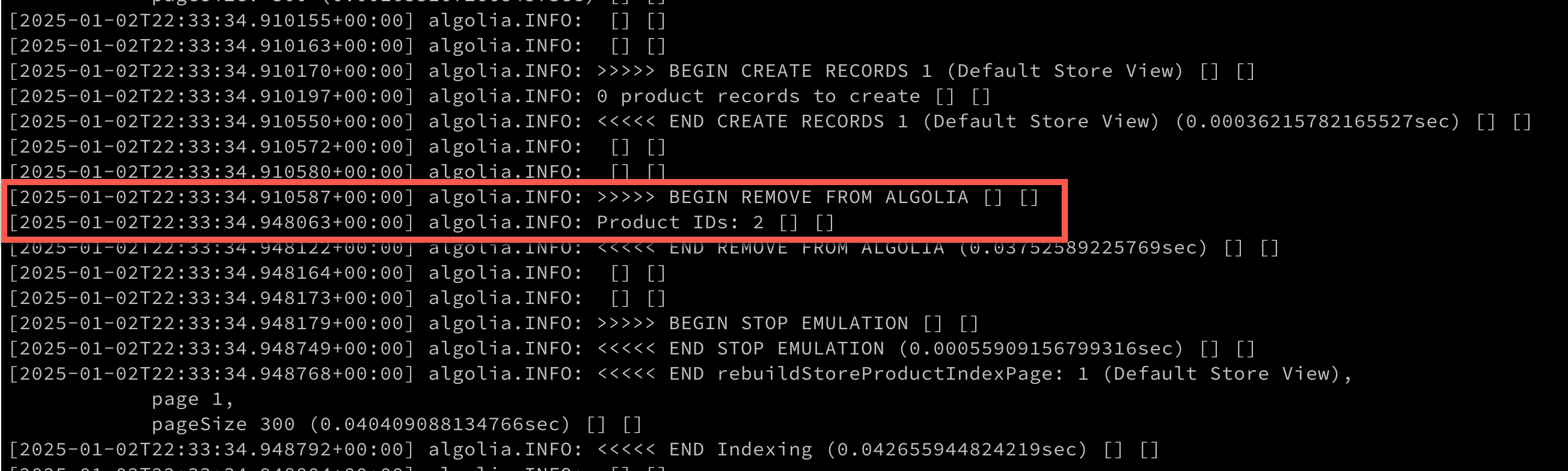 If record removal is happening for products that should normally be visible, you should [enable automatic price indexing](/doc/integration/magento-2/troubleshooting/data-indexes-queues#price-index-dependencies).
## The queue may be stuck
If the data in your index isn't up-to-date, your indexing queue may be stuck. The queue relies on one of [Magento's indexers](https://developer.adobe.com/commerce/php/development/components/indexing), added by the extension: the `algolia_queue_runner`.
Ensure the Magento indexer is "ready" by running the following in the command line:
```sh Command line icon=square-terminal theme={"system"}
php bin/magento indexer:status algolia_queue_runner
```
If the status of the queue is "processing" for a long time, it may need to be reset by running the following in the command line:
```sh Command line icon=square-terminal theme={"system"}
php bin/magento indexer:reset algolia_queue_runner
```
### Monitor the queue
From version 1.8 of the extension, there's a monitoring page (at **Stores > Algolia Search > Indexing Queue**). This page contains a grid displaying the contents of the indexing queue. It lets you monitor the number of operations the queue needs to perform.
If record removal is happening for products that should normally be visible, you should [enable automatic price indexing](/doc/integration/magento-2/troubleshooting/data-indexes-queues#price-index-dependencies).
## The queue may be stuck
If the data in your index isn't up-to-date, your indexing queue may be stuck. The queue relies on one of [Magento's indexers](https://developer.adobe.com/commerce/php/development/components/indexing), added by the extension: the `algolia_queue_runner`.
Ensure the Magento indexer is "ready" by running the following in the command line:
```sh Command line icon=square-terminal theme={"system"}
php bin/magento indexer:status algolia_queue_runner
```
If the status of the queue is "processing" for a long time, it may need to be reset by running the following in the command line:
```sh Command line icon=square-terminal theme={"system"}
php bin/magento indexer:reset algolia_queue_runner
```
### Monitor the queue
From version 1.8 of the extension, there's a monitoring page (at **Stores > Algolia Search > Indexing Queue**). This page contains a grid displaying the contents of the indexing queue. It lets you monitor the number of operations the queue needs to perform.
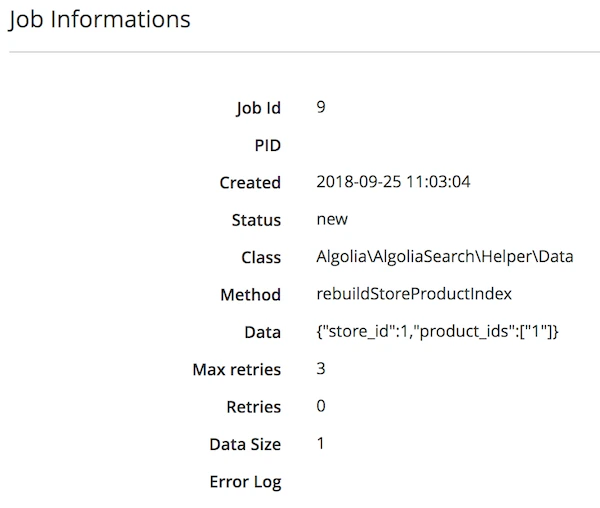
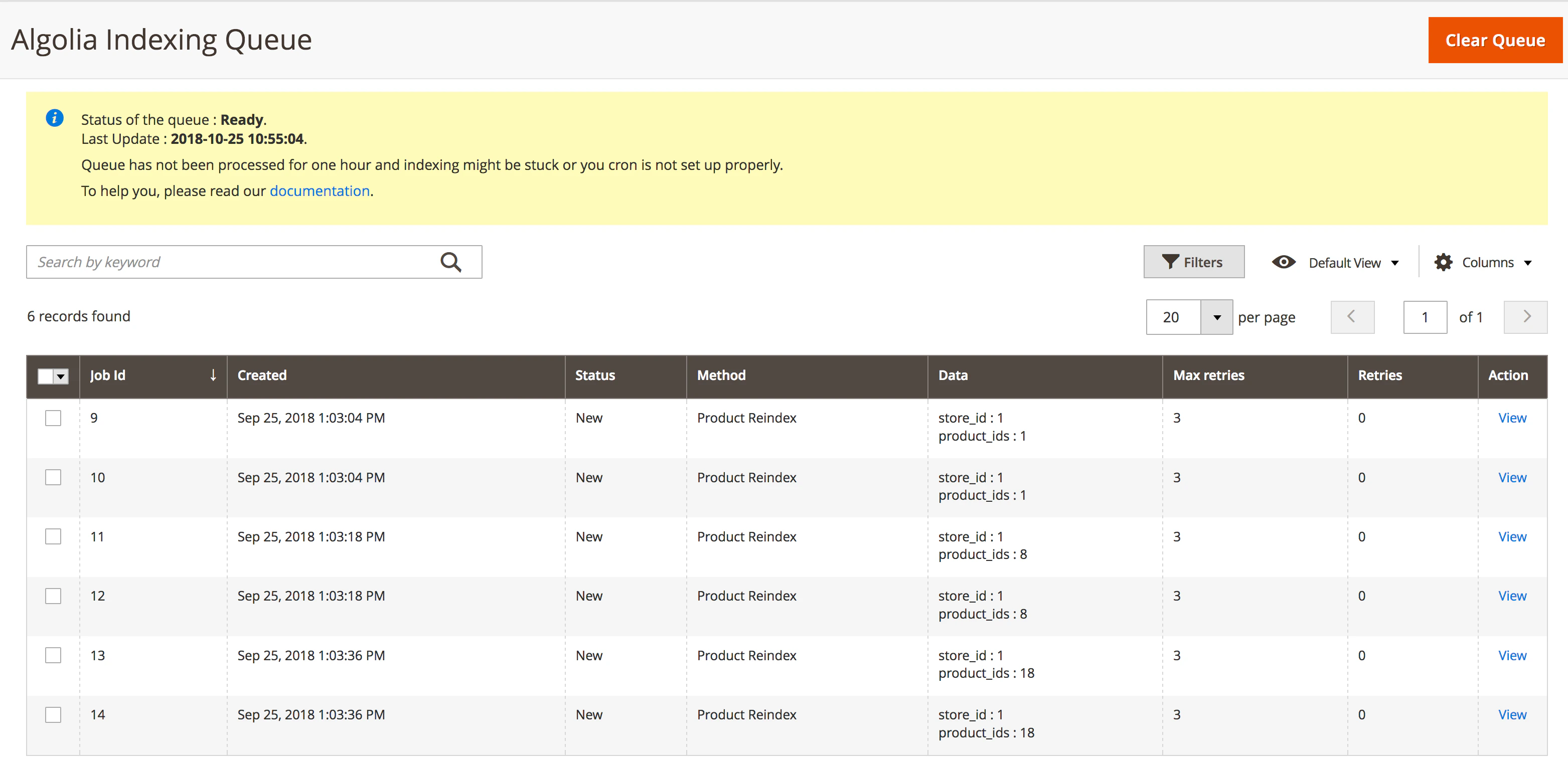 You can see details of each operation by clicking the 'view' link. Any error occurring during the job is logged in the *Error Log* attribute.
 At the top of the page, the **recommendations** section helps you configure and optimize the queue in the best way possible.
If the indexing queue performs as expected, the number of jobs should decrease every 5 minutes: refresh the page to check this.
If the number of operations doesn't decrease, ensure that the [queue](/doc/integration/magento-2/how-it-works/indexing-queue#process-the-queue) is correctly set up.
From version 1.8 of the extension, any failing operation that reached the maximum number of retries is archived in the **algoliasearch\_queue\_archive** table. This is another good place to check for error logs since the last encountered error is stored along with the job.
## Migrate to granular virtual replicas
Version 3.14.0 of the extension introduces the ability to granularly activate virtual replicas for [sorting strategies](/doc/integration/magento-2/how-it-works/indexing#sorting-strategies) at the attribute level for default, website and store view scope.
Previous versions of the extension implemented a single "Yes/No" configuration to activate virtual replicas that weren't store-scope sensitive and would transform all sorting replicas from standard to virtual if enabled.
This was problematic because a Magento instance with many replicas could exceed the [limit of 20 virtual replicas per index](/doc/guides/scaling/algolia-service-limits#application-record-and-index-limits).
This is especially true for stores with a large number of customer groups since a sorting replica index must be created for each pricing group.
You can now set up your replicas how you want, without writing any code.
### Migrate old configuration data
This old configuration must be migrated when upgrading to 3.14.x but potential problems may arise if the previous replica configuration isn't correct.
To address this, it's important to run the following command when [performing an upgrade](/doc/integration/magento-2/getting-started/upgrading):
```sh Command line icon=square-terminal theme={"system"}
bin/magento setup:upgrade
```
This process will attempt to migrate to the new configuration and alert you if any problems with the upgrade are encountered.
At the top of the page, the **recommendations** section helps you configure and optimize the queue in the best way possible.
If the indexing queue performs as expected, the number of jobs should decrease every 5 minutes: refresh the page to check this.
If the number of operations doesn't decrease, ensure that the [queue](/doc/integration/magento-2/how-it-works/indexing-queue#process-the-queue) is correctly set up.
From version 1.8 of the extension, any failing operation that reached the maximum number of retries is archived in the **algoliasearch\_queue\_archive** table. This is another good place to check for error logs since the last encountered error is stored along with the job.
## Migrate to granular virtual replicas
Version 3.14.0 of the extension introduces the ability to granularly activate virtual replicas for [sorting strategies](/doc/integration/magento-2/how-it-works/indexing#sorting-strategies) at the attribute level for default, website and store view scope.
Previous versions of the extension implemented a single "Yes/No" configuration to activate virtual replicas that weren't store-scope sensitive and would transform all sorting replicas from standard to virtual if enabled.
This was problematic because a Magento instance with many replicas could exceed the [limit of 20 virtual replicas per index](/doc/guides/scaling/algolia-service-limits#application-record-and-index-limits).
This is especially true for stores with a large number of customer groups since a sorting replica index must be created for each pricing group.
You can now set up your replicas how you want, without writing any code.
### Migrate old configuration data
This old configuration must be migrated when upgrading to 3.14.x but potential problems may arise if the previous replica configuration isn't correct.
To address this, it's important to run the following command when [performing an upgrade](/doc/integration/magento-2/getting-started/upgrading):
```sh Command line icon=square-terminal theme={"system"}
bin/magento setup:upgrade
```
This process will attempt to migrate to the new configuration and alert you if any problems with the upgrade are encountered.
 If this happens it's best to reset all replicas to the standard configuration with `algolia:replicas:disable-virtual-replicas` and rerun `setup:upgrade`.
### CLI tools
A set of CLI tools has now been provided to assist with this. You can view what's available with the following command:
```sh Command line icon=square-terminal theme={"system"}
bin/magento list | grep algolia
```
If this happens it's best to reset all replicas to the standard configuration with `algolia:replicas:disable-virtual-replicas` and rerun `setup:upgrade`.
### CLI tools
A set of CLI tools has now been provided to assist with this. You can view what's available with the following command:
```sh Command line icon=square-terminal theme={"system"}
bin/magento list | grep algolia
```
 To get help on an individual command run:
```sh Command line icon=square-terminal theme={"system"}
bin/magento help algolia:replicas:
```
The command to reset all sorting strategies to standard replicas is:
```sh Command line icon=square-terminal theme={"system"}
bin/magento algolia:replicas:disable-virtual-replicas
```
To get help on an individual command run:
```sh Command line icon=square-terminal theme={"system"}
bin/magento help algolia:replicas:
```
The command to reset all sorting strategies to standard replicas is:
```sh Command line icon=square-terminal theme={"system"}
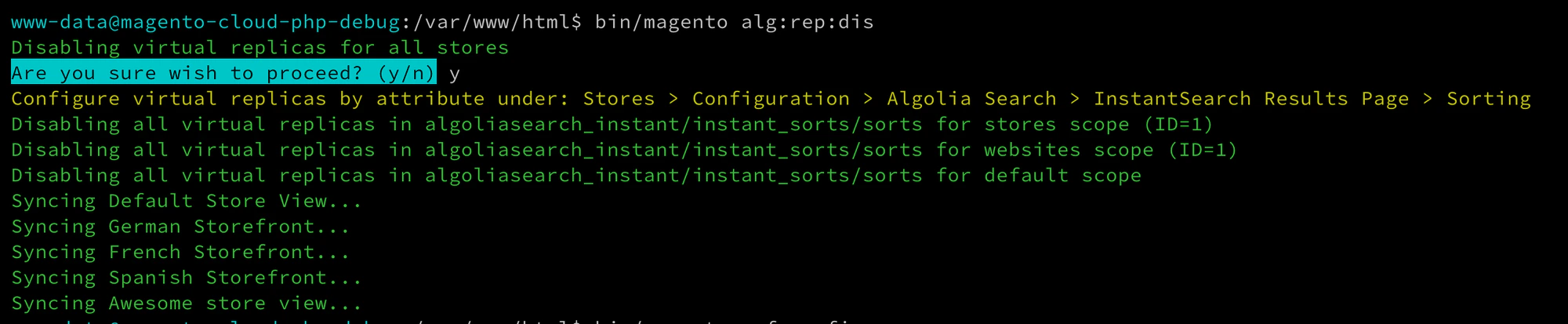
bin/magento algolia:replicas:disable-virtual-replicas
```
 ### Magento admin updates
In the future, while making changes to the Algolia configuration in your store's Admin (such as adding sorting strategies or enabling customer group pricing support), you may run into the replica limit again.
### Magento admin updates
In the future, while making changes to the Algolia configuration in your store's Admin (such as adding sorting strategies or enabling customer group pricing support), you may run into the replica limit again.
 The extension doesn't let you save an invalid configuration: make the needed adjustments and try saving your changes again.
### Rebuild replica data
Your store's Admin automatically handles the creation, modification, and deletion of standard and virtual replicas.
If your replica configuration in Algolia ever becomes corrupted or out of sync with Magento, or if the save operation from your store's Admin doesn't work as expected, you can fully rebuild your replica configuration with the following command:
```sh Command line icon=square-terminal theme={"system"}
bin/magento algolia:replicas:rebuild
```
### Understand the Algolia replica configuration
The extension will update the Algolia index `replicas` setting for the corresponding product index for each Algolia-enabled store view in Magento.
Typically, the replica indices that are created are a one-to-one relationship with the sorting strategies defined in your store's Admin:
But if customer groups are enabled for the store, the number of indices required for the pricing sorts is multiplied by the number of customer groups in Magento.
Other processes (such as those used by the [Merchandising Studio](/doc/integration/magento-2/merchandising/merchandising-studio) and the Algolia Dashboard) may create replicas in addition to the ones that the Magento extension creates.
To avoid the extension overwriting other Algolia indices, don't give them a prefix that might be mistaken as being [managed by Magento](/doc/integration/magento-2/getting-started/quick-start).
Here's an example of how various replica configurations might look (the Magento-managed indices are distinguished by the prefix `magento2_dev_`.)
The extension doesn't let you save an invalid configuration: make the needed adjustments and try saving your changes again.
### Rebuild replica data
Your store's Admin automatically handles the creation, modification, and deletion of standard and virtual replicas.
If your replica configuration in Algolia ever becomes corrupted or out of sync with Magento, or if the save operation from your store's Admin doesn't work as expected, you can fully rebuild your replica configuration with the following command:
```sh Command line icon=square-terminal theme={"system"}
bin/magento algolia:replicas:rebuild
```
### Understand the Algolia replica configuration
The extension will update the Algolia index `replicas` setting for the corresponding product index for each Algolia-enabled store view in Magento.
Typically, the replica indices that are created are a one-to-one relationship with the sorting strategies defined in your store's Admin:
But if customer groups are enabled for the store, the number of indices required for the pricing sorts is multiplied by the number of customer groups in Magento.
Other processes (such as those used by the [Merchandising Studio](/doc/integration/magento-2/merchandising/merchandising-studio) and the Algolia Dashboard) may create replicas in addition to the ones that the Magento extension creates.
To avoid the extension overwriting other Algolia indices, don't give them a prefix that might be mistaken as being [managed by Magento](/doc/integration/magento-2/getting-started/quick-start).
Here's an example of how various replica configurations might look (the Magento-managed indices are distinguished by the prefix `magento2_dev_`.)
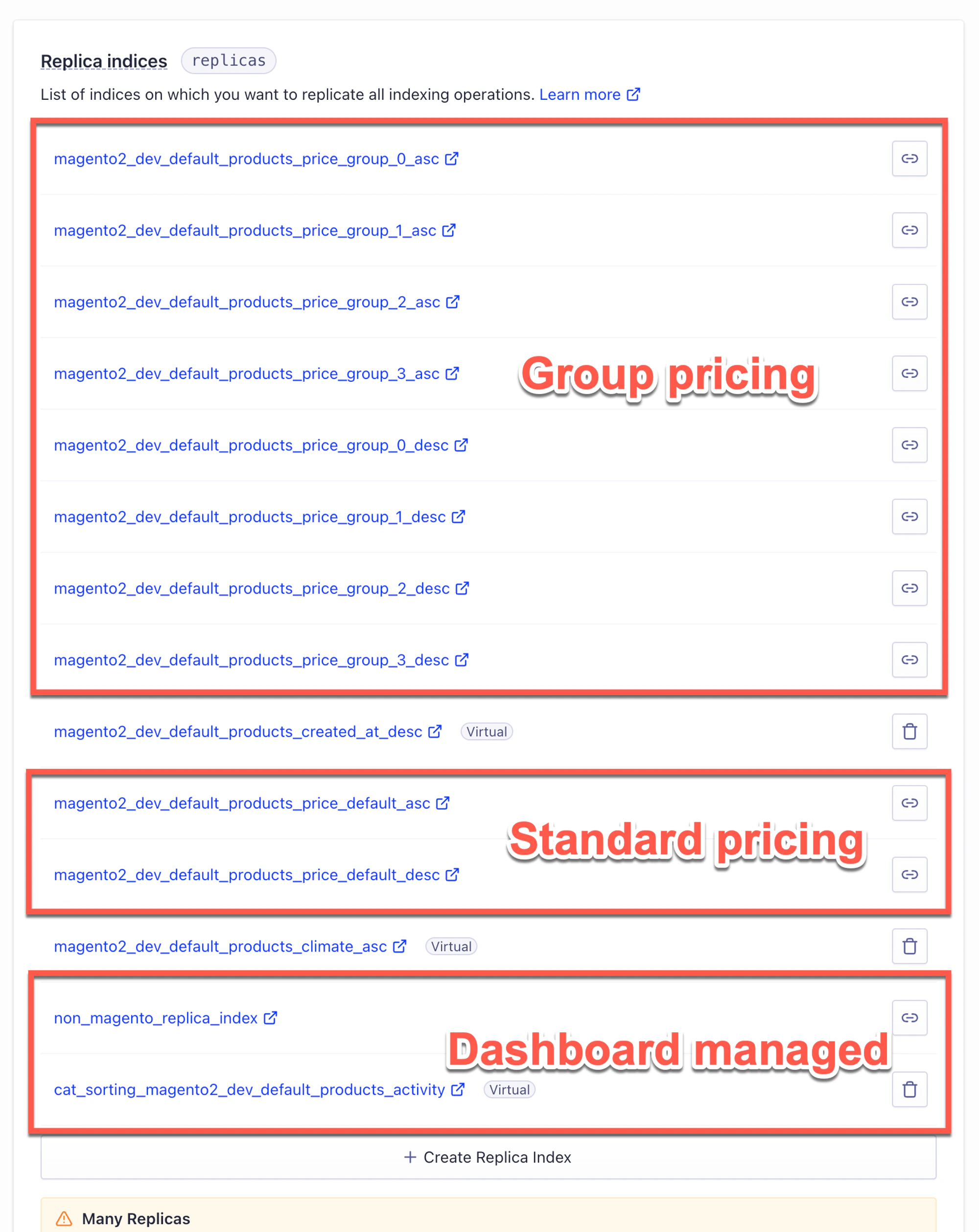 In the preceding example (which is purely for illustrative purposes), the Magento managed indices are distinguished by the prefix `magento2_dev_`.
**See also:** [Shared Catalogs](/doc/integration/magento-2/how-it-works/shared-catalogs).
## How to update the PHP client connection time
To access the configuration page for Algolia in your Magento project, go to **Stores > Algolia Search > Advanced** in the Admin panel.
From there, you can modify the connection, read, and write timeouts.
In the preceding example (which is purely for illustrative purposes), the Magento managed indices are distinguished by the prefix `magento2_dev_`.
**See also:** [Shared Catalogs](/doc/integration/magento-2/how-it-works/shared-catalogs).
## How to update the PHP client connection time
To access the configuration page for Algolia in your Magento project, go to **Stores > Algolia Search > Advanced** in the Admin panel.
From there, you can modify the connection, read, and write timeouts.